
Multi-kernel Manager

Project description
Silik Kernel
A Jupyter Multi Kernel Manager, wrapped in a Jupyter Kernel 🙂 Because "who is more qualified to relay kernel messages than a kernel itself ?"
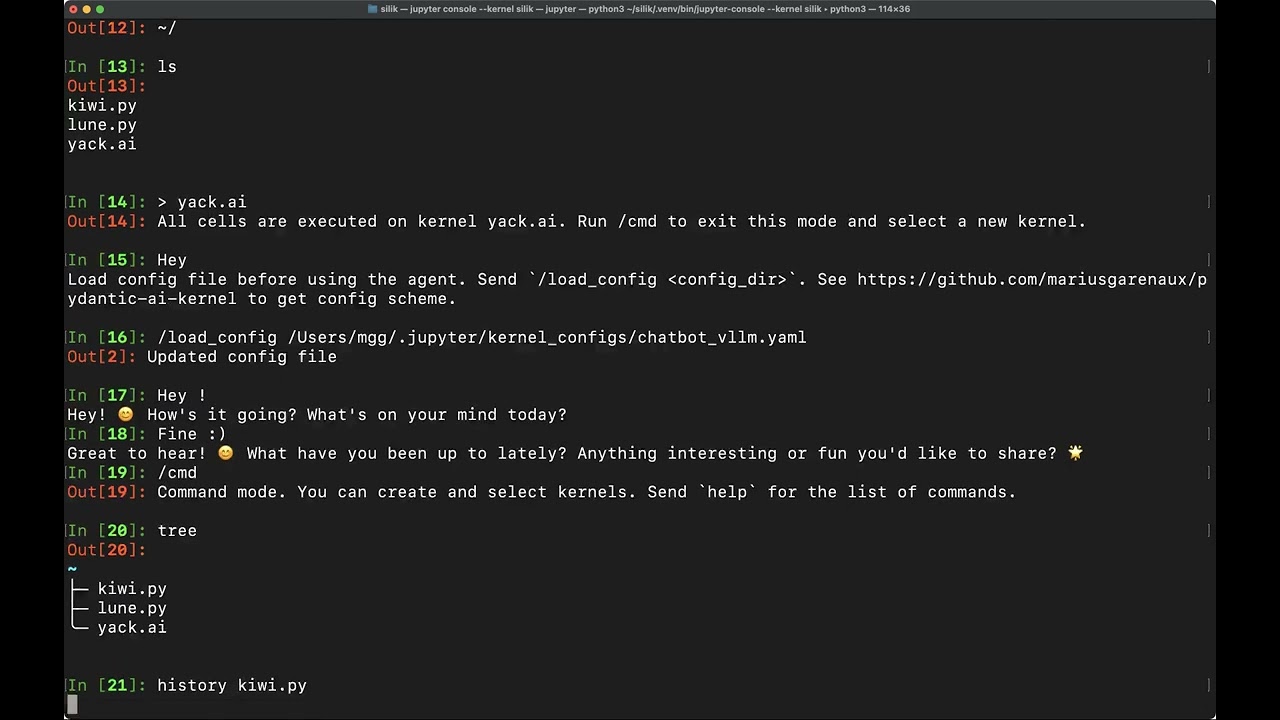
This is a jupyter kernel that allows to interface with multiple kernels, you can:
-
start, stop and restart kernels,
-
switch between kernels,
-
list available kernels,
-
connect to a living kernel,
-
organize all the kernels in fictive "directories"
All of this with simple command lines
A Silik Kernel can be in two modes :
-
commandmode : manage kernels (start, stop, ...), -
connectmode : connects to one kernel, and acts as a gateway with this kernel. Support for TAB completion, and propagation of most sockets messages is implemented here.
Any jupyter kernel can be accessed through silik-kernel
But managing interaction between kernels seems to be a nightmare ?
Not with Agents and LLM. In order to allow users to easily manage multi-kernels, we present a way to access AI agents through jupyter kernels. To do so, we provide a wrapper of a pydantic-ai agent in a kernel. This allows to interact easily with these agents, through ipython for example, and let them manage the output of cells.
It also allows to share agents easily (with pypi for example); because they can be shipped in a python module. We split properly the agent and the interaction framework with the agent, by reusing the ones from jupyter kernels.
Getting started
pip install silik-kernel
The kernel is then installed on the current python venv.
Any jupyter frontend should be able to access the kernel, for example :
• Notebook (you might need to restart the IDE) : select 'silik' on top right of the notebook
• CLI : Install jupyter-console (pip install jupyter-console); and run jupyter console --kernel silik
• Silik Signal Messaging : Access the kernel through Signal Message Application.
To use diverse kernels through silik, you can install some example kernels : https://github.com/Tariqve/jupyter-kernels. You can also create new agent-based kernel by subclassing pydantic-ai base kernel.
You can list the available kernels by running
jupyter kernelspec listin a terminal. Or with TAB completion ofstartcommand in a cell of a silik kernel.
Usage
Example
Install and start silik-kernel :
python -m venv .venv
source .venv/bin/activate
pip install silik-kernel
jupyter console --kernel silik
Within a cell :
new python3 --label k1
run "x = 19" k1.py
run "print(x)" k1.py
For persistent connection :
> k1.py
Now, all cells of silik kernel are directly transmitted to kernel k1.py. Try:
print(x)
Note : you can connect to an existing kernel (p.e. a kernel started from a jupyter notebook, ...). Use TAB completion from
newcommand to see examples of availables kernel connection files.
Usage Guide
To go from command mode to connect mode, you have to use the command :
> path_to_kernel
Since this changes the language of the following cells, it must not be mixed with the language of the kernel you connects to. The
> path_to_kernelneeds to run in a 'silik' cell. Andsilikcells can only contain silik code - not python, R, ... !
To run code on sub-kernel in a silik cell, you can use run "code" path_to_kernel command.
The following code :
new python3 --label k1
> k1.py
1+1
will stop at the second line; and not execute the last line.
You can not mix languages in a single cell
In command mode :
When you are in command mode, you can use TAB completion to display all commands and values for the arguments. Send help to silik kernel, or see here for the list of commands.
In connect mode
In connect mode, silik kernel acts as a gateway to the kernel selected on command mode.
Code execution : code from the cell is sent to the kernel through its shell channel, using Jupyter MultiKernelManager. Output is retrieved from the iopub channel, and sent to the front-end of silik-kernel. This comprises error messages, stream, display_data, execute_result, ... See jupyter_client documentation.
Code completion : TAB completion of the selected kernel is also connected to the silik frontend;
The only code which is not sent to sub kernel is
/cmd. This is the exit of connect mode.
Similar projects
Existing projects involving multi-kernel management already exists. The main one is SoS Polyglot Notebook. Silik kernel is very similar to this project. It uses too a "super-kernel" that allows to manage multiple kernels. To summarize, Silik has less features than SoS, but this is useful when it comes to manage multikernel from frontends that have less capabilities than jupyter notebooks.
The differences with silik are :
-
the dependency to the notebook format. SoS notebook can be used in any jupyter frontend, but is thought to be used with notebooks. Silik kernel was thought to be used through jupyter-console and/or signal messaging interface : frontends with less features than notebooks. We propose here a different user-interface for the management of several kernels.
-
beside the fact that Silik kernel is written in python; it does not run python cells as SoS notebook. It just runs silik commands.
-
we do not want the powerful data-exchange features of SoS-notebook. Instead, we focus on 'text-only' interactions, and we plan to take advantage of LLM's ability to deal with natural language in order to mix the different kernels. Using a weak interface (text) for kernel interactions gives less features than SoS-notebook, but comes with easier deployment.
More recently, several kernels managers based on MCP (Model Context Protocol) have emerged :
-
jupyter-mcp-server : a server that is accessible through the MCP protocol, to manage multiple kernels and notebooks. To our knowledge, the MCP server does not interact with a Jupyter Kernel, but directly manages Kernels.
-
jupyter-kernel-mcp: MCP server that allows to manage multi kernels. Unlike jupyter-mcp-server, it interact directly with jupyter kernels.
-
jupyter-code-executor-mcp-server : MCP server that allows to manage multi-kernels. Deals with notebooks and not with kernels directly.
The difference between these projects and silik-kernel is the fact that we wrapped the Kernel Manager itself in a Jupyter Kernel (similarly as SoS-notebooks). This allows to plug any jupyter frontend to the kernel manager.
Moreover, the interaction with sub-kernels is not necessarly made by LLMs through an MCP server (as in jupyter-kernel-mcp). Kernels can be managed by humans first, and LLMs after 🙂 : we could easily add an MCP server that calls a silik-kernel if we wanted to control it with LLM's.
Help
See help.md !
logging
Set the environment variable below to redirect ipykernel logs to a file :
export SILIK_KERNEL_LOG_LEVEL=DEBUG
export SILIK_KERNEL_LOG_DIR=~/.jupyter/logs/silik
Release history Release notifications | RSS feed


Download files
Download the file for your platform. If you're not sure which to choose, learn more about installing packages.
Source Distribution
File details
Details for the file silik_kernel-1.6.7.tar.gz.
File metadata
- Download URL: silik_kernel-1.6.7.tar.gz
- Upload date:
- Size: 29.5 kB
- Tags: Source
- Uploaded using Trusted Publishing? No
- Uploaded via: twine/6.2.0 CPython/3.12.12
File hashes
| Algorithm | Hash digest | |
|---|---|---|
| SHA256 |
60b9cab79f522c4626d37205c1c7847dbf48824c716c617c57d0fcde6c8ab753
|
|
| MD5 |
a4734f398a202236f8837e33b3b9c9d9
|
|
| BLAKE2b-256 |
13dd6e02360146390bf932676def0d20d2d16ee78839973de786d1bf002a8f71
|






