
qt_extras
Provides various extras for PyQt, including settings, qtinfo, autofit, elide, MenuButton, ListButton, HListLayout, VListLayout, GListLayout, ColumnListLayout, ShuffleGrid, SigBlock, ShutUpQT, WidgetDisabler, GeometrySaver and DevilBox
Modules
single_instance module
Makes an application run only one instance at a time.
When the application is first invoked, it checks for the existence of a valid socket. Finding none, it creates one new, spawns a separate thread which listens on the newly created socket, and continues starting your full application.
When next your application is invoked, it finds the previously created socket. Instead of launching the full application, it sends the command line through the socket to the socket listener running the thread previously spawned.
The listener picks up the command line via the socket, and emits "sig_command" with the command line arguments. Your application must connect this signal to a slot which will receive the command. What you do with it from there is up to you.
In order to use this module, import the appropriate "SingleInstance" class:
- QApplicationSingle extends QApplication,
- QGuiApplicationSingle extends QGuiApplication, and
- QCoreApplicationSingle extends QCoreApplication
from qt_extras.single_instance import QApplicationSingle
Instantiate one of these instead of the base Qt class.
application = QApplicationSingle(sys.argv)
The "SingleInstance" class does the checking for a socket in its init, and will exit using sys.exit if it finds that another instance is running and after it sends the command lines to it.
Again, THE "SingleInstance" application MAY EXIT DURING __init__!!!
Continue with your code as normal, but setup a slot to receive "sig_command" from the SingleInstance application. For example:
QApplication.instance().sig_command.connect(self.slot_command)
Create the appropriate slot, for example:
@pyqtSlot(QVariant)
def slot_command(self, args):
	for filename in args[1:]:	# skip script name
		self.open(filename)
geometry_saver module
Provides the GeometrySaver class; extends QWidget to provide classes with methods to easily (even automatically) save and restore window and splitter geometry.
Inherit from GeometrySaver:
class Dialog(QDialog, GeometrySaver):
In the init function of your Dialog class, setup automatic saving of geometry on dialog close:
self.finished.connect(self.save_geometry)
... and load the previously saved geometry:
self.restore_geometry()
You don't have to worry about explicitly saving the window geometry, nor the position of any movable splitters in your window layout.
You should override the "get_setting" and "set_setting" methods of this class, in order to make it usable. Decide how to maintain settings between invocations of your application, or use the "qt_extras.settings" module which wraps QSettings in order to do that for you.
menu_button module
Provides the MenuButton class - a pushbutton with an integrated drop-down menu.
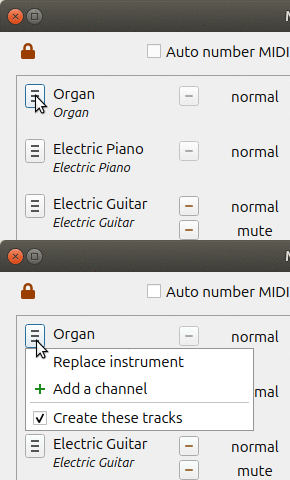
The MenuButton class extends QPushButton, and also wraps several attributes of QMenu, including:
actions
addAction
addActions
insertAction
insertActions
removeAction
addSeparator
clear
Usage (inside a dialog created by QtDesigner):
menu_button = MenuButton(self)
self.layout().replaceWidget(self.menu_button_placeholder, menu_button)
self.menu_button_placeholder.deleteLater()
self.b_menu = menu_button

action = QAction('Do the first thing', self.b_menu)
action.triggered.connect(self.slot_first_thing)
self.b_menu.addAction(action)

action = QAction('Do the second thing', self.b_menu)
action.triggered.connect(self.slot_second_thing)
self.b_menu.addAction(action)
One of the cool features of the MenuButton is the "fill_callback". When constructing a MenuButton, you can pass a function which will be used to fill the menu before the menu is shown.
def __init__(self):
	b_menu = MenuButton(self, fill_callback = self.fill_menu)

def fill_menu(self):
	self.b_menu.clear()
	action = QAction('Do that thing', self.b_menu)
	action.triggered.connect(self.slot_do_that_thing)
	self.b_menu.addAction(action)
list_button module
Provides the ListButton class - a pushbutton with an integrated drop-down list.
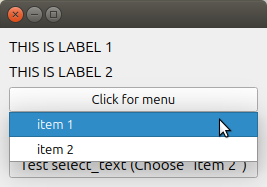
When creating a ListButton, you can provide a "fill_callback" which will be called before the drop-down list is shown.
This function must return a list of tuples, each a pair of (<label>, <value>). When an item is selected, the associated <value> will be sent with the sig_item_selected signal.
def __init__(self):
	b_choose = MenuButton(self, fill_callback = self.fill_menu)
	b_choose.sig_item_selected.connect(self.slot_item_selected)

def fill_menu(self):
	return [ thing.name, thing for thing in self.things ]

pyqtSlot(QVariant)
def slot_item_selected(self, thing):
	print(f'You selected this {thing}')
In the above code, the "thing" that was associated with the label shown in the drop-down menu was passed as an argument to the slot which handled the "sig_item_selected" signal of the ListButton.
Notice that "slot_item_selected" is decorated as a pyqtSlot with a QVariant as the single argument. This is a requirement. You must use QVariant here, as there is no way to tell ahead of time what sort of argument you will need.
list_layouts module
"Collection" layouts, including HListLayout, VListLayout, GListLayout, and ColumnListLayout, which act like lists.
These layouts implement all the essential features of Python's list type, including, len, append, index, remove, iteration, and indexed item retrieval.
VListLayout, HListLayout
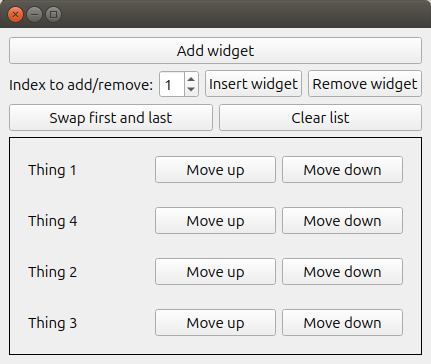
These are one-dimensional layouts in the vertical and horizontal orientation.
frame = QFrame()
layout = VListLayout()
frame.setLayout(layout)
for string in strings:
	layout.append(QLabel(string, frame))
for widget in layout:
	# do something ...
for widget in reversed(layout):
	# do something ...
print(len(layout))
item1 = layout[1]
item2 = layout[2]
layout.swap(item1, item2)
item3 = layout[3]
layout.remove(item3)
GListLayout
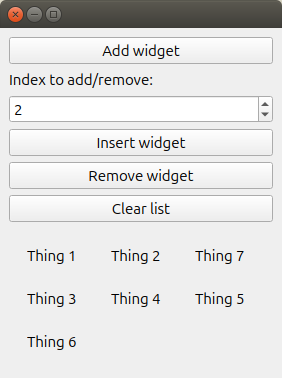
The GListLayout arranges its contents in a grid. You can add, remove, insert, swap, and change the number of grid columns, just like in the VListLayout and HListLayout.
ColumnListLayout
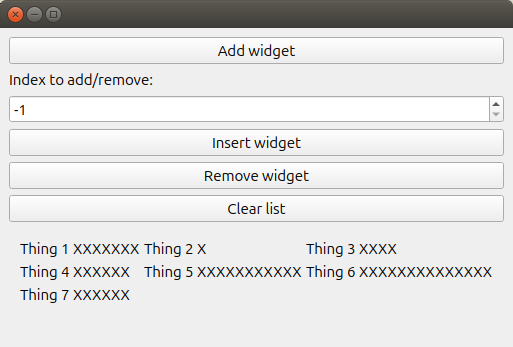
The ColumnListLayout aligns contained widgets in nicely-ordered columns which reflow when their container is resized
shuffle_grid module
Provides the ShuffleGrid class, which extends QGridLayout to allow for inserting and deleting rows, moving rows up and down, and swapping rows.
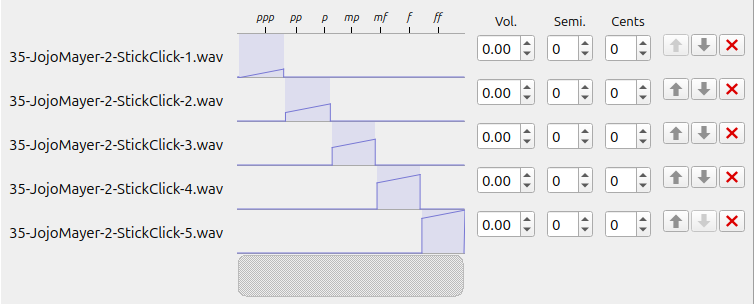
I used it in the "kitstarter" samples widget to align the controls on the widget, and allow me to easily move rows up and down or delete them.
autofit module
Provides functions to abbreviate widget text to fit inside a widget's available space.
autofit function
Applies the "autofit" effect on a QPushButton, QCheckBox, QRadioButton, or QLabel.
Usage:
label = QLabel(text, self)
autofit(label)
After applying the effect, when the widget's text is changed using "setText", or when the widget is resized, the text will be abrreviated if necessary to fit inside the available space.
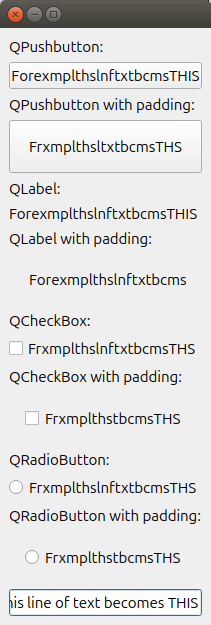
The text is abrreviated by eliminating first spaces, then vowels, then consonants and numbers, starting from the center and moving out towards the beginning and ending of the text.
For example, this line of text becomes THIS
For example, thisline of text becomes THIS
For example, thislineof text becomes THIS
For example,thislineof text becomes THIS
For example,thislineoftext becomes THIS
Forexample,thislineoftext becomes THIS
Forexample,thislineoftextbecomes THIS
Forexample,thislineoftextbecomesTHIS
Forexample,thislinoftextbecomesTHIS
Forexample,thislnoftextbecomesTHIS
Forexample,thislnftextbecomesTHIS
Forexample,thslnftextbecomesTHIS
Forexample,thslnftxtbecomesTHIS
ForexamplethslnftxtbecomesTHIS
ForexamplethslnftxtbcomesTHIS
ForexamplthslnftxtbcomesTHIS
ForexamplthslnftxtbcmesTHIS
ForexmplthslnftxtbcmesTHIS
ForexmplthslnftxtbcmsTHIS
ForxmplthslnftxtbcmsTHIS
ForxmplthslnftxtbcmsTHS
FrxmplthslnftxtbcmsTHS
FrxmplthslntxtbcmsTHS
FrxmplthsltxtbcmsTHS
FrxmplthslxtbcmsTHS
FrxmplthsxtbcmsTHS
FrxmplthstbcmsTHS
abbreviated_text function
You can abbreviate the text with the same algorithm by calling "abbreviated_text" directly. This is the same function that is called when "autofit" has been applied to the widget. Calling this will refit the text to fit the widget, but further "setText" calls and resize events will not change the text.
elide function
Applies the "elide" effect on a QPushButton, QCheckBox, QRadioButton, or QLabel.
Usage:
label = QLabel(text, self)
elide(label)
After applying the effect, when the widget's text is changed using "setText", or when the widget is resized, the text will be abrreviated if necessary to fit inside the available space by adding an elide mark "..."
elided_text function.
This is the same function that is called when "elide" has been applied to the widget. Calling this will refit the text to fit the widget, but further "setText" calls and resize events will not change the text.
info module
Provides a command-line tool which accepts a PyQT module name or class name, and provides a list of all members of the given entity.
Optionally, provides an import statement appropriate for the given module/class, or the pydoc-generated help for the given module/class.
Examples:
Get an import statement for QtWidgets:
$ qtinfo qtwidgets -i
import PyQt5.QtWidgets
Find every class in QtWidgets that includes "tree" in its name:
$ qtinfo qtwidgets tree
PyQt5.QtWidgets "tree":
--------------------
QTreeView  QTreeWidget  QTreeWidgetItem  QTreeWidgetItemIterator
Get an import statement for QTreeView:
$ qtinfo -i qtreeview
from PyQt5.QtWidgets import QTreeView
Find every method in QTreeView that includes "item" in its name:
$ qtinfo qtreeview item
QTreeView "item":
--------------------
AboveItem                  BelowItem           OnItem
ScrollPerItem              SelectItems         dragDropOverwriteMode
executeDelayedItemsLayout  itemDelegate        itemDelegateForColumn
itemDelegateForRow         itemsExpandable     scheduleDelayedItemsLayout
setDragDropOverwriteMode   setItemDelegate     setItemDelegateForColumn
setItemDelegateForRow      setItemsExpandable
settings module
A set of wrappers to QSettings to make it easier to get/set application settings project-wide.
This module provides these functions:
init_settings function
init_settings(vendor_name, application_name)
Initializes a QSettings instance with your organisation name and the name of your application.
This function MUST be called before calling "get_setting" or "set_setting" (from qt_extras.settings).
set_setting function
set_setting(key, value)
Sets a setting on a previously initialized QSettings instance.
"key" is the name of the setting you want to set.
"value" could be any.
You must call "init_settings" (from qt_extras.settings) before calling this function.
get_setting function
get_setting(key, default=None, type_=None)
Gets a setting from a previously initialized QSettings instance.
"key" is the name of the setting you want to retrieve. QSettings allows you to group your settings using "/" to divide the group name and key name:
"Interface/FontName"
"default" is a value to return from this function if nothing is found for the given key.
"type_", if given, could be a built-in Python type, such as str, int, float, or bool; it must be a class which can be instantiated by passing a string value to its constructor.
You must call "init_settings" (from qt_extras.settings) before calling this function.
Classes:
SigBlock:
A context manager which blocks widgets from generating signals.
Use like:
with SigBlock(button):
	button.setChecked(True)
with SigBlock(button1, button2, button3):
	for button in [button1, button2, button3]:
		button.setChecked(True)
buttons = [button1, button2, button3]
with SigBlock(*buttons):
	for button in buttons:
		button.setChecked(True)
ShutUpQT(object):
A context manager for temporarily supressing DEBUG level messages. Primarily used when loading a Qt graphical user interface using uic.
with ShutUpQT():
	uic.loadUi(join(dirname(__file__), 'dialog.ui'), self)
WidgetDisabler:
A context manager that disables every widget in a window.
with WidgetDisabler(self):
	self.button1.setChecked(True)
	self.button2.setChecked(True)
	self.button3.setChecked(True)
DevilBox(QMessageBox):
Quick and dirty error message dialog.
if error:
	DevilBox('That devil box tells you nothing but lies!')
1 maintainer

Download files
Download the file for your platform. If you're not sure which to choose, learn more about installing packages.
Source Distribution
Built Distribution
Filter files by name, interpreter, ABI, and platform.
If you're not sure about the file name format, learn more about wheel file names.
Copy a direct link to the current filters
File details
Details for the file soso_qt_extras-1.14.2.tar.gz.
File metadata
- Download URL: soso_qt_extras-1.14.2.tar.gz
- Upload date:
- Size: 39.1 kB
- Tags: Source
- Uploaded using Trusted Publishing? No
- Uploaded via:
twine/6.1.0 CPython/3.13.3
File hashes
| Algorithm | Hash digest | |
|---|---|---|
| SHA256 |
05c7210a19caebac10f36486514d78df142ee08efd93aae0b0d34fea06ea0a36
|
|
| MD5 |
d9edf5f2077fafb98eca31b8d6974163
|
|
| BLAKE2b-256 |
da3359ab74752f93d9096ec6bc7a03b7223abe3a2a9519ad208cb851ae5034e3
|
File details
Details for the file soso_qt_extras-1.14.2-py2.py3-none-any.whl.
File metadata
- Download URL: soso_qt_extras-1.14.2-py2.py3-none-any.whl
- Upload date:
- Size: 38.0 kB
- Tags: Python 2, Python 3
- Uploaded using Trusted Publishing? No
- Uploaded via:
twine/6.1.0 CPython/3.13.3
File hashes
| Algorithm | Hash digest | |
|---|---|---|
| SHA256 |
3b763c50000d74400b89e4ca8d62af7ba22a3e391153082bf931fc77d1e97028
|
|
| MD5 |
90e7d54610a2c49d45cdc53789e790b3
|
|
| BLAKE2b-256 |
6e7830ebaef2d0b131230a77cc18100c9cb645684e351e8756a581486070c6f4
|














