
Tool implementing real-time tracking of Spotify friends music activity

Project description
spotify_monitor
spotify_monitor is a tool for real-time monitoring of Spotify friends' music activity.
NOTE: If you're interested in tracking changes to Spotify users' profiles including their playlists, take a look at another tool I've developed: spotify_profile_monitor.
Features
- Real-time tracking of songs listened by Spotify users (including detection when user gets online & offline)
- Possibility to automatically play songs listened by the tracked user in your local Spotify client
- Information about the duration the user listened to a song and whether the song was skipped
- Information about the context of the listened song (playlist/artist/album) with clickable URLs
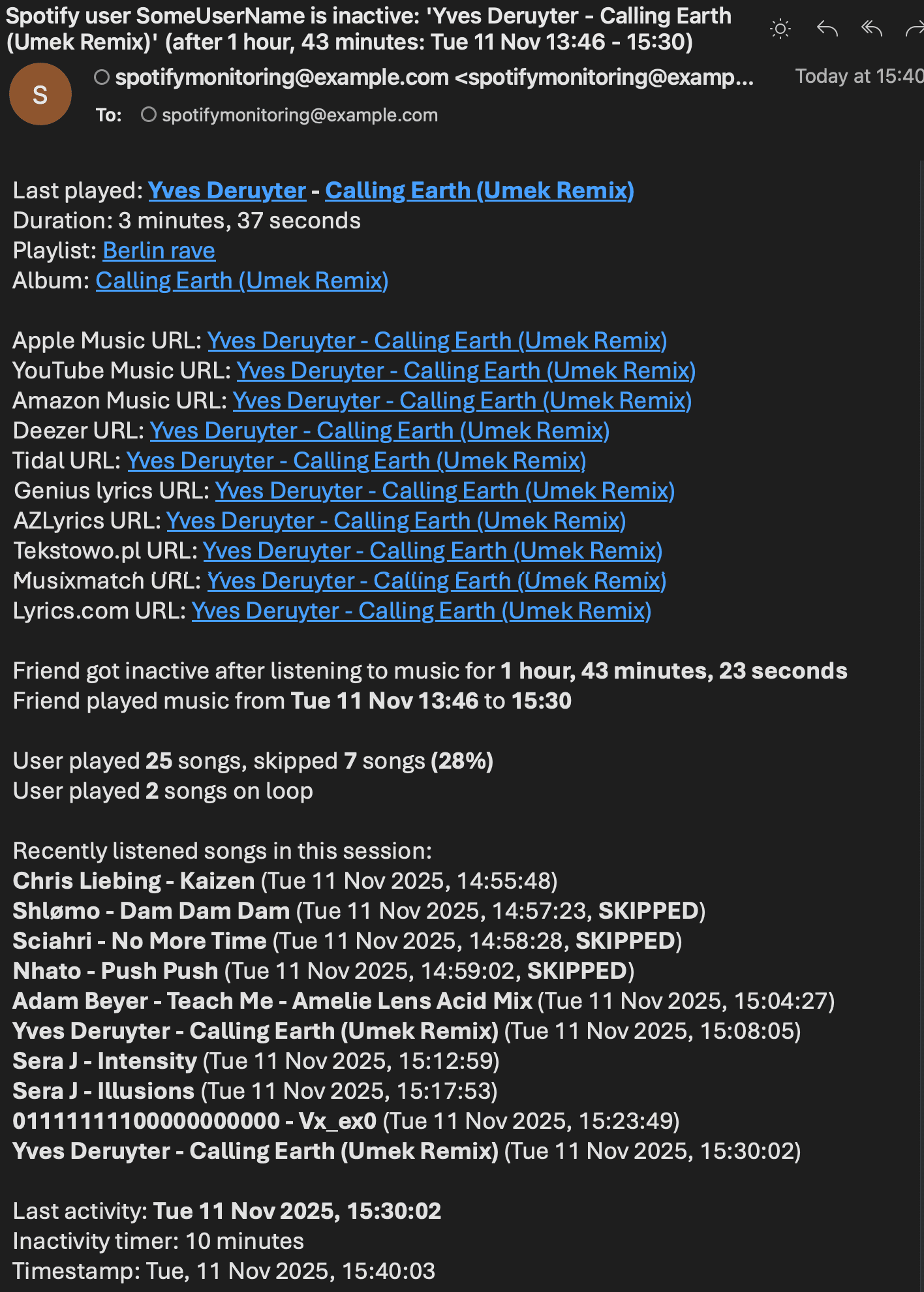
- Email notifications for various events (user becomes active/inactive, specific or all songs, songs on loop, errors)
- Saving all listened songs with timestamps to the CSV file
- Clickable Spotify, Apple Music, YouTube Music and Genius Lyrics search URLs printed in the console & included in email notifications
- Displaying basic statistics for the user's playing session (duration, time span, number of listened and skipped songs, songs on loop)
- Possibility to control the running copy of the script via signals
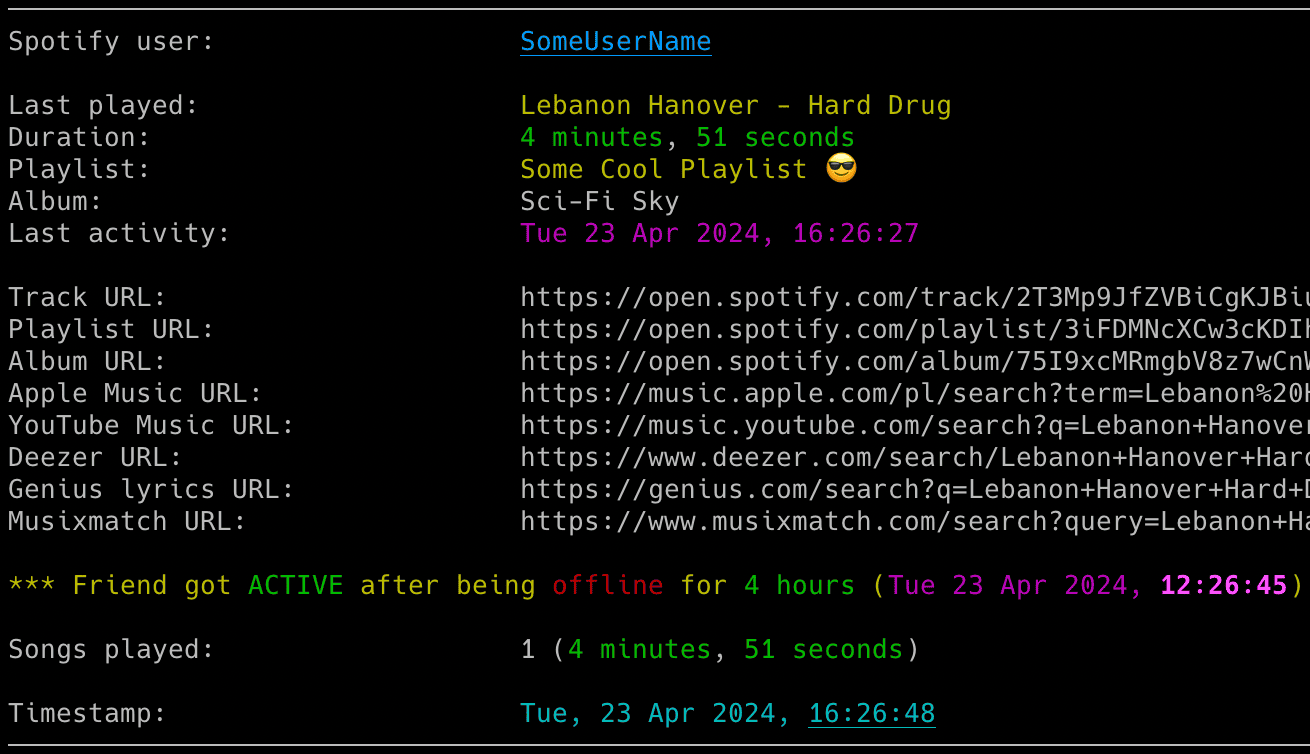
Table of Contents
Requirements
- Python 3.6 or higher
- Libraries:
requests,python-dateutil,urllib3,pyotp,python-dotenv
Tested on:
- macOS: Ventura, Sonoma, Sequoia
- Linux: Raspberry Pi OS (Bullseye, Bookworm), Ubuntu 24, Rocky Linux 8.x/9.x, Kali Linux 2024/2025
- Windows: 10, 11
It should work on other versions of macOS, Linux, Unix and Windows as well.
Installation
Install from PyPI
pip install spotify_monitor
Manual Installation
Download the spotify_monitor.py file to the desired location.
Install dependencies via pip:
pip install requests python-dateutil urllib3 pyotp python-dotenv
Alternatively, from the downloaded requirements.txt:
pip install -r requirements.txt
Quick Start
- Grab your Spotify sp_dc cookie and track the
spotify_user_uri_idmusic activities:
spotify_monitor <spotify_user_uri_id> -u "your_sp_dc_cookie_value"
Or if you installed manually:
python3 spotify_monitor.py <spotify_user_uri_id> -u "your_sp_dc_cookie_value"
To get the list of all supported command-line arguments / flags:
spotify_monitor --help
Configuration
Configuration File
Most settings can be configured via command-line arguments.
If you want to have it stored persistently, generate a default config template and save it to a file named spotify_monitor.conf:
spotify_monitor --generate-config > spotify_monitor.conf
Edit the spotify_monitor.conf file and change any desired configuration options (detailed comments are provided for each).
Spotify sp_dc Cookie
Log in to https://open.spotify.com/ in your web browser.
Locate and copy the value of the sp_dc cookie.
Use your web browser's dev console or Cookie-Editor by cgagnier to extract it easily: https://cookie-editor.com/
Provide the SP_DC_COOKIE secret using one of the following methods:
- Pass it at runtime with
-u/--spotify-dc-cookie - Set it as an environment variable (e.g.
export SP_DC_COOKIE=...) - Add it to .env file (
SP_DC_COOKIE=...) for persistent use
Fallback:
- Hard-code it in the code or config file
The sp_dc cookie is typically valid for up to 2 weeks. You will be informed by the tool once the cookie expires (proper message on the console and in email).
If you store the SP_DC_COOKIE in a dotenv file you can update its value and send a SIGHUP signal to the process to reload the file with the new sp_dc cookie without restarting the tool. More info in Storing Secrets and Signal Controls (macOS/Linux/Unix).
It is recommended to create a new Spotify account for use with the tool since we are not using the official Spotify Web API most of the time (as it does not support fetching friend activity).
Following the Monitored User
To monitor a user's activity, you must follow them from the Spotify account associated with the sp_dc cookie.
Additionally, the user must have sharing of listening activity enabled in their Spotify client settings. Without this, no activity data will be visible.
How to Get a Friend's User URI ID
The easiest way is via the Spotify desktop or mobile client:
- go to your friend's profile
- click the three dots (•••) or press the Share button
- copy the link to the profile
You'll get a URL like: https://open.spotify.com/user/spotify_user_uri_id?si=tracking_id
Extract the part between /user/ and ?si= - in this case: spotify_user_uri_id
Use that as the user URI ID (spotify_user_uri_id) in the tool.
Alternatively you can list all user URI IDs of accounts you follow by using Listing mode.
SMTP Settings
If you want to use email notifications functionality, configure SMTP settings in the spotify_monitor.conf file.
Verify your SMTP settings by using --send-test-email flag (the tool will try to send a test email notification):
spotify_monitor --send-test-email
Storing Secrets
It is recommended to store secrets like SP_DC_COOKIE or SMTP_PASSWORD as either an environment variable or in a dotenv file.
Set environment variables using export on Linux/Unix/macOS/WSL systems:
export SP_DC_COOKIE="your_sp_dc_cookie_value"
export SMTP_PASSWORD="your_smtp_password"
On Windows Command Prompt use set instead of export and on Windows PowerShell use $env.
Alternatively store them persistently in a dotenv file (recommended):
SP_DC_COOKIE="your_sp_dc_cookie_value"
SMTP_PASSWORD="your_smtp_password"
By default the tool will auto-search for dotenv file named .env in current directory and then upward from it.
You can specify a custom file with DOTENV_FILE or --env-file flag:
spotify_monitor <spotify_user_uri_id> --env-file /path/.env-spotify_monitor
You can also disable .env auto-search with DOTENV_FILE = "none" or --env-file none:
spotify_monitor <spotify_user_uri_id> --env-file none
As a fallback, you can also store secrets in the configuration file or source code.
Usage
Monitoring Mode
To monitor specific user activity, just type Spotify user URI ID as a command-line argument (spotify_user_uri_id in the example below):
spotify_monitor <spotify_user_uri_id>
If you have not set SP_DC_COOKIE secret, you can use -u flag:
spotify_monitor <spotify_user_uri_id> -u "your_sp_dc_cookie_value"
By default, the tool looks for a configuration file named spotify_monitor.conf in:
- current directory
- home directory (
~) - script directory
If you generated a configuration file as described in Configuration, but saved it under a different name or in a different directory, you can specify its location using the --config-file flag:
spotify_monitor <spotify_user_uri_id> --config-file /path/spotify_monitor_new.conf
The tool runs until interrupted (Ctrl+C). Use tmux or screen for persistence.
You can monitor multiple Spotify friends by running multiple copies of the script.
The tool automatically saves its output to spotify_monitor_<user_uri_id/file_suffix>.log file. The log file name can be changed via SP_LOGFILE configuration option and its suffix via FILE_SUFFIX / -y flag. Logging can be disabled completely via DISABLE_LOGGING / -d flag.
Keep in mind that monitoring reports the listened track AFTER the user finishes listening to it. This is how activities are reported by Spotify.
Listing Mode
There is also another mode of the tool which displays various requested information.
If you want to display a list of all the friends you follow with their recently listened tracks (-l flag):
spotify_monitor -l
It also displays your friend's Spotify username (often the user's first and last name) and user URI ID (often a string of random characters). The latter should be used as a tool's command-line argument to monitor the user.
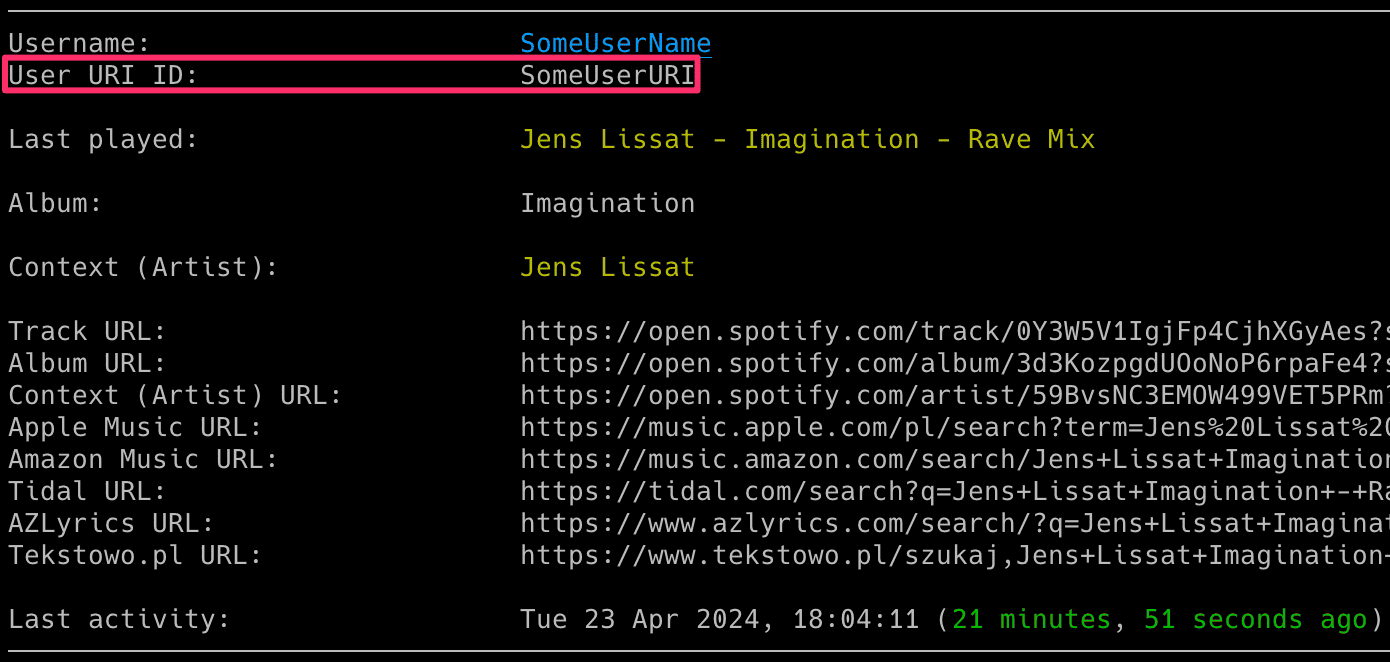
To get basic information about the Spotify access token owner (-v flag):
spotify_monitor -v
Email Notifications
To enable email notifications when a user becomes active:
- set
ACTIVE_NOTIFICATIONtoTrue - or use the
-aflag
spotify_monitor <spotify_user_uri_id> -a
To be informed when a user gets inactive:
- set
INACTIVE_NOTIFICATIONtoTrue - or use the
-iflag
spotify_monitor <spotify_user_uri_id> -i
To get email notifications when a monitored track/playlist/album plays:
- set
TRACK_NOTIFICATIONtoTrue - or use the
-tflag
For that feature you also need to create a file with a list of songs you want to track (one track, album or playlist per line). Specify the file using the MONITOR_LIST_FILE or -s flag:
spotify_monitor <spotify_user_uri_id> -t -s spotify_tracks_spotify_user_uri_id
Example file spotify_tracks_spotify_user_uri_id:
we fell in love in october
Like a Stone
Half Believing
Something Changed
I Will Be There
You can comment out specific lines with # if needed.
To enable email notifications for every song listened by the user:
- set
SONG_NOTIFICATIONtoTrue - or use the
-jflag
spotify_monitor <spotify_user_uri_id> -j
To be notified when a user listens to the same song on loop:
- set
SONG_ON_LOOP_NOTIFICATIONtoTrue - or use the
-xflag
spotify_monitor <spotify_user_uri_id> -x
To disable sending an email on errors (enabled by default):
- set
ERROR_NOTIFICATIONtoFalse - or use the
-eflag
spotify_monitor <spotify_user_uri_id> -e
Make sure you defined your SMTP settings earlier (see SMTP settings).
Example email:
CSV Export
If you want to save all listened songs to a CSV file, set CSV_FILE or use -b flag:
spotify_monitor <spotify_user_uri_id> -b spotify_tracks_user_uri_id.csv
The file will be automatically created if it does not exist.
Automatic Playback of Listened Tracks in the Spotify Client
If you want the tool to automatically play the tracks listened to by the user in your local Spotify client:
- set
TRACK_SONGStoTrue - or use the
-gflag
spotify_monitor <spotify_user_uri_id> -g
Your Spotify client needs to be installed and running for this feature to work.
The tool fully supports automatic playback on Linux and macOS. This means it will automatically play the changed track and can also pause or play the indicated track once the user becomes inactive (see the SP_USER_GOT_OFFLINE_TRACK_ID configuration option).
For Windows, it works in a semi-automatic way: if you have the Spotify client running and you are not listening to any song, then the first track will play automatically. However, subsequent tracks will be located in the client, but you will need to press the play button manually.
You can change the playback method per platform using the corresponding configuration option.
For macOS set SPOTIFY_MACOS_PLAYING_METHOD to one of the following values:
- "apple-script" (recommended, default)
- "trigger-url"
For Linux set SPOTIFY_LINUX_PLAYING_METHOD to one of the following values:
- "dbus-send" (most common one, default)
- "qdbus" (try if dbus-send does not work)
- "trigger-url"
For Windows set SPOTIFY_WINDOWS_PLAYING_METHOD to one of the following values:
- "start-uri" (recommended, default)
- "spotify-cmd"
- "trigger-url"
The recommended defaults should work for most people.
Note: monitoring reports the listened track after the user finishes listening to it. This is how activities are reported by Spotify. It means you will be one song behind the monitored user and if the song currently listened to by the tracked user is longer than the previous one, then the previously listened song might be played in your Spotify client on repeat (and if shorter it might be changed in the middle of the currently played song).
For real-time playback tracking of a user's music activities, ask your friend to connect their Spotify account with Last.fm. Then use my other tool: lastfm_monitor.
Check Intervals
If you want to customize the polling interval, use -c flag (or SPOTIFY_CHECK_INTERVAL configuration option):
spotify_monitor <spotify_user_uri_id> -c 20
If you want to change the time required to mark the user as inactive (the timer starts from the last reported track), use -o flag (or SPOTIFY_INACTIVITY_CHECK configuration option):
spotify_monitor <spotify_user_uri_id> -o 900
Signal Controls (macOS/Linux/Unix)
The tool has several signal handlers implemented which allow to change behavior of the tool without a need to restart it with new configuration options / flags.
List of supported signals:
| Signal | Description |
|---|---|
| USR1 | Toggle email notifications when user gets active/inactive (-a, -i) |
| USR2 | Toggle email notifications for every song (-j) |
| CONT | Toggle email notifications for tracked songs (-t) |
| PIPE | Toggle email notifications when user plays song on loop (-x) |
| TRAP | Increase the inactivity check timer (by 30 seconds) (-o) |
| ABRT | Decrease the inactivity check timer (by 30 seconds) (-o) |
| HUP | Reload secrets from .env file |
Send signals with kill or pkill, e.g.:
pkill -USR1 -f "spotify_monitor <spotify_user_uri_id>"
As Windows supports limited number of signals, this functionality is available only on Linux/Unix/macOS.
Coloring Log Output with GRC
You can use GRC to color logs.
Add to your GRC config (~/.grc/grc.conf):
# monitoring log file
.*_monitor_.*\.log
conf.monitor_logs
Now copy the conf.monitor_logs to your ~/.grc/ and log files should be nicely colored when using grc tool.
Example:
grc tail -F -n 100 spotify_monitor_<user_uri_id/file_suffix>.log
Change Log
See RELEASE_NOTES.md for details.
License
Licensed under GPLv3. See LICENSE.
Release history Release notifications | RSS feed


Download files
Download the file for your platform. If you're not sure which to choose, learn more about installing packages.
Source Distribution
Built Distribution
Filter files by name, interpreter, ABI, and platform.
If you're not sure about the file name format, learn more about wheel file names.
Copy a direct link to the current filters
File details
Details for the file spotify_monitor-2.0rc1.tar.gz.
File metadata
- Download URL: spotify_monitor-2.0rc1.tar.gz
- Upload date:
- Size: 41.7 kB
- Tags: Source
- Uploaded using Trusted Publishing? No
- Uploaded via: twine/6.1.0 CPython/3.13.3
File hashes
| Algorithm | Hash digest | |
|---|---|---|
| SHA256 |
cf15e1d677db1fc62db4b84e116147620da7b0aab054b09eab335d9e74325cdb
|
|
| MD5 |
c2634bdbce8910cb46352f401a748cd6
|
|
| BLAKE2b-256 |
f747ff7b28e01fa8479f7db7dcaa271490e5a7b141293677fbba7f2721bd9691
|
File details
Details for the file spotify_monitor-2.0rc1-py3-none-any.whl.
File metadata
- Download URL: spotify_monitor-2.0rc1-py3-none-any.whl
- Upload date:
- Size: 42.5 kB
- Tags: Python 3
- Uploaded using Trusted Publishing? No
- Uploaded via: twine/6.1.0 CPython/3.13.3
File hashes
| Algorithm | Hash digest | |
|---|---|---|
| SHA256 |
757380e6bf26fc38c08bce4953e30548672861bb9254dd080be8d5975762e28a
|
|
| MD5 |
a57e6641a2493e4e7b2d6293bd725b9b
|
|
| BLAKE2b-256 |
ceebe69fc1a1d90ae19d60907bb64997d8bec3136041e8424bc00eab850b31f1
|






