
spotify_profile_monitor





Powerful Spotify tool for real-time tracking of profile changes, playlist updates, follower growth, collaborators and more - delivered straight to your terminal, inbox or webhook.
🚀 Quick Install & Run
pip install spotify_profile_monitor
Run setup wizard:
spotify_profile_monitor --setup
Features
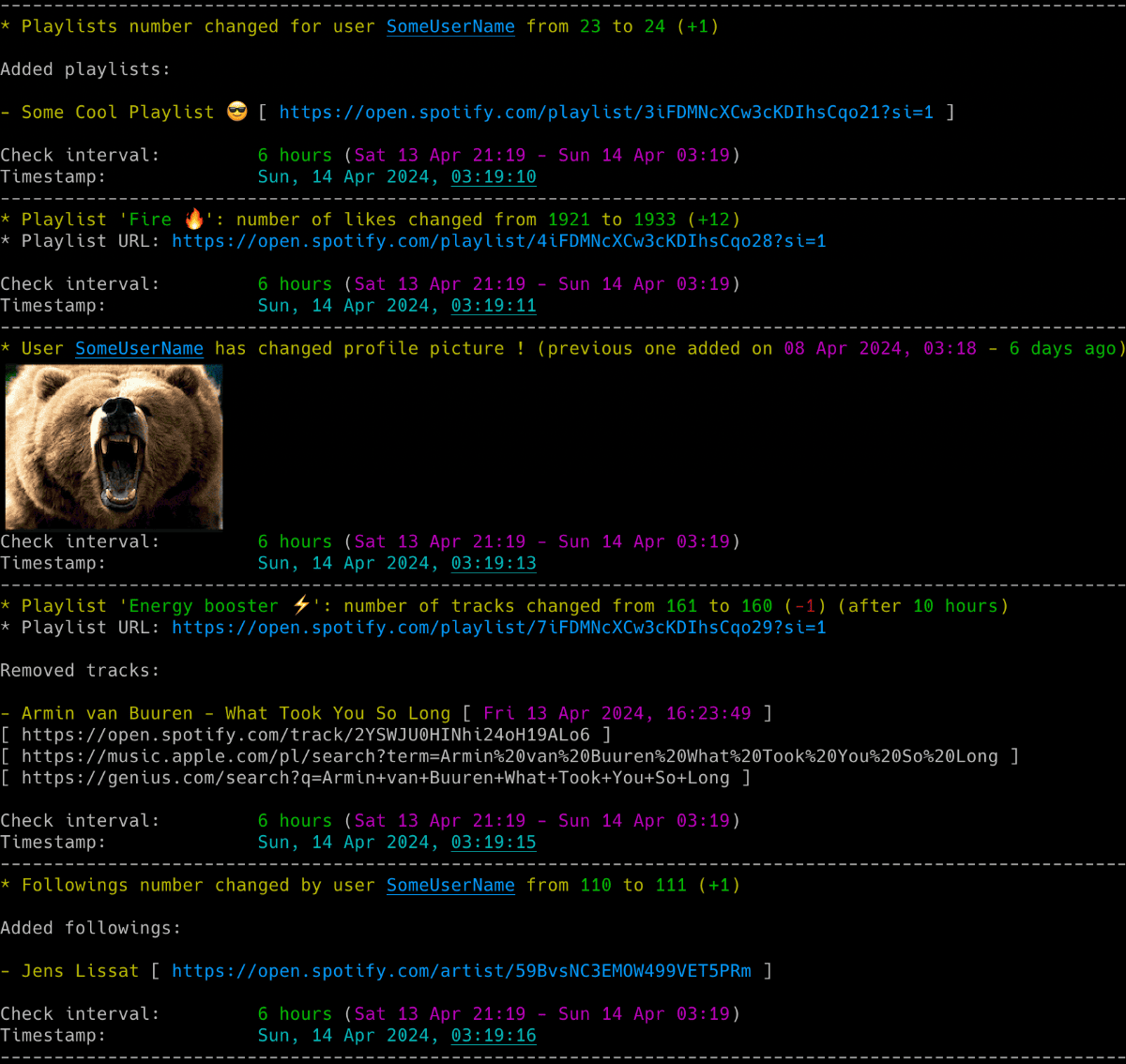
📜 Playlists
- Detect added or removed playlists and tracks.
- Track playlist names, descriptions, likes and collaborators.
- See who added each track to a collaborative playlist.
👤 Profile Changes
- Track username and profile-picture changes.
- See when followers or followed accounts are added or removed.
- View profile details and recently played artists.
🔔 Notifications and History
- Receive alerts in the terminal, by email, through Discord or through ntfy.
- Keep a timestamped CSV history of profile and playlist changes.
- Include profile pictures and optional playlist or album artwork in notifications.
🔎 Extra Tools
- List or export tracks from playlists and Liked Songs.
- Search for Spotify users by name.
- Open music and lyrics searches across Spotify, YouTube Music, Apple Music, Tidal and other services.
- Use the automatic web-player playlist backend without creating a Spotify developer app.
✨ If you want to track Spotify friends' music activity, check out another tool I developed: spotify_monitor.
🛠️ If you're looking for debug tools to get Spotify Web Player access tokens and extract secret keys: click here
Table of Contents
- Requirements
- Installation
- Quick Start
- Configuration
- Usage
- Monitoring Mode
- Listing Mode
- Email Notifications
- Webhook Notifications
- CSV Export
- Detection of Changed Profile Pictures
- Displaying Images in Your Terminal
- Playlist Blacklisting
- Restricted Playlists (Spotify API 403/404)
- Check Intervals
- Terminal Output Modes
- Signal Controls (macOS/Linux/Unix)
- Coloring Log Output with GRC
- Debugging Tools
- Change Log
- Maintainers
- License
Requirements
- Python 3.9 or higher
- Libraries:
requests,python-dateutil,urllib3,pyotp,pytz,tzlocal,python-dotenv, Spotipy,wcwidth,pathvalidate,Pillow - Optional for Chrome, Brave or Chromium cookie import: pycookiecheat
Tested on:
- macOS: Tahoe, Sequoia, Sonoma, Ventura
- Linux: Raspberry Pi OS (Trixie, Bookworm, Bullseye), Ubuntu 24/25, Rocky Linux 8.x/9.x, Kali Linux 2026/2025/2024
- Windows: 11, 10
It should work on other versions of macOS, Linux, Unix and Windows as well.
Installation
Install from PyPI
pip install spotify_profile_monitor
To import Spotify login from Chrome, Brave or Chromium on macOS or Linux install the browser extra:
pip install "spotify_profile_monitor[browser]"
Firefox import is built in and needs no extra package.
Manual Installation
Download the spotify_profile_monitor.py file to the desired location.
Install dependencies via pip:
pip install requests python-dateutil urllib3 pyotp pytz tzlocal python-dotenv spotipy wcwidth pathvalidate Pillow
Alternatively, from the downloaded requirements.txt:
pip install -r requirements.txt
Upgrading
To upgrade to the latest version when installed from PyPI:
pip install spotify_profile_monitor -U
If you installed manually, download the newest spotify_profile_monitor.py file to replace your existing installation.
Quick Start
Before you start
The easiest path is the interactive wizard:
spotify_profile_monitor --setup
It asks for the target, authentication, polling interval and optional email or webhook alerts. You can review or change each section before saving. Regular settings go to spotify_profile_monitor.conf. Private values go to .env.
For manual setup you need two values:
- A Spotify target for the person you want to monitor. The easiest form is the complete profile URL copied from Spotify. A
spotify:user:URI or user ID is also accepted. See How to Find a Friend's Spotify Profile URL. - The
sp_dclogin cookie from the Spotify account used for monitoring. Follow the manual cookie extraction steps and treat this value like a password.
In commands below, <spotify_target> means any accepted profile URL, spotify:user: URI or user ID.
Save the cookie through the hidden prompt:
spotify_profile_monitor --set-sp-dc
The command validates the cookie with Spotify before saving SP_DC_COOKIE to .env. The value is not displayed or placed in shell history. Do not share the generated .env file or commit it to a repository.
Start monitoring profile and playlist changes:
spotify_profile_monitor <spotify_target>
Or if you installed manually:
python3 spotify_profile_monitor.py <spotify_target>
To get the list of all supported command-line arguments / flags:
spotify_profile_monitor --help
Setup Wizard
Run spotify_profile_monitor --setup in an interactive terminal. Press Enter to accept each displayed default. The final setup summary contains no secret values and offers these actions:
- Save settings.
- Review or change target, authentication, polling, email, webhook or file destinations.
- Discard every answer without changing the destination files.
If the selected config file already exists, setup asks before replacement or lets you choose another destination. An approved replacement creates a timestamped .bak copy and validates the new Python config before atomically installing it. A manually entered sp_dc value is validated before it is queued for saving. Setup can then run Doctor and optionally start monitoring.
Polling intervals accept seconds or readable durations such as 90, 2m, 1.5h or 1h 30m.
Generated Doctor, browser import and monitoring commands use the active Python interpreter. They also carry explicit --config-file and --env-file paths so virtual environments and custom destinations remain intact.
Browser Cookie Import
First open Spotify Web Player in the selected browser and sign in to the Spotify account used for monitoring. Then run:
spotify_profile_monitor --import-browser-cookie --browser firefox
Supported sources are Firefox, Chrome, Brave and Chromium. Firefox works on macOS, Linux and Windows without an extra package. Chromium import works on macOS and Linux with the browser extra. If that extra is missing, setup can install it through the active Python interpreter after approval. Current Chromium app-bound encryption prevents reliable import on Windows, so use Firefox there.
The importer discovers browser profiles, lets you choose when several exist, reads only the Spotify sp_dc cookie, validates it through Spotify and updates only SP_DC_COOKIE in the selected dotenv file. Existing dotenv content is preserved. Replacement needs confirmation in an interactive terminal or --force in a noninteractive script.
Useful overrides are --browser-profile PROFILE, --cookie-file PATH and --env-file PATH.
Doctor Self-Check
Run Doctor before unattended monitoring:
spotify_profile_monitor --doctor <spotify_target>
Doctor shows the current check phase then reports the Python environment and required dependencies, config and dotenv files, numeric settings, output destinations, Spotify authentication, metadata backend, connectivity, one optional target and notification settings.
When a terminal is interactive and passive checks pass, Doctor separately offers one real email test and one real webhook test. Each prompt defaults to No. Warnings do not fail the command. A failed check or approved delivery test returns a nonzero exit status.
Configuration
Configuration File
Most settings can be configured via command-line arguments.
If you want to have it stored persistently, generate a default config template and save it to a file named spotify_profile_monitor.conf:
# On macOS, Linux or Windows Command Prompt (cmd.exe)
spotify_profile_monitor --generate-config > spotify_profile_monitor.conf

# On Windows PowerShell (recommended to avoid encoding issues)
spotify_profile_monitor --generate-config spotify_profile_monitor.conf
IMPORTANT: On Windows PowerShell, using redirection (
>) can cause the file to be encoded in UTF-16, which will lead to "null bytes" errors when running the tool. It is highly recommended to provide the filename directly as an argument to--generate-configto ensure UTF-8 encoding.
Edit the spotify_profile_monitor.conf file and change any desired configuration options (detailed comments are provided for each).
When --generate-config FILENAME targets an existing file, an interactive run asks for confirmation. A noninteractive run refuses replacement unless --force is present. An approved replacement validates the generated content, writes it atomically and saves a timestamped backup beside the original. The setup wizard provides the same confirmation and backup protection.
Despite its legacy name, TARGET_USER_URI_ID accepts a complete Spotify profile URL, a spotify:user: URI or a user ID. Set it to run without a positional target. A positional target in any accepted form overrides the configured value.
New in v3.5: Public playlists use an automatic backend which supports restricted Spotify Development Mode apps. OAuth app credentials are no longer required with the cookie or client token source. New users should not create a Spotify app solely for this tool.
New in v2.9: The configuration file includes options to enable/disable music service URLs (Apple Music, YouTube Music, Amazon Music, Deezer, Tidal) and lyrics service URLs (Genius, AZLyrics, Tekstowo.pl, Musixmatch, Lyrics.com) in console and email outputs.
Spotify access token source
The tool supports four methods for obtaining a Spotify access token.
Public playlist details use an automatic backend. If working OAuth app credentials are configured, the tool first preserves the legacy Web API behavior. If Spotify returns a restricted response or if no app credentials are configured, the tool retrieves public playlist metadata and contents through the Spotify web-player service. The web backend discovers the current persisted-query hash automatically and does not require a Spotify app or Premium subscription.
OAuth app guidance: Spotify restricted new Development Mode apps created on or after February 11, 2026. Some older apps have been observed to retain the legacy endpoint access used by this tool, but creation date alone does not guarantee compatibility. Configure
oauth_apponly if you already have an app which you have verified still works. If it returns HTTP 403 then remove the OAuth app credentials and let the automatic web backend handle public playlists. See Spotify's official migration guide.
The token source method can be configured via the TOKEN_SOURCE configuration option or the --token-source flag.
Recommended: cookie
Uses the sp_dc cookie to retrieve a token from the Spotify web endpoint. This method is easy to set up and supports all features except fetching the list of liked tracks for the account that owns the access token (due to recent Spotify token's scope restrictions).
Since version 3.1, due to Spotify restrictions introduced on December 22, 2025, it no longer shows other users' playlists added to a user's profile unless the user is a collaborator on a playlist owned by another user.
Alternative: client
Uses captured credentials from the Spotify desktop client and a Protobuf-based login flow. It's more complex to set up, but supports all features. This method is intended for advanced users who want a long-lasting token with the broadest possible access.
Since version 3.1, due to Spotify restrictions introduced on December 22, 2025, it no longer shows other users' playlists added to a user's profile unless the user is a collaborator on a playlist owned by another user.
Optional legacy: oauth_app
Relies on the official Spotify Web API Client Credentials flow. This mode is retained for existing apps which still have verified access to the legacy endpoints. It is not required for cookie or client mode and is not recommended for a new setup.
As a standalone token source it can monitor other users only when the existing app still retains the removed GET /users/{id} access. New Development Mode apps cannot use this workflow. The following features are also not supported:
- viewing the list of followers/followings
- accessing the followings count (only the followers count is tracked; post-Feb 2026: followers count also not available)
- getting the list of recently played artists
- showing other users' playlists added to user profile (unless the user is a collaborator on a playlist owned by other user)
- fetching the list of liked tracks for the account that owns the access token
- searching for Spotify users by name
Use cookie or client for normal monitoring. Add oauth_app credentials only as an optional legacy Web API path after verifying that the existing app still works.
Personal: oauth_user
Dedicated to tracking the authenticated user's own account via the official Spotify Web API (Authorization Code OAuth flow). I personally use this mode to monitor changes to my own account - such as new or lost followers/followings, likes on my playlists or when a collaborator adds a new song. You can also use this mode to track other users.
This method is easy to set up and safe to use, but has several limitations.
The following features are not supported when monitoring your own account:
- viewing the list of followers
- viewing the complete list of followings (only followed artists are available; followed users are not included)
- searching for Spotify users by name
- viewing follower count (post-Feb 2026)
Note: If you use oauth_user to monitor your own account, the tool will list all your playlists, including private ones.
The following features are not supported when monitoring another user in this mode:
- viewing the list of followers/followings
- accessing the followings count (only the followers count is tracked; post-Feb 2026: followers count also not available)
- getting the list of recently played artists
- showing other users' playlists added to user profile (unless the user is a collaborator on a playlist owned by other user)
- searching for Spotify users by name
Current limitation: Spotify removed the
GET /users/{id}endpoint on February 11, 2026.oauth_usercan no longer monitor other users. Self-monitoring still works. For monitoring others, use thecookieorclientmethod.
Premium required: Since March 9, 2026,
oauth_userrequires the authorized user to have a Spotify Premium account.
If no method is specified, the tool defaults to the cookie method.
Important: It is strongly recommended to use a separate Spotify account with this tool if you obtain access tokens via the cookie or client methods. These methods interact with internal undocumented endpoints for features such as followers, followings and recently played artists. The automatic public playlist backend also uses an undocumented Spotify web-player interface. Spotify may change or restrict these interfaces in the future.
Spotify sp_dc Cookie
This is the default method used to obtain a Spotify access token.
Manual cookie extraction
Treat sp_dc like a password. Anyone who has it may be able to use your Spotify login session.
Follow these steps:
- Open Spotify Web Player and sign in to the Spotify account you want to use for monitoring.
- Open your browser's developer tools. Press
F12orCtrl+Shift+Ion Windows and Linux. PressCommand+Option+Ion macOS. - In Firefox, open Storage > Cookies >
https://open.spotify.com. - In Chrome, Brave or Chromium, open Application > Storage > Cookies >
https://open.spotify.com. - Find the cookie named
sp_dcand copy only its Value. Do not copy the cookie name or the complete table row. - Run the private entry command then paste the copied value at its hidden prompt:
spotify_profile_monitor --set-sp-dc
The command validates the cookie before atomically saving it as SP_DC_COOKIE in .env. To use another dotenv path, add --env-file PATH.
As an alternative, Cookie-Editor by cgagnier can display the sp_dc value. Only use a browser extension that you trust because browser extensions can access sensitive login cookies.
You can provide SP_DC_COOKIE in these ways:
- Run
spotify_profile_monitor --set-sp-dcto enter it privately, validate it with Spotify then save it to a dotenv file. This is recommended. - Add
SP_DC_COOKIE="your_sp_dc_cookie_value"directly to a dotenv file for persistent use. - Set it as an environment variable, for example
export SP_DC_COOKIE="your_sp_dc_cookie_value". - Pass it for one run with
-uor--spotify-dc-cookie. This is not recommended because the value may appear in shell history or process listings. - Store it in the configuration file or source code as a last resort. This is not recommended because it is easier to expose or commit accidentally.
If your sp_dc cookie expires, the tool will notify you via the console and email. In that case, you'll need to grab the new sp_dc cookie value.
If you store the SP_DC_COOKIE in a dotenv file you can update its value and send a SIGHUP signal to reload the file with the new sp_dc cookie without restarting the tool. More info in Storing Secrets and Signal Controls (macOS/Linux/Unix).
NOTE: Spotify still requires TOTP parameters for web-player token requests. The web player continues to select v61 which was first published in January 2026. Version 3.5 embeds v61 directly and no longer downloads a third-party secret dictionary. The version and cipher bytes are exposed as the
TOTP_VERSIONandTOTP_SECRET_CIPHER_BYTESconfig options, so if Spotify resumes rotation you can patch them from the config file without a code release. Use spotify_monitor_secret_grabber to extract the current bundle values then update those two options.
Spotify Desktop Client
This is the alternative method used to obtain a Spotify access token which simulates a login from the real Spotify desktop app using credentials intercepted from a real session.
-
Run an intercepting proxy of your choice (like Proxyman - the trial version is sufficient)
-
Enable SSL traffic decryption for
spotify.comdomain- in Proxyman: click Tools → SSL Proxying List → + button → Add Domain → paste
*.spotify.com→ Add
- in Proxyman: click Tools → SSL Proxying List → + button → Add Domain → paste
-
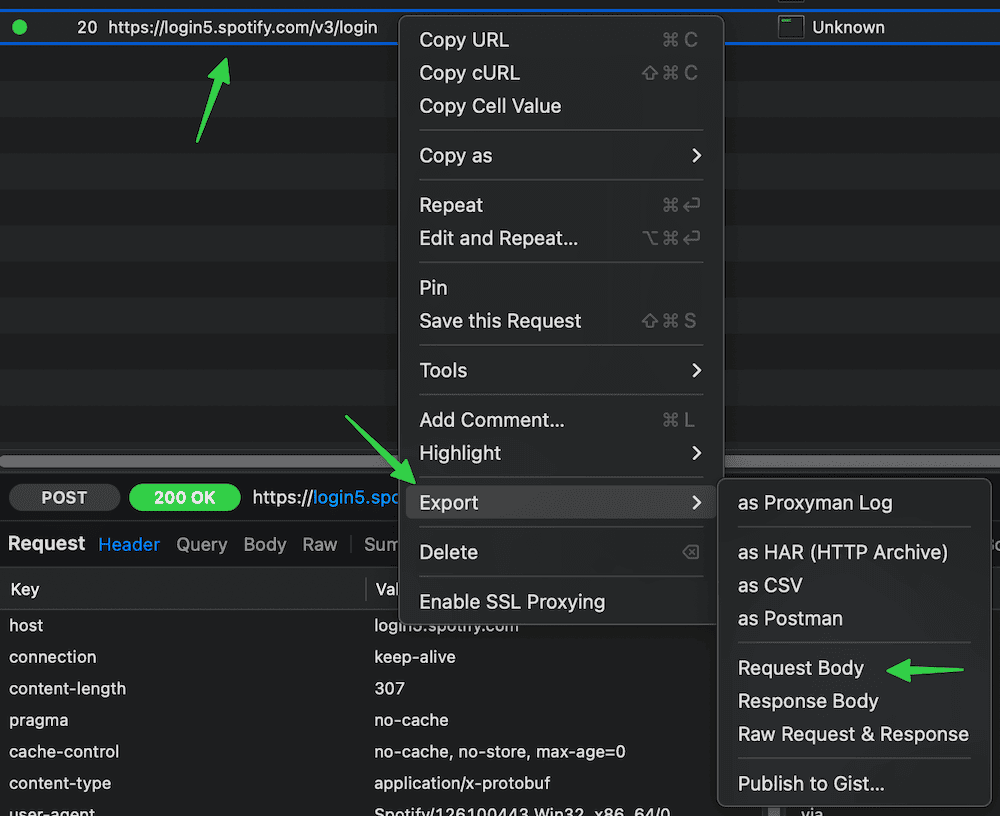
Launch the Spotify desktop client, then switch to your intercepting proxy (like Proxyman) and look for POST requests to
https://login5.spotify.com/v3/login -
If you don't see this request, try following steps (stop once it works):
- restart the Spotify desktop client
- log out from the Spotify desktop client and log back in
- point Spotify at the intercepting proxy directly in its settings, i.e. in Spotify → Settings → Proxy Settings, set:
- proxy type:
HTTP - host:
127.0.0.1(IP/FQDN of your proxy, for Proxyman use the IP you see at the top bar) - port:
9090(port of your proxy, for Proxyman use the port you see at the top bar) - restart the app; since QUIC (HTTP/3) requires raw UDP and can't tunnel over HTTP CONNECT, Spotify will downgrade to TCP-only HTTP/2 or 1.1, which intercepting proxy can decrypt
- proxy type:
- block Spotify's UDP port 443 at the OS level with a firewall of your choice - this prevents QUIC (HTTP/3), forcing TLS over TCP and letting intercepting proxy perform MITM
- try an older version of the Spotify desktop client
-
Export the login request body (a binary Protobuf payload) to a file (e.g. login-request-body-file)
- In Proxyman: right click the request → Export → Request Body → Save File.
- Run the tool with
--token-source client -w <path-to-login-request-body-file>:
spotify_profile_monitor --token-source client -w <path-to-login-request-body-file> <spotify_target>
If successful, the tool will automatically extract the necessary fields and begin monitoring.
Instead of using the -w flag each time, you can persist the Protobuf login request file path by setting the LOGIN_REQUEST_BODY_FILE configuration option.
The same applies to --token-source client flag - you can persist it via TOKEN_SOURCE configuration option set to client.
The tool will automatically refresh both the access token and client token using the intercepted refresh token.
If your refresh token expires, the tool will notify you via the console and email. In that case, you'll need to re-export the login request body.
If you re-export the login request body to the same file name, you can send a SIGHUP signal to reload the file with the new refresh token without restarting the tool. More info in Signal Controls (macOS/Linux/Unix).
Advanced options are available for further customization - refer to the configuration file comments. However, the default settings are suitable for most users and modifying other values is generally NOT recommended.
Spotify OAuth App
OAuth app credentials are not required for public playlist retrieval. This section is retained only for users who already have a verified legacy-compatible app or want to test standalone Client Credentials behavior.
Do not create a new Spotify app solely for spotify_profile_monitor. Apps created under the current Development Mode restrictions cannot provide the removed public user endpoints needed for standalone monitoring of other users.
If you already have a working existing app:
-
Log in to Spotify Developer dashboard
-
Open the existing app which still has verified legacy endpoint access
-
Copy the Client ID and Client Secret
-
Provide the
SP_APP_CLIENT_IDandSP_APP_CLIENT_SECRETsecrets using one of the following methods:- Pass it at runtime with
-r/--oauth-app-creds(useSP_APP_CLIENT_ID:SP_APP_CLIENT_SECRETformat - note the colon separator) - Set it as an environment variable (e.g.
export SP_APP_CLIENT_ID=...; export SP_APP_CLIENT_SECRET=...) - Add it to .env file (
SP_APP_CLIENT_ID=...andSP_APP_CLIENT_SECRET=...) for persistent use - Fallback: hard-code it in the code or config file
- Pass it at runtime with
Optional legacy example:
spotify_profile_monitor --token-source oauth_app -r "your_spotify_app_client_id:your_spotify_app_client_secret" <spotify_target>
The tool automatically refreshes the OAuth app access token, so it remains valid indefinitely. Tokens are cached in the file specified by SP_APP_TOKENS_FILE configuration option (default: .spotify-profile-monitor-oauth-app.json).
If you store the SP_APP_CLIENT_ID and SP_APP_CLIENT_SECRET in a dotenv file you can update their values and send a SIGHUP signal to reload the file with the new secret values without restarting the tool. More info in Storing Secrets and Signal Controls (macOS/Linux/Unix).
You can use this method as a standalone token source only when the existing app still retains all endpoints required for your selected operation. If it returns HTTP 403 use cookie or client without OAuth app credentials.
Spotify OAuth User
This method uses an official Spotify Web API (Authorization Code OAuth flow).
-
Log in to Spotify Developer dashboard: https://developer.spotify.com/dashboard
-
Create a new app
-
For Redirect URL, use: http://127.0.0.1:1234
- The URL must match exactly as shown, including not having a / at the end
- When copying the link via right-click, some browsers may add an extra / to the URL
-
Select Web API as the intended API
-
Copy the Client ID and Client Secret (the secret is not required if you're using
PKCEmode) -
Provide the
SP_USER_CLIENT_IDandSP_USER_CLIENT_SECRETsecrets using one of the following methods:- Pass it at runtime with
-n/--oauth-user-creds- Use
SP_USER_CLIENT_ID:SP_USER_CLIENT_SECRETformat - note the colon separator
- Use
- Set it as an environment variable (e.g.
export SP_USER_CLIENT_ID=...; export SP_USER_CLIENT_SECRET=...) - Add it to .env file (
SP_USER_CLIENT_ID=...andSP_USER_CLIENT_SECRET=...) for persistent use - Fallback: hard-code it in the code or config file
- Pass it at runtime with
To use PKCE mode, set SP_USER_CLIENT_SECRET to an empty string ("").
You can use the same client ID and secret values as those used for the Spotify OAuth App.
Example:
spotify_profile_monitor --token-source oauth_user -n "your_spotify_user_client_id:your_spotify_user_client_secret" <spotify_target>
The tool takes care of refreshing the access token so it should remain valid indefinitely.
If you store the SP_USER_CLIENT_ID and SP_USER_CLIENT_SECRET in a dotenv file you can update their values and send a SIGHUP signal to reload the file with the new secret values without restarting the tool. More info in Storing Secrets and Signal Controls (macOS/Linux/Unix).
How to Find a Friend's Spotify Profile URL
The easiest way is via the Spotify desktop or mobile client:
- go to your friend's profile
- click the three dots (•••) or press the Share button
- copy the link to the profile
You'll get a URL like https://open.spotify.com/user/USER_ID?si=tracking_id.
Pass that profile URL directly to the tool. You do not need to extract the ID. Spotify user URIs such as spotify:user:USER_ID and standalone user IDs are also accepted.
Alternatively you can use the built-in username search (-s) to find a Spotify user ID:
spotify_profile_monitor -s "user name"
It lists matching users with their Spotify user IDs and profile URLs. Any listed profile URL or ID can then be used as the monitoring target.
Before using this feature make sure you followed the instructions here.
Spotify sha256 (optional)
This step is optional and required only for the username search feature (-s). To use it, intercept your Spotify client's network traffic and extract the required sha256Hash value.
-
Run an intercepting proxy of your choice (like Proxyman).
-
Launch the Spotify desktop client and search for some user
-
Look for requests with the
searchUsersorsearchDesktopoperation name -
Display the details of one of these requests and copy the sha256Hash parameter value (string marked as
XXXXXXXXXXbelow)
Example request:
https://api-partner.spotify.com/pathfinder/v1/query?operationName=searchUsers&variables={"searchTerm":"spotify_user_uri_id","offset":0,"limit":5,"numberOfTopResults":5,"includeAudiobooks":false}&extensions={"persistedQuery":{"version":1,"sha256Hash":"XXXXXXXXXX"}}
- Provide the
SP_SHA256secret using one of the following methods:- Set it as an environment variable (e.g.
export SP_SHA256=...) - Add it to .env file (
SP_SHA256=...) for persistent use - Fallback: hard-code it in the code or config file
- Set it as an environment variable (e.g.
Time Zone
By default, time zone is auto-detected using tzlocal. You can set it manually in spotify_profile_monitor.conf:
LOCAL_TIMEZONE='Europe/Warsaw'
You can get the list of all time zones supported by pytz like this:
python3 -c "import pytz; print('\n'.join(pytz.all_timezones))"
SMTP Settings
If you want to use email notifications functionality, configure SMTP settings in the spotify_profile_monitor.conf file.
Verify your SMTP settings by using --send-test-email flag (the tool will try to send a test email notification):
spotify_profile_monitor --send-test-email
Webhook Settings
Spotify Profile Monitor can send profile, follower and error alerts through Discord or the native ntfy publish API. Webhook delivery works with or without email.
WEBHOOK_PROVIDER selects the request format. It defaults to "discord". Standard Discord and public ntfy.sh URLs automatically select the matching format if this configured value is stale. Self-hosted ntfy and compatible endpoints still use the configured provider. Use --webhook-provider discord or --webhook-provider ntfy for an explicit one-run override.
Discord
To create a private Discord webhook URL:
- Open the Discord server and choose the channel that should receive alerts.
- Click Edit Channel then open Integrations > Webhooks.
- Click New Webhook then choose a name and click Copy Webhook URL.
- Save the URL through the hidden prompt:
spotify_profile_monitor --set-webhook-url
The command saves only WEBHOOK_URL in .env without putting the private value in shell history. Treat this URL like a password because anyone who has it can post through it.
Keep the default request format in spotify_profile_monitor.conf:
WEBHOOK_PROVIDER = "discord"
ntfy
Choose a hard-to-guess topic. Public ntfy.sh URLs are recognized automatically. Set the provider to "ntfy" for a self-hosted ntfy server:
WEBHOOK_PROVIDER = "ntfy"
Save its complete HTTPS topic URL through the same hidden prompt:
spotify_profile_monitor --set-webhook-url
For ntfy.sh the value looks like https://ntfy.sh/spotify-profile-monitor-long-random-value. Self-hosted ntfy servers also require a complete HTTPS topic URL.
Spotify Profile Monitor sends the alert body as a native UTF-8 ntfy message and the alert subject as its title. Query parameters already in the topic URL are preserved. Long ntfy messages are visibly truncated below ntfy's 4 KB boundary so they remain notifications instead of temporary attachments.
Profile and playlist artwork is enabled by default for supported ntfy alerts. Disable it in spotify_profile_monitor.conf if you prefer text-only messages:
NTFY_IMAGES = False
The monitor accepts artwork only from Spotify HTTPS CDN hosts. It limits downloads to 5 MiB and rejects oversized decoded images before preparing each attachment in memory. If image preparation fails the alert is sent as text. If an attachment upload fails the monitor retries once as text. Self-hosted ntfy servers must allow attachments.
Protected ntfy topics can use a Bearer access token stored in .env:
NTFY_ACCESS_TOKEN="tk_your_ntfy_access_token"
NTFY_ACCESS_TOKEN takes precedence over an Authorization entry in WEBHOOK_HEADERS. Custom headers remain available for other authentication methods and compatible integrations:
WEBHOOK_HEADERS = {
    "X-Webhook-Title": "{title}",
}
Header values support the same placeholders as WEBHOOK_TEMPLATE. Headers are validated before and after placeholder expansion so formatted values cannot add invalid names, non-string values or line breaks.
Advanced Discord-format customization
WEBHOOK_USERNAME and WEBHOOK_AVATAR_URL control the sender name and HTTPS avatar for Discord-format payloads:
WEBHOOK_USERNAME = "Spotify Profile Monitor"
WEBHOOK_AVATAR_URL = "https://example.com/path/avatar.png"
WEBHOOK_TEMPLATE controls the Discord-format request body. Supported placeholders are title, description, version, image_url, fields, fields_str, color, timestamp, username and avatar_url.
A dictionary or list is sent as JSON. A string template is sent as a raw request body for compatible integrations. Dictionary payloads always replace allowed_mentions with {"parse": []} so alert text cannot trigger Discord mentions.
WEBHOOK_TRANSFORMS applies string methods to shared placeholder values before the template and headers are rendered:
WEBHOOK_TRANSFORMS = [
    ("title", "upper"),
    ("description", "replace", "**", ""),
]
The tuple format is (field_to_target, method_name, *optional_arguments). Invalid templates, avatar URLs, transforms or formatted headers fail before a webhook request is attempted.
For automation or one-time testing --webhook-url URL overrides the destination without changing .env. The URL may remain visible in shell history or process listings:
spotify_profile_monitor --webhook-provider ntfy --webhook-url "https://ntfy.sh/your-private-topic" --send-test-webhook
For normal setup use the hidden command then send a test:
spotify_profile_monitor --set-webhook-url
spotify_profile_monitor --send-test-webhook
Email and webhook delivery are independent. A failure in one channel does not stop the other channel.
Storing Secrets
It is recommended to store secrets like SP_DC_COOKIE, SP_APP_CLIENT_ID, SP_APP_CLIENT_SECRET, SP_USER_CLIENT_ID, SP_USER_CLIENT_SECRET, REFRESH_TOKEN, SP_SHA256, SMTP_PASSWORD, WEBHOOK_URL or NTFY_ACCESS_TOKEN as either an environment variable or in a dotenv file. For SP_DC_COOKIE, prefer spotify_profile_monitor --set-sp-dc so the value is entered through a hidden prompt and validated before it is saved.
Set the needed environment variables using export on Linux/Unix/macOS/WSL systems:
export SP_DC_COOKIE="your_sp_dc_cookie_value"
export SP_APP_CLIENT_ID="your_spotify_app_client_id"
export SP_APP_CLIENT_SECRET="your_spotify_app_client_secret"
export SP_USER_CLIENT_ID="your_spotify_user_client_id"
export SP_USER_CLIENT_SECRET="your_spotify_user_client_secret"
export REFRESH_TOKEN="your_spotify_app_refresh_token"
export SP_SHA256="your_spotify_client_sha256"
export SMTP_PASSWORD="your_smtp_password"
export WEBHOOK_URL="https://discord.com/api/webhooks/your_id/your_token"
export NTFY_ACCESS_TOKEN="tk_your_ntfy_access_token"
On Windows Command Prompt use set instead of export and on Windows PowerShell use $env.
Alternatively store them persistently in a dotenv file (recommended). Create a plain text file named .env in the directory where you run Spotify Profile Monitor then add only the values you use:
SP_DC_COOKIE="your_sp_dc_cookie_value"
SP_APP_CLIENT_ID="your_spotify_app_client_id"
SP_APP_CLIENT_SECRET="your_spotify_app_client_secret"
SP_USER_CLIENT_ID="your_spotify_user_client_id"
SP_USER_CLIENT_SECRET="your_spotify_user_client_secret"
REFRESH_TOKEN="your_spotify_app_refresh_token"
SP_SHA256="your_spotify_client_sha256"
SMTP_PASSWORD="your_smtp_password"
WEBHOOK_URL="https://discord.com/api/webhooks/your_id/your_token"
NTFY_ACCESS_TOKEN="tk_your_ntfy_access_token"
By default the tool will auto-search for dotenv file named .env in current directory and then upward from it.
You can specify a custom file with DOTENV_FILE or --env-file flag:
spotify_profile_monitor <spotify_target> --env-file /path/.env-spotify_profile_monitor
You can also disable .env auto-search with DOTENV_FILE = "none" or --env-file none:
spotify_profile_monitor <spotify_target> --env-file none
As a fallback, you can also store secrets in the configuration file or source code.
Usage
Monitoring Mode
To monitor a specific user for all profile changes including playlists, pass a complete Spotify profile URL, a spotify:user: URI or a user ID:
spotify_profile_monitor "https://open.spotify.com/user/USER_ID?si=tracking_id"
spotify_profile_monitor "spotify:user:USER_ID"
spotify_profile_monitor USER_ID
You can also save any of these forms as TARGET_USER_URI_ID in spotify_profile_monitor.conf. A positional target takes precedence. With a saved target no positional value is needed:
spotify_profile_monitor --config-file spotify_profile_monitor.conf
If you use the default method to obtain a Spotify access token (cookie) and have not set SP_DC_COOKIE secret, you can use -u flag:
spotify_profile_monitor <spotify_target> -u "your_sp_dc_cookie_value"
OAuth app credentials are optional in cookie mode. Existing credentials can still be supplied with -r to retain the legacy Web API path when Spotify allows it:
spotify_profile_monitor <spotify_target> -u "your_sp_dc_cookie_value" -r "your_spotify_app_client_id:your_spotify_app_client_secret"
The tool falls back to the web-player playlist backend automatically when those credentials are absent or restricted.
By default, the tool looks for a configuration file named spotify_profile_monitor.conf in:
- current directory
- home directory (
~) - script directory
If you generated a configuration file as described in Configuration, but saved it under a different name or in a different directory, you can specify its location using the --config-file flag:
spotify_profile_monitor <spotify_target> --config-file /path/spotify_profile_monitor_new.conf
By default, only public playlists owned by the user are fetched. To change this behavior:
- set
GET_ALL_PLAYLISTStoTrue - or use the
-kflag
spotify_profile_monitor <spotify_target> -k
It is helpful in the case of playlists created by another user added to another user profile.
Some users don't list all their public playlists on their profile, but if you know a playlist's URI, you can still monitor it.
To do so, add entries to the ADD_PLAYLISTS_TO_MONITOR configuration option. Example:
ADD_PLAYLISTS_TO_MONITOR = [
    {'uri': 'spotify:playlist:{playlist_id1}', 'owner_name': '{user_id}', 'owner_uri': 'spotify:user:{user_id}'},
    {'uri': 'spotify:playlist:{playlist_id2}', 'owner_name': '{user_id}', 'owner_uri': 'spotify:user:{user_id}'}
]
Replace {playlist_id1} and {playlist_id2} with the playlist IDs you want to monitor. Replace {user_id} with the playlist owner's Spotify user ID.
If you want to completely disable detection of changes in user's public playlists (like added/removed tracks in playlists, playlists name and description changes, number of likes for playlists):
- set
DETECT_CHANGES_IN_PLAYLISTStoFalse - or use the
-qflag
spotify_profile_monitor <spotify_target> -q
If you want to skip some user's playlists from processing, you can use PLAYLISTS_TO_SKIP_FILE or -t flag (more info here)
spotify_profile_monitor <spotify_target> -t ignored_playlists
The tool runs until interrupted (Ctrl+C). Use tmux or screen for persistence.
You can monitor multiple Spotify users by running multiple copies of the script.
The tool normalizes every accepted target form to a Spotify user ID for output filenames. It saves its log as spotify_profile_monitor_<user_id/file_suffix>.log. The log file name can be changed via SP_LOGFILE and its suffix via FILE_SUFFIX / -y. Logging can be disabled with DISABLE_LOGGING / -d.
The terminal shows a concise startup summary by default. The complete non-secret summary is still written to the log. Use --verbose to show that complete summary in the terminal plus occasional events such as token refreshes or metadata backend changes. Use --debug for sanitized request flow and internal state details.
Set ASCII_LOG_SEPARATORS to "Auto" (default) to use ASCII separator-only lines on Windows, "On" to use them on every operating system or "Off" to preserve Unicode separators in logs everywhere. Terminal separators stay Unicode. Log files and all other logged text remain UTF-8.
The tool also saves the list of followings, followers and playlists to these files:
spotify_profile_<user_id/file_suffix>_followings.jsonspotify_profile_<user_id/file_suffix>_followers.jsonspotify_profile_<user_id/file_suffix>_playlists.json
Thanks to this we can detect changes after the tool is restarted.
The tool also saves the user profile picture to spotify_profile_<user_id/file_suffix>_pic*.jpeg files.
Listing Mode
There is also another mode of the tool which displays various requested information.
If you want to display details for a specific Spotify playlist URL (i.e. its name, description, number of tracks, likes, overall duration, creation and last update date, list of tracks with information on when they were added), then use the -l flag:
spotify_profile_monitor -l "https://open.spotify.com/playlist/playlist_uri_id"

If you want to not only display, but also save the list of tracks for a specific Spotify playlist to a CSV file, use the -l flag with -b indicating the CSV file:
spotify_profile_monitor -l "https://open.spotify.com/playlist/playlist_uri_id" -b spotify_playlist_tracks.csv
If you want to display similar information for Liked Songs playlist for the user owning the Spotify access token, use the -x flag (can also be used with -b):
spotify_profile_monitor -x
If you want to export tracks from -l or -x for direct import into spotify_monitor, use the -o flag to ensure appropriate formatting (optionally with -b to specify the text file where the tracks will be exported):
spotify_profile_monitor -o -x -b spotify_liked_tracks.txt
spotify_profile_monitor -o -l "https://open.spotify.com/playlist/playlist_uri_id" -b spotify_playlist_tracks.txt
To display profile details for any accepted Spotify target, including its normalized user ID, followers, followings, recently played artists and playlist statistics, use -i:
spotify_profile_monitor <spotify_target> -i
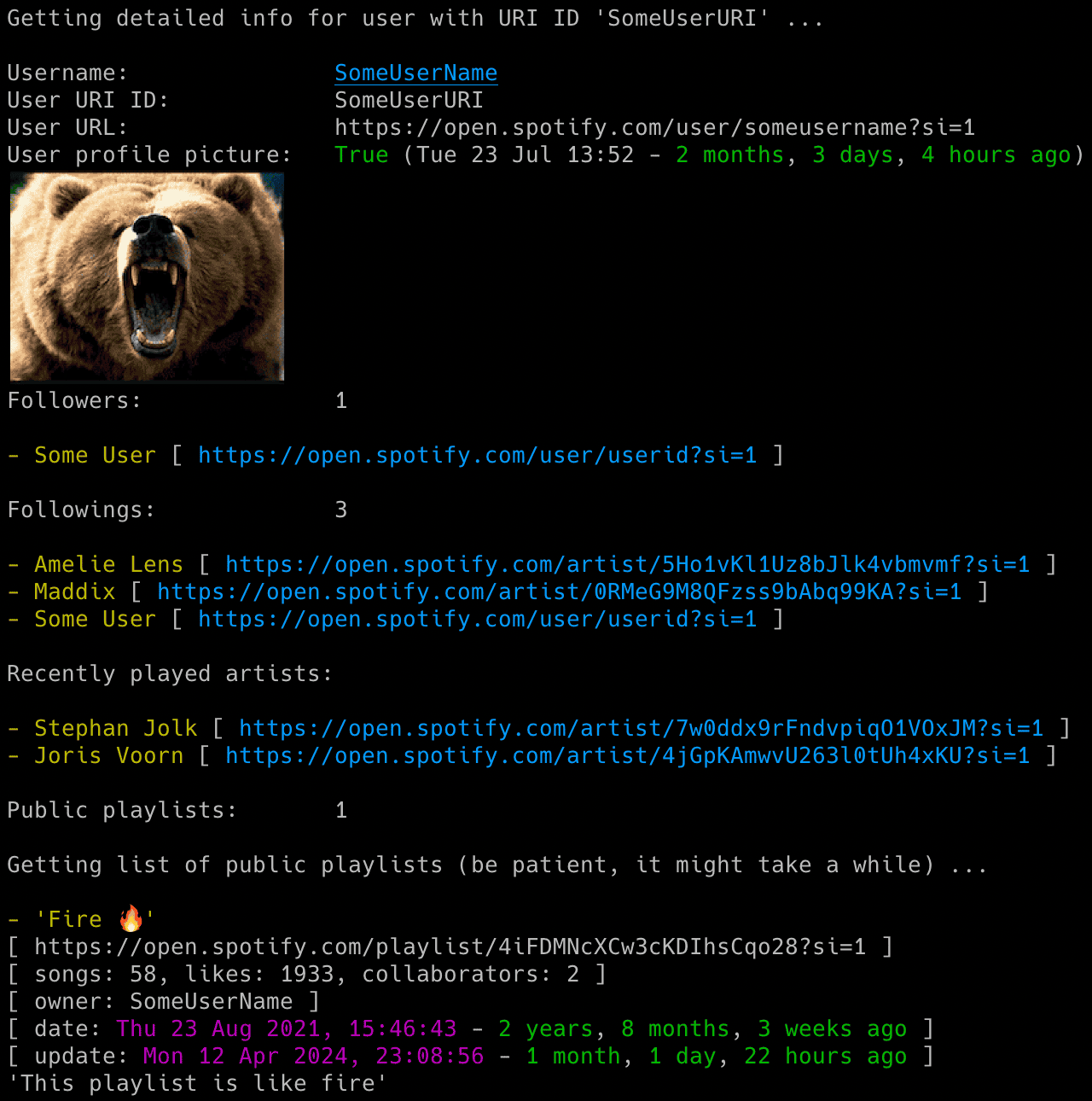
By default, only public playlists owned by the user are fetched. You can change this behavior with -k flag. It is helpful in the case of playlists created by another user added to another user profile:
spotify_profile_monitor <spotify_target> -i -k
If you want to additionally export each of the user's playlists into a separate .CSV file (named after the playlist and sanitized), use the --export-all-playlists flag (requires pathvalidate library):
spotify_profile_monitor <spotify_target> -i --export-all-playlists
To skip public playlist processing while displaying details for a Spotify target, use -q:
spotify_profile_monitor <spotify_target> -i -q
If you only want to display the list of followings and followers for the user (-f flag):
spotify_profile_monitor <spotify_target> -f
If you want to display a list of recently played artists (this feature only works if the user has it enabled in their settings), use the -a flag:
spotify_profile_monitor <spotify_target> -a
To search the Spotify catalog for users with a specific name and obtain their Spotify user ID plus profile URL, use -s:
spotify_profile_monitor -s "user name"
Email Notifications
To enable email notifications for all user profile changes (including playlists):
- set
PROFILE_NOTIFICATIONtoTrue - or use the
-pflag
spotify_profile_monitor <spotify_target> -p
To disable sending an email about new followers/followings (these are sent by default when the -p flag is enabled):
- set
FOLLOWERS_FOLLOWINGS_NOTIFICATIONtoFalse - or use the
-gflag
spotify_profile_monitor <spotify_target> -p -g
To disable sending an email on errors (enabled by default):
- set
ERROR_NOTIFICATIONtoFalse - or use the
-eflag
spotify_profile_monitor <spotify_target> -e
Make sure you defined your SMTP settings earlier (see SMTP settings).
Playlist change emails include inline artwork when Spotify provides it. Track-change alerts prefer playlist artwork when both playlist and album images are available, then fall back to album artwork when the playlist has no image. Artwork is accepted only from Spotify HTTPS CDN hosts and is resized to fit within 320 x 320 pixels. Download or image preparation failures do not block the email. Dedicated profile-picture events continue to attach the saved profile picture.
Playlist and album artwork are disabled by default. To include them in email notifications:
EMAIL_IMAGES = True
This setting does not control dedicated profile-picture events. Profile-picture detection, downloads and email attachments remain enabled by default through DETECT_CHANGED_PROFILE_PIC = True. Set that option to False or use -j to disable the profile-picture feature.
Example email:

Webhook Notifications
Webhook event settings mirror the email controls while remaining independent from SMTP:
| Event | Config setting | CLI override |
|---|---|---|
| Profile or playlist change | WEBHOOK_PROFILE_NOTIFICATION |
--webhook-profile |
| Followers or followings change | WEBHOOK_FOLLOWERS_FOLLOWINGS_NOTIFICATION |
Disable with --no-webhook-followers-followings-notify |
| Monitoring error | WEBHOOK_ERROR_NOTIFICATION |
Enable with --webhook-errors or disable with --no-webhook-error-notify |
Enable the master switch and the profile event setting in spotify_profile_monitor.conf:
WEBHOOK_ENABLED = True
WEBHOOK_PROVIDER = "discord"
WEBHOOK_PROFILE_NOTIFICATION = True
WEBHOOK_FOLLOWERS_FOLLOWINGS_NOTIFICATION = True
WEBHOOK_ERROR_NOTIFICATION = True
You can also enable profile webhooks for one run:
spotify_profile_monitor <spotify_target> --webhook-profile
Use --webhook or --no-webhook to turn all configured webhook alerts on or off for one run. Standard Discord and public ntfy.sh URLs automatically correct a stale configured provider. Use --webhook-provider {discord,ntfy} as an explicit override for self-hosted ntfy or compatible endpoints.
The recommended way to save the private destination is --set-webhook-url. Use --webhook-url URL only when shell history or process visibility is acceptable. See Webhook Settings for Discord setup, ntfy artwork and advanced payload customization.
CSV Export
If you want to save all profile changes (including playlists) to a CSV file, set CSV_FILE or use -b flag:
spotify_profile_monitor <spotify_target> -b spotify_profile_changes_spotify_user.csv
The file will be automatically created if it does not exist.
Detection of Changed Profile Pictures
The tool can detect when a monitored user changes their profile picture. Notifications appear in the console and (if the -p flag is enabled) via email.
This feature is enabled by default. To disable it, either:
- set the
DETECT_CHANGED_PROFILE_PICtoFalse - or use the
-jflag
How It Works
Since Spotify periodically changes the profile picture URL even when the image is the same, the tool performs a binary comparison of JPEG files to detect actual changes.
On the first run, it saves the current profile picture to spotify_profile_<user_id/file_suffix>_pic.jpeg
On each subsequent check a new image is fetched and it is compared byte-for-byte with the saved image.
If a change is detected, the old picture is moved to spotify_profile_<user_id/file_suffix>_pic_old.jpeg and the new one is saved to:
spotify_profile_<user_id/file_suffix>_pic.jpeg(current)spotify_profile_<user_id/file_suffix>_pic_YYmmdd_HHMM.jpeg(for history)
Displaying Images in Your Terminal
If you have imgcat installed, you can enable inline display of profile pictures and playlist artwork directly in your terminal.
To do this, set the path to your imgcat binary in the IMGCAT_PATH configuration option.
If you specify only the binary name, it will be auto-searched in your PATH.
Set it to empty to disable this feature.
Playlist Blacklisting
By default, all Spotify-owned playlists are skipped from processing, i.e. the tool won't fetch or report changed tracks and the number of likes for them. This is because they are typically dynamically generated with a high volume of changes in terms of likes and sometimes tracks as well. You can change this behavior by setting IGNORE_SPOTIFY_PLAYLISTS to False.
On top of that, you can also use the PLAYLISTS_TO_SKIP_FILE / -t flag which allows you to indicate a file with additional playlists to be blacklisted.
The file may include lines referencing playlist URIs and URLs, as well as the playlist owner's name, URI and URL. Below is an example of an ignored_playlists file with acceptable entries:
PLAYLIST_ID
spotify:playlist:PLAYLIST_ID
https://open.spotify.com/playlist/PLAYLIST_ID
https://open.spotify.com/playlist/PLAYLIST_ID?si=1
Some User Name
USER_ID
spotify:user:USER_ID
https://open.spotify.com/user/USER_ID?si=1
You can comment out specific lines with # if needed.
If certain playlists are blacklisted, there will be an appropriate message. For example:
- 'Afternoon Acoustic' [ IGNORED ]
[ https://open.spotify.com/playlist/37i9dQZF1DX4E3UdUs7fUx?si=1 ]
[ songs: 100, likes: 2164491, collaborators: 0 ]
[ owner: Spotify ]
[ date: Fri 23 Aug 2024, 17:05:15 - 7 months, 10 hours, 27 minutes ago ]
[ update: Fri 23 Aug 2024, 17:05:15 - 7 months, 10 hours, 27 minutes ago ]
'Unwind and let the afternoon unfold.'
Restricted Playlists (Spotify API 403/404)
Some playlists may appear on profile pages but return 403 or 404 from the public Web API. Version 3.5 automatically retries them through the Spotify web-player backend.
The tool marks a playlist as [ RESTRICTED ] and uses profile-view metadata only when both the Web API and web-player backend cannot retrieve it.
For restricted playlists, the tool can monitor:
- added/removed from profile
- playlist name changes
- likes/followers count changes (when available in profile-view)
For restricted playlists, the tool cannot monitor:
- track-level changes
- collaborators
- description changes
- creation/last update timestamps derived from track history
Check Intervals
If you want to customize polling interval, use -c flag (or SPOTIFY_CHECK_INTERVAL configuration option):
spotify_profile_monitor <spotify_target> -c 900
Terminal Output Modes
Normal mode keeps startup output compact and always shows monitoring changes, warnings and errors. Verbose mode adds the complete startup summary plus infrequent operational transitions:
spotify_profile_monitor <spotify_target> --verbose
Debug mode retains the complete summary and adds sanitized HTTP flow plus internal troubleshooting detail:
spotify_profile_monitor <spotify_target> --debug
Recoverable failures use a short Error, To fix and relevant guide format. Repeated monitoring failures keep the short error visible but suppress unchanged recovery instructions until the operation succeeds or the failure category changes. Raw exception detail is shown only in debug mode.
Cookies, tokens, passwords, authorization headers and webhook URLs are redacted from verbose and debug output.
Signal Controls (macOS/Linux/Unix)
The tool has several signal handlers implemented which allow to change behavior of the tool without a need to restart it with new configuration options / flags.
List of supported signals:
| Signal | Description |
|---|---|
| USR1 | Toggle email notifications for user's profile changes (-p) |
| TRAP | Increase the profile check timer (by 5 minutes) |
| ABRT | Decrease the profile check timer (by 5 minutes) |
| HUP | Reload secrets from .env file and token source credentials from Protobuf files |
Send signals with kill or pkill, e.g.:
pkill -USR1 -f "spotify_profile_monitor <spotify_target>"
As Windows supports limited number of signals, this functionality is available only on Linux/Unix/macOS.
Coloring Log Output with GRC
You can use GRC to color logs.
Add to your GRC config (~/.grc/grc.conf):
# monitoring log file
.*_monitor_.*\.log
conf.monitor_logs
Now copy the conf.monitor_logs to your ~/.grc/ and log files should be nicely colored when using grc tool.
Example:
grc tail -F -n 100 spotify_profile_monitor_<user_id/file_suffix>.log
Debugging Tools
To help with troubleshooting and development, two debug utilities are available in the debug directory of the related spotify_monitor project.
Access Token Retrieval via sp_dc Cookie and TOTP
The spotify_monitor_totp_test tool retrieves a Spotify access token using a Web Player sp_dc cookie and TOTP parameters.
Download from here or:
wget https://raw.githubusercontent.com/misiektoja/spotify_monitor/refs/heads/dev/debug/spotify_monitor_totp_test.py
Install requirements:
pip install requests python-dateutil pyotp
Run:
python3 spotify_monitor_totp_test.py --sp-dc "your_sp_dc_cookie_value"
You should get a valid Spotify access token, example output:
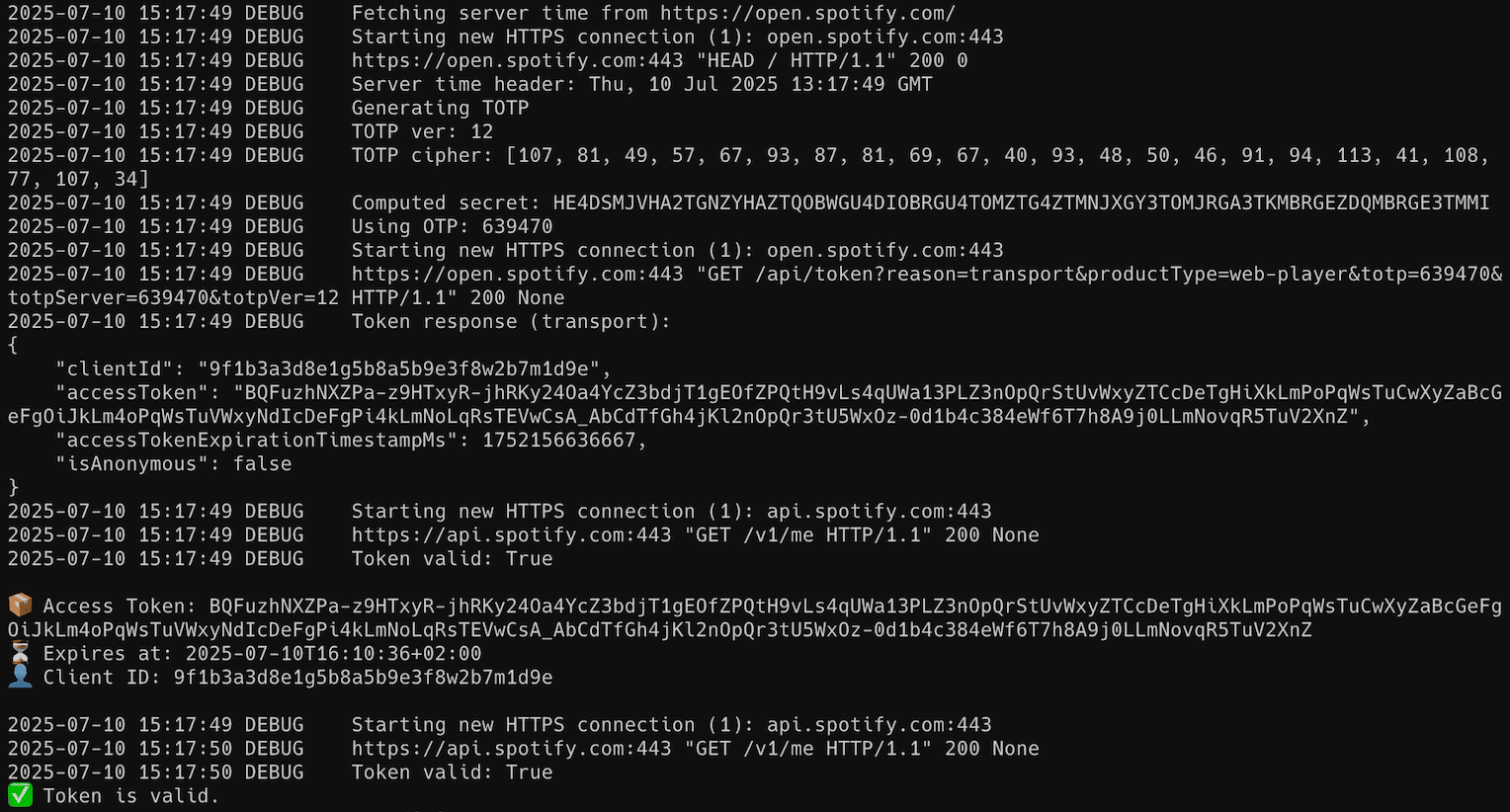
NOTE: Spotify still requires TOTP but continues to select v61. If the embedded values stop working,
spotify_monitor_totp_testoffers two recovery methods.--fetch-secretslaunches a headless browser and extracts current values from Spotify Web Player. It requires Playwright plus its browser files.--download-secretsreadsSECRET_CIPHER_DICT_URL, which may point to a remote URL or a localfile:URL. The default remote source is xyloflake/spot-secrets-go. These options affect only the test utility during that run. Spotify Profile Monitor v3.5 usesTOTP_VERSIONandTOTP_SECRET_CIPHER_BYTESinstead.
python3 spotify_monitor_totp_test.py --sp-dc "your_sp_dc_cookie_value" --fetch-secrets
python3 spotify_monitor_totp_test.py --sp-dc "your_sp_dc_cookie_value" --download-secrets
Secret Key Extraction from Spotify Web Player Bundles
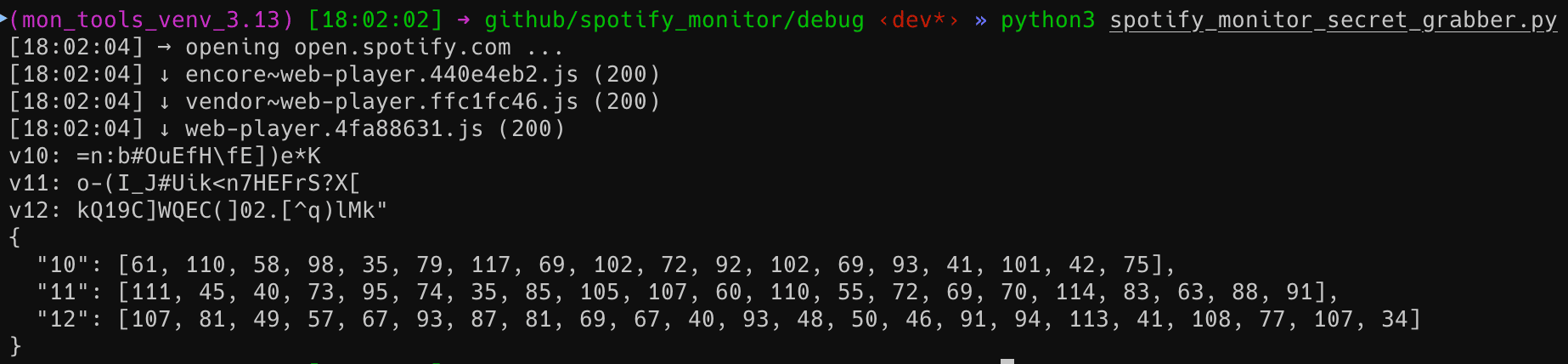
The spotify_monitor_secret_grabber tool automatically extracts secret keys used for TOTP generation in Spotify Web Player JavaScript bundles. Version 1.3 scans the loaded bundle source for the inline object-literal format used by the current web player and retains the original runtime property hook as a fallback for older formats.
The restored extractor returns v59, v60 and v61 directly from Spotify's current web-player bundle even when the original runtime hook reports no captures.
Quick tip: The easiest and recommended way to run this tool is via Docker. Jump directly to the Docker usage section below.
Download from here or:
wget https://raw.githubusercontent.com/misiektoja/spotify_monitor/refs/heads/dev/debug/spotify_monitor_secret_grabber.py
Install requirements:
pip install playwright
playwright install
Run interactively using the default output mode:
python3 spotify_monitor_secret_grabber.py
You should get output similar to below:
Show help:
python3 spotify_monitor_secret_grabber.py -h
CLI Output Modes
The script supports several output modes for different use cases:
| Flag | Description | Output |
|---|---|---|
--secret |
Prints plain JSON array of extracted secrets | [{"version": X, "secret": "..."}, ...] |
--secretbytes |
Prints JSON array with ASCII byte values | [{"version": X, "secret": [..]}, ...] |
--secretdict |
Prints JSON object/dict mapping version -> byte list | {"X": [..], "Y": [..]} |
--all |
Extracts secrets and writes all three outputs to local files | secrets.json, secretBytes.json, secretDict.json |
Print extracted secrets in a specific format. For example you can create a Python-friendly secret byte mapping and save it to a file:
python3 spotify_monitor_secret_grabber.py --secretdict > secretDict.json
Generate and save all secret formats at once:
python3 spotify_monitor_secret_grabber.py --all
Default file paths and names can be configured directly in the OUTPUT_FILES dictionary at the top of the script.
Secret Key Extraction via Docker (Recommended Easiest Way)
A prebuilt multi-architecture image is available on Docker Hub: misiektoja/spotify-secrets-grabber
This image works on:
- macOS (Intel and Apple Silicon)
- Linux (x86_64 and ARM64)
- Windows (Docker Desktop or WSL2)
- Raspberry Pi 4/5 (64-bit OS)
Run interactively using the default output mode:
docker run --rm misiektoja/spotify-secrets-grabber
Show help:
docker run --rm misiektoja/spotify-secrets-grabber -h
Print a Python-friendly secret byte mapping and save it to a file:
docker run --rm misiektoja/spotify-secrets-grabber --secretdict > secretDict.json
Generate and save all secret formats at once:
docker run --rm -v .:/work -w /work misiektoja/spotify-secrets-grabber --all
For SELinux hosts such as Fedora or RHEL use -v .:/work:Z.
You can optionally use Docker Compose with the preconfigured compose.yaml file included in the repository:
docker compose run --rm spotify-secrets-grabber --all
This saves all files into the current directory on macOS, Linux or Windows.
You can use the generated secretDict.json with spotify_monitor_totp_test and spotify_monitor. spotify_profile_monitor v3.5 embeds v61 directly and no longer depends on an external dictionary. If Spotify selects a new TOTP version later then update the TOTP_VERSION and TOTP_SECRET_CIPHER_BYTES config options with the values from the current web-player bundle. No code change is required.
Change Log
See RELEASE_NOTES.md for details.
Maintainers


License
Licensed under GPLv3. See LICENSE.
1 maintainer

Download files
Download the file for your platform. If you're not sure which to choose, learn more about installing packages.
Source Distribution
Built Distribution
Filter files by name, interpreter, ABI, and platform.
If you're not sure about the file name format, learn more about wheel file names.
Copy a direct link to the current filters
File details
Details for the file spotify_profile_monitor-3.7.tar.gz.
File metadata
- Download URL: spotify_profile_monitor-3.7.tar.gz
- Upload date:
- Size: 223.3 kB
- Tags: Source
- Uploaded using Trusted Publishing? Yes
- Uploaded via:
twine/7.0.0 CPython/3.13.14
File hashes
| Algorithm | Hash digest | |
|---|---|---|
| SHA256 |
93ad04162da9a7959a89a3d9463c3989d3aacd5eb837c811d15c42533cbb20a6
|
|
| MD5 |
347c4ce24825f13ff82d55fc3577f68a
|
|
| BLAKE2b-256 |
836db1201736874765cd68aa35864cb34ebed671742ac9faf2b9fbacab6f520c
|
Provenance
The following attestation bundles were made for spotify_profile_monitor-3.7.tar.gz:
Publisher:
publish.yml on misiektoja/spotify_profile_monitor
-
Statement:
-
Statement type:
https://in-toto.io/Statement/v1 -
Predicate type:
https://docs.pypi.org/attestations/publish/v1 -
Subject name:
spotify_profile_monitor-3.7.tar.gz -
Subject digest:
93ad04162da9a7959a89a3d9463c3989d3aacd5eb837c811d15c42533cbb20a6 - Sigstore transparency entry: 2338179298
- Sigstore integration time:
-
Permalink:
misiektoja/spotify_profile_monitor@e2a7d54dc551a1f0e786c7a6c110f6850296bd81 -
Branch / Tag:
refs/tags/v3.7 - Owner: https://github.com/misiektoja
-
Access:
public
-
Token Issuer:
https://token.actions.githubusercontent.com -
Runner Environment:
github-hosted -
Publication workflow:
publish.yml@e2a7d54dc551a1f0e786c7a6c110f6850296bd81 -
Trigger Event:
release
-
Statement type:
File details
Details for the file spotify_profile_monitor-3.7-py3-none-any.whl.
File metadata
- Download URL: spotify_profile_monitor-3.7-py3-none-any.whl
- Upload date:
- Size: 150.2 kB
- Tags: Python 3
- Uploaded using Trusted Publishing? Yes
- Uploaded via:
twine/7.0.0 CPython/3.13.14
File hashes
| Algorithm | Hash digest | |
|---|---|---|
| SHA256 |
534ffb3f5c52f9016c9139f6cb759eff99434ee357344be00822310bcff955dc
|
|
| MD5 |
711de4075d5d4ea00bd2cda376a7c858
|
|
| BLAKE2b-256 |
0560750006a351cc8d884309875713a2ca03a88aa9e1f541fd0fe721aff3f6ac
|
Provenance
The following attestation bundles were made for spotify_profile_monitor-3.7-py3-none-any.whl:
Publisher:
publish.yml on misiektoja/spotify_profile_monitor
-
Statement:
-
Statement type:
https://in-toto.io/Statement/v1 -
Predicate type:
https://docs.pypi.org/attestations/publish/v1 -
Subject name:
spotify_profile_monitor-3.7-py3-none-any.whl -
Subject digest:
534ffb3f5c52f9016c9139f6cb759eff99434ee357344be00822310bcff955dc - Sigstore transparency entry: 2338179301
- Sigstore integration time:
-
Permalink:
misiektoja/spotify_profile_monitor@e2a7d54dc551a1f0e786c7a6c110f6850296bd81 -
Branch / Tag:
refs/tags/v3.7 - Owner: https://github.com/misiektoja
-
Access:
public
-
Token Issuer:
https://token.actions.githubusercontent.com -
Runner Environment:
github-hosted -
Publication workflow:
publish.yml@e2a7d54dc551a1f0e786c7a6c110f6850296bd81 -
Trigger Event:
release
-
Statement type:














