
spyder-ai-assistant





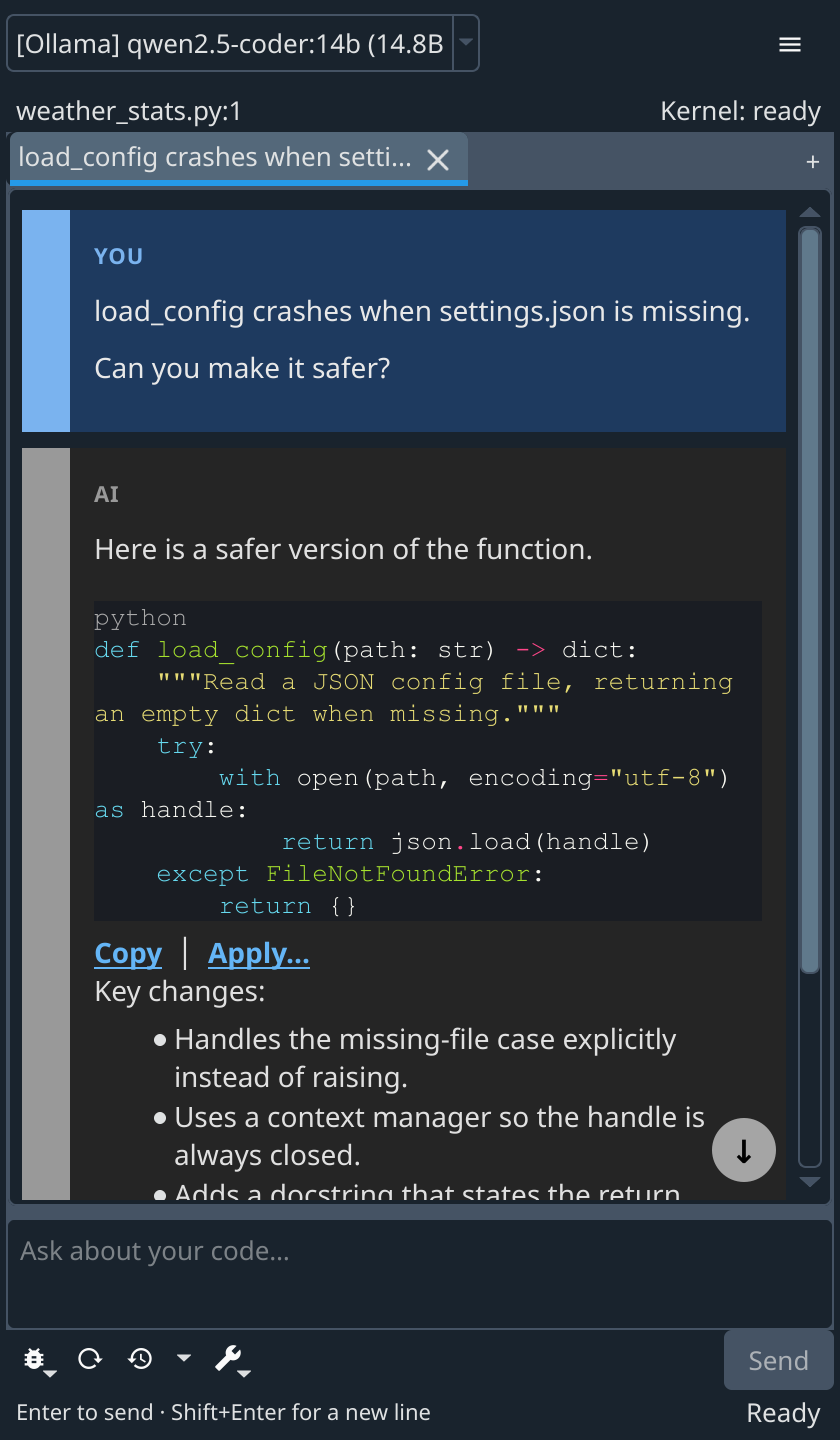
An AI assistant for Spyder that runs on your own machine. Chat about your code, get inline completions as you type, and let the model read your live variables and tracebacks. Models run locally through Ollama; OpenAI-compatible endpoints are optional. Spyder also becomes an MCP server, so Claude Code, Codex and OpenCode can work with your open editor and consoles.
Quick start
You need Spyder 6+, Python 3.11+ and Ollama. A GPU helps but is not required.
curl -fsSL https://ollama.com/install.sh | sh   # Linux; others: ollama.com/download
ollama pull qwen2.5:7b                          # chat model, 4.7 GB
pip install spyder-ai-assistant                 # into Spyder's environment
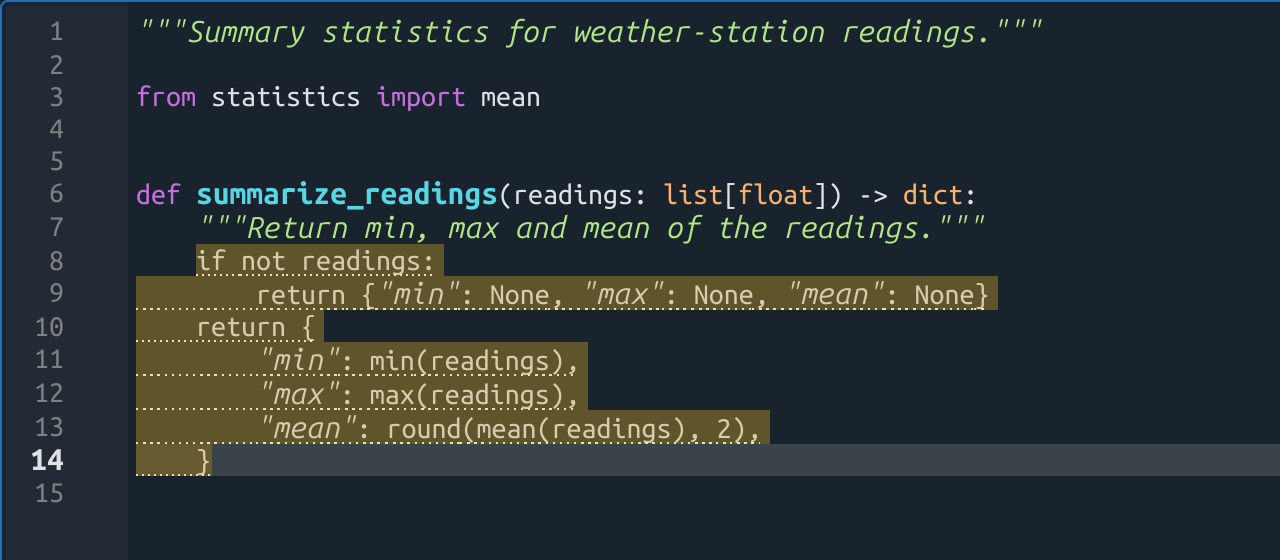
Restart Spyder, open View > Panes > AI Chat and pick your model from the dropdown. Suggestions appear as ghost text while you type in the editor.
Features
Inline completions
Tab accepts a suggestion, Alt+Right takes the next word, Esc dismisses it, and Ctrl+Shift+Space asks for one on demand.
All shortcuts and behaviour
| Key | Action |
|---|---|
Tab |
Accept the suggestion |
Alt+Right / Alt+Shift+Right |
Accept the next word / line |
Esc, Backspace |
Dismiss |
Ctrl+Shift+Space |
Request a suggestion now |
Ctrl+Space |
Spyder's own completion popup |
- Typing the characters of a suggestion accepts them as you go. Asking again at the same spot cycles through alternatives.
- Ghost text replaces Spyder's automatic popup by default. Assistant Settings > Behavior can instead show Spyder's popup first, or show it and replace it when the AI answers.
- The completion model loads when Spyder starts and stays loaded for 30 minutes of inactivity. The status bar shows its state:
AI: <model>,loading,generating,offlineordisabled. - The trigger, accept-word and accept-line keys can be changed in Assistant Settings > Shortcuts (restart Spyder afterwards).
- To stop suggestions arriving as you type, turn on Only suggest when I ask in Assistant Settings > Completions.
Ctrl+Shift+Spacethen becomes the only way to request one.
Chat about your code
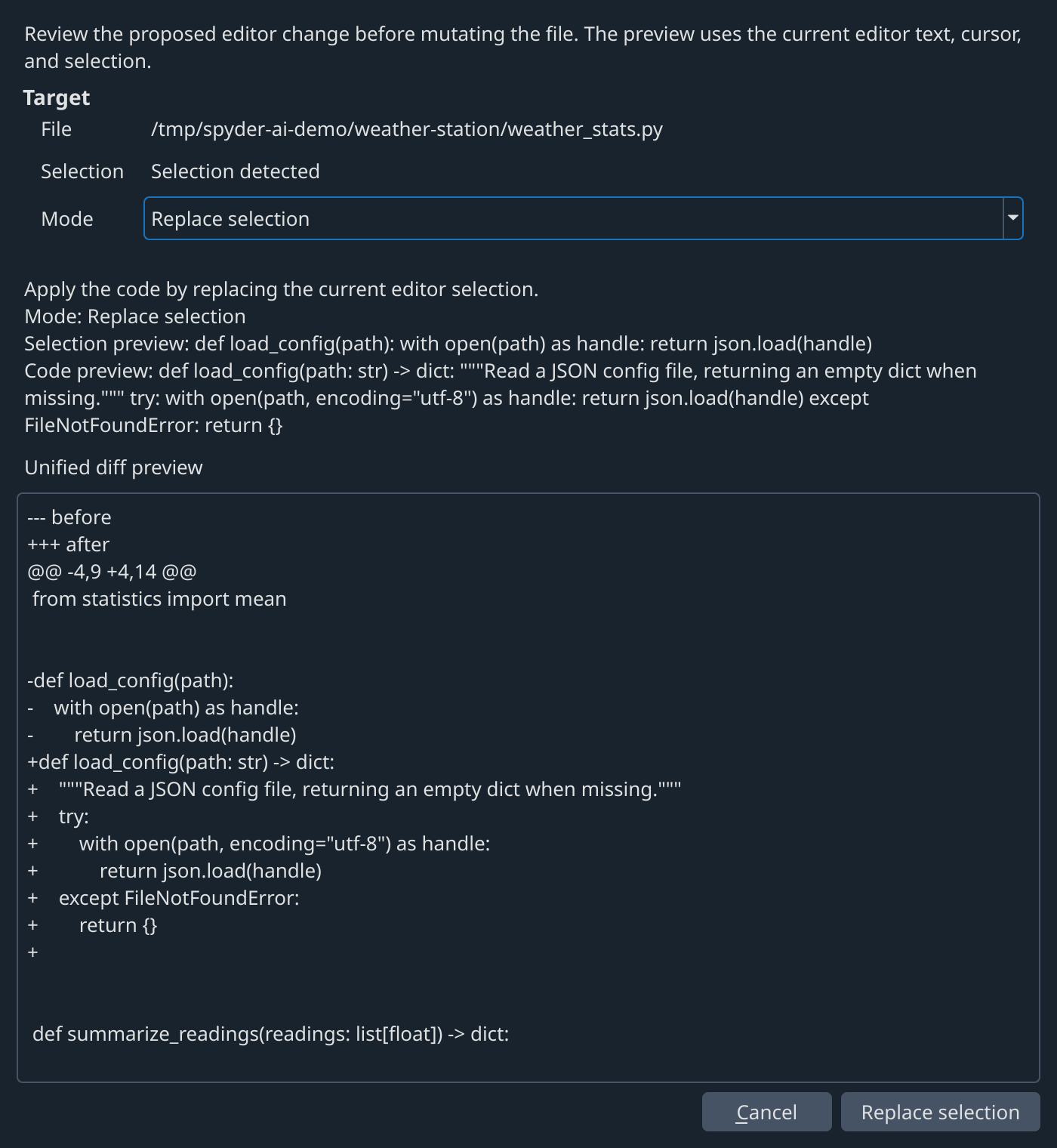
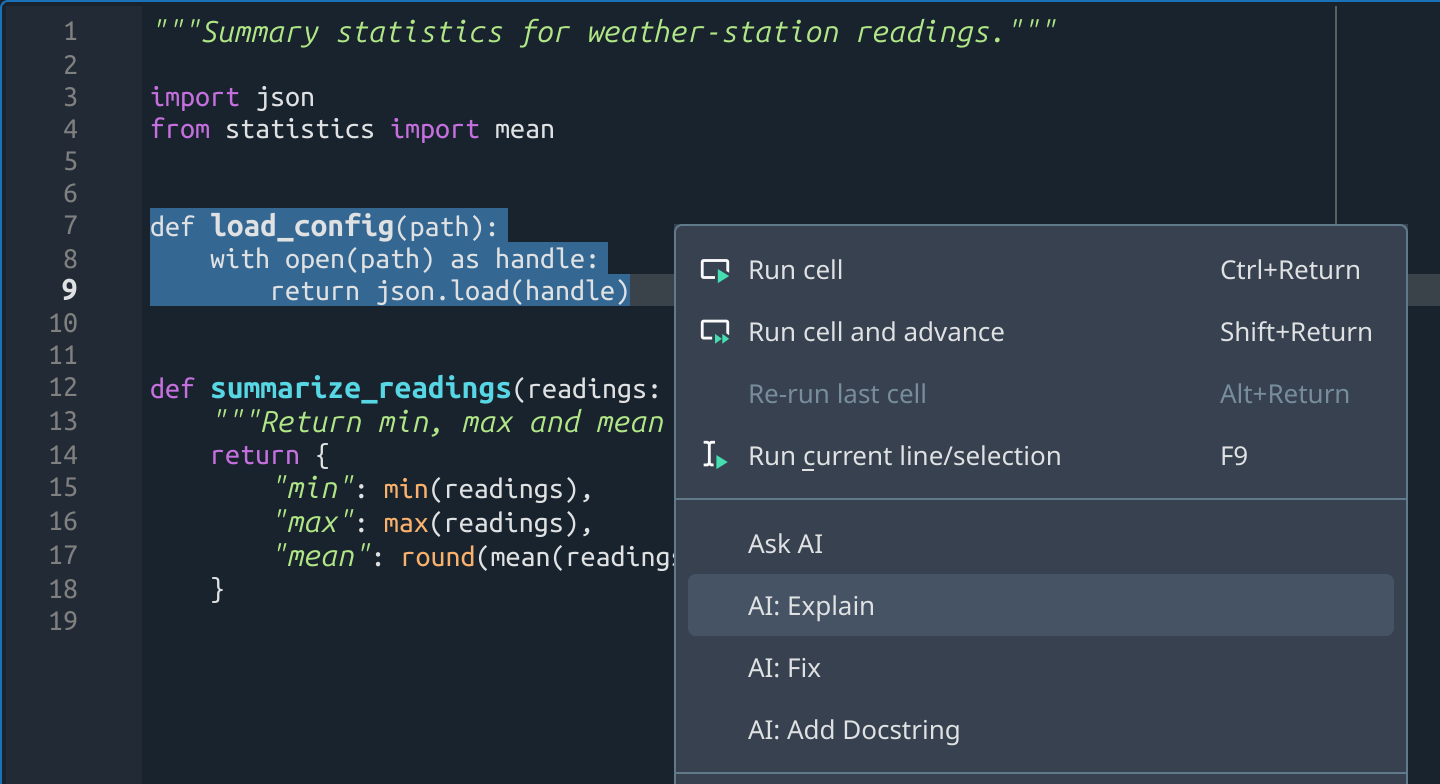
The chat sees your current file, cursor, selection and open tabs. Code blocks in answers have Copy and Apply.... Apply shows a diff first, then inserts at the cursor, replaces the selection, or replaces the function or class of the same name. One undo reverts it. Right-click a selection for Ask AI, AI: Explain, AI: Fix and AI: Add Docstring.
More chat features
- One conversation per tab. Answers stream in; Stop cancels and Regenerate reruns the last turn.
- Switch models mid-conversation from the dropdown.
- Reasoning from models that emit
<think>blocks shows in a dimmed section. - Per-tab chat mode (Coding, Debugging, Review, Data Analysis, Explanation, Documentation), temperature and max tokens: Tab settings... in the Settings menu.
- Delete single exchanges or export a chat to Markdown from the Sessions menu.
Entersends,Shift+Enteradds a line.
Debug with your live kernel
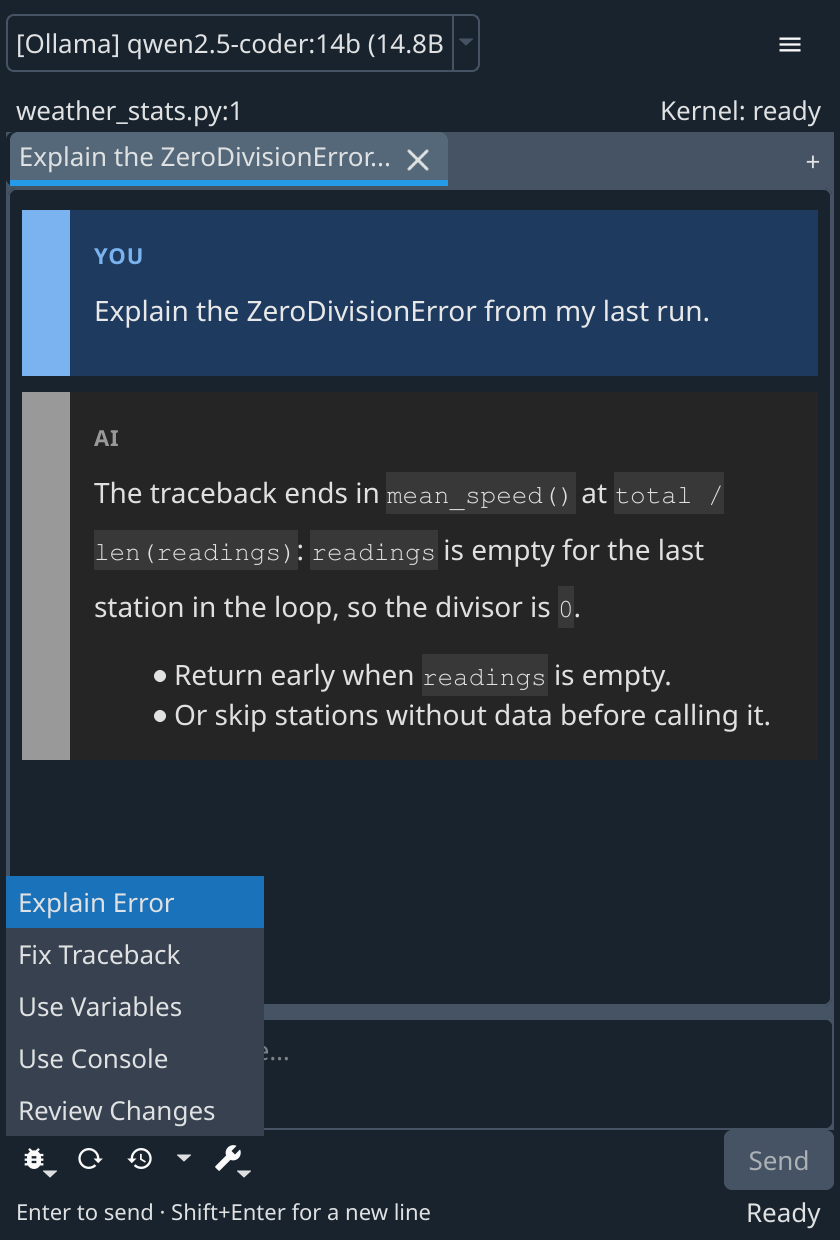
Ask about an error or a variable and the model can read the latest traceback, recent console output and the variables in your IPython console, including arrays and DataFrames. It reads only when the question needs it and never runs code. The Debug menu has ready-made prompts: Explain Error, Fix Traceback, Use Variables, Use Console and Review Changes. With several consoles open, the selector under the model dropdown picks which one is inspected.
Project files and git
When asked, the model can list, read and search files in your project and look at git status, diffs and recent commits. Access is read-only, stays inside the project folder and skips .git, virtual environments and build output. Turn it off in Assistant Settings > Advanced > Project access.
Sessions
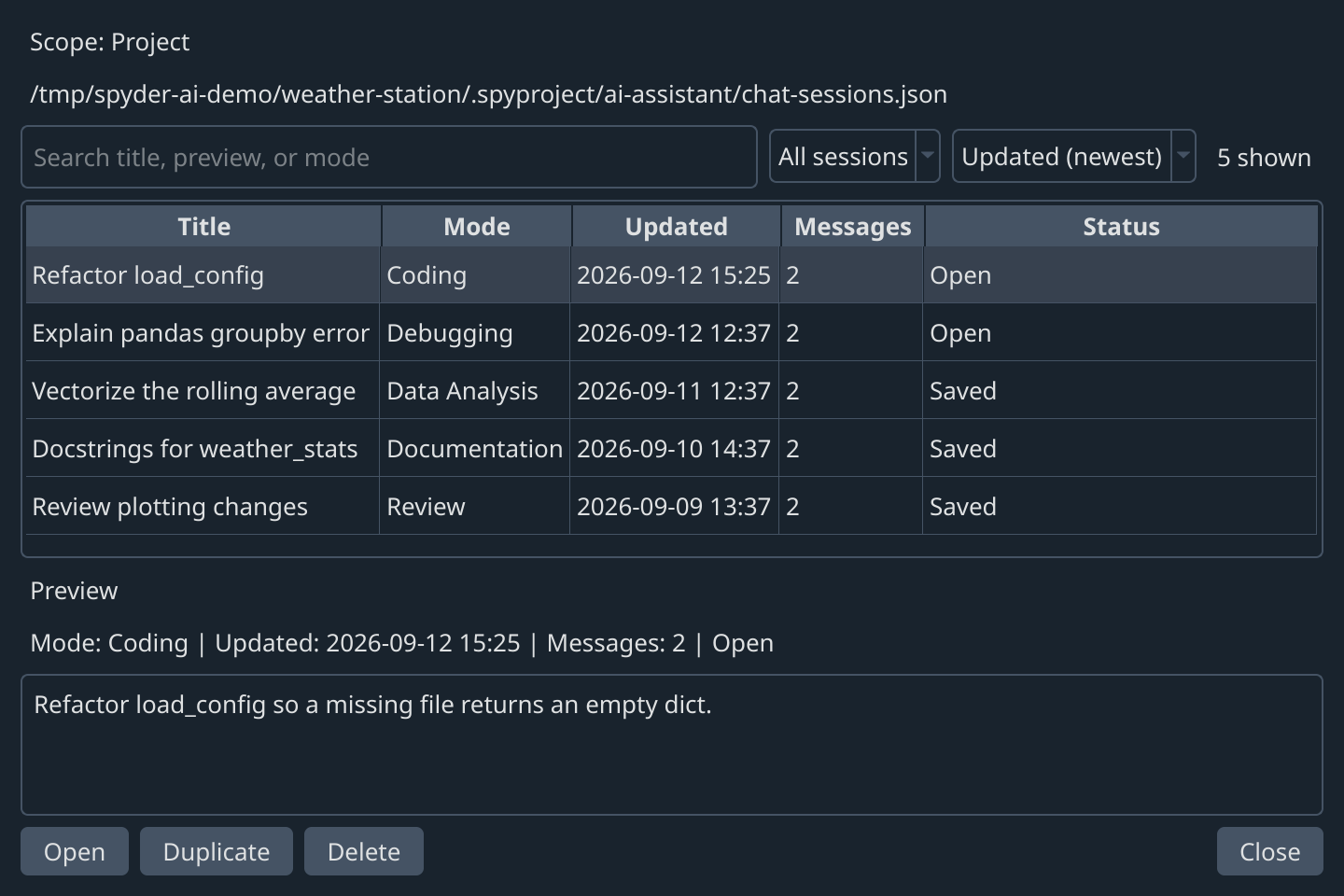
Chats save automatically: per project in .spyproject/ai-assistant/chat-sessions.json, otherwise in Spyder's config folder. Sessions opens a history browser to search, reopen, duplicate or delete past chats.
Claude Code, Codex and OpenCode (MCP)
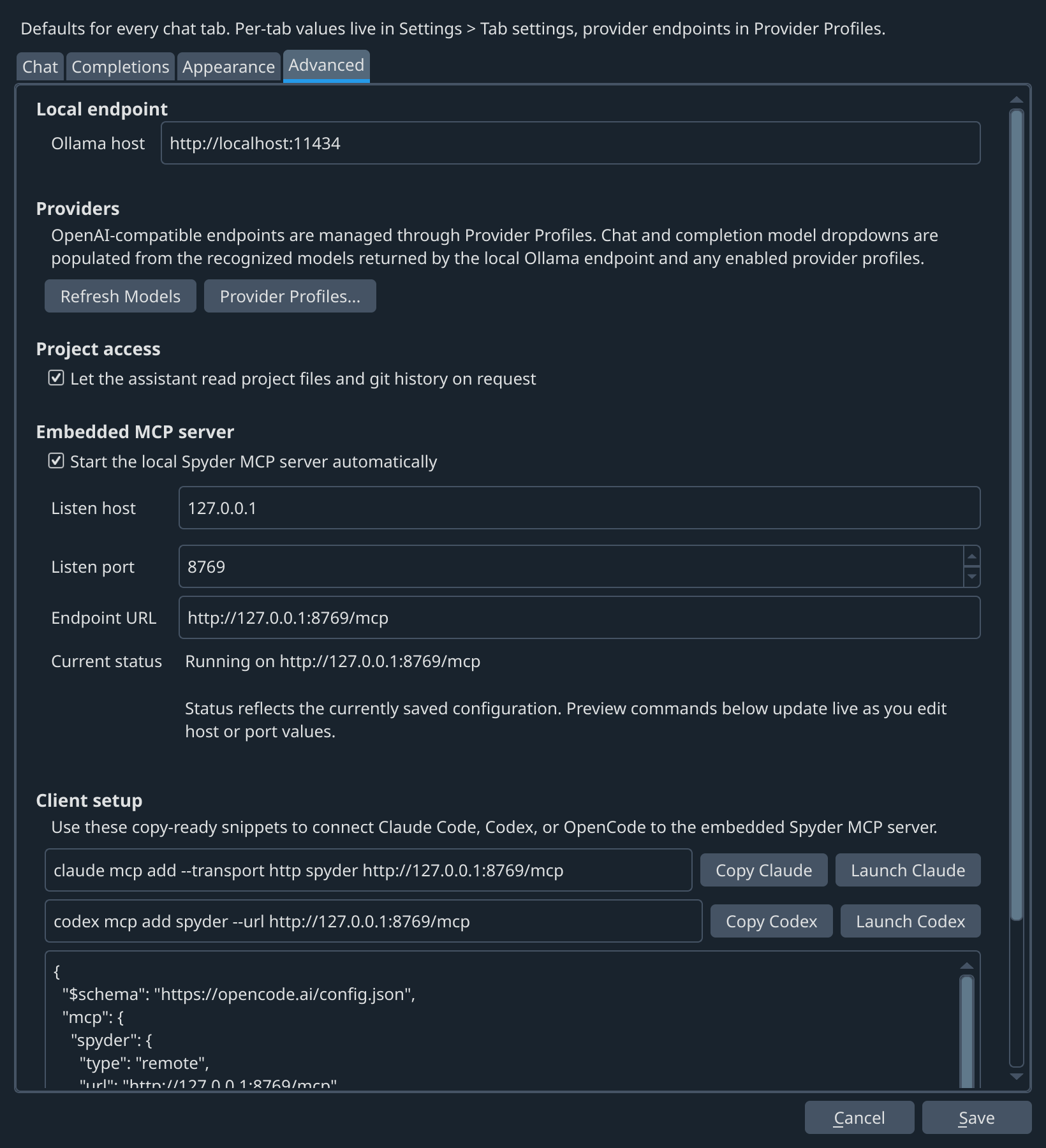
While Spyder runs it serves MCP at http://127.0.0.1:8769/mcp, so coding agents can read your editor and consoles and edit files after previewing the change:
claude mcp add --transport http spyder http://127.0.0.1:8769/mcp
codex mcp add spyder --url http://127.0.0.1:8769/mcp
Assistant Settings > MCP switches the server on or off, sets host and port, shows its status, copies config snippets (OpenCode included) and launches each agent in your project folder.
MCP tools and edit safety
| Area | Tools |
|---|---|
| Editor | get_current_file, get_open_files, preview_file_edit, apply_file_edit |
| Project | get_project_tree, list_project_files, read_project_file, search_project |
| Git | git_status, git_diff, git_log |
| Consoles | get_consoles, get_variables, inspect_variable, get_traceback, get_console_output, execute_console_code |
An edit must be previewed first, then applied with confirm=true and the document hash the preview returned, so a file that changed in the meantime is never overwritten. Saving goes through Spyder's editor. execute_console_code takes an optional shell_id to target one console.
Other providers
Add OpenAI-compatible endpoints (cloud or self-hosted) under Provider Profiles... in the Settings menu, each with a name, URL and API key. Test connection checks one before you rely on it. Their models join the same dropdowns for chat and completions.
Choosing a model
Every model you pull appears in the dropdowns. A rough guide:
| GPU memory | Chat model | Download |
|---|---|---|
| 8 GB | qwen2.5:7b |
4.7 GB |
| 12 GB | qwen2.5:14b |
9 GB |
| 16 GB | gpt-oss:20b |
14 GB |
| 16 GB + 64 GB RAM | qwen3-coder-next (80B MoE, 3B active; the plugin default) |
52 GB |
Completions use the chat model unless a separate completion model is installed and selected. A small coder model is faster: ollama pull qwen2.5-coder:3b (1.9 GB). Without a GPU, Ollama runs on the CPU, more slowly.
Settings
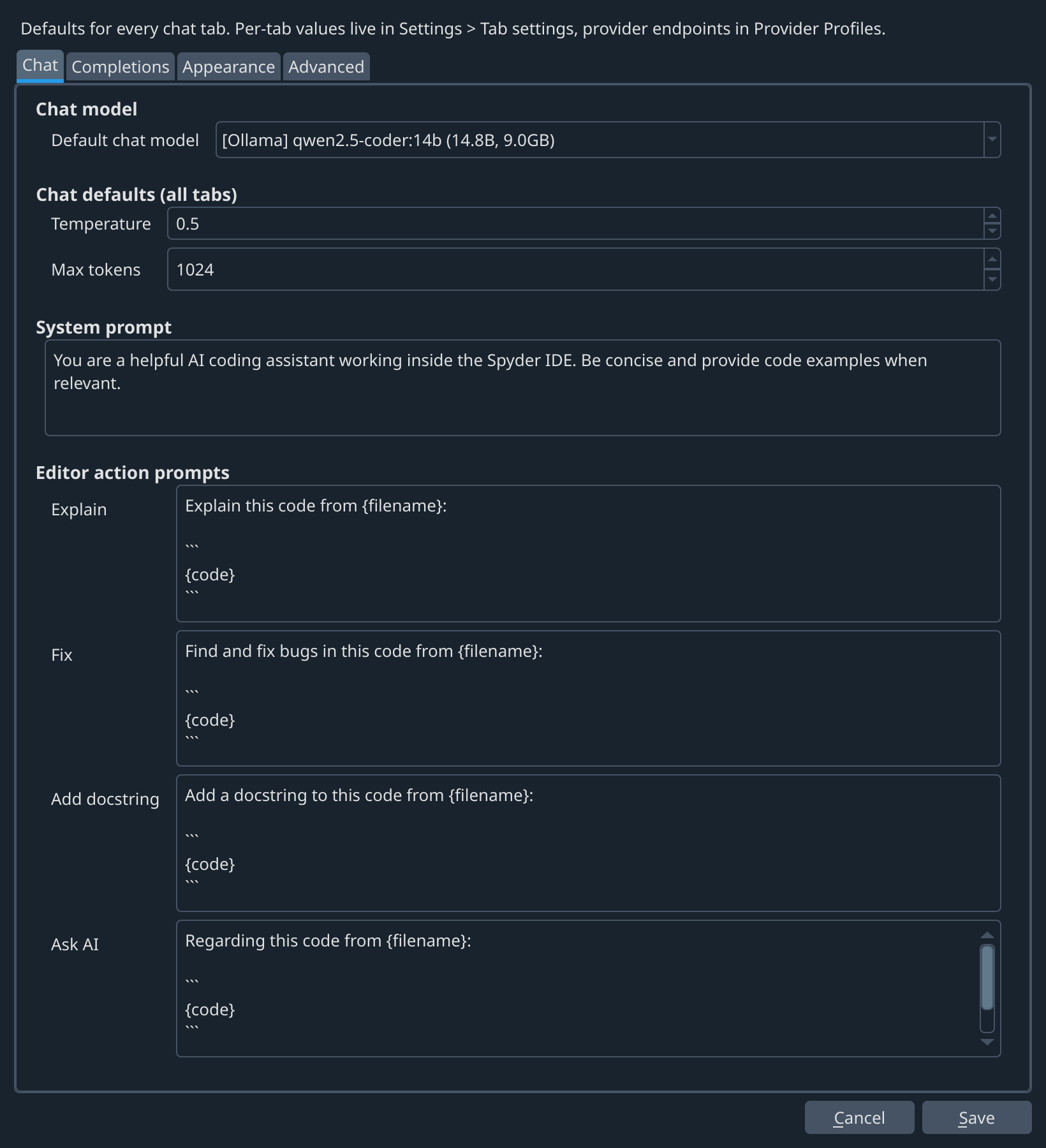
The chat pane's Settings button opens a menu: Assistant Settings..., Tab settings... and Provider Profiles.... Assistant Settings has four tabs — Chat (chat model, its defaults, prompt templates), Completions (completion model, ghost-text timing, shortcuts), Appearance (theme, fonts, message bubbles) and Advanced (Ollama host, project access, the embedded MCP server). Tab settings... holds the current tab's chat mode, temperature and max tokens; the button reads Settings* while a tab differs from the defaults.
Screenshot
Troubleshooting
| Problem | Fix |
|---|---|
| No models in the dropdown | Check that Ollama runs: curl http://localhost:11434/api/tags. Pull a model if the list is empty. For a provider profile, check that the endpoint answers on /v1/models. |
| No inline suggestions | Check the status bar. AI: offline: the model or provider can't be reached. AI: disabled: completions are off (Assistant Settings > Completions). |
| AI Chat missing from View > Panes | The plugin is in a different environment from Spyder. Run python -c "import spyder_ai_assistant" with Spyder's Python. |
| Slow answers or high memory use | Use a smaller model. The first request waits for the model to load. ollama ps lists loaded models, ollama stop <model> unloads one. |
| Vague answers about variables or errors | Kernel inspection needs a model that follows instructions well. Qwen models work reliably. |
Roadmap
Next up: session pinning and labels, more provider types, guided Ollama setup and model downloads, completions that suggest multi-site edits, and agent workflows with approval steps.
Contributing
See CONTRIBUTING.md for development setup, architecture, validation and releases.
License
CC BY-NC 4.0: free for non-commercial use with attribution. See LICENSE.
1 maintainer

Metadata
1 maintainer
Release files for spyder-ai-assistant 0.8.0
For a detailed explanation of source distributions (sdists) and built distributions (wheels), please see the package formats documentation.
Source distribution (sdist)
| File | Size | Uploaded | |
|---|---|---|---|
| spyder_ai_assistant-0.8.0.tar.gz | 1.6 MB | Details |
Built distribution (wheel)
| File | Interpreter | ABI | Platform | Reset |
|---|---|---|---|---|
| spyder_ai_assistant-0.8.0-py3-none-any.whl | Python 3 | none | any | Details |
Total release size: 1.8 MB
Release files / spyder_ai_assistant-0.8.0.tar.gz
| Download URL | spyder_ai_assistant-0.8.0.tar.gz |
|---|---|
| Size | 1.6 MB |
| Tags | Source |
|
SHA-256 checksum How to use checksums |
f69521124e0cf50b2a1d347bb3e2eb78d21a998131125d059ff16f21028b209d
|
|
BLAKE2b-256 checksum How to use checksums |
852861828bbd7be141c93ce0ae409daf6fc5b3e67a09e0871b7bda46019d447c
|
| Upload date | |
|
Uploaded using Trusted Publishing? What is trusted publishing? |
Yes |
| Uploaded via |
twine/7.0.0 CPython/3.13.14
|
Provenance
Provenance describes where a file came from. On PyPI, provenance is shared via attestations, which provide a verifiable record of the build or publishing details. View details, limitations and caveats.


PyPI Publish Attestation
PyPI verified that this artifact, at this checksum, originated from the publisher listed below.
Signed by GitHub Actions, verified by PyPI on Sep 12, 2026.
Transparency logRelease files / spyder_ai_assistant-0.8.0-py3-none-any.whl
| Download URL | spyder_ai_assistant-0.8.0-py3-none-any.whl |
|---|---|
| Size | 249.8 kB |
| Tags | Python 3 |
|
SHA-256 checksum How to use checksums |
014f759bc4b097d16b5deac9425e60cc5e549f2f3cfd2e4501c602cb08779c5a
|
|
BLAKE2b-256 checksum How to use checksums |
8afca2a14ad60100e05ca3c73e40fa65ef8a004fb39c524dbbda1ef54f4efa0d
|
| Upload date | |
|
Uploaded using Trusted Publishing? What is trusted publishing? |
Yes |
| Uploaded via |
twine/7.0.0 CPython/3.13.14
|
Provenance
Provenance describes where a file came from. On PyPI, provenance is shared via attestations, which provide a verifiable record of the build or publishing details. View details, limitations and caveats.
PyPI Publish Attestation
PyPI verified that this artifact, at this checksum, originated from the publisher listed below.
Signed by GitHub Actions, verified by PyPI on Sep 12, 2026.
Transparency log













