
Streamlit DynamoDB Connection
Streamlit DynamoDB Connection is a Python library that connects your Streamlit application to an Amazon DynamoDB table. This integration allows you to read and write persistent data in your table as simple as it were a Python dictionary. You can also visualize and edit the data from the user interface of your the application using an intuitive table widget.
Streamlit is an open-source Python library that allows developers to create web applications for machine learning and data science projects quickly and easily.
Amazon DynamoDB is a fully managed NoSQL database service provided by Amazon Web Services (AWS).
The primary method of data access in DynamoDB involves retrieving schema-less items by specifying their key, a process quite similar to the Python dictionary API. This library builds on the dynamodb-mapping Python package that implements the dictionary interface over a DynamoDB table.
Demo application
You can try the demo application of DynamoDB Connection at https://st-dynamodb-connection.streamlit.app.
Getting started
Installation
You can install DynamoDB Connections with pip:
pip install st-dynamodb-connection
Creating a DynamoDB table and configuring AWS credentials
-
As Streamlit DynamoDB Connections connects your Streamlit application to a DynamoDB table, first you need a DynamoDB table. If you do not have already one, you can follow the steps in the Create a DynamoDB table and add some data document to create one.
-
You will also need to configure the AWS credentials for your Streamlit app. Follow the steps described in the Create Access Key section of the Connect Streamlit to AWS S3 page of the Streamlit documentation. You can also add the AWS credentials to the connection-specific section of your
secrets.toml. For example, if you name your connectionmy_dynamodb_connection, you can add the following in the secrets file:# .streamlit/secrets.toml [connections.my_dynamodb_connection] table_name = "my_table" aws_access_key_id = "xxx" aws_secret_access_key = "xxx" aws_region = "eu-west-1"
Ensure you change the values to the actual value of your credentials, AWS region and table name.
Using DynamoDB Connection
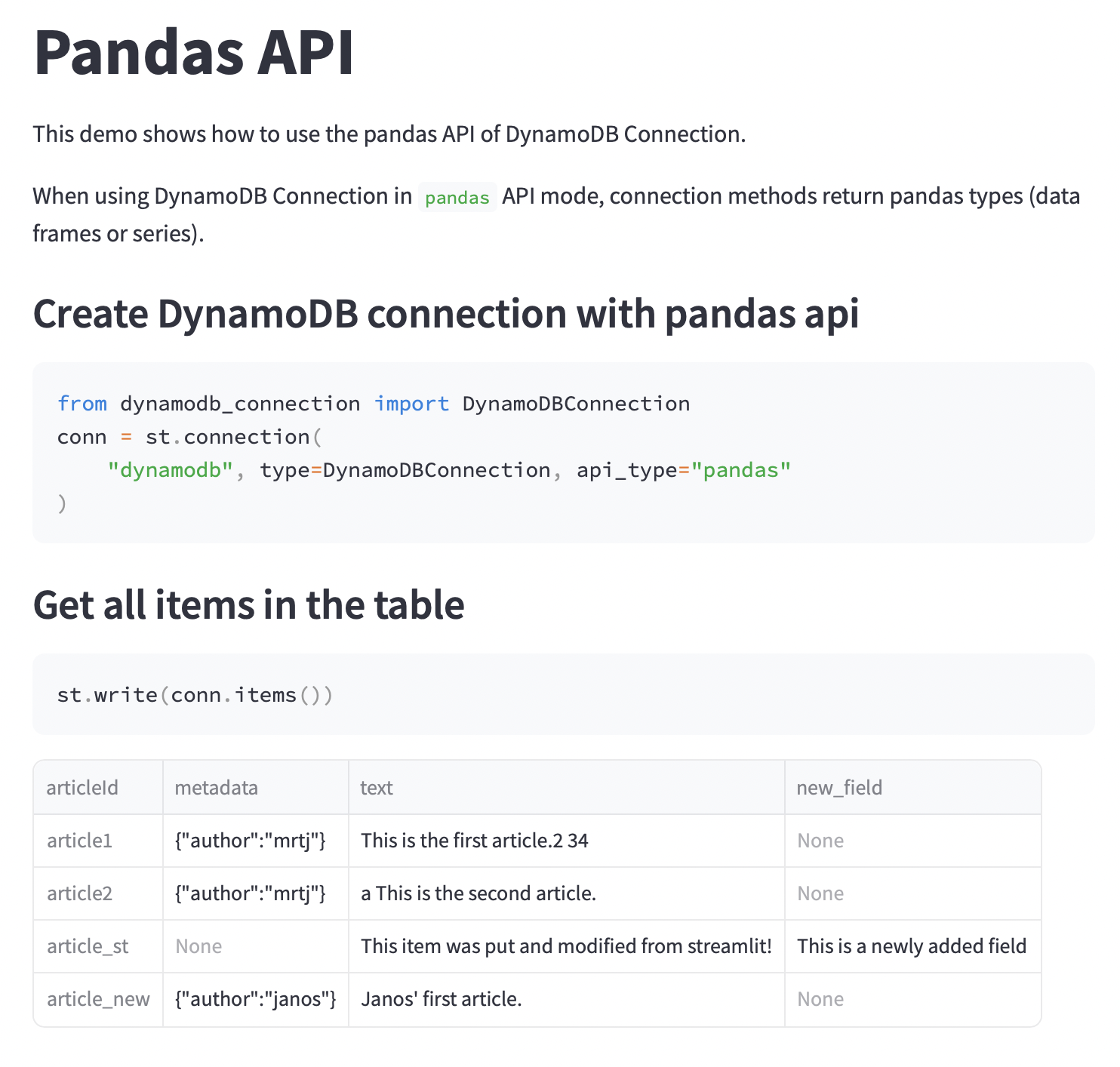
You can use DynamoDB Connection in your Streamlit application as simple as:
import streamlit as st
from dynamodb_connection import DynamoDBConnection

# Create a connection:
conn = st.connection(
    "my_dynamodb_connection", type=DynamoDBConnection, api_type="pandas"
)

# Get all items in the table:
st.write(conn.items())

# Get a single item by key:
item = conn.get_item("first_item")
st.write(item)

# Put an item in the table:
conn.put_item(
    "new_item",
    {
        "text": "This item was put from streamlit!",
        "metadata": {"source": "mrtj"},
    }
)

# Modify an existing item:
conn.modify_item(
    "new_item",
    {
        "text": "This item was put and modified from streamlit!",
        "metadata": None,
        "new_field": "This is a newly added field"
    }
)

# Delete an item from the table:
conn.del_item("new_item")
API variants
The previous examples used the pandas API of DynamoDB Connections. In this mode the connection will return Pandas objects (DataFrames or Series). You can also use the raw API to get the results as standard Python objects (lists and dictionaries).
DynamoDB Connections also lets you access the underlying DynamoDB Mapping instance that lets you use your table as if it were a Python Dictionary. For more information, check the Dictionary API sample application.
Table editor
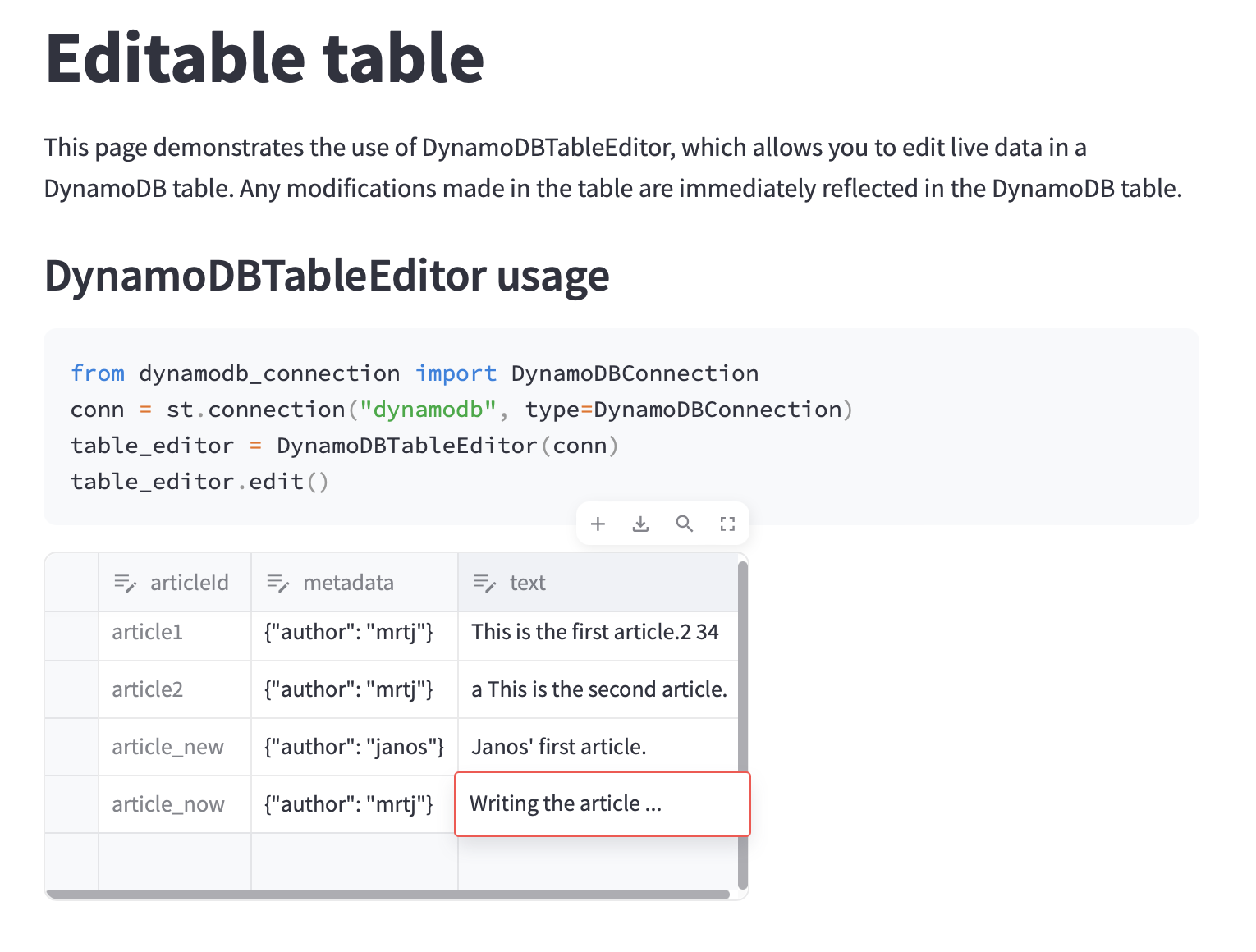
DynamoDB Connections comes with an integration with Streamlit Data Editor called Table Editor. This widget displays all items in your DynamoDB table in an editable way. Your modifications are written to back to the DynamoDB table on the fly, allowing you (or the users of your app) to modify the data in the table in a convenient way. You can try out the table editor in the Demo application.
Example usage:
import streamlit as st
from dynamodb_connection import DynamoDBConnection

# Create a connection:
conn = st.connection(
    "my_dynamodb_connection", type=DynamoDBConnection, api_type="pandas"
)

# Launch the table editor:
table_editor = DynamoDBTableEditor(conn)
table_editor.edit()
1 maintainer

Release files for st-dynamodb-connection 0.1.5
For a detailed explanation of source distributions (sdists) and built distributions (wheels), please see the package formats documentation.
Source distribution (sdist)
| File | Size | Uploaded | |
|---|---|---|---|
| st_dynamodb_connection-0.1.5.tar.gz | 9.5 kB | Details |
Built distribution (wheel)
| File | Interpreter | ABI | Platform | Reset |
|---|---|---|---|---|
| st_dynamodb_connection-0.1.5-py3-none-any.whl | Python 3 | none | any | Details |
Total release size: 18.9 kB
Release files / st_dynamodb_connection-0.1.5.tar.gz
| Download URL | st_dynamodb_connection-0.1.5.tar.gz |
|---|---|
| Size | 9.5 kB |
| Tags | Source |
|
SHA-256 checksum How to use checksums |
e1310ccdbc1e6788ab3312ab47937b0cfa94605dd6791b4563991e7e7a522959
|
|
BLAKE2b-256 checksum How to use checksums |
037d52d920f67a629cbb4e045b89de5fa02614ae2f7f29ffb16bfb45315785bd
|
| Upload date | |
|
Uploaded using Trusted Publishing? What is trusted publishing? |
No |
| Uploaded via |
poetry/1.7.0 CPython/3.11.5 Darwin/21.6.0
|
Release files / st_dynamodb_connection-0.1.5-py3-none-any.whl
| Download URL | st_dynamodb_connection-0.1.5-py3-none-any.whl |
|---|---|
| Size | 9.4 kB |
| Tags | Python 3 |
|
SHA-256 checksum How to use checksums |
6940257f5cf59a6f01bcbb8d413cf873d5889a7e4d1dac709dbaa58da70ebb79
|
|
BLAKE2b-256 checksum How to use checksums |
b4336c2a18693c6ee33ac507b80a755004c92ac6262f3d38660f63e9676e5954
|
| Upload date | |
|
Uploaded using Trusted Publishing? What is trusted publishing? |
No |
| Uploaded via |
poetry/1.7.0 CPython/3.11.5 Darwin/21.6.0
|














