




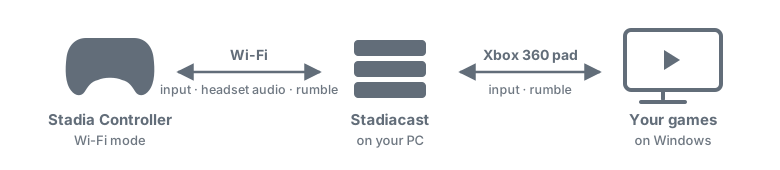
Google shut Stadia down in January 2023 and, with it, the cloud endpoints the Stadia Controller's Wi-Fi mode depends on. Stadiacast is a small server you run on your own network that stands in for those endpoints, so the controller you own keeps working with your own PC: it joins your Wi-Fi, connects, stays on, reports every button, stick and trigger, vibrates on request and plays sound on its headset jack.
Status: works end to end with controllers running their Wi-Fi firmware (tested with
ota.282115), several at once. Expect rough edges. Questions go to Discussions, bugs to the issues; pull requests are very welcome. Switched your controller to Bluetooth mode? It comes back, see Requirements.
Key features
- 🛠️ No firmware modification. The receiver speaks the controller's stock protocol as is, and never flashes anything.
- 🔒 No account, no cloud service. Input, rumble and headset audio stay between the controller and your PC.
- 📜 Nothing to obtain. The receiver ships a certificate the controller accepts: unpack, run, wake the controller.
- 🎮 A PC gamepad on Windows. Every controller becomes an Xbox 360 controller for your games, and the game's rumble reaches the controller.
- 🍎 A gamepad on macOS. Through the OpenJoystickDriver app every controller becomes an Xbox controller for Mac games, rumble included.
- 🎧 Headset audio. What the PC plays, or any file, streams to a headset plugged into the controller.
- 👥 Several controllers at once, each one its own player.
Quick start
pip install 'stadiacast[ble,audio,gamepad]'           # or unpack an executable from the releases page
stadiacast --preset live --dns-upstream 192.168.1.1   # your router: the DNS sink forwards the rest there
-
Network. Put the controller and the receiver on one network where the receiver's machine is the controller's DNS server; a hotspot hosted by that machine is the simplest (docs/setup.md).
-
First boot only. A controller fresh out of the box, or one that was reset, waits in Bluetooth setup mode for its Wi-Fi credentials:
stadiacast-provision scan
stadiacast-provision provision --address <ADDR> --ssid <your SSID>
-
Start the receiver with the command above; for a virtual gamepad add
--gamepad vigemon Windows or--gamepad ojdon macOS. From a source checkout,tools/start_receiver.shdoes the same in the background, with the settings of a.envfile (see.env.example). -
Wake the controller with a ~1 s press of the Stadia button, released at the first vibration. Two short rumbles and a steady light mean it found the receiver; a blinking light with no rumble is a short "report wake", so press again.
-
Watch the input. The console shows one line per report,
GET http://<receiver>/_statusshows the session state, the battery level and whether a headset is plugged in, and with an install from PyPI or from sourcestadiacast-show-input captures/<stamp>summarizes a run. -
Rumble. Start with
--start-game, since the game session is the only path to the motors, then post levels from 0 to 65535:curl -d '{"left":40000,"right":40000,"ms":1500}' http://<receiver>/_rumble # pulse curl -d '{"left":65535,"right":20000}' http://<receiver>/_rumble # hold curl -d '{"left":0,"right":0}' http://<receiver>/_rumble # stop
-
More controllers each get their own session,
c0,c1, ... in the log and in/_status; name the target of a control request with?controller=c1or a"controller"field in the JSON body. -
Stop with Ctrl-C, or
tools/stop_receiver.shfor a receiver the start script launched.
--preset live is the flag set proven end to end; explicit flags override it, and
stadiacast --help lists every knob.
How it works
- DNS. The controller must use the receiver's machine as its DNS server. The receiver spawns a small DNS server that points the Google names it needs at itself and forwards everything else upstream.
- HTTPS. The firmware validates the server certificate against its built-in Google Trust Services roots and checks neither the hostname, nor the dates, nor revocation, so one GTS chain, the one the receiver ships, lets it answer every Google name.
- WebRTC. The controller offers a WebRTC session in its
DiscoverDisplayrequest; the receiver answers over the GMsg push channel, terminates STUN and DTLS, and plays the display side of the post-DTLS RPC handshake until the controller reaches READY and starts reporting input. - Game session. On
StartGamethe controller opens a second session for game streaming. That session carries input too, and it is the only path to the controller's rumble motors.
docs/protocol.md describes the protocol in detail and docs/architecture.md how the code is put together.
Requirements
- A Stadia Controller running its Wi-Fi firmware (tested with
ota.282115). A controller switched to Bluetooth mode can be flashed back with community tools; Stadiacast itself never flashes anything. - A Windows, macOS or Linux computer on the controller's network, acting as its DNS server.
The reference rig is a macOS Internet Sharing hotspot. On Linux, binding ports 53, 80, 123
and 443 needs root or
CAP_NET_BIND_SERVICE; on Windows the firewall may have to let the controller in (docs/setup.md). - Nothing else for the basics: the receiver ships a certificate the controller accepts (serving your own is optional), and the executables include Python. An install from PyPI or from source needs Python 3.11 or newer.
- Optional: ffmpeg for headset audio, a driver for the virtual gamepad on
Windows and on macOS (the one on
Linux needs none),
tcpdumpfor packet captures.
Install
Executables. Every release carries an
archive for Windows x86_64, macOS (Apple silicon) and Linux x86_64 with two programs,
stadiacast and stadiacast-provision, as single files, Python included. Unpack it and run
stadiacast from a terminal. The builds are not signed: macOS blocks each program at its
first start until you allow it in System Settings → Privacy & Security → Open Anyway, or
clear the quarantine flag of both with
xattr -d com.apple.quarantine stadiacast stadiacast-provision; Windows SmartScreen may warn.
From PyPI, with Python 3.11 or newer: pip install 'stadiacast[ble,audio,gamepad]' (or
uv tool install 'stadiacast[ble,audio,gamepad]'); the extras are optional, see below.
From source, with uv:
git clone https://github.com/jkfran/stadiacast.git
cd stadiacast
uv sync --all-extras
or with pip, pip install -e ".[ble,passthrough,audio,gamepad]". An install from PyPI or
from source has a third command, stadiacast-show-input. The ble extra is the Bluetooth
provisioning, audio and gamepad are the headset audio capture and the
virtual gamepad, and passthrough lets the receiver fetch the
controller's configuration (stadiaconfig) from Google for it, which only happens when
clients3.google.com is redirected to the receiver (not by default).
tools/start_receiver.sh finds the virtualenv on its own.
Input
In READY the controller reports every change on the display link. The receiver decodes it into events with named buttons, stick axes (-32768 to 32767, Y up) and triggers (0 to 255), with the button bits in the XInput layout. The full report is in docs/protocol.md.
Headset audio
The receiver can play sound on a headset plugged into the controller. ffmpeg with libopus
encodes every source, so it has to be on PATH:
stadiacast --audio-source tone          # 440 Hz, proves the path without any audio setup
stadiacast --audio-source file:x.ogg    # anything ffmpeg can decode
stadiacast --audio-source system        # what this computer plays
stadiacast --audio-source device:NAME   # one capture device; --audio-devices lists them
The stream starts once the display link reaches READY. --audio-bitrate sets the Opus bitrate
(64 kbit/s by default), --audio-application favours delay (lowdelay, the default) or
music (audio), and --audio-volume the gain. /_status reports the stream under playback
and /_audio starts, stops and adjusts it while the receiver runs
(docs/setup.md).
system and device:NAME capture sound. On macOS and Windows that needs the audio extra,
which the executables and uv sync --all-extras include. On macOS, send the sound to a virtual
output such as BlackHole (brew install blackhole-2ch), alone or in a Multi-Output Device
next to the speakers; the volume keys do not act on it, so set the loudness in the app or with
--audio-volume. On Windows the default output's loopback is captured and the volume slider
and mute reach the headset (--audio-follow-volume off sends the raw mix). On Linux system
records the monitor of the default output from PulseAudio or PipeWire, through their pactl
and parec (the pulseaudio-utils package), also when the receiver runs with sudo; set the
loudness with --audio-volume, since the volume keys do not act on the monitor. device:NAME
on Linux is a PortAudio input and needs the audio extra and the PortAudio library (apt install libportaudio2). How the stream rides the display link is in
docs/protocol.md.
Virtual gamepad (Windows)
--gamepad vigem turns each controller into an ordinary Xbox 360 controller for the games on
the receiver's PC:
stadiacast --gamepad vigem # one virtual pad per controller
Only a driver can create a device that Windows and its games see as a controller, so this
needs one extra install, once and with an admin prompt: the
ViGEmBus driver, the same one behind
DS4Windows, Sunshine and the other tools of this kind. Its author archived the project in 2023
and 1.22.0 is the final version; it still installs and works on current Windows 10 and 11. It
has to be desktop Windows, since Windows Server lacks the Xbox 360 controller driver the pad
binds to. Without the driver, the receiver stops at start-up with one line that says so;
installing the gamepad extra, from PyPI or from source, offers to run the driver's
installer.
Every report reaches the pad as XInput fields with the standard stick deadzones
(--gamepad-deadzone off for raw sticks); the Stadia button is the guide button, Assistant
and Capture have no XInput equivalent. The game's rumble comes back to the controller through
the game session, which --gamepad starts for that reason. Two controllers are players 1 and
2, and /_status lists the pads under gamepads.
Virtual gamepad (macOS)
--gamepad ojd turns each controller into an Xbox controller for the games on a Mac, through
OpenJoystickDriver, an app that publishes
virtual gamepads on macOS 12 and later:
stadiacast --preset live --dns-upstream 192.168.1.1 --gamepad ojd
It needs one extra install, once: put OpenJoystickDriver 0.6.0-alpha.1 into Applications, open it, and allow it under System Settings → Privacy & Security → Accessibility, and under Input Monitoring when macOS lists it there. That release is the one this output is written for, and the last one under the MIT license; later ones are for noncommercial use only. The driver is alpha software and this output is new, so expect rough edges.
The app has to be running. The receiver finds it in Applications, or its ojd command on
PATH, or the executable --ojd-path names. A pad that cannot start, or stops, shows the
driver's own message under gamepads in /_status and in a gamepad_failed record of the
log; the controller's next boot tries again.
--gamepad-profile chooses what the pad says it is:
| profile | the pad |
|---|---|
game-controller-compatible, the default |
an Xbox Wireless Controller. Apple's GameController framework, Chrome and SDL2 take its input, and Chrome and SDL2 send it rumble |
sdl-compatible |
an Xbox Adaptive Controller |
generic |
a plain HID gamepad without rumble, for a program with bindings of its own |
Try the other two when a game does not take the default.
Buttons, sticks and triggers map as on Windows, with the same deadzones (--gamepad-deadzone off for raw sticks). The Stadia button is the guide button, and what macOS does on it is set
in System Settings → Game Controllers. The game's rumble comes back to the controller through
the game session, which --gamepad starts for that reason. Every controller is a pad of its
own, up to the four the driver allows, and /_status lists them under gamepads.
Virtual gamepad (Linux)
--gamepad uinput turns each controller into a wired Xbox 360 controller for the games on a
Linux PC, through the kernel's uinput device. There is nothing to install:
stadiacast --preset live --dns-upstream 192.168.1.1 --gamepad uinput
The pad has the buttons, the axes and the name the kernel gives a real one, and SDL, which Steam and most Linux games read gamepads through, takes it for an Xbox 360 controller. It appears with the controller's first input and is unplugged when the controller is switched off, as a wireless pad is.
Creating a pad means opening /dev/uinput, which on most systems only root may do. A receiver
that runs as root can. For one that does not, a udev rule gives the device to whoever sits at
the computer, which is what Steam's own rules do where they are installed:
echo 'KERNEL=="uinput", SUBSYSTEM=="misc", TAG+="uaccess", OPTIONS+="static_node=uinput"' |
    sudo tee /etc/udev/rules.d/60-stadiacast.rules
sudo udevadm control --reload-rules && sudo udevadm trigger --name-match=uinput
On a computer nobody is logged in at, a server for instance, put MODE="0660", GROUP="input"
in place of the TAG and run the receiver as a member of that group. Without the right to open
the device, the receiver stops at start-up with one line that says so.
Buttons, sticks and triggers map as on Windows, with the same deadzones (--gamepad-deadzone off for raw sticks); the Stadia button is the guide button. A game's rumble, which reaches
the pad as force feedback, comes back to the controller through the game session, which
--gamepad starts for that reason. Every controller is a pad of its own, and /_status lists
them under gamepads with their event device.
Development
uv sync --all-extras      # the receiver, its extras and the dev tools
make check                # ruff, shellcheck, mypy, the schema check and the tests
The tests need no hardware: tests/fake_controller.py reproduces the firmware's network
behaviour. CONTRIBUTING.md has the workflow, how to run the fake by hand
against a receiver in lab mode, and how to test against a real controller safely.
Roadmap
- First-boot autoconnect: detect a controller in BLE setup mode and provision it onto the
network automatically (today
stadiacast-provisionis the manual version).
Security and privacy
The receiver listens on your LAN with no authentication and is meant for a trusted network
such as a hotspot you host. It never contacts Google itself, except for the stadiaconfig
passthrough above. The controller still makes two requests to Google at boot, its
connectivity check and its configuration, which the DNS sink forwards
(docs/setup.md). See SECURITY.md.
Legal
This is an independent interoperability project for owners of the Stadia Controller. It is not affiliated with, endorsed by or supported by Google. Stadia is a trademark of Google LLC.
Stadiacast contains no Google source code and neither includes nor distributes the controller's firmware: the firmware stays on your controller and the receiver speaks its stock network protocol as-is. The protocol was recovered by observing the controller and by analysing the firmware it runs, for the sole purpose of interoperability. Three protobuf schemas are reproduced from descriptors embedded in that firmware; they are Google's, and NOTICE lists them. Please do not post firmware images, decompiled code or whole packet captures in issues or pull requests.
Stadiacast is released under the MIT License, with the exception stated in NOTICE.
1 maintainer

Metadata
1 maintainer
Release files for stadiacast 1.2.0
For a detailed explanation of source distributions (sdists) and built distributions (wheels), please see the package formats documentation.
Source distribution (sdist)
| File | Size | Uploaded | Provenance | Actions |
|---|---|---|---|---|
| stadiacast-1.2.0.tar.gz | 330.4 kB | With provenance | Details for stadiacast-1.2.0.tar.gz |
Built distribution (wheel)
| File | Interpreter | ABI | Platform | Actions Reset |
|---|---|---|---|---|
| stadiacast-1.2.0-py3-none-any.whl | Python 3 | none | any | Details for stadiacast-1.2.0-py3-none-any.whl |
Total release size: 532.5 kB
Release files / stadiacast-1.2.0.tar.gz
| Download URL | stadiacast-1.2.0.tar.gz |
|---|---|
| Size | 330.4 kB |
| Tags | Source |
|
SHA-256 checksum How to use checksums |
e4947e72a3f127a80480543c3ddf9e66e10abba8d3291ce393d7fc0db704d996
|
|
BLAKE2b-256 checksum How to use checksums |
cac0d0ffdab8d1dc05141e3b341884e075ceca36310f1e62ea0d5c750a57a9e8
|
| Upload date | |
|
Uploaded using Trusted Publishing? What is trusted publishing? |
Yes |
| Uploaded via |
twine/7.0.0 CPython/3.13.16
|
Provenance
Provenance describes where a file came from. On PyPI, provenance is shared via attestations, which provide a verifiable record of the build or publishing details. View details, limitations and caveats.


PyPI Publish Attestation
PyPI verified that this artifact, at this checksum, originated from the publisher listed below.
Signed by GitHub Actions, verified by PyPI on Nov 11, 2026.
Transparency logRelease files / stadiacast-1.2.0-py3-none-any.whl
| Download URL | stadiacast-1.2.0-py3-none-any.whl |
|---|---|
| Size | 202.1 kB |
| Tags | Python 3 |
|
SHA-256 checksum How to use checksums |
a643895f32f9f3dec910d378340a86cd1e030b828a55f40425c6d327c37f81cd
|
|
BLAKE2b-256 checksum How to use checksums |
1c49f6609b5fa323f2ea98cc4fc25dbb11d5f26915d1e340ddc06fb444f36402
|
| Upload date | |
|
Uploaded using Trusted Publishing? What is trusted publishing? |
Yes |
| Uploaded via |
twine/7.0.0 CPython/3.13.16
|
Provenance
Provenance describes where a file came from. On PyPI, provenance is shared via attestations, which provide a verifiable record of the build or publishing details. View details, limitations and caveats.
PyPI Publish Attestation
PyPI verified that this artifact, at this checksum, originated from the publisher listed below.
Signed by GitHub Actions, verified by PyPI on Nov 11, 2026.
Transparency logSecurity for stadiacast 1.2.0
Provenance
Provenance describes where a file came from. On PyPI, provenance is shared via attestations, which provide a verifiable record of the build or publishing details. View details, limitations and caveats.
Full provenance
Both files in this release have been uploaded with provenance metadata.
Attestation for stadiacast-1.2.0.tar.gz
PyPI Publish Attestation
PyPI verified that this artifact, at this checksum, originated from the publisher listed below.
Signed by GitHub Actions, verified by PyPI on Nov 11, 2026.
Transparency logA note on package security
PyPI is a repository for distributing packages, not a service for auditing them. While third-party security researchers and our staff do their best to detect and remove malicious packages, PyPI cannot guarantee the quality, security or suitability of any given package.
To learn more about protecting yourself from malicious actors, visit our package security documentation.














