

Record once. Get a how-to guide for humans and a SKILL.md for any agent. Local, no account, no Copilot.
- Do a task once, in a desktop app or a browser: you get a guide for people (
guide.html) and aSKILL.mdyour AI agent can follow. - Runs on your computer only, no account. (The free plans of browser-extension recorders capture the browser only; see How it compares.)
- The demo images are synthetic: the "Acme Tasks" app is drawn by
demos/build.py, no real data. - Planned work lives in ROADMAP.md; issues are for bugs and questions.
Fully local · Works offline · No account · Any app, browsers included · Windows, macOS, Linux








Do the task once and press F9. stepcap turns the recording into two things:
- a guide for people —
guide.md, a single-fileguide.htmland a printable checklist, with numbered frames, arrows and blur; - an Agent Skill for agents —
SKILL.md+ annotated screenshots in the Agent Skills format, so Claude Code, Codex or any agent that reads skills can repeat the task, with typed values as{{inputs}}.
It is for anyone who writes "how to do X" manuals — IT support, help desks, back office, trainers — and for anyone who wants their coding agent to do X next time.
- Fully local: nothing leaves your machine — no cloud, no sign-up, works with the network unplugged.
- Any app, browsers included: web apps in Chrome / Edge / Firefox and desktop apps (Excel, Zoom, OBS, device control software ...) in one recording — the free plans of browser-extension tools cover the browser only.
- Read in any browser:
guide.htmlis one self-contained file — no viewer, no login; the editor (stepcap edit) also runs in your browser, served from 127.0.0.1. - Any agent, no lock-in: the skill draft needs no LLM. If you want it generalised, stepcap
runs your own
claudeorcodexCLI after showing what it will read — stepcap itself sends nothing.
Quick start
pipx install stepcap          # or: pip install stepcap  (Python 3.11+)
stepcap doctor                # checks permissions / hooks, prints fixes
stepcap record -o my-guide    # do the task... then press F9
stepcap export my-guide --format both -o dist
#   -> dist/guide/  guide.md, guide.html, checklist.html, images/
#   -> dist/skill/<name>/  SKILL.md, references/step-NN.png
stepcap build my-guide writes the guide inside the session folder instead;
stepcap skill my-guide -o skills --install claude writes the skill and installs it for
Claude Code (see For agents).
Open my-guide/guide.html (one self-contained file — email it, or Ctrl+P → Save as PDF),
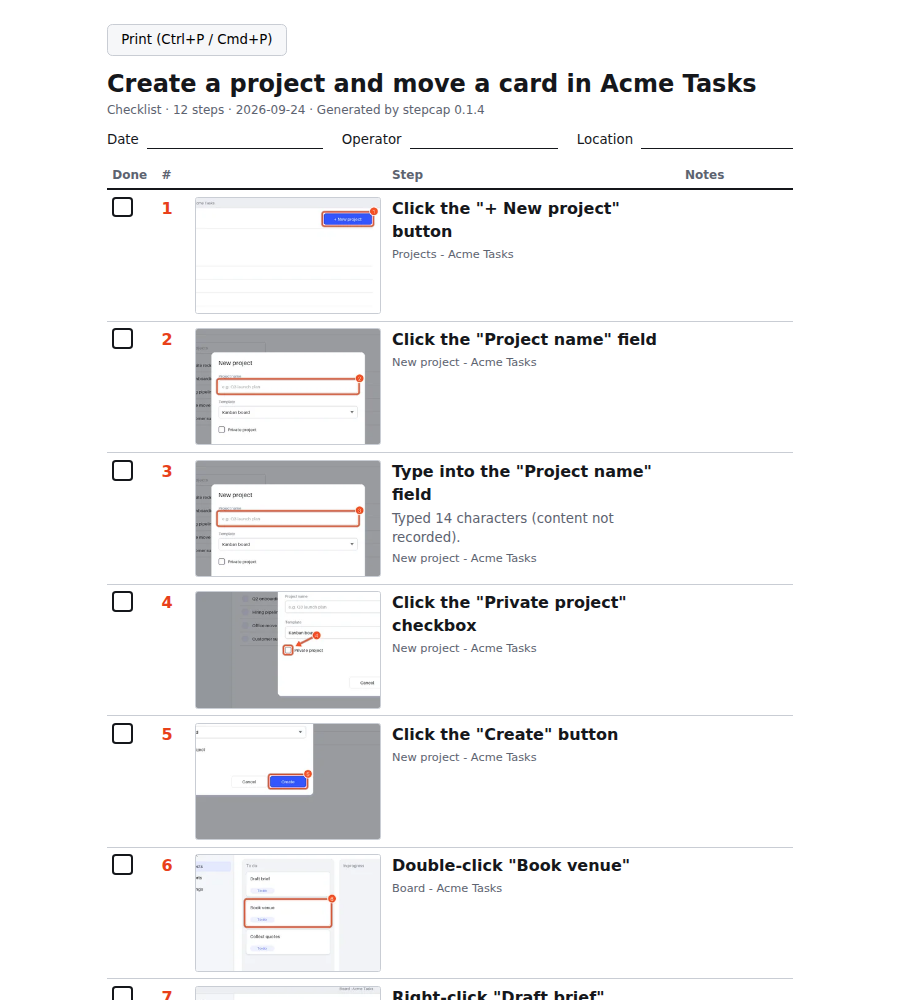
or paste guide.md + images/ into GitHub, Notion or Confluence. my-guide/checklist.html
is a printable A4 tick list of the same steps for use on site.
While recording: F9 stop · F8 pause/resume · F7 add a manual step with a note
(all configurable: --hotkey-stop ctrl+alt+s).
Prefer a single binary? Each release
ships stepcap executables for Windows, macOS and Linux (PyInstaller, no Python needed).
The stepcap-voice-* editions add voice notes (about 100 MB larger and slower to start);
on Linux they also need sudo apt install libportaudio2 for the microphone.
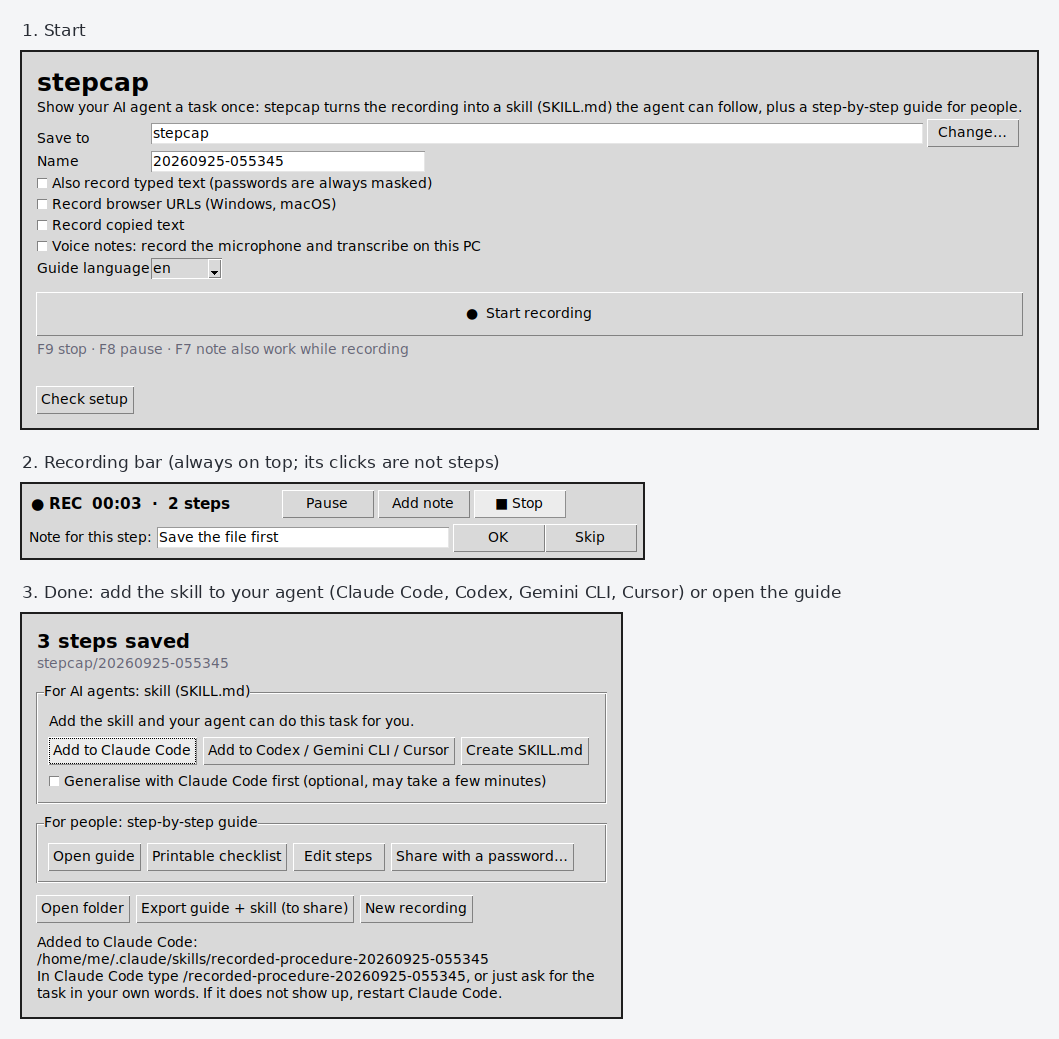
No terminal? Use the window
stepcap app # or double-click the release binary
Pick where to save, press Start recording, do the task, press Stop on the small always-on-top bar (F9 / F8 / F7 keep working). Clicks on the bar itself are never steps. When you stop, the window offers the two results:
- For AI agents: skill (SKILL.md): Add to Claude Code (copies it to
~/.claude/skills/<name>/; then type/<name>or just ask for the task), Add to Codex / Gemini CLI / Cursor (the shared~/.agents/skills/<name>/), or Create SKILL.md only. If theclaude,codexorgeminiCLI is installed, tick Generalise first to let it rewrite the one-run draft into a general procedure (asks before running). An installed skill with the same name is only replaced after you confirm. - For people: guide: Open guide, Printable checklist, Edit steps.
Export guide + skill writes both next to the recording (<name>-export/) to share. The
window follows the system language (English / 日本語).
The release binaries are not code-signed yet. Windows may show "Windows protected your PC"
(click More info → Run anyway); macOS may block the download (System Settings →
Privacy & Security → Open Anyway). The recording bar is visible in screenshots; blur it
in stepcap edit if needed.
Demo
One recording → a guide for people (left) and a SKILL.md for agents (right):
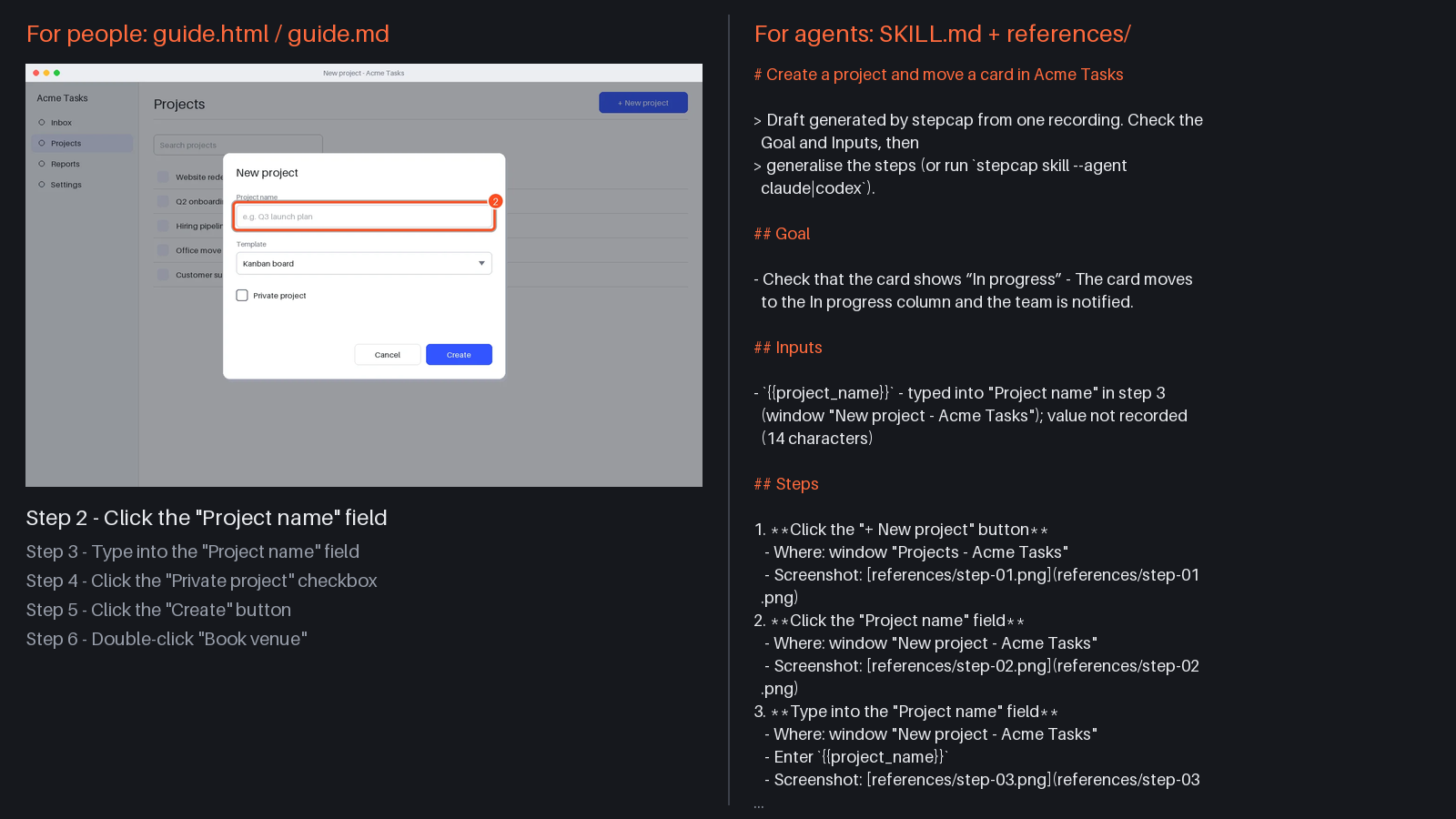
Sample output — open it right here
Produced from the same synthetic recording (regenerated by demos/build.py):
| Open it | Made by | |
|---|---|---|
| Guide for people | guide.md · guide.html · checklist.html | stepcap export --format both → guide/ |
| Skill draft (no LLM) | SKILL.md + references/ | stepcap skill (--agent none, default) |
| Skill refined by Claude Code | SKILL.refined-by-claude.md | one real stepcap skill --agent claude run |
GitHub shows .html files as source: download guide.html / checklist.html and open them
in a browser.
Excerpt of the refined skill: typed values became inputs, a CLI/API check comes first, each step says what to verify
## Inputs

- `{{project_name}}` - name for the new project (e.g. "Q3 launch plan").
- `{{template}}` - board template to use, e.g. "Kanban board" (optional; the "Create" button defaults to "Kanban board" if left unset).
- `{{is_private}}` - whether the project should be marked private, true/false (optional; defaults to unchecked/public).
- `{{card_name}}` - name of the card to move (e.g. "Draft brief").
- `{{source_column}}` - the column the card currently sits in, e.g. "To do" (helps you find it; not otherwise needed).
- `{{target_column}}` - the column to move the card into, e.g. "In progress".

## Steps

Check first whether Acme Tasks exposes a CLI or API for creating projects and
moving cards (e.g. from its Settings or developer docs) - if so, prefer that
over the UI steps below. Otherwise, use the UI:

1. **Open Projects and start a new project.** In the Acme Tasks sidebar, click
   "Projects", then click "+ New project" (top right).
   [step 1](references/step-01.png)
   - Check: a "New project" dialog opens with a "Project name" field, a
     "Template" dropdown, and a "Private project" checkbox.
Real output (long file lists cut, prompt and paths shortened):
$ stepcap export demo --format both -o dist --name create-project-move-card
Guide dist/guide: 15 files
Skill 'create-project-move-card': 12 steps -> dist/skill/create-project-move-card (62 lines, ~698 tokens)
  valid (Agent Skills spec + no secrets)

$ stepcap skill demo -o skills --name create-project-move-card --agent claude
claude will be able to read these files (secrets already masked):
  skills/create-project-move-card/SKILL.md
  skills/create-project-move-card/_context/INSTRUCTIONS.md
  skills/create-project-move-card/_context/events.jsonl
  skills/create-project-move-card/_context/steps.json
  skills/create-project-move-card/references/step-01.png ...
Command: claude -p '...' --permission-mode acceptEdits --allowedTools Read,Edit,Write
Run it? [y/N] y
Skill 'create-project-move-card': 12 steps -> skills/create-project-move-card (98 lines, ~1223 tokens)
  valid (Agent Skills spec + no secrets)

$ stepcap shell demo          # second terminal, while `stepcap record -o demo` runs
stepcap: commands in this bash are added to demo (secrets masked, output not recorded). Type `exit` to finish.
[stepcap] ~/work$ git status --short
fatal: not a git repository (or any of the parent directories): .git
[stepcap] ~/work$ export GITHUB_TOKEN=ghp_Q1w2...
[stepcap] ~/work$ exit
stepcap: 2 command(s) recorded in demo/terminal.jsonl

$ cat demo/terminal.jsonl
{"kind":"terminal","time":1790262966.16,"command":"git status --short","cwd":"/home/you/work","exit":128}
{"kind":"terminal","time":1790262966.162,"command":"export GITHUB_TOKEN=[REDACTED:github-token]","cwd":"/home/you/work","exit":0}
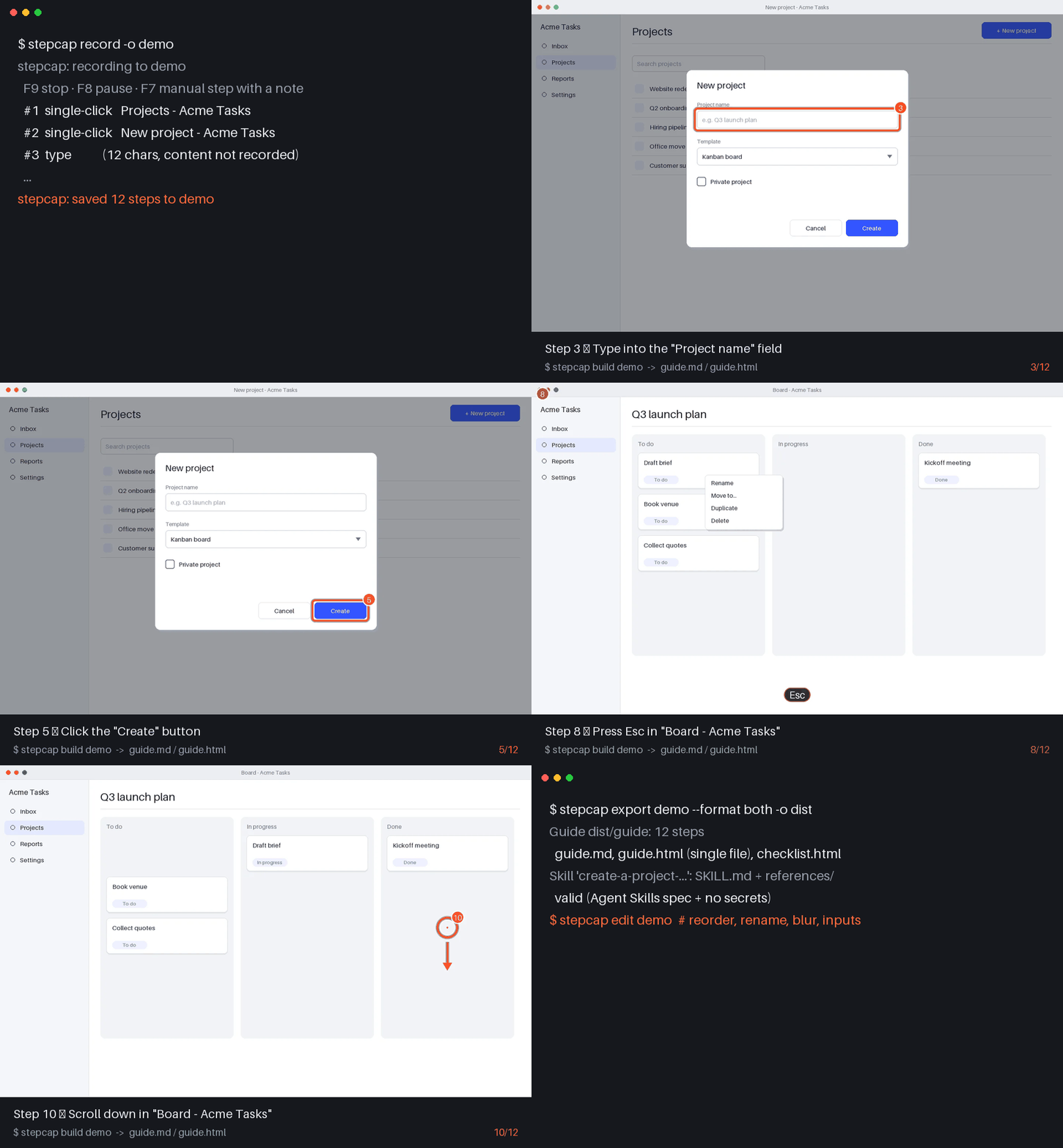
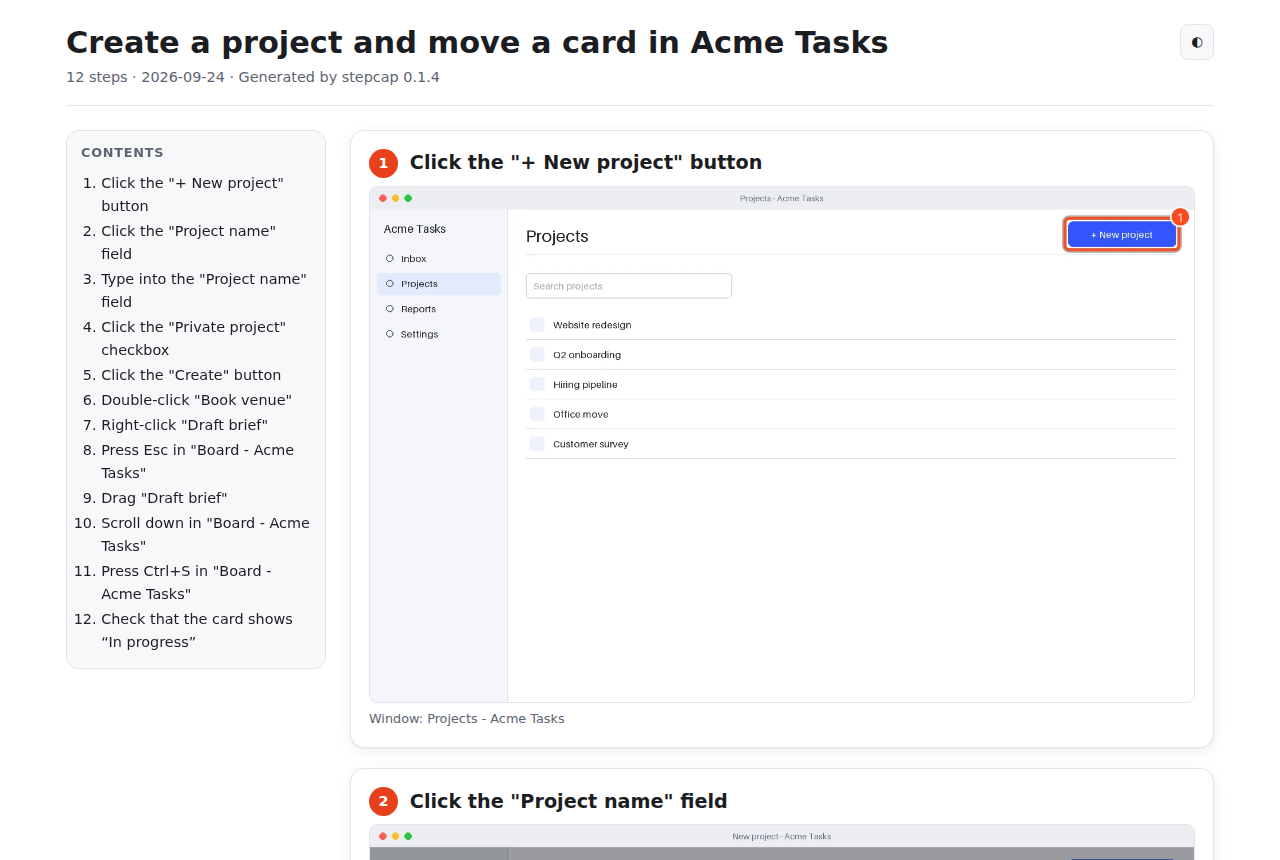
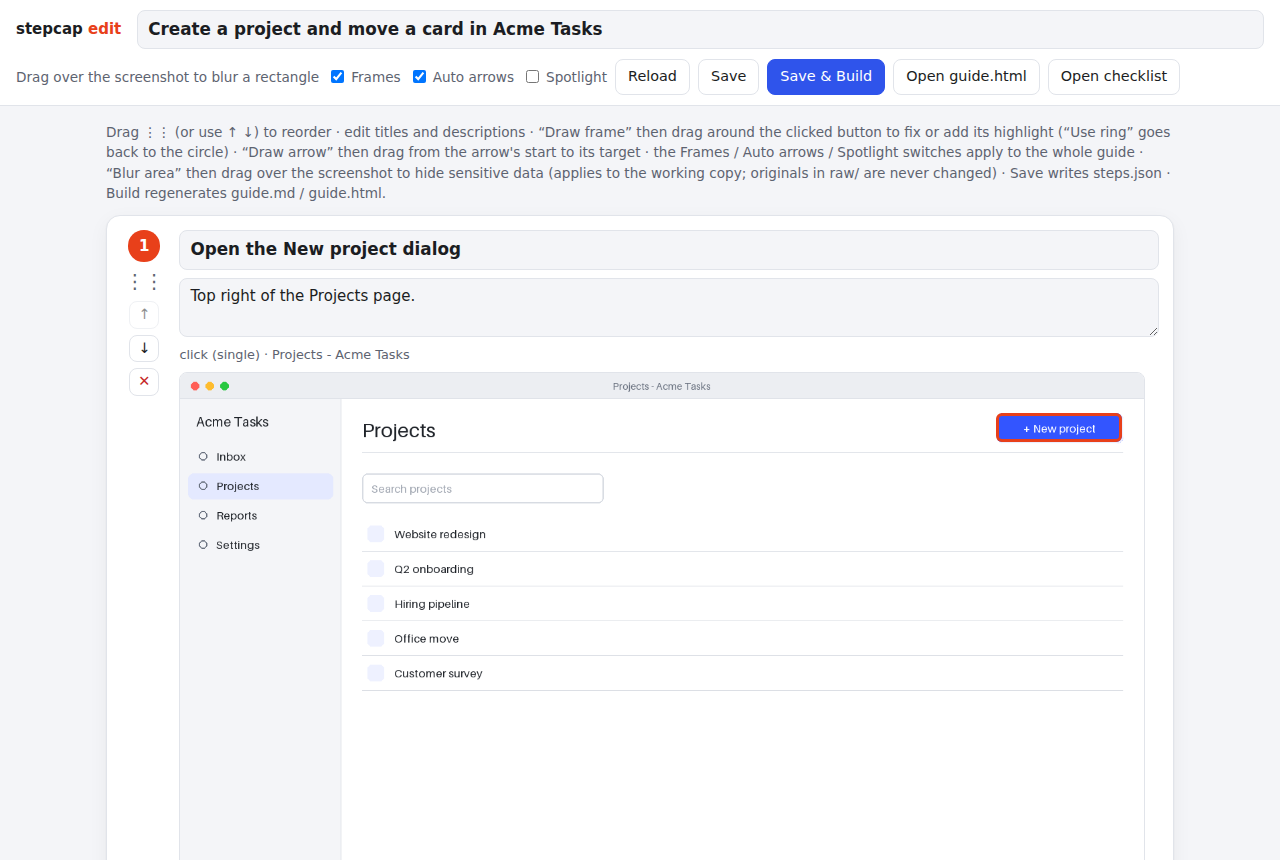
Generated guide.html (light / dark, TOC, print CSS) |
stepcap edit (reorder, rename, blur) |
|---|---|
 |
 |
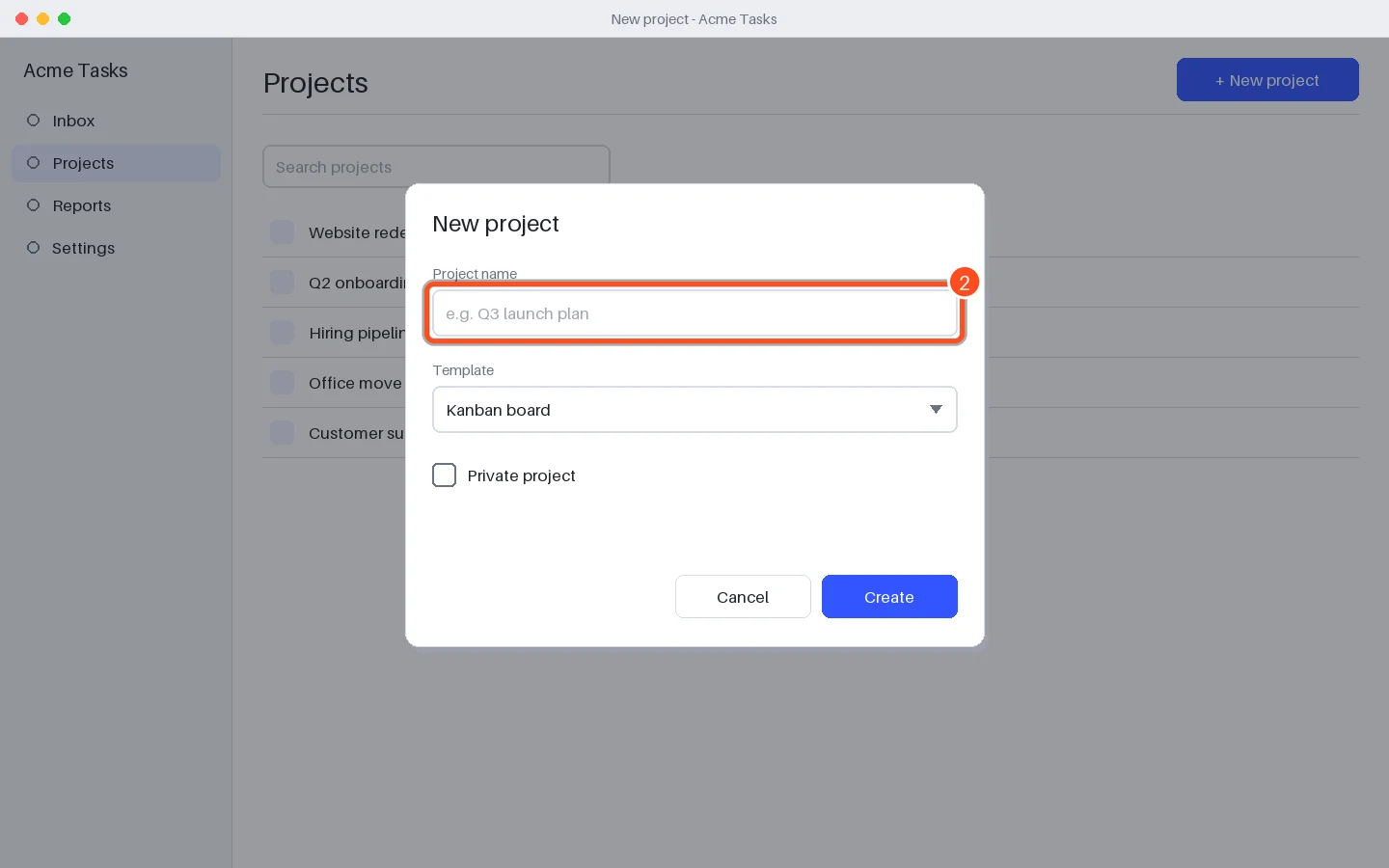
The clicked button, field or card gets a numbered frame around it. stepcap finds the
element's edges in the screenshot itself: no OCR, no accessibility API. When it can't tell
(text on a plain page, gradients), it falls back to a numbered ring on the click point, and
you can draw or remove frames in stepcap edit (--marker ring always uses rings). Small
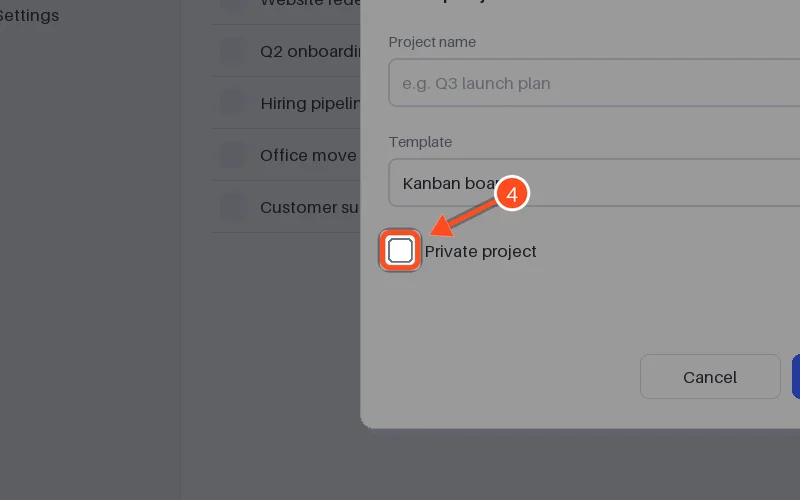
targets such as checkboxes also get an arrow pointing at them, --spotlight dims
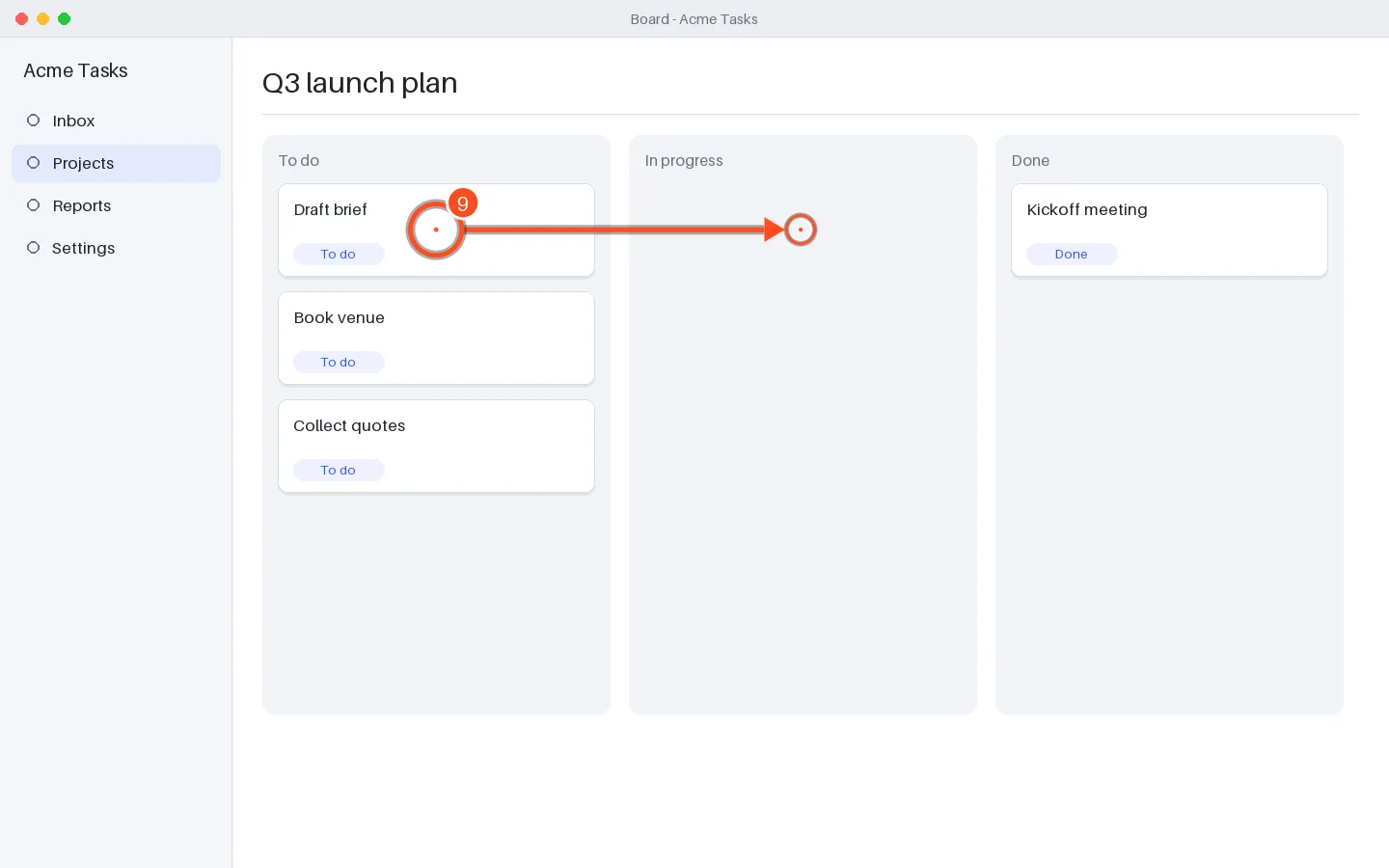
everything except the target, and you can draw extra arrows in stepcap edit. Drags get
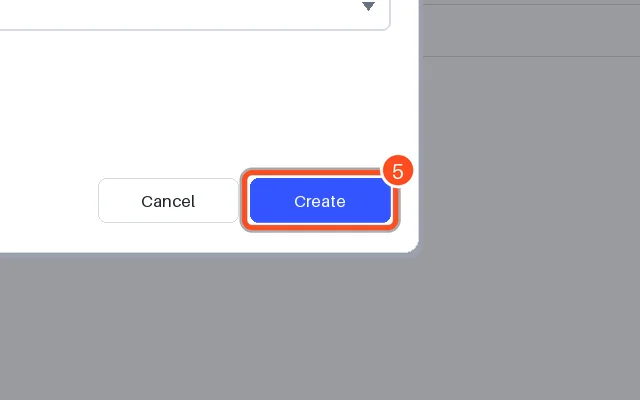
an arrow, scrolls a direction arrow, shortcuts a key-cap label. --zoom 640 makes the crop
around the click the main image and adds a full-screen thumbnail:
Frame on the clicked button (step-click) |
Drag (step-drag) |
--zoom 640 |
|---|---|---|
 |
 |
 |
--spotlight + automatic arrow on a small checkbox |
Printable checklist.html |
|---|---|
 |
 |
All images above are generated by demos/build.py from a synthetic
session (stepcap simulate), so they are reproducible and contain no real data.
What it does
- Records the whole desktop, not just a browser tab: clicks (single / double / right), drags, scrolls (aggregated), typing, Enter/Esc, shortcuts like Ctrl+S, plus manual notes (F7). Multi-monitor, HiDPI/Retina aware.
- Screenshot per step of the monitor under the cursor (
--monitor allfor every screen), taken on mouse-down so it shows what the reader must find. Saved on a background thread; click→saved latency is measured and logged (target < 300 ms). - Titles steps from the clicked element on Windows (UI Automation) and macOS
(Accessibility):
Click the "Save" button,Type into the "Project name" field,Choose "Rename"— and frames the element with its exact rectangle. Where the app gives no name (or on Linux),stepcap buildreads the text of the clicked control from the screenshot on this computer — Windows and macOS built-in OCR,tesseracton Linux — so the step still saysClick "Create"; for a text field it uses the label above it.build --no-ocrturns this off; the window name (Click in "Settings") is the last resort. Password fields never report a name and typing into them is always masked. English or Japanese (--lang ja). - Reuses identical screenshots: consecutive steps on the same screen (≥ 98 % same area) share one image, so blurring it once covers all of them.
- Outputs
guide.md+images/, a single-fileguide.html(table of contents, light/dark, print CSS), a printable A4checklist.html(tick box, small crop around the target, notes column, date / operator / sign-off fields) andsteps.json— the editable source of truth. - Share with a password (
stepcap share, or Share with a password in the window): one HTML file encrypted with AES-256-GCM (key from the password via PBKDF2-SHA256, 600,000 rounds). It opens in any browser, offline, after the password (decrypted with the browser's WebCrypto). No expiry date: a standalone file cannot enforce one. - Compare two recordings (
stepcap diff A B -o report.html): steps are matched in order by what they did (the element's name, else app + window), so moved buttons and reworded titles still match. It lists steps only in A, only in B, and matched steps whose screen looks different or where a different value was typed, plus URLs and terminal commands that differ; the HTML report puts the screenshots side by side. Use it when the app changed (record again, see which steps to update) or to check what an agent did. - Rebuilds are idempotent: edits in
steps.json(by you,stepcap editor an AI agent) are never overwritten;--resetstarts over. - Frames the clicked element (button, input, checkbox, card) detected from the screenshot; falls back to a ring when unsure.
- Arrows and spotlight: automatic arrow to small targets, optional
--spotlightthat dims the rest of the screen, hand-drawn arrows in the editor. - Local editor (
stepcap edit): drag to reorder, delete, rename, describe, draw or remove highlight frames, draw arrows, toggle frames / auto arrows / spotlight, blur rectangles (applied towork/copies —raw/originals stay untouched), rebuild. - Context for agents: app / window switches are always logged; with
--record-urlsthe front browser tab's URL (Windows: Chrome, Edge and other Chromium browsers via UI Automation, not Firefox; macOS: Safari, Chrome, Edge, Arc; query strings dropped unless--keep-query), with--record-clipboardcopied text (length + first 80 characters). These never become steps;stepcap skilluses them ("Browser at ...", "Then: copied ..."). - Voice notes (
--voice, off by default): say what you are doing and why while you record. The microphone is transcribed on this computer (faster-whisper, CPU) when you stop; the text lands in each step's description and in the skill ("Narration: ...", and the Goal when you explained it before the first click).audio.wavis deleted after transcription unless--keep-audio; nothing said while paused is kept. Needspip install "stepcap[voice]"or the voice edition of the binary; the speech model (--voice-model base, ~150 MB;smallis better for Japanese) is downloaded once from Hugging Face and then works offline. - Private by default: typed text is not stored unless
--record-typing; always masked in password/login windows;--exclude-appskips apps entirely (no screenshot). No network access at all (except the one-time speech model download with--voice).
What it doesn't do (v0.1)
- Wayland (Linux) — X11 only; stepcap stops with an explanation on Wayland.
- AI-written sentences — titles come from element names (accessibility APIs, else OCR
of the clicked control); for full sentences use the bundled agent skill or
stepcap skill --agent claude|codex. Linux accessibility names (AT-SPI) are not supported yet (OCR is). - Video, cloud sharing, team workspaces.
- Direct PDF export — print
guide.htmlto PDF from any browser.
Why
- Windows' built-in Steps Recorder (psr.exe) is deprecated by Microsoft (banner since the February 2024 update; still starts as of 2026-09, no removal date). Its replacements (Snipping Tool, Game Bar, Clipchamp) record video, not steps.
- Microsoft's skill-recorder proved that "record once → agent skill" is useful, but it needs a GitHub account with Copilot access, sends the event timeline and screen images to GitHub's cloud when you analyze, and targets Microsoft Scout / Copilot Cowork / Copilot Studio.
stepcap fills both gaps: the guide and the skill from one local recording, on any OS, for any agent.
How it compares
Facts as published by each project (checked 2026-09-24, Claude row 2026-09-25; follow the links).
| Runs on | Guide for people | SKILL.md for agents | Account | Sends data | |
|---|---|---|---|---|---|
| stepcap | Windows, macOS, Linux (X11) | ✅ MD, HTML, checklist | ✅ any agent (Claude Code, Codex, ...) | none | nothing (the optional agent step is your own CLI) |
| skill-recorder | macOS, Windows 11, Ubuntu | — (skills and automations) | ✅ for Microsoft Scout / Copilot Cowork / Copilot Studio | GitHub account with Copilot | events and screen images to GitHub's cloud on Analyze |
| Claude "Record a skill" | Claude for Mac (Cowork); not on Windows | — | ✅ for Claude (saved to your Claude skills) | Pro, Max or Team plan | the recording (screen, input, voice) is reviewed by Claude; video and audio are not retained, screenshots are |
| OpenSteps | Windows 10+ | ✅ MD, HTML | — | none | none (local) |
| BetterStepsRecorder | Windows | ✅ HTML, RTF, ODT | — | none | none documented |
| Scribe | browser; desktop apps on Pro | ✅ (PDF/HTML/Markdown export on Pro) | — | required | cloud |
| Tango | browser; desktop on Pro | ✅ (export on Pro) | — | required | cloud |
| Windows Steps Recorder | Windows | ✅ .zip with an .mht file (last 25 screenshots by default) | — | none | none; deprecated |
Free plans of Scribe (Basic) and Tango capture web apps in the browser only and have no export; paid plans start at $25 / $22 per user per month (yearly).
Commands
stepcap record [-o SESSION_DIR] [--monitor all|active] [--record-typing]
               [--exclude-app NAME ...] [--hotkey-stop F9] [--hotkey-pause F8]
               [--hotkey-manual F7] [--note-prompt auto|gui|terminal|none]
               [--record-urls] [--keep-query] [--record-clipboard]
               [--voice [--voice-model base] [--voice-language ja] [--keep-audio]]
               [--dry-run] [--json]
stepcap build SESSION_DIR [-f md,html,checklist] [--zoom 800] [--width 1600] [--lang en|ja]
              [--title "..."] [--marker box|ring] [--[no-]spotlight] [--[no-]auto-arrows]
              [--image-format webp|jpeg|png] [--quality 85] [--reset]
              [--dry-run] [--json]
stepcap edit SESSION_DIR [--port 8765] [--host 127.0.0.1] [--no-browser]
stepcap skill SESSION_DIR [SESSION_DIR ...] -o OUT_DIR [--name NAME] [--agent none|claude|codex|gemini|AGENT]
              [--install none|claude|agents|codex|gemini|cursor|AGENT] [--scope user|project] [--yes] [--force]
              [--dry-run] [--json]
stepcap export SESSION_DIR --format guide|skill|both -o OUT_DIR [--name NAME]
               [--agent none|claude|codex|gemini|AGENT] [--lang en|ja] [--yes] [--force] [--dry-run] [--json]
stepcap share SESSION_DIR -o FILE.html [--file guide|checklist] [--password-stdin]
stepcap check-skill SKILL_DIR [--session SESSION_DIR [--min-coverage 0.8]] [--json]
stepcap diff SESSION_A SESSION_B [-o report.html] [--fail-on none|missing|any] [--json]
stepcap transcribe SESSION_DIR [--model base] [--language ja] [--keep-audio] [--json]
stepcap schema [session|event|steps|terminal|voice] [--path]
stepcap agents [--json]                                    # agents you can --install / --agent
stepcap mcp [--root DIR ...]                               # MCP server for agents (stdio)
stepcap shell SESSION_DIR [--shell bash|zsh] [--json]      # macOS / Linux
stepcap simulate EVENTS.json -o SESSION_DIR [--record-typing] [--json]
stepcap app [--lang en|ja]                                 # window: start / stop / edit / export
stepcap doctor [--json]
Every command exits non-zero on failure. --json gives machine-readable output.
stepcap never overwrites an existing, non-empty session directory, and build
never touches raw/.
Session layout:
SESSION_DIR/
  session.json    metadata (start/end, OS, monitors, options, latency)
  events.jsonl    one event per line: ts, x/y (absolute + monitor-relative + image px),
                  monitor, button, click_type, window_title, app_name, screenshot
  raw/            original PNG screenshots (never modified)
  work/           editable copies (blur)
  steps.json      canonical steps (titles, descriptions, image paths, coordinates)
  guide.md, images/, guide.html
The formats are documented as JSON Schemas (draft 2020-12) shipped with stepcap:
stepcap schema steps prints one, stepcap schema --path shows where they are
(source). Other tools can read and validate sessions with them;
unknown keys are allowed so newer versions can add fields.
Permissions
stepcap doctor tells you exactly what is missing. Short version:
- macOS — give the terminal app Accessibility, Input Monitoring and Screen Recording permission, then restart it.
- Windows — nothing to grant. Input from elevated ("Run as administrator") windows is only visible if stepcap is elevated too.
- Linux — X11 session required (not Wayland).
xdotoolis optional for better window names.
Details: docs/permissions.md.
For agents: stepcap skill
stepcap skill my-guide -o skills                     # draft, no LLM: skills/<name>/SKILL.md
stepcap skill my-guide -o skills --agent claude      # let your Claude Code CLI generalise it
stepcap skill my-guide -o skills --install claude --scope project   # + .claude/skills/<name>/
stepcap skill my-guide -o skills --install agents    # + ~/.agents/skills/ (Codex, Gemini CLI, Cursor)
stepcap check-skill skills/<name>                    # validate after editing by hand
-
Draft (
--agent none, default): deterministic, offline. Frontmatter (name,description),## Goal(from your F7 notes, elseTODO),## Inputs(every typed value becomes a variable named after its field, e.g.{{project_name}}, else{{input_N}}; rename it or mark it as a fixed value instepcap edit), numbered## Stepswith app, window andreferences/step-NN.png(annotated, blur applied), and## Notes for the agent(prefer CLI/API over clicks; confirm before deleting, sending, paying). -
Refine (
--agent claude|codex|gemini): runsclaude -p,codex execorgemini -pin the skill folder withprompts/skill_refine.md. Before it runs, stepcap lists every file the agent can read and asksy/N(--yesskips,--dry-runonly lists). stepcap makes no network request itself; where your agent sends data depends on your agent's settings. -
Install (
--install ...): copies the folder to where the agent loads skills from (--scope user= your home folder,project= the current folder). Never overwrites an existing skill without--force.--installFolder Loaded by claude.claude/skills/Claude Code (Cursor reads it too) agents(=codex).agents/skills/Codex, Gemini CLI, Cursor gemini.gemini/skills/Gemini CLI cursor.cursor/skills/Cursor Folders as documented by Claude Code, Codex, Gemini CLI and Cursor (checked 2026-09-25).
-
Other agents (
agents.toml): add your own, or change a built-in command, without touching stepcap.stepcap agentslists them and prints where the file goes (~/.config/stepcap/agents.toml,%APPDATA%\stepcap\agents.tomlon Windows, or$STEPCAP_AGENTS_FILE):[agents.myagent] label = "My agent" user_dir = "~/.myagent/skills" # --install myagent project_dir = ".myagent/skills" # --install myagent --scope project refine = ["myagent", "run", "{prompt}"] # --agent myagent (optional)
{prompt}points the agent at_context/INSTRUCTIONS.md;{skill_dir}and{images}(comma-separated annotated screenshots; the argument is dropped when there are none) are also available. Agents from this file get their own "Add to …" button instepcap app. -
Always validated: Agent Skills frontmatter rules, name = folder name, < 500 lines, ~5000 tokens, every
references/link exists, and no secret patterns (GitHub / AWS / OpenAI / Anthropic keys, JWTs, passwords in URLs, card numbers). Exit code 1 if not. -
Checked against the recording: after a rewrite (by you or
--agent), stepcap lists what the recording showed but SKILL.md no longer mentions: apps, clicked buttons and fields,{{inputs}}, URL hosts, terminal commands and F7 notes. It is a review hint (a skill may rightly replace clicks with a CLI call), shown after--agentruns, in the window, and bystepcap check-skill SKILL_DIR --session SESSION_DIR(--min-coverage 0.8makes it fail below 80 %). -
Terminal steps: run
stepcap shell my-guidein a second terminal while recording. Commands typed there (not their output) are added with their exit status, secrets masked, and show up as "Ran in a terminal:..." in the skill. bash and zsh on macOS / Linux; Windows PowerShell is not supported yet. Start a command with a space to keep it out (when your shell ignores such commands in history). -
Press F7 while recording to add notes like "why": they become the skill's Goal and are the most useful thing you can give an agent.
-
Several recordings of the same task:
stepcap skill run1 run2 run3 -o skills. The first is the reference (its steps and screenshots); the others are matched with it the waystepcap diffdoes. Steps done in only some runs get "Optional: done in 2 of 3 recordings", each input lists what was typed in every run (or "the same in all 3 recordings", a hint that it may be a fixed value), and steps only the other runs did are listed under "Differences between recordings" with their position. The skill is checked against every recording. Typed values appear only when recorded with--record-typing.
Check what an agent did: stepcap diff
Record while the agent does the task, then compare with the recording its skill came from:
stepcap record -o agent-run            # start before the agent, stop (F9) after it
stepcap shell agent-run                # optional, macOS / Linux: the terminal the agent uses
stepcap diff my-guide agent-run -o report.html --fail-on missing
stepcap recordsees the mouse and keyboard input the agent's automation sends (checked with XTEST input on Linux; not checked with agents on Windows / macOS). An agent that uses an API or CLI instead shows up only throughstepcap shellcommands, as extra commands and missing clicks.--fail-on missingexits 1 when a step of your recording was not done;--fail-on anyon any difference. Different screens and values are normal when the agent worked on other data: read the report rather than expecting "identical".
For agents over MCP: stepcap mcp
Let an agent use your recordings directly. stepcap mcp is an MCP server (stdio) with seven
tools: list_sessions, get_steps (titles, clicked elements, inputs, URLs, commands,
narration), step_image (the annotated screenshot of a step, as an image),
build_guide, make_skill (write and optionally install a skill, from one or several
recordings), check_skill (validate + compare with the recording) and compare_recordings
(what stepcap diff reports). Starting a recording is not a tool: capturing your
screen stays your decision. The agent can only use folders under --root (default:
~/Documents/stepcap, where the window saves, and the current folder).
pip install "stepcap[mcp]"
claude mcp add stepcap -- stepcap mcp                      # Claude Code
codex mcp add stepcap -- stepcap mcp                       # Codex
gemini mcp add stepcap stepcap mcp                         # Gemini CLI
# Cursor: ~/.cursor/mcp.json -> {"mcpServers": {"stepcap": {"command": "stepcap", "args": ["mcp"]}}}
Then ask, for example: "Look at my latest stepcap recording and turn it into a skill that
uses the CLI where possible." Commands from each tool's MCP docs
(Claude Code,
Codex,
Gemini CLI,
Cursor, checked 2026-09-25). Verified with Claude
Code: it listed the recordings, read the steps and described step 2 from step_image.
Let your coding agent write the guide text
Automatic titles are template based (Click in "Settings"). For human-quality text,
point Claude Code, Codex or Cursor at the session: the agent looks at each annotated
screenshot, writes a title and a 1–2 sentence description into steps.json, and runs
stepcap build. The instructions are in skills/stepcap/SKILL.md.
# Claude Code: install the skill for your user
mkdir -p ~/.claude/skills && cp -r skills/stepcap ~/.claude/skills/
# then ask: "Use the stepcap skill on ./my-guide"
For other agents, reference skills/stepcap/SKILL.md in your prompt or rules file.
No OCR or API key is needed: the agent reads the images itself.
FAQ
Is anything uploaded? No. stepcap makes no network requests (--agent claude|codex runs
your own agent CLI, only after you confirm); the editor listens
on 127.0.0.1 only (with Host/Origin checks). Your screenshots stay in the session folder.
Are my passwords recorded? Typed text is not stored by default — only
"typed 12 characters". Screenshots can still show what is on screen: blur it in
stepcap edit, or use --exclude-app for password managers.
Are secrets masked? In text, yes: typed text (with --record-typing), window titles,
notes and everything in the skill are scanned for GitHub / AWS / OpenAI / Anthropic keys,
JWTs, passwords in URLs and card numbers and saved as [REDACTED:kind]. Pixels are not
scanned — blur screenshots that show secrets in stepcap edit.
Does it run in the browser, without installing? The editor and the guides do; the
recorder cannot. A web page can only see clicks inside its own tab, so desktop-wide
recording needs a small local program (pipx install stepcap or the release binary).
Web apps are recorded like any other window.
Can I get a PDF? Open guide.html and print to PDF; the print stylesheet keeps
each step on one page where possible.
Can I try it without recording? Yes:
python tests/fixtures/make_events.py > ev.json && stepcap simulate ev.json -o demo && stepcap build demo.
Why is a step titled just "Click"? The window name could not be read (see
stepcap doctor; on macOS grant Screen Recording). Edit it in stepcap edit or let an
agent do it.
pip install fails on Linux building evdev. Install python3-dev and gcc, or
use the release binary.
Roadmap
See ROADMAP.md (PDF export, Wayland via portals, redaction presets, localization and more). An issue is opened when an item is being discussed.
Contributing
git clone https://github.com/kajisho5/stepcap && cd stepcap
python -m pip install -e ".[dev]"
python -m pytest && ruff check . && ruff format --check .
python demos/build.py          # regenerate README images (add --browser for UI shots)
CI never uses real input hooks: stepcap simulate drives the same event pipeline with
synthetic input. Decisions are logged in docs/DECISIONS.md.
Credits
The "record once, get an agent skill" idea was popularised by Microsoft's skill-recorder. stepcap shares no code with it (different language and design); it only credits the idea.
License
MIT. Runtime dependencies: Pillow (MIT-CMU), mss (MIT), pynput (LGPL-3.0, used as an unmodified library) — see docs/THIRD_PARTY.md.
1 maintainer

Release files for stepcap 0.1.7
For a detailed explanation of source distributions (sdists) and built distributions (wheels), please see the package formats documentation.
Source distribution (sdist)
| File | Size | Uploaded | |
|---|---|---|---|
| stepcap-0.1.7.tar.gz | 568.0 kB | Details |
Built distribution (wheel)
| File | Interpreter | ABI | Platform | Reset |
|---|---|---|---|---|
| stepcap-0.1.7-py3-none-any.whl | Python 3 | none | any | Details |
Total release size: 771.9 kB
Release files / stepcap-0.1.7.tar.gz
| Download URL | stepcap-0.1.7.tar.gz |
|---|---|
| Size | 568.0 kB |
| Tags | Source |
|
SHA-256 checksum How to use checksums |
a11c2a6b43188997eddbf732a6921e460a12e66409feefa7ab5321915ea8ac57
|
|
BLAKE2b-256 checksum How to use checksums |
003abe7fef4f3e2473b6403d9c53b28ea28ed160bf1a55dc0023e1644795043d
|
| Upload date | |
|
Uploaded using Trusted Publishing? What is trusted publishing? |
Yes |
| Uploaded via |
twine/7.0.0 CPython/3.13.14
|
Provenance
Provenance describes where a file came from. On PyPI, provenance is shared via attestations, which provide a verifiable record of the build or publishing details. View details, limitations and caveats.


PyPI Publish Attestation
PyPI verified that this artifact, at this checksum, originated from the publisher listed below.
Signed by GitHub Actions, verified by PyPI on Sep 25, 2026.
Transparency logRelease files / stepcap-0.1.7-py3-none-any.whl
| Download URL | stepcap-0.1.7-py3-none-any.whl |
|---|---|
| Size | 203.9 kB |
| Tags | Python 3 |
|
SHA-256 checksum How to use checksums |
242d287f70ce7d10af9a951dc0b37ea7585a281dfbea9b74794efde1ae68e007
|
|
BLAKE2b-256 checksum How to use checksums |
831520f4e34f832ee9ba70296509f8fc78b1b91f89991ee7eddb7e8cb8893ad0
|
| Upload date | |
|
Uploaded using Trusted Publishing? What is trusted publishing? |
Yes |
| Uploaded via |
twine/7.0.0 CPython/3.13.14
|
Provenance
Provenance describes where a file came from. On PyPI, provenance is shared via attestations, which provide a verifiable record of the build or publishing details. View details, limitations and caveats.
PyPI Publish Attestation
PyPI verified that this artifact, at this checksum, originated from the publisher listed below.
Signed by GitHub Actions, verified by PyPI on Sep 25, 2026.
Transparency log












