
Sticklink
Live stick and telemetry overlays for OBS, straight from your radio. Sticklink reads your sticks, switches and link telemetry from an EdgeTX radio (tested on a RadioMaster Pocket) over USB, serves them as an OBS Browser Source with the same look as stickcam's after-the-fact overlays, and records every session so you can check and reuse the data later.
What you get
- Effects overlay (
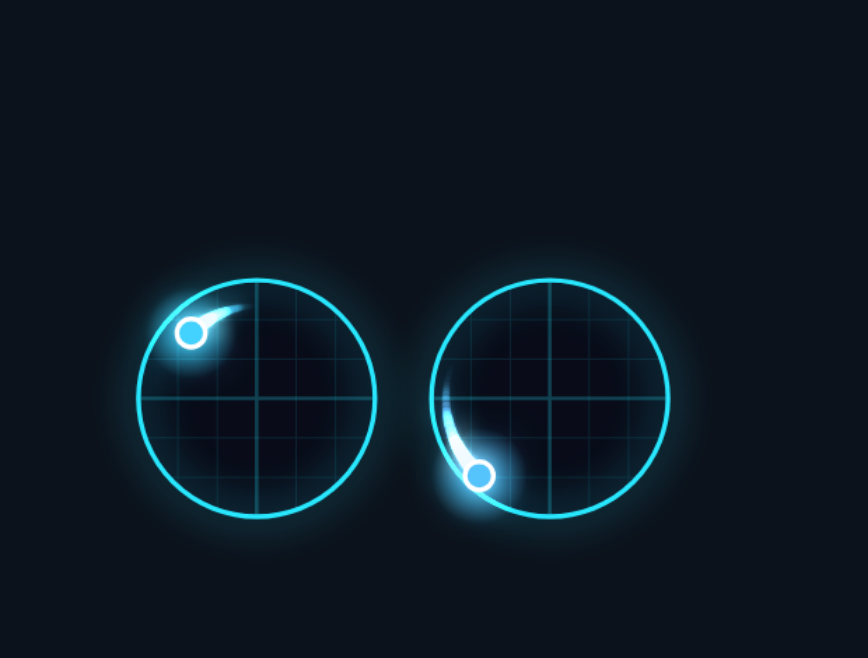
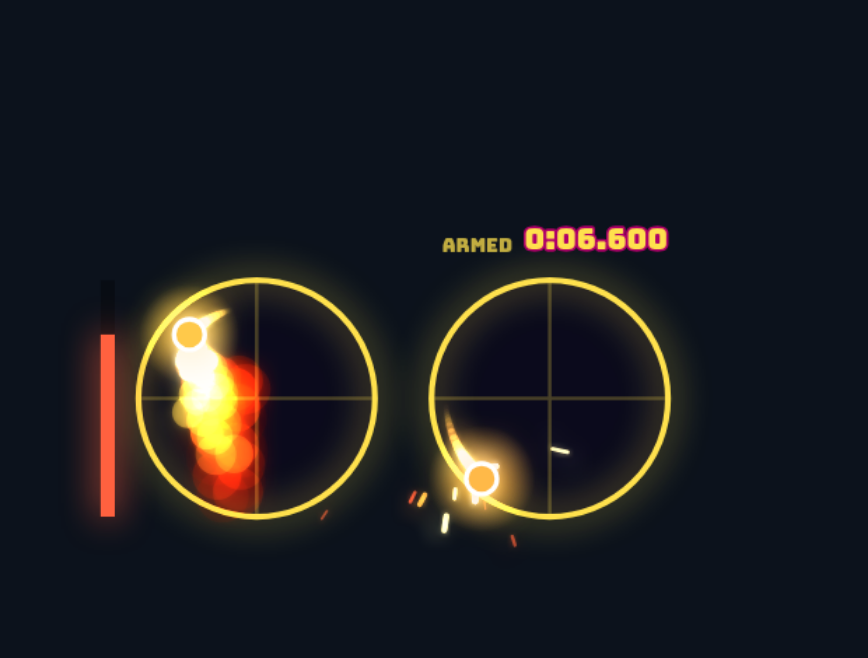
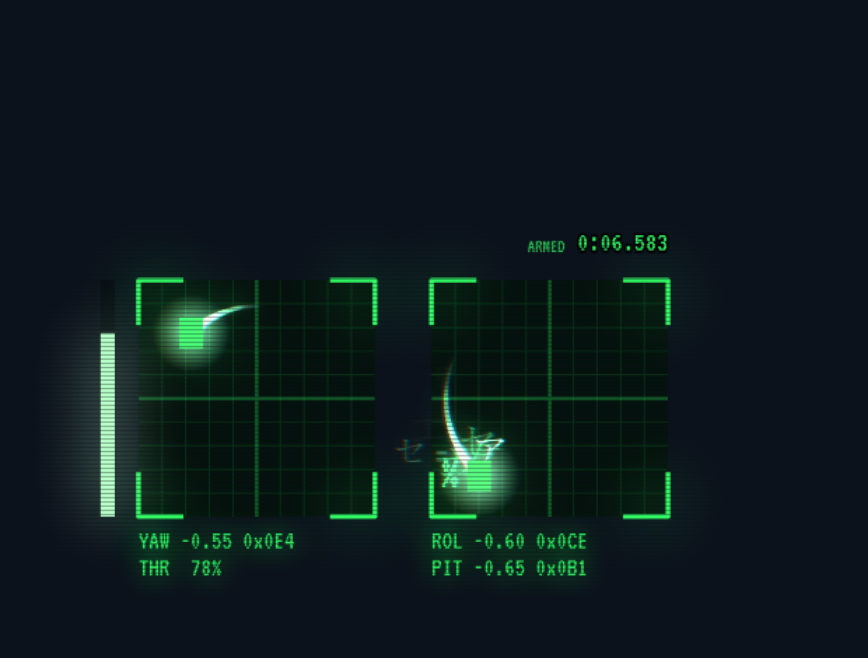
/fx): eight styles (Clean, Minimal, Neon, Arcade, Synthwave, Inferno, Unicorn, Hacker) with glowing trails, sparks, shockwaves and live throttle timers. Trails are smooth curves with no added delay. - Telemetry HUD (
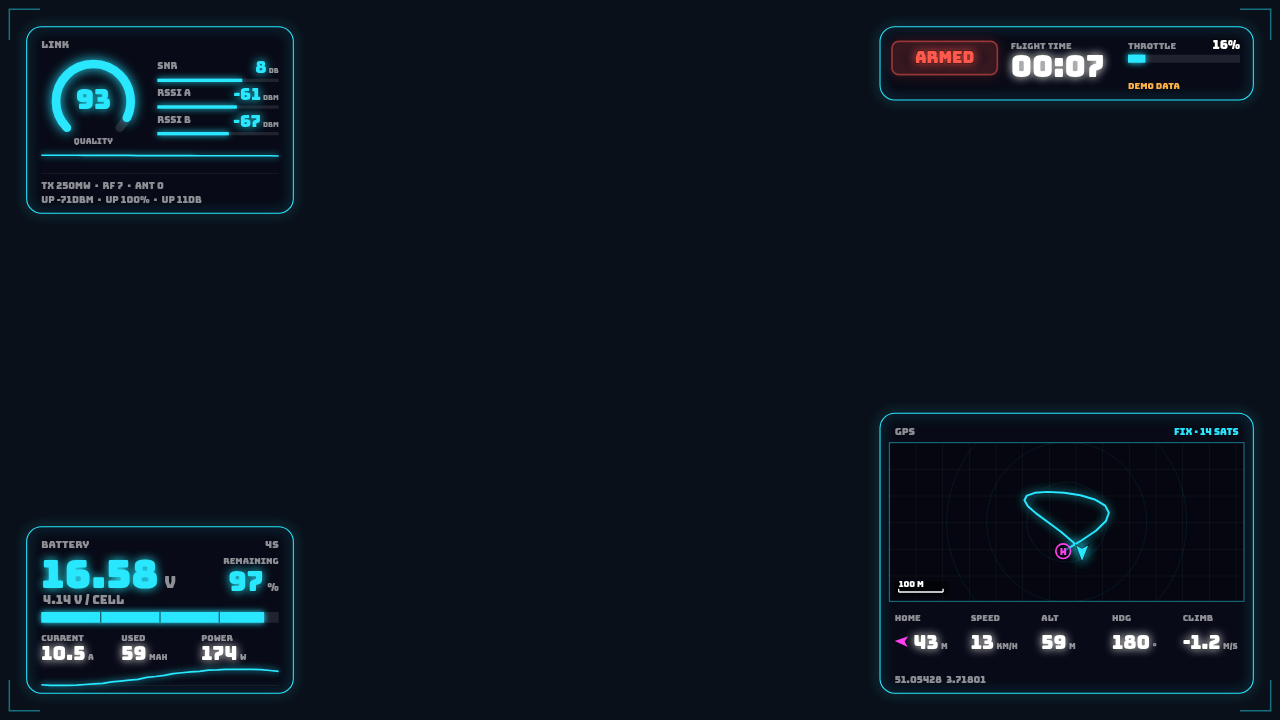
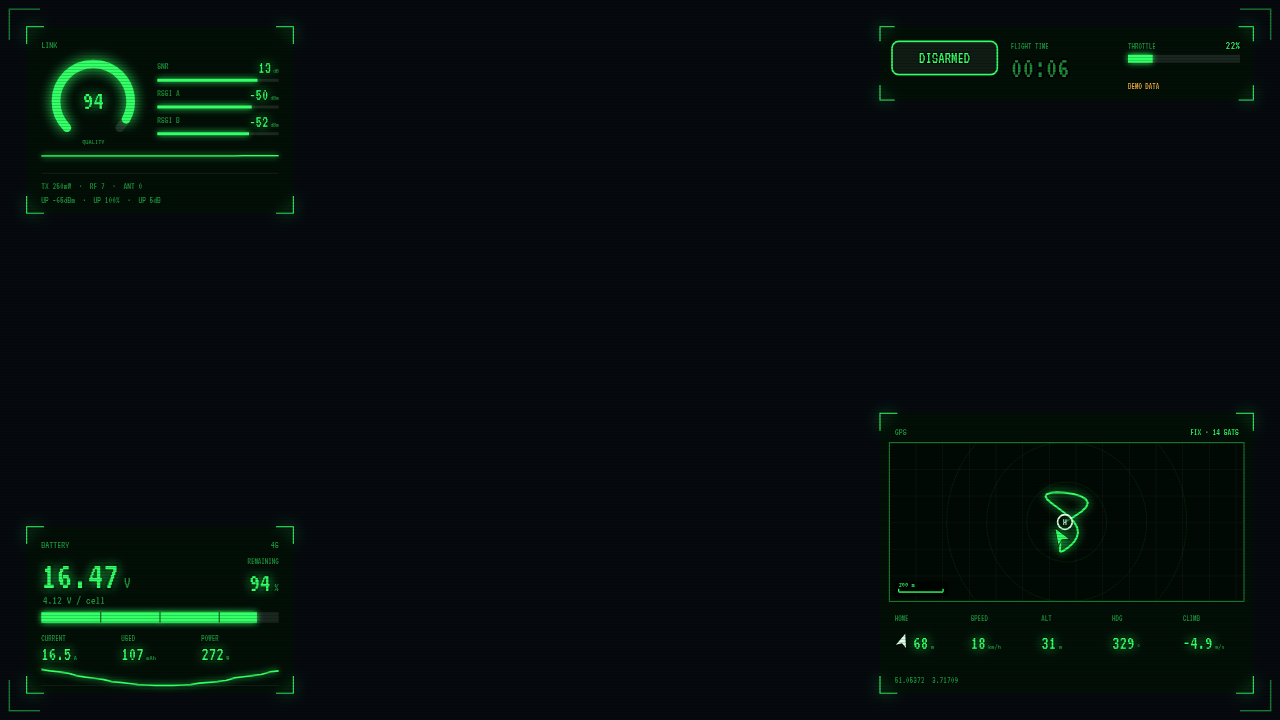
/hud): Link, Battery, GPS and Status blocks as badges, in the same eight styles. GPS shows a live map with your track, home marker and distance. Each block is also its own page (/hud/link,/hud/battery,/hud/gps), so you can put them in OBS as separate sources. It shows what your radio really receives (see limits). - Receiver setup page (
/setup): a live 3D quad, stick bars and a 16-channel monitor, like Betaflight Configurator's receiver tab. Press Learn and move a stick or switch to assign roll, pitch, yaw, throttle, ARM and Crash Flip, so a swapped or reversed stick is a ten-second fix. - Double-click to configure: style, effect strength, size and video delay, saved on the server so an OBS source updates by itself. The panel also shows a permanent link for the current look: use it as a source's URL to pin that source to its own configuration.
- Scene switching (
/modes): a Betaflight-style Modes page for your OBS scenes: give each scene ranges on a switch channel, sort them so the upper scene wins, and OBS follows your switches (via OBS's built-in WebSocket). Off until you turn it on, and it never acts on stale radio data. - Recordings: one JSONL file per session, a
check-logquality report (rate, gaps, lost records, channel ranges) andreplayto play a session back through the overlay. - REST API + Swagger UI (
/docs, works offline) and a WebSocket stream for your own tools. - No dependencies to install: downloads are single self-contained programs for Linux, Windows and macOS (they carry their own Python). A pip-installable Python package is available too.
Quick start
- Download the build for your system from the Releases page, and unpack it.
1b. Prefer a window? Start the program with no arguments (double-click it): pick your radio (or Demo), press Start, and use the buttons to open the pages. Same as
sticklink gui. - Try it without a radio:
./sticklink run --demo # Windows: sticklink.exe run --demo
Open http://127.0.0.1:8765/fx. You should see two gimbals moving by themselves. - Connect your radio: install the script and set USB-VCP to LUA (radio setup), then
./sticklink list-ports
./sticklink run --port /dev/ttyACM0 --input-label sticks     # Windows: --port COM5
- Assign your sticks and switches at http://127.0.0.1:8765/setup (press Learn, move the control).
- Add it to OBS as a Browser Source with the URL
http://127.0.0.1:8765/fx, size 576x450, 60 fps (OBS setup). Double-click the page (in OBS: right-click, Interact) to change the look.
Prefer Python? Once published on PyPI: uvx sticklink run --demo (no install, needs uv) or
pip install sticklink. Or pip install sticklink-<version>-py3-none-any.whl (from the release page), or from a checkout
pip install .; then run sticklink ....
Pages and commands
| Address / command | What it does |
|---|---|
/fx |
Effects overlay for OBS (double-click for settings) |
/hud, /hud/link, /hud/battery, /hud/gps |
Telemetry HUD (combined, or one block per page) |
/setup |
Receiver screen: 3D quad, channel monitor, learn-by-moving assignment |
/modes |
Pick which OBS scene a switch selects (ranges per scene, sorted by priority) |
/overlay |
The plain panel with two sticks, ARM/flip lamps and telemetry |
/docs |
Swagger UI for the REST API (spec at /api/v1/openapi.json) |
sticklink run --port P | --demo |
Serve the overlays from a radio or from synthetic data |
sticklink replay FILE |
Serve a recorded session as if it were live |
sticklink check-log FILE |
Quality report for a recording |
sticklink radio-script [DIR] |
Copy the EdgeTX Lua script DDSTK.lua (e.g. onto the radio's SD card) |
sticklink list-ports |
List serial ports |
More in docs/cli.md.
Documentation
| Getting started | Install, run, first checks |
| Radio setup | EdgeTX script, USB-VCP, per-OS port names |
| OBS setup | Browser source, Linux/Wayland notes |
| Overlay guide | /fx, /setup, the classic overlay, settings and URL options |
| Scene switching | /modes: switch OBS scenes from radio switches |
| CLI reference | All commands and options |
| REST API | Endpoints, examples, security model |
| Protocol and log format | DDLOG v1, the JSONL recording format |
| Architecture | Modules and data flow |
| Troubleshooting | Silent port, crashes, wrong sticks, OBS |
| Development | Tests, rebuilding the overlay, releases |
| Validation log | What was tested on real hardware, and what was not |
Status and honest limits
- Verified on real hardware: a RadioMaster Pocket (EdgeTX 2.10) with ExpressLRS, on Linux, with OBS 32. The radio reports sticks at about 20 Hz (EdgeTX runs function scripts every 50 ms); the overlay smooths between readings.
- The Windows and macOS builds are produced and smoke-tested by CI (unit tests, integration tests and a run of the frozen program), but they have not been tried with a radio on those systems yet.
- The HUD shows only telemetry your radio actually receives. Betaflight does not send motor outputs, RPM, PID or gyro over
the radio link (those live in the blackbox on the quad), so there is no live motor screen. So far only link quality (
RQly) has been seen live on a real radio; the other link sensors, battery, GPS and attitude were tested with simulated data until the radio script is updated and the quad sends them. - The GPS map downloads tiles from the internet (OpenStreetMap by default); see overlay guide.
- The effects overlay shows what sticks and switches can drive: trails, sparks, snaps, punch-outs, full-throttle and hang-time timers, arm/disarm. Flips, rolls and crash detection in stickcam need gyro and accelerometer data that the radio does not have.
- Sticklink only reads from the radio. It never writes to it and never changes ExpressLRS or model settings.
- Unsigned downloads: macOS Gatekeeper and Windows SmartScreen will warn once (getting started).
Licence
No licence has been chosen yet, so all rights are reserved. Third-party components are listed in THIRD_PARTY_NOTICES.md.
1 maintainer

Metadata
1 maintainer
Release files for sticklink 0.1.1
For a detailed explanation of source distributions (sdists) and built distributions (wheels), please see the package formats documentation.
Source distribution (sdist)
| File | Size | Uploaded | |
|---|---|---|---|
| sticklink-0.1.1.tar.gz | 2.0 MB | Details |
Built distribution (wheel)
| File | Interpreter | ABI | Platform | Reset |
|---|---|---|---|---|
| sticklink-0.1.1-py3-none-any.whl | Python 3 | none | any | Details |
Total release size: 2.7 MB
Release files / sticklink-0.1.1.tar.gz
| Download URL | sticklink-0.1.1.tar.gz |
|---|---|
| Size | 2.0 MB |
| Tags | Source |
|
SHA-256 checksum How to use checksums |
eb4ad0398043d1bd174e615e8f2f13d615ba908a1b2de2fc1f4da30b48f61872
|
|
BLAKE2b-256 checksum How to use checksums |
dea0e3ebf7a446d89d2ff40a96af1d19f6c36645c45329321c069ec729f7bea6
|
| Upload date | |
|
Uploaded using Trusted Publishing? What is trusted publishing? |
Yes |
| Uploaded via |
twine/7.0.0 CPython/3.13.14
|
Provenance
Provenance describes where a file came from. On PyPI, provenance is shared via attestations, which provide a verifiable record of the build or publishing details. View details, limitations and caveats.


PyPI Publish Attestation
PyPI verified that this artifact, at this checksum, originated from the publisher listed below.
Signed by GitHub Actions, verified by PyPI on Oct 6, 2026.
Transparency logRelease files / sticklink-0.1.1-py3-none-any.whl
| Download URL | sticklink-0.1.1-py3-none-any.whl |
|---|---|
| Size | 640.4 kB |
| Tags | Python 3 |
|
SHA-256 checksum How to use checksums |
b504221122be9cca5ef70433a63a6f9266a1cb7666c34f331e97dd7c1b2eb1b1
|
|
BLAKE2b-256 checksum How to use checksums |
24815c41b107001f0b6dd8daab449bd12e98f19f025883f4639fda24c87639aa
|
| Upload date | |
|
Uploaded using Trusted Publishing? What is trusted publishing? |
Yes |
| Uploaded via |
twine/7.0.0 CPython/3.13.14
|
Provenance
Provenance describes where a file came from. On PyPI, provenance is shared via attestations, which provide a verifiable record of the build or publishing details. View details, limitations and caveats.
PyPI Publish Attestation
PyPI verified that this artifact, at this checksum, originated from the publisher listed below.
Signed by GitHub Actions, verified by PyPI on Oct 6, 2026.
Transparency log












