
Streamlit - Paste Button







Streamlit component that allows you to paste images from your clipboard into your app with a button click.
Installation instructions
pip install streamlit-paste-button
Browser support
- The browser must support the Clipboard API.
- Secure contexts (HTTPS) are required for clipboard access in most browsers.
API Reference
paste_image_button
Create a button that can be used to paste an image from the clipboard.
streamlit_paste_button.paste_image_button(
        label: str,
        text_color: Optional[str] = "#ffffff",
        background_color: Optional[str] = "#3498db",
        hover_background_color: Optional[str] = "#2980b9",
        key: Optional[str] = 'paste_button',
        errors: Optional[str] = 'ignore'
) -> PasteResult
label: str, required- The text to display on the button.
text_color: str, optional- The color of the text on the button.
- Default:
#ffffff
background_color: str, optional- The background color of the button.
- Default:
#3498db
hover_background_color: str, optional- The background color of the button when the mouse is hovering over it.
- Default:
#2980b9
key: str, optional- An optional string to use as the unique key for the widget.
- Default:
paste_button
errors: str, optional- Determines how errors are handled.
- Default:
ignore - Possible values:
ignore: Ignores errors.raise: Display errors asst.errormessages.
PasteResult
The result of a paste operation.
Attributes
image_data: PIL.Image.Image or None- The image data that was pasted.
- If no image was pasted, this will be
None.
Usage Examples
Basic Example
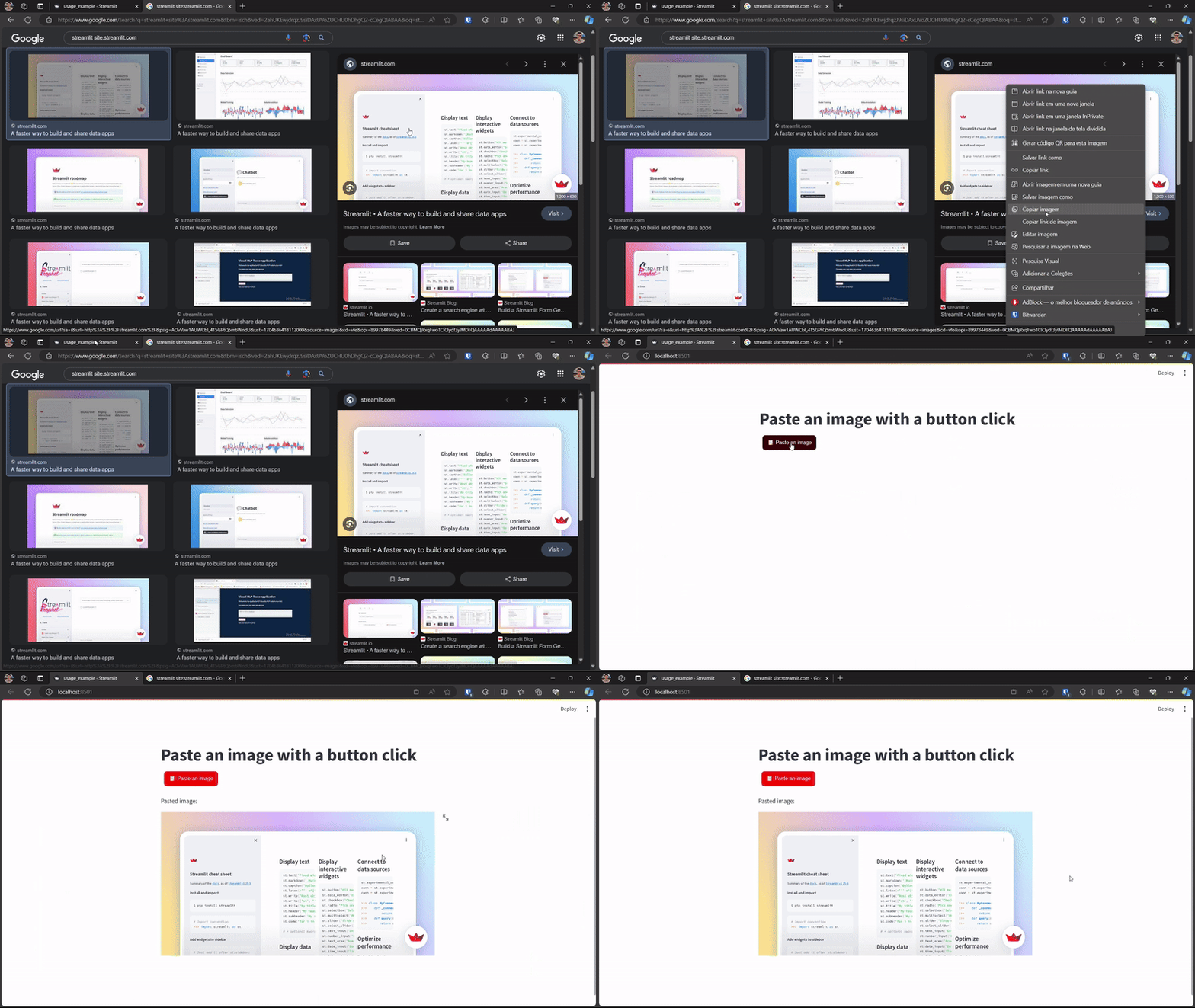
Create a paste button that displays the pasted image when clicked.
import streamlit as st
from streamlit_paste_button import paste_image_button as pbutton

paste_result = pbutton("📋 Paste an image")

if paste_result.image_data is not None:
    st.write('Pasted image:')
    st.image(paste_result.image_data)
Customizing the button
Create a paste button with a custom label and colors.
from streamlit_paste_button import paste_image_button as pbutton

paste_result = pbutton(
    label="📋 Paste an image",
    text_color="#ffffff",
    background_color="#FF0000",
    hover_background_color="#380909",
)
Handling errors
Create a paste button that displays errors as st.error messages.
from streamlit_paste_button import paste_image_button as pbutton

paste_result = pbutton(
    label="📋 Paste an image",
    errors="raise",
)
Converting the PasteResult
PasteResult is a PIL.Image.Image object. It can be manipulated as such.
from streamlit_paste_button import paste_image_button as pbutton
import io
import base64
import numpy as np

paste_result = pbutton("📋 Paste an image")

if paste_result.image_data is not None:
    # Convert to bytes
    img_bytes = io.BytesIO()
    paste_result.image_data.save(img_bytes, format='PNG')
    img_bytes = img_bytes.getvalue() # Image as bytes

    # Convert to base64
    img_b64 =  base64.b64encode(img_bytes).decode('utf-8') # Image as base64

    # Convert to numpy array
    img_np = np.array(paste_result.image_data) # Image as numpy array
1 maintainer

Metadata
1 maintainer
Release files for streamlit-paste-button 0.1.2
For a detailed explanation of source distributions (sdists) and built distributions (wheels), please see the package formats documentation.
Source distribution (sdist)
| File | Size | Uploaded | |
|---|---|---|---|
| streamlit-paste-button-0.1.2.tar.gz | 8.1 kB | Details |
Built distribution (wheel)
| File | Interpreter | ABI | Platform | Reset |
|---|---|---|---|---|
| streamlit_paste_button-0.1.2-py3-none-any.whl | Python 3 | none | any | Details |
Total release size: 16.0 kB














