
streamlit-webrtc
Handling and transmitting real-time video/audio streams over the network with Streamlit







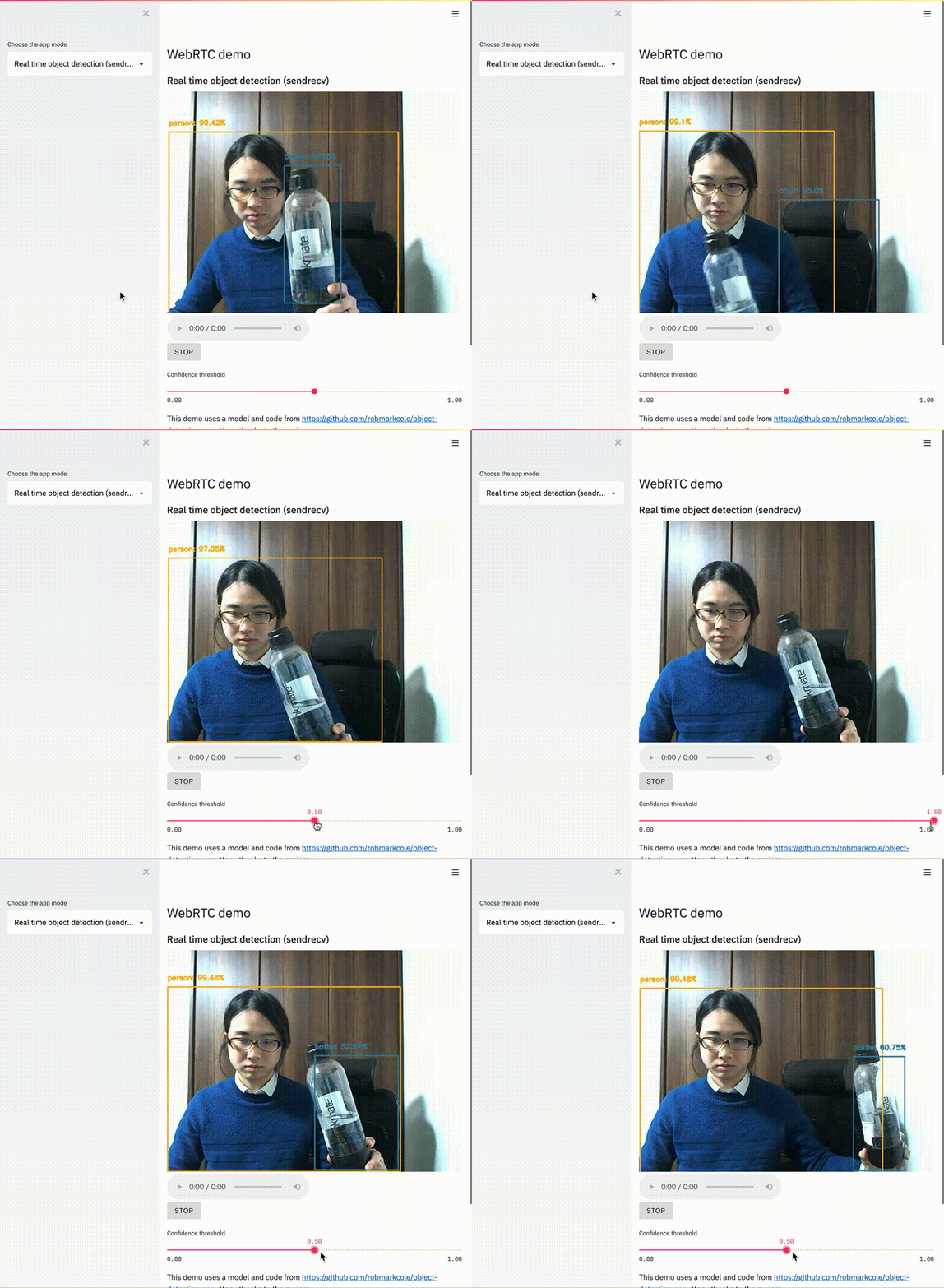
|
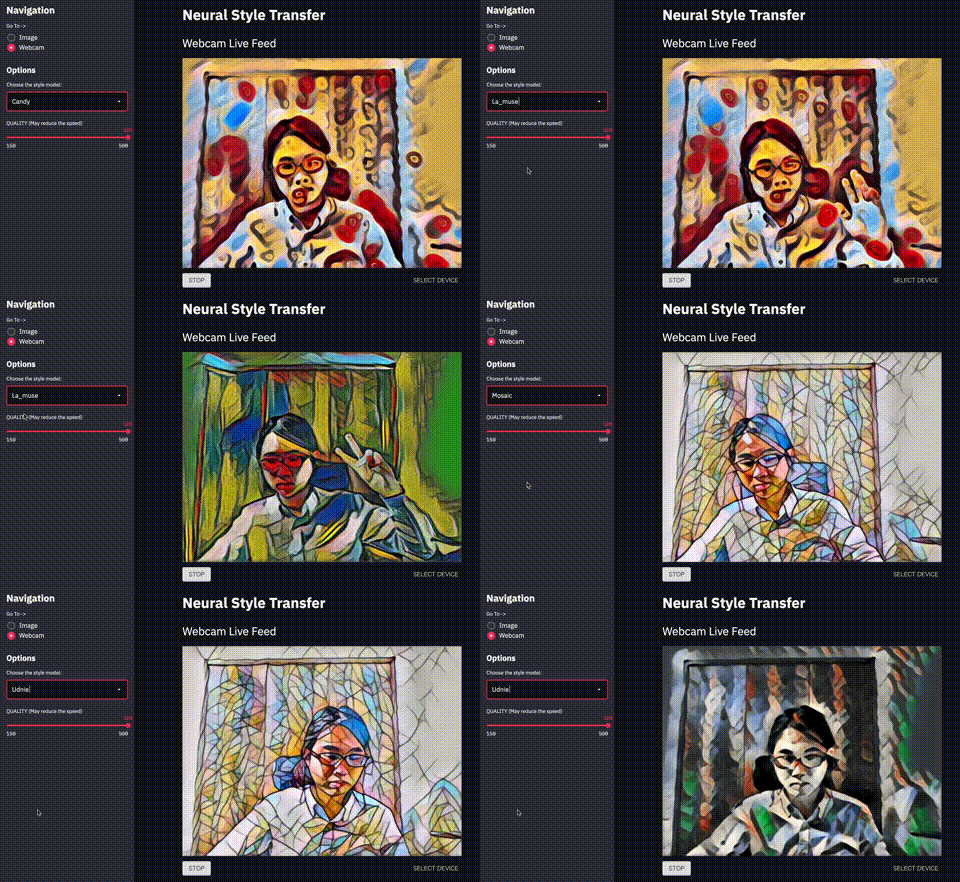
|
Sister project: streamlit-fesion to execute video filters on browsers with Wasm.
Examples
⚡️Showcase including following examples and more: 🎈Online demo
- Object detection
- OpenCV filter
- Uni-directional video streaming
- Audio processing
⚡️Real-time Speech-to-Text: 🎈Online demo
It converts your voice into text in real time. This app is self-contained; it does not depend on any external API.
⚡️Real-time video style transfer: 🎈Online demo
It applies a wide variety of style transfer filters to real-time video streams.
⚡️Video chat
(Online demo not available)
You can create video chat apps with ~100 lines of Python code.
⚡️Tokyo 2020 Pictogram: 🎈Online demo
MediaPipe is used for pose estimation.
Install
$ pip install -U streamlit-webrtc
Quick tutorial
See also the sample pages, pages/*.py, which contain a wide variety of usage.
See also "Developing Web-Based Real-Time Video/Audio Processing Apps Quickly with Streamlit".
Create app.py with the content below.
from streamlit_webrtc import webrtc_streamer

webrtc_streamer(key="sample")
Unlike other Streamlit components, webrtc_streamer() requires the key argument as a unique identifier. Set an arbitrary string to it.
Then run it with Streamlit and open http://localhost:8501/.
$ streamlit run app.py
You see the app view, so click the "START" button.
Then, video and audio streaming starts. If asked for permissions to access the camera and microphone, allow it.

Media toggle controls
When the app sends local camera or microphone input, webrtc_streamer() shows camera and microphone toggle buttons next to the Start/Stop button. These controls let users turn their outgoing camera or microphone track on and off without stopping the WebRTC session.
Set media_toggle_controls=False to hide these toggle buttons.
from streamlit_webrtc import webrtc_streamer

webrtc_streamer(key="example", media_toggle_controls=False)
When a user turns off the camera or microphone with these buttons, the WebRTC track stays active. As described in MDN's MediaStreamTrack.enabled documentation, disabled audio tracks send silence, and disabled video tracks send black frames; the session does not stop or renegotiate.
Next, edit app.py as below and run it again.
from streamlit_webrtc import webrtc_streamer
import av


def video_frame_callback(frame):
    img = frame.to_ndarray(format="bgr24")

    flipped = img[::-1,:,:]

    return av.VideoFrame.from_ndarray(flipped, format="bgr24")


webrtc_streamer(key="example", video_frame_callback=video_frame_callback)
Now the video is vertically flipped.

As an example above, you can edit the video frames by defining a callback that receives and returns a frame and passing it to the video_frame_callback argument (or audio_frame_callback for audio manipulation).
The input and output frames are the instance of av.VideoFrame (or av.AudioFrame when dealing with audio) of PyAV library.
You can inject any kinds of image (or audio) processing inside the callback. See examples above for more applications.
Pass parameters to the callback
You can also pass parameters to the callback.
In the example below, a boolean flip flag is used to turn on/off the image flipping.
import streamlit as st
from streamlit_webrtc import webrtc_streamer
import av


flip = st.checkbox("Flip")


def video_frame_callback(frame):
    img = frame.to_ndarray(format="bgr24")

    flipped = img[::-1,:,:] if flip else img

    return av.VideoFrame.from_ndarray(flipped, format="bgr24")


webrtc_streamer(key="example", video_frame_callback=video_frame_callback)
Pull values from the callback
Sometimes we want to read the values generated in the callback from the outer scope.
Note that the callback is executed in a forked thread running independently of the main script, so we have to take care of the following points and need some tricks for implementation like the example below (See also the section below for some limitations in the callback due to multi-threading).
- Thread-safety
- Passing the values between inside and outside the callback must be thread-safe.
- Using a loop to poll the values
- During media streaming, while the callback continues to be called, the main script execution stops at the bottom as usual. So we need to use a loop to keep the main script running and get the values from the callback in the outer scope.
The following example is to pass the image frames from the callback to the outer scope and continuously process it in the loop. In this example, a simple image analysis (calculating the histogram like this OpenCV tutorial) is done on the image frames.
threading.Lock is one standard way to control variable accesses across threads.
A dict object img_container here is a mutable container shared by the callback and the outer scope and the lock object is used at assigning and reading the values to/from the container for thread-safety.
import threading

import cv2
import streamlit as st
from matplotlib import pyplot as plt

from streamlit_webrtc import webrtc_streamer

lock = threading.Lock()
img_container = {"img": None}


def video_frame_callback(frame):
    img = frame.to_ndarray(format="bgr24")
    with lock:
        img_container["img"] = img

    return frame


ctx = webrtc_streamer(key="example", video_frame_callback=video_frame_callback)

fig_place = st.empty()
fig, ax = plt.subplots(1, 1)

while ctx.state.playing:
    with lock:
        img = img_container["img"]
    if img is None:
        continue
    gray = cv2.cvtColor(img, cv2.COLOR_BGR2GRAY)
    ax.cla()
    ax.hist(gray.ravel(), 256, [0, 256])
    fig_place.pyplot(fig)
Callback limitations
The callbacks are executed in forked threads different from the main one, so there are some limitations:
- Streamlit methods (
st.*such asst.write()) do not work inside the callbacks. - Variables inside the callbacks cannot be directly referred to from the outside.
- The
globalkeyword does not work expectedly in the callbacks. - You have to care about thread-safety when accessing the same objects both from outside and inside the callbacks as stated in the section above.
Cleanup on Stop (session lifecycle)
webrtc_streamer() accepts on_video_ended and on_audio_ended arguments — zero-argument callables that fire when the corresponding input media track ends (the user clicks "STOP", closes the page, or the connection drops). They are the recommended hook for tearing down per-session resources that the frame callbacks allocated, such as worker threads, model handles, file writers, queues, or st.session_state entries.
import streamlit as st
from streamlit_webrtc import webrtc_streamer


def video_frame_callback(frame):
    # ... process the frame, possibly initializing per-session state on first call ...
    return frame


def on_video_ended():
    st.session_state.pop("my_session_resource", None)


webrtc_streamer(
    key="example",
    video_frame_callback=video_frame_callback,
    on_video_ended=on_video_ended,
)
These callbacks run on aiortc's asyncio loop — not Streamlit's main thread — so the same caveats as the frame callbacks apply: st.* calls do not work inside them, and shared state must be mutated in a thread-safe way (e.g. with a threading.Lock, a queue, or a threading.Event).
When using the class-based API, override VideoProcessorBase.on_ended() / AudioProcessorBase.on_ended() instead — they fire at the same lifecycle point.
Source/sink track lifecycle
Factory helpers such as create_video_source_track(), create_audio_source_track(), create_video_sink_track(), create_audio_sink_track(), and create_pcm_audio_source_track() cache their returned objects in st.session_state by key so they survive Streamlit reruns. This is usually what you want: widget changes and reruns keep using the same media track.
By default, factory-created source and sink tracks are scoped to the active WebRTC session. When that session ends, for example when the user clicks STOP, closes the page, or the connection drops, the cached object is stopped and removed from st.session_state. The next WebRTC session with the same key gets a fresh object.
from streamlit_webrtc import create_video_source_track

video_track = create_video_source_track(
    callback=video_source_callback,
    key="video-source",
)
To keep a factory-created object alive across multiple WebRTC sessions in the same Streamlit session, opt out with lifecycle_scope="streamlit-session":
video_track = create_video_source_track(
    callback=video_source_callback,
    key="video-source",
    lifecycle_scope="streamlit-session",
)
lifecycle_scope applies to source/sink factory helpers and create_pcm_audio_source_track(). It does not affect webrtc_streamer() itself, create_process_track(), or create_mix_track(), whose lifecycles are tied to input tracks or explicit mixer reuse.
Class-based callbacks
The function-based callbacks (video_frame_callback / audio_frame_callback) shown above are the recommended API.
Until v0.37, the class-based callbacks (video_processor_factory / audio_processor_factory taking a VideoProcessorBase / AudioProcessorBase subclass) were the standard. They are still supported for backward compatibility — see the old version of the README for that style — but new code should prefer the function-based callbacks. The class-based API is planned to be removed in a future major release (v1.0).
Serving from remote host
When deploying apps to remote servers, there are some things you need to be aware of. In short,
- HTTPS is required to access local media devices.
- STUN/TURN servers are required to establish the media stream connection.
See the following sections.
HTTPS
streamlit-webrtc uses getUserMedia() API to access local media devices, and this method does not work in an insecure context.
This document says 1
A secure context is, in short, a page loaded using HTTPS or the file:/// URL scheme, or a page loaded from localhost.
So, when hosting your app on a remote server, it must be served via HTTPS if your app is using webcam or microphone. If not, you will encounter an error when starting using the device. For example, it's something like below on Chrome.
Error: navigator.mediaDevices is undefined. It seems the current document is not loaded securely.
Streamlit Community Cloud is a recommended way for HTTPS serving. You can easily deploy Streamlit apps with it, and most importantly for this topic, it serves the apps via HTTPS automatically by default.
For development, streamlit-remote provides the st-remote command as an easy way to serve your app via HTTPS.
For remote HTTPS access, st-remote works as a wrapper that starts Streamlit and then runs a tunnel provider command such as cloudflared or ngrok.
Install the provider command separately before running st-remote: use cloudflared with --provider cloudflare, or ngrok with --provider ngrok.
st-remote defaults to --provider cloudflare; it does not automatically choose a provider based on which command is installed.
The --provider option only affects the remote tunnel; if you only need HTTPS on your local machine, use local HTTPS mode instead.
See streamlit-remote's README for provider installation and option details.
$ pip install streamlit-remote
$ st-remote your_app.py --provider cloudflare  # Remote HTTPS URL via cloudflared.
$ st-remote your_app.py --provider ngrok  # Remote HTTPS URL via ngrok.
$ st-remote your_app.py --https self-signed --no-remote  # Local HTTPS only.
# Then access the HTTPS URL printed by st-remote.
Configure the STUN server
To deploy the app to the cloud, we have to configure the STUN server via the rtc_configuration argument on webrtc_streamer() like below.
webrtc_streamer(
    # ...
    rtc_configuration={  # Add this config
        "iceServers": [{"urls": ["stun:stun.l.google.com:19302"]}]
    }
    # ...
)
This configuration is necessary to establish the media streaming connection when the server is on a remote host.
⚠️ You may need to set up a TURN server as well in some environments, including Streamlit Community Cloud. See also the next section.
streamlit_webrtc uses WebRTC for its video and audio streaming. It has to access a "STUN server" in the global network for the remote peers (precisely, peers over the NATs) to establish WebRTC connections.
As we don't see the details about STUN servers here, please google it if interested with keywords such as STUN, TURN, or NAT traversal, or read these articles (1, 2, 3).
The example above is configured to use stun.l.google.com:19302, which is a free STUN server provided by Google.
You can also use any other STUN servers. For example, one user reported that the Google's STUN server had a huge delay when using from China network, and the problem was solved by changing the STUN server.
For those who know about the browser WebRTC API: The value of the rtc_configuration argument will be passed to the RTCPeerConnection constructor on the frontend.
Configure the TURN server if necessary
Even if the STUN server is properly configured, media streaming may not work in some network environments, either from the server or from the client. For example, if the server is hosted behind a proxy, or if the client is on an office network behind a firewall, the WebRTC packets may be blocked (Streamlit Community Cloud is the case). This article summarizes the possible situations.
In such environments, TURN server is required.
There are several options for setting up a TURN server:
- Cloudflare Realtime TURN (recommended) is the quickest way to get started. It has a free monthly allowance of relayed traffic, so you can get an app working before paying for anything, and
streamlit-webrtccan fetch the credentials for you. Create a TURN key in the Cloudflare dashboard and keep it on the server side. Expose it as theCLOUDFLARE_TURN_KEY_IDandCLOUDFLARE_TURN_KEY_API_TOKENenvironment variables andwebrtc_streamer()fetches short-lived credentials by itself, so you can leavertc_configurationunset. Cloudflare takes precedence when Twilio or Hugging Face credentials are present in the environment too.webrtc_streamer(key="example") # Reads the Cloudflare credentials from the environment.
To fetch the credentials yourself, for instance to choose the TTL or the key at runtime, call the API and pass the result in:import os import requests import streamlit as st TURN_KEY_ID = os.environ["CLOUDFLARE_TURN_KEY_ID"] TURN_KEY_API_TOKEN = os.environ["CLOUDFLARE_TURN_KEY_API_TOKEN"] @st.cache_data(ttl=3600) def get_ice_servers(): response = requests.post( f"https://rtc.live.cloudflare.com/v1/turn/keys/{TURN_KEY_ID}/credentials/generate-ice-servers", headers={"Authorization": f"Bearer {TURN_KEY_API_TOKEN}"}, json={"ttl": 7200}, # Longer than the cache TTL above. timeout=10, ) response.raise_for_status() return response.json()["iceServers"] webrtc_streamer( # ... rtc_configuration={ "iceServers": get_ice_servers() } # ... )
See Generate Credentials for the details of the API, including how to revoke a credential before it expires. - Twilio Network Traversal Service is a stable, long-established solution. It is priced per relayed gigabyte with no free allowance, so beyond the initial trial credit you need a funded Twilio account.
You can simply pass the
ice_serversfield of the Network Traversal Service Tokens API response to theiceServersfield of thertc_configurationargument ofwebrtc_streamer().## This sample code is from https://www.twilio.com/docs/stun-turn/api # Download the helper library from https://www.twilio.com/docs/python/install import os from twilio.rest import Client # Find your Account SID and Auth Token at twilio.com/console # and set the environment variables. See http://twil.io/secure account_sid = os.environ['TWILIO_ACCOUNT_SID'] auth_token = os.environ['TWILIO_AUTH_TOKEN'] client = Client(account_sid, auth_token) token = client.tokens.create() # Then, pass the ICE server information to webrtc_streamer(). webrtc_streamer( # ... rtc_configuration={ "iceServers": token.ice_servers } # ... )
The WebRTC sample app hosted on the Community Cloud uses this option. See how it retrieves the ICE server information from the Twilio API and how to use it in the app. - The Open Relay Project provides a free TURN server. However, it does not seem to be stable enough and is often down.
- A self-hosted TURN server is also an option. See https://github.com/whitphx/streamlit-webrtc/issues/335#issuecomment-897326755.
Logging
For logging, this library uses the standard logging module and follows the practice described in the official logging tutorial. Then the logger names are the same as the module names - streamlit_webrtc or streamlit_webrtc.*.
So you can get the logger instance with logging.getLogger("streamlit_webrtc") through which you can control the logs from this library.
For example, if you want to set the log level on this library's logger as WARNING, you can use the following code.
st_webrtc_logger = logging.getLogger("streamlit_webrtc")
st_webrtc_logger.setLevel(logging.WARNING)
In practice, aiortc, a third-party package this library is internally using, also emits many INFO level logs and you may want to control its logs too.
You can do it in the same way as below.
aioice_logger = logging.getLogger("aioice")
aioice_logger.setLevel(logging.WARNING)
API changes
Currently there is no documentation about the interface. See the examples in ./pages/*.py for the usage. The API is not finalized yet and can be changed without backward compatibility in the future releases until v1.0.
For users since versions <0.20
VideoTransformerBase and its transform method have been marked as deprecated in v0.20.0. Please use VideoProcessorBase#recv() instead.
Note that the signature of the recv method is different from the transform in that the recv has to return an instance of av.VideoFrame or av.AudioFrame.
Also, webrtc_streamer()'s video_transformer_factory and async_transform arguments are deprecated, so use video_processor_factory and async_processing respectively.
See the samples in app.py for their usage.
Resources
- 📖 Developing web-based real-time video/audio processing apps quickly with Streamlit
- A tutorial for real-time video app development using
streamlit-webrtc. - Crosspost on dev.to: https://dev.to/whitphx/developing-web-based-real-time-videoaudio-processing-apps-quickly-with-streamlit-4k89
- A tutorial for real-time video app development using
- 📖 New Component: streamlit-webrtc, a new way to deal with real-time media streams (Streamlit Community)
- This is a forum topic where
streamlit-webrtchas been introduced and discussed about.
- This is a forum topic where
- 🎥 Real-time browser-ready computer vision apps with Streamlit, EuroPython 2022
- A talk at EuroPython 2022 about
streamlit-webrtcdemonstrating quick development of a real-time computer vision app.
- A talk at EuroPython 2022 about
Support the project



-
For more details about This document explains the concept of secure context in detail. ↩
1 maintainer

Metadata
1 maintainer
Release files for streamlit-webrtc 0.78.1
For a detailed explanation of source distributions (sdists) and built distributions (wheels), please see the package formats documentation.
Source distribution (sdist)
| File | Size | Uploaded | |
|---|---|---|---|
| streamlit_webrtc-0.78.1.tar.gz | 233.1 kB | Details |
Built distribution (wheel)
| File | Interpreter | ABI | Platform | Reset |
|---|---|---|---|---|
| streamlit_webrtc-0.78.1-py3-none-any.whl | Python 3 | none | any | Details |
Total release size: 475.4 kB
Release files / streamlit_webrtc-0.78.1.tar.gz
| Download URL | streamlit_webrtc-0.78.1.tar.gz |
|---|---|
| Size | 233.1 kB |
| Tags | Source |
|
SHA-256 checksum How to use checksums |
cf8c5139fb2d9fedfd81a74f38f25c3a6999e0120e0a108ee0238d630129468f
|
|
BLAKE2b-256 checksum How to use checksums |
0fef395cb6281225b2574224f4ba2585b6b51f14312e002eb72cf9882e31212f
|
| Upload date | |
|
Uploaded using Trusted Publishing? What is trusted publishing? |
Yes |
| Uploaded via |
twine/7.0.0 CPython/3.13.14
|
Provenance
Provenance describes where a file came from. On PyPI, provenance is shared via attestations, which provide a verifiable record of the build or publishing details. View details, limitations and caveats.


PyPI Publish Attestation
PyPI verified that this artifact, at this checksum, originated from the publisher listed below.
Signed by GitHub Actions, verified by PyPI on Sep 18, 2026.
Transparency logRelease files / streamlit_webrtc-0.78.1-py3-none-any.whl
| Download URL | streamlit_webrtc-0.78.1-py3-none-any.whl |
|---|---|
| Size | 242.3 kB |
| Tags | Python 3 |
|
SHA-256 checksum How to use checksums |
b5647a11bf66db6632553bdf94b2043f59e524227f82e41b74713a586b5571b2
|
|
BLAKE2b-256 checksum How to use checksums |
2f4e90c1735569559dc69411e332adc0e82a331564f5818cf5bccc4f6e78b0fb
|
| Upload date | |
|
Uploaded using Trusted Publishing? What is trusted publishing? |
Yes |
| Uploaded via |
twine/7.0.0 CPython/3.13.14
|
Provenance
Provenance describes where a file came from. On PyPI, provenance is shared via attestations, which provide a verifiable record of the build or publishing details. View details, limitations and caveats.
PyPI Publish Attestation
PyPI verified that this artifact, at this checksum, originated from the publisher listed below.
Signed by GitHub Actions, verified by PyPI on Sep 18, 2026.
Transparency log













