
A visual style editor overlay for Streamlit, Dash, and more

Project description
StylePro
A pip-installable Python package that adds a non-intrusive visual style editor overlay to web applications. StylePro lets users visually edit component styles (colors, spacing, typography, borders), resize and reposition elements, and persist themes — all without writing CSS.
Supported frameworks: Streamlit (v0.1), Dash (v0.2), Angular (v2, planned)
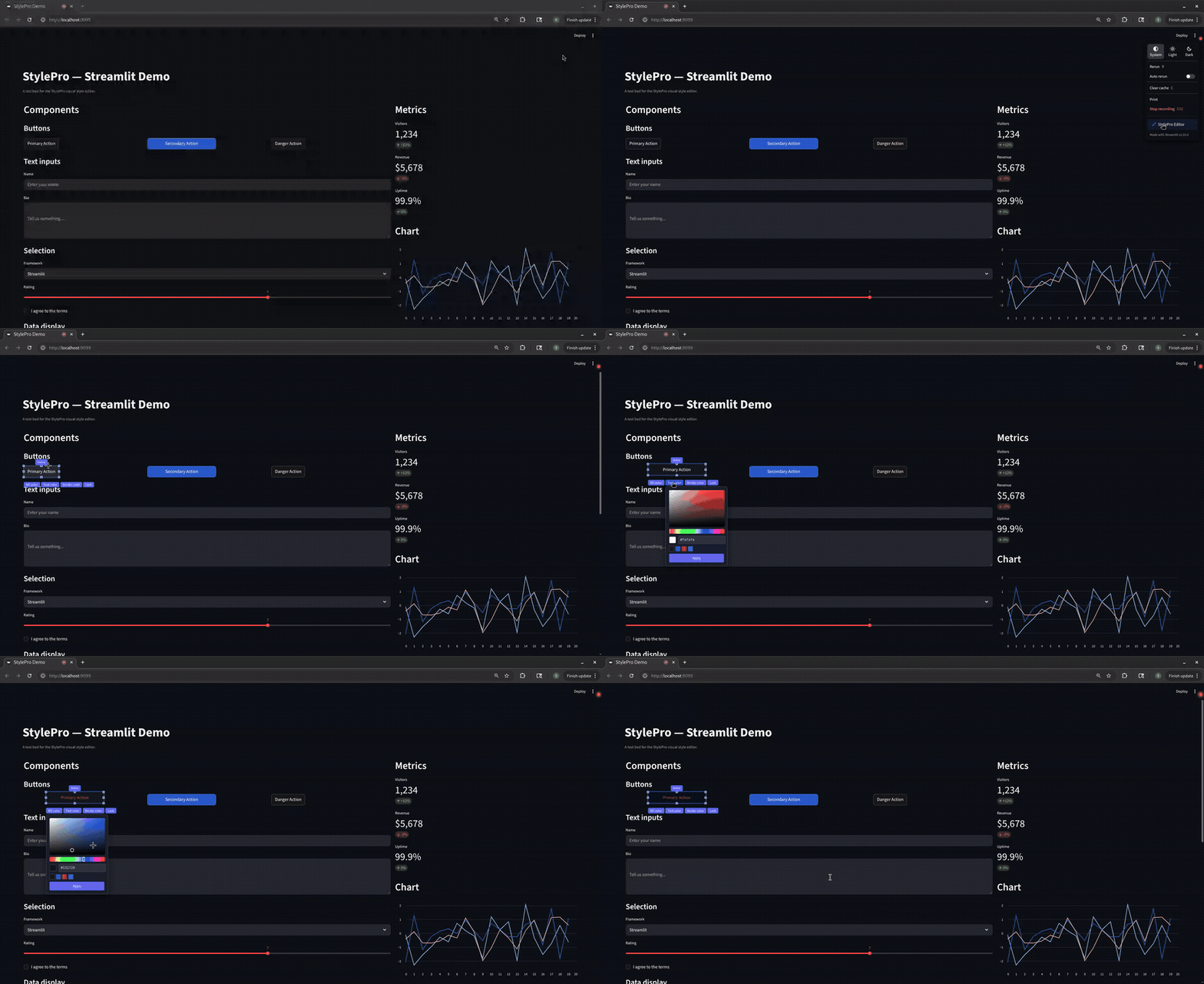
Features
- Canvas edit mode — click the "StylePro Editor" menu item to activate. The entire page becomes editable: hover any element to see selection highlights, resize handles, and color pickers.
- Live CSS preview — changes apply instantly via CSS custom properties. No server round-trip during editing.
- Per-component targeting — each element gets a deterministic
data-sp-idattribute. Style overrides are scoped to individual components without touching app code. - Role-based access control — three roles with different capabilities:
- admin: full editing (colors, layout, resize, move), global save to server
- user: color editing only, personal save to browser localStorage
- guest: view only, editor hidden
- Undo/redo — Ctrl+Z / Ctrl+Y with a 200-action stack
- Pluggable storage — themes persist via JSON files, YAML files, or SQLite (all thread-safe)
- Keyboard shortcuts — Escape (deactivate), Ctrl+S (save), arrow keys (nudge, admin only)
- Streamlit menu integration — editor toggle appears in Streamlit's native hamburger menu
- Rerun resilience — editor state survives Streamlit reruns via sessionStorage
- Zero hard dependencies — stdlib-only core; framework support is opt-in via extras
Installation
# Core package (no framework dependencies)
pip install stylepro

# With Streamlit support
pip install 'stylepro[streamlit]'

# With all optional dependencies
pip install 'stylepro[all]'

# Development (editable install with test dependencies)
cd StylePro
pip install -e '.[streamlit,dev]'
Quick Start (Streamlit)
Add three lines to the top of your Streamlit script:
from stylepro import StreamlitStylePro

sp = StreamlitStylePro.from_config(role="admin")
sp.inject()

# ... rest of your Streamlit app ...
import streamlit as st
st.title("My App")
Run it:
streamlit run your_app.py
Open the hamburger menu (top-right) and click "StylePro Editor" to activate canvas edit mode.
Quick Start (Dash)
Add three lines to your Dash script:
import dash
from stylepro import DashStylePro

app = dash.Dash(__name__)

sp = DashStylePro.from_config(role="admin")
sp.inject(app)   # call once, before app.run()

# ... define layout and callbacks ...
app.run(debug=True)
Run it:
python your_dash_app.py
The StylePro FAB (floating action button) appears in the bottom-right corner. Click it to activate canvas edit mode.
Explicit Setup
For more control over storage, server, and permissions:
from stylepro import StreamlitStylePro, JSONThemeStore, SQLiteThemeStore, EditorServer
from stylepro.core.permissions import AccessContext, Role

# Choose a storage backend
store = JSONThemeStore(".my_themes")
# or: store = SQLiteThemeStore(".my_themes/themes.db")

# Configure the API server
server = EditorServer(store, port=5001)

# Set up access control
ctx = AccessContext(role=Role.ADMIN, user_id="alice@example.com")

# Create and inject
sp = StreamlitStylePro(store=store, server=server, access_context=ctx)
sp.inject()
Architecture
stylepro/
    __init__.py              # Public API surface (lazy imports for integrations)
    core/
        theme.py             # Theme + ThemeVariable dataclasses
        store.py             # ThemeStore ABC + JSON/YAML/SQLite adapters
        permissions.py       # Role, Permission, AccessContext, ROLE_PERMISSIONS
    editor/
        server.py            # HTTP API daemon thread (6 routes)
        static/
            editor.js        # Vanilla JS canvas editor
            editor.css       # Shadow DOM overlay styles
            color_picker.js  # Standalone HSV color picker widget
    integrations/
        base.py              # FrameworkIntegration ABC
        streamlit.py         # Streamlit adapter
        dash.py              # Dash stub (v0.2)
    utils/
        css.py               # CSS generation + sanitization
tests/
    conftest.py
    test_theme.py
    test_store.py
    test_permissions.py
    test_server.py
    test_css.py
examples/
    streamlit_app.py         # Demo Streamlit app
    dash_app.py              # Demo Dash app (stub)
See docs/architecture.md for detailed design decisions and component descriptions.
API Reference
See docs/api.md for the full API reference covering all public classes and functions.
Key Classes
| Class | Module | Description |
|---|---|---|
Theme |
stylepro.core.theme |
Named collection of CSS variables with serialization and merge support |
ThemeVariable |
stylepro.core.theme |
Single CSS custom property entry |
ThemeStore |
stylepro.core.store |
Abstract interface for theme persistence |
JSONThemeStore |
stylepro.core.store |
JSON file-based storage adapter |
SQLiteThemeStore |
stylepro.core.store |
SQLite-based storage adapter |
YAMLThemeStore |
stylepro.core.store |
YAML file-based storage (requires PyYAML) |
Role |
stylepro.core.permissions |
Enum: ADMIN, USER, GUEST |
Permission |
stylepro.core.permissions |
Enum: EDIT_GLOBAL, EDIT_PERSONAL, SAVE_THEME, DELETE_THEME, VIEW_EDITOR |
AccessContext |
stylepro.core.permissions |
Carries role and user identity |
EditorServer |
stylepro.editor.server |
Background HTTP API server for theme CRUD |
StreamlitStylePro |
stylepro.integrations.streamlit |
Streamlit framework adapter |
DashStylePro |
stylepro.integrations.dash |
Dash framework adapter |
HTTP API Routes
The EditorServer exposes these routes (default: http://127.0.0.1:5001):
| Method | Path | Description | Required Permission |
|---|---|---|---|
| GET | /health |
Health check | None |
| GET | /themes |
List all theme names | None |
| GET | /themes/{name} |
Get theme by name | None |
| POST | /themes |
Save a theme | SAVE_THEME (admin only) |
| PUT | /themes/{name}/activate |
Set active theme | EDIT_GLOBAL (admin only) |
| DELETE | /themes/{name} |
Delete a theme | DELETE_THEME (admin only) |
Role Permissions
| Permission | Admin | User | Guest |
|---|---|---|---|
| EDIT_GLOBAL (layout, resize, move) | Yes | No | No |
| EDIT_PERSONAL (colors) | Yes | Yes | No |
| SAVE_THEME (global server save) | Yes | No | No |
| DELETE_THEME | Yes | No | No |
| VIEW_EDITOR | Yes | Yes | No |
User-role save behavior: Users can edit colors and save changes to their browser's localStorage. These personal themes load automatically on return visits but do not affect other users.
Storage Backends
JSONThemeStore (default)
Stores themes as individual JSON files:
.stylepro/
    themes/
        my_theme.json
        dark.json
    active.txt          # contains the active theme name
SQLiteThemeStore
Single-file database using stdlib sqlite3:
store = SQLiteThemeStore(".stylepro/themes.db")
YAMLThemeStore
Requires PyYAML (pip install 'stylepro[yaml]'):
store = YAMLThemeStore(".stylepro")
All adapters are thread-safe (RLock for file-based, WAL mode for SQLite).
CSS Security
All CSS values submitted through the API are sanitized by stylepro.utils.css.sanitize_css_value() before storage. The following constructs are blocked:
url(),expression(),javascript:,vbscript:,data:@import,<script>,behavior:,-moz-binding
Values must match a safe-value allowlist (hex colors, rgb/hsl functions, numbers with units, safe CSS keywords, calc(), var()).
Testing
cd StylePro
pip install -e '.[dev]'
pytest
Current status: 74 tests passing, 2 skipped (YAML tests when PyYAML is not installed).
Configuration
StreamlitStylePro.from_config() accepts these parameters:
| Parameter | Type | Default | Description |
|---|---|---|---|
store |
ThemeStore |
JSONThemeStore('.stylepro') |
Storage backend |
role |
str or Role |
'guest' |
User role |
user_id |
str |
None |
Optional user identifier |
api_port |
int |
5001 |
API server port (0 = OS-assigned) |
config |
dict |
None |
Extra config (fab_position, css_var_prefix) |
The API server auto-retries on incrementing ports (up to 10 attempts) if the requested port is in use.
Keyboard Shortcuts (in edit mode)
| Shortcut | Action | Role Required |
|---|---|---|
| Escape | Deactivate edit mode | Any |
| Ctrl+Z | Undo | Any |
| Ctrl+Y | Redo | Any |
| Ctrl+S | Save | User or Admin |
| Arrow keys | Nudge element 1px | Admin |
| Shift+Arrow keys | Nudge element 10px | Admin |
How to Use Saved Themes
Where themes are stored
When using the default JSONThemeStore (the out-of-the-box backend), themes
are saved as individual JSON files inside a .stylepro/ directory in the
working directory you launch your app from:
.stylepro/
    themes/
        my_theme.json       # one file per saved theme
        dark.json
    active.txt              # contains the name of the currently active theme
active.txt holds a single line with the theme name. On every rerun, Python
reads this file and injects the active theme's CSS variables into the page.
How element IDs work — and why they must stay stable
Every DOM element targeted by StylePro receives a data-sp-id attribute of
the form tag-N, where tag is the HTML tag name in lowercase and N is
the element's zero-based position among all elements of that tag in document
order (example: button-0, div-3, p-12).
Two classes of elements are excluded from the count:
- The StylePro overlay host (
#sp-overlay-host) - Streamlit's header toolbar (
[data-testid="stHeader"])
These IDs are deterministic: for the same app code, the same element always
gets the same ID on every page load. Saved CSS selectors like
[data-sp-id="button-2"] will therefore reliably match the correct element
across browser sessions and server restarts.
However, if you add, remove, or reorder widgets in your app code, the document order changes and previously saved IDs may point to the wrong elements.
Cleaning up stale theme files
If you ever change the ID algorithm, restructure your app code significantly, or want to start fresh, delete the stored theme files:
rm .stylepro/themes/*.json .stylepro/active.txt
This removes all saved themes and clears the active theme pointer. The next time you save via the editor a new theme file will be created.
Save flow (step by step)
- Open the hamburger menu (top-right in Streamlit, or the StylePro FAB in Dash).
- Click StylePro Editor to activate canvas edit mode.
- Hover over any element and use the color picker, resize handles, or move handle to make your changes.
- Press Ctrl+S (or use the keyboard shortcut) to open the save dialog.
- In the dialog choose one of:
- Override current theme — overwrites the currently active theme file.
- Save as new theme — creates a new theme file with a name you provide.
- Your changes are written to
.stylepro/themes/<name>.jsonand.stylepro/active.txtis updated.
How saved themes persist on reload
On every page load (or Streamlit rerun):
- Python reads
.stylepro/active.txt, loads the corresponding JSON theme file via theThemeStore, callstheme.to_css()to render the CSS custom properties, and injects them into the page as a<style>block — before any app content renders. - JavaScript runs
_seedAllIds()after Streamlit (or Dash) finishes its initial render, walking the DOM in document order and assigningdata-sp-idattributes. Because Python already injected the CSS selectors (e.g.[data-sp-id="button-2"] { --sp-bg-color: #ff5733; }) and the JS seeds the same IDs in the same order, the saved styles apply to the correct elements immediately — visible in normal view, not just in edit mode.
User-role save behavior
Users with the user role cannot save themes to the server. Their edits
(color changes only — no layout) are saved to browser localStorage under
a key scoped to the app origin. These personal themes:
- Load automatically on return visits from the same browser.
- Do not affect other users or the server-side theme files.
- Are lost if the user clears their browser data.
Offloading StylePro (exporting CSS for use without the package)
Once you have a theme you are happy with, you can export the CSS and include it directly in your app without StylePro running:
-
Open the save dialog (Ctrl+S in edit mode).
-
Choose Export CSS to download the theme as a
.cssfile. -
In your app, include the file directly:
Streamlit:
with open("mytheme.css") as f:
    st.markdown(f"<style>{f.read()}</style>", unsafe_allow_html=True)
Dash: Place the
.cssfile in your app'sassets/directory. Dash automatically includes all CSS files from that folder.
You no longer need sp.inject() once the CSS is self-hosted this way.
Development Status
- v0.1.0.dev0 (current) — Streamlit integration, core data model, storage, API server, JS editor
- v0.2.0 — Dash integration (now available)
- v2.0.0 (planned) — Angular support
License
MIT
Release history Release notifications | RSS feed

Download files
Download the file for your platform. If you're not sure which to choose, learn more about installing packages.
Source Distributions
Built Distribution
Filter files by name, interpreter, ABI, and platform.
If you're not sure about the file name format, learn more about wheel file names.
Copy a direct link to the current filters
File details
Details for the file stylepro-0.2.0-py3-none-any.whl.
File metadata
- Download URL: stylepro-0.2.0-py3-none-any.whl
- Upload date:
- Size: 50.3 kB
- Tags: Python 3
- Uploaded using Trusted Publishing? No
- Uploaded via: twine/6.2.0 CPython/3.13.9
File hashes
| Algorithm | Hash digest | |
|---|---|---|
| SHA256 |
d0ef8cc1a5456bd37bad7f26b42640179160360599ed67074f092ddadce07400
|
|
| MD5 |
6d76284353659a717b868c26cd65a334
|
|
| BLAKE2b-256 |
c32c4de5d871d5c00df01308a79299cce5be5c4a5cbe81277c167ec39b0c388f
|






