

Super Aide
Press a key. Say one thing. Done.
A Windows assistant that sees your screen. Ask about anything on it, or let it do the work.
It drives Claude Code and Codex, learns from every task, and keeps getting better — for you and for everyone.
English · 简体中文



Website · Download for Windows (about 100 KB)
https://github.com/user-attachments/assets/f84ddcc8-1777-4a04-9abd-1dbccb1d5a15
What it does
Sees what you see
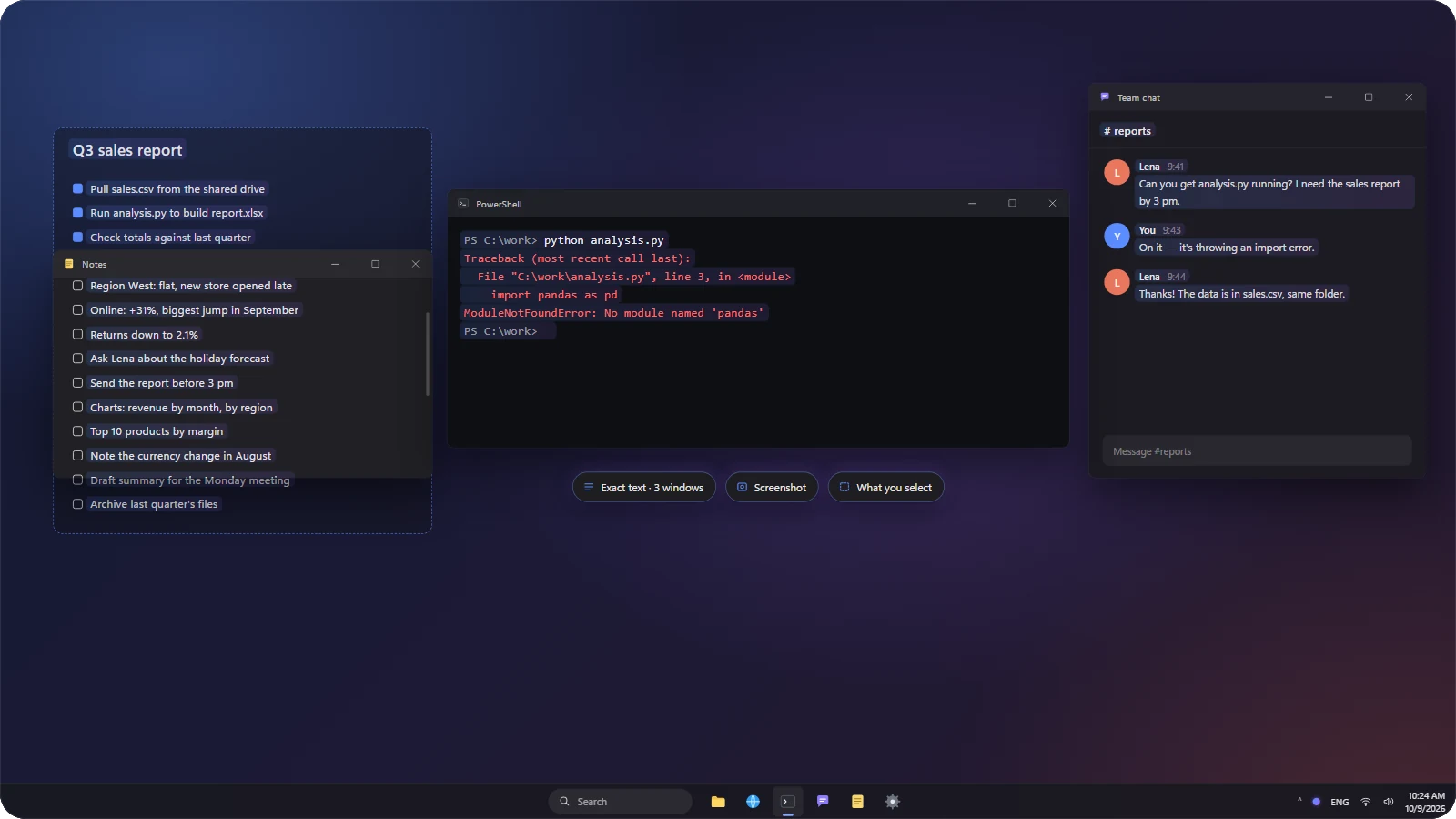
The moment you ask, it reads the exact text of every window — even the parts scrolled out of view — plus a screenshot and any area you select. No more pasting context.
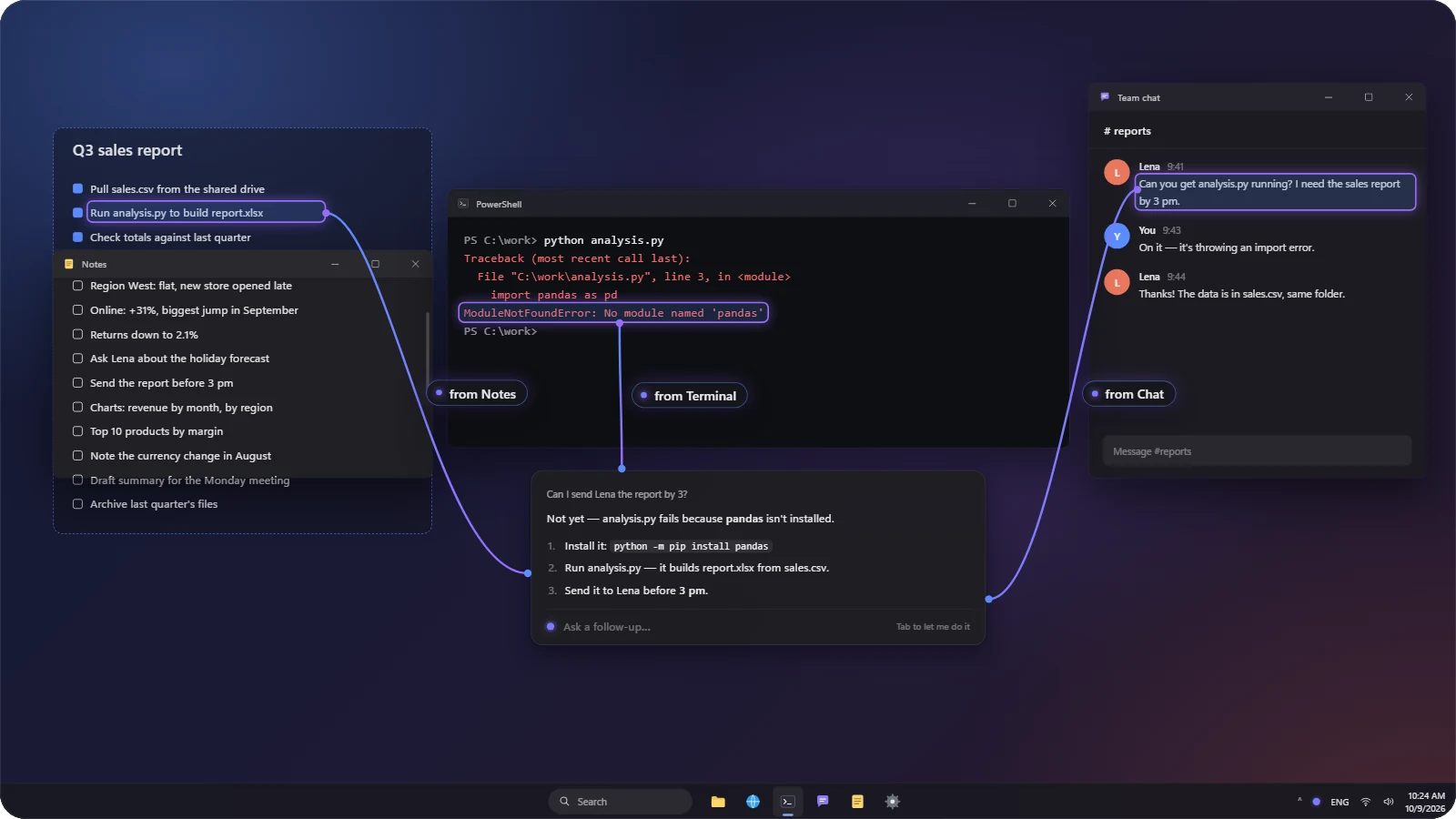
Ask — Alt+Q: one question, it connects the dots
The answer pulls together what's in every window — the error in your terminal, the deadline in a chat, the step in your notes — and leads with the conclusion. Ask mode is read-only: it can read files and run read-only diagnostics, but it never changes your PC.
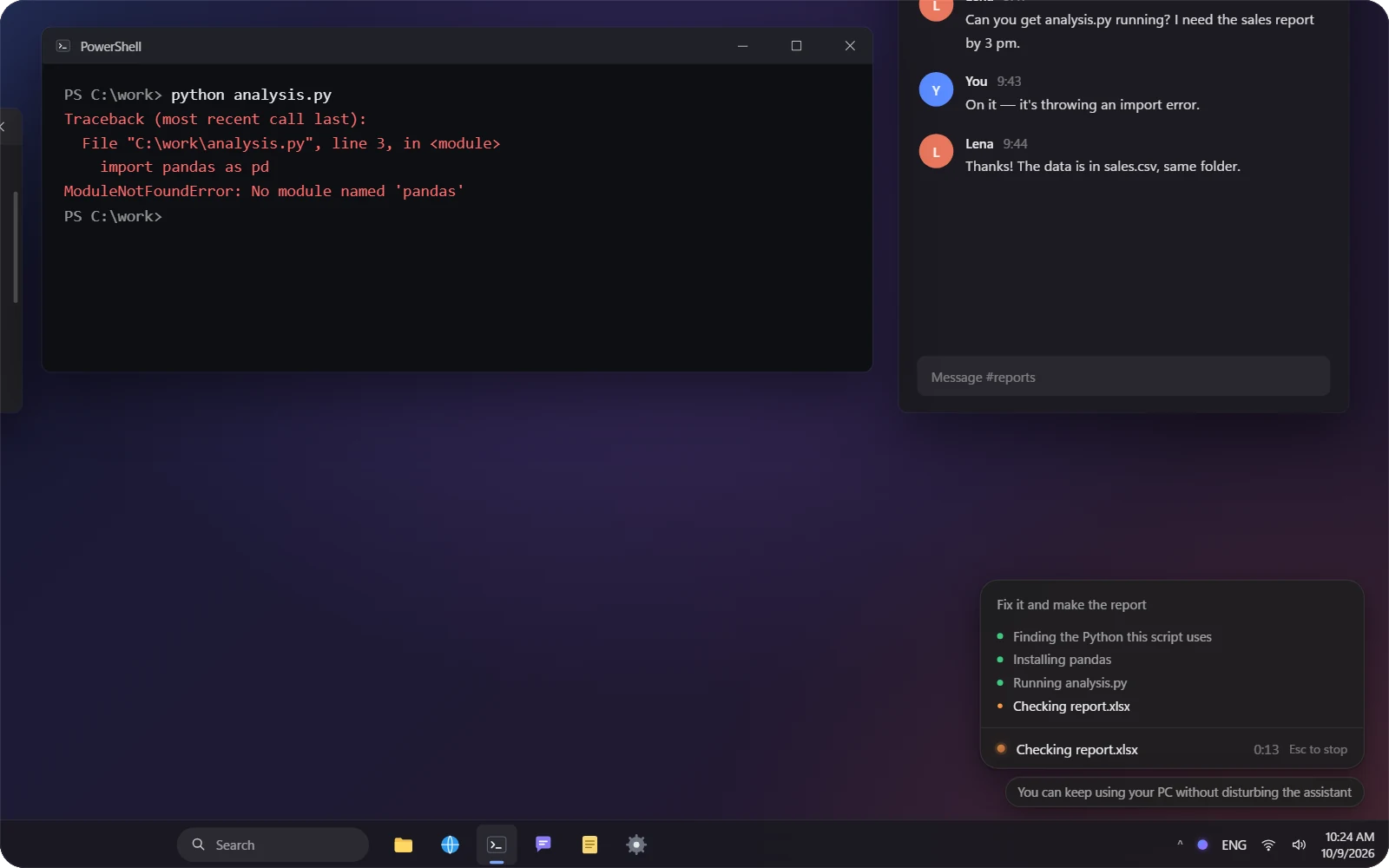
Act — Alt+W: it does the work
Command line, files, desktop apps, web pages. Click the progress pill to see every step; when it's done it tells you what changed and how to undo it. Press Esc to stop it at any time, and keep using your PC while it works.
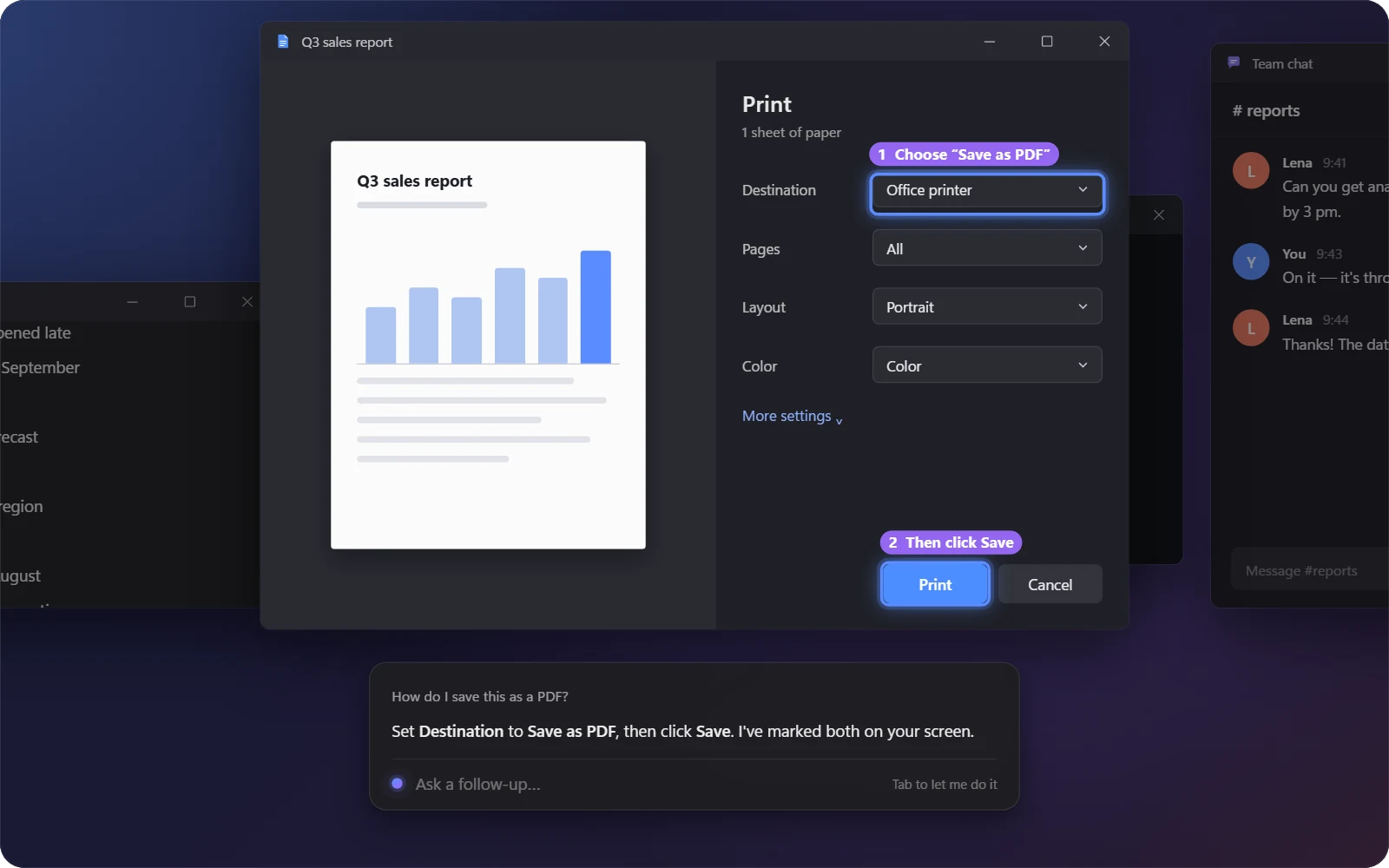
Shows you where to click
Rather do it yourself? It circles where to click, numbered in order, right on your screen. Step-by-step answers dock to the edge of the screen so you can follow along.
English / 中文
The UI follows your Windows language and can be switched in Settings; it answers in the language you ask in.
And it keeps getting better — for you, and for everyone
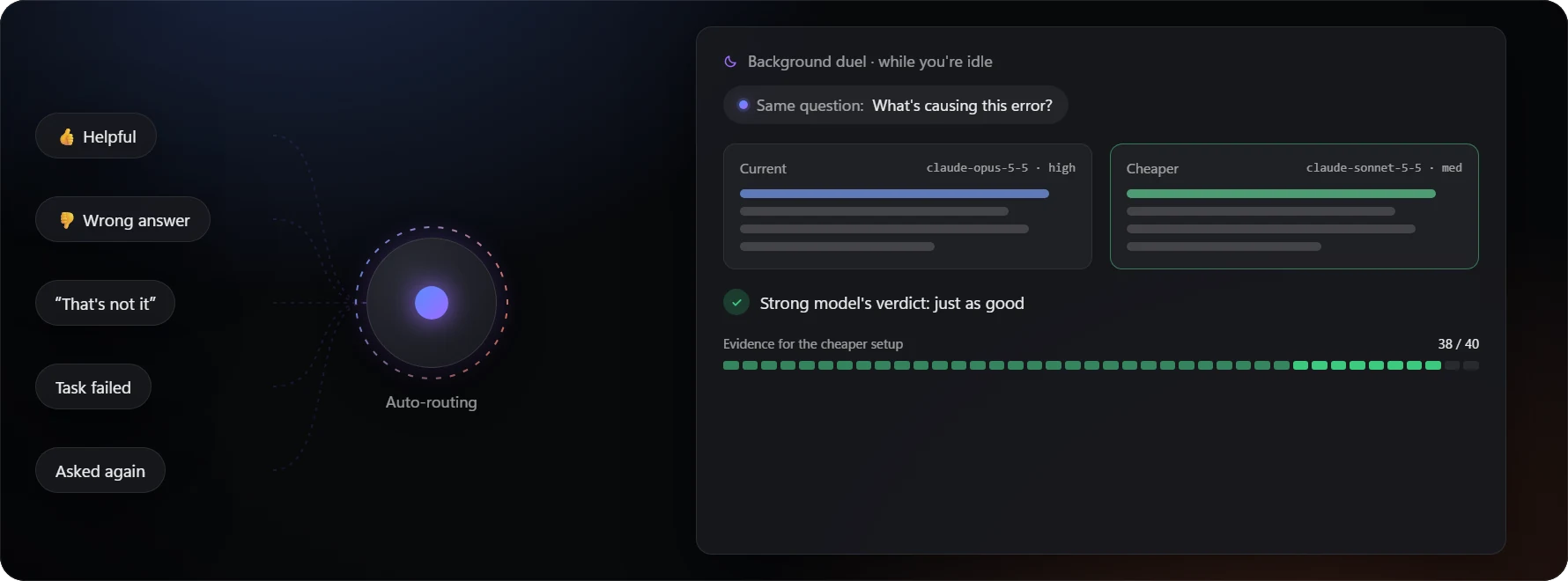
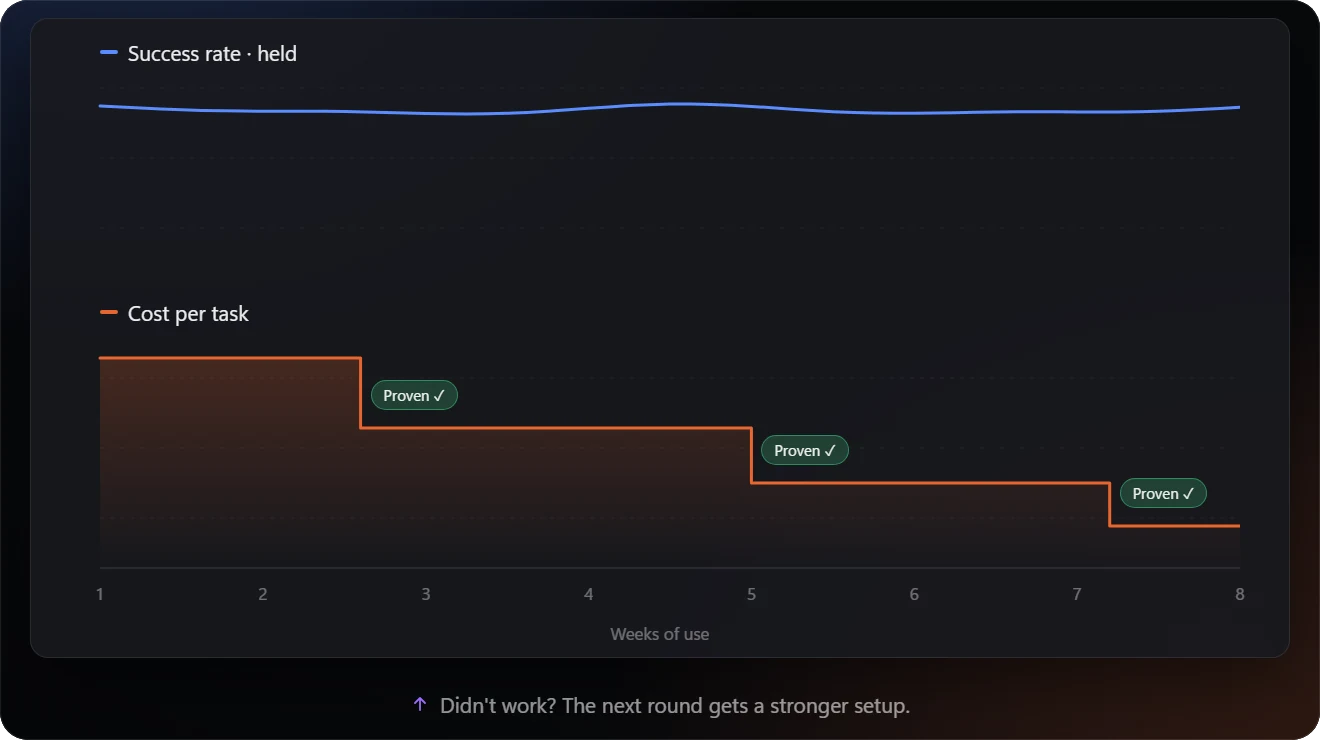
Routing that learns: the best first, then cheaper
Every request gets the engine (Claude Code, Codex, or DeepSeek Harness), the model and the reasoning effort that fits — you never pick. Every result teaches it: your 👍 and 👎, follow-ups, failures. While you're idle it quietly answers some questions again with a cheaper setup and lets a strong model judge both; it only switches when it's 90% sure the success rate won't drop. If a round fails, the next one gets a stronger setup.
Never the same mistake twice
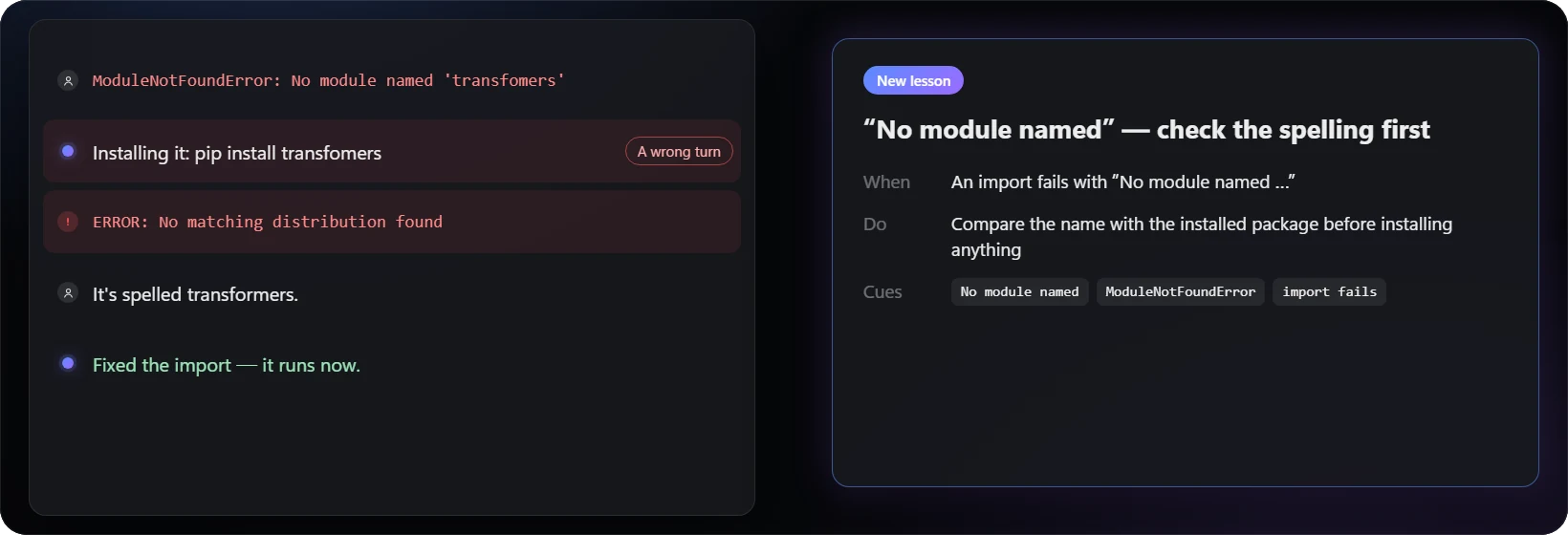
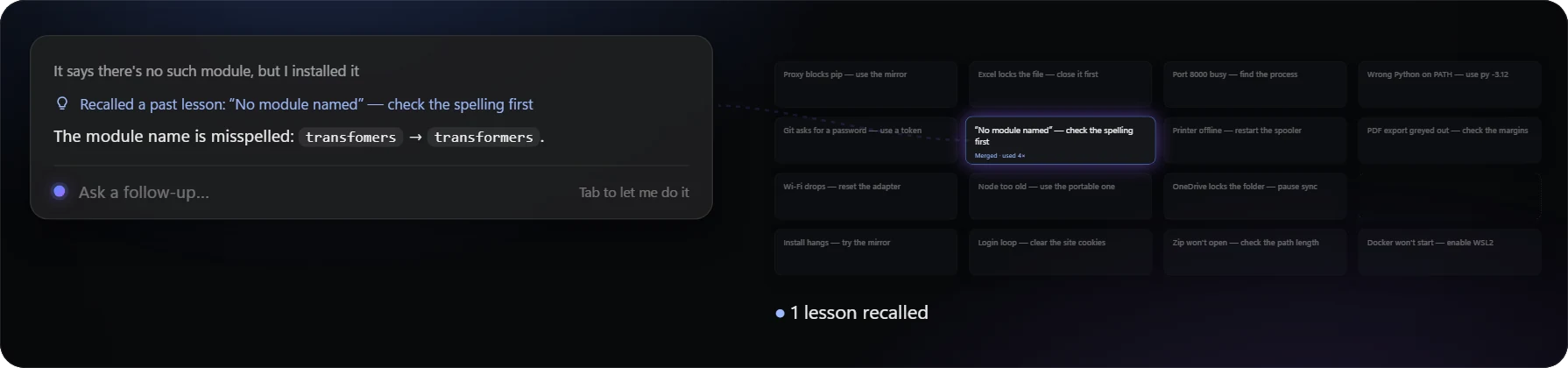
When a task takes a wrong turn, it writes down what actually worked. Similar lessons merge into one and lessons that keep failing are dropped, so it never turns into a pile of notes. A lesson comes back only when the situation matches — by the error, the keywords or the meaning (a small local model) — at most two at a time. Say "hi" and nothing is recalled.
Improves itself — shaped by you
When a task fails, you stop it with Esc and say it got something wrong, you click 👎, or you leave a suggestion in Settings, it uses Claude Code (Opus 5.5 · max) to find the cause and improve its own code; once the tests and an independent review pass, you confirm before it applies, and you can undo it any time. Your copy adapts to how you work — software that changes to fit the person using it.
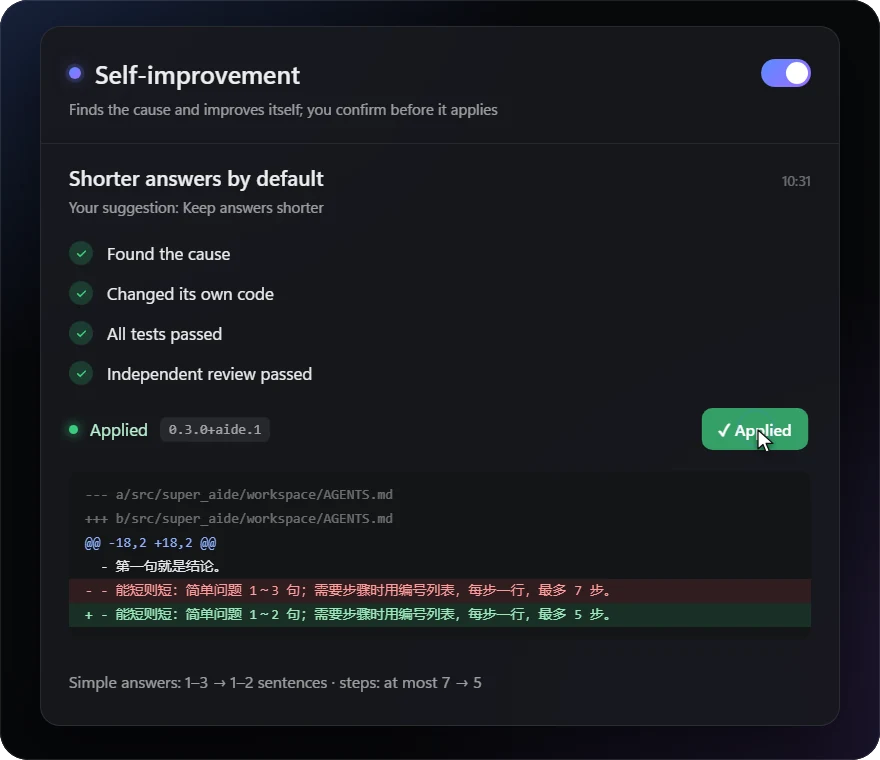
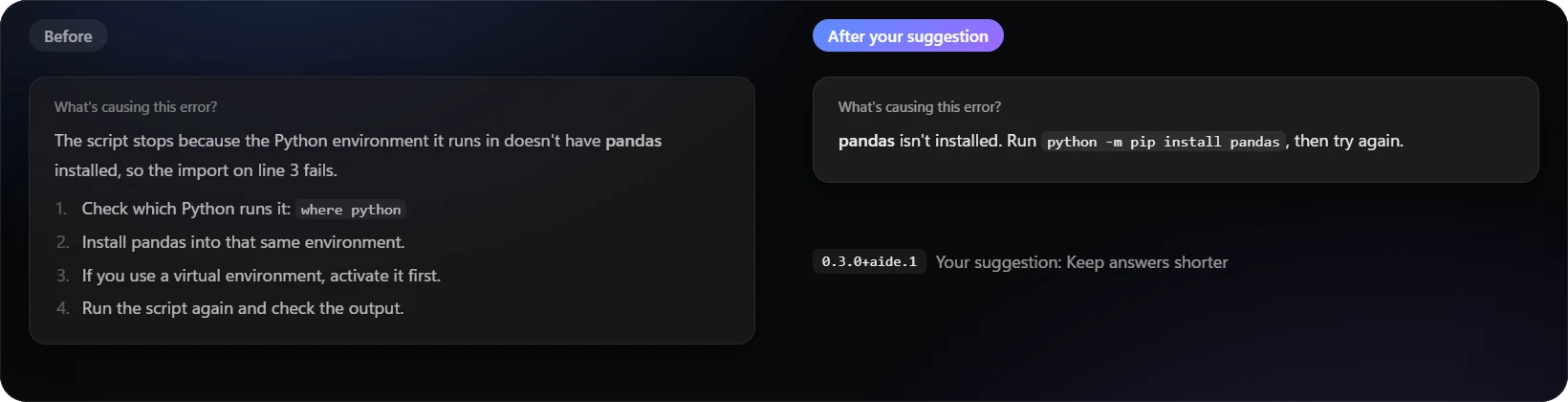
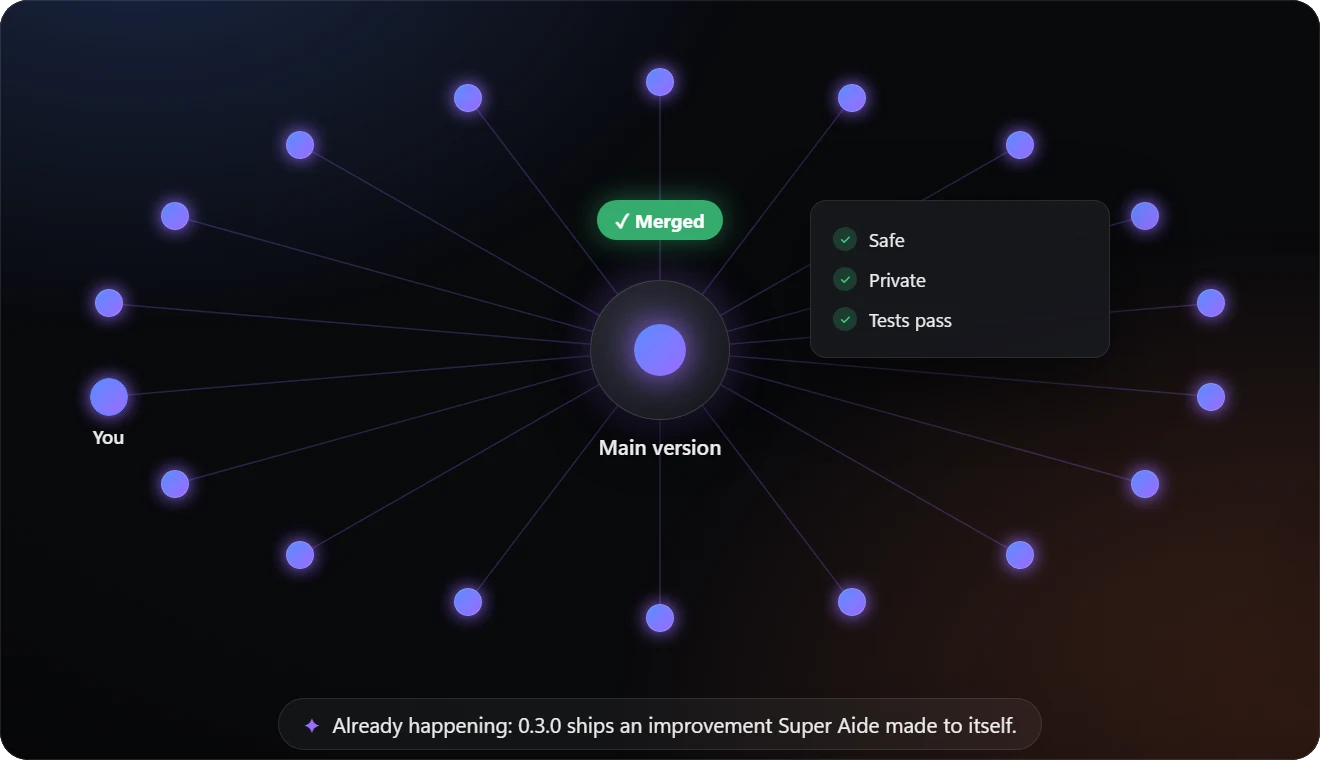
One fix reaches everyone
If you opt in (Settings → Advanced → Contribute to the community), improvements that run well for a day are submitted as pull requests under your GitHub account — code only, privacy-checked, nothing from your screen. The maintainer reviews and merges them, and the next update brings them to everyone. It's already happening: 0.3.0 ships an improvement Super Aide made to itself from one user's suggestion. The more people use it, the better it gets.
Install
Needs 64-bit Windows 10 (1809 or later) or Windows 11.
- Download
SuperAideSetup.exe(about 100 KB) from the website or Releases. - Run it and click Install. It downloads, checks and installs the runtime (about 600 MB the first time, takes a few minutes; it switches to mirrors automatically when the official sources are slow or blocked), then opens Super Aide. No admin rights needed.
The installer isn't code-signed yet, so Windows may say "Windows protected your PC": click More info → Run anyway.
Once installed it behaves like any app: open it from the Start menu, uninstall it from Settings → Apps.
From source (developers): git clone, then double-click install.cmd in the repo root (or run powershell -ExecutionPolicy Bypass -File scripts\install.ps1).
First launch: the setup check
Super Aide uses Claude Code's and Codex's own model configuration, so before you start it checks that they're installed and set up:
| Situation | What the setup window does |
|---|---|
| Claude Code or Codex is missing, and DeepSeek Harness is installed | Asks whether to install them (recommended). You can skip that and use DeepSeek Harness |
| Something is missing and there's no DeepSeek Harness | Installs it automatically from the official npm packages, falling back to a mirror; installs a portable Node.js first if Node.js 22+ isn't there |
| Installed but no model configured | Pick one: Sign in with your account (a sign-in window opens; finish in the browser) or Custom endpoint (address, key, model — tested before saving; the model is required for Codex when the service can't list its models) |
| Everything is ready | Starts right away |
You can start once at least one engine works. Reopen the check any time from Settings → General → Setup check.
A custom endpoint is written into each tool's own config (with a *.super-aide.bak backup; other settings and comments are kept): Claude Code → env in ~/.claude/settings.json; Codex → provider model_providers.super_aide in ~/.codex/config.toml, key included (experimental_bearer_token), so a Codex desktop app or VS Code extension that's already open sees it too; if the old default model isn't offered by the new service, the default switches to one it does offer; DeepSeek Harness → DEEPSEEK_API_KEY.
About DeepSeek Harness
DeepSeek Harness (DSH) is an optional alternative engine. Super Aide recognizes both its desktop app and the npm package @deepseek-ai/dsh. Ask mode runs in its read-only sandbox; Act mode has full access. Because Super Aide's sessions contain what's on your screen, DSH's default session-log upload is turned off for them (your own DSH settings are untouched).
Use
- Open: "Super Aide" in the Start menu. It has no main window and lives in the tray; when you open it, a notification says so. If you checked "Start with Windows" during install, it's ready after every boot.
Alt+Qto ask,Alt+Wto act (changeable in Settings). The input box only appears when you press a hotkey.- Getting started: shows up the first time you open it, a 1-minute game-style walkthrough. A small bubble points at the real interface with the key to press and a word or two, and moves on once you've actually done it. Reopen it anytime from the tray menu or Settings → General.
- History (tray menu): every question and answer, searchable. Hover an item and click the trash icon to delete it;
Ctrl/Shift-click (orCtrl+A) to select several, thenDelete. You can undo for a few seconds. - Settings: hotkeys, theme, language (follow system / 中文 / English), apps it never looks at, which models each engine may use, autostart.
- Updates: Settings → General → Version. It checks when you open Settings; click Update and Super Aide quits, the installer installs the new version and reopens it. Settings and history are kept.
Self-improvement
- When: a task fails (network or sign-in problems don't count); you press
Escduring an action and say what the assistant got wrong (no answer means it wasn't its fault); you click 👎; or you write a suggestion in Settings → Advanced. - How: it first checks whether this is a defect it can fix itself. If so, it changes the code in a working copy, adds tests, runs the whole test suite itself, then has a separate session review the change. By default it uses Claude Code + Opus 5.5 (maximum effort); if that isn't available, it uses the best tool and model on your PC.
- You apply it: you get a notification when it's ready; open it to see what changed, then click Apply to switch to the new version (Super Aide restarts in a few seconds). If the new version doesn't start, the previous one is restored automatically, and you can undo the latest improvement at any time. The version becomes something like
0.2.0+aide.1; official updates still show up, and afterwards your local improvements are carried over to the new version (again with your confirmation). - Meanwhile: it reminds you to keep your PC on and online, and you can keep using it. Progress shows in the first line of the tray menu and in Settings, where Discard (click twice) stops it right away and restores the working copy. It resumes after network drops and restarts. One improvement at a time; later ones queue and first check whether an earlier improvement already fixed them.
- Community contributions (optional): Settings → Advanced → Contribute to the community, then sign in with GitHub once. Improvements that run stably for a day are submitted as pull requests under your account — code changes only, no screen content or logs; anything that looks like personal info isn't submitted automatically. The maintainer reviews before merging; see CONTRIBUTING.md.
- Self-improvement data lives in
~/.super_aide/evolve/: jobs, the working copy, built packages. The conversation and logs used for analysis go only to the model service you configured and are deleted when the job ends; only the conclusion and the patch are kept.
Privacy
Super Aide's own data lives in ~/.super_aide/. Session folders keep only the Q&A after 7 days; a summon closed without a question is deleted after 12 hours. Screen content is only sent to the model service you configured. Apps on the "never look at" list are blacked out in screenshots and their text isn't read.
Uninstall
Windows Settings → Apps → Super Aide → Uninstall (optionally delete your data too). Claude Code and Codex are separate tools and stay installed. From-source installs: uv tool uninstall super-aide.
Development
uv sync
uv run python -m super_aide
uv run python -m pytest -q
powershell -ExecutionPolicy Bypass -File scripts\build_installer.ps1
The website lives in website/ and is published to GitHub Pages by .github/workflows/pages.yml (which also puts the latest installer on the site). The promo film and the screenshots are rendered from video/ with Remotion — see video/README.md.
UI text is written in Chinese first: tr("中文") in Python with English in src/super_aide/locales/en_*.py; data-i18n / I18N.t("中文") in the web pages with English in src/super_aide/ui/web/i18n-en.js. tests/test_i18n.py checks every string has an English version.
Releases: push a v* tag (git tag v0.2.0 && git push origin v0.2.0) and .github/workflows/release.yml tests, builds the wheel and the installer, creates the GitHub Release and publishes to PyPI via Trusted Publishing (one-time setup: a PyPI pending publisher for super-aide with workflow release.yml and environment pypi, plus a pypi environment in the GitHub repo).
License
1 maintainer

Metadata
1 maintainer
Release files for super-aide 0.4.1
For a detailed explanation of source distributions (sdists) and built distributions (wheels), please see the package formats documentation.
Source distribution (sdist)
| File | Size | Uploaded | |
|---|---|---|---|
| super_aide-0.4.1.tar.gz | 667.7 kB | Details |
Built distribution (wheel)
| File | Interpreter | ABI | Platform | Reset |
|---|---|---|---|---|
| super_aide-0.4.1-py3-none-any.whl | Python 3 | none | any | Details |
Total release size: 1.3 MB
Release files / super_aide-0.4.1.tar.gz
| Download URL | super_aide-0.4.1.tar.gz |
|---|---|
| Size | 667.7 kB |
| Tags | Source |
|
SHA-256 checksum How to use checksums |
8fdaeecdafebbbb01791a61f9d42540e2f9a4fd002b6b79daaf087f92029d134
|
|
BLAKE2b-256 checksum How to use checksums |
43a4ed63cb10bfbc54b3c1339741468f7ef3aec45e98212ef2352edf1a936cf6
|
| Upload date | |
|
Uploaded using Trusted Publishing? What is trusted publishing? |
Yes |
| Uploaded via |
twine/7.0.0 CPython/3.13.14
|
Provenance
Provenance describes where a file came from. On PyPI, provenance is shared via attestations, which provide a verifiable record of the build or publishing details. View details, limitations and caveats.


PyPI Publish Attestation
PyPI verified that this artifact, at this checksum, originated from the publisher listed below.
Signed by GitHub Actions, verified by PyPI on Oct 14, 2026.
Transparency logRelease files / super_aide-0.4.1-py3-none-any.whl
| Download URL | super_aide-0.4.1-py3-none-any.whl |
|---|---|
| Size | 673.9 kB |
| Tags | Python 3 |
|
SHA-256 checksum How to use checksums |
3221a620912cec23688d3a1b067131da04e2c8a68c527bc55b300f64dc3fce9b
|
|
BLAKE2b-256 checksum How to use checksums |
06b41aa246d33782ccc1294db951beb64272c2d6edb917262623caa57f6379d6
|
| Upload date | |
|
Uploaded using Trusted Publishing? What is trusted publishing? |
Yes |
| Uploaded via |
twine/7.0.0 CPython/3.13.14
|
Provenance
Provenance describes where a file came from. On PyPI, provenance is shared via attestations, which provide a verifiable record of the build or publishing details. View details, limitations and caveats.
PyPI Publish Attestation
PyPI verified that this artifact, at this checksum, originated from the publisher listed below.
Signed by GitHub Actions, verified by PyPI on Oct 14, 2026.
Transparency log













