
Keyboard-first image classification tool for ML practitioners

Project description
SwiftLabel
Keyboard - first image classification tool for ML practitioners who value speed and simplicity.
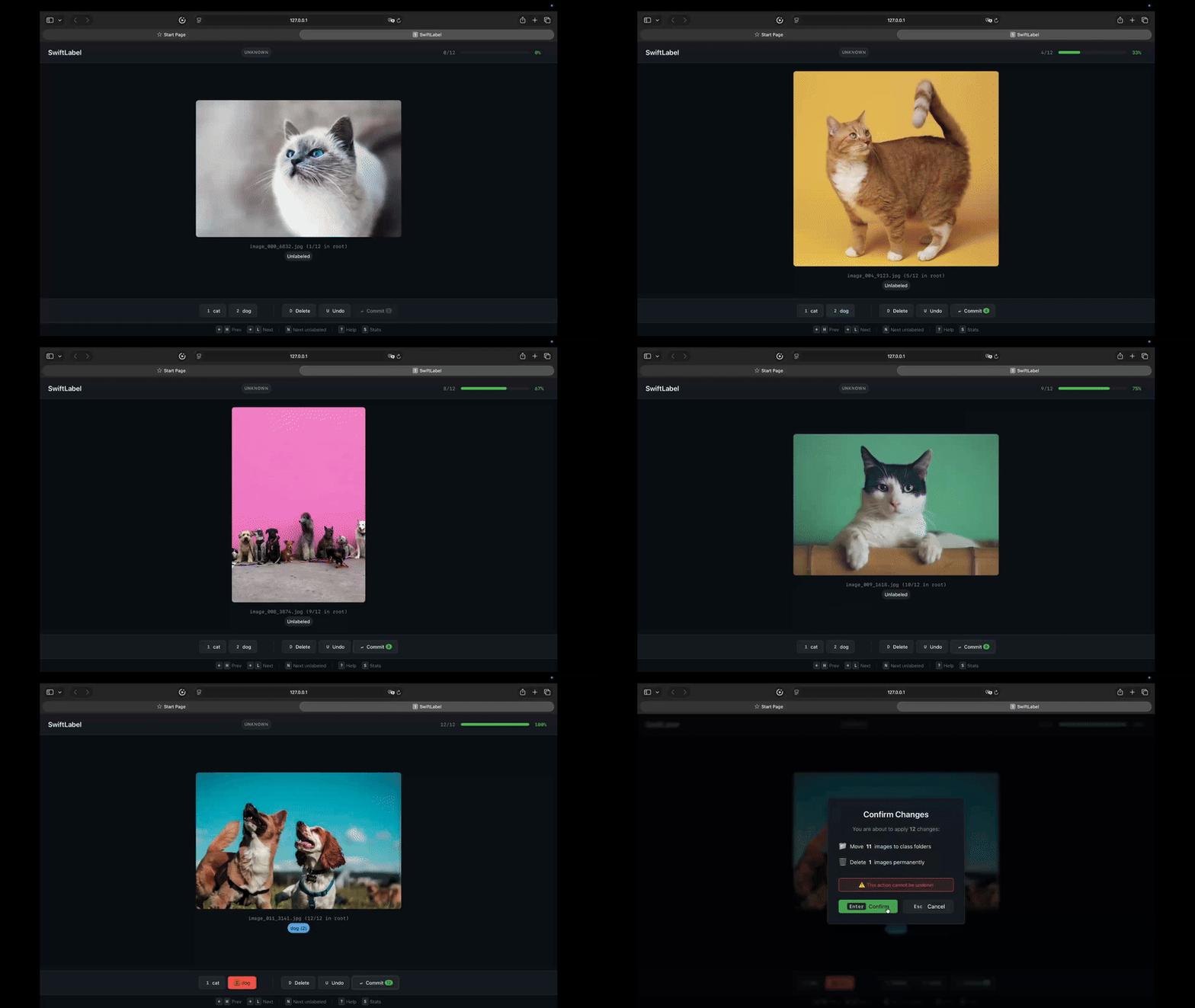
SwiftLabel is a local-only, zero-config tool that lets you classify images using keyboard shortcuts. All changes are staged until you commit them, ensuring a non-destructive workflow.
Features
- Keyboard-driven workflow - Hands never leave the keyboard
- Local-first & private - Images never leave your machine
- Non-destructive - Preview all changes before committing
- Zero config - Open folder, define classes, start labeling
- Session persistence - Resume where you left off
- Undo support - Revert your last actions
Installation
pip install git+https://github.com/ksavkin/SwiftLabel.git
Or install from source:
git clone https://github.com/ksavkin/SwiftLabel.git
cd swiftlabel
pip install -e ".[dev]"
Quick Start
# Basic usage (try with included examples!)
swiftlabel ./examples --classes cat,dog,bird

# With custom port
swiftlabel ./images --classes cat,dog,bird --port 9000

# Without auto-opening browser
swiftlabel ./images --classes cat,dog,bird --no-browser
A browser window will open at http://localhost:8765 where you can start labeling.
Remote Usage (SSH)
To use SwiftLabel on a remote server (e.g., a training machine with your dataset), you can forward the port via SSH.
-
On your local machine, create an SSH tunnel:
# Forward local port 8001 to remote port 8001
ssh -L 8001:localhost:8001 user@remote-host
-
On the remote server, run SwiftLabel on the forwarded port:
# Run with --no-browser since you're on a remote terminal
# Use python3 -m if the 'swiftlabel' command is not in your PATH
python3 -m swiftlabel.cli ./your_dataset --classes up,down --port 8001 --no-browser
-
On your local machine, open
http://localhost:8001in your browser.
Restarting & Stopping
If you see [Errno 98] address already in use, it means a previous instance is still running.
- To stop a running server: Press
Ctrl+Cin the terminal. - To force-kill a stale server (if Ctrl+C doesn't work or port is stuck):
# Replace 8765 with your port number
lsof -ti:8765 | xargs kill -9
Troubleshooting Remote Usage
- Port already in use: If you see
[Errno 98] address already in use, find and kill the process:lsof -ti:8001 | xargs kill -9
- WebSocket connection fails: If you see a
TypeErrorregardingloggerinwebsockets, upgrade the library:pip install --upgrade websockets
Keyboard Shortcuts
Basic Controls
| Key | Action |
|---|---|
1-9 |
Assign to class 1-9 |
0 |
Assign to class 10 (if available) |
D |
Mark for deletion |
U |
Undo last action |
← / → |
Previous / Next image |
Enter |
Commit all changes |
Esc |
Cancel / Close modal |
? |
Show help overlay |
Vim-style Navigation
| Key | Action |
|---|---|
H / L |
Previous / Next image |
J / K |
Next / Previous image |
How It Works
- Launch: Run
swiftlabel ./images --classes cat,dog,bird - Label: Press
1,2, or3to classify images - Review: Press
Enterto preview pending changes - Commit: Confirm to apply changes to filesystem
Staging
All changes are staged until you commit:
- Labeled images will be moved to class folders (e.g.,
cat/image.jpg) - Deleted images will be removed from disk
- You can undo any action before committing
Session Persistence
SwiftLabel automatically saves your progress to .swiftlabel/session.json. When you restart, it resumes from where you left off.
Data Organization
SwiftLabel supports two main workflows:
1. Labeling from Scratch (Flat Folder)
If you have a folder full of unsorted images:
my_dataset/
  ├── image1.jpg
  ├── image2.jpg
  └── ...
When you commit, SwiftLabel will create class folders and move images into them:
my_dataset/
  ├── cat/
  │   └── image1.jpg
  ├── dog/
  │   └── image2.jpg
  └── ...
2. Reviewing Existing Labels (Structured Folders)
If your images are already organized into folders:
my_dataset/
  ├── cat/
  │   └── image1.jpg  <-- Auto-detected as "cat"
  ├── dog/
  │   └── image2.jpg  <-- Auto-detected as "dog"
SwiftLabel will read the folder names as initial labels. You can freely change labels or delete images, and changes will be applied to the file system upon commit.
CLI Options
Usage: swiftlabel [OPTIONS] DIRECTORY

Arguments:
  DIRECTORY  Path to the folder containing images to classify

Options:
  -c, --classes TEXT   Comma-separated list of class names (required)
  -h, --host TEXT      Server host address [default: 127.0.0.1]
  -p, --port INTEGER   Server port [default: 8765]
  --no-browser         Don't open browser automatically
  --debug              Enable debug logging
  --version            Show version and exit
  --help               Show this message and exit
Supported Image Formats
- JPEG (.jpg, .jpeg)
- PNG (.png)
- WebP (.webp)
- GIF (.gif)
- BMP (.bmp)
- TIFF (.tiff, .tif)
Development
Setup
# Clone repository
git clone https://github.com/swiftlabel/swiftlabel
cd swiftlabel

# Install with dev dependencies
pip install -e ".[dev]"
Run Tests
# Run all tests
pytest tests/ -v

# Run with coverage
pytest tests/ -v --cov=swiftlabel --cov-report=term-missing
Type Checking
mypy swiftlabel/ --strict
Linting
ruff check swiftlabel/
API Reference
SwiftLabel exposes a REST API at http://localhost:8765/api:
| Endpoint | Method | Description |
|---|---|---|
/api/session |
GET | Get full session state |
/api/stats |
GET | Get labeling statistics |
/api/images |
GET | List all images |
/api/images/{id} |
GET | Serve image file |
/api/label |
POST | Assign label to image |
/api/delete |
POST | Mark image for deletion |
/api/undo |
POST | Undo last action |
/api/changes/preview |
GET | Preview pending changes |
/api/changes/commit |
POST | Apply all changes |
WebSocket endpoint at /ws for real-time updates.
Environment Variables
| Variable | Default | Description |
|---|---|---|
SWIFTLABEL_HOST |
127.0.0.1 | Server bind address |
SWIFTLABEL_PORT |
8765 | Server port |
SWIFTLABEL_DEBUG |
false | Enable debug logging |
License
MIT License. See LICENSE for details.
Contributing
Contributions are welcome! Please feel free to submit a Pull Request.
Release history Release notifications | RSS feed


Download files
Download the file for your platform. If you're not sure which to choose, learn more about installing packages.
Source Distribution
Built Distribution
Filter files by name, interpreter, ABI, and platform.
If you're not sure about the file name format, learn more about wheel file names.
Copy a direct link to the current filters
File details
Details for the file swiftlabel-0.1.2.tar.gz.
File metadata
- Download URL: swiftlabel-0.1.2.tar.gz
- Upload date:
- Size: 13.9 MB
- Tags: Source
- Uploaded using Trusted Publishing? No
- Uploaded via: twine/6.2.0 CPython/3.12.7
File hashes
| Algorithm | Hash digest | |
|---|---|---|
| SHA256 |
d5472aacef67448bca351e1ce09636f462f805841383442aed9f1ee27c145713
|
|
| MD5 |
28874fca2eee8da8b20290fce2d5b036
|
|
| BLAKE2b-256 |
94a33fde835a68f2b734caa1008e4b700bc7914f6383760e8444e03158889faa
|
File details
Details for the file swiftlabel-0.1.2-py3-none-any.whl.
File metadata
- Download URL: swiftlabel-0.1.2-py3-none-any.whl
- Upload date:
- Size: 45.1 kB
- Tags: Python 3
- Uploaded using Trusted Publishing? No
- Uploaded via: twine/6.2.0 CPython/3.12.7
File hashes
| Algorithm | Hash digest | |
|---|---|---|
| SHA256 |
9349d0ceddbb5a201fa09257aca3e1e30694940e9d53038f0b572007a3ea6d11
|
|
| MD5 |
90e913154fb4f297656e8a32e18e6424
|
|
| BLAKE2b-256 |
c793ff403a991896c4552b450ee420ced968f240b751bef87198dbd3ad012ecd
|






