
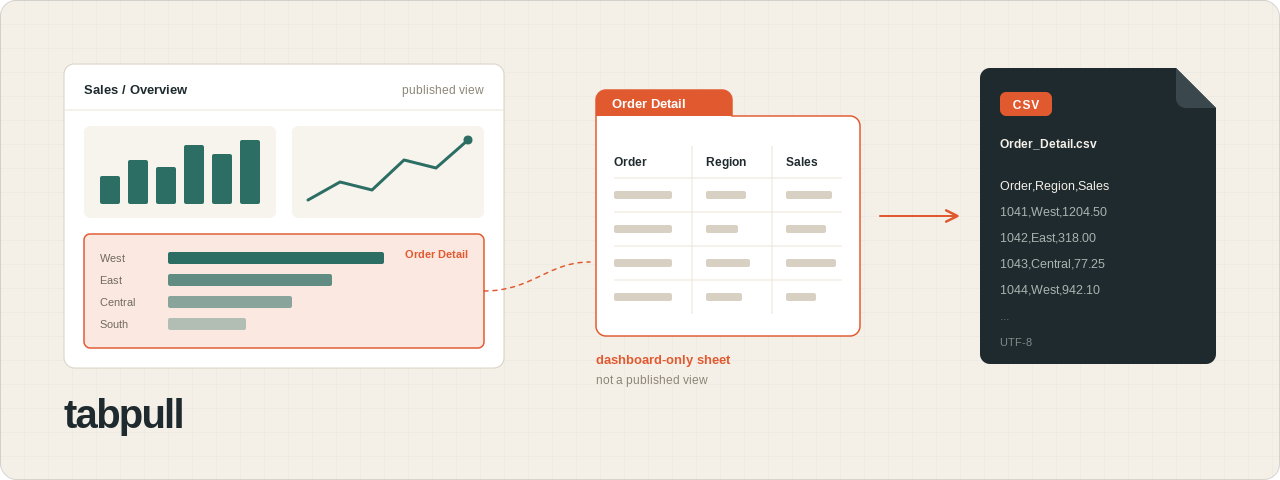
tabpull exports named worksheets from a published Tableau dashboard to UTF-8 CSV.
pip install tabpull
uv tool install tabpull
That installs the tabpull command. Bare tabpull at a terminal opens an interactive screen. Add, setup, login, and run stay on that screen. setup, add, remove, run, and login are also subcommands and work the same with or without it. Pin a release with tabpull==X.Y.Z or uv tool install tabpull==X.Y.Z. Upgrade a uv tool with uv tool upgrade tabpull. A commit that is not published yet still installs with uv tool install git+https://github.com/jer-castro/tabpull. Add @vX.Y.Z on that URL to pin a tag.
tabpull launches installed Chrome, then Edge. When neither is installed, install Chromium after the package. After pip install tabpull, run playwright install chromium in that environment. After uv tool install tabpull, the playwright command is not on PATH. Run uvx playwright==<version> install chromium with the version tabpull prints when Chrome and Edge are missing. That command uses the same browser revision and the default Playwright cache as the installed package.
Why Embedding API
REST crosstab and data endpoints only export the first sheet when the view is a dashboard. A worksheet that lives only inside a published dashboard is not published as its own view, so it has no REST view.
Those sheets go through the Embedding API (exportCrosstabAsync) in a headless browser signed in with your SSO session. The personal access token is used to find views.
Setup
tabpull setup
tabpull setup --site finance   # local name jobs will use
The wizard asks for that name (unless you passed --site), a dashboard URL, and a personal access token. It checks the token, then opens a browser for SSO.
Run it again for another server or site. Each site keeps its own token and browser session. Re-running a name keeps the current values when you press Enter.
The browser is installed Chrome, then Edge. If neither is installed, tabpull prints uvx playwright==<version> install chromium for the Playwright version it has. It does not download a browser while Chrome or Edge is already there.
Use
tabpull                             # interactive screen at a terminal; a listing when piped
tabpull add                         # search a view or paste its URL, pick sheets and filters
tabpull add --site finance \
  --view SalesWorkbook/Overview \
  --sheet "Order Detail" --sheet Totals \
  --filter "Region=West|Central" \
  --filter "Order Date=2026-09-01..2026-09-25 @Totals" \
  --param "Top N=25" \
  --name daily-west
tabpull run                         # every job, into the current folder
tabpull run daily-west
tabpull remove daily-west           # delete that saved job
tabpull remove                      # pick jobs to delete
tabpull login                       # refresh SSO for the only site
tabpull login --site finance
tabpull --version
With no command at a terminal, tabpull opens a full-screen list of sites and jobs. Open a job to change its filters (values or range bounds), parameters, sheets, view, site, and name. Adding a filter or parameter, changing which field a row uses, and choosing sheets pick from the live view when it opens, and from the typed forms when it cannot, with the reason shown. Editing a value that is already chosen stays a form and does not open the view. Each change is checked and saved to the jobs file right away. r runs the selected or marked jobs, a adds, d removes after a confirm, s and l run setup and login. Run, add, setup, and login happen on the screen; escape or ctrl+c cancels a running step. The footer lists the keys, ? shows all of them, q quits.
With no command and no terminal (a pipe or a script), tabpull prints configured sites, saved jobs, the jobs file, the output folder, and the next commands in TOON. It never waits for keys. Errors, including an unknown flag, print error: ... on stdout. A usage error exits 2. Any other failure exits 1.
add saves the job and prints the run command. It does not export. With --view and at least one --sheet, it writes the job and does not prompt. Leave those flags off and it asks.
remove deletes the named jobs and rewrites the jobs file. With no names, a terminal asks which jobs to delete and confirms before writing. With no terminal, pass the names. An unknown name exits 1 and lists the saved jobs, and the file is left unchanged. Removing every job leaves the file empty.
add with --view and --sheet still opens the view far enough to refuse a story: Stories are not supported; use the dashboard inside it. run refuses a story the same way, before it exports.
--filter is Field=a|b or Field=min..max. @Sheet names the worksheet. Either side of a range may be omitted, but not both: Field=min.. runs from that date through the latest value the filter allows, and Field=..max runs from the earliest value through that date. An open side needs a range filter on that field in the workbook, since tabpull reads its endpoint from there. A filter with no sheet is applied on the first sheet in the job, and tabpull prints that. With one configured site, --site can be omitted. With several, pass --site or pick one at the prompt.
run keeps going when one job fails. --parallel N exports that many jobs at once (default 1, so a run that does not ask for more still goes one job at a time). Above 1, each of those N slots runs in its own process with one browser it reuses for every job it takes, each job in a new context signed in from that site's saved session, and two jobs whose paths are one file on the output disk are refused before anything is exported. A terminal shows a progress bar and a summary panel titled done: <ok>/<total> jobs exported. A pipe prints that same done line and a check or cross per job. If any job failed, it prints the tabpull run command that reruns only those and exits 1. Each job uses the site it names. When that site's SSO session is missing or expired, tabpull opens the sign-in window once at a terminal before that site's jobs start, and otherwise exits and tells you to run tabpull login --site <name>. With --parallel above 1, a job that finds the session missing after that check fails with that same login line. Crosstab CSVs are rewritten from Tableau's UTF-16 tab-separated format to UTF-8 CSV.
run --filter uses the same repeatable syntax as add. Each override applies to every job in that run and is not written back to the jobs file. With no @Sheet it replaces the job's saved filter on that field on every sheet. With @Sheet it replaces only that sheet's. A field the job does not already filter is added on @Sheet, or with no sheet on the first sheet, and tabpull prints that. Leave one side of min..max empty when that end should stay the filter's own limit. Relative dates are refused, so compute them in the caller:
start=2026-09-01
end=$(date +%F)
tabpull run daily-west \
  --filter "Order Date=${start}.." \
  --out "./exports/${end}"
tabpull run daily-west weekly-east \
  --filter "Order Date=${start}..${end}" \
  --out "./exports/${end}"
run --param uses the same repeatable Name=value syntax as add. Each override applies to every job in that run and is not written back to the jobs file. A saved param of that name is replaced. A name the job does not have is added for this run. tabpull run daily-west --param "Top N=10".
run writes <job>/<sheet>.csv under the current folder (spaces in names become _). --jobs and --out work before or after the subcommand:
tabpull run daily-west --jobs ./jobs.toml --out ./exports
Where files live
Tokens, cookies, and jobs stay in the config directory. Exports go to the working directory, or --out. Deleting the config directory removes tabpull's settings. A .env file and TABLEAU_* environment variables are not read.
| Linux | macOS | Windows | |
|---|---|---|---|
Config (site tokens, SSO cookies, jobs.toml) |
$XDG_CONFIG_HOME/tabpull or ~/.config/tabpull |
~/Library/Application Support/tabpull |
%APPDATA%\tabpull |
XDG_CONFIG_HOME wins on every OS when it is set. <config> below is that directory.
<config>/sites/<name>.env     server, Tableau site, token name, token secret
<config>/jobs.toml
<config>/auth/<name>.json     SSO cookies; mode 600
./<job>/<sheet>.csv           exports, relative to where you ran tabpull
The token secret is not printed. Setup and login print the server and the Tableau site.
Jobs file
add writes this. remove and edits on the interactive screen rewrite it from the saved jobs, which drops comments. You can edit the file by hand:
[[job]]
name = "daily-west"
site = "finance"                       # local name from `tabpull setup`
view = "SalesWorkbook/Overview"        # Workbook/View from the URL
sheets = ["Order Detail", "Totals"]
filters = [
  { field = "Region", values = ["West", "Central"] },
  { field = "Order Date", min = "2026-09-01", max = "2026-09-25", sheet = "Totals" },
]
params = { "Top N" = "25" }
Parameters are set first, then filters. A filter applies on sheet. When sheet is omitted, tabpull applies that filter on the first entry in sheets and prints a line saying so. It does not copy the filter onto every sheet. Other sheets update only as they would in the dashboard when that filter changes.
YYYY-MM-DD, M/D/YYYY, and plain numbers are converted for range filters. An impossible date such as 2024-02-31 or 2/31/2024 is rejected. A relative date (yesterday, last week, today, 7 days ago) or a date computed at run time is refused. Use a parameter, or write an absolute YYYY-MM-DD or M/D/YYYY date. Omit min or max to leave that end open: { field = "Order Date", min = "2026-09-01", sheet = "Totals" } runs from that date through the latest value the filter allows, and { field = "Order Date", max = "2026-09-25", sheet = "Totals" } runs from the earliest value through that date.
Stories are refused. Use the dashboard inside the story.
Develop
From a checkout, uv tool install . installs the command, and uv run tabpull runs it without installing. uv run playwright install chromium installs the Chromium fallback for that checkout. An installed tabpull prints uvx playwright==<version> install chromium for the Playwright version it has.
uv run ruff check && uv run ruff format && uv run ty check && uv run pytest
1 maintainer

Metadata
1 maintainer
Release files for tabpull 0.1.0
For a detailed explanation of source distributions (sdists) and built distributions (wheels), please see the package formats documentation.
Source distribution (sdist)
| File | Size | Uploaded | Provenance | Actions |
|---|---|---|---|---|
| tabpull-0.1.0.tar.gz | 82.6 kB | With provenance | Details for tabpull-0.1.0.tar.gz |
Built distribution (wheel)
| File | Interpreter | ABI | Platform | Actions Reset |
|---|---|---|---|---|
| tabpull-0.1.0-py3-none-any.whl | Python 3 | none | any | Details for tabpull-0.1.0-py3-none-any.whl |
Total release size: 138.2 kB
Release files / tabpull-0.1.0.tar.gz
| Download URL | tabpull-0.1.0.tar.gz |
|---|---|
| Size | 82.6 kB |
| Tags | Source |
|
SHA-256 checksum How to use checksums |
54279cceccfc01ca54f75f8bf26a00691704d42e45942d3904305692729fb1f8
|
|
BLAKE2b-256 checksum How to use checksums |
2b938618d1f3b66d952880a1229f731c377f8ad1ed56334fc87450cad3f19c5c
|
| Upload date | |
|
Uploaded using Trusted Publishing? What is trusted publishing? |
Yes |
| Uploaded via |
twine/7.0.0 CPython/3.13.16
|
Provenance
Provenance describes where a file came from. On PyPI, provenance is shared via attestations, which provide a verifiable record of the build or publishing details. View details, limitations and caveats.


PyPI Publish Attestation
PyPI verified that this artifact, at this checksum, originated from the publisher listed below.
Signed by GitHub Actions, verified by PyPI on Oct 28, 2026.
Transparency logRelease files / tabpull-0.1.0-py3-none-any.whl
| Download URL | tabpull-0.1.0-py3-none-any.whl |
|---|---|
| Size | 55.6 kB |
| Tags | Python 3 |
|
SHA-256 checksum How to use checksums |
72b0a6bf974c5a6cffd2383f64bee59eca86898d42160028b060f3171032f922
|
|
BLAKE2b-256 checksum How to use checksums |
0af8378c510b60ca1e6e5946761ee192cc02b02137f109658060f11fcae38a15
|
| Upload date | |
|
Uploaded using Trusted Publishing? What is trusted publishing? |
Yes |
| Uploaded via |
twine/7.0.0 CPython/3.13.16
|
Provenance
Provenance describes where a file came from. On PyPI, provenance is shared via attestations, which provide a verifiable record of the build or publishing details. View details, limitations and caveats.
PyPI Publish Attestation
PyPI verified that this artifact, at this checksum, originated from the publisher listed below.
Signed by GitHub Actions, verified by PyPI on Oct 28, 2026.
Transparency logSecurity for tabpull 0.1.0
Provenance
Provenance describes where a file came from. On PyPI, provenance is shared via attestations, which provide a verifiable record of the build or publishing details. View details, limitations and caveats.
Full provenance
Both files in this release have been uploaded with provenance metadata.
Attestation for tabpull-0.1.0.tar.gz
PyPI Publish Attestation
PyPI verified that this artifact, at this checksum, originated from the publisher listed below.
Signed by GitHub Actions, verified by PyPI on Oct 28, 2026.
Transparency logA note on package security
PyPI is a repository for distributing packages, not a service for auditing them. While third-party security researchers and our staff do their best to detect and remove malicious packages, PyPI cannot guarantee the quality, security or suitability of any given package.
To learn more about protecting yourself from malicious actors, visit our package security documentation.













