
Taiji
A unified interface for AI in your terminal (release announcement).
 |
 |
 |
 |
Quickstart
Install from PyPI:
pip install taiji-cli
Or install the standalone command with UV:
uv tool install taiji-cli
Run:
taiji
See Getting Started if you have any problems.
What is Taiji?
Taiji is an interface to coding agents, such as Claude, Gemini, Codex, OpenHand, and many more.
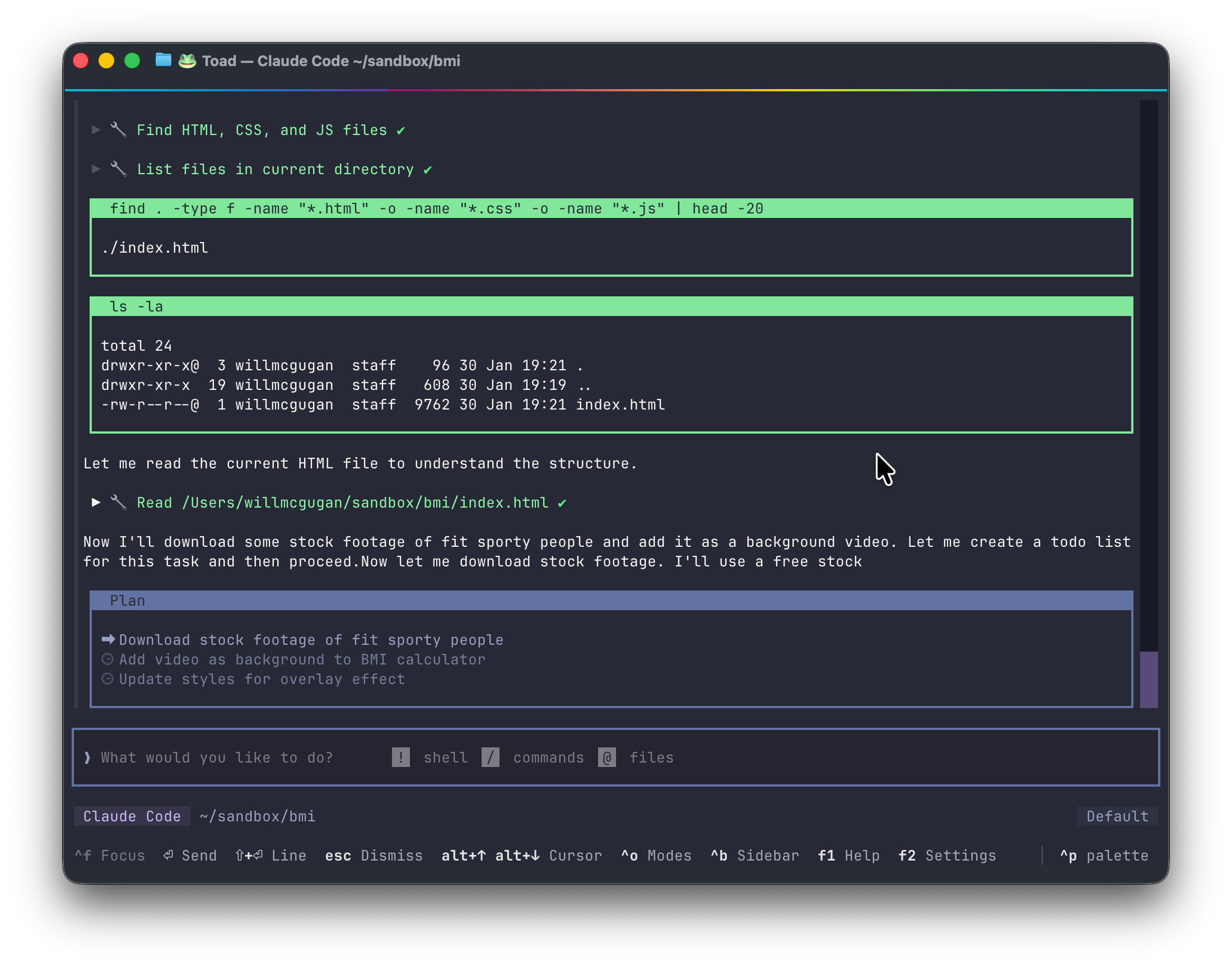
Taiji blends a traditional shell based workflow and powerful agentic AI, with an intuitive Terminal User Interface.
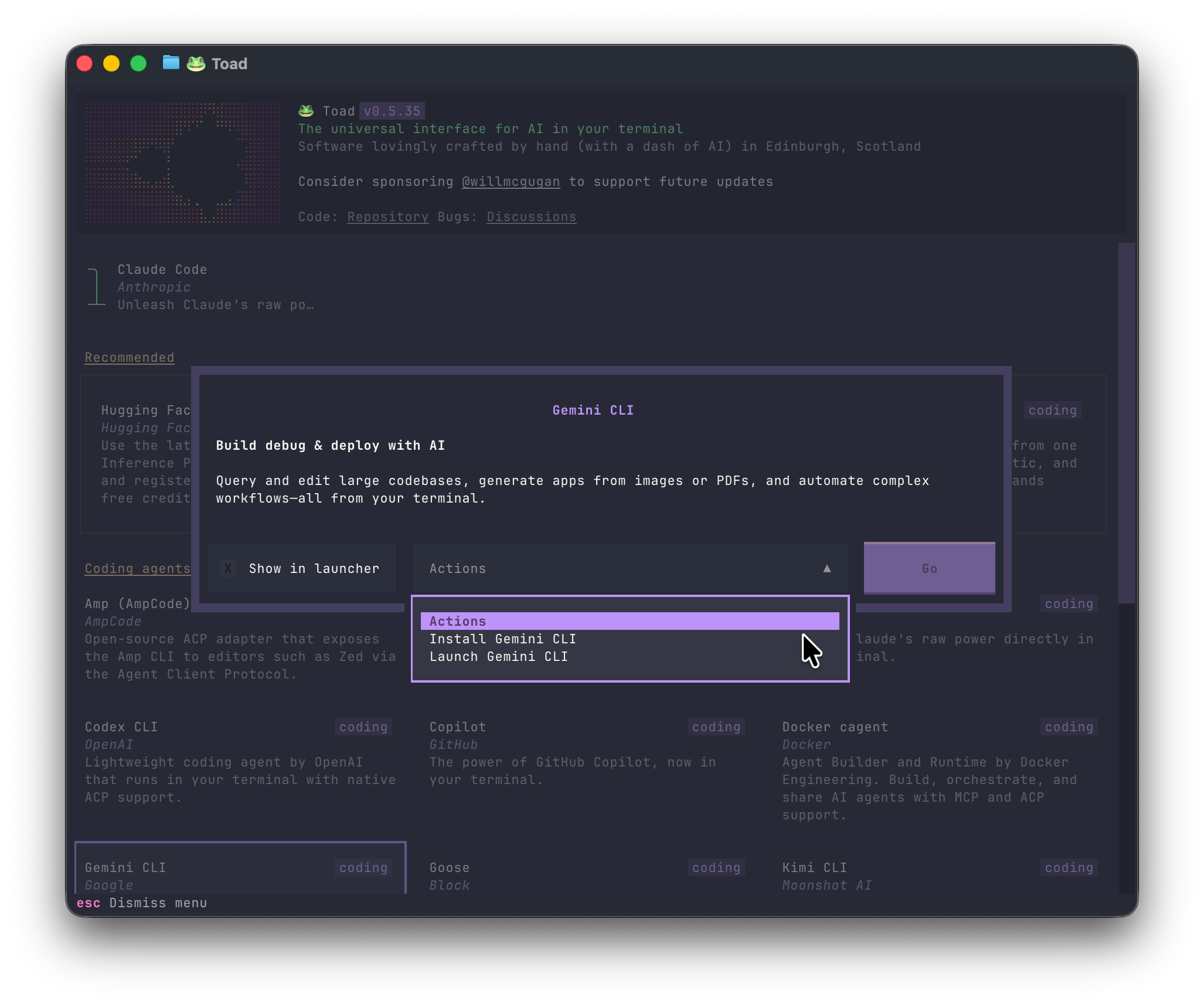
AI "App store"Find, install, and run dozens of agents directly from the Taiji UI. There is a large and growing list of AI agents that work with Taiji. Discover agents from big tech and smaller Open Source projects. Developers can add support for their own agents, via the Agent Client Protocol. |
|
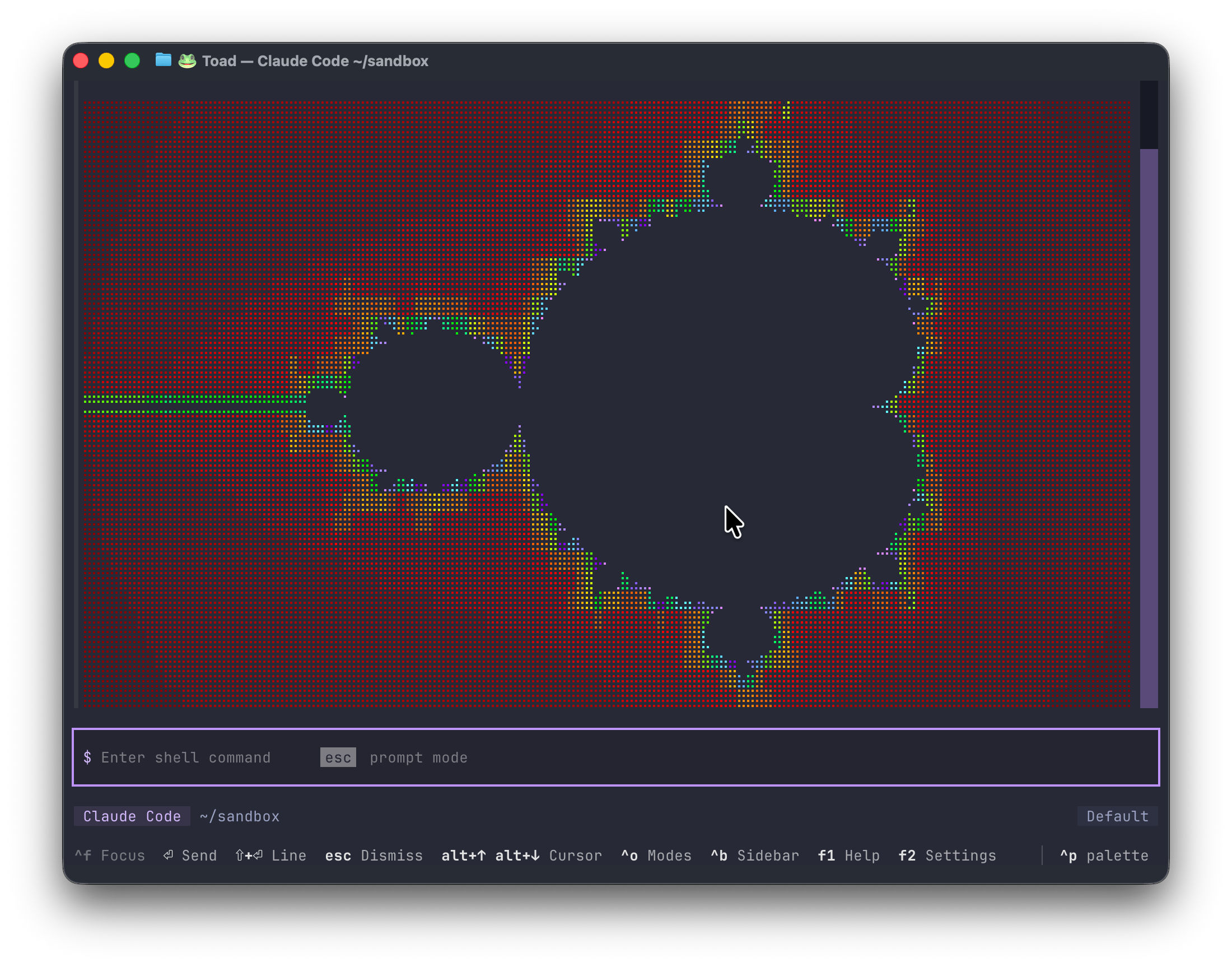
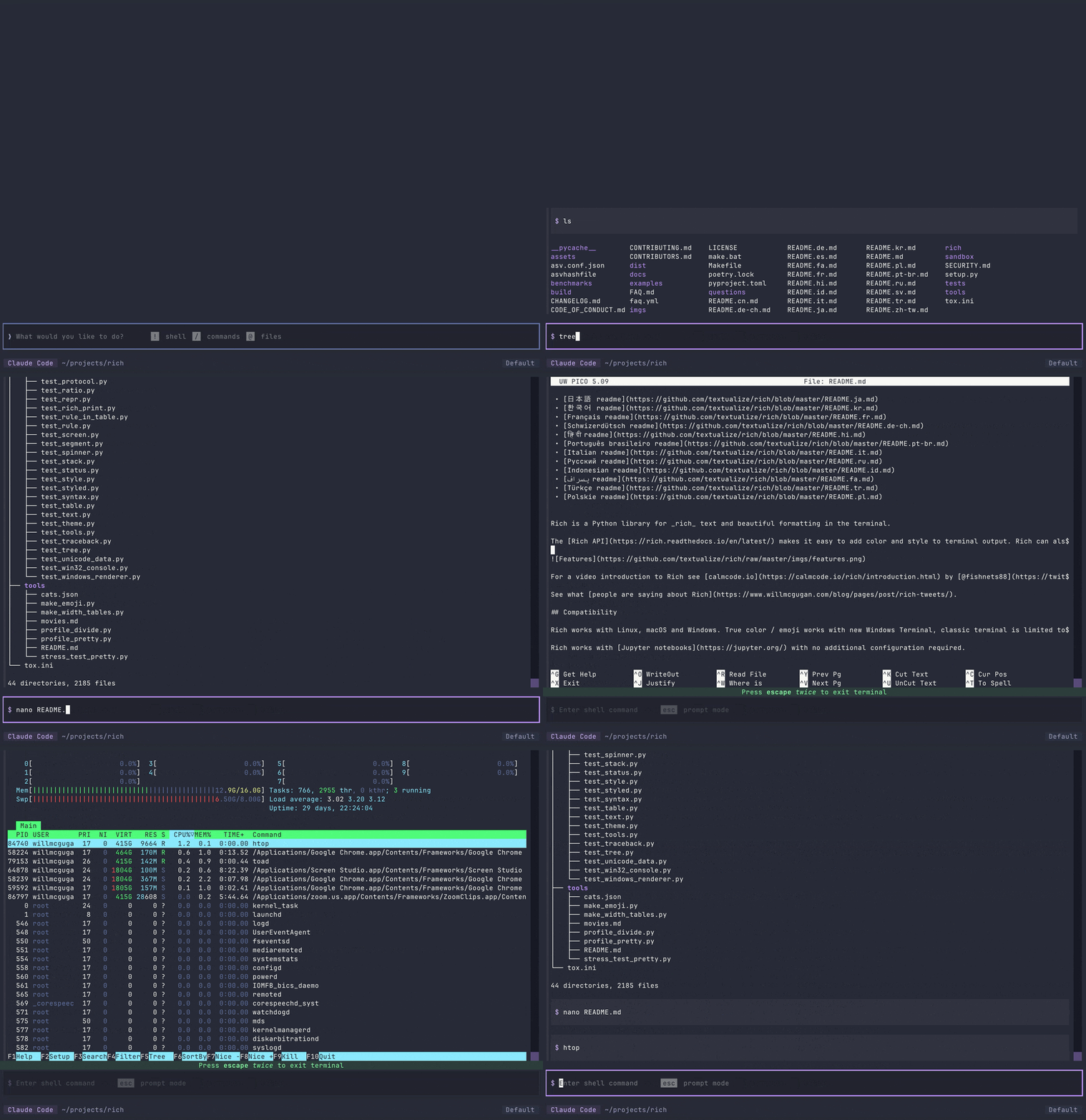
Taiji ShellWhile most terminal agent interfaces can run commands (with the ! syntax), they aren't running a shell. If you change directory or set environment variables, they won't persist from one command to the next. Output that contains more than simple text will typically be garbled, and anything interactive will fail or even break the TUI entirely. Taiji integrates a fully working shell with full-color output, interactive commands, and tab completion. Allowing you to interleave prompts for the agent with terminal workflows. At time of writing Taiji is the only terminal UI which does this. |
 |
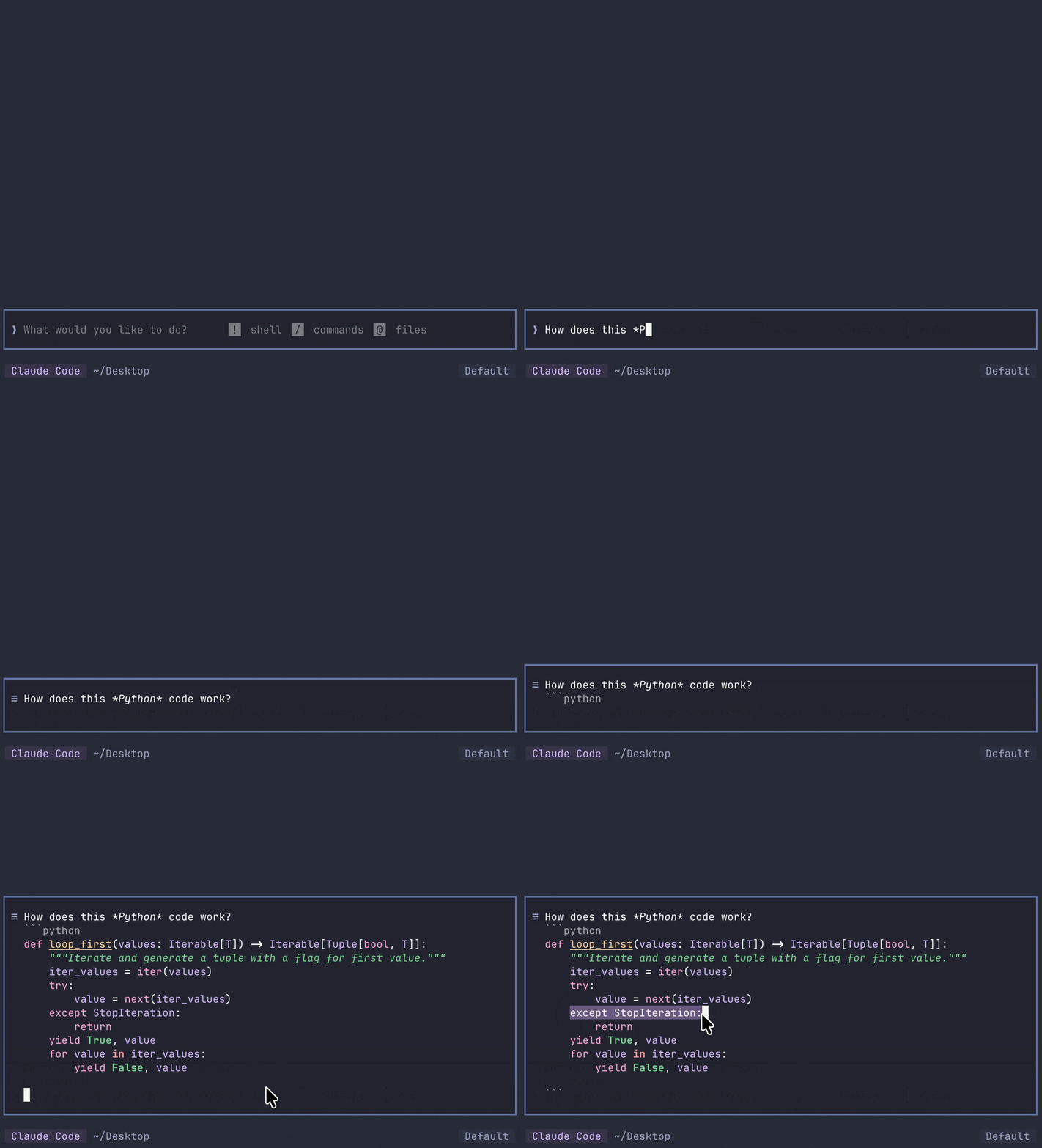
Prompt EditorTaiji has a nice Markdown prompt editor, with syntax highlighting for code fences. Full mouse support, cut and paste, many keybindings and shortcuts. |
|
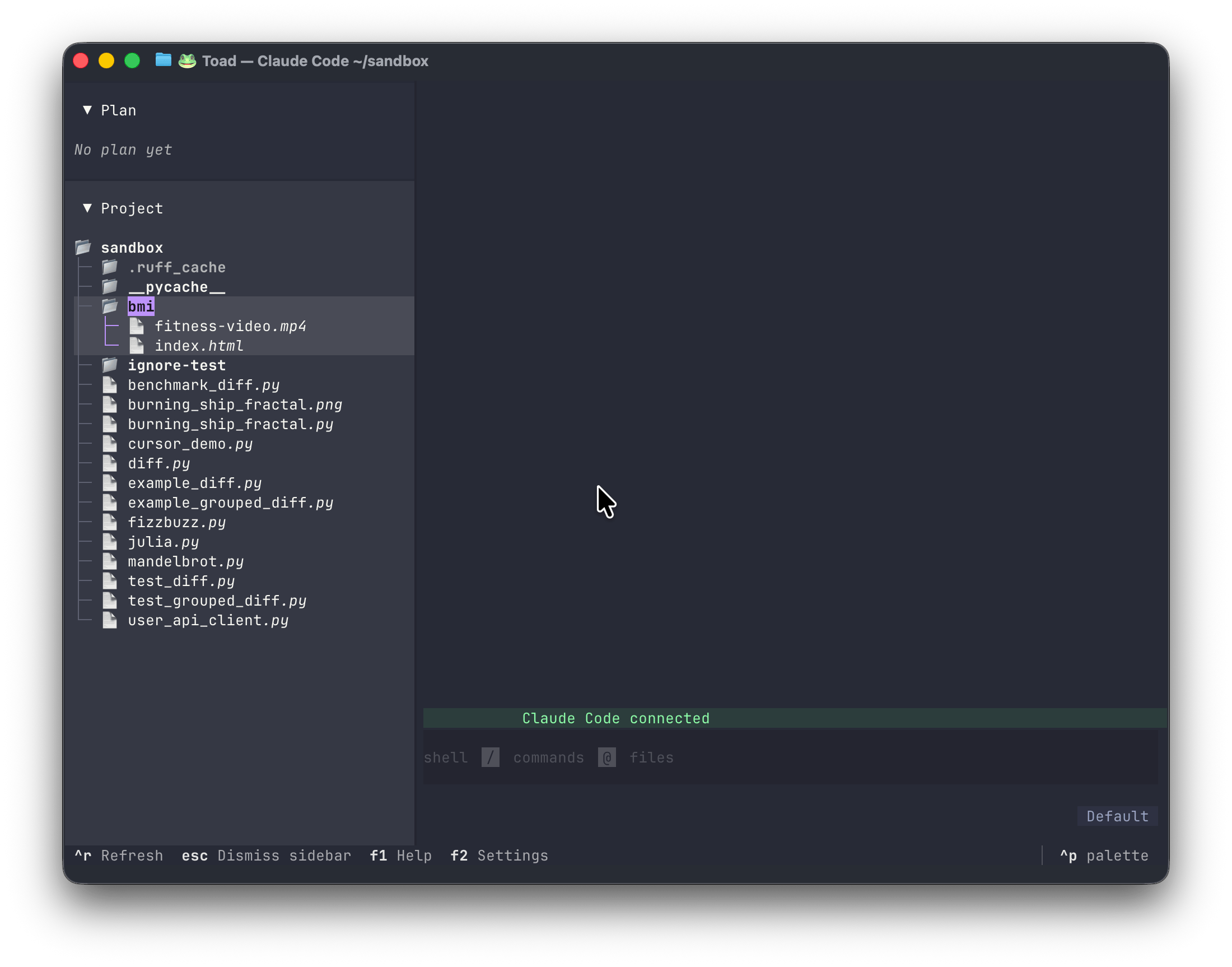
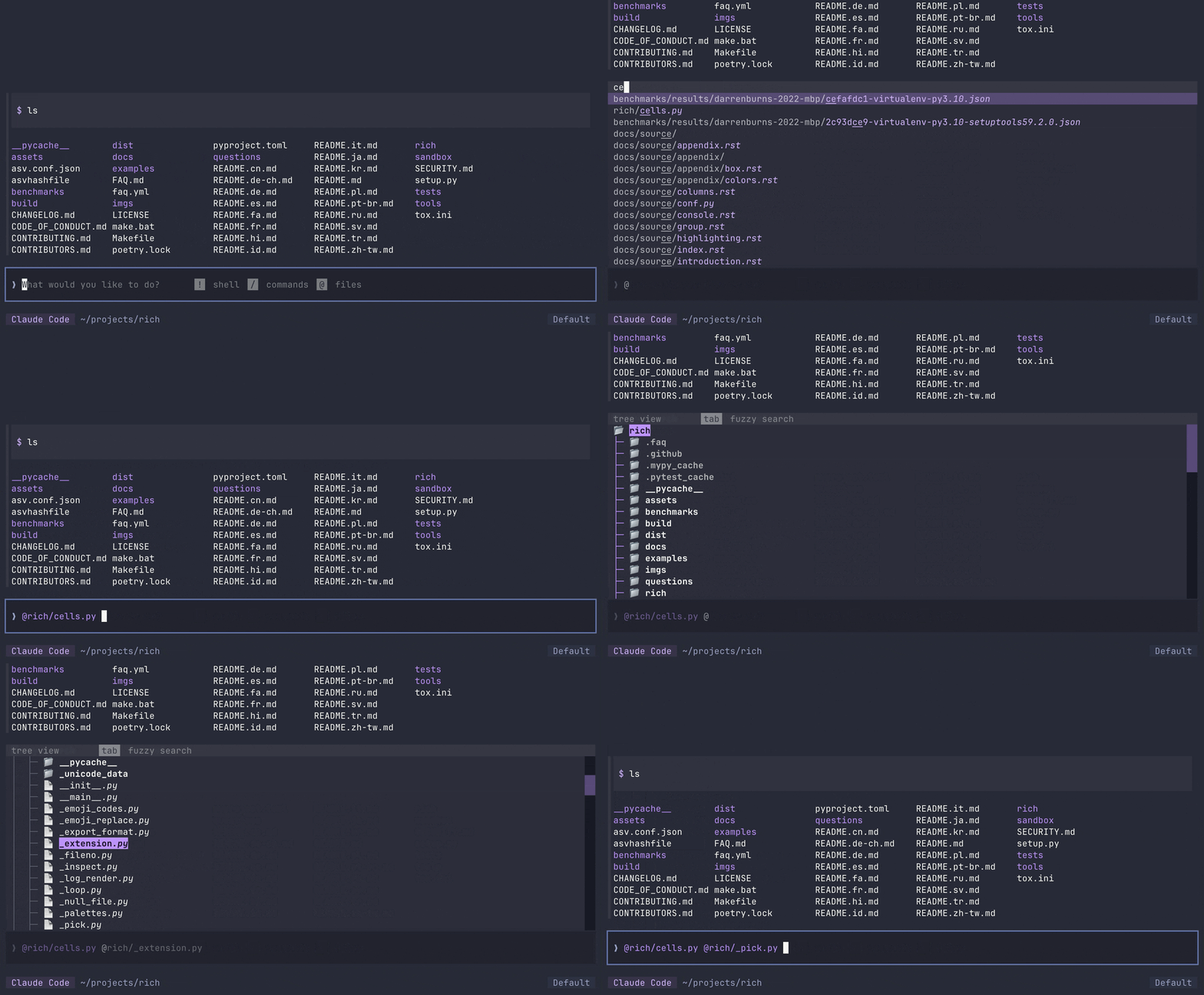
File PickerAdd a file to your prompt with @, and Taiji will show a fuzzy file picker. Type a few characters from the filename or folder and Taiji will refine the search as you type. Hit enter to add the file to the prompt. The fuzzy picker is great when you know the file you want to mention. If you want to explore your files, you can press tab to switch to an interactive tree control. |
|
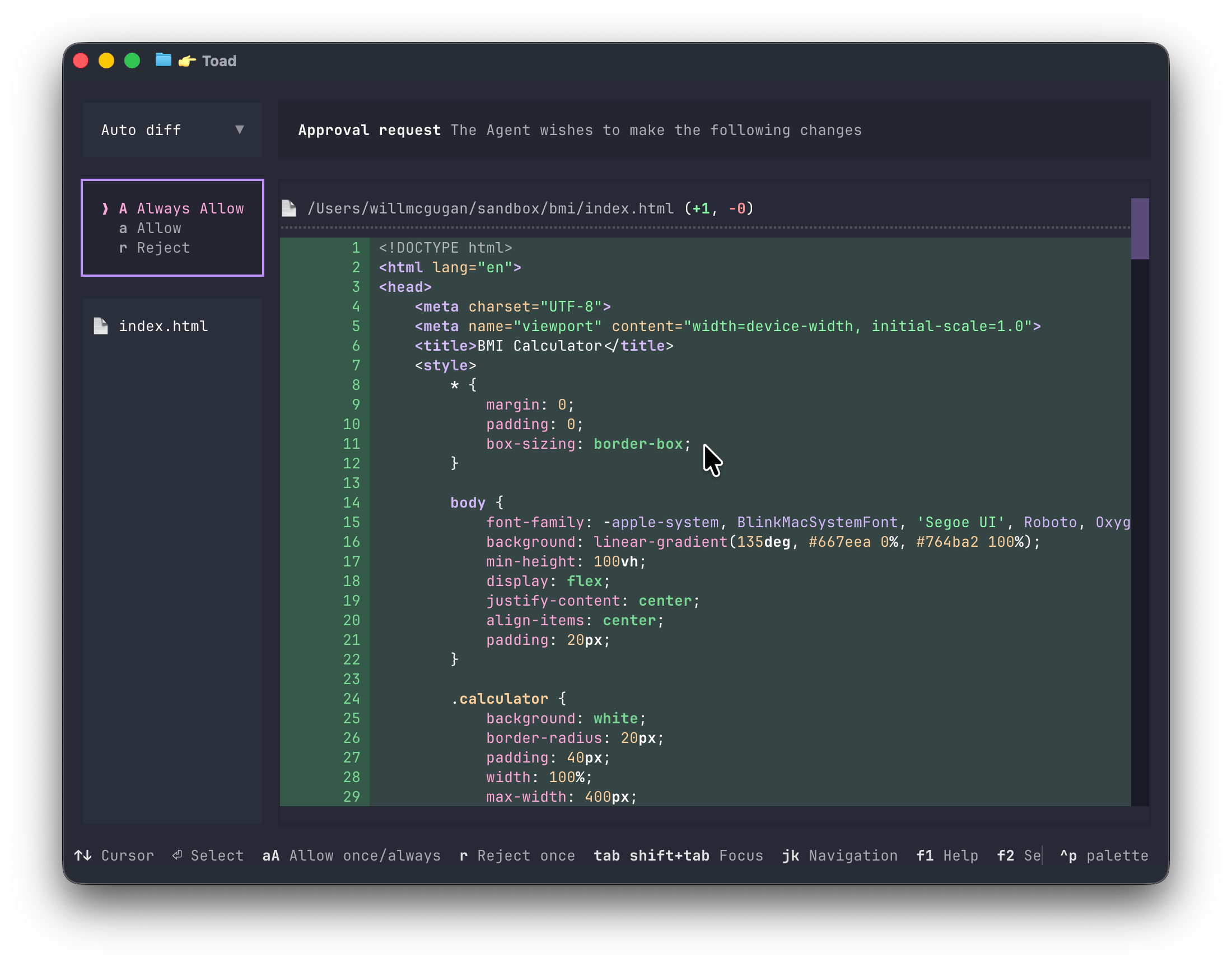
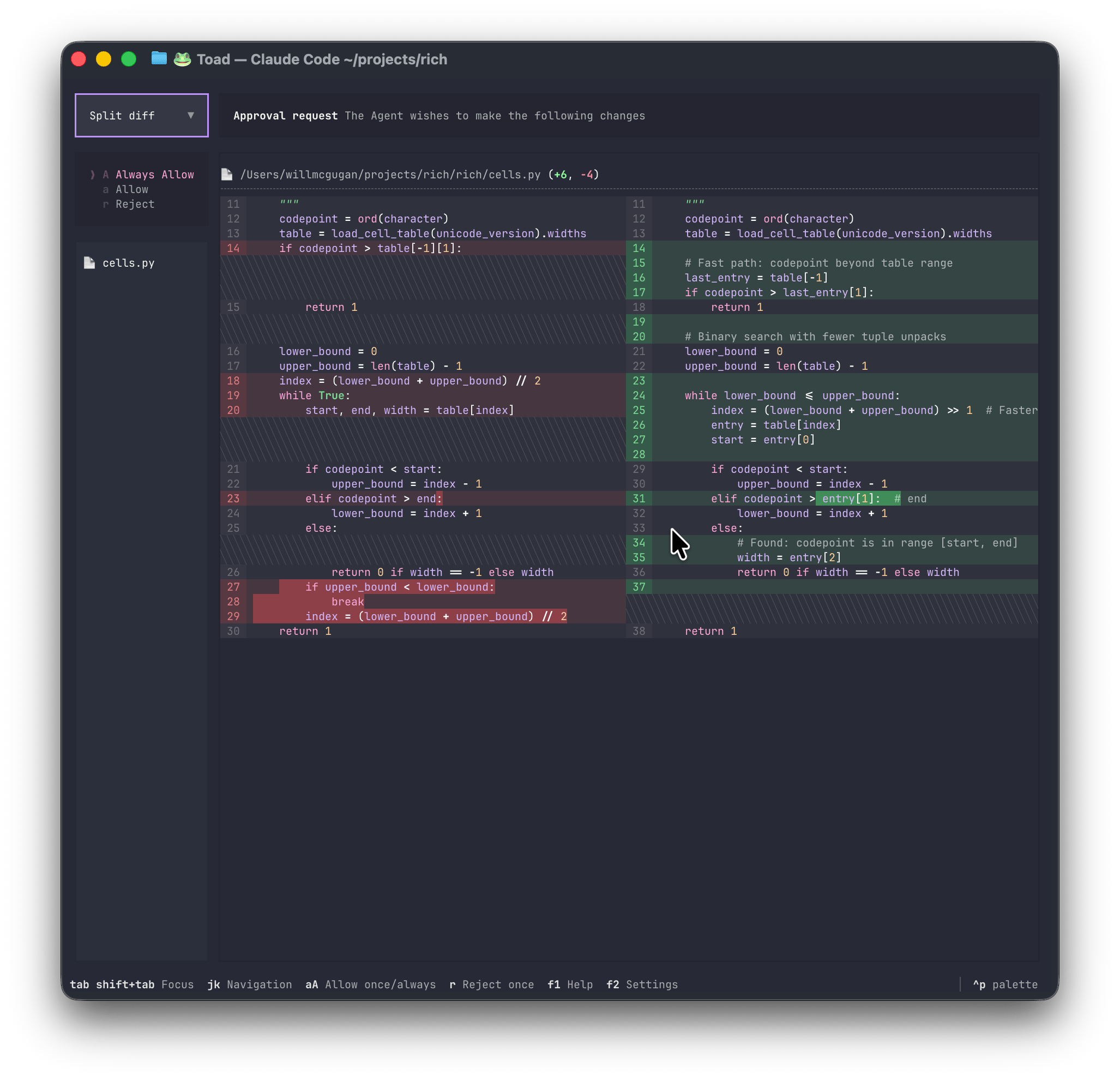
Beautiful DiffsSide-by-side or unified diffs, with syntax highlighting for most languages. |
|
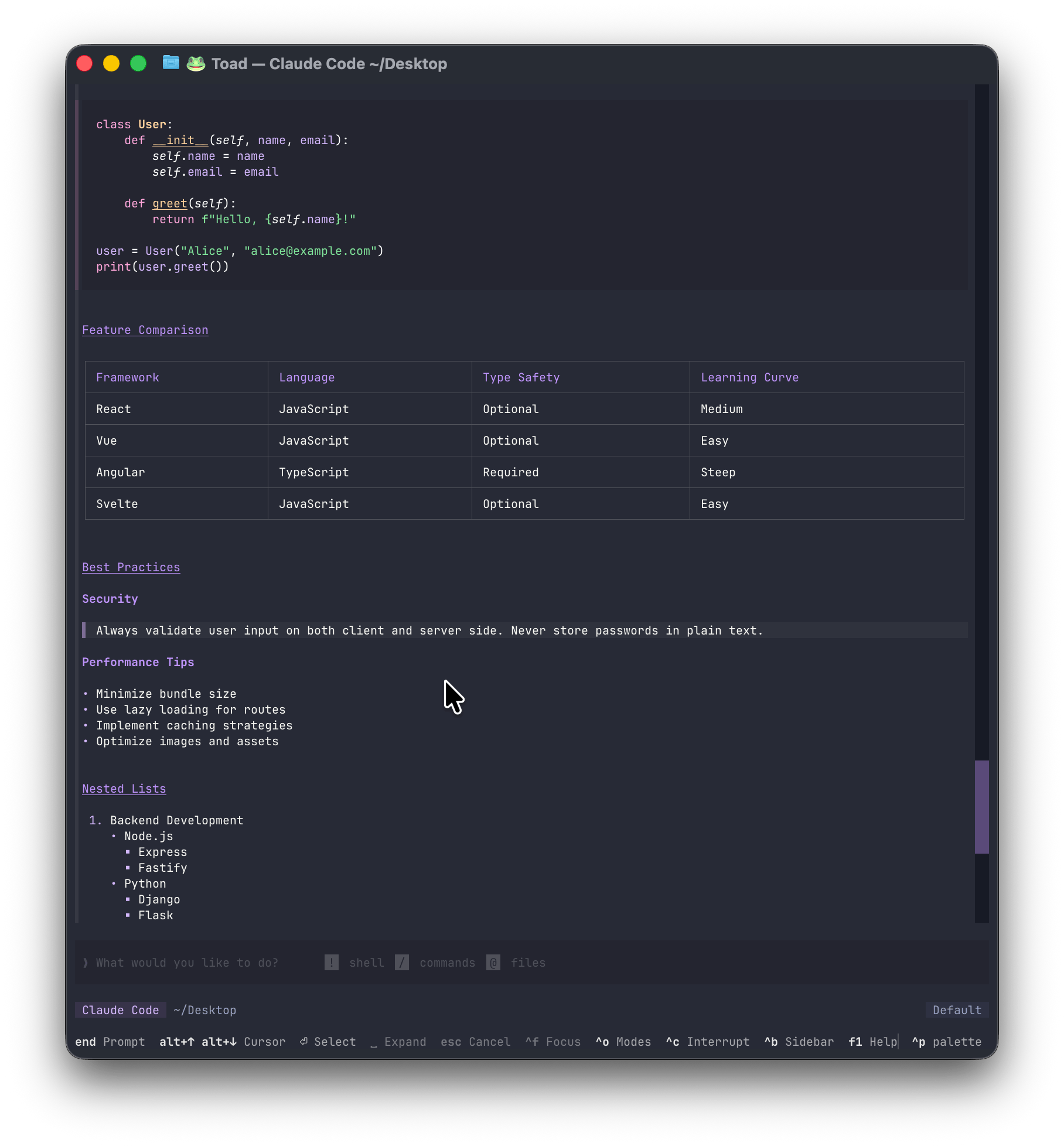
Elegant MarkdownMarkdown is the language of LLMs (AI). Taiji's streaming Markdown support can display syntax highlighted code fences, elegant tables, quotes, lists, and more. |
|
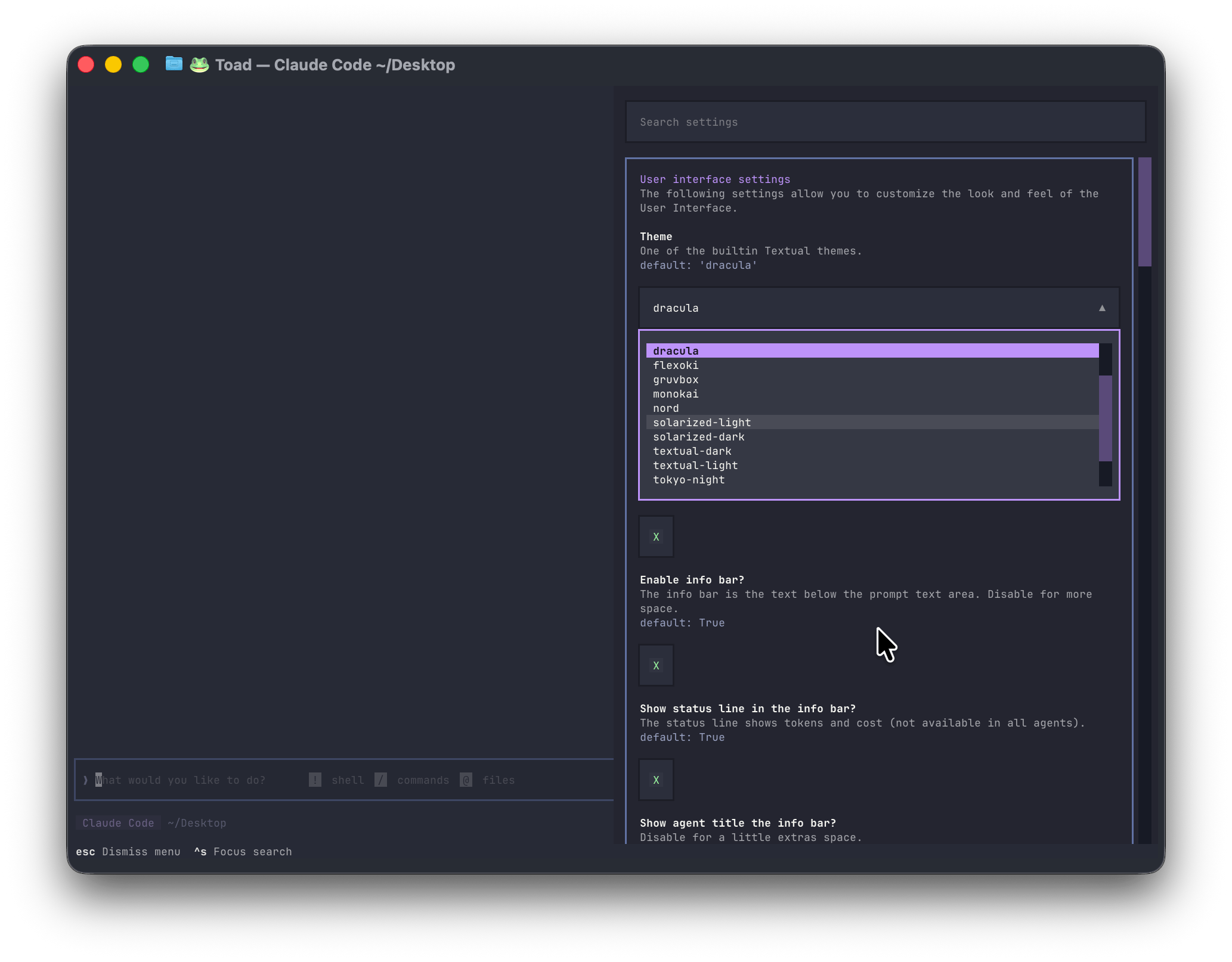
Simple SettingsAn intuitive settings system (no need to manually edit JSON files). Tune Taiji to your liking. Almost everything in Taiji may be tweaked. If you want to create an ultra-minimal UI with nothing more than a prompt—you can! |
|
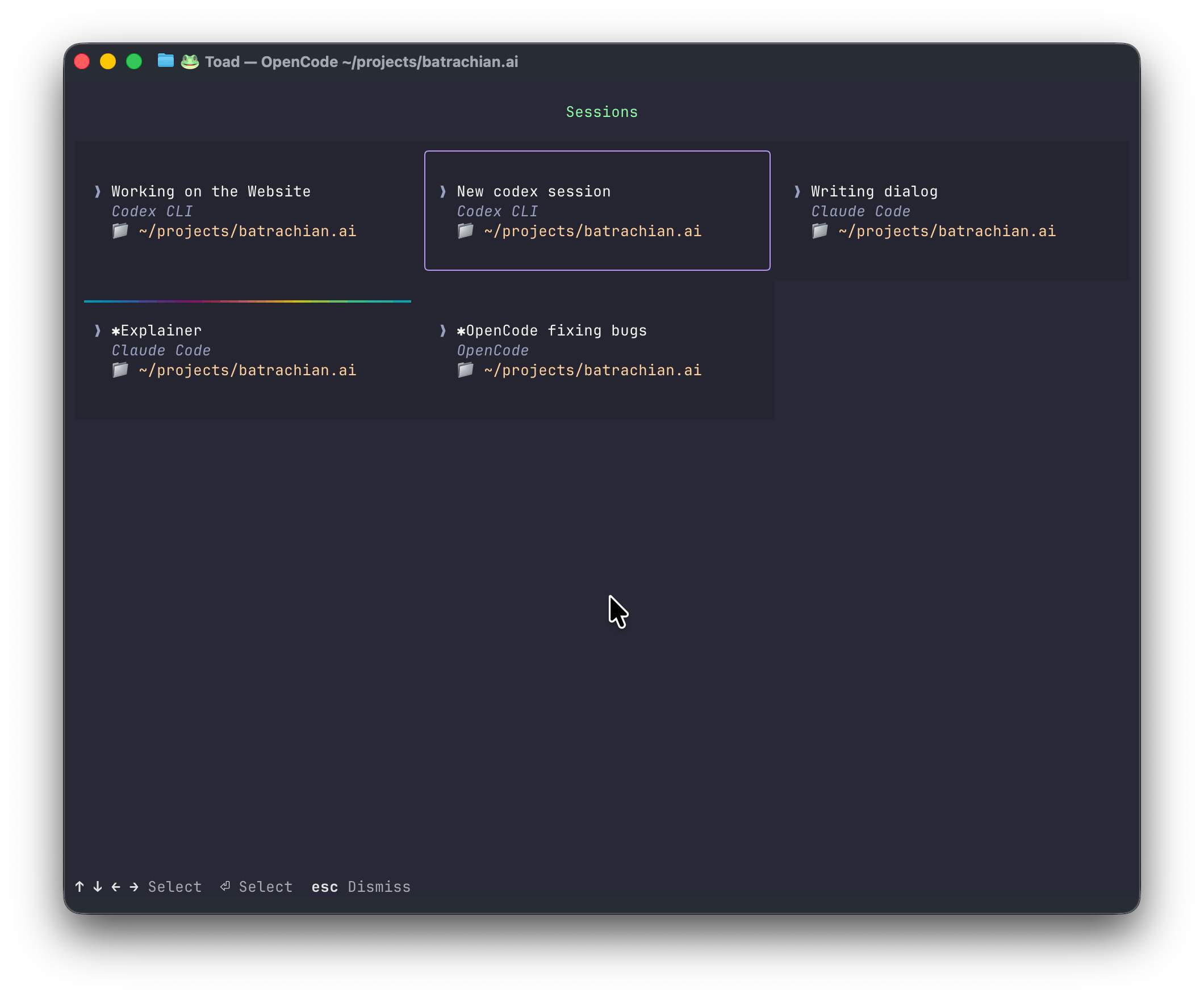
Concurrent sessionsLaunch and run multiple agents from potentially different providers. Hit ctrl+s to show the current state of all your agents in one screen. |
|
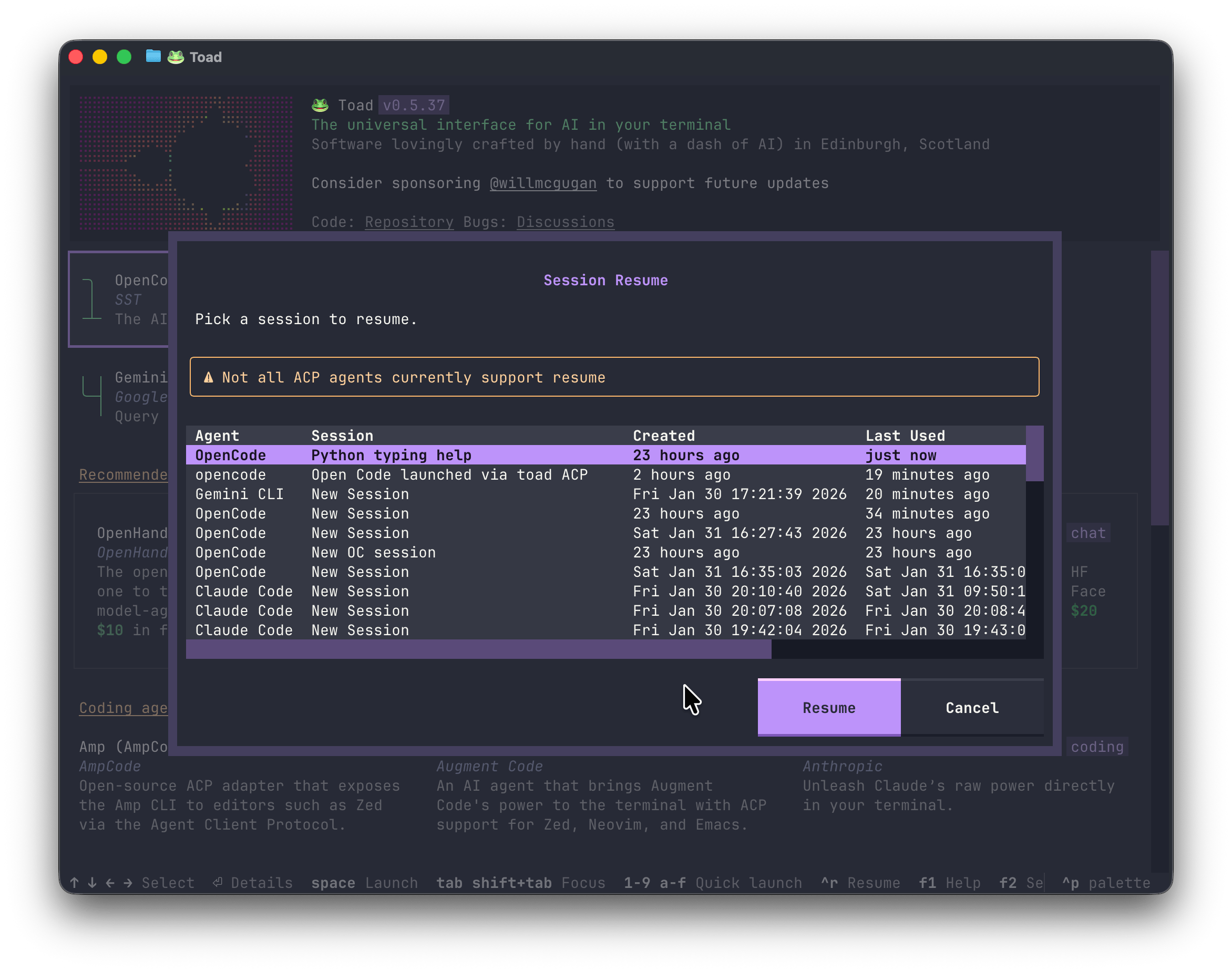
Session ResumeResume previous sessions with your agent. Hit ctrl+r to pick a previous session to resume. |
|
Video
Watch a preview of the Taiji User Interface:
https://github.com/user-attachments/assets/ced36f4b-db02-4d29-8a0a-14ec64b22881
Compatibility
Taiji runs on Linux and macOS. Native Windows support is currently lacking (but on the roadmap), but Taiji will run quite well with WSL.
Taiji is a terminal application. Any terminal will work, although if you are using the default terminal on macOS you will get a much reduced experience. I recommend Ghostty which is fully featured and has amazing performance.
Clipboard
On Linux, you may need to install xclip to enable clipboard support.
sudo apt install xclip
Getting Started
The easiest way to install Taiji is with the published taiji-cli package:
pip install taiji-cli
You should now have taiji installed.
If that doesn't work for any reason, then you can install with the following steps:
First install UV:
curl -LsSf https://astral.sh/uv/install.sh | sh
Then use UV to install Taiji:
uv tool install -U taiji-cli --python 3.14
Taiji is also available on conda-forge, and can be installed using pixi:
pixi global install taiji-cli
Using Taiji
Launch Taiji with the following:
taiji
When no agent is specified, Taiji checks for Claude, Codex, and Gemini in that order and automatically starts the first two available ACP agents. If none are installed, it opens the agent store as usual.
You should see something like this:
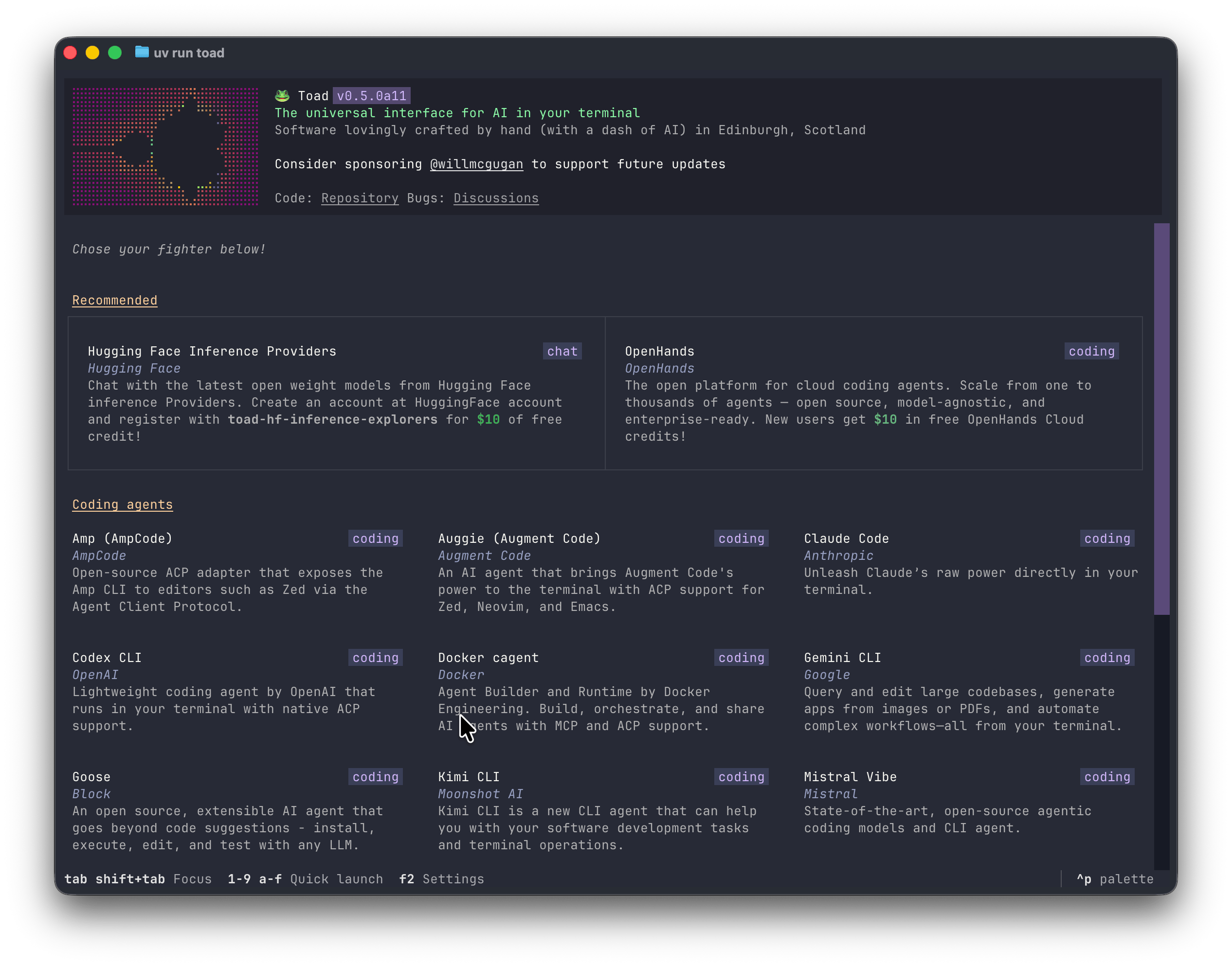
From this screen you will be able to find, install, and launch a coding agent. If you already have an agent installed, you can skip the install step. To launch an agent, select it and press space.
The footer will always display the most significant keys for the current context. To see all the keys, press F1 to display the help panel.
Taiji CLI
When running Taiji, the current working directory is assumed to be your project directory. To use another project directory, add the path to the command. For example:
taiji ~/projects/my-awesome-app
If you want to skip the initial agent screen, add the -a switch with the name of your chosen agent.
For example:
taiji -a open-hands
Two-agent relay
Run two ACP agents together:
taiji run -a claude --agent2 codex PATH
Use --max-rounds 12 to raise the automated relay limit for a larger task;
the default is 8 turns.
Use Ctrl+C, Ctrl+Shift+P, or /taiji:pause to pause and resume all agents. While
paused, new messages remain queued. To bypass alternation and address one
agent directly, use a tag such as @claude: inspect the failing test.
To see all subcommands and switches, add the --help switch:
taiji --help
Web server
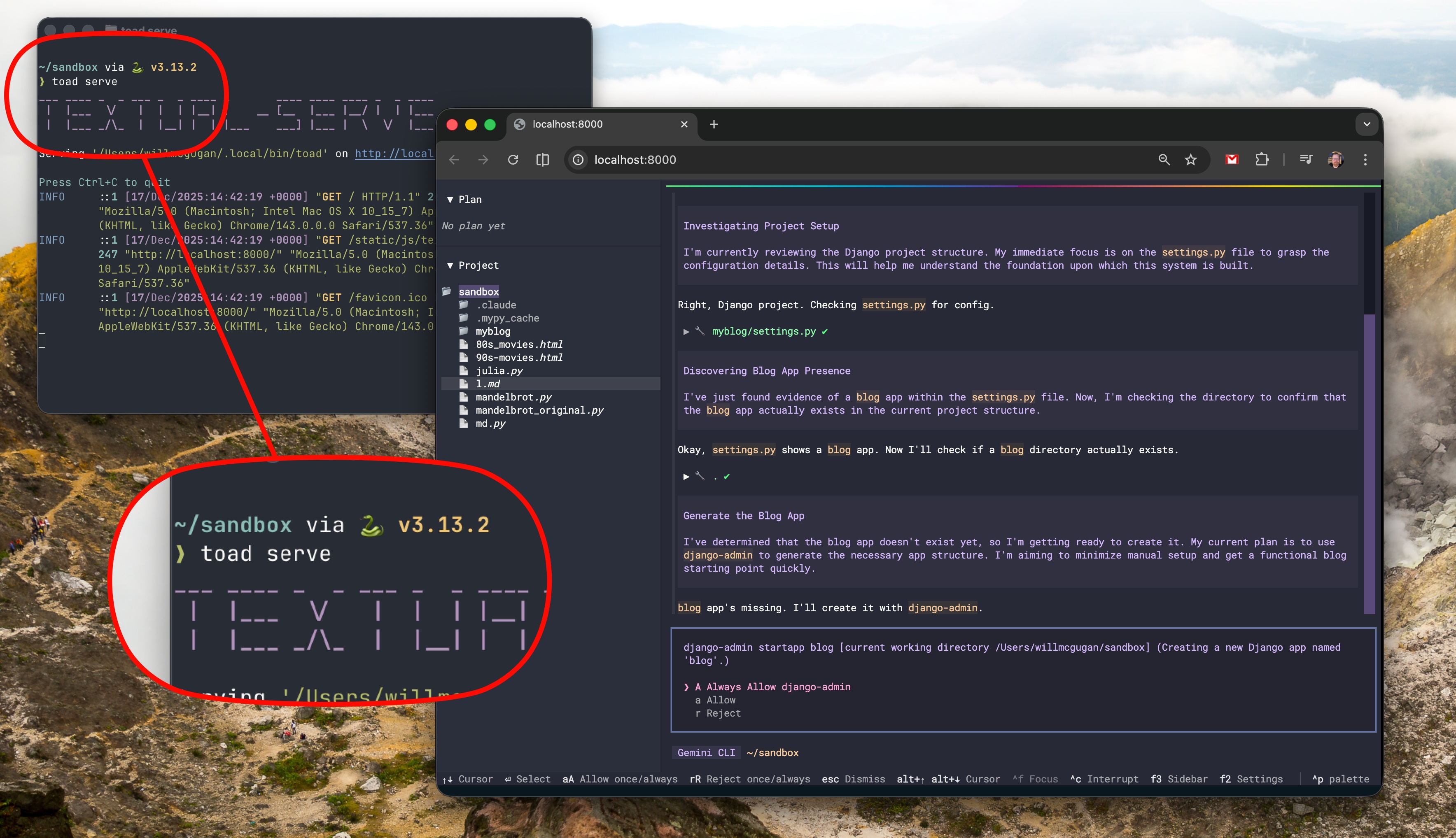
You can run Taiji as a web application.
Run the following, and click the link in the terminal:
taiji serve
Taiji development
Taiji was built by Will McGugan and is currently under active development.
To discuss Taiji, see the Discussions tab, or join the #toad channel on the Textualize discord server.
Roadmap
Some planned features:
- UI for MCP servers
- Expose model selection (waiting on ACP update)
- Sessions (resume)
- Multiple agents
- Windows native support
- Builtin editor
- Sidebar (widgets)
- Git pending changes
Reporting bugs
This project is trialling a non-traditional approach to issues. Before an issue is created, there must be a post in Discussions, approved by a Taiji dev (Currently @willmcgugan).
By allowing the discussions to happen in the Discussion tabs, issues can be reserved for actionable tasks with a clear description and goal.
Licensing
Taiji is licensed under the AGPL license. Commercial licenses are available. See COMMERCIAL_LICENSE.md.
1 maintainer

Download files
Download the file for your platform. If you're not sure which to choose, learn more about installing packages.
Source Distribution
Built Distribution
Filter files by name, interpreter, ABI, and platform.
If you're not sure about the file name format, learn more about wheel file names.
Copy a direct link to the current filters
File details
Details for the file taiji_cli-0.6.22.tar.gz.
File metadata
- Download URL: taiji_cli-0.6.22.tar.gz
- Upload date:
- Size: 1.8 MB
- Tags: Source
- Uploaded using Trusted Publishing? No
- Uploaded via:
twine/7.0.0 CPython/3.12.3
File hashes
| Algorithm | Hash digest | |
|---|---|---|
| SHA256 |
30899cb8b0b61ef15c432c1c57ed9e35248f7e9973a0b3868335aa8346e2bd5a
|
|
| MD5 |
7a0ef648472f3173ab6817c2536a8f89
|
|
| BLAKE2b-256 |
46c39309673891afbb3c58b609f68faa686ce91e8757e38054a8b15241fc2d6f
|
File details
Details for the file taiji_cli-0.6.22-py3-none-any.whl.
File metadata
- Download URL: taiji_cli-0.6.22-py3-none-any.whl
- Upload date:
- Size: 1.9 MB
- Tags: Python 3
- Uploaded using Trusted Publishing? No
- Uploaded via:
twine/7.0.0 CPython/3.12.3
File hashes
| Algorithm | Hash digest | |
|---|---|---|
| SHA256 |
aefcc27d77c54490cf55a4f47a4f4132f1ab470e5c41dbafebe340266cde1329
|
|
| MD5 |
ba4b19f1a130f1bf6cce32749219d36d
|
|
| BLAKE2b-256 |
5070fbeac9bca6bddaa79fac828eec7d4a915c6e5db44ad5a375a176fd294980
|







