
Tapwright
Playwright-style testing on your real iPhone, driven by AI agents. From Windows, Linux or macOS.
Tapwright gives an agent (Claude, Codex, anything that speaks MCP) eyes and hands on your iPhone: it sees the screen as a list of elements plus a screenshot, and taps, types, scrolls, swipes, answers permission prompts and opens deep links. It works with any app on the phone: your TestFlight builds, development builds, the App Store version. Nothing is added to your app, and no Mac or Xcode is needed.
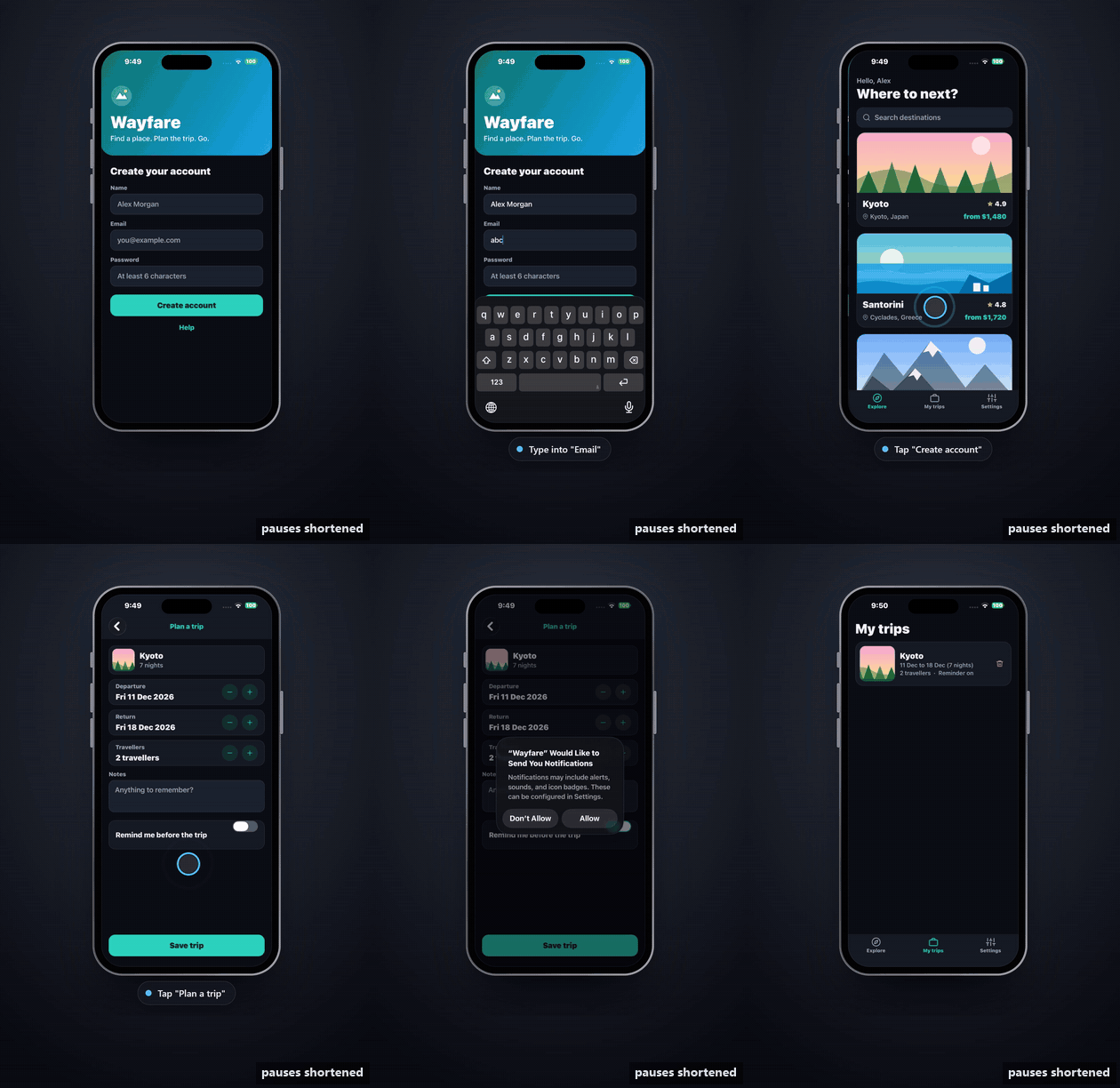
A Claude agent given one sentence ("test sign-up and a first trip the way a new user would") on a real iPhone, through Tapwright. It finds the planted bug (the app accepts "abc" as an email) and answers iOS's own permission prompt. Real time, with the agent's thinking pauses shortened; with the live view around it.
How it works
 your computer                                              your iPhone
 ┌───────────────────────────┐   developer tunnel           ┌──────────────────────────┐
 │ agent ── MCP ── tapwright │  (USB, Wi-Fi, or any address │ WebDriverAgent           │
 │                           │   that reaches the phone)    │ (Apple's UI automation)  │
 │   pymobiledevice3 ────────┼─────────────────────────────▶│   taps, types, reads the │
 └───────────────────────────┘                              │   screen of any app      │
                                                            └──────────────────────────┘
Apple's UI-testing framework (XCTest) can drive any app on a phone in Developer Mode, as long as a computer holds a developer connection to it. Tapwright runs WebDriverAgent (the XCTest runner behind Appium) on your phone, signed with your developer identity, and talks to it through pymobiledevice3's tunnel. That tunnel needs no admin rights and works on any OS.
Tapwright drives the whole phone from the outside (any app, system alerts, the home screen). Its sibling project Tapline drives your own React Native app from the inside, through a small SDK in the app.
You need
- An iPhone on iOS 17 or later, and a USB cable for the one-time setup.
- A computer with Python 3.10+. On Windows, install Apple Devices from the Microsoft
Store (it provides the USB connection); on Linux,
usbmuxd. - An Apple Developer Program membership, for an App Store Connect API key (setup then creates the certificate and profile itself). Or bring your own Apple Development certificate (.p12) and a development profile for a wildcard App ID that includes the phone.
Quick start
pip install tapwright
One-time setup, phone plugged in and unlocked:
tapwright setup --asc-key-id KEY_ID --asc-issuer-id ISSUER_ID --asc-key-file AuthKey_KEY_ID.p8 \
               --bundle-prefix com.yourname.tapwright
It pairs with the phone (tap Trust), checks Developer Mode, creates a development certificate and profile through the API (the private key stays on your computer), signs and installs WebDriverAgent, and pairs for network use. Details and the manual option: docs/setup.md.
Try it on one of your apps:
tapwright smoke --app com.yourcompany.yourapp
It opens the app, prints its first screen as elements, saves a screenshot, and closes it.
Give it to your agent, naming the apps it may use. Claude Code:
claude mcp add tapwright -- tapwright mcp --apps com.yourcompany.yourapp
--appstakes bundle ids or exact names, comma-separated. The agent is refused every other app (not_allowed) and is never shown another app's screen, except a permission prompt one of your apps raises, which it can see and answer.- On a phone kept for testing, with no personal accounts on it, use
--dedicatedinstead: the agent may then use every app, the Home screen and system prompts. - With neither, the agent can do nothing. That is deliberate: the phone may be yours.
Other MCP clients: run tapwright mcp --apps … (stdio). Then ask, for example: "Open MyApp
on my phone, sign up with a test email, and tell me if anything looks broken."
AGENTS.md is the agent's guide; point your agent at it.
docs/quickstart.md walks through a first test.
Give your agent the skill. It teaches an agent how to test with Tapwright: the loop, how to read an answer, what to do on each error, how to report, and the mistakes agents make.
tapwright skill install               # for you: ~/.claude/skills and ~/.agents/skills
tapwright skill install --project .   # for one project
Claude Code reads .claude/skills; Codex and other agents read .agents/skills. The skill
is skills/tapwright, in the open
Agent Skills format, so skill installers can take it from this
repository too.
Tools
| Tool | What it does |
|---|---|
apps, open_app, close_app |
the apps you installed (TestFlight and development builds included); open one by bundle id or name, or close it |
look |
the screen: every visible element (role, text, id, position in points, what you can do with it) and a screenshot |
tap, long_press, toggle |
by element {id} (testID/accessibility identifier), {label}, {text}, {ref} from the last list, or {x, y} |
type_text |
into a field (clearing it first by default, or pressing return after) |
scroll, swipe, back |
lists and pages, to the start, the end, or straight to an element; drags between points; up one screen (an open sheet closes first) |
wait, wait_for |
a fixed delay, or until some text, id or label shows up or goes |
alert |
accept, dismiss or read system alerts (permission prompts) |
press_button |
home, volume |
rotate |
turn the phone to portrait or either landscape side, to test an app's landscape layout |
open_url |
deep links |
viewer |
the link to the live view |
Every action answers with what changed on the screen, not the whole list, and says how long the
screen took to settle. Add screenshot: true for a picture. tapwright mcp --screenshots DIR
saves the pictures as files instead of sending them. Errors are Error <code>: <message>; for
not_actionable the first word says why (disabled, off_screen, covered, under_tab_bar,
behind_alert, no_action). The tools and their errors are the same as Tapline's:
docs/AGENT-TOOLS.md.
Live view
tapwright serve is a small background process that owns the connection to the phone.
Agent tools, the live view in your browser and any other client go through it, so you and
an agent can share one phone. Agent tools start it by themselves. To watch:
tapwright view # opens the live view in your browser
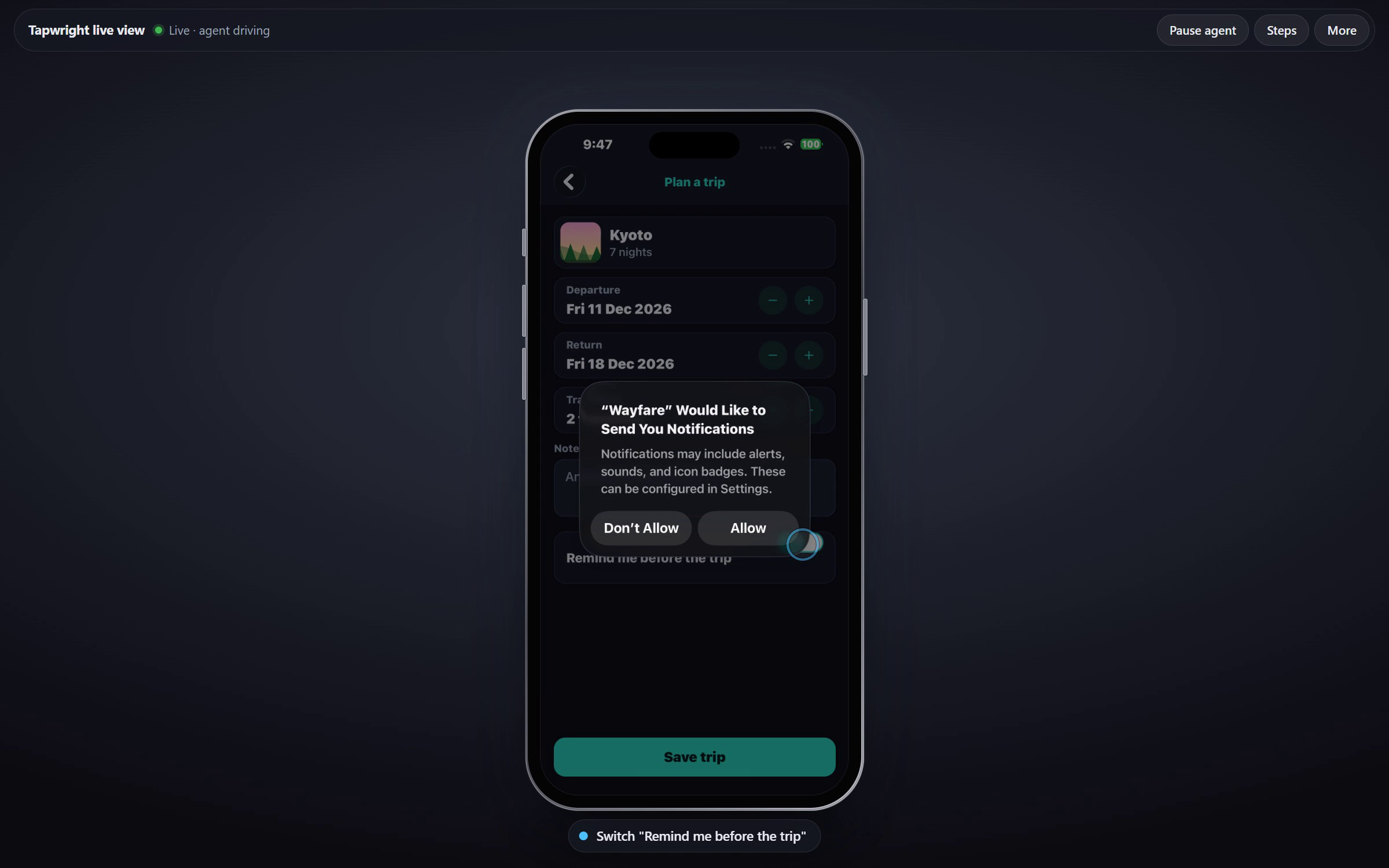
You see the phone's screen live and can drive it: click to tap, hold to long-press, drag to
swipe, use the mouse wheel to scroll, and type into the focused field. Each step, the
agent's or yours, shows in plain words under the phone (Tap "Save trip"), and Steps
lists them. A step that couldn't be done shows in red with the reason (Tap "Save" – covered). The bar has Pause agent; More holds Home, volume, the picture quality and
Details (the element names and boxes, for when you're debugging). Your input goes first:
the agent waits while you drive. The live view is reachable from this computer only, with an
access token in the link.
- Drags play on the phone after you let go: WebDriverAgent can't follow a finger live.
- The picture is a stream of JPEG frames, about 28 a second while the screen changes and 5 while it is still.
tapwright serve --videoplays the phone's own video instead, 60 frames a second, with nothing installed on the phone. The phone and the computer must be on the same Wi-Fi, and the computer needs an AirPlay receiver: see docs/setup.md.- The volume buttons press the phone's real buttons.
Other tools can use the same daemon: the agent tools over HTTP (POST /api/<tool>), and the
live view protocol in docs/VIEWER-PROTOCOL.md.
Without the cable
After setup, unplug: on the same Wi-Fi, Tapwright finds the phone by itself, or give its
address with tapwright serve --phone 192.168.x.y. Over Wi-Fi every step is slower than
over USB (see Status); for long unattended runs, keep the cable in.
Reaching the phone from another network (a VPN such as Tailscale, or cellular) is not part
of version 1. tapwright probe --host <address> --watch exists to try it; treat it as
experimental.
Limits
- Apple's automation sees what accessibility sees. Give important views accessibility
identifiers (
testIDin React Native) and labels; games and custom-drawn screens show little beyond their screenshot. - Face ID, Touch ID and the passcode can't be automated; unlock the phone yourself.
- Before it lets a UI test start, iOS may ask for the passcode ("Enable UI Automation"). Tapwright waits and tells the agent. Turn on Settings > Developer > Enable UI Automation on a test device, or an unattended run stops there.
- A test phone is the intended setup. If you use a phone with your own accounts on it, an agent gets only the apps you name, and that is enforced; inside those apps, the agent guide tells agents to stay away from purchases, sending, deleting and account changes unless you asked for exactly that: this part is guidance, not enforcement.
- Notification banners cover the top of the screen for a few seconds. Tapwright waits them out and won't touch under one, which can slow a run on a phone that gets notifications. Don't silence them with a Focus: iOS shares a Focus with your other devices. On a test phone, switch off Allow Notifications per app in Settings > Notifications instead; that stays on the one phone.
- Landscape:
rotateturns the phone; the live view, screenshots and touches follow it (checked on both sides: taps, typing, scrolling, the keyboard, a live-view tap). - AssistiveTouch: with a mouse or other pointer connected, iOS shows a cursor, and a tap on that cursor opens the AssistiveTouch menu (Home, Notification Center, ...). Neither the cursor nor the menu is in what Tapwright reads, so a tap there looks like "No visible change", and the next tap only closes the menu. On a test phone, disconnect the pointer or turn AssistiveTouch off while an agent drives it.
Status
| Works on our phone | setup from Windows; USB and Wi-Fi; every tool; the live view as JPEG frames and as video; the app list (--apps) and --dedicated; landscape, on both sides |
| Measured over USB | a tap, with its answer: 0.65 s; a look: 0.14 s; a toggle 0.66 s; typing 0.73 s; a scroll 1.46 s; a person's tap in the live view shows after 0.23 s; the reliability suite with no misses |
| Measured over Wi-Fi | slower: a tap 1.0 s, a look 0.4 s, typing 1.3 s; the reliability suite with no misses |
| Agents | a first-time agent with the skill tested the whole lab charter in 44 calls (40 with Tapline connected too) |
| Not done | over Wi-Fi, a tap (1.03 s) and typing (1.33 s) within Wi-Fi's own bar of 1.0 s (the toggle meets it), and a scroll within 1.5 s; a second phone or an iPad; a run by anyone but the authors |
Every number, how it was measured and how to run it yourself: docs/benchmarks.md. The bar they are held against: docs/QUALITY-BAR.md.
License
MIT. WebDriverAgent (BSD) and rcodesign (MPL-2.0) are downloaded at setup, not included. Tapwright is not affiliated with Microsoft's Playwright or with Apple.
1 maintainer

Metadata
1 maintainer
Release files for tapwright 1.0.0
For a detailed explanation of source distributions (sdists) and built distributions (wheels), please see the package formats documentation.
Source distribution (sdist)
| File | Size | Uploaded | Provenance | Actions |
|---|---|---|---|---|
| tapwright-1.0.0.tar.gz | 305.1 kB | Without provenance | Details for tapwright-1.0.0.tar.gz |
Built distribution (wheel)
| File | Interpreter | ABI | Platform | Actions Reset |
|---|---|---|---|---|
| tapwright-1.0.0-py3-none-any.whl | Python 3 | none | any | Details for tapwright-1.0.0-py3-none-any.whl |
Total release size: 489.6 kB
Release files / tapwright-1.0.0.tar.gz
| Download URL | tapwright-1.0.0.tar.gz |
|---|---|
| Size | 305.1 kB |
| Tags | Source |
|
SHA-256 checksum How to use checksums |
4ee6735458dd1f2ce58fb7fca70cfb8704f94da2dd63337bf340323f874089bd
|
|
BLAKE2b-256 checksum How to use checksums |
e4d377179e184fb8a9243c756b4e39f7c52049cf50a0fc284967d8690a43f950
|
| Upload date | |
|
Uploaded using Trusted Publishing? What is trusted publishing? |
No |
| Uploaded via |
twine/7.0.0 CPython/3.13.2
|
Release files / tapwright-1.0.0-py3-none-any.whl
| Download URL | tapwright-1.0.0-py3-none-any.whl |
|---|---|
| Size | 184.5 kB |
| Tags | Python 3 |
|
SHA-256 checksum How to use checksums |
e0280493322ae3b4047344f9942e955c95034a4f45a97d40f99915cc54765eef
|
|
BLAKE2b-256 checksum How to use checksums |
f692a1a983e6c4bc291c4f9d2ccb5aaa4d0c5bdf31283399b979aaef38ae7d19
|
| Upload date | |
|
Uploaded using Trusted Publishing? What is trusted publishing? |
No |
| Uploaded via |
twine/7.0.0 CPython/3.13.2
|
Security for tapwright 1.0.0
Provenance
Provenance describes where a file came from. On PyPI, provenance is shared via attestations, which provide a verifiable record of the build or publishing details. View details, limitations and caveats.
No provenance found
None of the files in this release were uploaded with provenance metadata.
A note on package security
PyPI is a repository for distributing packages, not a service for auditing them. While third-party security researchers and our staff do their best to detect and remove malicious packages, PyPI cannot guarantee the quality, security or suitability of any given package.
To learn more about protecting yourself from malicious actors, visit our package security documentation.













