
A python library to generate navigation menus using Telegram Bot API.

Project description
telegram_menu package


A python library to generate navigation menus using Telegram Bot API.
Features:
- Menu navigation using tree structure, unlimited depth
- Support for sending pictures (local file or url), stickers, notifications, webapps and polls
- Session manager with multiple users connecting to the same bot
- Messages can read text input from the keyboard
- Automatic deletion of messages when configurable timer has expired
- Integration of HTML formatting + emojis
[2025] NOTE: version 3.0.0 targets Python 3.10+ and python-telegram-bot 22.x. Use a 2.x release for older interpreters.
[2023-01] NOTE: asyncio support was added in version 2.0.0. Previous versions use the oldest non-asynchronous version of python-telegram-bot and are not compatible.
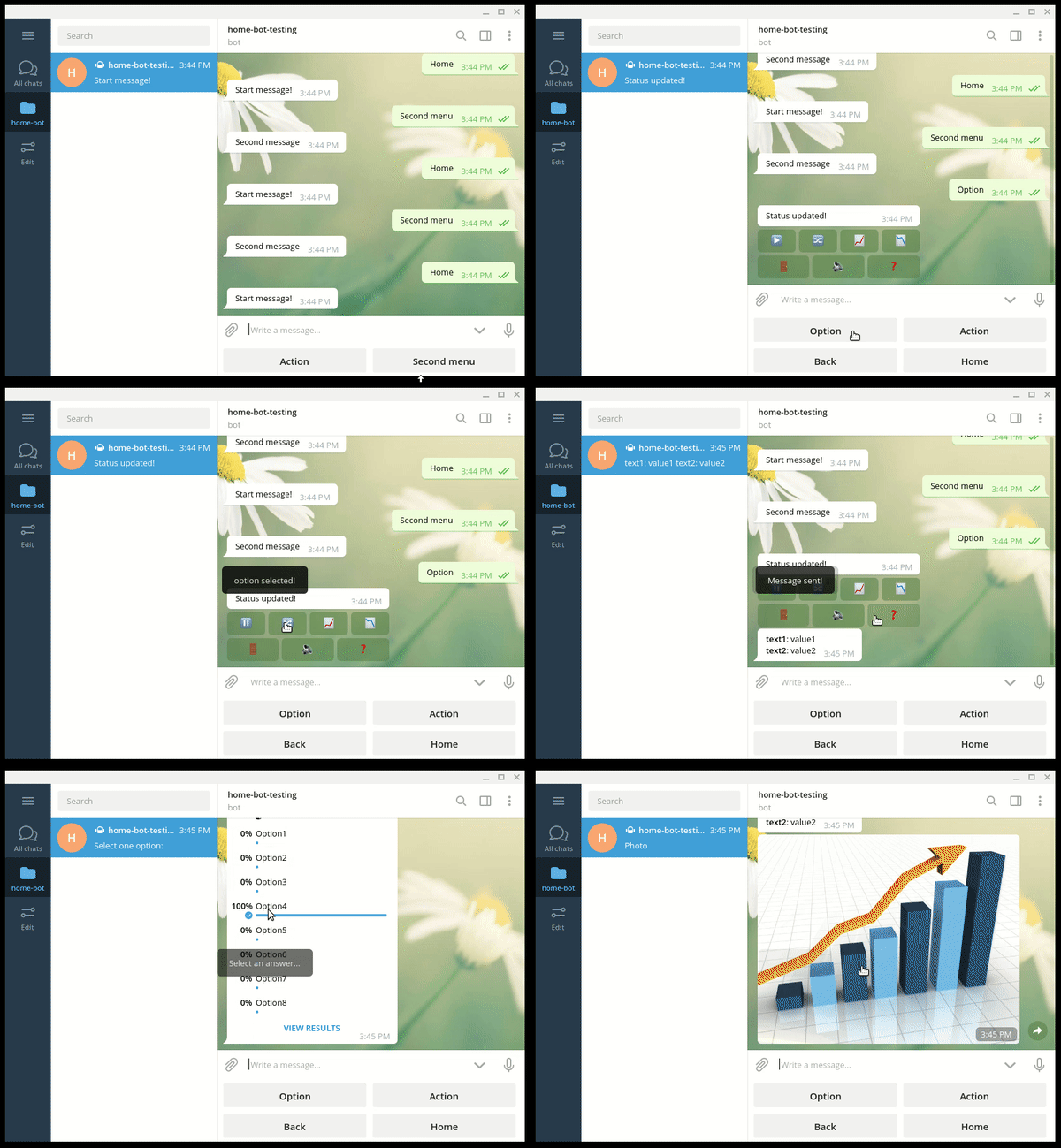
Here is an example of navigation with menus and inlined buttons:
Installation
pip install telegram_menu
Getting Started
You first need to create a Telegram bot, then you can refer to the sample code in tests/example_app.py (run it with tests/demo.py) for a complete use-case.
A session can be started with the keyword /start from a Telegram client.
Following code block creates a Hello, World! message:
from telegram_menu import BaseMessage, TelegramMenuSession, NavigationHandler

API_KEY = "put_your_telegram_bot_api_key_here"

class StartMessage(BaseMessage):
    """Start menu, create all app sub-menus."""

    LABEL = "start"

    def __init__(self, navigation: NavigationHandler) -> None:
        """Init StartMessage class."""
        super().__init__(navigation, StartMessage.LABEL)

    def update(self) -> str:
        """Update message content."""
        return "Hello, world!"

TelegramMenuSession(API_KEY).start(StartMessage)
You can add new buttons in StartMessage, using self.add_button() method.
The callback of a button can be used to update the content of the current message, or to open a new menu.
For example, adding these lines in the constructor of the previous class will open a second menu:
second_menu = SecondMenuMessage(navigation)
self.add_button(label="Second menu", callback=second_menu)
Then define the second message:
class SecondMenuMessage(BaseMessage):
    """Second menu, create an inlined button."""

    LABEL = "action"

    def __init__(self, navigation: NavigationHandler) -> None:
        """Init SecondMenuMessage class."""
        super().__init__(navigation, StartMessage.LABEL, inlined=True)

        # 'run_and_notify' function executes an action and return a string as Telegram notification.
        self.add_button(label="Action", callback=self.run_and_notify)
        # 'back' button goes back to previous menu
        self.add_button_back()
        # 'home' button goes back to main menu
        self.add_button_home()

    def update(self) -> str:
        """Update message content."""
        # emoji can be inserted with a keyword enclosed with ::
        # list of emojis can be found at this link: https://www.webfx.com/tools/emoji-cheat-sheet/
        return ":warning: Second message"

    @staticmethod
    def run_and_notify() -> str:
        """Update message content."""
        return "This is a notification"
An application message can contain several inlined buttons, the behavior is similar to MenuMessage buttons.
To define a message as inlined, the property inlined must be set to True.
A message can also be used to create a poll or show a picture, using property btype.
The input field can be set using the property input_field (non-inlined messages only). You can use the keyword <disable> to restore the default behaviour.
The default number of buttons per row is 2 for base keyboards, 4 for inlined keyboards,
to create a new row the property new_row can be set to True when calling add_button().
from telegram_menu import MenuButton

# 'get_content' function must return the text content to display, eventually with Markdown formatting
self.add_button(label="Display content", callback=self.get_content, btype=ButtonType.MESSAGE)

# 'get_picture' function must return the path of a picture to display in Telegram
self.add_button(label="Show picture", callback=self.get_picture, btype=ButtonType.PICTURE, new_row=True)

# 'get_sticker' function must return the path of a sticker to display in Telegram
self.add_button(label="Show sticker", callback=self.get_sticker, btype=ButtonType.STICKER)

# 'webapp_cb' function will receive the result of the given web-app
webapp_url = "https://python-telegram-bot.org/static/webappbot"
self.add_button(label="Show picture", callback=self.webapp_cb, web_app_url=webapp_url)

# New buttons can be added to the 'keyboard' property of the message instance too.
# Next poll message will get items to display from function 'get_playlists_arg', and run 'select_playlist' when
# the poll button is selected, identified with emoji 'closed_book'
poll_button = MenuButton(
    label=":closed_book:", callback=self.select_playlist, btype=ButtonType.POLL, args=self.get_playlists_arg()
)
self.keyboard.append([poll_button])
Structure
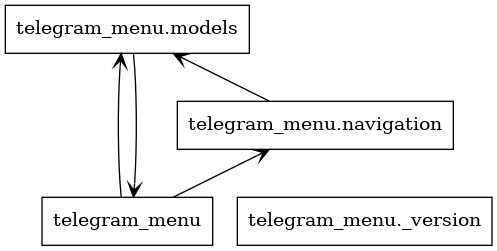
Classes in package telegram_menu are stored in 2 python files:
- navigation.py - Main interface, menu and message generation and management
- models.py - Menu and message models, classes definition
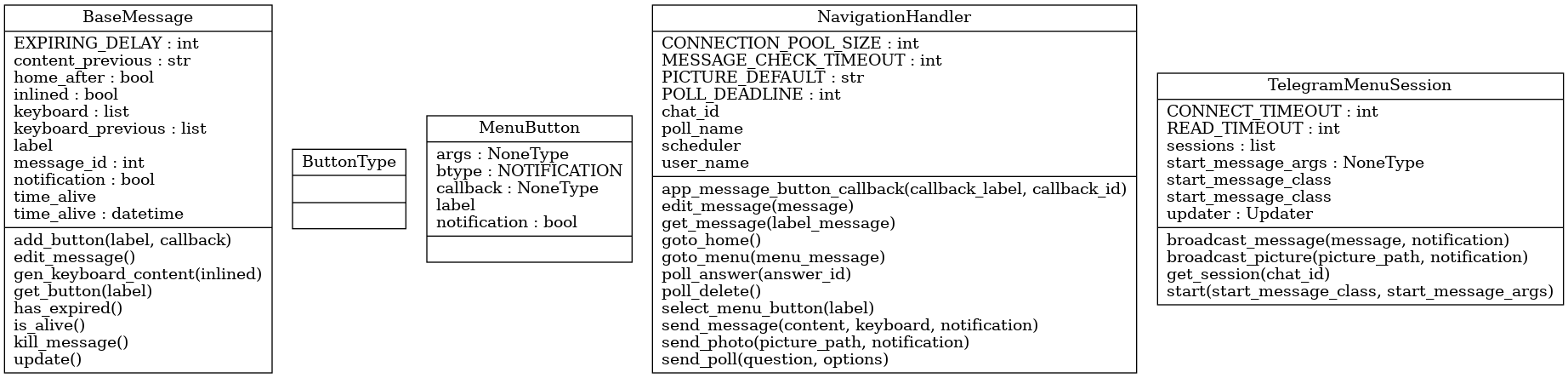
Following class diagram describes all public interfaces:
Unit-tests
To execute the test suite, run the following command and then start a session from a Telegram client with the keyword /start.
python -m unittest
Release history Release notifications | RSS feed


Download files
Download the file for your platform. If you're not sure which to choose, learn more about installing packages.
Source Distribution
Built Distribution
Filter files by name, interpreter, ABI, and platform.
If you're not sure about the file name format, learn more about wheel file names.
Copy a direct link to the current filters






