
Tempo plan-versus-fact
A Python CLI that compares your cumulative Tempo worklogs with a monthly hours
target. By default, it saves comparison.png in the system temporary folder and opens
it in your default image viewer. Running another report replaces that file.
Table of contents
- Demo
- Install
- Usage
- Configure the OAuth applications
- Configure and log in
- Generate a report
- Tokens and troubleshooting
- Development and verification
- Build and publish
- License
Demo
Example report using sample worklogs: 14.5 hours logged toward an 80-hour target, reported through October 9, 2026. Displayed hours round upward; the green line shows the weekday pace needed to reach the monthly target.
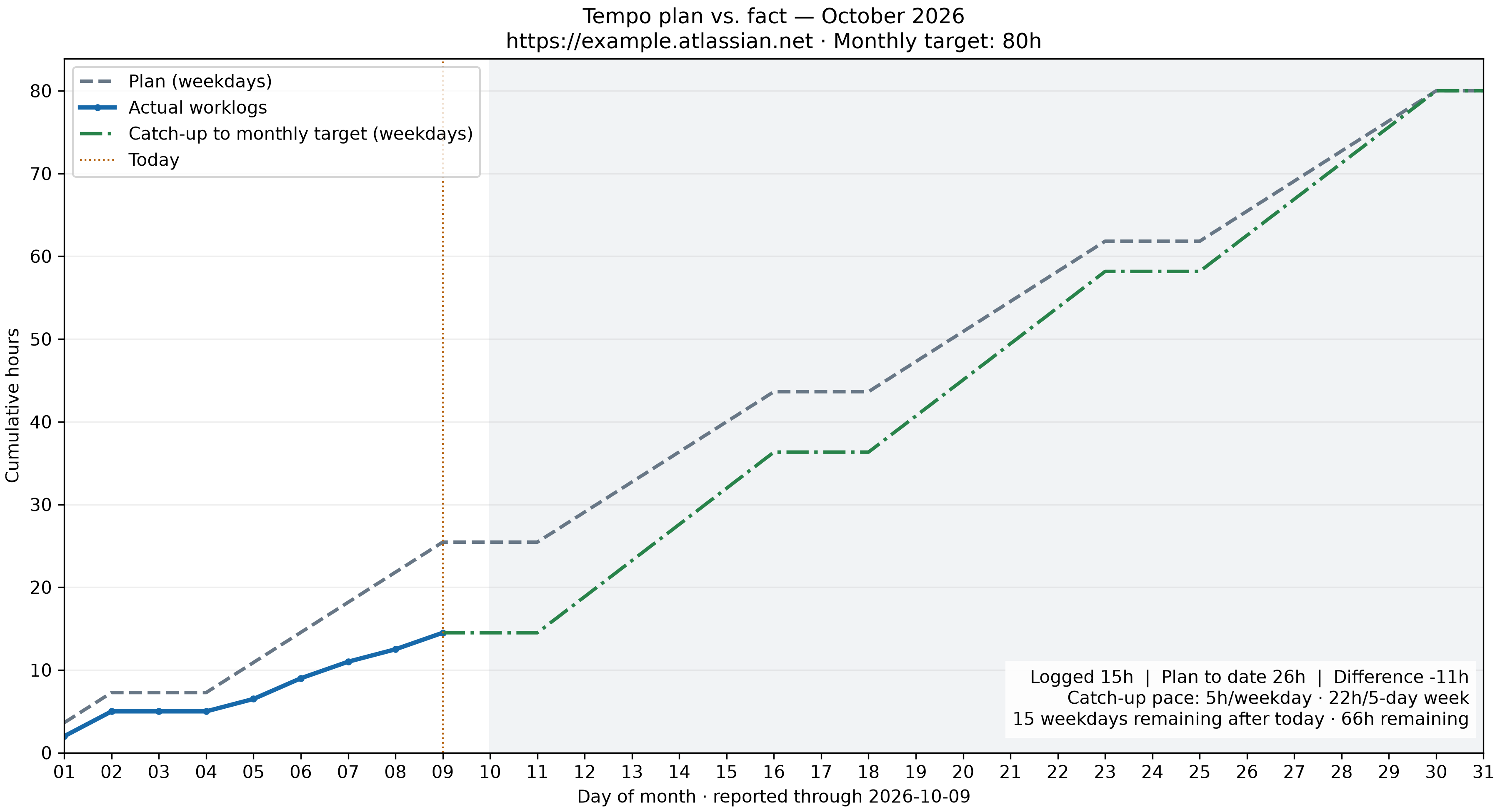
Console output for the same sample data, using
tempo-plan-fact report --output demo.png --no-open:
Period: 2026-10-01 through 2026-10-09 (Europe/Kyiv)
Logged: 15h
Plan through today: 26h
Difference (actual - plan): -11h
Remaining toward 80h: 66h
Catch-up pace: 5h/weekday · 22h/5-day week
15 weekdays remaining after today · 66h remaining
Saved: /path/to/project/demo.png
The saved path depends on your working directory. These worklogs are illustrative; running the command uses your signed-in account's current-month worklogs.
Install
Requires Python 3.15+, uv, and macOS for Keychain credential storage.
After the first release is published to PyPI, install the CLI in an isolated uv tool environment:
uv tool install --python 3.15 tempo-plan-fact
tempo-plan-fact --help
To install from a local checkout before publication:
uv tool install --python 3.15 .
tempo-plan-fact --help
If the command is not on your PATH, run uv tool update-shell and restart your
shell. To upgrade a published installation, run uv tool upgrade tempo-plan-fact.
Usage
After registering the OAuth applications, configure the CLI and sign in once, then generate reports as needed:
# Save your Jira site, monthly target, and OAuth application credentials.
tempo-plan-fact configure

# Sign in to Jira and approve Tempo access in your browser.
tempo-plan-fact auth login

# Generate this month's report and open the chart.
tempo-plan-fact report

# Save to a chosen path without opening an image viewer.
tempo-plan-fact report --output demo.png --no-open

# Show report options.
tempo-plan-fact report --help

# Revoke and remove your saved login tokens.
tempo-plan-fact auth logout
See Configure and log in for setup details and Generate a report for how hours and catch-up pace are calculated.
Configure the OAuth applications
Application credentials are configured once for this CLI installation. Users sign in through the browser; they never need to find or enter an account ID. The integration maintainer registers the Atlassian application, rather than asking each end user to create their own application.
Atlassian application for Jira sign-in
Create an OAuth 2.0 integration in the Atlassian developer console.
- Add the Jira API permission
read:jira-user. - Enable OAuth 2.0 (3LO) authorization and set the callback URL to
http://127.0.0.1:8765/oauth/callback. - Copy the application client ID and secret from its settings.
- If other people will use the application, enable sharing in the console's distribution settings so they can authorize it.
These are application credentials, not a user's account ID or Jira API token. See Atlassian's OAuth setup documentation.
Tempo application for worklog access
On your Jira site, open Tempo → Settings → Data Access → OAuth 2.0 Applications and add an application with:
- Name:
Tempo plan-fact CLI(or your preferred name) - Client type: Confidential
- Authorization grant type: Authorization code
- Redirect URI:
http://127.0.0.1:8765/oauth/callback
Copy its client ID and client secret. Registration requires the appropriate administrative permissions. See Tempo's OAuth setup instructions and API authentication documentation.
Jira and Tempo use separate OAuth applications and grants. A Jira access token
does not replace a Tempo access token. The CLI coordinates both grants from a
single auth login command.
Configure and log in
tempo-plan-fact configure
tempo-plan-fact auth login
configure prompts for preferences, with these defaults:
| Preference | Default |
|---|---|
| Jira site URL | Required; no default |
| Monthly plan hours | 80 |
| Timezone | Europe/Kyiv |
| Tempo API URL | https://api.tempo.io |
Specify your Jira site URL during the first configuration, for example
https://your-company.atlassian.net. The jira_url preference must be explicitly
set before login or reporting; missing or blank values are rejected. Future
configuration runs offer your saved site URL.
Enter the Tempo and Atlassian application client IDs and secrets when prompted.
Preferences live in ~/.config/tempo-plan-fact/config.json. The client secret is
entered without echo. Both application secrets and the Tempo access and refresh
tokens are stored in macOS Keychain. No secrets are written to preferences.
auth login first opens Jira authorization in your browser. Sign in and approve
access to your configured Jira site. The CLI automatically retrieves the current
user's identity through the Jira current-user API,
then opens Tempo authorization. Approve Tempo using the same browser account.
An existing browser sign-in session can be reused; the two providers still have
separate approval screens. Subsequent reports do not open a sign-in screen.
If the browser does not open, use the URL printed in the terminal. The listener
binds only to 127.0.0.1 and closes after each authorization, cancellation, or a
five-minute timeout. The discovered account ID is saved automatically only after
Tempo login succeeds. If the second grant is cancelled, the previous account
configuration remains usable.
Jira access tokens are used only to identify the user and verify access to the
configured site, then discarded. The CLI requires neither a Jira API token nor
a manually entered account ID. Run auth login again to sign in as another user;
the identity is rediscovered each time.
Run configure again to change preferences. Press Enter to retain existing values
and the existing client secrets. Application secrets are associated with their
application and site configuration; Tempo tokens remain isolated by account.
Changing the site or application credentials requires logging in again.
Existing configurations with a saved account ID continue to support reports and
Tempo login. To enable automatic Jira sign-in, run configure once and add the
Atlassian application credentials. Existing Keychain secrets are reused, and
existing Tempo tokens retain their original account scope.
Generate a report
# Save comparison.png in the system temporary folder and open it automatically.
tempo-plan-fact report

# Save another PNG and open it.
tempo-plan-fact report --output another.png

# Generate a report without launching the image viewer.
tempo-plan-fact report --no-open
The terminal prints logged hours, planned hours through today, actual minus plan, remaining hours toward your monthly target, the catch-up pace per weekday and per five-day week, and the saved file path. Positive difference means ahead of plan. Empty periods still generate a chart.
The plan divides your monthly target equally across Monday–Friday, with zero planned hours on weekends. Holidays and leave do not adjust the plan. Weekend worklogs still count toward actual hours. The chart shows the full month's plan; actual hours stop at today. Today's planned hours represent the entire day, even if you run the report in the morning.
The current month and date use your configured timezone. Worklogs are grouped by
Tempo's startDate, summing timeSpentSeconds, rather than billable time. All
pagination pages are fetched. Future-dated worklogs are excluded. Calculations
use exact fractions. Displayed hours round upward to whole hours (24.45h becomes
25h); negative differences round away from zero. No minutes are displayed.
Catch-up pace divides the exact remaining hours by the Monday–Friday dates after today through month end. The chart includes a catch-up projection that starts at today's logged total, stays flat on weekends, and reaches the monthly target on the final weekday. Its line uses the exact pace; the displayed daily and five-day weekly paces round upward independently. For example, 14.5h logged against an 80h target on October 9, 2026 leaves 15 weekdays: the display shows 5h/weekday and 22h/5-day week. Once the target is reached, no catch-up is needed. If hours remain with no future weekdays, the report says the pace is unavailable.
Retrieval or rendering failures leave an existing PNG unchanged. The output's parent directory must already exist. If launching the viewer fails, the saved PNG remains available and the CLI prints a warning.
Tokens and troubleshooting
OAuth access tokens refresh automatically before expiry. Refreshes are serialized
across CLI processes, and rotated tokens are saved together to Keychain. A worklog
request rejected as unauthorized is retried once after refresh. OAuth exchanges
are not replayed after ambiguous failures because codes and rotating refresh
tokens may already have been consumed; run auth login again in that case.
Worklog requests have a 30-second timeout and at most three attempts for network
errors, HTTP 429, or server failures. Retry delays respect Retry-After, capped
at 30 seconds. Errors do not print response bodies, authorization codes, or tokens.
- 401/403 or wrong-region errors: check the credentials and permissions. Tempo
supports
https://api.eu.tempo.io,https://api.us.tempo.io, and the universalhttps://api.tempo.ioorigin. Change the API URL withconfigureif necessary, then log in again. See Tempo's API documentation. - Cannot listen on port 8765: close another login session or service using that port, then retry.
- Invalid login state: return to the authorization URL for the active login. The provider must return the matching OAuth state; the CLI does not accept an uncorrelated callback.
- Keychain error: unlock your login Keychain and permit Python to access the application's credentials. Secrets are not silently saved to a plaintext file.
- Jira identity lookup fails: verify the Atlassian application's
read:jira-userpermission and approve the configured Jira site. The CLI will not silently select another site from your account's accessible resources. - Incorrect totals: confirm the signed-in user, reporting timezone, worklog dates, and visibility permissions. Compare with the same month-to-date period in Tempo, including weekend and nonbillable work.
tempo-plan-fact auth logout
Logout attempts to revoke the refresh token and clears locally stored tokens even when remote revocation fails. It retains the client secret for later logins. Any revocation failure is reported separately.
Development and verification
Application code is organized by responsibility under src/tempo_plan_fact/app/.
Tests use an in-memory Keychain and mocked Tempo responses; callback tests use
ephemeral loopback ports and do not access an account.
Install the development environment from a checkout with uv sync.
uv run ruff format
uv run ruff check --fix
uv run ty check
uv run pytest
git diff --check
Tests run in parallel by default using
pytest-xdist,
which selects workers based on the available CPU cores. This also applies to the
Poe test and check tasks. Override the worker count with uv run pytest -n 4,
or run serially for debugging with uv run pytest -n 0.
Run the test suite across Python 3.11–3.15 with tox:
uv run tox
All five Python interpreters must be installed; missing interpreters fail the run.
To test one version or pass pytest options, use uv run tox -e py311 -- -n 0.
For live verification, configure your registered application, complete OAuth login, generate a report, and compare the reported hours with your Tempo timesheet for the same dates. Automated tests alone do not verify live authorization or your account's actual data.
Build and publish
Packaging uses uv_build; use uv's build and publish commands
for releases. The initial version is 0.1.0. For later releases, update the
version first with uv version --bump patch (or choose a minor or major bump).
Run the development checks above before building.
# Build a source distribution and wheel, clearing old release artifacts.
uv build --no-sources --clear

# Validate package metadata and the README rendering for PyPI.
uvx twine check --strict dist/*

# Smoke-test the wheel outside the checkout's development environment.
uv run --no-project --python 3.15 --with ./dist/tempo_plan_fact-0.1.0-py3-none-any.whl tempo-plan-fact --help
Use the current version's wheel filename after a version bump. The distributions
include the MIT license; the source distribution also includes tests and the demo
image. PyPI displays the README using the demo image hosted in this repository,
so push the README and image to main before publishing.
Optionally upload the same artifacts to TestPyPI first:
uv publish --publish-url https://test.pypi.org/legacy/ dist/*
To publish the verified artifacts to PyPI:
uv publish dist/*
Provide the destination's API token through UV_PUBLISH_TOKEN in your shell or
secret manager. PyPI and TestPyPI use separate accounts and tokens. Each release
must use a new version; published artifacts cannot be replaced. After publishing,
verify the public package with uv tool install --python 3.15 tempo-plan-fact
in a fresh environment.
License
Licensed under the MIT License. Copyright (c) 2026 Volodymyr Obrizan.
1 maintainer

Metadata
1 maintainer
Release files for tempo-plan-fact 0.1.0
For a detailed explanation of source distributions (sdists) and built distributions (wheels), please see the package formats documentation.
Source distribution (sdist)
| File | Size | Uploaded | |
|---|---|---|---|
| tempo_plan_fact-0.1.0.tar.gz | 304.3 kB | Details |
Built distribution (wheel)
| File | Interpreter | ABI | Platform | Reset |
|---|---|---|---|---|
| tempo_plan_fact-0.1.0-py3-none-any.whl | Python 3 | none | any | Details |
Total release size: 330.8 kB
Release files / tempo_plan_fact-0.1.0.tar.gz
| Download URL | tempo_plan_fact-0.1.0.tar.gz |
|---|---|
| Size | 304.3 kB |
| Tags | Source |
|
SHA-256 checksum How to use checksums |
94b16e3f24604d77cd9a10550db84ff330bad49cdadfd9e2c9e1f33799e9de30
|
|
BLAKE2b-256 checksum How to use checksums |
fed568e18269621a19dd99a1518bfb54e13bfae6725ed97b11d914a35c57e643
|
| Upload date | |
|
Uploaded using Trusted Publishing? What is trusted publishing? |
No |
| Uploaded via |
uv/0.12.23 {"installer":{"name":"uv","version":"0.12.23","subcommand":["publish"]},"python":null,"implementation":{"name":null,"version":null},"distro":{"name":"macOS","version":null,"id":null,"libc":null},"system":{"name":null,"release":null},"cpu":null,"openssl_version":null,"setuptools_version":null,"rustc_version":null,"ci":null}
|
Release files / tempo_plan_fact-0.1.0-py3-none-any.whl
| Download URL | tempo_plan_fact-0.1.0-py3-none-any.whl |
|---|---|
| Size | 26.4 kB |
| Tags | Python 3 |
|
SHA-256 checksum How to use checksums |
5de43a680f3e2949af8b1498cd4f9a5dae1f2fb7b30b8bdc23e790efc58a7aa9
|
|
BLAKE2b-256 checksum How to use checksums |
b5e1aa03051e6b8fdf7eccc0afee094c314c00b90dc577de1ecfa1ae74191444
|
| Upload date | |
|
Uploaded using Trusted Publishing? What is trusted publishing? |
No |
| Uploaded via |
uv/0.12.23 {"installer":{"name":"uv","version":"0.12.23","subcommand":["publish"]},"python":null,"implementation":{"name":null,"version":null},"distro":{"name":"macOS","version":null,"id":null,"libc":null},"system":{"name":null,"release":null},"cpu":null,"openssl_version":null,"setuptools_version":null,"rustc_version":null,"ci":null}
|














