
Model Context Protocol (MCP) server for Teradata, Community edition

Project description
Teradata MCP Server
Overview
The Teradata MCP server provides sets of tools and prompts, grouped as modules for interacting with Teradata databases. Enabling AI agents and users to query, analyze, and manage their data efficiently.

Key features
Available tools and prompts
We are providing groupings of tools and associated helpful prompts to support all type of agentic applications on the data platform.
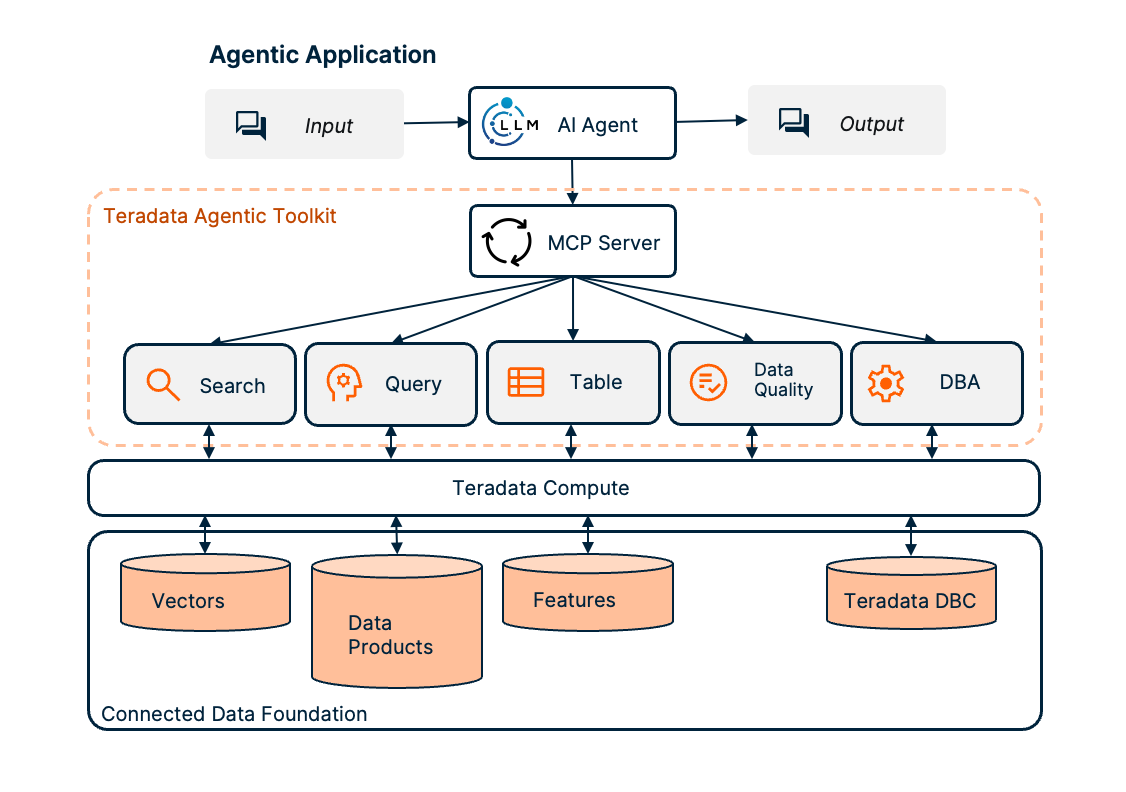
- Search tools, prompts and resources to search and manage vector stores.
- RAG Tools rapidly build RAG applications.
- Query tools, prompts and resources to query and navigate your Teradata platform:
- Table tools, to efficiently and predictably access structured data models:
- Feature Store Tools to access and manage the Teradata Enterprise Feature Store.
- Semantic layer definitions to easily implement domain-specific tools, prompts and resources for your own business data models.
- Data Quality tools, prompts and resources accelerate exploratory data analysis:
- DBA tools, prompts and resources to facilitate your platform administration tasks:
Quick start with Claude Desktop (no installation)
Prefer to use other tools? Check out our Quick Starts for VS Code/Copilot, Open WebUI, or dive into simple code examples! You can use Claude Desktop to give the Teradata MCP server a quick try, Claude can manage the server in the background using
uv. No permanent installation needed.
Pre-requisites
- Get your Teradata database credentials or create a free sandbox at Teradata Clearscape Experience.
- Install Claude Desktop.
- Install uv. If you are on MacOS, Use Homebrew:
brew install uv.
Configure the claude_desktop_config.json (Settings>Developer>Edit Config) by adding the configuration below, updating the database username, password and URL:
{
  "mcpServers": {
    "teradata": {
      "command": "uvx",
      "args": ["teradata-mcp-server"],
      "env": {
        "DATABASE_URI": "teradata://<USERNAME>:<PASSWORD>@<HOST_URL>:1025/<USERNAME>"
      }
    }
  }
}
Setting up your environment
Follow this process to install your server, connect it to your Teradata platform and integrated your tools.
Step 1. - Identify the running Teradata System, you need username, password and host details. If you do not have a Teradata system to connect to, then leverage Teradata Clearscape Experience
Step 2. - To install, configure and run the MCP server, refer to the Getting started guide, or see below for a quick CLI installation. You can easily customize the server with your own tools, prompts and resources.
Step 3. - There are many client options available, the Client Guide explains how to configure and run a sample of different clients.
Check out our documentation and libraries of curated examples or video guides.
CLI Installation
We recommend uv or pipx to install teradata-mcp-server as a CLI tool on your system.
They provide isolated environments and ensure the teradata-mcp-server command is available system-wide without interfering with system Python.
uv tool install "teradata-mcp-server"
or with pipx
pipx install "teradata-mcp-server"
To install the optional Enterprise Feature Store (fs) and Enterprise Vector Store (evs) packages:
uv tool install "teradata-mcp-server[fs,evs]"
Alternatively, you may use pip in a virtual environment (Python>=3.11):
pip install teradata-mcp-server
For usage:
teradata-mcp-server --help
Build from Source (Development)
For development or customization, you can build from source:
- Install uv. If you are on macOS, use Homebrew:
brew install uv - Clone this repository:
git clone https://github.com/Teradata/teradata-mcp-server.git - Navigate to the directory:
cd teradata-mcp-server - Run the server:
uv run teradata-mcp-server
For Claude Desktop with development build, use this configuration:
{
  "mcpServers": {
    "teradata": {
      "command": "uv",
      "args": [
        "--directory",
        "<PATH_TO_DIRECTORY>/teradata-mcp-server",
        "run",
        "teradata-mcp-server"
      ],
      "env": {
        "DATABASE_URI": "teradata://<USERNAME>:<PASSWORD>@<HOST_URL>:1025/<USERNAME>",
        "MCP_TRANSPORT": "stdio"
      }
    }
  }
}
Contributing
Please refer to the Contributing guide and the Developer Guide.
Certification
Release history Release notifications | RSS feed


Download files
Download the file for your platform. If you're not sure which to choose, learn more about installing packages.
Source Distribution
Built Distribution
Filter files by name, interpreter, ABI, and platform.
If you're not sure about the file name format, learn more about wheel file names.
Copy a direct link to the current filters
File details
Details for the file teradata_mcp_server-0.1.5.post2.tar.gz.
File metadata
- Download URL: teradata_mcp_server-0.1.5.post2.tar.gz
- Upload date:
- Size: 86.3 kB
- Tags: Source
- Uploaded using Trusted Publishing? No
- Uploaded via: twine/6.2.0 CPython/3.11.12
File hashes
| Algorithm | Hash digest | |
|---|---|---|
| SHA256 |
c6097c774d9658843701da874db43dd7de312fbeb3dd88e4a43c859857c833e0
|
|
| MD5 |
305dcc21cf643a3727f999a185ae60cd
|
|
| BLAKE2b-256 |
82900cd005ff85bbea2f121abdefb66ab649cdcb8d2cbec5bb6b4ada21d67e0f
|
File details
Details for the file teradata_mcp_server-0.1.5.post2-py3-none-any.whl.
File metadata
- Download URL: teradata_mcp_server-0.1.5.post2-py3-none-any.whl
- Upload date:
- Size: 97.1 kB
- Tags: Python 3
- Uploaded using Trusted Publishing? No
- Uploaded via: twine/6.2.0 CPython/3.11.12
File hashes
| Algorithm | Hash digest | |
|---|---|---|
| SHA256 |
9a1d652d5a1dedc96b9a44b41ea228096c2a37552920b5c19a577f63c7e6a472
|
|
| MD5 |
dbd3a52c1c0875382e485316e8894d69
|
|
| BLAKE2b-256 |
2376dce63e02f4ee1db7d57d2d9a587262b61e39cd8bea83504fc9c062b24831
|






