
tesmartctl
Command-line, HTTP, and browser control for TESmart 8×1 and 16×1 HDMI switches (HSW0801, HKS0801, HSW1601, HKS1601 and the same protocol family). It talks to the switch over its LAN port or the 3-pin RS232 port.
This is an independent project. It is not published by, or affiliated with, TESmart.
LAN control uses only the Python standard library. RS232 needs pyserial. Python 3.10 or newer. Licensed under the MIT License.
Install with pip install tesmartctl. The package is on PyPI; the source is on GitHub.
What it does
| Read | Active input, and the IP, port, gateway, and mask stored in the switch |
| Switch | Select an input by number or by a local name, or step next and previous through a list you choose |
| Peek | Show another input for a few seconds, then return. Not a cycle |
| Cycle | Walk a chosen list by hand (next / previous) or on a timer (cycle run) |
| Settings | Buzzer, front-panel display timeout, auto input detection. The switch cannot report these back |
| Address | Change the switch's IP, port, gateway, and mask, with two warnings and a read-back. Applied only after a power cycle |
| Listen | Keep one connection open: a line protocol on stdin or TCP, or HTTP URLs for Stream Deck, Companion, Home Assistant, and similar |
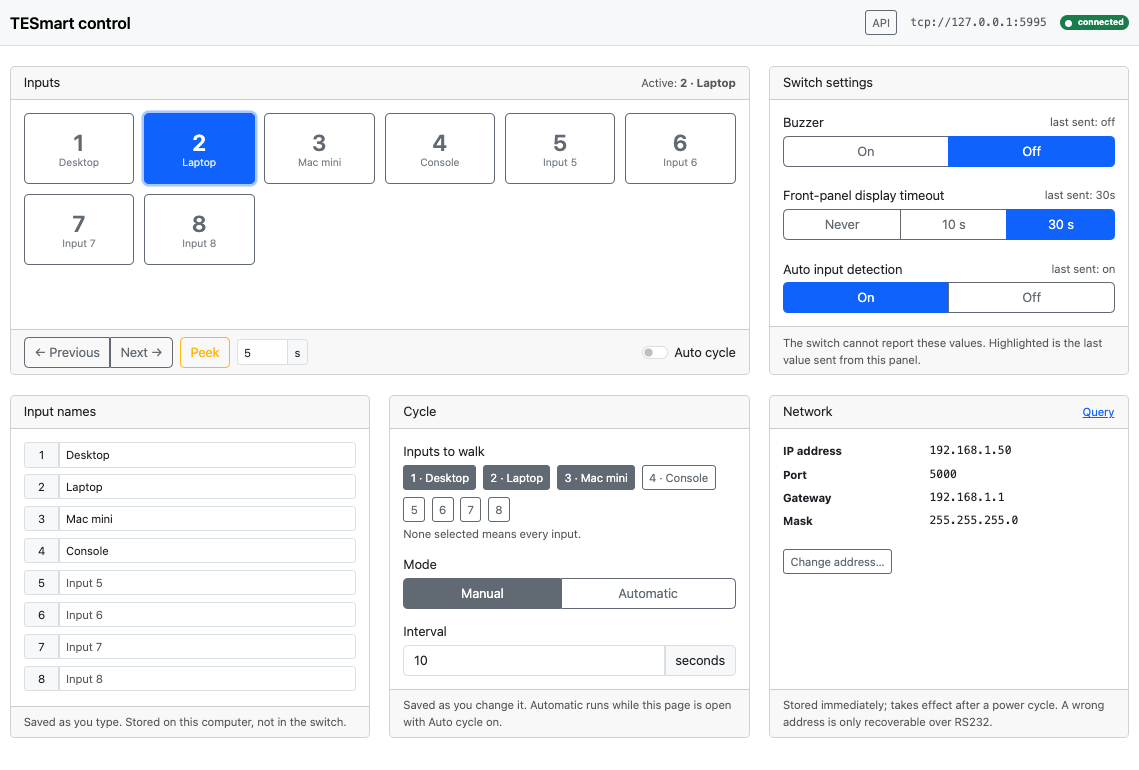
| Panel | Optional browser page at /panel (listen --http PORT --panel), including an API explorer |
The switch cannot say which HDMI inputs have a signal. A cycle is the list you configure, stored on this computer, not in the switch. Local input names are stored the same way.
| Document | What it covers |
|---|---|
| This file | Install, configuration, every command |
Docs/protocol.md |
Byte protocol the switch speaks |
Docs/listener.md |
Long-running line protocol and HTTP URLs |
Docs/panel.md |
Browser control panel at /panel |
Docs/embed.md |
Input buttons on a page you already have |
Install
From PyPI:
pip install tesmartctl               # adds the tesmartctl command
pip install 'tesmartctl[serial]'     # also installs pyserial, for the RS232 port
pip install --upgrade tesmartctl     # move to the newest release
pipx install tesmartctl works too and keeps the command out of any one project's environment.
From a clone, for working on the code:
git clone https://github.com/WBEVAN/TESmartController.git
cd TESmartController
pip install -e .                     # editable: edits in this tree take effect immediately
pip install -e '.[serial]'
Without installing, run from the repository directory:
python3 -m tesmart status
If the shell cannot find tesmartctl after install, open a new shell, or rehash your version manager. Requires Python 3.10 or newer.
Help and examples
Every command prints worked examples at the end of its --help:
tesmartctl --help              # command list plus the most common invocations
tesmartctl input --help        # flags and examples for one command
tesmartctl net set --help
tesmartctl examples            # every example for every command, in one listing
The same examples appear in this README. They are generated from one table (tesmart/examples.py), so the terminal and the docs agree.
Quick start: change inputs
From the command line:
tesmartctl input 3          # switch to HDMI 3
tesmartctl input Office     # switch by a local name (see `tesmartctl name`)
tesmartctl next             # next input in the saved cycle
tesmartctl peek 2           # look at HDMI 2 for 5 seconds, then come back
tesmartctl input            # which input is active now
From a URL, after starting the HTTP listener once (for example as a login item or a service):
tesmartctl listen --http 0.0.0.0:8080 # add --panel for the browser control panel
http://<host>:8080/input/3                 switch to HDMI 3
http://<host>:8080/input/Office            switch by local name
http://<host>:8080/next                    next input in the saved cycle
http://<host>:8080/previous                previous input
http://<host>:8080/peek/2?seconds=8        look at HDMI 2 for 8 seconds, then come back
http://<host>:8080/input                   read the active input, {"active_input": 3}
http://<host>:8080/input?format=text       same, as a bare number
<host> is the machine running tesmartctl, not the switch. Use 127.0.0.1 with a port-only --http 8080 when the controller runs on the same computer. Use 0.0.0.0:8080 to accept other devices on your network. The listener has no authentication, so only expose it to a network you trust.
Stream Deck, macro pads, and home control
Each input change is one URL or one command, so anything that can open a URL or run a shell command can drive the switch:
| Controller | How to wire one button |
|---|---|
| Elgato Stream Deck | Website action with http://127.0.0.1:8080/input/3 and "GET request in background" ticked, or a System > Open action running tesmartctl input 3. |
| Bitfocus Companion | Generic HTTP, GET http://<host>:8080/input/3. |
| Home Assistant | A rest_command (url: http://<host>:8080/input/{{ input }}) called from a button, script, or automation. A rest sensor on /input?format=text shows the active input. |
| Homebridge / HomeKit | An HTTP switch or button plugin pointed at /input/N, one accessory per input. |
| Node-RED | An http request node, GET /input/3. |
| Apple Shortcuts | Get Contents of URL with http://<host>:8080/input/3. |
| Keyboard Maestro, Hammerspoon, cron | Run tesmartctl input 3, or curl -s http://127.0.0.1:8080/input/3. |
Home Assistant example (configuration.yaml):
rest_command:
  tesmart_input:
    url: "http://192.168.1.20:8080/input/{{ input }}"
  tesmart_peek:
    url: "http://192.168.1.20:8080/peek/{{ input }}?seconds={{ seconds | default(5) }}"

sensor:
  - platform: rest
    name: TESmart active input
    resource: "http://192.168.1.20:8080/input?format=text"
    scan_interval: 10
Here 192.168.1.20 stands for the computer running the listener. Every response says which input the switch actually reports (active_input), so a controller can show the real state rather than assuming the switch obeyed. See Listener for every route.
Connection
The switch's factory address is 192.168.1.10, TCP port 5000. You can move it to another address on your network with tesmartctl net set. After that, save the new address as the CLI default so later commands do not need --host.
Each setting (host, port, serial, inputs) is resolved in this order:
- Command-line flag (
--host,--port,--serial,--inputs) - Env file
~/.config/tesmartctl/env(override the path with--env-fileorTESMART_ENV_FILE) - Environment variable, only when it is set (
TESMART_HOST,TESMART_PORT,TESMART_SERIAL,TESMART_INPUTS) - Built-in default (
192.168.1.10,5000, no serial device,8inputs)
tesmartctl config show                     # effective values and where each came from
tesmartctl config set host 192.168.1.50    # also: port, serial, inputs
tesmartctl config unset host
tesmartctl config path
Input names are local. The switch cannot store them. They are written to the same env file as TESMART_NAME_1=Office and appear in status, input, and rotate.
tesmartctl name set 2 Office
tesmartctl name set 1 "Living room"
tesmartctl name list
tesmartctl name unset 1
tesmartctl input Office          # select by the local name
The env file is plain KEY=VALUE lines (TESMART_HOST=192.168.1.50) and can be edited by hand. --serial /dev/tty.usbserial-xxx uses RS232 at 9600 8N1 instead of LAN. --inputs 16 is for a 16×1. --timeout 1.5 is how long a reply is awaited. --json prints JSON from the one-shot commands.
Global flags go before the subcommand: tesmartctl --host 192.168.1.50 status.
What the switch will report
| Setting | Read | Write |
|---|---|---|
| Active input (1–8, or 1–16) | yes | yes, and the switch reports the input it actually selected |
| LAN IP, TCP port, gateway, mask | yes | yes, applied only after a power cycle |
| Buzzer | no | yes |
| Front-panel LED timeout (never, 10s, 30s) | no | yes |
| Auto input detection | no | yes |
Buzzer, LED timeout, and auto-detect accept a set command and send nothing back. A successful command means the bytes were sent, not that the value was read back.
The switch drops or garbles commands sent faster than about once a second. tesmartctl waits that long between writes on one connection.
This is an 8-input, 1-output switch. The protocol can read the selected input and cannot read which inputs have a signal, so it cannot calculate which sources are connected. The front-panel LEDs show that locally. rotate therefore walks every input from 1 to 8, or an explicit list you pass with --only.
Commands
Read
tesmartctl status                 # active input plus saved LAN settings
tesmartctl status --json
tesmartctl status --no-network    # skip the four LAN queries
tesmartctl input                  # active input only
tesmartctl net show               # IP, port, gateway, mask
tesmartctl monitor                # print the input whenever it changes
status looks like:
Endpoint:      tcp://192.168.1.50:5000
Active input:  2 (Office) of 8
Input names (stored locally, not on the switch):
  1  Living room
  2  Office
Network (persisted; applied after power cycle):
  IP:          192.168.1.50
  Port:        5000
  Gateway:     192.168.1.1
  Mask:        255.255.255.0
Cycle:         manual (next/previous); 1, 2, 4 (chosen inputs)
Peek:          5s on another input, then back (`peek N`)
The cycle is stored on this machine. manual moves only when you ask for next or previous. automatic is the same list on a timer, and it starts only while cycle run is running. With no saved list the cycle is every input.
Peek is not a cycle. peek 3 shows input 3 for a few seconds and then returns to the input that was active. The duration is stored on this machine.
monitor stays running and prints a new line when the front panel, the remote, auto-detect, or another client changes the input. Ctrl-C stops it.
Change the input
tesmartctl input 3                # switch to HDMI 3 and read it back
tesmartctl input 3 --no-verify    # send the command and do not read it back
tesmartctl cycle inputs 1,2,4              # save the inputs to walk
tesmartctl cycle mode manual               # next and previous only
tesmartctl next                            # Office -> next chosen input
tesmartctl previous
tesmartctl cycle mode automatic --every 15 # then start the timer:
tesmartctl cycle run
tesmartctl --json input 3
Inputs are 1-based. The command exits non-zero when the switch reports a different input than the one requested. input 9 is rejected locally and is not sent.
Peek at another input
tesmartctl peek 3                 # show input 3 for 5 seconds, then come back
tesmartctl peek Office --seconds 10
tesmartctl peek 3 --seconds 8 --save   # and make 8 seconds the default
peek flips to the input, waits, and flips back to the one that was active. Ctrl-C comes back at once. If the input is changed by something else during the peek (front panel, remote, another client), peek leaves that choice alone, reports it, and exits non-zero. The default duration is 5 seconds, stored as TESMART_PEEK_SECONDS in the env file.
The listener can also make the next ordinary input change a peek, so a button that calls /input/3 peeks instead of sticking. GET /peek/once arms a single change. GET /peek/always keeps doing it until GET /peek/off. Detail is in Docs/listener.md.
Write-only settings
tesmartctl buzzer off             # on | off
tesmartctl led 10                 # never | 10 | 30   (seconds)
tesmartctl autodetect on          # on | off
Accepted words for on/off also include 1/0, true/false, enable/disable, unmute/mute.
LAN address
tesmartctl net set \
  --ip 192.168.1.50 --gateway 192.168.1.1 --mask 255.255.255.0 --yes
tesmartctl net show               # read the stored values back before rebooting
--tcp-port sets the switch's own listen port (factory 5000). Each value is stored immediately and used only after the switch is power-cycled. There is no factory reset for these settings.
Risk notice. A wrong IP address, port, gateway, or mask makes the switch unreachable over the network, and recovery is only possible with a serial (RS232) cable. This software sends the values exactly as entered; it cannot check that they are valid for your network, cannot undo the change, and cannot recover a switch that is no longer reachable. You change these settings at your own risk. This software and its authors accept no liability for any loss, damage, downtime, or cost that results from doing so.
net set warns twice: without --yes it prints the notice and refuses; with --yes it prints the notice again, writes, then reads every value back from the switch and reports whether each one is stored or a MISMATCH. The exit code is 0 only when every value reads back as requested. Until the switch is power-cycled it keeps answering on its current address, so a mismatch can still be corrected.
--save-default writes the new --ip and --tcp-port into the CLI env file after the read-back confirms them, so later commands follow the switch to the new address.
Raw bytes
tesmartctl raw AA BB 03 10 00 EE
# Sent:     AA BB 03 10 00 EE
# Received: AA BB 03 11 01 EE
#   frame cmd=0x11 value=0x01 term=0xEE -> input 2
--listen 3 waits longer for the reply. See Docs/protocol.md for the frame layout. The input query value is 0-based in the reply (0x01 is input 2).
Listener
listen keeps one connection open. Use it when something else (a script, nc, a browser, a home-automation "open URL" action) needs to change inputs without starting a new process each time. Full detail is in Docs/listener.md.
tesmartctl listen                         # one command per line on stdin
printf 'get\nset 3\nquit\n' | tesmartctl listen

tesmartctl listen --bind 9753             # raw TCP on this computer only, 127.0.0.1:9753
tesmartctl listen --bind 0.0.0.0:9753     # raw TCP on every interface
echo set 4 | nc 127.0.0.1 9753            # prints the input the switch reports

tesmartctl listen --http 8080             # HTTP on this computer only, http://127.0.0.1:8080/
tesmartctl listen --http 0.0.0.0:8080     # HTTP on every interface; other devices use this computer's address
tesmartctl listen --http 0.0.0.0:8080 --panel
--bind and --http cannot be combined. Run two processes if you want both. A port number alone binds 127.0.0.1, so only this computer can connect. 0.0.0.0 accepts every network interface. Other devices then use the address of the computer running tesmartctl, for example http://192.168.1.20:8080/input/3. There is no authentication, so only do this on a network you trust.
--panel is off unless you add it. It serves a browser page for selecting inputs, stepping the cycle, peeking, and the switch settings the vendor Windows controller exposes (buzzer, front-panel display timeout, auto input detection, LAN address). Detail is in Docs/panel.md.
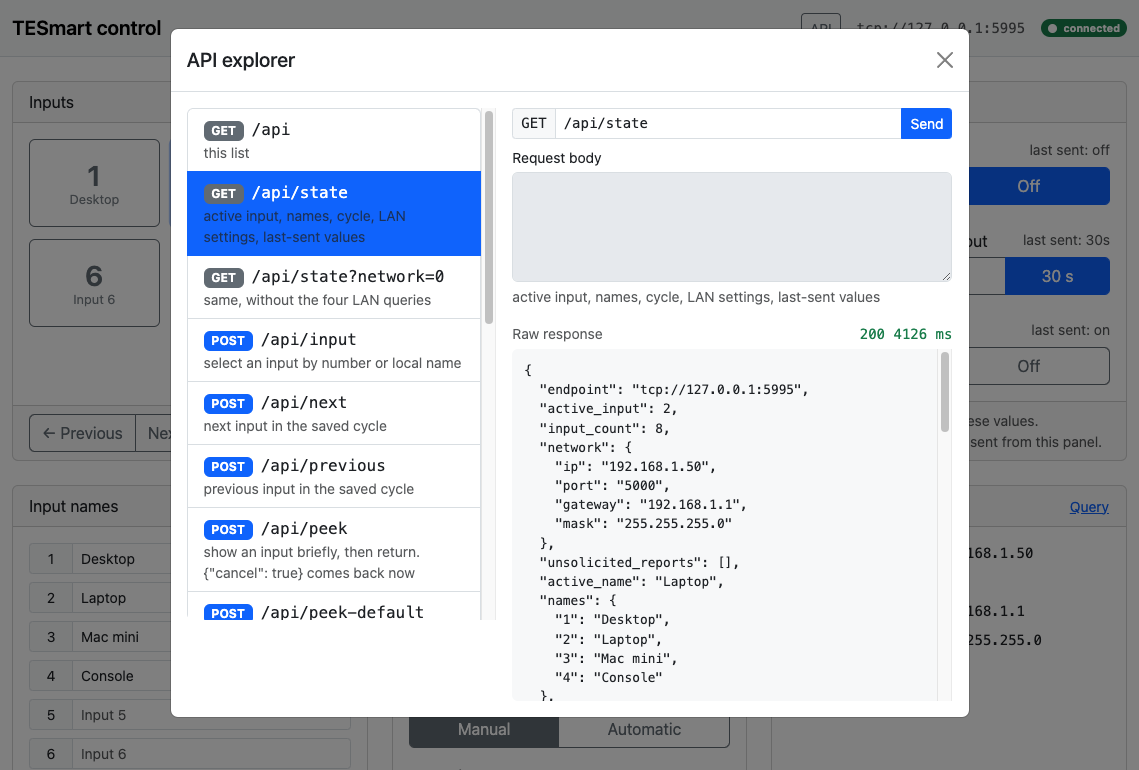
The API button in the top bar opens an explorer that lists every /api route, sends it, and shows the raw status and body the listener returned.
Line commands: get (also port, status, ?) prints the active input; set 3, set Office, or just 3 switches and prints the input the switch reports; next or rotate 1,2,4 moves to the next input; peek 3 or peek 3 10 shows an input briefly and replies once back; quit closes the session. --json makes each reply one JSON object. The line command status is only the active input. The full readable status is the HTTP route and tesmartctl status.
A full session on stdin:
$ tesmartctl listen
Command listener on stdin for tcp://192.168.1.50:5000 (Ctrl-C or 'quit' to stop).
commands: get | set <n> | <n> | next | previous | rotate [1,2,4] | peek <n> [seconds] | quit
get
2
set 3
3
Office
2
next
3
quit
HTTP routes, GET or POST:
http://127.0.0.1:8080/                       list of routes
http://127.0.0.1:8080/input                  {"active_input": 2}
http://127.0.0.1:8080/status                 input plus saved IP, port, gateway, mask
http://127.0.0.1:8080/status?network=0       input only, skips the LAN queries
http://127.0.0.1:8080/status?format=text     same fields as plain lines
http://127.0.0.1:8080/rotate                 next input; {"previous": 2, "active_input": 3}
http://127.0.0.1:8080/rotate?only=1,2,4     next input within that list
http://127.0.0.1:8080/input?rotate=1        same as /rotate
http://127.0.0.1:8080/peek/3                 show 3 for the saved seconds, then back; replies once back
http://127.0.0.1:8080/peek?input=3&seconds=8 same with an explicit duration
http://127.0.0.1:8080/peek/once              the next input change peeks, then later changes stick
http://127.0.0.1:8080/peek/always            every plain input change peeks until /peek/off
http://127.0.0.1:8080/peek/off               plain input changes stick again
http://127.0.0.1:8080/input?set=3            {"active_input": 3, "requested": 3}
http://127.0.0.1:8080/input/3                same as /input?set=3
http://127.0.0.1:8080/input/Office           switch by a local name
http://127.0.0.1:8080/set?input=3            same as /input?set=3
http://127.0.0.1:8080/get                    same as /input
http://127.0.0.1:8080/input/3?format=text    3
active_input is what the switch reports after the change. Compare it with requested when they might differ. 400 is a bad number or a switch rejection, 404 is an unknown route, 502 means the switch connection failed. /status takes a few seconds because each LAN query is paced.
Library
from tesmart import TcpTransport, TesmartSwitch, LedTimeout

with TesmartSwitch(TcpTransport("192.168.1.50")) as sw:
    print(sw.get_active_input())
    sw.set_input(4)
    sw.set_buzzer(False)
    sw.set_led_timeout(LedTimeout.SECONDS_30)
    sw.set_auto_detect(True)
    print(sw.read_status())
SerialTransport("/dev/tty.usbserial-xxx") is the RS232 equivalent and imports pyserial.
Layout
| Path | Responsibility |
|---|---|
tesmart/protocol.py |
Hex and ASCII encode/decode, no I/O |
tesmart/transport.py |
TCP and serial transports |
tesmart/switch.py |
Device operations, receive buffer, command pacing |
tesmart/config.py |
Flag, env file, environment variable, default |
tesmart/peek.py |
Peek: flip to an input, wait, flip back |
tesmart/listener.py |
Stdin and raw-TCP command listener |
tesmart/web.py |
HTTP routes |
tesmart/panel.py |
/panel and its /api routes, only with --panel |
tesmart/static/ |
Panel HTML, CSS, and JS |
tesmart/cli.py |
tesmartctl argument parsing and output |
tesmart/examples.py |
Worked examples shown by --help and tesmartctl examples |
Docs/protocol.md |
Wire protocol |
Docs/listener.md |
Line protocol and HTTP routes |
Docs/panel.md |
Browser control panel |
Docs/embed.md |
Input buttons on another page |
examples/buttons/ |
Sample page of input links, no script or framework |
Docs/images/ |
Screenshots used in the documentation |
LICENSE |
MIT License |
License
MIT. This software is provided as is, without warranty. Changing the switch's network address can make it unreachable over the LAN; that risk, and the absence of any liability for it, is spelled out in LAN address and in the panel before a write is accepted.
1 maintainer

Metadata
1 maintainer
Release files for tesmartctl 0.0.7.4
For a detailed explanation of source distributions (sdists) and built distributions (wheels), please see the package formats documentation.
Source distribution (sdist)
| File | Size | Uploaded | |
|---|---|---|---|
| tesmartctl-0.0.7.4.tar.gz | 67.2 kB | Details |
Built distribution (wheel)
| File | Interpreter | ABI | Platform | Reset |
|---|---|---|---|---|
| tesmartctl-0.0.7.4-py3-none-any.whl | Python 3 | none | any | Details |
Total release size: 134.2 kB
Release files / tesmartctl-0.0.7.4.tar.gz
| Download URL | tesmartctl-0.0.7.4.tar.gz |
|---|---|
| Size | 67.2 kB |
| Tags | Source |
|
SHA-256 checksum How to use checksums |
77e9520caec7df1e0a0432d70e03778d7306246a302d7e76a94e216df84bc566
|
|
BLAKE2b-256 checksum How to use checksums |
4c9212d4fb52aa006221f138424e305aca2f96be5f69400271f62b2446156262
|
| Upload date | |
|
Uploaded using Trusted Publishing? What is trusted publishing? |
No |
| Uploaded via |
twine/7.0.0 CPython/3.12.4
|
Release files / tesmartctl-0.0.7.4-py3-none-any.whl
| Download URL | tesmartctl-0.0.7.4-py3-none-any.whl |
|---|---|
| Size | 67.0 kB |
| Tags | Python 3 |
|
SHA-256 checksum How to use checksums |
58c372222980e5af81a34975719fc456ad254d9409f36c761fffe3fccea56154
|
|
BLAKE2b-256 checksum How to use checksums |
efb3d07d331d272e1c6f74a3f6cfd69070d67a9d8490ca4562d7e375c4fb0fce
|
| Upload date | |
|
Uploaded using Trusted Publishing? What is trusted publishing? |
No |
| Uploaded via |
twine/7.0.0 CPython/3.12.4
|














