
textual-cmdorc: TUI Frontend for cmdorc Command Orchestration




A simple, embeddable TUI frontend for cmdorc, displaying commands in a flat list with real-time status updates, manual controls, and file watching.
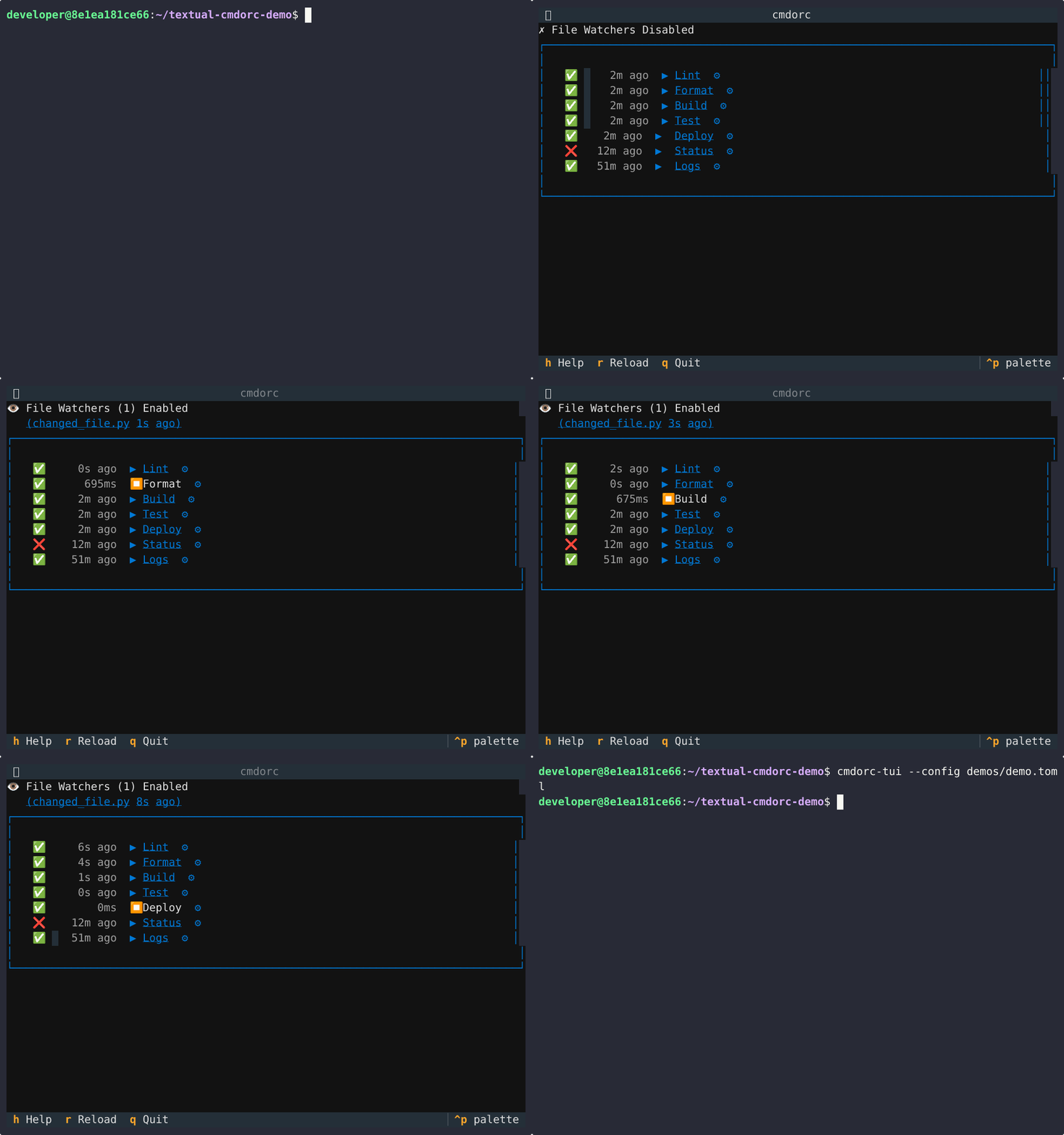
Key Design: Clean architecture with two layers:
CmdorcWidget: Composable widget for embedding in multi-panel layoutsCmdorcApp: Standalone app (wraps CmdorcWidget with Header/Footer)OrchestratorAdapter: Framework-agnostic backend for headless/custom UIs
Ideal for: Developer tools, automation monitoring, CI/CD interfaces, or as a widget in larger TUIs.
Features
Core Functionality
- 📂 TOML Configuration: Load cmdorc configs (e.g., config.toml) for dynamic command lists
- 📋 Flat List Display: Commands shown in TOML order using textual-filelink's CommandLink widgets
- 🔄 Real-time Status: Icons (◯/⏳/✅/❌) and dynamic tooltips showing command state
- 🖱️ Interactive Controls: Play/stop buttons for manual command execution
- 🔧 File Watching: Auto-trigger commands on file changes via watchdog (configurable in TOML)
- ⚡ Trigger Chains: Commands automatically trigger other commands based on success/failure
UX Enhancements
- 💡 Smart Tooltips: Two tooltip systems for maximum clarity
- Status icons (◯/⏳/✅/❌): Show trigger sources, keyboard hints, and last run details
- Play/Stop buttons (▶️/⏹️): Display resolved command preview (e.g.,
pytest ./tests -v)
- 📊 Command Details Modal: Press
[s]or click settings icon (⚙️) to view comprehensive command info- Status, run history, triggers, output preview, configuration
- Keyboard actions:
[o]open output,[r]run,[c]copy command,[e]edit (coming soon) - Live updates every 2 seconds while modal is open
- ⌨️ Global Keyboard Shortcuts: Configurable hotkeys (1-9, a-z, f1-f12) to run/stop commands
- 🎯 Help Screen: Press
[h]to see all keyboard shortcuts - 🔄 Live Reload: Press
[r]to reload configuration without restarting - 👁️ File Watcher Toggle: Press
[w]or click status line to enable/disable file watchers- Status line shows:
👁️ File Watchers (N) Enabledor✗ File Watchers Disabled - Watchers stay running but triggers are disabled when off
- Useful when making bulk file changes without triggering commands
- Status line shows:
Embedding & Extensibility
- 🔗 Embeddable Widget: Use CmdorcWidget in multi-column layouts or complex UIs
- 🎛️ Framework Agnostic Backend: OrchestratorAdapter has no Textual dependencies
- 📦 Simple Integration: Import CmdorcApp for standalone or CmdorcWidget for embedding
Quick Start
Standalone App
# Install
pip install textual-cmdorc

# Auto-generate config.toml and launch
cmdorc-tui

# Use single config file
cmdorc-tui dev.toml

# Multiple files = switchable configs (shows dropdown)
cmdorc-tui dev.toml deploy.toml

# Or use --config flag for named configs
cmdorc-tui --config my-config.toml
Multi-Config Support
Support multiple named configurations via cmdorc-tui.toml:
# First config is the default
[[config]]
name = "Development"
files = ["./dev.toml", "./build.toml", "./test.toml"]

[[config]]
name = "Build Only"
files = ["./build.toml"]
CLI Commands:
# List available named configs
cmdorc-tui --list-configs

# Validate cmdorc-tui.toml
cmdorc-tui --validate

# Auto-generate cmdorc-tui.toml from existing TOML files
cmdorc-tui --init-configs

# Start with named config
cmdorc-tui --config "Development"
UI Features:
- Config switcher dropdown (appears with 2+ configs)
- File separators showing source file between commands
- Keyboard shortcut
Ctrl+Kto cycle configs - Active config saved and restored on restart
Programmatic Usage
from textual_cmdorc import CmdorcApp

app = CmdorcApp(config_path="config.toml")
app.run()
Embedding in 3-Column Layouts
Use CmdorcWidget for clean embedding in multi-panel UIs:
from textual.app import App, ComposeResult
from textual.containers import Horizontal
from textual.widgets import Header, Footer, Static
from textual_cmdorc import CmdorcWidget

class My3ColumnApp(App):
    def compose(self) -> ComposeResult:
        yield Header()

        with Horizontal():
            yield Static("Left Panel", classes="panel")
            yield CmdorcWidget("config.toml")  # Center: command orchestration
            yield Static("Right Panel", classes="panel")

        yield Footer()

app = My3ColumnApp()
app.run()
See examples/embedding_3column.py for a complete example.
Advanced: Custom UI with OrchestratorAdapter
For headless scenarios or completely custom UIs, use OrchestratorAdapter directly:
from textual.app import App, ComposeResult
from textual.widgets import Header, Footer, Static
from textual_filelink import CommandLink, FileLinkList
from cmdorc_frontend.orchestrator_adapter import OrchestratorAdapter
import asyncio

class MyApp(App):
    """Custom TUI using OrchestratorAdapter."""

    def compose(self) -> ComposeResult:
        yield Header()

        # Create adapter (loads config, creates orchestrator)
        self.adapter = OrchestratorAdapter(config_path="config.toml")

        # Build your own UI with CommandLink widgets
        self.file_list = FileLinkList(show_toggles=False, show_remove=False)
        yield self.file_list

        yield Footer()

    async def on_mount(self):
        # Attach adapter to event loop
        loop = asyncio.get_running_loop()
        self.adapter.attach(loop)

        # Populate list with commands
        for cmd_name in self.adapter.get_command_names():
            link = CommandLink(
                command_name=cmd_name,
                output_path=None,
                initial_status_icon="◯",
                initial_status_tooltip=f"Run {cmd_name}"
            )
            self.file_list.add_item(link)

        # Wire callbacks (update UI on command events)
        for cmd_name in self.adapter.get_command_names():
            self.adapter.on_command_success(
                cmd_name,
                lambda h, name=cmd_name: self._on_success(name, h)
            )

    async def on_unmount(self):
        self.adapter.detach()

    def _on_success(self, name, handle):
        # Update UI when command succeeds
        # (implement your own UI update logic here)
        pass
For headless/programmatic use (no UI), see the OrchestratorAdapter API below.
Configuration
textual-cmdorc extends cmdorc's TOML format with optional keyboard shortcuts, editor configuration, and file watchers:
# Standard cmdorc config
[[command]]
name = "Lint"
command = "ruff check --fix ."
triggers = ["py_file_changed"]

[[command]]
name = "Format"
command = "ruff format ."
triggers = ["command_success:Lint"]

[[command]]
name = "Tests"
command = "pytest ."
triggers = ["command_success:Format"]

# Optional: Keyboard shortcuts
[keyboard]
shortcuts = { Lint = "1", Format = "2", Tests = "3" }
enabled = true
show_in_tooltips = true

# Optional: Editor configuration
[editor]
command_template = "code --goto {{ path }}:{{ line }}:{{ column }}"  # VSCode (default)
# command_template = "vim {{ line_plus }} {{ path }}"                # Vim
# command_template = "subl {{ path }}:{{ line }}:{{ column }}"       # Sublime Text

# Optional: File watchers
[[file_watcher]]
dir = "./src"
extensions = [".py"]
recursive = true
trigger_emitted = "py_file_changed"
debounce_ms = 300
ignore_dirs = ["__pycache__", ".git"]
Run cmdorc-tui without a config file to auto-generate a starter config.
Editor Configuration
Configure which editor opens when you click file links (output files, config files):
Template Variables:
{{ path }}- Full file path{{ line }},{{ column }}- Line/column numbers{{ line_plus }}- +42 format (vim-style){{ line_colon }}- :42 format{{ path_relative }},{{ path_name }}- Relative path and filename only
Built-in Templates:
- VSCode (default):
"code --goto {{ path }}:{{ line }}:{{ column }}" - Vim:
"vim {{ line_plus }} {{ path }}" - Sublime Text:
"subl {{ path }}:{{ line }}:{{ column }}" - Nano:
"nano {{ line_plus }} {{ path }}"
See textual-filelink docs for full template reference.
Logging
By default, cmdorc-tui runs silently (no logging). Enable file-based logging for debugging:
# Enable file logging (writes to .cmdorc/logs/cmdorc-tui.log)
cmdorc-tui --log-file

# With specific log level
cmdorc-tui --log-file --log-level INFO

# Include cmdorc and textual-filelink logs (for debugging dependencies)
cmdorc-tui --log-file --log-all

# Backward compatible: -v is an alias for --log-file
cmdorc-tui -v
Log Levels:
DEBUG- Detailed activity (default when --log-file is used)INFO- High-level operationsWARNING- Non-critical issuesERROR- Failures and exceptions
Log Location: .cmdorc/logs/cmdorc-tui.log
- Rotating log files (10MB max, 5 backups)
- Automatically creates directory if needed
Programmatic Logging
When embedding CmdorcWidget or using OrchestratorAdapter, enable logging before creating widgets:
from textual_cmdorc import setup_logging, CmdorcWidget

# Enable file logging for debugging
setup_logging()

# Or configure with options
setup_logging(level="INFO", log_all=True)

widget = CmdorcWidget("config.toml")
Disable logging (useful for tests):
from textual_cmdorc import disable_logging

disable_logging()
Debugging File Watchers
If file watchers aren't triggering commands automatically, use these debugging steps:
View File Watcher Activity
# Normal mode (silent - no logs)
cmdorc-tui

# Enable logging to see file watcher activity
cmdorc-tui --log-file

# View the log file in real-time
tail -f .cmdorc/logs/cmdorc-tui.log
Common Issues
File watchers not starting:
- Verify
watchdogis installed:pip list | grep watchdog - Check that watch directory exists in your config
- Run with
--log-fileto see startup errors in the log
Commands not triggering on file changes:
- Verify trigger name matches between
trigger_emittedin[[file_watcher]]andtriggersin[[command]]sections - Check pattern syntax: use
**/*.pyfor all Python files at any depth - Ensure file changes aren't in ignored directories (
__pycache__,.git, etc.) - Use
--log-fileto see if file changes are detected
Commands re-triggering themselves (running twice):
This is a common gotcha when using auto-fixing commands with file watchers. If your command modifies watched files, it will trigger the file watcher again, causing a loop.
Example scenario:
[[file_watcher]]
dir = "."
extensions = [".py"]
trigger_emitted = "py_file_changed"

[[command]]
name = "Lint"
command = "ruff check --fix ."  # This modifies .py files!
triggers = ["py_file_changed"]

[[command]]
name = "Format"
command = "ruff format ."  # This also modifies .py files!
triggers = ["command_success:Lint"]
What happens:
- You save a file →
py_file_changedfires → Lint runs - Lint fixes files with
--fix→ file watcher detects changes - After debounce (300ms) →
py_file_changedfires again → Lint runs again - This can repeat if Format also modifies files
How to identify this:
- Watch the "last changed file" display on the watcher status line:
👁️ File Watchers (1) Enabled src/app.py 2s ago - If the file shown is one that your command modifies (not the file you edited), you're seeing self-triggering
Solutions:
-
Use cmdorc's retrigger policies - Set
on_retrigger = "skip"to ignore triggers while the command is running:[[command]] name = "Lint" command = "ruff check --fix ." triggers = ["py_file_changed"] on_retrigger = "skip" # Ignore new triggers while running
-
Disable watchers during bulk changes - Press
[w]to toggle file watchers off, make your changes, then toggle back on -
Increase debounce time - Set a longer
debounce_msto allow commands to complete:[[file_watcher]] debounce_ms = 5000 # 5 seconds
-
Separate watch directories - Watch only
src/but run commands on the whole project
Example log output (when file watcher triggers):
2026-01-05 10:23:45 | DEBUG    | cmdorc_frontend.file_watcher:45 | File event detected: modified src/app.py
2026-01-05 10:23:45 | INFO     | cmdorc_frontend.file_watcher:52 | File watcher triggered: py_file_changed → ['Lint', 'Format']
2026-01-05 10:23:45 | INFO     | textual_cmdorc.orchestrator:28 | Command started: Lint (trigger: py_file_changed)
Using Textual Console for Live Monitoring
For even more detailed debugging, use Textual's console in a separate terminal:
# Terminal 1: Start textual console
textual console

# Terminal 2: Run cmdorc-tui with logging
cmdorc-tui --log-file
All logs will appear in the console terminal, including file system events and trigger chains, without interfering with the TUI display.
Architecture
CmdorcWidget (Composable Widget)
A Textual Widget that:
- Loads config and creates
OrchestratorAdapter - Builds a
FileLinkListwithCommandLinkwidgets in TOML order - Wires lifecycle callbacks to update UI on command state changes
- Binds keyboard shortcuts to commands
- Can be embedded anywhere in a Textual app (e.g., 3-column layouts)
CmdorcApp (Standalone TUI)
A thin wrapper around CmdorcWidget that adds:
- Header and Footer widgets
- Global actions (help screen, config reload, quit)
OrchestratorAdapter (Framework-Agnostic Backend)
A non-Textual adapter that:
- Wraps cmdorc's
CommandOrchestratorwith a simpler API - Manages file watchers and triggers
- Provides
request_run()/request_cancel()for thread-safe command control - Emits lifecycle callbacks:
on_command_success,on_command_failed,on_command_cancelled - No Textual dependencies—reusable in headless scenarios or other UI frameworks
API Reference
CmdorcApp
from textual_cmdorc import CmdorcApp

app = CmdorcApp(config_path="config.toml")
app.run()
Key Methods:
__init__(config_path: str)- Initialize with TOML config pathcompose()- Build UI (called by Textual)on_mount()- Populate commands and wire callbacks (called by Textual)action_toggle_command(cmd_name: str)- Run/stop command (keyboard shortcuts)action_reload_config()- Reload config from diskaction_show_help()- Show help screen with keyboard shortcuts
OrchestratorAdapter
Use OrchestratorAdapter for headless scenarios or custom UI frameworks:
import asyncio
from cmdorc_frontend.orchestrator_adapter import OrchestratorAdapter

async def main():
    # Create adapter (loads config, creates orchestrator)
    adapter = OrchestratorAdapter(config_path="config.toml")

    # Attach to event loop (starts file watchers)
    loop = asyncio.get_running_loop()
    adapter.attach(loop)

    # Register callbacks
    adapter.on_command_success("Tests", lambda h: print(f"✅ Tests passed in {h.duration_str}"))
    adapter.on_command_failed("Tests", lambda h: print(f"❌ Tests failed: {h.return_code}"))

    # Execute commands
    await adapter.run_command("Lint")  # Async execution
    adapter.request_run("Tests")  # Thread-safe (returns immediately)

    # Wait for commands to complete...
    await asyncio.sleep(5)

    # Cleanup
    adapter.detach()

asyncio.run(main())
Key Methods:
attach(loop: asyncio.AbstractEventLoop)- Attach to event loop and start watchersdetach()- Stop watchers and cleanuprequest_run(name: str)- Thread-safe command execution requestrequest_cancel(name: str)- Thread-safe command cancellation requestrun_command(name: str)- Async command executioncancel_command(name: str)- Async command cancellationget_command_names()- Get all command names in TOML orderenable_watchers()- Enable file watcher triggersdisable_watchers()- Disable file watcher triggersare_watchers_enabled()- Check if watcher triggers are enabledget_watcher_count()- Get number of configured watcherson_command_success(name: str, callback: Callable)- Register success callbackon_command_failed(name: str, callback: Callable)- Register failure callbackon_command_cancelled(name: str, callback: Callable)- Register cancellation callback
Logging Utilities
from textual_cmdorc import setup_logging, disable_logging, get_log_file_path

# Configure logging
setup_logging(
    level="DEBUG",           # Logging level (default: DEBUG)
    log_dir=".cmdorc/logs",  # Log directory (default)
    log_filename="cmdorc-tui.log",  # Log file name (default)
    max_bytes=10 * 1024 * 1024,  # Max file size before rotation (default: 10MB)
    backup_count=5,          # Number of backup files (default: 5)
    format="detailed",       # "simple" or "detailed" (default: detailed)
    log_all=False,           # Also log cmdorc + textual-filelink (default: False)
)

# Disable all logging
disable_logging()

# Get log file path
log_path = get_log_file_path()  # Returns Path to log file
Key Points:
- Silent by default (NullHandler)
- File-only logging (no console output to avoid interfering with TUI)
- Automatic log rotation (10MB files, 5 backups)
- Configures both
textual_cmdorcandcmdorc_frontendnamespaces - Optionally enables logging for
cmdorcandtextual_filelinkpackages
Development
# Setup
git clone https://github.com/eyecantell/textual-cmdorc.git
cd textual-cmdorc
pdm install -G test -G lint -G dev

# Run tests
pdm run pytest --cov

# Lint
pdm run ruff check .

# Format
pdm run ruff format .

# Run app
pdm run cmdorc-tui
Architecture Decisions
Why Flat List Instead of Tree?
The original design used a hierarchical tree to visualize trigger relationships. After extensive development (137 tests, ~2000 lines), we simplified to a flat list because:
- Simpler mental model: Command order matches TOML file order
- Less code: Reduced from ~2000 lines to ~500 lines
- Easier to maintain: No tree reconciliation, cycle detection, or duplicate handling
- Still functional: Trigger chains work via cmdorc, tooltips show relationships
Why CmdorcWidget + CmdorcApp Instead of Controller+View Split?
The original embeddable architecture split concerns into CmdorcController (non-Textual) and CmdorcView (Textual widget). The new design simplifies to:
- CmdorcWidget + CmdorcApp: Composable widget for embedding, wrapped by CmdorcApp for standalone use
- OrchestratorAdapter: Framework-agnostic backend for advanced embedding
This is simpler for 90% of use cases while still supporting headless/custom UI scenarios via OrchestratorAdapter.
Project Status
Completed
- ✅ Flat list display with CommandLink widgets
- ✅ Real-time status updates (icons, tooltips)
- ✅ Keyboard shortcuts (configurable, conflict detection)
- ✅ File watchers (watchdog integration)
- ✅ File watcher toggle (enable/disable triggers on-the-fly)
- ✅ Help screen (modal with shortcuts)
- ✅ Command details modal (comprehensive command information)
- ✅ Config reload (live without restart)
- ✅ CLI with auto-config generation
- ✅ Logging infrastructure (file-based, silent by default)
- ✅ 360+ passing tests
Known Limitations
- No log pane (use terminal output instead)
- No hierarchical tree display
- Commands shown in TOML order only (no custom sorting)
License
MIT License. See LICENSE for details.
Known Issues
- When a command is retriggered with
on_retrigger = "cancel_and_restart", the status briefly shows as cancelled before updating to show the new run. The final status is correct once the command completes.
Contributing
Contributions welcome! Please:
- Open an issue first for major changes
- Follow existing code style (ruff format)
- Add tests for new features
- Update documentation
Credits
- Built with Textual
- Uses cmdorc for command orchestration
- Uses textual-filelink for command widgets
- File watching via watchdog
1 maintainer

Metadata
1 maintainer
Release files for textual-cmdorc 0.2.1
For a detailed explanation of source distributions (sdists) and built distributions (wheels), please see the package formats documentation.
Source distribution (sdist)
| File | Size | Uploaded | Provenance | |
|---|---|---|---|---|
| textual_cmdorc-0.2.1.tar.gz | 97.7 kB | Without provenance | Details |
Built distribution (wheel)
| File | Interpreter | ABI | Platform | Reset |
|---|---|---|---|---|
| textual_cmdorc-0.2.1-py3-none-any.whl | Python 3 | none | any | Details |
Total release size: 165.3 kB
Release files / textual_cmdorc-0.2.1.tar.gz
| Download URL | textual_cmdorc-0.2.1.tar.gz |
|---|---|
| Size | 97.7 kB |
| Tags | Source |
|
SHA-256 checksum How to use checksums |
4aefcc3a11d0b003073a77a397b812b5c92f1c4d9b5f184944732658dc326d62
|
|
BLAKE2b-256 checksum How to use checksums |
518d51610267c4a6b271d1b0944ac7ee781d0a0a32b67af68e3e4b678695e6d3
|
| Upload date | |
|
Uploaded using Trusted Publishing? What is trusted publishing? |
No |
| Uploaded via |
pdm/2.26.4 CPython/3.12.12 Linux/5.15.167.4-microsoft-standard-WSL2
|
Release files / textual_cmdorc-0.2.1-py3-none-any.whl
| Download URL | textual_cmdorc-0.2.1-py3-none-any.whl |
|---|---|
| Size | 67.6 kB |
| Tags | Python 3 |
|
SHA-256 checksum How to use checksums |
cb69e3650de7c87f273b89dd28feb647d81a7b7f7ebd4627513cd84e474c8c73
|
|
BLAKE2b-256 checksum How to use checksums |
2f6b1b5a88a9e491870d02ac2fd7a51f3727e2a6aa8c0f36551b02ee280b1615
|
| Upload date | |
|
Uploaded using Trusted Publishing? What is trusted publishing? |
No |
| Uploaded via |
pdm/2.26.4 CPython/3.12.12 Linux/5.15.167.4-microsoft-standard-WSL2
|
Security for textual-cmdorc 0.2.1
Provenance
Provenance describes where a file came from. On PyPI, provenance is shared via attestations, which provide a verifiable record of the build or publishing details. View details, limitations and caveats.
No provenance found
None of the files in this release were uploaded with provenance metadata.
A note on package security
PyPI is a repository for distributing packages, not a service for auditing them. While third-party security researchers and our staff do their best to detect and remove malicious packages, PyPI cannot guarantee the quality, security or suitability of any given package.














