
A Sliding Container widget for Textual

Project description
textual-slidecontainer
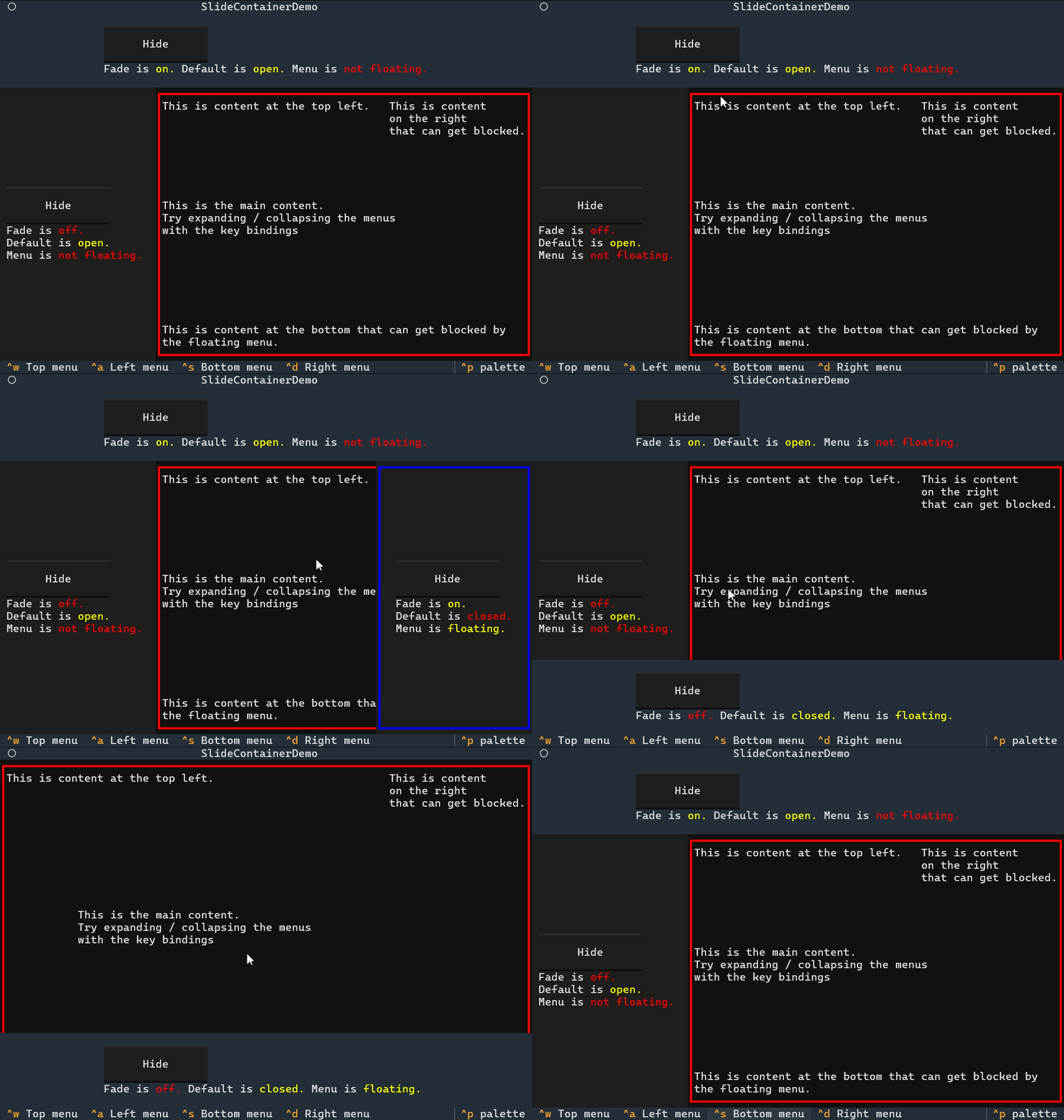
This is a library that provides a custom container (widget) called the SlideContainer.
It is designed to make it extremely simple to implement a sliding menu bar in yor Textual apps.
Features
- Usage is a single line of code with the default settings. Everything is handled automatically.
- Set the direction - Containers can slide to the left, right, top, or bottom, independently of where they are on the screen.
- Enable or disable Floating mode - With a simple boolean, containers can switch between floating on top of your app, or being a part of it and affecting the layout.
- Set the default state - Containers can be set to start in closed mode.
- Fade in/out - Containers can be set to fade while they slide
- Set the container to dock as an initialization argument.
- Floating containers automatically dock to the edge they move towards (this can be changed).
- Change how the animation looks with the duration and easing_function arguments.
- Included demo application which has comments in the code.
Installation
Install with:
pip install textual-slidecontainer
Import into your project with:
from textual_slidecontainer import SlideContainer
Demo app
You can instantly try out the demo app using uv or pipx:
uvx textual-slidecontainer
pipx textual-slidecontainer
Or if you have it downloaded into your python environment, just run it using the entry script:
textual-slidecontainer
For uv users:
uv run textual-slidecontainer
Usage
Most basic usage.:
from textual_slidecontainer import SlideContainer

def compose(self):
    with SlideContainer(id = "my_slidecontainer", slide_direction = "up"):
        yield Static("Your widgets here")
Set the container's width and height in CSS as you usually would. Note that the above example will dock to the top of your screen automatically because it is in floating mode (floating is the default).
Many people will want it to start closed / hidden. Simply set the default state to False:
def compose(self):
    with SlideContainer(
        id = "my_slidecontainer", slide_direction = "left", default_state = False
    ):
        yield Static("Your widgets here")
You can set the slide direction and dock direction to be different:
def compose(self):
    with SlideContainer(
        id = "my_slidecontainer", slide_direction = "right", dock_direction = "top"
    ):
        yield Static("Your widgets here")
Here's an example using all the arguments:
with SlideContainer(
    classes = "my_container_classes",
    id = "my_slidecontainer",
    default_state = False        # False = closed
    slide_direction = "left",
    dock_direction = "top",      # dock to the top but slide left
    floating = False,            # default is True
    fade = True,
    duration = 0.6,                   # the default is 0.8
    easing_function = "out_bounce",   # default is "out_cubic".
):
    yield Static("Your widgets here")
Here's a demonstration of it being used in a full app:
from textual.app import App
from textual import on
from textual.widgets import Static, Footer, Button
from textual.containers import Container

from textual_slidecontainer import SlideContainer

class TextualApp(App):

    DEFAULT_CSS = """
    #my_container {
        width: 1fr; height: 1fr; border: solid red;
        align: center middle; content-align: center middle;
    }
    Static { border: solid blue; width: 1fr;}
    SlideContainer {
        width: 25; height: 1fr;
        background: $panel; align: center middle;
    }
    """
    def compose(self):

        # The container will start closed / hidden:
        with SlideContainer(slide_direction="left", default_state=False):
            yield Static("This is content in the slide container.")
        with Container(id="my_container"):
            yield Button("Show/Hide slide container", id="toggle_slide")
        yield Footer()

    @on(Button.Pressed, "#toggle_slide")
    def toggle_slide(self) -> None:
        self.query_one(SlideContainer).toggle()

TextualApp().run()
Questions, issues, suggestions?
Feel free to post an issue.
Release history Release notifications | RSS feed


Download files
Download the file for your platform. If you're not sure which to choose, learn more about installing packages.
Source Distribution
Built Distribution
Filter files by name, interpreter, ABI, and platform.
If you're not sure about the file name format, learn more about wheel file names.
Copy a direct link to the current filters
File details
Details for the file textual_slidecontainer-0.2.2.tar.gz.
File metadata
- Download URL: textual_slidecontainer-0.2.2.tar.gz
- Upload date:
- Size: 25.5 kB
- Tags: Source
- Uploaded using Trusted Publishing? No
- Uploaded via: uv/0.6.12
File hashes
| Algorithm | Hash digest | |
|---|---|---|
| SHA256 |
da46bfc626eb9a41d7f6c664510843c1d8d53175c3dd9dc2025f6fe19174077e
|
|
| MD5 |
3c4fbbcc5230d1fd999ffff1c91bee34
|
|
| BLAKE2b-256 |
1fbdb77710e998cfe9b2da472713599c76869cc2270e2b1673cd2539c6bd4006
|
File details
Details for the file textual_slidecontainer-0.2.2-py3-none-any.whl.
File metadata
- Download URL: textual_slidecontainer-0.2.2-py3-none-any.whl
- Upload date:
- Size: 7.3 kB
- Tags: Python 3
- Uploaded using Trusted Publishing? No
- Uploaded via: uv/0.6.12
File hashes
| Algorithm | Hash digest | |
|---|---|---|
| SHA256 |
4eb9cd8fcf80a71c7a7abdaebc4eb1af9895437f22c53e98f78f7404f1accd0d
|
|
| MD5 |
269d0c2f0bdef65e7a96e0083f864e25
|
|
| BLAKE2b-256 |
8a6331b553919d10fd9e699e7b06081186389acbb25059980248bc1788212873
|






