
tidalamp
A terminal TIDAL client for Linux with a retro player interface. No official API app registration and no browser in the middle: device flow + mpv.
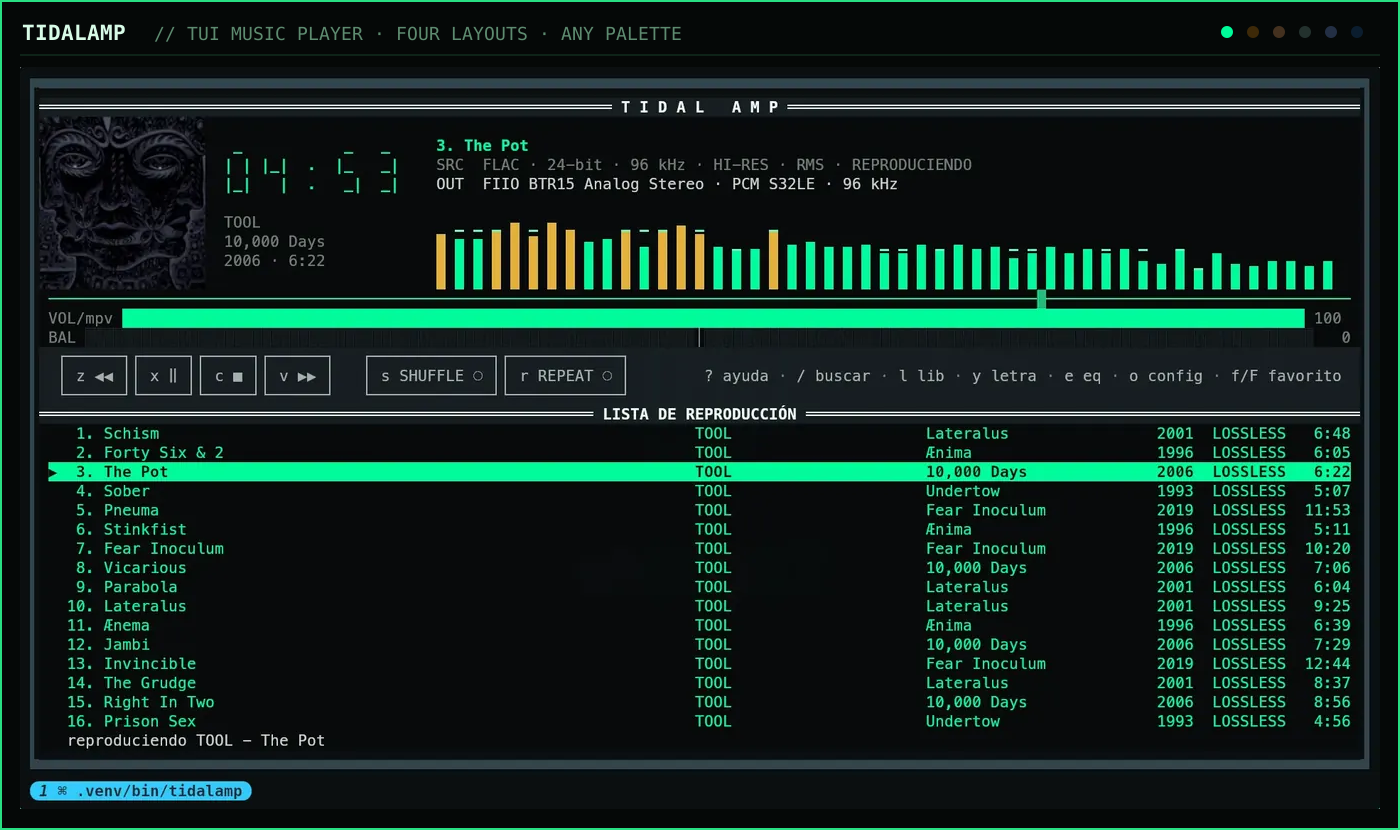
Quick start
sudo apt install mpv    # dnf, zypper or pacman elsewhere — see Requirements
pipx install "tidalamp[art]"
tidalamp
Authorize once through the link it prints, and the session is kept at
~/.config/tidalamp/session.json. Then: / searches, l opens your library, and
z x c v are previous, play/pause, stop and next.
Contents
- Installation
- Hi-res, all the way to the DAC
- Keys
- Queue and library
- The track menu
- Quality
- Themes and colours
- Settings
- Lyrics
- Equalizer and balance
- About the analyzer
- Cover art
- Desktop integration (MPRIS)
- Help and about
- Troubleshooting
- Platform support
- License
- Disclaimer
Installation
Requirements
Python 3.11 or newer. Debian 12, Ubuntu 24.04, Fedora 39 and current Arch all
qualify. Ubuntu 22.04 (3.10) and Debian 11 (3.9) do not, and pipx there fails while
resolving the version rather than while running.
pip does not install mpv. It is a system package and must be present, or
tidalamp exits on startup saying so. cava is optional and gives a real spectrum
instead of the RMS meter.
| mpv | cava (optional) | |
|---|---|---|
| Debian, Ubuntu, Mint, Pop!_OS | sudo apt install mpv |
sudo apt install cava |
| Fedora, Nobara | sudo dnf install mpv |
sudo dnf install cava |
| openSUSE | sudo zypper install mpv |
sudo zypper install cava |
| Arch, Manjaro, EndeavourOS | sudo pacman -S mpv |
sudo pacman -S cava |
If mpv is missing, tidalamp reads /etc/os-release and names the command for the
system it is on, so the error is actionable wherever you run it. cava is not
packaged everywhere; where it is missing, the RMS meter takes over and nothing else
changes.
From PyPI
This is the channel for every distribution today, Arch included.
pipx install "tidalamp[art]"  # the art extra adds Pillow for cover rendering
tidalamp
Without the art extra everything works except the cover, which is simply not drawn;
tidalamp says so once in the status line at startup.
The first launch has to be from a terminal (tidalamp login, then tidalamp). The
player then asks whether to add itself to the application menu: see
In the application menu.
Arch Linux (AUR)
There is no AUR package to install yet, so yay has nothing to find — use PyPI above.
When new-account registration reopens, yay -S tidalamp becomes the recommended Arch
route, because the AUR can declare mpv as a real dependency and cava as optional.
From the repository
python -m venv .venv
.venv/bin/pip install -e ".[art]"   # drop [art] only if you do not want cover art
.venv/bin/tidalamp login
.venv/bin/tidalamp
Running tidalamp with no subcommand opens the player. The explicit tidalamp tui
command remains available and does exactly the same thing.
The release process is documented in publish.md, and packaging notes
in packaging/README.md.
Updating
pipx upgrade tidalamp
pipx reinstalls from the spec it was given, so the art extra is kept. pipx upgrade-all covers tidalamp along with everything else pipx manages.
Right after a release, pipx may still answer already at latest version with the previous number: pip caches the package index for a few minutes. Either wait, or skip the cache for one run:
PIP_NO_CACHE_DIR=1 pipx upgrade tidalamp
From a repository checkout instead:
git pull
.venv/bin/pip install -e ".[art]"
mpv and cava are system packages — your distribution updates those, not pipx.
To check which version is running:
tidalamp --version # or -v
The same number is on the help screen (?, then → for About), together with the
notes for each release; pipx list shows what is installed.
Minimum size
The interface needs 60×18 cells, and below 80×26 it switches to a compact layout that drops the cover and the balance row. Under the minimum the fixed layout would overlap, so tidalamp covers it with a message showing the current and required dimensions; the normal interface returns on its own when the terminal is enlarged.
Hi-res, all the way to the DAC
tidalamp asks TIDAL for HI_RES_LOSSLESS by default and plays FLAC up to
24-bit / 192 kHz, with the bit depth and sample rate of the running stream on
screen. When TIDAL delivers less than was asked for, the status bar says so instead of
leaving the badge to imply otherwise.
Three things had to be right for that, and two of them are not in the player:
- The stream. Hi-res arrives as a segmented DASH manifest, which needs rewriting before ffmpeg will open it.
- The graph. PipeWire runs at one sample rate and resamples everything into it, so a 24/96 stream commonly reaches the DAC at 48 kHz while every badge tells the truth about the stream. The settings window detects this, says so plainly, and fixes it — see The audio stack.
- The chain. No software volume attenuation and no filters: with the balance
centred and the equalizer flat, mpv carries
astatsalone, which measures and does not touch the signal.
Bluetooth cannot carry any of this, whatever the rates say, and the settings window warns when the output is a Bluetooth sink.
Keys
The transport defaults are Winamp's z x c v, except that play and pause share one
key. All of them may be changed from config.toml, and the buttons then
show the key that actually works.
| Key | Action |
|---|---|
z x c v |
previous / play-pause / stop / next |
space |
play / pause, the same as x |
/ |
search TIDAL |
ctrl+f |
search the queue |
g |
go to the track that is playing |
m |
open the track menu on the queue row |
p |
save the queue as a TIDAL playlist |
↑ ↓ Enter |
navigate; on a track, open the track menu |
l |
open the library browser |
f F |
add to / remove from favourites |
/ |
inside the browser, filter the level you are on |
R |
reload the level, bypassing the cache |
s |
inside the browser, sort the level you are on |
v |
inside the browser, show the level as a list or as a grid of covers |
d |
inside the browser, remove from favourites or from the open playlist |
m |
inside the browser, open the menu of a track, album, artist or playlist |
y |
show lyrics for the current track |
s r |
shuffle (⇄) / repeat (↻), on the transport row |
d |
remove from the queue |
alt+↑ alt+↓ |
move the track in the queue |
e |
open the equalizer |
, . \ |
balance left / right / centre |
C |
clear the queue |
u |
undo the last clear |
← → |
seek ±5 seconds |
+ - |
change volume |
t |
toggle elapsed / remaining time |
w |
full screen: the cover large; esc comes back |
b |
playback speed, from 0.25× to 2× |
o |
open the settings window |
? h |
open the help window |
q |
quit, after asking (q again confirms) |
ctrl+c |
quit at once, without asking |
Navigation keys are fixed — arrows, Page Up/Down, Enter and Esc — because a typo there could make the browser unusable.
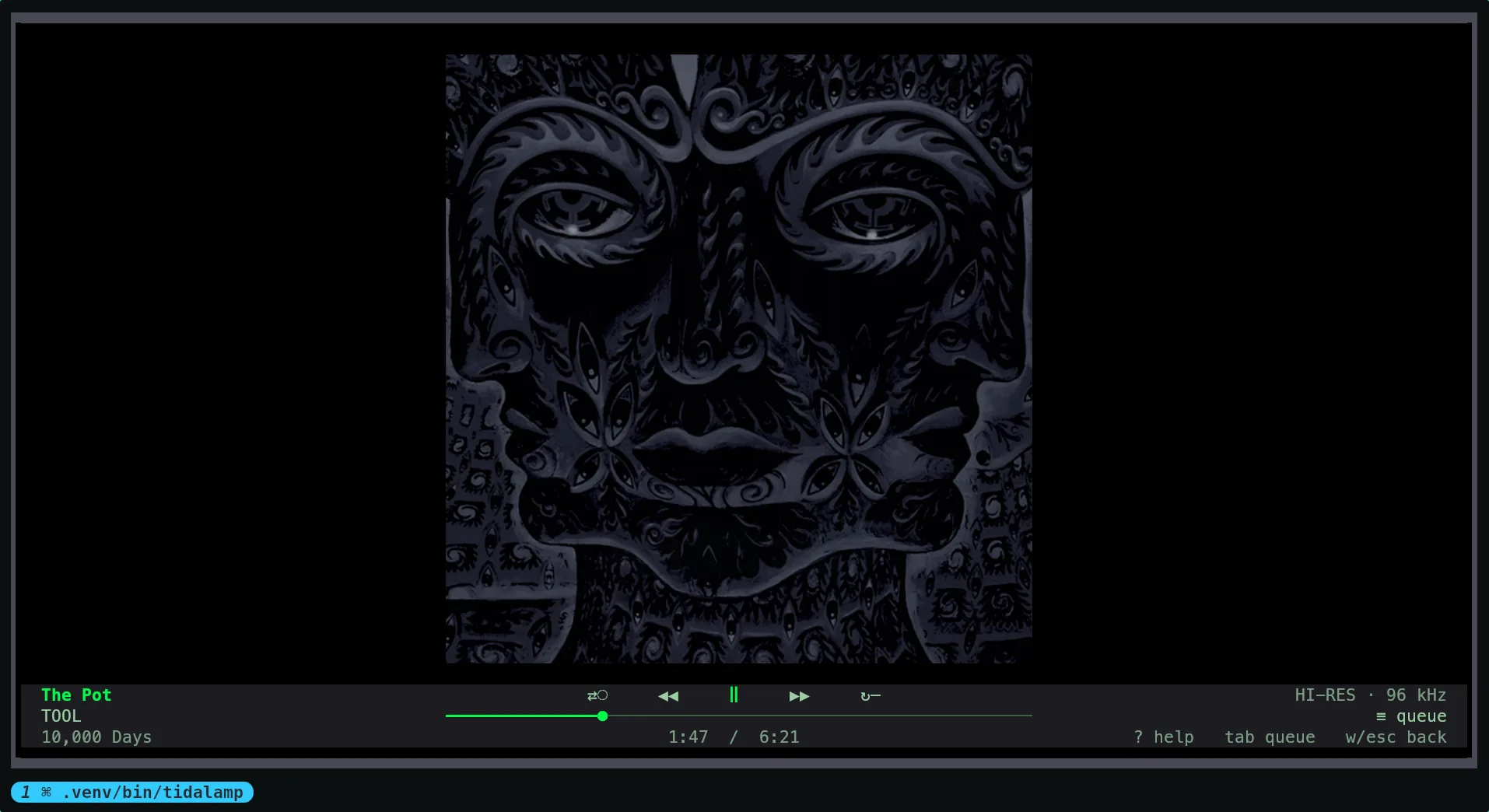
Full screen
w opens a full-screen view: the cover as large as the terminal allows, centred, and a
bar at the foot with the track on the left, the controls, the seek bar and the times in
the middle, and the quality and a button for the queue on the right. tab (or a click
on that button) opens the queue beside the cover, which shrinks to make room; ↑ ↓
walk it and Enter plays, and the queue's own keys work in it as they do in the
player's: g goes to the playing track (and opens the panel if it is closed), d
removes, alt+↑ alt+↓ move, m opens the track menu, f F favourite. With the
panel closed those keys ask for it rather than act on a row you cannot see. ? lists
this view's keys alone. w again, or esc, comes back to the player. The view takes
its colours from the palette and its frame from the theme in use, and the transport keys
work in it as they do everywhere.
 |
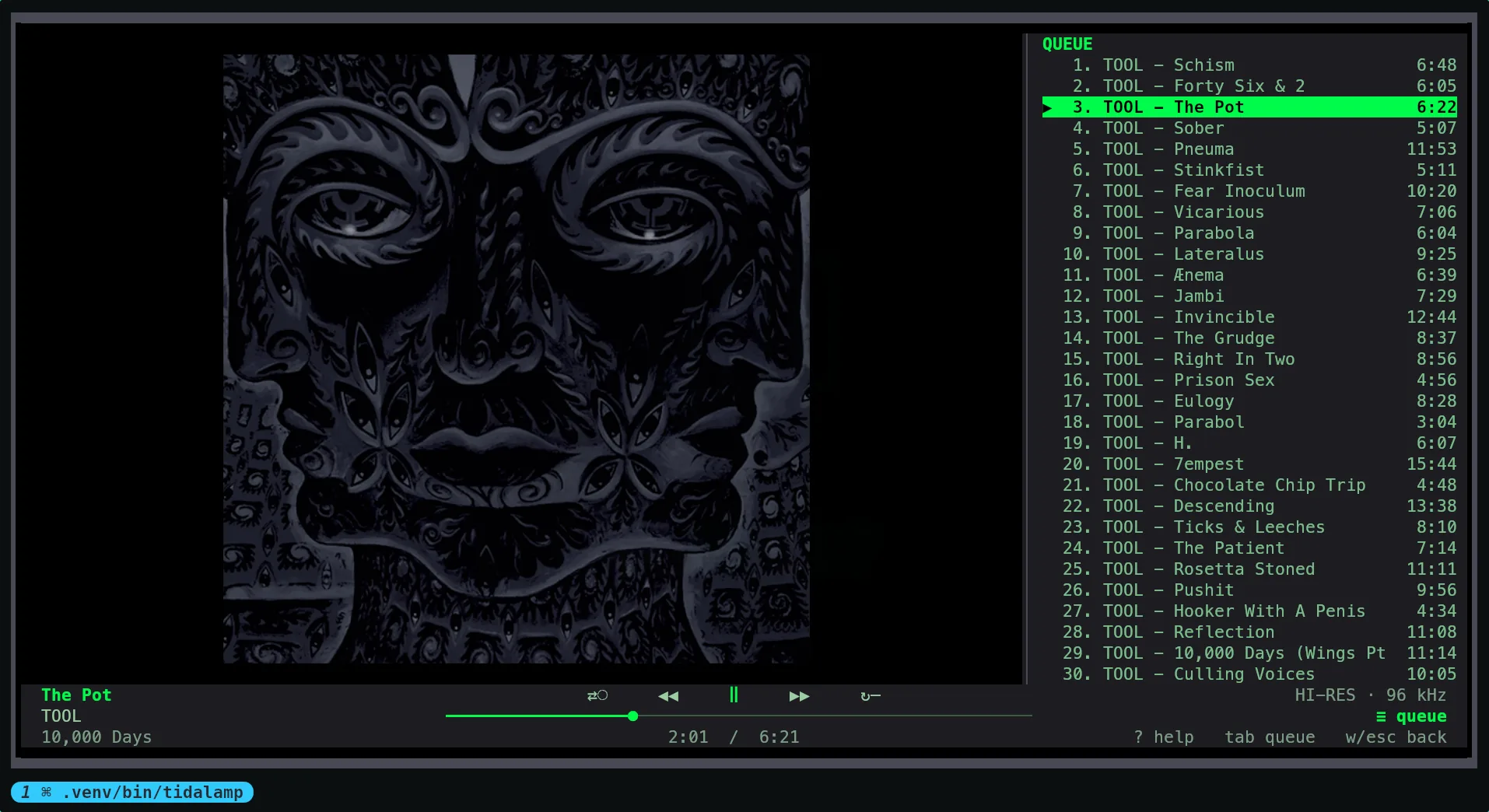 |
| The cover as large as the terminal allows | tab puts the queue beside it |
Queue and library
/ searches for tracks and displays them directly, with albums, artists and playlists
in three category rows above; a category is fetched only when opened.
Press l to open the library browser: playlists, favourite tracks, albums, artists,
and your mixes (the daily ones, discovery, new arrivals and the rest TIDAL makes for
your account). Enter a level with ↵ and go back with ⌫. A mix opens like a
playlist, but it cannot be sorted or edited, so s and d do nothing there.
An artist opens to its sections: popular tracks, albums, EPs and singles, and other
(compilations and appearances), each disc opening to its tracks. They are the
sections TIDAL has, in its own order, and one with nothing in it is left out. m and
a on an artist still play its popular tracks.
Discover, the last row of the library, is what TIDAL proposes rather than what you keep: its home page (recently played, albums you will enjoy, new tracks, your mixes and radio stations), For you, and Explore, whose genres, moods and decades each open to a page of their own. Every page opens to its categories and every category to what it holds, which plays and opens like anything else in the library. Videos and TIDAL's banners are left out, and a category shows what TIDAL puts on the page, usually the first ten.
The grid. v in the browser (or Library view in the settings window) shows a level
of albums, playlists, artists or mixes as tiles, each with its cover, its name and a
line under it; v again goes back to the list, and the choice is kept in
config.toml as library_view. The arrow keys walk the tiles, ⌫ goes back, and
every other key of the browser works as it does in the list. A level of tracks is
always a list. The covers are drawn with text, whatever the terminal can do, because an
image sent with kitty or sixel is painted over the text and would cover the menu, the
help and every question that opens on top of the grid. In kitty, ghostty, WezTerm and
foot they use sextants, six pixels to a cell, which those terminals draw themselves;
anywhere else, the quadrants every font has, four to a cell. TIDALAMP_SEXTANTS=1
turns sextants on for another terminal whose font has them, and 0 turns them off.
They arrive a moment after the tiles, the ones on screen first.
Tracks play one into the next with no gap: the next one is fetched from TIDAL shortly before the current one ends and handed to mpv ahead of time, along with its cover (and its lyrics, when the split view or the lyrics window is showing them).
Quitting keeps your place: the queue comes back on the next start with the cursor on the track you were hearing, the status line says the second it will resume at, and playing that track picks up there.
g brings the queue cursor back to the track that is playing. If the queue search is
hiding it, the search is cleared first. p asks for a name and saves a snapshot of the
queue as a TIDAL playlist, in queue order rather than shuffle order. Large queues are
sent in batches; if TIDAL stops accepting them part-way through, the partial playlist
is kept and the status line says exactly how many tracks made it.
↵on a track opens the track menu; its Play now queues the entire level, so the rest of the album or playlist follows it.mopens the same menu, and on an album, an artist or a playlist it offers the same verbs over everything inside it.aappends an item without interrupting the current track. On a playlist or album, it appends all of its contents, every page of it.Aappends every track in the current level.
Modal windows — the library, search, settings, lyrics, help — take a share of the terminal rather than a fixed 84x26, so a large screen gets a large library.
Turn transparency on (in the settings window, or in the config file) and they open
over a translucent scrim instead, leaving the player visible and dimmed behind them: a
terminal cannot blur, and the scrim is what stands in for it. While a modal is open the
player stops redrawing itself, so the scrim costs less than the opaque window did.
Turning it on also limits the cover to blocks or off for as long as it lasts, and
switches to blocks when it has to, saying so. Blocks are ordinary
characters, so the window draws over them; an image sent with the kitty or sixel
protocol is painted by the terminal over the text, which would put the album art on
top of the window you are reading. The change applies immediately — the cover is redrawn
with the new protocol without restarting tidalamp.
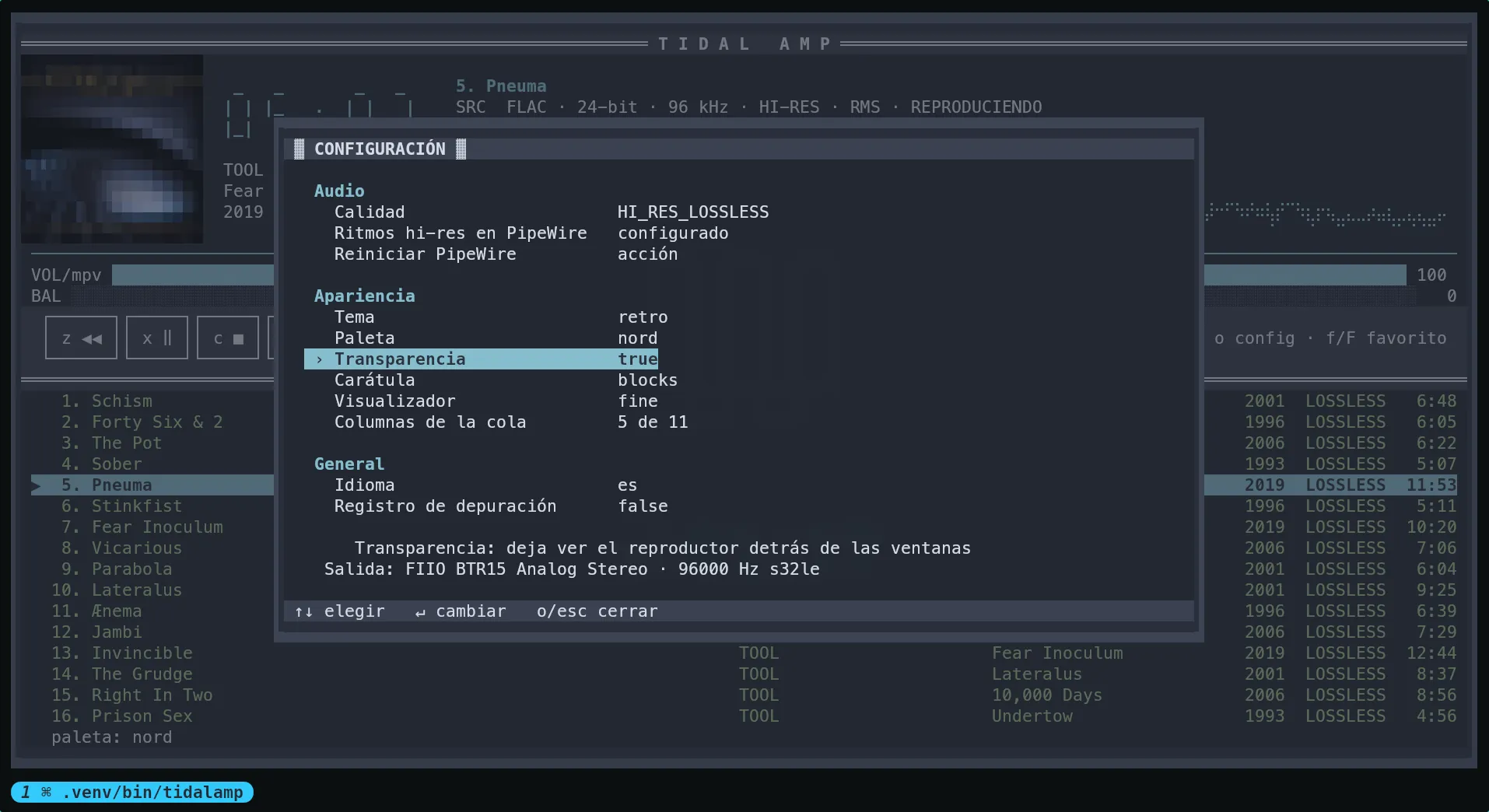
The settings window over the scrim. Transparencia is on, and Carátula sitting on
blocks underneath it is the move this made on your behalf.
/filters the level you are on, from a bar at the foot of the window that narrows the list underneath instead of covering it. What it filters is whatever the level holds: tracks in your favourites, playlists inMy playlists, albums, artists, or a category of search results. Case and accents are ignored —sinfoniafinds Sinfonía — every word you type has to match somewhere, and a track is also found by its album, which is not on the line unless you turned that column on.↵applies the filter and gives the arrows back to the list;Escclears it and leaves the browser open, on the row you had reached. In the library, typing a filter brings in the rest of the level, page by page, so it searches the whole collection and not the pages already loaded. A search is not fetched whole, having no end worth reaching: there, themore…row is never filtered out, and↵on it fetches the next page.
f adds the selected track, album, artist, or playlist to TIDAL favourites; F
removes it.
b opens the speed window: 0.25× to 2× in quarters, 1× as recorded. Walk it with
↑ ↓ and apply with ↵ (or click a speed); esc leaves the speed alone. The
transport's speed button says the current one and lights up off 1×. mpv keeps the
pitch, which it does with a filter, so a speed other than 1× is not bit-perfect.
The speed lasts until you quit.
s toggles shuffle and r cycles repeat (off → queue → track). Both sit on the
transport row as buttons, lit in the palette's accent while they are on. Every state
is also readable without colour: ⇄○/⇄● for shuffle, and ↻–/↻A/↻1 for the
three repeat modes — the retro, nova and ascii layouts spell the same states out
as SHUFFLE ○ and REPEAT 1.
p saves the queue as a new TIDAL playlist: it asks for a name and creates it with
the tracks in queue order, not in shuffle order, because what is saved is the list and
not the listening session. To append to a playlist that already exists, use ≡ in the
track menu instead.
ctrl+f searches the queue, from a bar under the playlist, the same gesture the
browser's / is: type and the queue narrows to what matches, without covering it. It
matches the same way — case and accents ignored, every word has to appear somewhere,
and a track is also found by its album. The rows keep the number they really have in
the queue, so a match numbered 47 tells you where it is in the playing order rather
than pretending to be the first track. ↵ gives the arrows back to the list with the
filter still applied, and Esc clears it and leaves the cursor on the track you had
reached. Everything that acts on the selected row — ↵, d, alt+↑, alt+↓, f —
acts on that track and not on its place on screen.
alt+↑ and alt+↓ move the selected track. With shuffle enabled, moving a row does
not reshuffle what comes next. While the queue is filtered the rows may not visibly
reorder — the track it swapped with can be one the filter is hiding — but the number
at the head of the line changes, because that is the queue position.
Long levels come from TIDAL a hundred at a time, and the next hundred is fetched on
its own as the cursor nears the end, in the background, into the same level and
without losing the cursor's place: there is nothing to press. A level shorter than the
window fills it at once. The final row, more…, is there while a page is still to
come, and ↵ on it fetches it too.
Opened levels are cached for the lifetime of the application, so returning to one is
instant. R fetches the current level again, which is useful after creating a
playlist on another device.
The queue is stored at ~/.local/state/tidalamp/queue.json and restored on startup,
including the previous cursor. Anything slow runs in the background, and a spinner
names what is pending — ⠋ opening My playlist… — instead of freezing the interface.
Queue columns
A wide enough terminal splits the queue into columns instead of running the artist
into the title. Which ones is up to you: the settings window (o) has a Queue
columns row that opens a picker, and the choice applies to the queue already on
screen rather than to the next one loaded.
| name | shows |
|---|---|
track |
the number the song carries on its own album — not its place in the queue, which is always drawn |
version |
Remastered 2011 and the like, when TIDAL has one |
artist |
on by default |
album |
on by default |
year |
on by default |
quality |
HI-RES, LOSSLESS, HIGH, LOW |
explicit |
E |
popularity |
TIDAL's 0–100 |
disc |
disc number on a multi-disc release |
isrc |
the recording's ISRC |
duration |
on by default |
The queue position on the left and the title are always drawn, and a field TIDAL has no answer for leaves its cell blank rather than inventing a value.
Columns are dropped as the window narrows, in the order they can be spared — the year
before the album, the album before the artist — ending at artist - title on one line
with the duration on the right. The artist only leaves the title when it has a column
of its own to go to.
The track menu
↵ on a song — in search results or in the library — opens a small menu instead of
assuming what you meant. m opens the same menu, in the browser and on the queue row
under the cursor, where ↵ already plays it:
| Action | Key | What it does | |
|---|---|---|---|
▶ |
Play now | a |
Queues the whole level and starts on this track. |
↳ |
Play next | c |
Inserts just this track after the one playing. Under shuffle it really is next. |
≈ |
Track radio | d |
Plays TIDAL's station for this track: the seed first, then the similar songs. |
♥ |
Add to favourites | v |
Adds it to your TIDAL favourites, leaving the queue alone. |
≡ |
Add to a playlist | l |
Picks one of the playlists you created and appends the track to it. |
◉ |
Go to the artist | t |
Opens the browser on the track's artist; with several, asks which one. |
◎ |
Go to the album | b |
Opens the browser on the track's album. |
↑ ↓ and ↵ pick, Esc backs out. ↵ on an album, artist or playlist still opens
it: a level has one obvious thing to do.
Going to the artist or the album from the browser opens it on top of the level you
were on, and ⌫ comes back to it. From the queue, the browser opens right there, and
⌫ goes back to the root of the library instead of closing it.
On a playlist of yours, one in My playlists, the menu has three more lines: rename
(n), change the description (e), typed over the one it has, and an empty one
clears it, and delete the playlist (x), which asks first with the cursor on Cancel.
Inside one of your playlists, alt+↑ and alt+↓ move the track under the cursor, as in
the queue, and TIDAL is asked afterwards whether it landed where it was sent. That only
works with the playlist in its own order and unfiltered: sorted with s or narrowed
with /, a row's place on screen is not its place in the playlist, and the browser says
so instead of moving it.
m on an album, an artist or a playlist opens the same menu for everything inside it:
play it all now (a), play it all next (c), add it to your favourites
(v) or add it all to a playlist (l). The whole of it comes along, every page
and not only the first hundred tracks, in the order you picked for it with s. There
is no radio in this one: a station grows from a single track. For an artist, "all" is
their popular tracks, not every disc in their sections.
Not every track has a radio station — TIDAL simply has none for some obscure releases — and when it does not, the status line says so and nothing is queued.
Quality
The default requested quality is HI_RES_LOSSLESS. TIDAL answers with one of two
manifest kinds: BTS is a progressive URL mpv opens directly, and MPD is the
segmented DASH used for hi-res. Measured against a real account on 2026-09-08:
| Requested | HIRES_LOSSLESS track |
LOSSLESS-only track |
|---|---|---|
LOW |
BTS, LOW, 96 kbps | same |
HIGH |
BTS, HIGH, 320 kbps | same |
LOSSLESS |
BTS, HIGH | BTS, HIGH |
HI_RES_LOSSLESS |
MPD, FLAC 24-bit / 96 kHz | BTS, HIGH |
In other words, requesting LOSSLESS never produced lossless audio through the
device-flow client: TIDAL returned HIGH even for tracks it labels LOSSLESS.
Requesting HI_RES_LOSSLESS yields FLAC where available and HIGH otherwise, so it is
strictly better than the old default.
When TIDAL delivers less than requested, the status bar says so (TIDAL delivered HIGH, not HI_RES_LOSSLESS) instead of leaving the badge to imply it.
TIDALAMP_QUALITY=HIGH tidalamp
Valid values are LOW, HIGH, LOSSLESS, and HI_RES_LOSSLESS.
Important limitation: DRM
Tracks with encrypted Widevine manifests cannot be played by mpv because there is
no CDM to decrypt them. tidalamp detects this and reports it in the status bar instead
of failing with a codec error. If it happens frequently, lower the quality with
TIDALAMP_QUALITY=HIGH.
Themes and colours
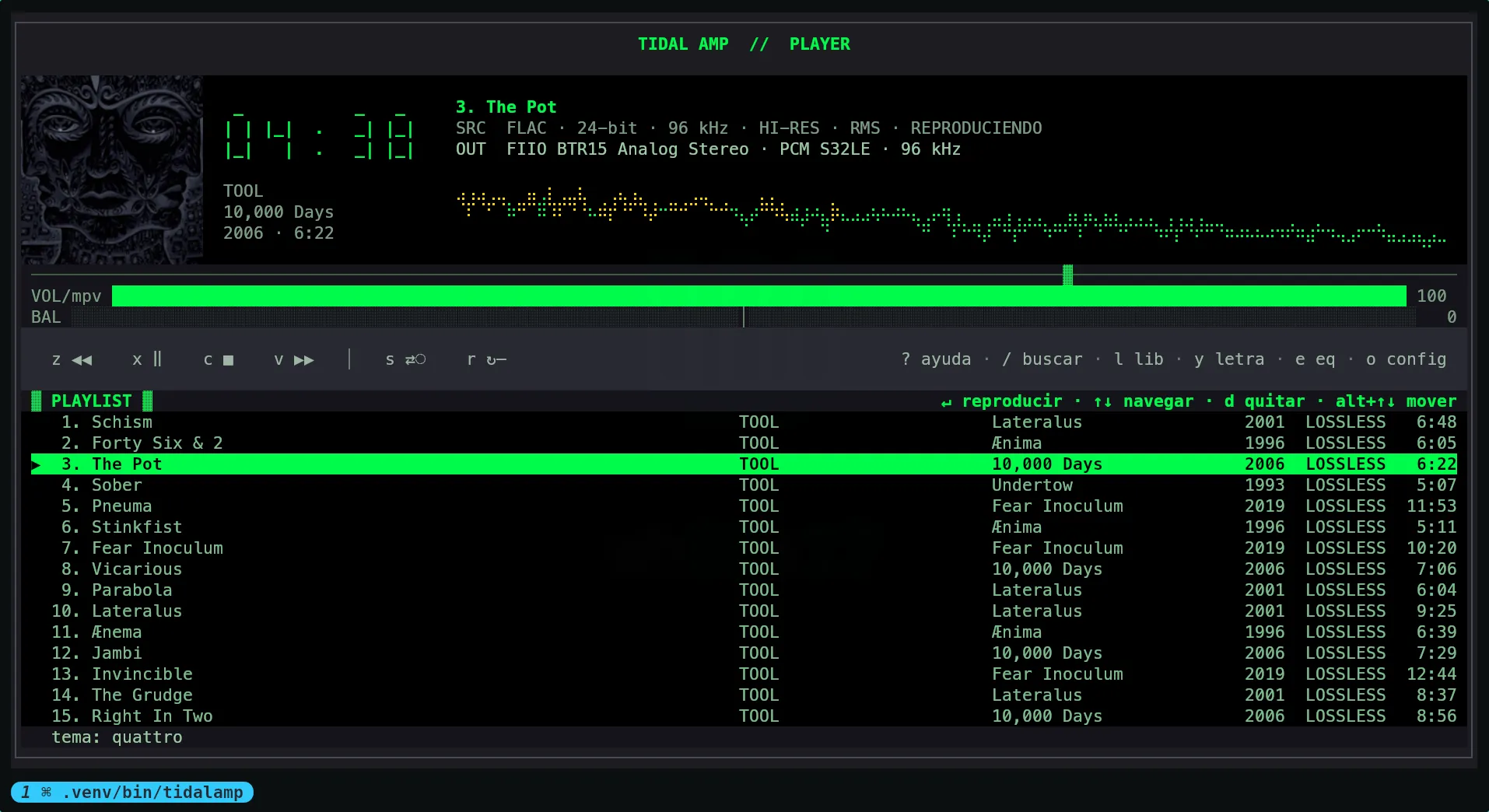
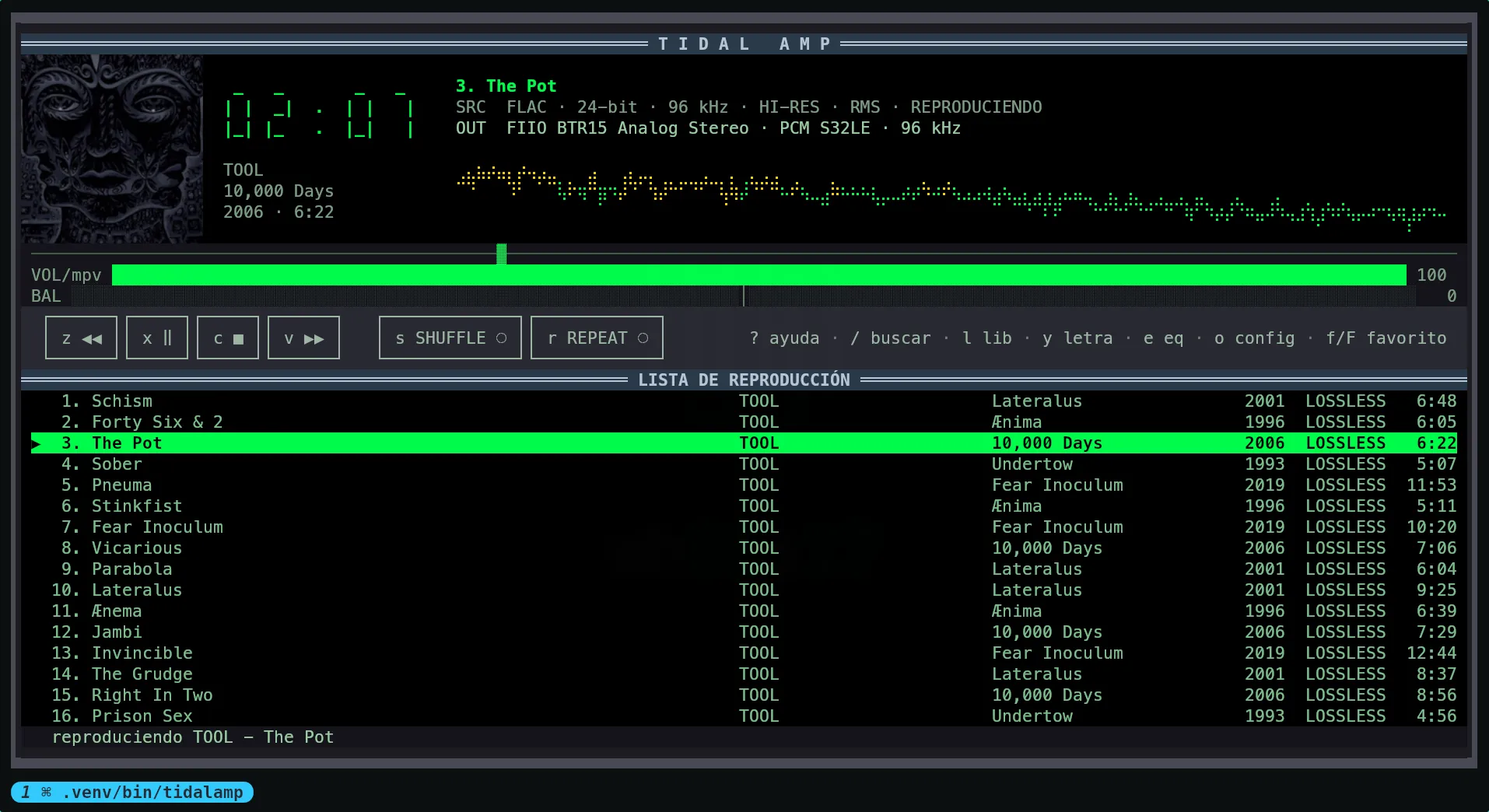
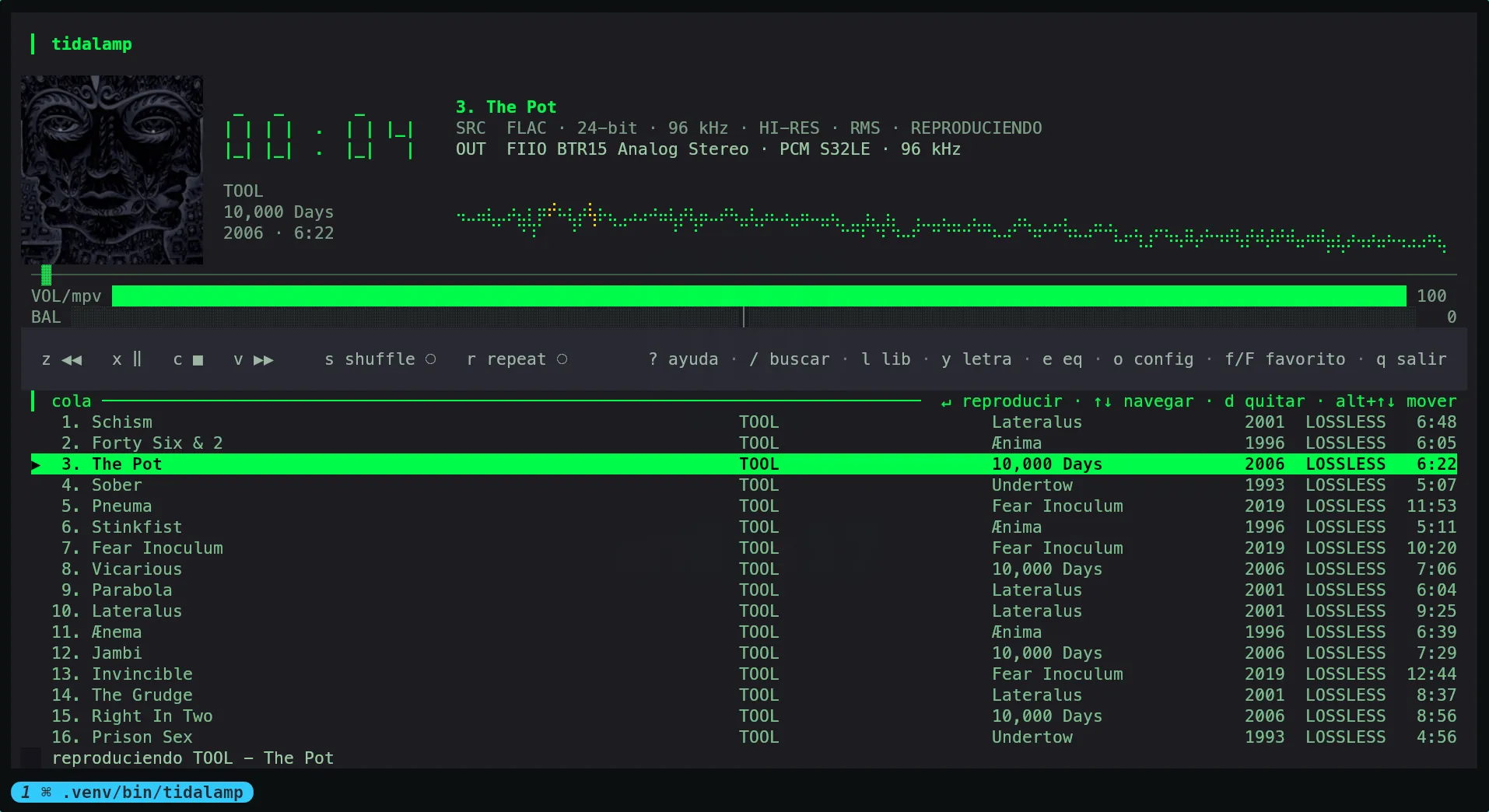
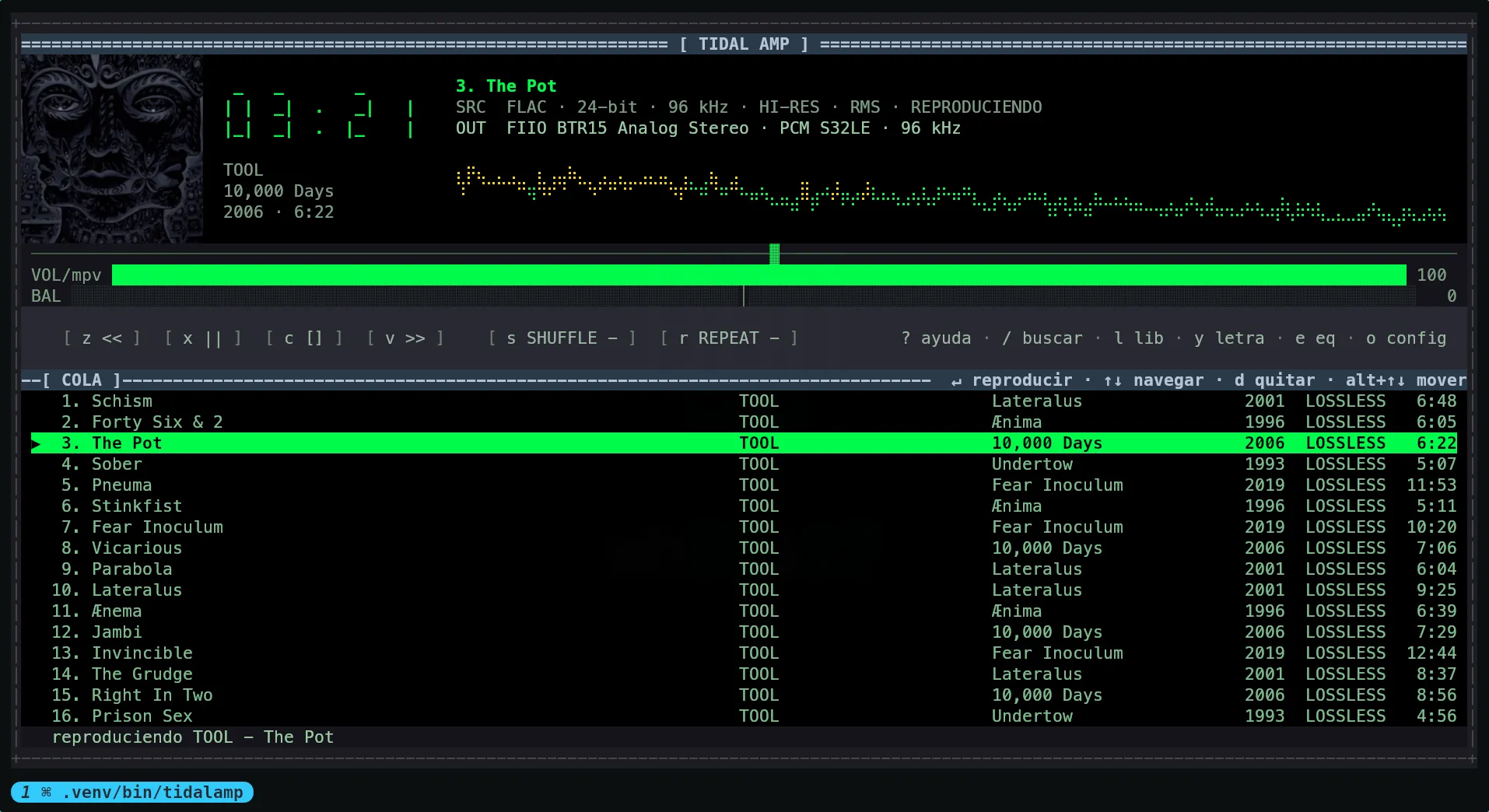
Two independent settings. theme picks the layout — how the interface is drawn.
palette picks the colours it is drawn in. Any layout works with any palette, and
both can be changed from the settings window (o) without restarting playback.
theme |
Look |
|---|---|
quattro |
The default. Flat, modern, short dividers, left-aligned headings. |
retro |
The 1997 skin as far as a terminal goes: title bars drawn as a rule with the heading centred on it, square transport keys packed shoulder to shoulder, and the toggles spelled SHUFFLE and REPEAT. |
nova |
Frameless. One flat ground, no boxes anywhere, and colour reserved for the two controls that carry state — an accent rule under whichever toggle is on. |
ascii |
A terminal before it had box drawing: [ z << ] bracket keys, rules made of = and -, and no glyph in the chrome you could not type. The meters keep their block characters. |
 |
 |
theme = "quattro" |
theme = "retro" |
 |
 |
theme = "nova" |
theme = "ascii" |
Themed looks
Ten more layouts come with a palette of their own name. Choosing one in the settings
window also sets palette to its colours, once: after that the palette is yours again,
so a themed layout in nord is one keypress away and nothing puts the pair back. Their
palettes can be picked on their own too, under any layout.
theme |
Look |
|---|---|
unidad-morada |
Purple armour, lime for what is lit, orange warning stripes, a heavy frame. |
pirata |
Straw yellow on open sea, a rounded frame and a log for a queue. |
cuaderno |
A black notebook: no frame, a red margin rule, headings on a ruled line. |
neon-noir |
Night city neon, yellow and cyan, a thick frame and hard flat bars. |
runas |
Old gold on a dark forest, a double frame and square keys. |
reggae |
Red, gold and green on black, a wide frame. |
comodin |
The wild card: a purple suit, green hair, a dashed card edge and the suits. |
gotico |
Crimson and violet under a pointed arch, square keys and centred headings. |
death-metal |
Bone on black, blood red, a tall frame and noise at the edges. |
bosque |
Leaf green on moss, a rounded frame with a vine along the top, a leaf at its foot. |
Two columns
arrangement = "split" puts the queue in a column to the right of the player instead of
under it. The player's column shows the lyrics of the playing track above the cover,
following the sung line when TIDAL has timed lyrics, and the transport keys and the
menu run across both columns at the bottom. It needs a terminal at least 160×26; on a
smaller one it stays stacked on its own, and the settings window says so. Switching
(from the settings window, o) moves nothing but the layout: the track keeps playing
and the queue's cursor stays where it was. It works with every layout and palette.
Each of the ten also has a picture and a line of its own. The picture is drawn behind
the queue the way the cover is drawn, darkened so the rows on top still read; the line
stands in for the title while nothing is playing. The picture needs Pillow (the art
extra), like the cover.
The picture is a setting of its own, backdrop (Queue backdrop in the settings window):
auto is the theme's, none removes it, and any themed look's name borrows its
picture. Choosing a themed look sets its palette and its picture once; after that both
are yours to change, so any theme, palette and picture can be mixed.
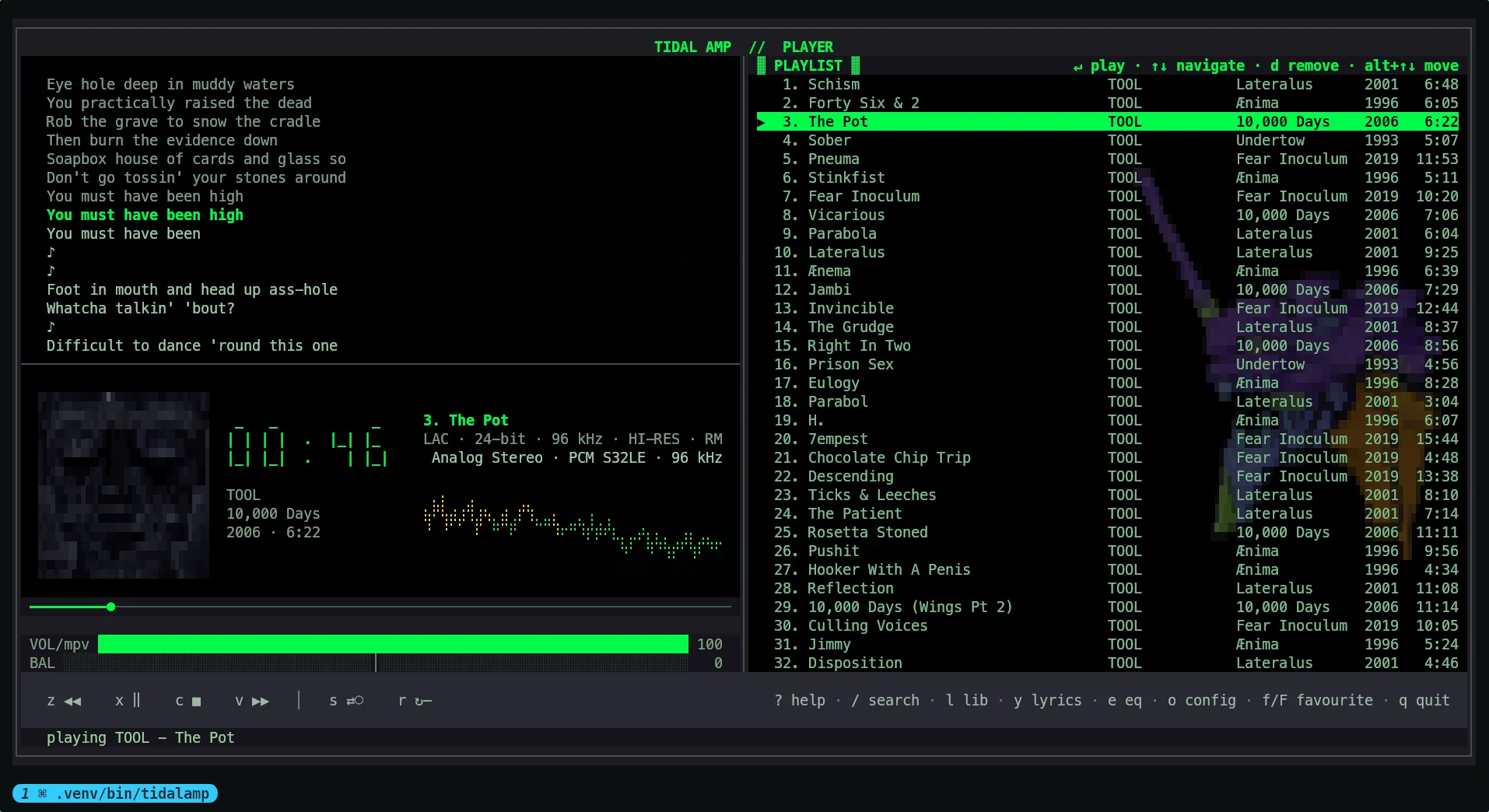
Split, with the timed lyrics following the song above the cover. The queue carries the
unidad-morada picture under a layout and palette that are not its own.
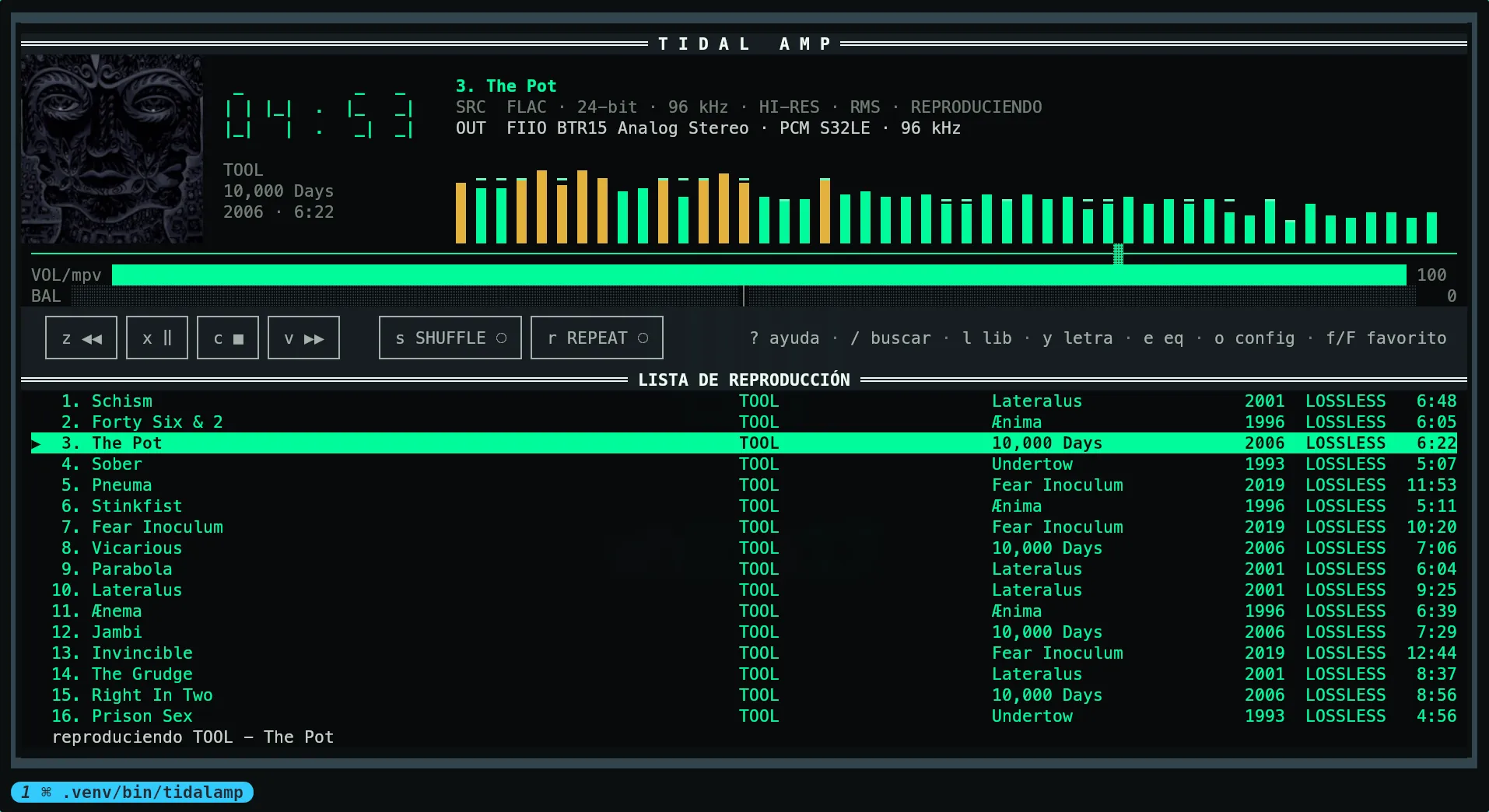
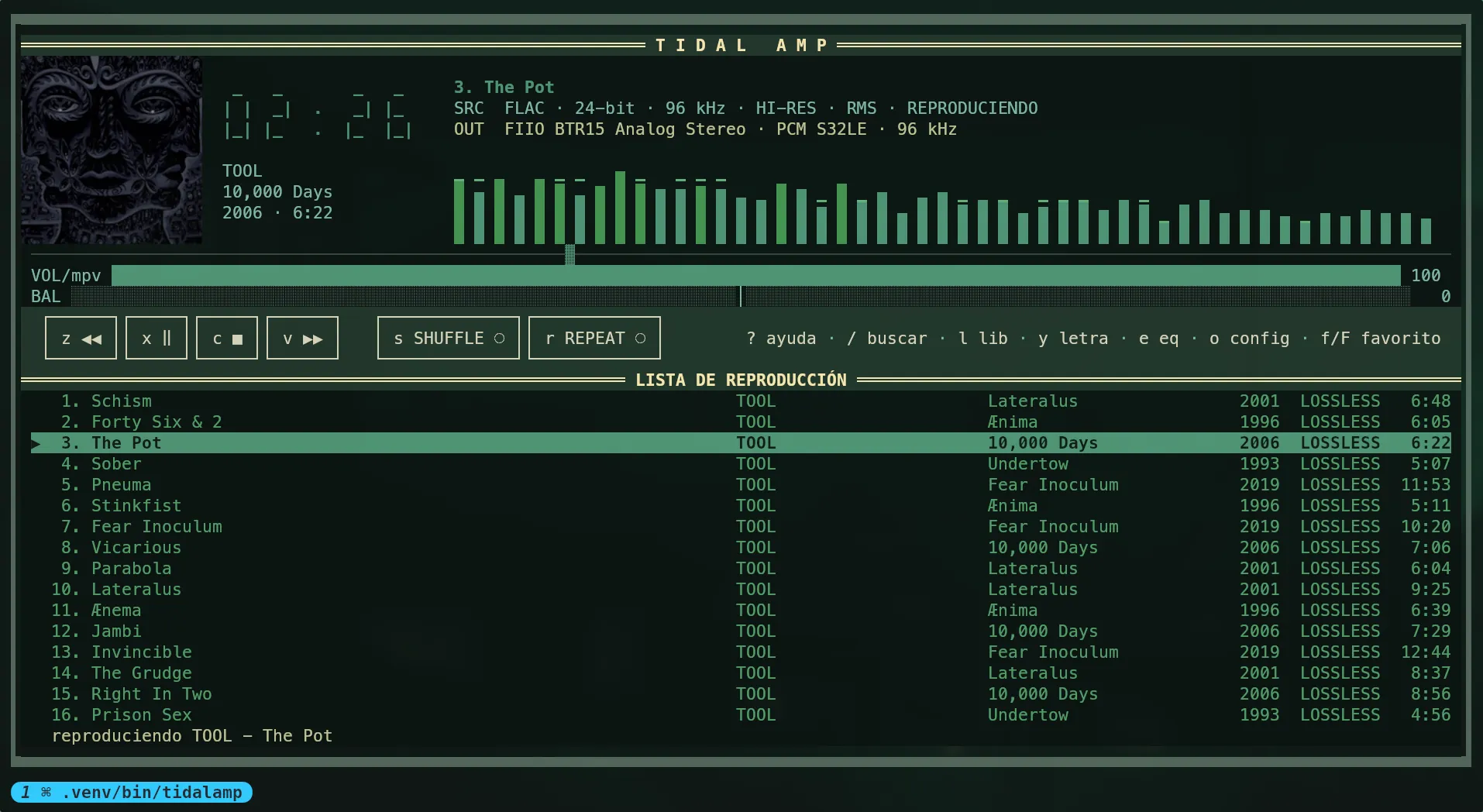
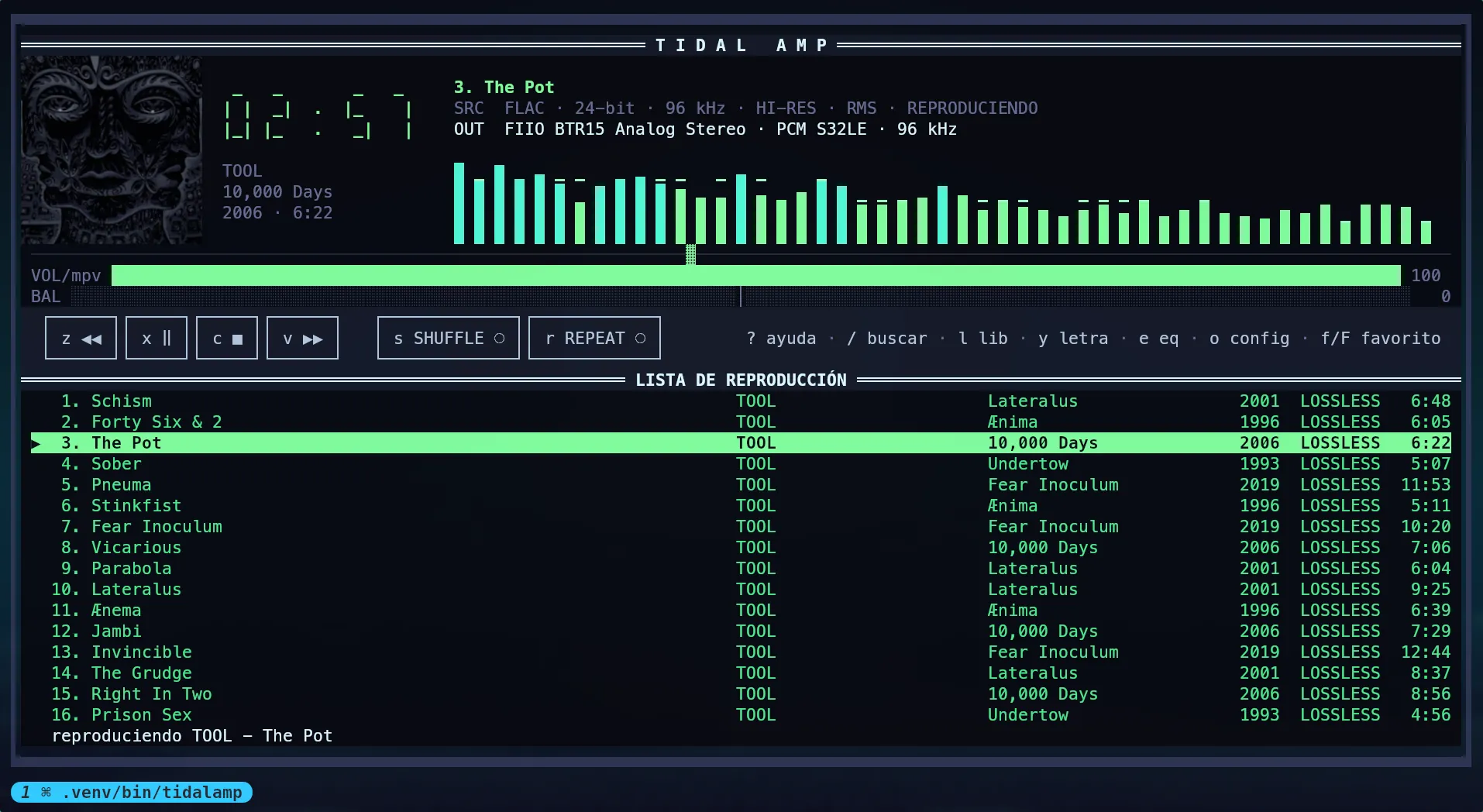
Palettes
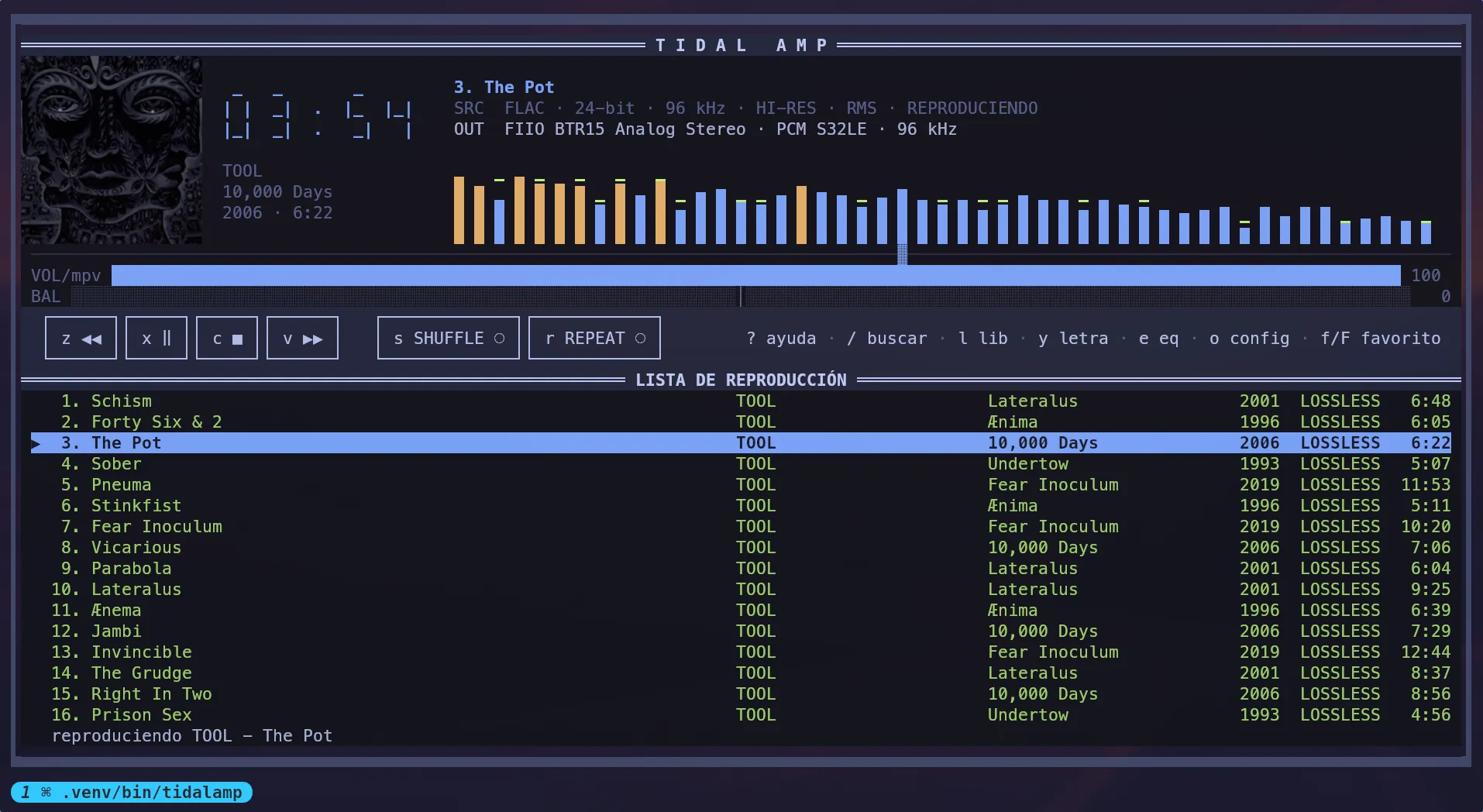
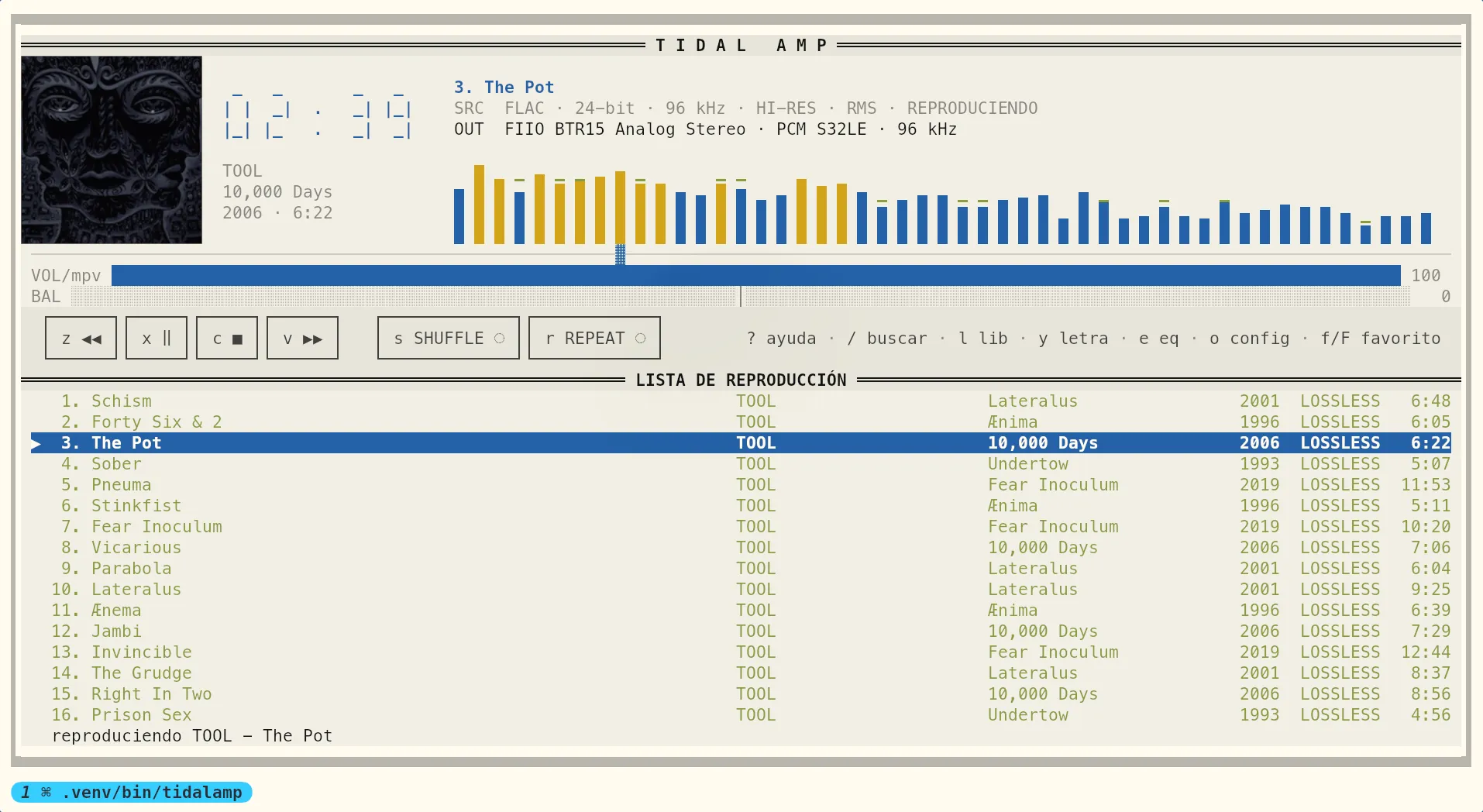
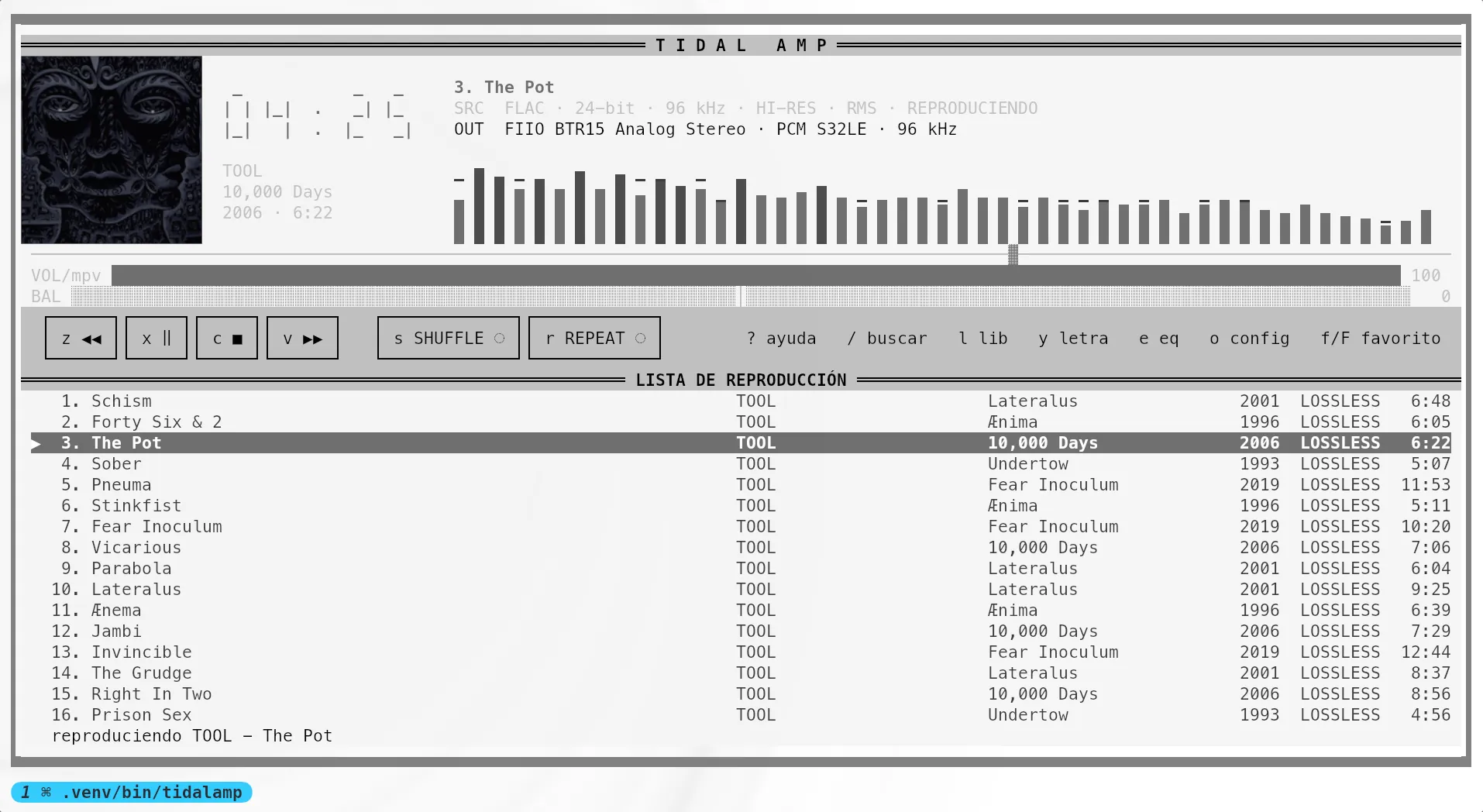
palette accepts auto (follow Omarchy), classic (green-on-black, the player's own),
the built-ins tokyo-night, catppuccin, nord, gruvbox and black (pure black
with grey and white accents, where lightness carries what hue carries elsewhere), the
ten that come with the themed looks, or the name of a TOML file you drop in ~/.config/tidalamp/palettes/. Custom palettes use the same format as
Omarchy's colors.toml, so the built-ins and your own work on any Linux, with or
without Omarchy.
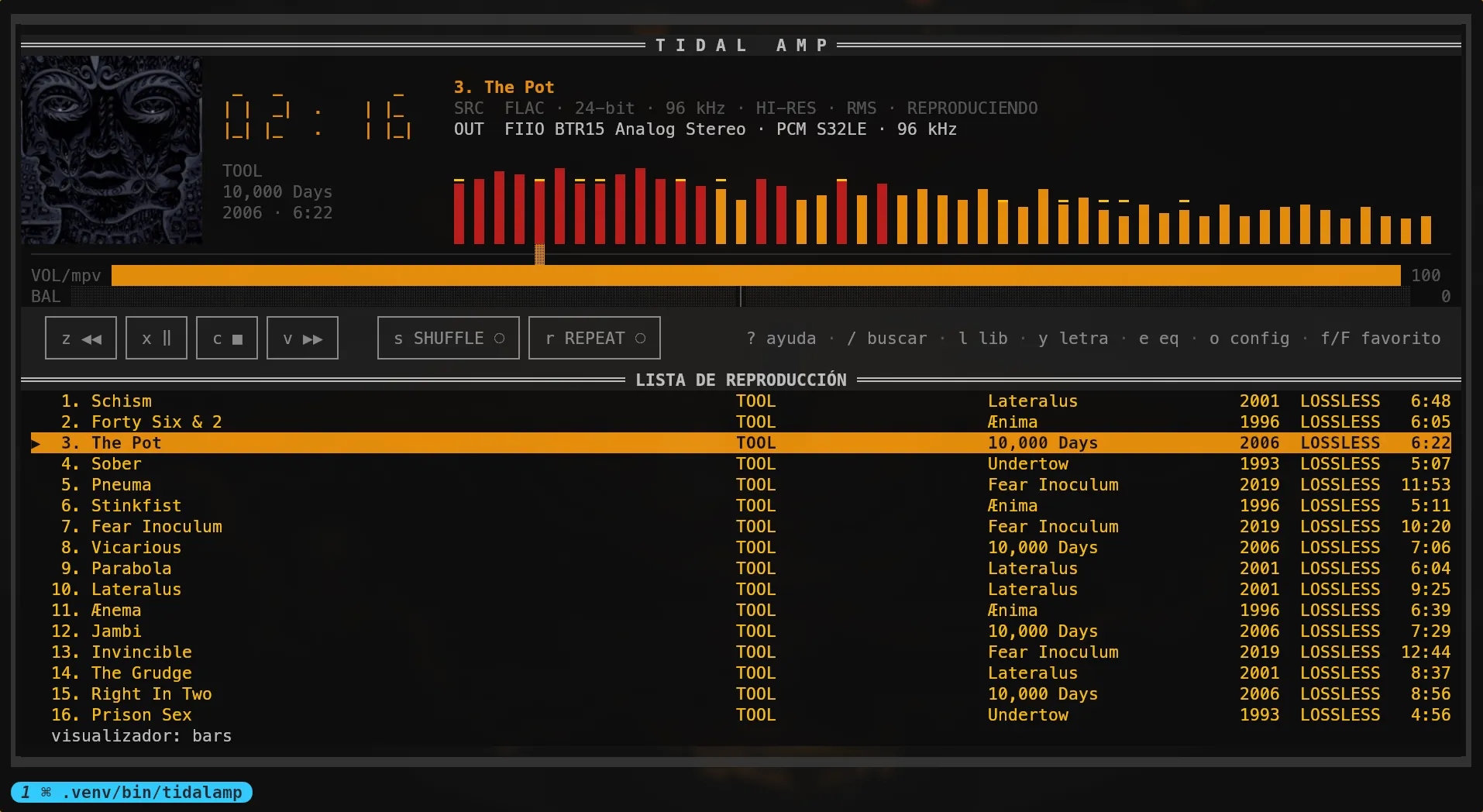
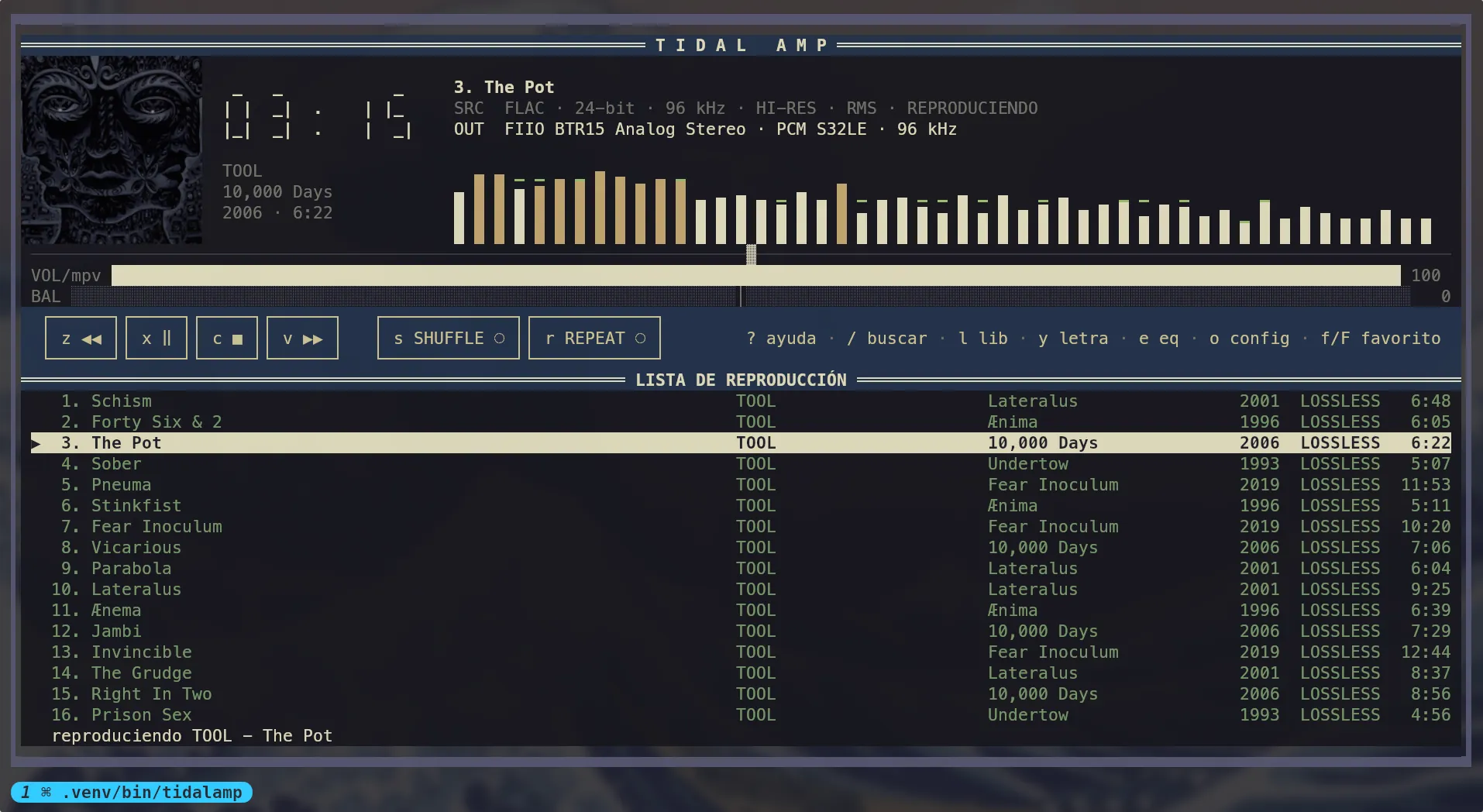
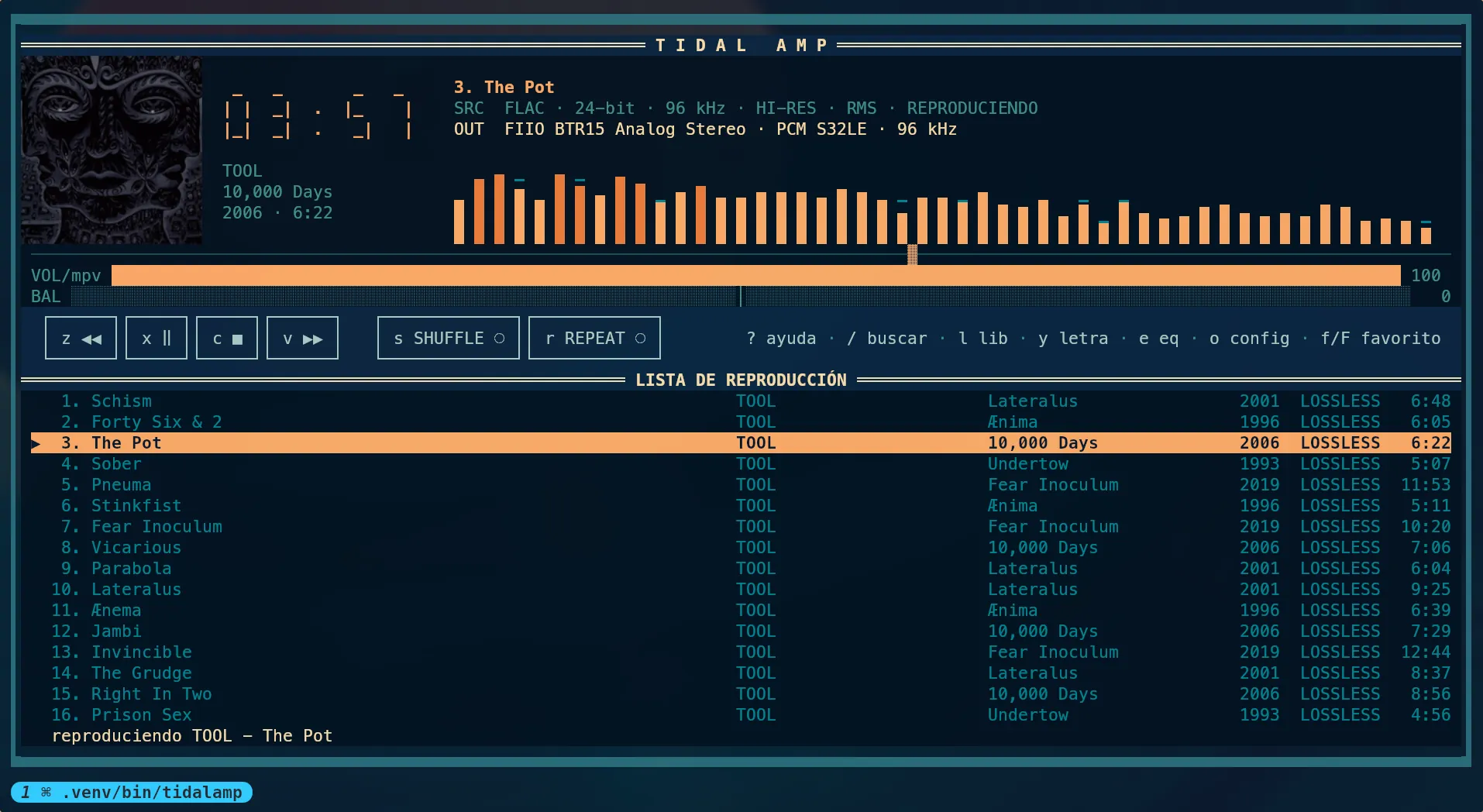
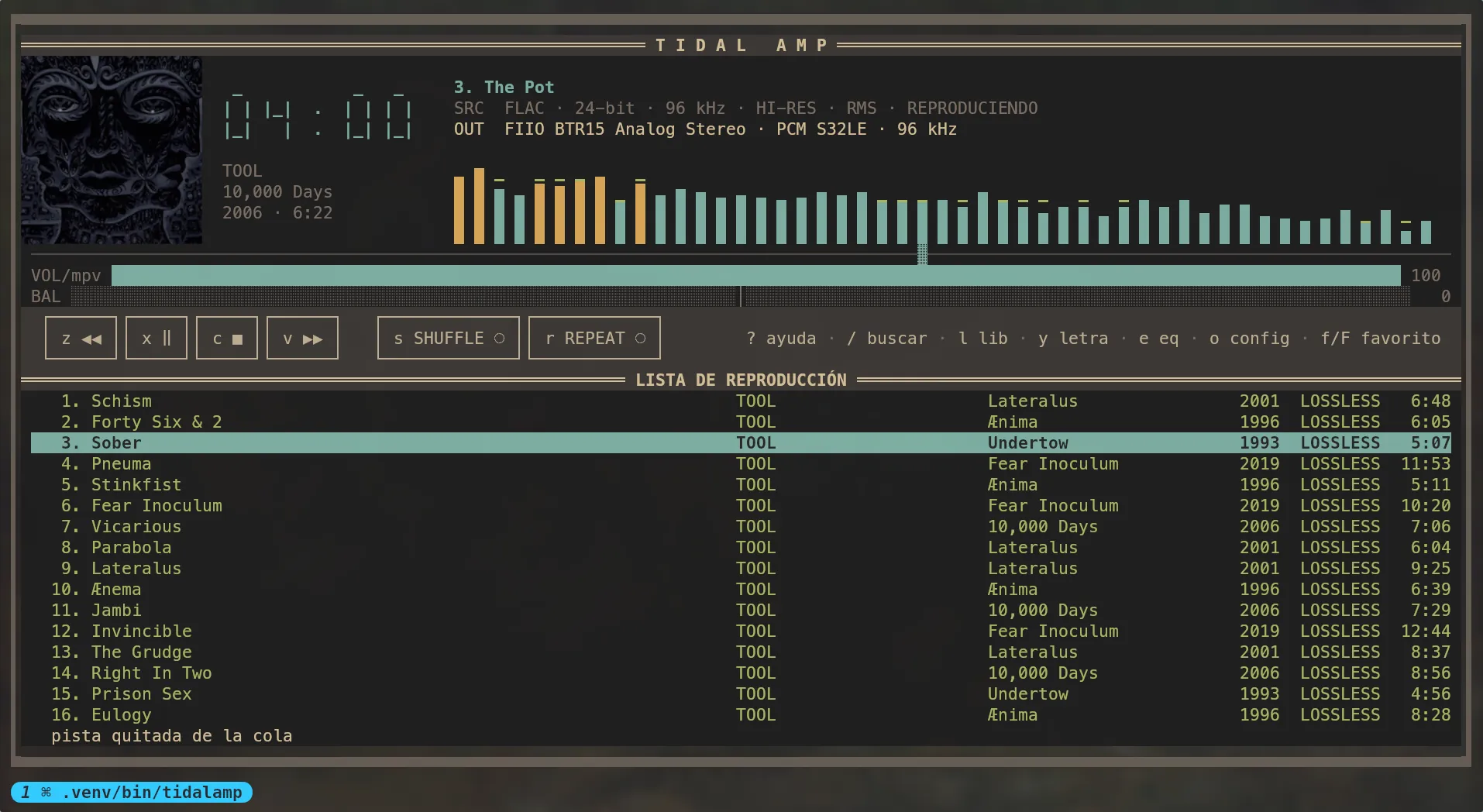
The same layout, repainted. These are Omarchy themes picked up through auto, plus
the player's own classic green-on-black, which is what you get anywhere else.
 |
 |
 |
 |
 |
 |
 |
 |
 |
 |
On Omarchy, tidalamp reads the active palette from
$XDG_STATE_HOME/omarchy/current/theme/colors.toml (or
~/.local/state/omarchy/current/theme/colors.toml) and applies it throughout the UI.
Changing the theme while the TUI is open updates the palette within two seconds
without disturbing playback. Everywhere else, and for a missing or invalid file, it
falls back to its own green-on-black classic. The integration only reads Omarchy
state; it does not modify themes or require the omarchy command.
Settings
o opens a settings window — the transport bar lists it, next to ? help. Every row
writes ~/.config/tidalamp/config.toml, so a change made once stays made.
| Setting | Values | Takes effect |
|---|---|---|
| Quality | LOW HIGH LOSSLESS HI_RES_LOSSLESS |
the next track |
| Cover art | auto kitty sixel blocks off |
on restart |
| Cover shape | square rounded round |
immediately |
| Language | auto es en |
on restart |
| Visualizer | bars mirror curve fine |
immediately |
| Autoplay | on / off | immediately |
| Normalised volume | off track album |
immediately |
| Library view | list grid |
the next level opened |
| Debug log | on / off | immediately |
| Menu shortcut | created / not created | immediately |
| Log out | action | closes tidalamp |
Normalised volume uses the ReplayGain TIDAL sends with every stream: track evens
out every track, album keeps the loud and quiet songs of one record as the record
has them. A track is never raised past its own peak, so nothing clips. While it is on,
the badge line under the clock says the gain applied to the track playing, such as
RG -7.5 dB, or RG — when TIDAL sent no gain for it.
The lines at the foot of the window (the note on the current row, the output and any warning) glide there and back when they do not fit, as the track title does.
Log out deletes the saved session and closes tidalamp; to use it again, run
tidalamp login. Its question has a box to delete tidalamp's data too:
~/.config/tidalamp, ~/.local/state/tidalamp and ~/.cache/tidalamp (settings,
queue, equaliser, covers) and any launcher for tidalamp in
~/.local/share/applications, with its icon. The next start is then a first start,
and asks about the menu again. Launchers installed system-wide by a package are left
alone.
Quality, Hi-res rates in PipeWire, Restart PipeWire, Menu shortcut and Log out do not change with the arrows, since a stray press on any of them costs more than a colour: Enter opens a list to choose from, and Restart's and Log out's lists open on Cancel.
tidalamp config shows the effective settings and creates the file if it does not
exist:
quality = "HI_RES_LOSSLESS"   # LOW, HIGH, LOSSLESS, or HI_RES_LOSSLESS
artwork = "auto"              # auto, kitty, sixel, blocks, or off
cover_shape = "square"        # square, rounded (rounded corners), or round (a disc)
language = "auto"             # auto follows the locale; es or en pin it
columns = "artist,album,year,duration"   # queue columns, comma separated
theme = "quattro"             # layout: quattro, retro, nova, ascii, or a themed look
palette = "auto"              # colours: auto, classic, a built-in, or your own
arrangement = "stacked"       # stacked, or split: the queue in a column on the right
backdrop = "auto"             # the picture behind the queue: auto, none, or a themed look
visualizer = "bars"           # analyzer shape: bars, mirror, curve, or fine
autoplay = false              # when the queue ends, carry on with the last track's radio
replaygain = "off"            # normalised volume: off, track, or album
library_view = "list"         # the library as a list, or as a grid of covers
debug = false                 # log to ~/.local/state/tidalamp/tidalamp.log

[keys]
play = "p"
quit = "ctrl+q"
Precedence is environment → file → default. TIDALAMP_QUALITY, TIDALAMP_ART,
TIDALAMP_LANG, TIDALAMP_COLUMNS, TIDALAMP_THEME, TIDALAMP_PALETTE,
TIDALAMP_VISUALIZER, TIDALAMP_LIBRARY_VIEW, and TIDALAMP_DEBUG therefore override the file for one-off runs; the settings window
labels a row whose value is being shadowed that way, rather than showing a value the
app is not using. A syntax error in the file does not prevent startup; it is logged
and the defaults take over.
Under [keys], the action is on the left and the key on the right; separate multiple
keys with commas. Valid actions are the ones in the key table, and
tidalamp config warns about unknown ones.
The audio stack
The same window shows what is underneath mpv, because nothing else can:
  Hi-res rates in PipeWire   not configured
                               the graph is stuck at 48000 Hz and resamples…
  Restart PipeWire           action

  Output: Your USB DAC Analog Stereo · 48000 Hz s32le
PipeWire runs its graph at one sample rate and resamples everything into it. By
default that is often a single allowed rate, so a 24/96 stream reaches the DAC at
48 kHz: the badge in the player is telling the truth about the stream, and the DAC
still never sees hi-res. Hi-res rates in PipeWire drops a file into
~/.config/pipewire/pipewire.conf.d/ that lets the graph follow the stream, and
Restart PipeWire applies it — stopping playback first, since mpv is holding the
sink.
PipeWire only picks a new rate while the device is idle, and between tracks it never
is. So when a track's rate differs from the DAC's, tidalamp sets clock.force-rate
for the moment it takes the DAC to switch, then puts it back to 0. It does not
force anything while another application is playing through the same output. If
the two rates still differ, the OUT badge says resampled from … kHz and this
window adds a warning line.
The window also names the output and warns when it is Bluetooth, which cannot carry lossless whatever the rates say. Both actions are reversible: the row toggles the file back off, and deleting it by hand does the same.
Language
English and Spanish are built in; Spanish is the fallback for unsupported locales.
With auto, the standard LANGUAGE, LC_ALL, LC_MESSAGES, and LANG variables
are consulted in that order.
language = "en" # auto, es, or en
Theme and palette names follow the language on screen: in English bosque reads as
forest, pirata as pirate, unidad-morada as purple-unit. config.toml keeps the
names in the table above whichever language is set, so a file written under one
still works under the other.
To override for one run:
TIDALAMP_LANG=en tidalamp
Lyrics
y opens lyrics for the current track without stopping playback. When TIDAL provides
LRC subtitles, the active line is highlighted and the window follows mpv's position.
Plain text can be scrolled with ↑, ↓, PageUp, and PageDown.
Not every track has lyrics, and regional licences do not always expose them. In that case, the window displays an error and playback continues normally.
Equalizer and balance
e opens a ten-band equalizer (60 Hz … 16 kHz, matching Winamp) with a ±12 dB range.
Use ←→ to select a band, ↑↓ to adjust it, and 0 to flatten it. Changes are
applied while you move them; an equalizer you cannot hear until pressing “OK” is not
useful.
p and P walk through eight presets — flat, rock, pop, jazz, classical, vocal, bass
and treble — and the one you are on is named under the bands. Move a band afterwards and
it stops being that preset and says manual, because the name is worked out from the
gains rather than remembered.
, and . move the balance, and \ centres it, including from the main window.
The position, volume and balance bars also accept a click; clicking position while no
track is loaded does nothing.
Settings are stored in ~/.local/state/tidalamp/settings.json and reapplied on
startup.
About the analyzer
The quality display identifies which of two modes is active:
FFT: with cava installed, tidalamp runs it against the audio sink and draws the measured spectrum — a real FFT.RMS: without cava, mpv exposes only levels through itsastatsfilter. The analyzer becomes a band-shaped meter with fast attack and slow decay. It reacts to music but is not a frequency breakdown, and the badge says so.
Installing cava is enough; no configuration is needed — see Requirements for the command on your distribution. If cava is missing, dies, or cannot open the sink, tidalamp returns to the RMS meter without interrupting playback.
One honest caveat: cava listens to the sink, not specifically to tidalamp's mpv process. It displays everything playing on the machine, which is usually just tidalamp.
Shapes
The visualizer setting picks how that spectrum is drawn. All four read the same
frame, so switching between them costs a redraw and nothing else — cava is never
restarted, and neither is the music.
| Shape | What it draws |
|---|---|
bars |
The default: upright bars with falling peaks |
mirror |
Bars growing up and down from a centre line |
curve |
The contour of the spectrum as a line, one glyph per column |
fine |
The same line on the Braille dot grid: twice the horizontal resolution, and joined up into a stroke |
fine needs a font with Braille. Most have it — every Nerd Font, DejaVu, the Noto
family — but a font without it draws boxes, and a terminal cannot be asked beforehand,
so it is a shape you choose rather than one anything falls back to.
All four are drawn where the analyzer has always been — beside the cover, under the track details — and all three run to the right edge of the window. Nothing moves and no row is taken from the queue.
The bars are capped at 64 bands and made wider to cover the width, rather than growing thinner as the terminal grows: on a 4K display the uncapped version cost the app 55% of a core at ten frames a second, because every band is an escape sequence the terminal has to chew through. Capped and with runs of one colour merged, the same picture costs about 8%.
Change it from the settings window (o, under Appearance), from config.toml, or
with TIDALAMP_VISUALIZER=curve tidalamp. It applies immediately.
Cover art
Album art is drawn to the left of the display, in a box that grows with the terminal from 18×9 cells up to 40×20. The renderer is selected automatically from the terminal's capabilities:
| Protocol | Terminals | Result |
|---|---|---|
| kitty graphics | kitty, Ghostty, WezTerm | real pixels |
| sixel | foot, mlterm, contour, yaft | real pixels |
| blocks | any other terminal | four samples per cell, two colours |
Detection reads $TERM, $TERM_PROGRAM, and $KITTY_WINDOW_ID, and falls back to
blocks, which work everywhere.
cover_shape = "round" (Cover shape in the settings window) draws the cover as a disc,
under any theme. The corners are painted in the band's own colour rather than left
transparent, since sixel and blocks have no transparency to leave, so the disc looks
the same with every protocol. rounded keeps the square and rounds its corners, with a
radius in proportion to the side so it still shows in blocks.
blocks draws with the quadrant glyphs (▘▝▖▗▚▞…), so each cell carries four
samples: two across and two down. A cell still holds only two colours, so where its four
pixels disagree they are split into a light group and a dark one and each is averaged —
on a photograph neighbouring pixels rarely disagree by much. Before this the renderer
used ▀ alone, which spent a whole cell's width on a single pixel and made covers look
stretched. The glyphs come from the same Block Elements range as ▀ and █, so nothing
is asked of a font that was not asked before.
To force a renderer:
TIDALAMP_ART=blocks tidalamp # kitty | sixel | blocks | off
Pillow is required to decode images, and the art extra installs it
(pipx install "tidalamp[art]"). Without it, cover art is omitted and everything else
keeps working — the same treatment as a missing cava — and the status bar says so at
startup. Covers are cached under ~/.cache/tidalamp/art/, keyed by URL.
Desktop integration (MPRIS)
On startup, tidalamp publishes org.mpris.MediaPlayer2.tidalamp on the session bus.
Anything that speaks MPRIS can see it without extra configuration:
playerctl -p tidalamp play-pause
playerctl -p tidalamp metadata
This supports Hyprland media keys, Waybar's mpris module (including cover art
through mpris:artUrl), and external widgets such as a Quickshell frontend. The
complete queue is published as org.mpris.MediaPlayer2.TrackList, so a client can
list it and jump to any row.
If there is no session bus, playback still starts and the status bar reports that MPRIS is unavailable.
The speed goes over MPRIS too: Rate reads and sets it, between MinimumRate 0.25
and MaximumRate 2. A desktop may send any number in that range; it lands on the
nearest quarter, the speeds the b window offers, and 0 is ignored.
In the application menu
pipx installs a command and nothing else, so the menu does not know about tidalamp. The first time the player opens (logged in, with mpv present) it asks in a dialog whether to add it:
- yes writes
~/.local/share/applications/tidalamp.desktopand its icon. From then on it is in the menu of any freedesktop desktop. On Omarchy it opens in Omarchy's own terminal, tiled, the wayomarchy-tui-installdoes it. - no is remembered, and the question is not asked again.
- Esc leaves it for the next start.
If a launcher for tidalamp already exists, under any name (the AUR package's, or one
made with omarchy-tui-install), nothing is asked. To take it out of the menu, delete
the file: it will not be offered again.
Menu shortcut, under General in the settings window (o), does the same at any
time, even after a no: it says created or not created, Enter offers to create it,
and when one already exists it shows where instead. TIDALAMP_NO_DESKTOP_ENTRY=1
turns off the first-start question.
Help and about
? (or h) opens a window listing every key with what it does, grouped by what you
are doing: playback, volume, the queue, the windows, favourites, and the keys that
only apply inside search and the library. It reads the bindings from the running app,
so a key rebound in config.toml shows up there as the key you actually have to
press.
The window has two tabs. → moves to About — version, author, repository, licence
and a summary of what each released version brought — and ← comes back to the keys,
where you left them.
↑ ↓ scroll, PgUp PgDn a page, Home End jump to either end, and ?, h or
Esc close it.
Inside the browser, whether it is showing your library or search results, ? opens
the same window with the browser's keys alone; the browser's footer names only ?
and esc.
/ searches the tab you are on: a box opens under the text, and what you type narrows
it to the lines that match, each under its section's heading, ignoring accents and
case. Enter hands the arrows back to the page with the search still on, and Esc
clears it before it closes the window. The footer names the key.
Troubleshooting
If mpv dies, tidalamp starts a fresh process and reloads the current track. Expired
tokens are refreshed automatically; tidalamp login is only needed when there is no
usable refresh token. Failed TIDAL calls are retried with backoff.
If OUT sits below SRC and the settings window reports nothing wrong, the limit
is the USB link, not the graph. A cable that negotiates full speed instead of high
speed caps many DACs at 16 bit / 96 kHz, and the kernel says so:
journalctl -k -b | grep -i "top speed"
# usb 1-4.3: not running at top speed; connect to a high speed hub
/proc/asound/card*/stream0 lists the formats and rates the device is offering on the
link it actually got. Try another cable and a direct port before suspecting the
software: the badge is reporting the truth about hardware that has quietly downgraded
itself.
For anything else, TIDALAMP_DEBUG=1 tidalamp writes to
~/.local/state/tidalamp/tidalamp.log. The TUI owns the terminal, so logging goes to
a file.
Platform support
tidalamp is a Linux application. Real playback has been tested on Arch Linux with Omarchy, and the automated test suite runs on Ubuntu.
| Platform | Status |
|---|---|
| Arch Linux / Omarchy | Supported and tested; install from PyPI for now. The AUR package is prepared but not yet published |
| Debian / Ubuntu | Supported through PyPI; the automated suite runs on Ubuntu |
| Fedora, openSUSE, and other desktop Linux distributions | Expected to work through PyPI, but not yet tested with real playback |
| WSL2 | Best effort; audio must be configured separately and desktop integration may be unavailable |
| macOS | Unsupported and untested; the core may run, but the Linux desktop and audio integrations will not |
| Windows | Not compatible: mpv is controlled through a Unix socket and desktop integration uses D-Bus/MPRIS |
| BSD and Android/Termux | Unsupported and untested |
A missing D-Bus session only disables MPRIS and desktop media controls; it does not stop playback. Cover art also falls back to terminal blocks when kitty graphics and sixel are unavailable.
License
GPL-3.0-or-later. See LICENSE for the complete text.
The themed looks' pictures in tidalamp/emblems/ are the exception: they are fan
tributes to the works each look nods to, those characters and designs belong to their
owners, and the GPL does not cover them. See
tidalamp/emblems/NOTICE. If you hold rights over one and
want it gone, open an issue and it leaves in the next release.
Disclaimer
tidalamp is an independent project. It is not affiliated with, sponsored by, or endorsed by TIDAL, Aspiro, Square, or the owners of the Winamp trademark. Names are used only descriptively to identify the service it communicates with and the player its key defaults and equalizer bands come from.
- You need your own TIDAL subscription. tidalamp provides no access beyond what your account already has.
- tidalamp does not circumvent technical protection measures. Tracks with encrypted Widevine manifests are rejected with a message; no decryption is attempted. This boundary is deliberate, and patches that add decryption or download audio to files will not be accepted.
- tidalamp does not download or redistribute music. Audio is streamed. The only on-disk playback artifact is a temporary HLS playlist containing URLs, not audio.
- Authentication uses TIDAL's device authorization flow through
tidalapi, not the developer API. Using an unofficial client may conflict with TIDAL's terms of service; users accept that decision and any risk to their account.
The themed looks evoke other works without naming them. Their pictures are fan tributes, not affiliated with or endorsed by the owners of what they nod to.
The licence applies to this code. It is not, and cannot be, permission from TIDAL.
1 maintainer

Release files for tidalamp 0.13.0
For a detailed explanation of source distributions (sdists) and built distributions (wheels), please see the package formats documentation.
Source distribution (sdist)
| File | Size | Uploaded | |
|---|---|---|---|
| tidalamp-0.13.0.tar.gz | 618.8 kB | Details |
Built distribution (wheel)
| File | Interpreter | ABI | Platform | Reset |
|---|---|---|---|---|
| tidalamp-0.13.0-py3-none-any.whl | Python 3 | none | any | Details |
Total release size: 1.1 MB
Release files / tidalamp-0.13.0.tar.gz
| Download URL | tidalamp-0.13.0.tar.gz |
|---|---|
| Size | 618.8 kB |
| Tags | Source |
|
SHA-256 checksum How to use checksums |
d5dadee8d9a6e9385c3122c96ba78ab1d641864f4aa73ab70ee25a78059d0e55
|
|
BLAKE2b-256 checksum How to use checksums |
109806bc4e9bfd3d05ea224fe87104f1c48d3f6eb8ba700b15454cb90766c41f
|
| Upload date | |
|
Uploaded using Trusted Publishing? What is trusted publishing? |
Yes |
| Uploaded via |
twine/7.0.0 CPython/3.13.14
|
Provenance
Provenance describes where a file came from. On PyPI, provenance is shared via attestations, which provide a verifiable record of the build or publishing details. View details, limitations and caveats.


PyPI Publish Attestation
PyPI verified that this artifact, at this checksum, originated from the publisher listed below.
Signed by GitHub Actions, verified by PyPI on Sep 17, 2026.
Transparency logRelease files / tidalamp-0.13.0-py3-none-any.whl
| Download URL | tidalamp-0.13.0-py3-none-any.whl |
|---|---|
| Size | 486.1 kB |
| Tags | Python 3 |
|
SHA-256 checksum How to use checksums |
1fdae3b599c4fc981e812cd0bb19ad3c9fbe603339a9c1070b54c3b84b48ac34
|
|
BLAKE2b-256 checksum How to use checksums |
02684dc71dc6faf39ec5dc3e0c334cf42ffcb6624e538819af985be6539d6ce2
|
| Upload date | |
|
Uploaded using Trusted Publishing? What is trusted publishing? |
Yes |
| Uploaded via |
twine/7.0.0 CPython/3.13.14
|
Provenance
Provenance describes where a file came from. On PyPI, provenance is shared via attestations, which provide a verifiable record of the build or publishing details. View details, limitations and caveats.
PyPI Publish Attestation
PyPI verified that this artifact, at this checksum, originated from the publisher listed below.
Signed by GitHub Actions, verified by PyPI on Sep 17, 2026.
Transparency log













