
An automatic TikTok video uploader w/ CLI. Uploads videos automatically using an automated browser and your cookies for authentication.

Project description
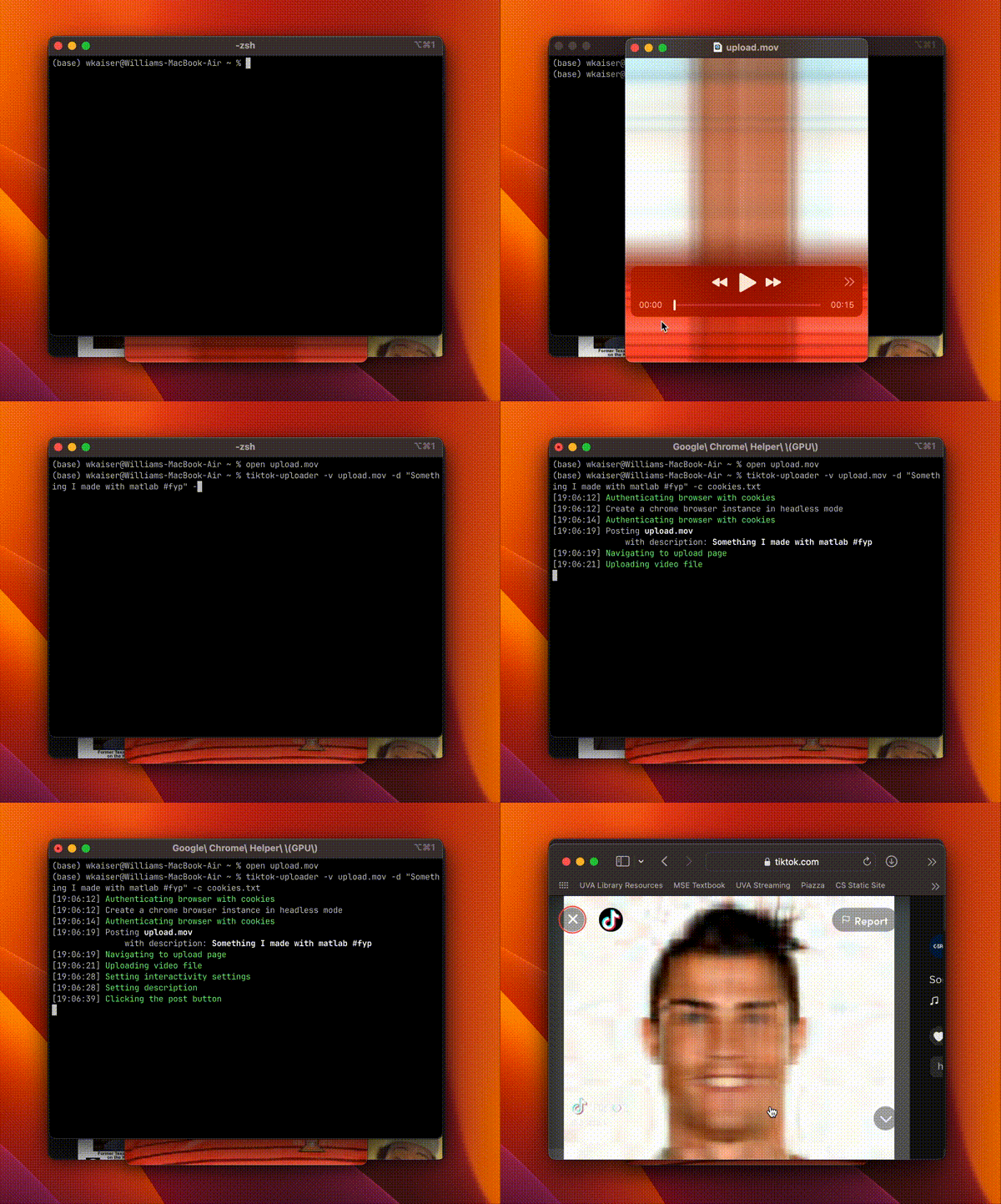
⬆️ TikTok Uploader
A Selenium-based automated TikTok video uploader



Table of Contents
Installation
A prequisite to using this program is the installation of a Selenium-compatible web browser. Google Chrome is recommended.
MacOS, Windows and Linux
Install Python 3 or greater from python.org
Downloading from PyPI (Recommended)
Install tiktok-uploader using pip
pip install tiktok-uploader
Building from source
Installing from source allows greater flexibility to modify the module's code to extend default behavior.
First, install uv a really fast python package manager.
curl -LsSf https://astral.sh/uv/install.sh | sh
Next, clone the repository using git. Then change directories and run the project with uv run tiktok-uploader.
git clone https://github.com/wkaisertexas/tiktok-uploader
cd tiktok-uploader
uv run tiktok-uploader
After uv installs the required packages, you should see something like the following:
usage: tiktok-uploader [-h] -v VIDEO [-d DESCRIPTION] [-t SCHEDULE] [--proxy PROXY] [--product-id PRODUCT_ID]
                       [-c COOKIES] [-s SESSIONID] [-u USERNAME] [-p PASSWORD] [--attach]
Usage
tiktok-uploader works by duplicating your browser's cookies which tricks TikTok into believing you are logged in on a remote-controlled browser.
💻 Command Line Interface (CLI)
Using the CLI is as simple as calling tiktok-uploader with your videos: path (-v), description(-d), and cookies (-c).
tiktok-uploader -v video.mp4 -d "this is my escaped \"description\"" -c cookies.txt
from tiktok_uploader.upload import upload_video, upload_videos
from tiktok_uploader.auth import AuthBackend

# single video
upload_video('video.mp4', description='this is my description', cookies='cookies.txt')

# Multiple Videos
videos = [
    {
        'path': 'video.mp4',
        'description': 'this is my description'
    },
    {
        'path': 'video2.mp4',
        'description': 'this is also my description'
    }
]

auth = AuthBackend(cookies='cookies.txt')
upload_videos(videos=videos, auth=auth)
⬆ Uploading Videos
This library revolves around the upload_videos function which takes in a list of videos which have filenames and descriptions and are passed as follows:
from tiktok_uploader.upload import upload_videos
from tiktok_uploader.auth import AuthBackend

videos = [
    {
        'video': 'video0.mp4',
        'description': 'Video 1 is about ...'
    },
    {
        'video': 'video1.mp4',
        'description': 'Video 2 is about ...'
    }
]

auth = AuthBackend(cookies='cookies.txt')
failed_videos = upload_videos(videos=videos, auth=auth)

for video in failed_videos:  # each input video object which failed
    print(f"{video['video']} with description {video['description']} failed")
🫵 Mentions and Hashtags
Mentions and Hashtags now work so long as they are followed by a space. However, you as the user are responsible for verifying a mention or hashtag exists before posting
from tiktok_uploader.upload import upload_video

upload_video('video.mp4', '#fyp @icespicee', 'cookies.txt')
🪡 Stitches, Duets and Comments
To set whether or not a video uploaded allows stitches, comments or duet, simply specify comment, stitch and/or duet as keyword arguments to upload_video or upload_videos.
upload_video(..., comment=True, stitch=True, duet=True)
Comments, Stitches and Duets are allowed by default
🌐 Proxy
To set a proxy, currently only works with chrome as the browser, allow user:pass auth.
# proxy = {'user': 'myuser', 'pass': 'mypass', 'host': '111.111.111', 'port': '99'}  # user:pass
proxy = {'host': '111.111.111', 'port': '99'}
upload_video(..., proxy=proxy)
📆 Schedule
The datetime to schedule the video will be treated with the UTC timezone.
The scheduled datetime must be at least 20 minutes in the future and a maximum of 10 days.
import datetime
schedule = datetime.datetime(2020, 12, 20, 13, 00)
upload_video(..., schedule=schedule)
🖼️ Covers
You can add a custom cover image when uploading a video.
TikTok supports ".png", ".jpeg" and ".jpg".
my_cover = "crazy_cover.jpg"
upload_video(..., cover=my_cover)
🛍️ Product Link
You can automatically add a product link to your uploaded video.
Prerequisites:
- Your TikTok account must be eligible to add showcase products to your videos.
- You need to obtain the product ID beforehand. To do this:
- Go to the TikTok upload page in your browser.
- Click the "Add link" button and select "Product".
- A modal will appear showing your available showcase products along with their IDs.
- Copy the ID of the product you want to link.
Usage:
Provide the product_id when calling the uploader.
Command Line:
tiktok-uploader -v video.mp4 -d "this is my description" -c cookies.txt --product-id YOUR_PRODUCT_ID
Python:
from tiktok_uploader.upload import upload_video, upload_videos
from tiktok_uploader.auth import AuthBackend

# Single video
upload_video('video.mp4',
            description='this is my description',
            cookies='cookies.txt',
            product_id='YOUR_PRODUCT_ID')

# Multiple videos
videos = [
    {
        'path': 'video.mp4',
        'description': 'this is my description',
        'product_id': 'YOUR_PRODUCT_ID_1' # Add product link to this video
    },
    {
        'path': 'video2.mp4',
        'description': 'this is also my description' # No product link for this video
    }
]

auth = AuthBackend(cookies='cookies.txt')
upload_videos(videos=videos, auth=auth)
🔐 Authentication
Authentication uses your browser's cookies. This workaround was done due to TikTok's stricter stance on authentication by a Selenium-controlled browser.
Your sessionid is all that is required for authentication and can be passed as an argument to nearly any function
🍪 Get cookies.txt makes getting cookies in a NetScape cookies format.
After installing, open the extensions menu on TikTok.com and click 🍪 Get cookies.txt to reveal your cookies. Select Export As ⇩ and specify a location and name to save.
upload_video(..., cookies='cookies.txt')
Optionally, cookies_list is a list of dictionaries with keys name, value, domain, path and expiry which allow you to pass your own browser cookies.
cookies_list = [
    {
        'name': 'sessionid',
        'value': '**your session id**',
        'domain': 'https://tiktok.com',
        'path': '/',
        'expiry': '10/8/2023, 12:18:58 PM'
    },
    # the rest of your cookies all in a list
]

upload_video(..., cookies_list=cookies_list)
👀 Browser Selection
Google Chrome is the preferred browser for TikTokUploader. The default anti-detection techniques used in this packaged are optimized for this. However, if you wish to use a different browser you may specify the browser in upload_video or upload_videos.
from tiktok_uploader.upload import upload_video

from random import choice

BROWSERS = [
    'chrome',
    'safari',
    'chromium',
    'edge',
    'firefox'
]

# randomly picks a web browser
upload_video(..., browser=choice(BROWSERS))
✅ Supported Browsers:
- Chrome (Recommended)
- Safari
- Chromium
- Edge
- FireFox
🚲 Custom WebDriver Options
Default modifications to Selenium are applied which help it avoid being detected by TikTok.
However, you may pass a custom driver configuration options. Simply pass options as a keyword argument to either upload_video or upload_videos.
from selenium.webdriver.chrome.options import Options

options = Options()

options.add_argument('start-maximized')

upload_videos(..., options=options)
[!NOTE] Make sure to use the right selenium options for your browser
🤯 Headless Browsers
Headless browsing only works on Chrome. When using Chrome, adding the --headless flag using the CLI or passing headless as a keyword argument to upload_video or upload_videos is all that is required.
upload_video(..., headless=True)
upload_videos(..., headless=True)
🔨 Initial Setup
WebDriverManager is used to manage driver versions.
On initial startup, you may be prompted to install the correct driver for your selected browser. However, for Chrome and Edge the driver is automatically installed.
♻ Examples
-
Basic Upload Example: Uses
upload_videoto make one post. -
Multiple Videos At Once: Uploads the same video multiple times using
upload_videos. -
Series Upload Example: Videos are read from a CSV file using Pandas. A video upload attempt is made and if and only if it is successful will the video be marked as uploaded.
📝 Notes
This bot is not fool proof. Though I have not gotten an official ban, the video will fail to upload after too many uploads. In testing, waiting several hours was sufficient to fix this problem. For this reason, please think of this more as a scheduled uploader for TikTok videos, rather than a spam bot.
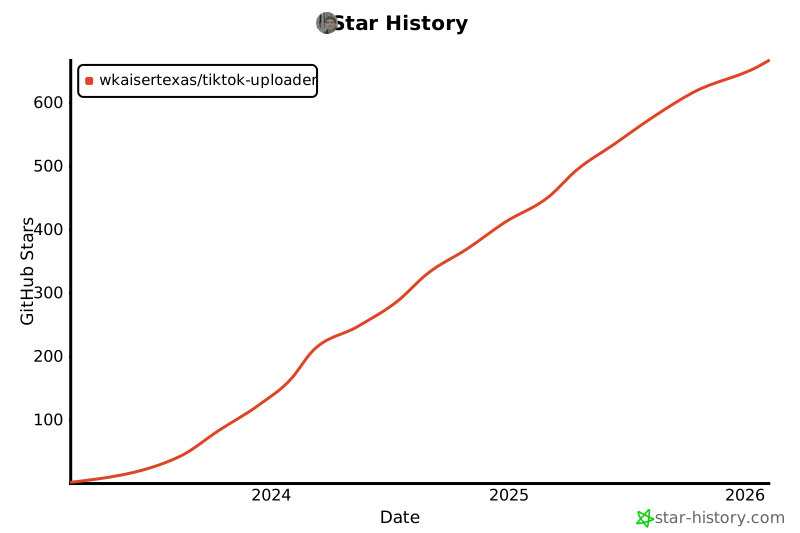
[!IMPORTANT] If you like this project, please ⭐ it on GitHub to show your support! ❤️
Release history Release notifications | RSS feed


Download files
Download the file for your platform. If you're not sure which to choose, learn more about installing packages.
Source Distribution
Built Distribution
Filter files by name, interpreter, ABI, and platform.
If you're not sure about the file name format, learn more about wheel file names.
Copy a direct link to the current filters
File details
Details for the file tiktok_uploader-1.1.5.tar.gz.
File metadata
- Download URL: tiktok_uploader-1.1.5.tar.gz
- Upload date:
- Size: 80.6 kB
- Tags: Source
- Uploaded using Trusted Publishing? No
- Uploaded via: uv/0.5.26
File hashes
| Algorithm | Hash digest | |
|---|---|---|
| SHA256 |
4136a7dd6c8673882d086b46c44e8a55d824a4872b5ca854721f73ae30abff78
|
|
| MD5 |
fe6a2d16101da988c966559012b344c1
|
|
| BLAKE2b-256 |
21b33976365c49db5f2714b0f27e51724866ad7b090041d8a3bc53123ac66d7c
|
File details
Details for the file tiktok_uploader-1.1.5-py3-none-any.whl.
File metadata
- Download URL: tiktok_uploader-1.1.5-py3-none-any.whl
- Upload date:
- Size: 30.8 kB
- Tags: Python 3
- Uploaded using Trusted Publishing? No
- Uploaded via: uv/0.5.26
File hashes
| Algorithm | Hash digest | |
|---|---|---|
| SHA256 |
28fc502f141c8e76c7a653cc3e90fbc80cb5cddf20e2f49c710288ed154ebe27
|
|
| MD5 |
9c4c1c6c558ca3f28489951dbafd6729
|
|
| BLAKE2b-256 |
75b0e19a4b37fc687deb4223522a5a9f11485d41d5479d2e69d3c6cec765f40f
|






