



 tlRender
tlRender is an open source library for building playback and review applications for visual effects, film, and animation.
The library can render and playback timelines with multiple video clips, image sequences, audio clips, and transitions. Examples are provided for integrating the library with OpenGL applications.
The library is written in C++ and uses the CMake build system, with Python bindings on PyPI:
pip install tlRender
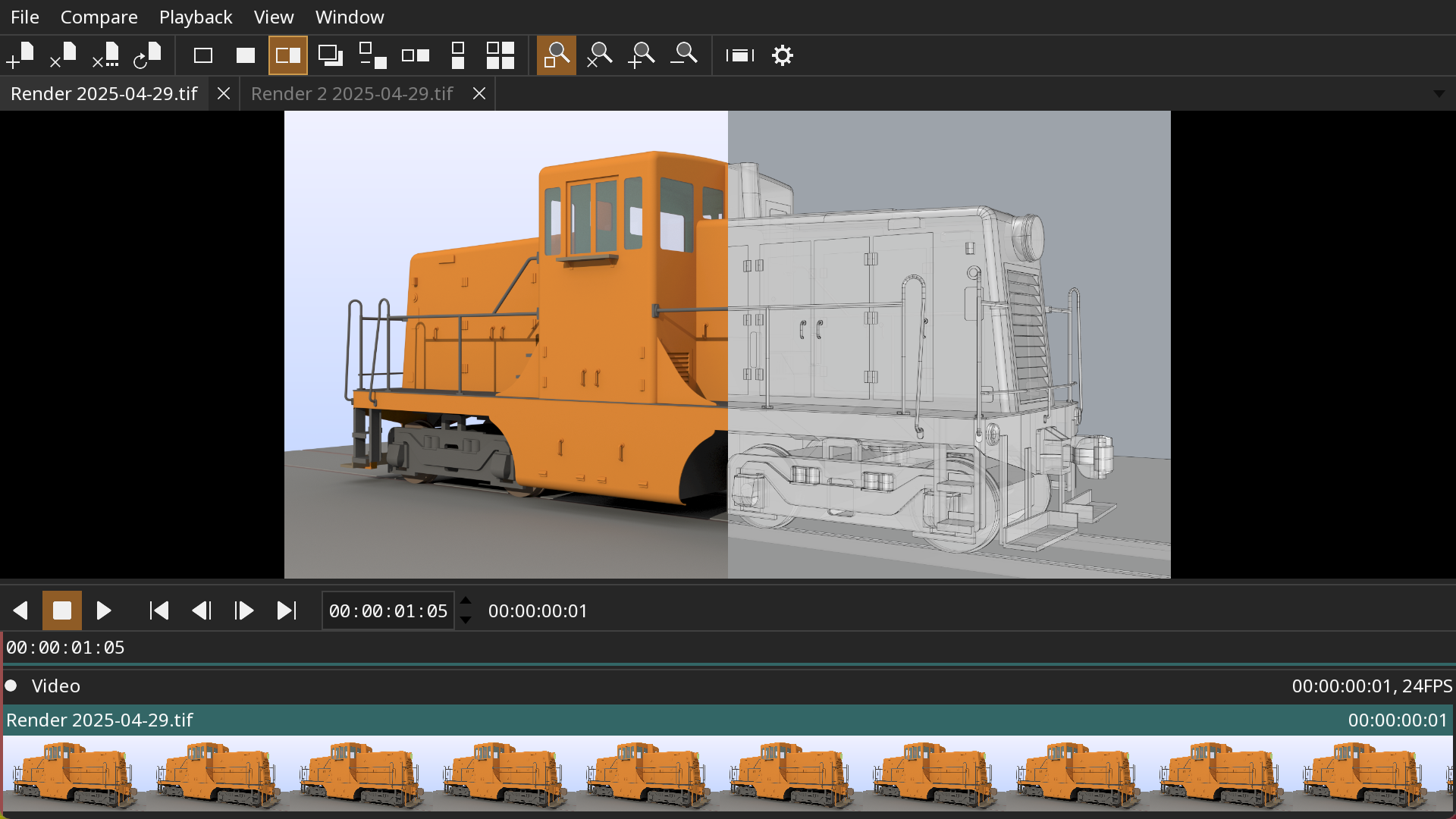
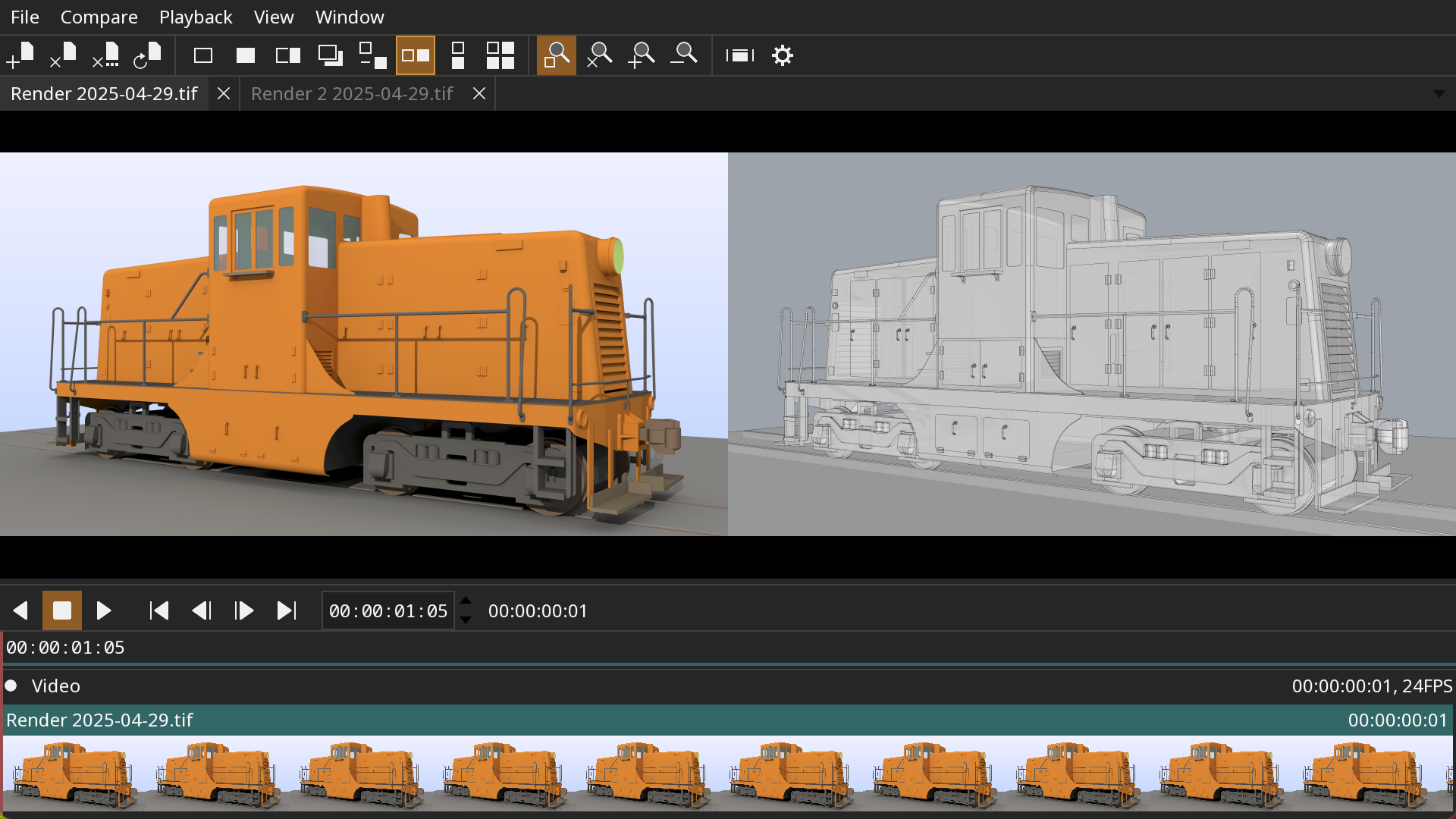
These screenshots show an example application built with tlRender. The application is comparing two images with a wipe and horizontal layout.
Features:
- Support for timelines, image sequences, movies, and audio files
- A/B comparison with wipe, overlay, and difference modes
- Color management with OpenColorIO
- Multi-track audio with variable speed and reverse playback
- Experimental support for USD files
- Available for Linux, macOS, and Windows
Quick start
A window that plays a timeline, movie, or image sequence given on the command line.
C++
#include <tlRender/UI/Init.h>
#include <tlRender/UI/Viewport.h>
#include <tlRender/Timeline/Player.h>

#include <ftk/UI/App.h>
#include <ftk/UI/MainWindow.h>

#include <iostream>

using namespace ftk;

int main(int argc, char** argv)
{
    try
    {
        // Create the context and application.
        auto context = Context::create();
        tl::ui::init(context);
        auto input = CmdLineArg<std::string>::create(
            "input", "A timeline, movie, or image sequence.");
        auto app = App::create(
            context, argc, argv, "simple", "Simple player example.", { input });
        if (app->hasCmdLineHelp())
            return 0;

        // Create a timeline and a player for it.
        auto timeline = tl::Timeline::create(context, Path(input->getValue()));
        auto player = tl::Player::create(context, timeline);

        // Show the player in a window.
        auto window = MainWindow::create(context, app);
        auto viewport = tl::ui::Viewport::create(context);
        viewport->setPlayer(player);
        window->setWidget(viewport);

        // Start playback and run the application.
        player->setPlayback(tl::Playback::Forward);
        app->run();
    }
    catch (const std::exception& e)
    {
        std::cout << "ERROR: " << e.what() << std::endl;
        return 1;
    }
    return 0;
}
Python
The same player, after pip install tlRender:
import feather_tk as ftk
import tlrender as tl
import sys

# Create the context and application.
context = ftk.Context()
tl.ui.init(context)
input = ftk.CmdLineArgString("input", "A timeline, movie, or image sequence.")
app = ftk.App(context, sys.argv, "simple", "Simple player example.", [input])
if app.hasCmdLineHelp:
    sys.exit(0)

# Create a timeline and a player for it.
timeline = tl.Timeline(context, ftk.Path(input.value))
player = tl.Player(context, timeline)

# Show the player in a window.
window = ftk.MainWindow(context, app)
viewport = tl.ui.Viewport(context)
viewport.player = player
window.widget = viewport

# Start playback and run the application.
player.playback = tl.Playback.Forward
app.run()
The examples directory has fuller players in both languages, with playback controls and a timeline.
Web Player
An experimental build of the example player runs in the browser, playing movies with the WebCodecs API:
The "url" query plays a movie from any host that allows cross-origin range reads. The page asks the browser for as much memory as it will give, from 2GB down; a "mem" query names the maximum in megabytes for a browser that refuses even the smallest, or for trying one. Decoded frames stay on the GPU: the browser imports each one into a WebGL texture and the viewport draws it there, with no copy through memory. The "copy" query takes the older path, which copies every frame into memory, for comparison.
The web build is etc/Web/build.sh, which builds the dependencies and
the player with Emscripten; it needs emcc on the path. The Web
workflow runs it on every push to main and publishes the result to the
page above.
Python
The Python bindings are one wheel per platform for CPython 3.12 and later, built on the feather-tk wheel, which pip installs with them, and OpenTimelineIO. Python 3.12 or 3.13 is the easy choice for now: OpenTimelineIO has no prebuilt wheels yet for Python 3.14, or for Intel macOS, and there pip builds it from source, which needs a C++ compiler and the Python development files.
import opentimelineio as otio
import feather_tk as ftk
import tlrender as tl
The wheel has only the FFmpeg codecs that need no patent license: AV1, APV,
VP8 and VP9, MPEG-2 and MPEG-4, MJPEG, FFV1, CineForm, UT Video, HuffYUV,
MagicYUV, Dirac, PNG, v210, and the FLAC, Opus, Vorbis, ALAC, MP3 and PCM
audio codecs. H.264, HEVC, ProRes, DNxHD, DV and AAC are not in it, so a
camera movie or anything else carrying them does not open with the wheel
alone. Two ways to play them: install FFmpeg yourself, and tlRender reads
them with the ffmpeg and ffprobe commands on PATH; or build from
source, where the codecs are compiled in.
OpenTimelineIO does not publish wheels for every platform tlRender does, so on some pip builds it from source, which needs a C++ compiler.
Without a display
A script with no window drives the player itself. Nothing updates between
calls to Context.tick(), and after a seek the player's current frame is the
previous one until the new one is decoded, so wait for the time asked for:
import numpy as np
import feather_tk as ftk
import tlrender as tl
import time

context = ftk.Context()
tl.init(context)
timeline = tl.Timeline(context, ftk.Path("render.0001.exr"))
player = tl.Player(context, timeline)

def frame_at(t):
    player.currentTime = t
    while True:
        context.tick()
        for frame in player.currentVideo:
            image = frame.layers[0].image if frame.layers else None
            if frame.time == t and image and image.valid:
                return image
        time.sleep(0.005)

image = frame_at(timeline.timeRange.start_time)
pixels = np.asarray(image)       # (height, width, channels), the right way up
print(pixels.dtype, pixels.shape, pixels.max())
A Timeline also takes an opentimelineio.schema.Timeline object, so a cut
built or edited in Python plays without being written to a file first.
OffscreenRender draws frames the way a viewport does, a compare included,
to an image you can write or read:
player.compare = [tl.Timeline(context, ftk.Path("v002/render.0001.exr"))]
options = tl.CompareOptions()
options.compare = tl.Compare.Tile
t = timeline.timeRange.start_time
player.currentTime = t
while not (len(player.currentVideo) == 2 and
           all(f.time == t for f in player.currentVideo)):
    context.tick()
    time.sleep(0.005)
image = tl.OffscreenRender(context).render(player.currentVideo, options)

info = tl.IOInfo()
info.video = [image.info]
writer = tl.WriteSystem(context).write(ftk.Path("compare.png"), info)
writer.writeVideo(t, image)
writer.finish()
Its OpenGL context is a hidden window's. On Linux with no display at all --
a container, a render farm node, continuous integration -- set
SDL_VIDEO_DRIVER=offscreen in the environment, and it is an EGL context
with no window system. That needs Mesa's EGL and DRI drivers (on Debian and
Ubuntu, libegl1 libgl1-mesa-dri libgbm1), and uses the GPU where there is
one and Mesa's software renderer where there is not. Where there is no sound
card either, set SDL_AUDIO_DRIVER=dummy: audio then goes nowhere, and the
audio libraries are not asked for devices, which is what prints their errors
in a container.
The Python examples show the API in use. The wheel also carries the C++ libraries, headers, and CMake package, so a project with its own bindings can build against the same installation:
cmake -DtlRender_DIR="$(python -c "import tlrender; print(tlrender.get_cmake_dir())")" ...
tlRender's package finds feather-tk's in the feather_tk package beside it.
Building Dependencies
A CMake super build script is provided to build all of the dependencies from source.
Build options go in etc/Config/local.cmake, which is not tracked. For
example, to enable USD (building USD also requires Python 3):
set(TLRENDER_USD ON CACHE BOOL "")
Required dependencies:
Optional dependencies:
Building on Linux
Requirements:
- Git
- CMake 3.31
Debian
Install system packages:
sudo apt-get install build-essential git cmake xorg-dev libglu1-mesa-dev mesa-common-dev mesa-utils libasound2-dev libpulse-dev libpipewire-0.3-dev libva-dev libdrm-dev libwayland-dev wayland-protocols libxkbcommon-dev libegl1-mesa-dev libdecor-0-dev
The Wayland packages are optional; without them SDL is built with X11 only and runs through XWayland on a Wayland desktop.
Rocky 9
Install system packages:
sudo dnf install git libX11-devel libXrandr-devel libXinerama-devel libXcursor-devel libXi-devel mesa-libGL-devel pipewire-devel libva-devel libdrm-devel wayland-devel wayland-protocols-devel libxkbcommon-devel mesa-libEGL-devel libdecor-devel
Rocky 8
Install system packages:
sudo dnf install git libX11-devel libXrandr-devel libXinerama-devel libXcursor-devel libXi-devel mesa-libGL-devel pipewire-devel libva-devel libdrm-devel wayland-devel wayland-protocols-devel libxkbcommon-devel mesa-libEGL-devel
Install newer compiler:
sudo dnf install gcc-toolset-13
Enable newer compiler:
scl enable gcc-toolset-13 bash
NVIDIA hardware decoding loads the driver's CUDA library at run time. On RHEL family systems that is a separate package:
sudo dnf install nvidia-driver-cuda-libs
Build
Clone the repository:
git clone https://github.com/grizzlypeak3d/tlRender.git
Run the super build script:
sh tlRender/sbuild-linux.sh
Try running the example player:
./build-Release/examples/player/player -url tlRender/etc/SampleData/MultipleClips.otio
Example running gcovr for code coverage:
gcovr -r ../../../../lib --html --object-directory lib --html-details --output gcov.html lib/tlCore lib/tlIO lib/tlTimeline
Building on macOS
Requirements:
- Git
- Xcode
- CMake 3.31
Clone the repository:
git clone https://github.com/grizzlypeak3d/tlRender.git
Run the super build script:
sh tlRender/sbuild-macos.sh
Try running the example player:
./build-Release/examples/player/player -url tlRender/etc/SampleData/MultipleClips.otio
These aliases are convenient for switching between architectures:
alias arm="env /usr/bin/arch -arm64 /bin/zsh --login"
alias intel="env /usr/bin/arch -x86_64 /bin/zsh --login"
Building on Windows
Requirements:
- Git (https://git-scm.com)
- Visual Studio 2022
- CMake 3.31
- NASM (https://www.nasm.us) for compiling FFmpeg and libjpeg-turbo.
- MSYS2 (https://www.msys2.org) for compiling FFmpeg.
- Strawberry Perl (https://strawberryperl.com/) for compiling network support.
- Python 3.11 for compiling USD.
Open the Visual Studio command console "x64 Native Tools Command Prompt for VS 2022". This can be found in the Start menu, in the "Visual Studio 2022" folder.
Clone the repository:
git clone https://github.com/grizzlypeak3d/tlRender.git
Run the super build script:
tlRender\sbuild-win.bat
Try running the example player:
set PATH=%CD%\install-Release\bin;%PATH%
.\build-Release\examples\player\Release\player -url tlRender\etc\SampleData\MultipleClips.otio
1 maintainer

Metadata
1 maintainer
Release files for tlRender 0.26.0
For a detailed explanation of source distributions (sdists) and built distributions (wheels), please see the package formats documentation.
Source distribution (sdist)
| File | Size | Uploaded | Provenance | |
|---|---|---|---|---|
| tlrender-0.26.0.tar.gz | 46.6 MB | With provenance | Details |
Built distributions (wheels)
| File | Reset | |||
|---|---|---|---|---|
| tlrender-0.26.0-cp312-abi3-win_amd64.whl | CPython 3.12 | abi3 | Windows x86-64 | Details |
| tlrender-0.26.0-cp312-abi3-manylinux_2_28_x86_64.whl | CPython 3.12 | abi3 | Linux glibc 2.28+ x86-64 | Details |
| tlrender-0.26.0-cp312-abi3-manylinux_2_28_aarch64.whl | CPython 3.12 | abi3 | Linux glibc 2.28+ ARM64 | Details |
| tlrender-0.26.0-cp312-abi3-macosx_11_0_arm64.whl | CPython 3.12 | abi3 | macOS 11.0+ ARM64 | Details |
| tlrender-0.26.0-cp312-abi3-macosx_10_15_x86_64.whl | CPython 3.12 | abi3 | macOS 10.15+ x86-64 | Details |
Total release size: 259.3 MB
Release files / tlrender-0.26.0.tar.gz
| Download URL | tlrender-0.26.0.tar.gz |
|---|---|
| Size | 46.6 MB |
| Tags | Source |
|
SHA-256 checksum How to use checksums |
695d6e4431a68653371946d61921c632a3734617223ee1558cd1e36599b7b0da
|
|
BLAKE2b-256 checksum How to use checksums |
2e947403251b13e2f2a5ecd80bdad9c5a744ddddc9a1ec1f4ce939c608493e33
|
| Upload date | |
|
Uploaded using Trusted Publishing? What is trusted publishing? |
Yes |
| Uploaded via |
twine/7.0.0 CPython/3.13.16
|
Provenance
Provenance describes where a file came from. On PyPI, provenance is shared via attestations, which provide a verifiable record of the build or publishing details. View details, limitations and caveats.


PyPI Publish Attestation
PyPI verified that this artifact, at this checksum, originated from the publisher listed below.
Signed by GitHub Actions, verified by PyPI on Oct 21, 2026.
Transparency logRelease files / tlrender-0.26.0-cp312-abi3-win_amd64.whl
| Download URL | tlrender-0.26.0-cp312-abi3-win_amd64.whl |
|---|---|
| Size | 35.6 MB |
| Tags | CPython 3.12 Windows x86-64 abi3 |
|
SHA-256 checksum How to use checksums |
3f3e616f790801161c3e71fe0d82a65a8bb6941553a52bb570f920839c100568
|
|
BLAKE2b-256 checksum How to use checksums |
c2ff30a9cff8c529ce1dc68171f70c8c8f7a21d246d6a4960f24c5d4ebb21462
|
| Upload date | |
|
Uploaded using Trusted Publishing? What is trusted publishing? |
Yes |
| Uploaded via |
twine/7.0.0 CPython/3.13.16
|
Provenance
Provenance describes where a file came from. On PyPI, provenance is shared via attestations, which provide a verifiable record of the build or publishing details. View details, limitations and caveats.
PyPI Publish Attestation
PyPI verified that this artifact, at this checksum, originated from the publisher listed below.
Signed by GitHub Actions, verified by PyPI on Oct 21, 2026.
Transparency logRelease files / tlrender-0.26.0-cp312-abi3-manylinux_2_28_x86_64.whl
| Download URL | tlrender-0.26.0-cp312-abi3-manylinux_2_28_x86_64.whl |
|---|---|
| Size | 48.8 MB |
| Tags | CPython 3.12 Linux glibc 2.28+ x86-64 abi3 |
|
SHA-256 checksum How to use checksums |
bc1ae668e9d8387f742a6fbe1bace1b1f0a4c313ca478a1484fc46d3d670f67c
|
|
BLAKE2b-256 checksum How to use checksums |
f09155b580393b3272452eaf42f0c70afa9699905d363252d2f2c9a54aad733a
|
| Upload date | |
|
Uploaded using Trusted Publishing? What is trusted publishing? |
Yes |
| Uploaded via |
twine/7.0.0 CPython/3.13.16
|
Provenance
Provenance describes where a file came from. On PyPI, provenance is shared via attestations, which provide a verifiable record of the build or publishing details. View details, limitations and caveats.
PyPI Publish Attestation
PyPI verified that this artifact, at this checksum, originated from the publisher listed below.
Signed by GitHub Actions, verified by PyPI on Oct 21, 2026.
Transparency logRelease files / tlrender-0.26.0-cp312-abi3-manylinux_2_28_aarch64.whl
| Download URL | tlrender-0.26.0-cp312-abi3-manylinux_2_28_aarch64.whl |
|---|---|
| Size | 46.1 MB |
| Tags | CPython 3.12 Linux glibc 2.28+ ARM64 abi3 |
|
SHA-256 checksum How to use checksums |
72e60bc9e7d6084939b63f5c98311c0737c5530fb1c659a4c5eed2fc8e66a469
|
|
BLAKE2b-256 checksum How to use checksums |
dccc8296c5c0a3df3073490515b021439850ce3efbaed6cadf2e28fde82d0e8c
|
| Upload date | |
|
Uploaded using Trusted Publishing? What is trusted publishing? |
Yes |
| Uploaded via |
twine/7.0.0 CPython/3.13.16
|
Provenance
Provenance describes where a file came from. On PyPI, provenance is shared via attestations, which provide a verifiable record of the build or publishing details. View details, limitations and caveats.
PyPI Publish Attestation
PyPI verified that this artifact, at this checksum, originated from the publisher listed below.
Signed by GitHub Actions, verified by PyPI on Oct 21, 2026.
Transparency logRelease files / tlrender-0.26.0-cp312-abi3-macosx_11_0_arm64.whl
| Download URL | tlrender-0.26.0-cp312-abi3-macosx_11_0_arm64.whl |
|---|---|
| Size | 38.2 MB |
| Tags | CPython 3.12 abi3 macOS 11.0+ ARM64 |
|
SHA-256 checksum How to use checksums |
4681d7a7039c71926200cc4a932115c1b4a4b3c889028a1419e922ccfa8d3727
|
|
BLAKE2b-256 checksum How to use checksums |
84bad509225a3c67bea7286c4682ffe5c670edf7f857e9e77259e766e23f17c0
|
| Upload date | |
|
Uploaded using Trusted Publishing? What is trusted publishing? |
Yes |
| Uploaded via |
twine/7.0.0 CPython/3.13.16
|
Provenance
Provenance describes where a file came from. On PyPI, provenance is shared via attestations, which provide a verifiable record of the build or publishing details. View details, limitations and caveats.
PyPI Publish Attestation
PyPI verified that this artifact, at this checksum, originated from the publisher listed below.
Signed by GitHub Actions, verified by PyPI on Oct 21, 2026.
Transparency logRelease files / tlrender-0.26.0-cp312-abi3-macosx_10_15_x86_64.whl
| Download URL | tlrender-0.26.0-cp312-abi3-macosx_10_15_x86_64.whl |
|---|---|
| Size | 44.1 MB |
| Tags | CPython 3.12 abi3 macOS 10.15+ x86-64 |
|
SHA-256 checksum How to use checksums |
48ea3797e8ca45e294437a6dfde2f03d9ccc219bd41a3252a1f536148ccb6f0f
|
|
BLAKE2b-256 checksum How to use checksums |
043aa380764ccc0f6000fa492e638c9ed5c95915d06841da157ffc13bbf8edea
|
| Upload date | |
|
Uploaded using Trusted Publishing? What is trusted publishing? |
Yes |
| Uploaded via |
twine/7.0.0 CPython/3.13.16
|
Provenance
Provenance describes where a file came from. On PyPI, provenance is shared via attestations, which provide a verifiable record of the build or publishing details. View details, limitations and caveats.
PyPI Publish Attestation
PyPI verified that this artifact, at this checksum, originated from the publisher listed below.
Signed by GitHub Actions, verified by PyPI on Oct 21, 2026.
Transparency logSecurity for tlRender 0.26.0
Provenance
Provenance describes where a file came from. On PyPI, provenance is shared via attestations, which provide a verifiable record of the build or publishing details. View details, limitations and caveats.
Full provenance
All 6 files in this release have been uploaded with provenance metadata.
Attestation for tlrender-0.26.0.tar.gz
PyPI Publish Attestation
PyPI verified that this artifact, at this checksum, originated from the publisher listed below.
Signed by GitHub Actions, verified by PyPI on Oct 21, 2026.
Transparency logA note on package security
PyPI is a repository for distributing packages, not a service for auditing them. While third-party security researchers and our staff do their best to detect and remove malicious packages, PyPI cannot guarantee the quality, security or suitability of any given package.














