




tnz
Use a standard terminal emulator as a 3270 terminal interface. Write scripts to automate 3270 terminal interaction. This is both a 3270 terminal emulator and a Python library. The zti module provides a 3270 user interface through a Windows Command Prompt or a unix/ascii terminal. The tnz module handles the interface to the 3270 data stream. The ati module allows for easier 3270 terminal automation.
Features
- Runs on many platforms (including z/OS)
- Secure telnet (TLS) by default
- Manages multiple 3270 sessions at the same time
- Lightweight - does not duplicate standard terminal function
- Code page 310 for APL graphic symbols (i.e. 3278T terminal type)
Installing
Python 3.10 or later is required. Although not required, on platforms other than z/OS, it is suggested you also install the ebcdic package from PyPI. Use pip to install the latest tnz:
pip3 install ebcdic tnz
Usage
Automation
See examples to get started writing a script to automate 3270 interaction.
Emulator
Run the installed zti (Z Terminal Interface) script to start the emulator:
zti
If your path is not set up for running the installed zti console script,
you can run zti with python -m tnz.zti instead.
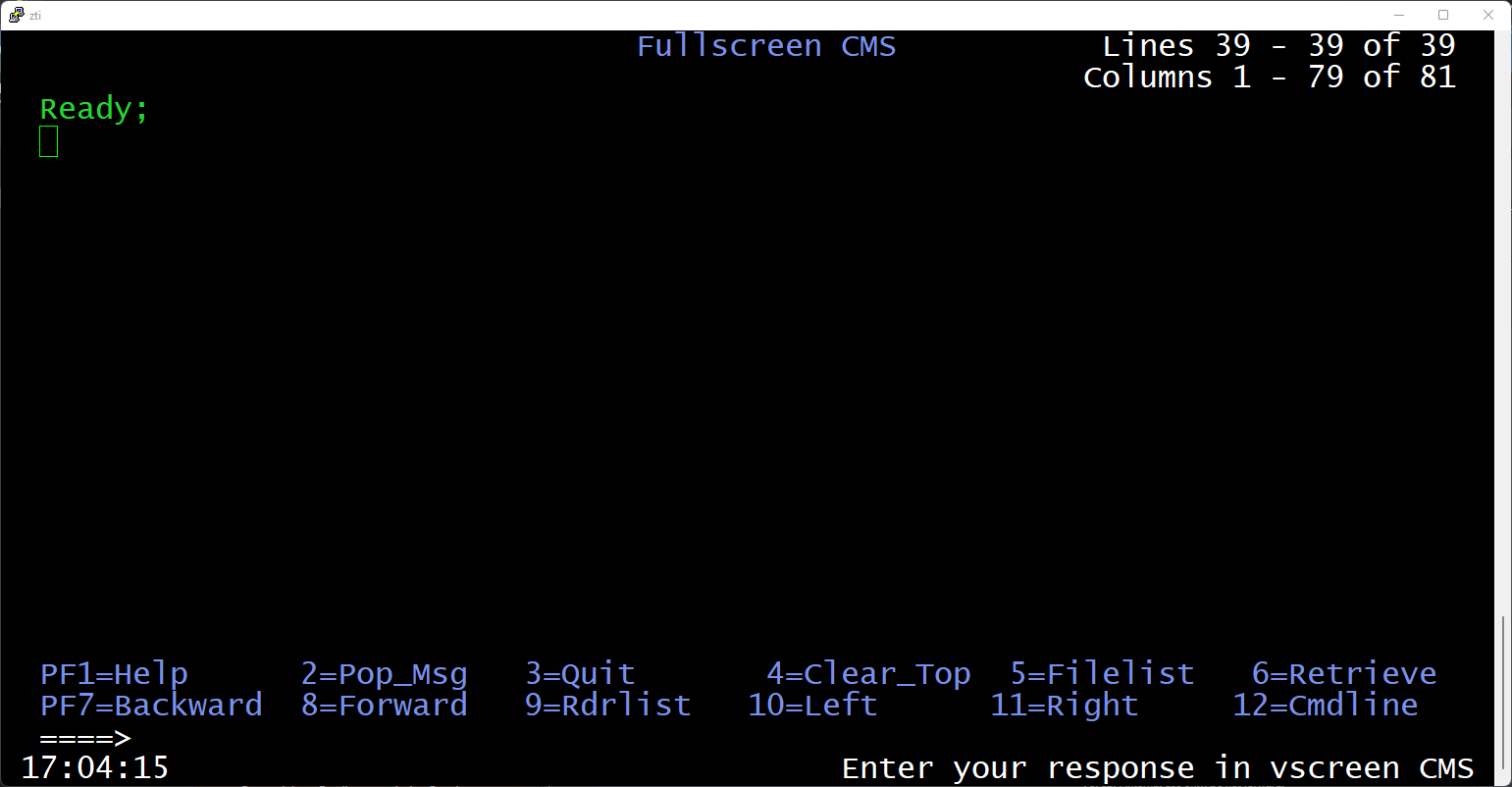
Starting zti takes you into the zti command line interface shell.
Key tab for command completion, up/down for command history.
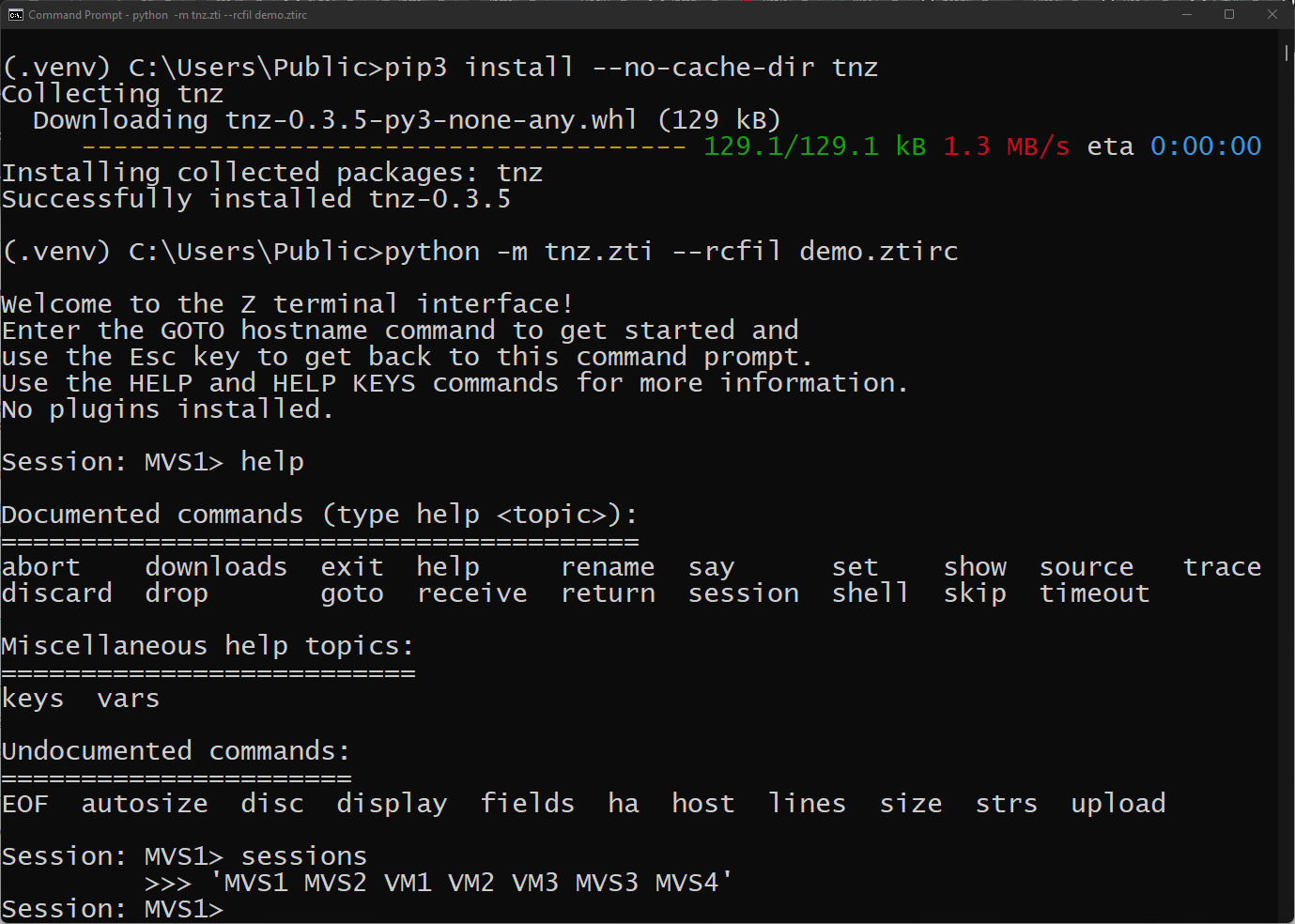
The goto command takes you to a full screen 3270 interface. When
space is available in the terminal screen/window, a status line is
provided as well as a session selector.
The basic syntax of goto is:
goto fully-qualified-host-name[:port]
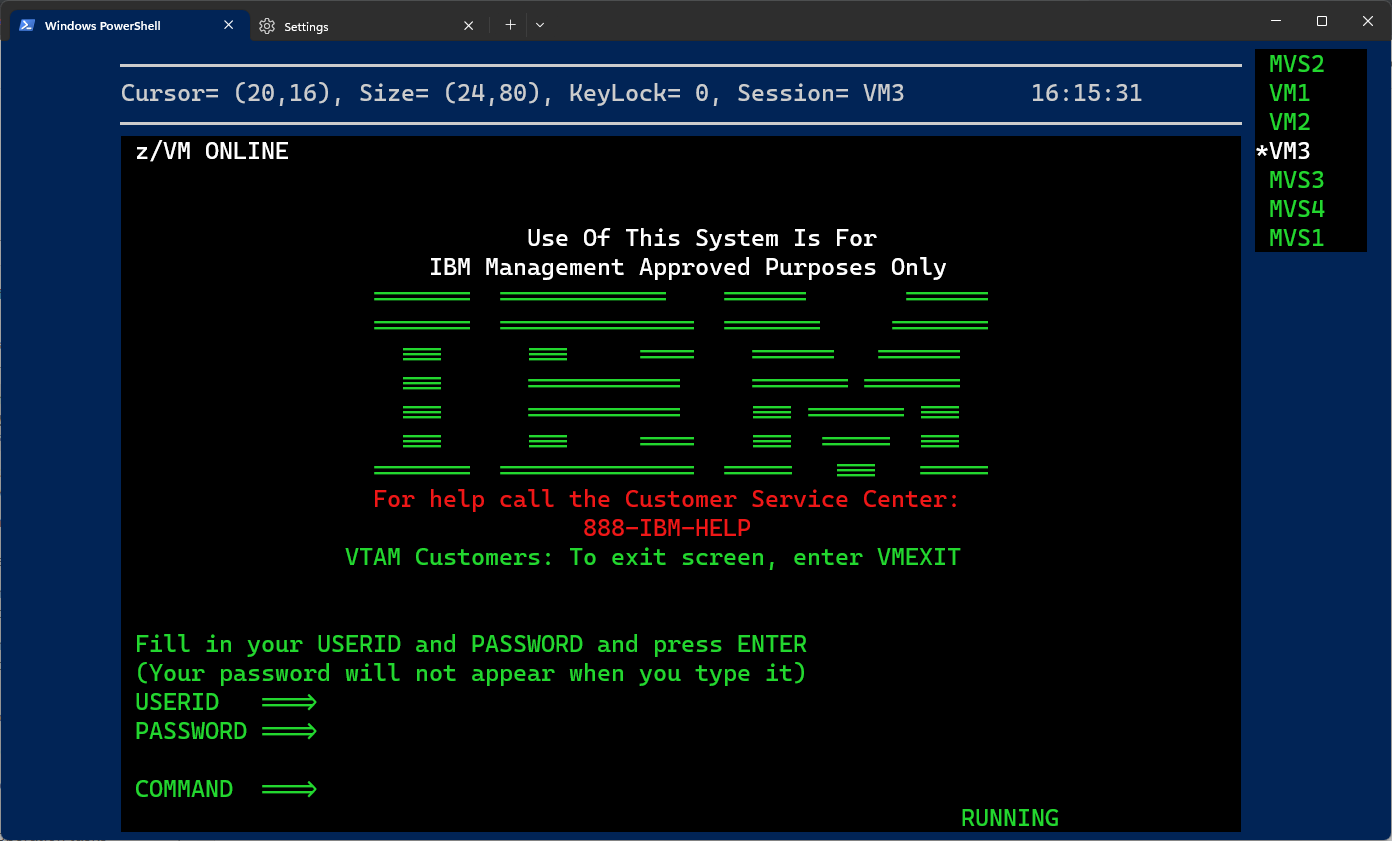
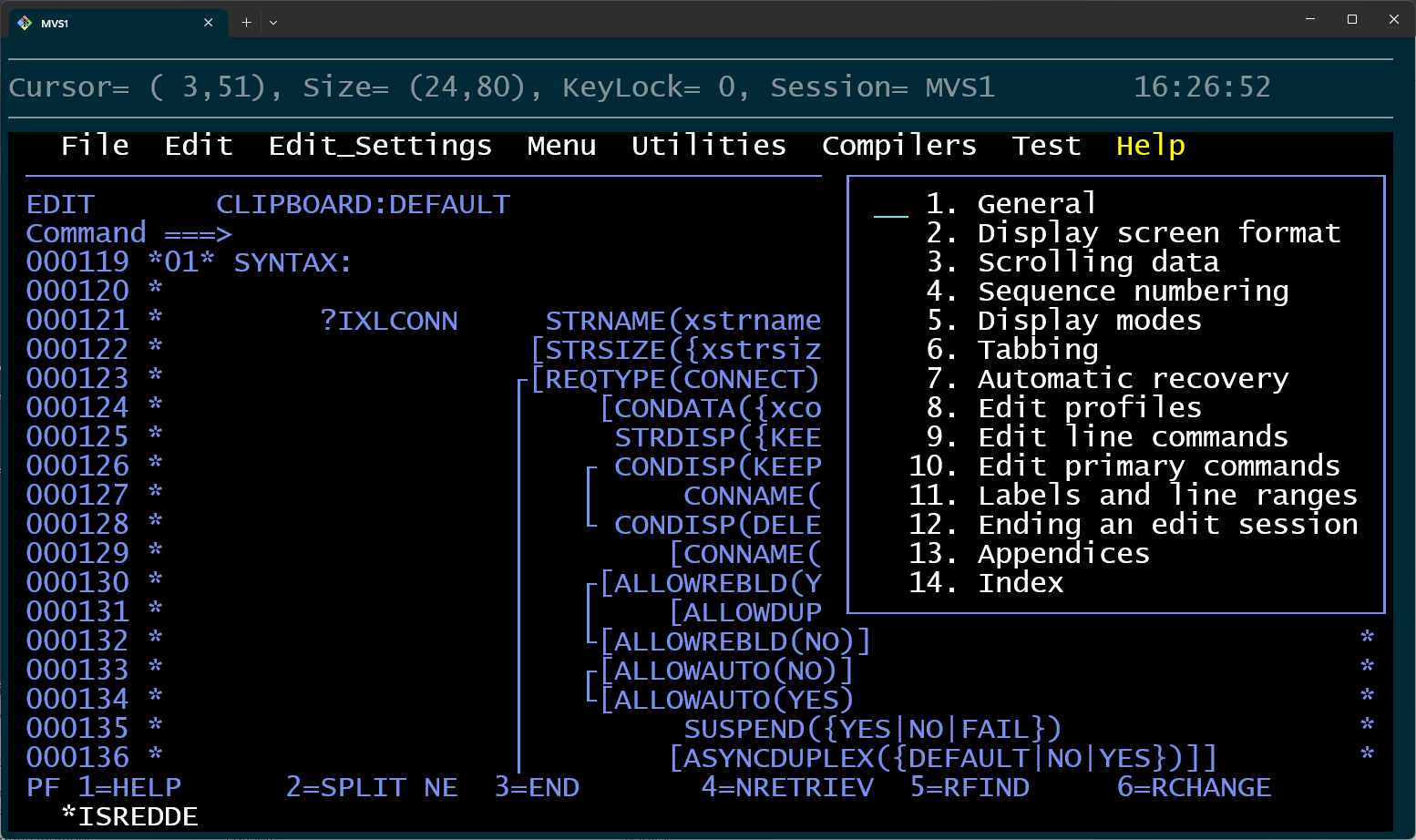
In Windows, the Lucida Console font works well with graphic character
APL symbols exploited by ISPF.
Large and arbitrarily-sized screens are supported.
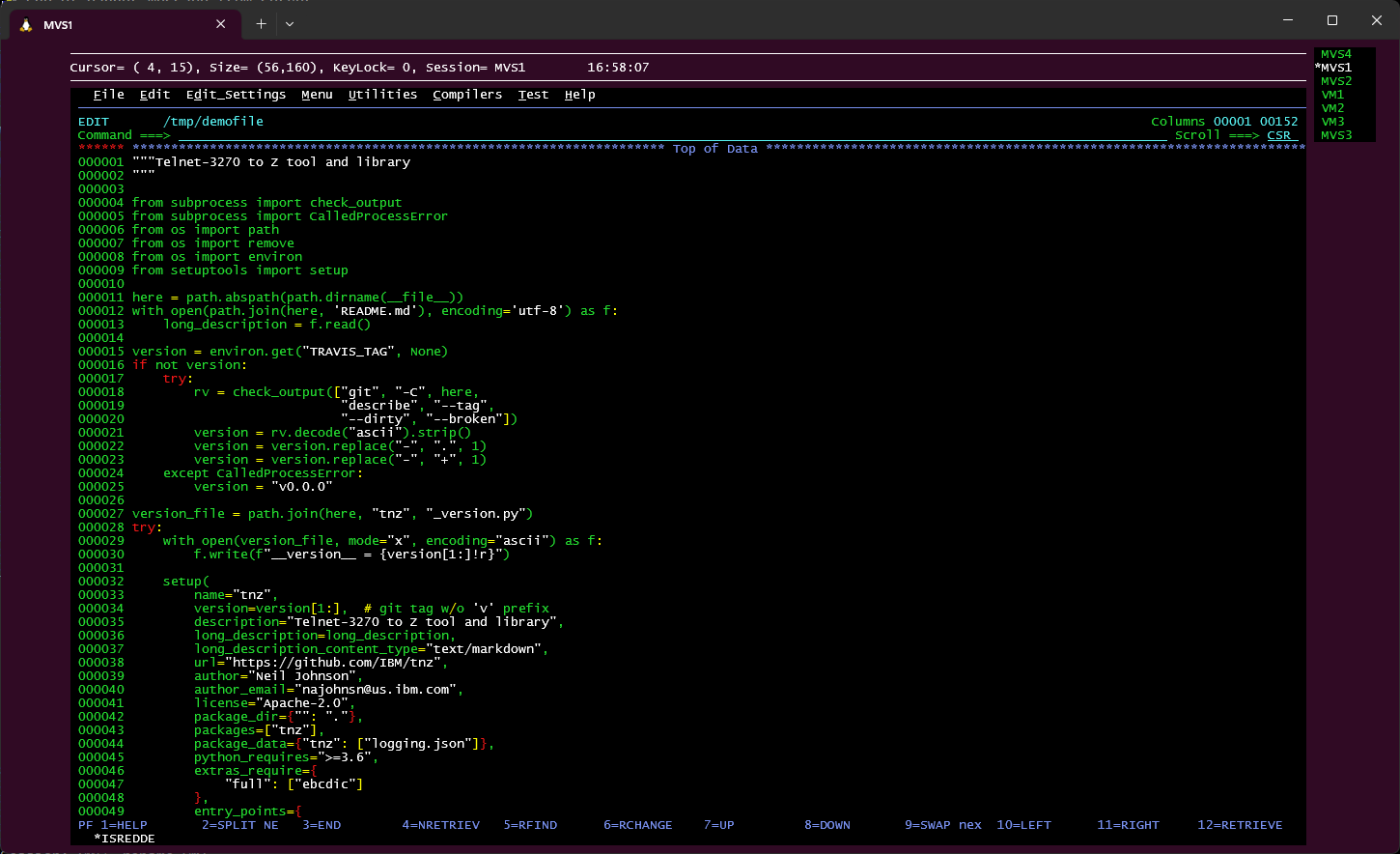
Standard unix/ascii terminals are supported. In the screenshot below,
PuTTY is used as the terminal emulator. The connection was made from
PuTTY to z/OS via ssh and zti is running on z/OS.
The code in this repository aims to be portable. To achieve this, the number of dependencies is kept to a minimum. The only hard requirement across platforms is Python and the Python Standard Library. Though it is likely you will also want additional ebcdic code pages in order to use your code page of choice (i.e. the ebcdic package).
Emulator Features
- Use Alt+letter to access ISPF menus
- Mouse click sets cursor position
- Mouse double-click sets cursor position and send Enter
- Use any EBCDIC code page available to Python
- Use of code page 310 for APL graphic symbols
- Paste multiline block of text
Running zti on Windows
The trapping of the keyboard disables keyboard shortcuts documented in the Control-menu->Edit menu. But the functions can still be accessed through the Control-menu. For example: mouse click top-left corner, E (Edit), F (Find) to find text.
To copy text in Command Prompt, make sure that the Quick Edit Mode option is selected in the Properties accessed through the Control-menu. Then you can hold Shift while using the mouse to select text. Once the text is selected, press Enter to copy the text. There are other ways to select text, but I this to be the easiest.
Before establishing a session, get the window sized the way you want
it. Window resizing is not handled well in Windows. If you do
resize, just use Esc to get to the command prompt then goto to get
back to the session.
Control-menu->Properties will take you to properties for the terminal. The character size and font can be set. I recommend Lucida Console - it is readable and the graphic symbols are fairly good at connecting like they are supposed to.
Documentation
See here.
For additional details, see docstrings in source code.
Contributing
See CONTRIBUTING.md.
Security
See SECURITY.md.
Acknowledgments
Hats off to the team responsible for the IBM internal Automated Task Interpreter (ATI) tool: Richard Lynch, Karen Eickemeyer, and Ronald Barber.
1 maintainer

Metadata
1 maintainer
Release files for tnz 0.6.7
For a detailed explanation of source distributions (sdists) and built distributions (wheels), please see the package formats documentation.
Built distribution (wheel)
| File | Interpreter | ABI | Platform | Reset |
|---|---|---|---|---|
| tnz-0.6.7-py3-none-any.whl | Python 3 | none | any | Details |
Release files / tnz-0.6.7-py3-none-any.whl
| Download URL | tnz-0.6.7-py3-none-any.whl |
|---|---|
| Size | 130.1 kB |
| Tags | Python 3 |
|
SHA-256 checksum How to use checksums |
3b740d78e377765e93cb6b6add0d03e399e18f1a1a6687b660f0834cf067e5fc
|
|
BLAKE2b-256 checksum How to use checksums |
1158f15b3cca7f08d3341932cb62606f9d338e98ab421d422118d1d1103c3b37
|
| Upload date | |
|
Uploaded using Trusted Publishing? What is trusted publishing? |
Yes |
| Uploaded via |
twine/7.0.0 CPython/3.13.14
|
Provenance
Provenance describes where a file came from. On PyPI, provenance is shared via attestations, which provide a verifiable record of the build or publishing details. View details, limitations and caveats.


PyPI Publish Attestation
PyPI verified that this artifact, at this checksum, originated from the publisher listed below.
Signed by GitHub Actions, verified by PyPI on Sep 26, 2026.
Transparency log













