
tpunicorn2
tpunicorn2 is a fork of tpunicorn rebuilt to support TPU v4~v6e.
tpunicorn2 (pu for short) is a Python library and command-line
program for managing TPUs. For example, if you have a preemptible TPU
named foo, then pu babysit foo will recreate it automatically
whenever it preempts.
See examples.
Quickstart
# Install pu from PyPI (puts both `pu` and `tpunicorn` on your PATH)
uv tool install tpunicorn2

# Or install the latest development version from git:
#   uv tool install git+https://github.com/lutetjeff/tpunicorn2
# Or run it from a checkout without installing:
#   git clone git@github.com:lutetjeff/tpunicorn2.git && cd tpunicorn2
#   uv run pu list

# View your TPUs
pu list

# Recreate a TPU named foo
pu recreate foo

# Watch a TPU named foo. If it preempts, recreate it automatically
pu babysit foo
Skip ahead to examples to see what else pu can do.
Installation Caveats
-
putalks to the Cloud TPU API (v2) using Application Default Credentials, and shells out togcloudforpu ssh. Ifgcloud auth application-default print-access-tokensucceeds, you're done! Otherwise, see the Troubleshooting section. -
Shell completion for bash/zsh/fish:
pu install-completion bash(orzsh/fish).
Examples
Seeing your TPUs
pu list shows your TPUs and any pending queued-resource requests.
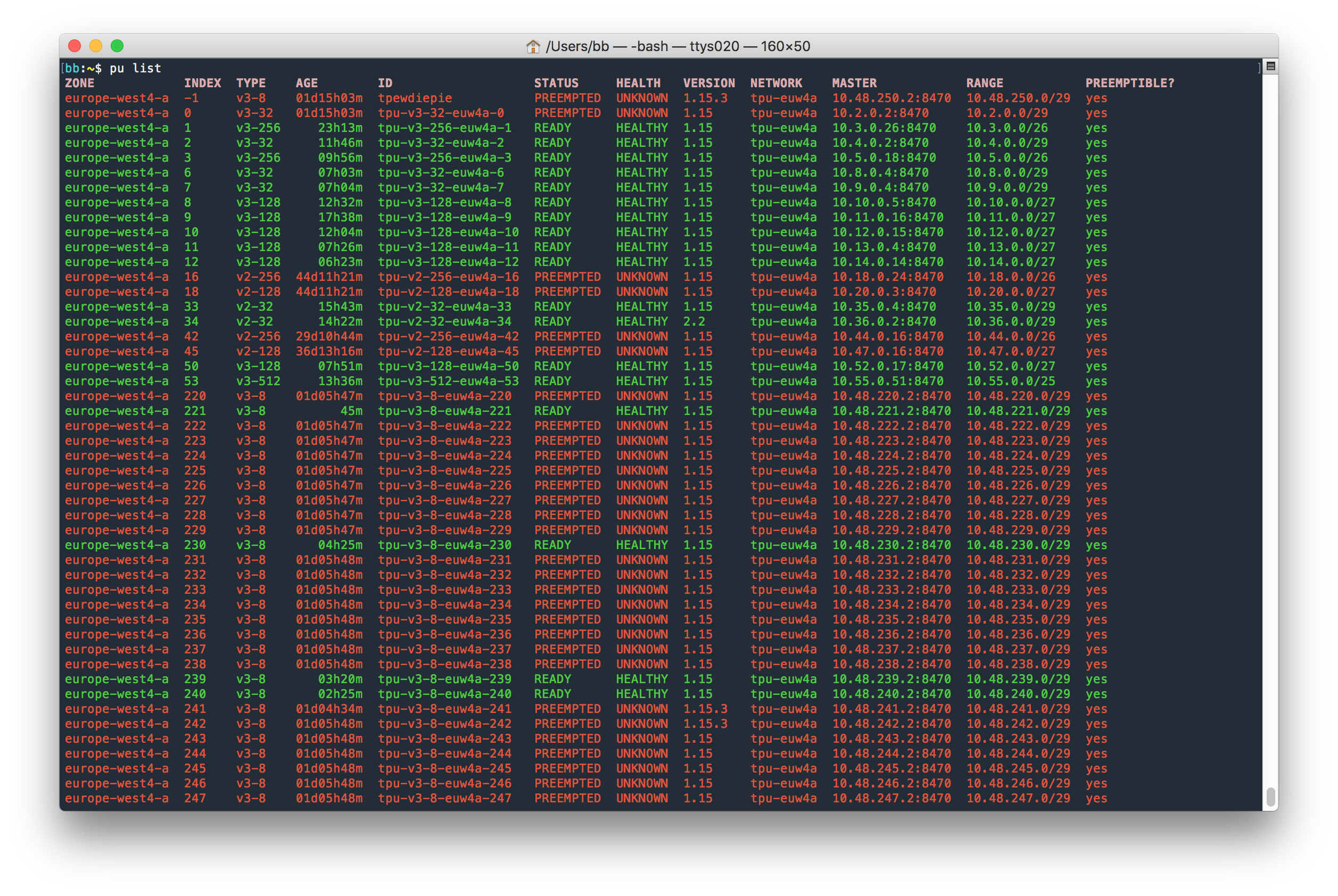
The INDEX is determined by checking whether your TPU name ends with
a number. It's common to create TPUs named like tpu1, tpu2, etc.
If you use such a naming scheme, the number becomes its INDEX and
you can refer to the TPU by number via the command line, which is far
easier than typing out the whole name.
(If two TPUs have the same index, an error is thrown if you attempt to refer to either of them by number, since that would be ambiguous.)
The SCHED column shows the scheduling tier: spot, preemptible,
reserved, or on-demand. The QR column shows the queued resource
backing the TPU, if any. Queued resources that haven't been provisioned
yet show up with states like QR:WAITING_FOR_RESOURCES.
Seeing your TPUs continuously
pu top is like htop for TPUs. Every few seconds, it clears the
screen and runs pu list, i.e. it shows you the current status of all
your TPUs. Use Ctrl-C to quit.
Discovering zones and accelerator types
Zones and accelerator types are discovered from the API, not hardcoded:
# Every TPU zone, with its abbreviation (e.g. euw4a for europe-west4-a)
pu zones

# Accelerator types and runtime versions available in a zone
pu types --zone us-central1-b
Zone abbreviations work everywhere --zone is accepted:
pu list -z eu lists every European zone.
Creating a TPU
# Create a spot v6e-8 in us-central1-b, named tpu-v6e-8-usc1b-0
# (0+ means "the lowest free index across all zones")
pu create 0+ --zone us-central1-b --accelerator-type v6e-8

# Spot capacity comes and goes; retry every ~60s until it succeeds
pu create 0+ --zone us-central1-b --accelerator-type v6e-8 --retry 60

# See exactly what would be sent, without sending it
pu create my-tpu --zone us-central1-b --accelerator-type v6e-8 --dry-run
--scheduling defaults to spot. Unlike legacy preemptible TPUs, Spot
TPUs have no 24-hour maximum lifetime — they run until preempted, and
when preempted they cannot be restarted; pu recreate (or pu babysit)
deletes and recreates them. Use -S on-demand, -S preemptible, or
-S reserved for the other tiers.
With --queued, pu create submits a queued resource request instead
(--tier spot|guaranteed|best-effort, --node-count, etc.).
Recreating a TPU
pu recreate <TPU> deletes a TPU and recreates it with the same spec,
waits for its state to become READY, then runs the commands specified
via -c <command>. To run multiple commands, pass multiple -c <command> options.
# Recreate a TPU named foo
pu recreate foo
# Recreate a TPU named foo, but only if it's PREEMPTED. Don't prompt
# for confirmation. After the TPU recreates and is READY, run a command.
pu recreate foo --preempted --yes -c 'echo This only runs after the TPU is READY'
# `pu babysit foo` is roughly equivalent to the following. (The -c
# options are provided here for illustration purposes; you can pass
# those to `pu babysit` as well.)
while true
do
  pu recreate foo --preempted --yes \
   -c "echo TPU recreated. >> logs.txt" \
   -c "pkill -9 -f my_training_program.py"
  sleep 30
done
Running a startup script on every (re)spawn
--startup-script FILE attaches a setup script that runs at boot — on
the initial create and on every recreate, including the ones pu babysit performs after a preemption. pu wraps the script so its
outcome is reported back: after the TPU is READY, pu waits for the
script and fails loudly if the script fails, showing its exit code and
the end of its log.
cat > setup.sh <<'EOF'
#!/bin/bash
pip install jax[tpu]
EOF

# Every respawn of this TPU re-runs setup.sh, and pu verifies it worked.
pu create 0+ --zone us-central1-b --accelerator-type v6e-8 \
  --startup-script setup.sh --retry 60

# Check the reported status of the script at any time
pu startup-status 0
Babysitting a preemptible TPU
pu babysit <TPU> will watch the specified TPU, recreating it
whenever it preempts. You can specify commands to run afterwards via
-c <command>. (For example, a command to kill your current training
session, or send you a message.) To run multiple commands, pass
multiple -c <command> options.
In a terminal, simulate a training session:
while true
do
  bash -c 'echo My Training Session; sleep 10000'
  echo restarting
  sleep 1
done
In a separate terminal, babysit a TPU named my-tpu:
pu babysit my-tpu -c 'pkill -9 -f "My Training Session"'
Whenever the TPU preempts, that command will:
- recreate the TPU named
my-tpu - wait for the TPU's state to become
READY(and for its startup script, if it has one, to succeed) - kill our simulated training session
The simulated training session will echo "restarting", indicating that it was successfully killed and the training process restarted itself.
In a real-world scenario, be sure that the pkill command only kills
one specific instance of your training script. For example, if
you run multiple training sessions with a script named train.py
using different TPU_NAME environment vars, a naive pkill command
like pkill -f train.py would kill all of your training sessions,
rather than the one associated with the TPU.
(To solve that, I normally pass the TPU name as a command-line
argument, then run pkill -9 -f <TPU>.)
Also, be sure to pass pkill -9 rather than pkill. That way, your
training session will be restarted even if it's frozen.
Lastly, consider running your actual training script like so:
while true
do
  timeout --signal=SIGKILL 11h <your training command>
  echo restarting
  sleep 30
done
Spot TPUs have no maximum lifetime, but this is still good hygiene: it force-kills your training command after a maximum of 11 hours, so if your training session freezes for some reason you'll lose no more than a few hours of training time.
Without this, we kept running into situations like "wake up the next day and discover that the training session has been frozen for the last 12 hours." We're still not entirely sure why. Suffice to say, if your training session takes an hour to get into a stable state, you'll lose only ~2 hours in the usual case (no freezes; everything normal) and gain several hours in the worst case (the training loop froze and no one noticed).
You might feel tempted to put a pu recreate $TPU_NAME -y command
inside that while loop. After all, if your training session
terminates, shouldn't it recreate the TPU? Perhaps; feel free to try
it out and see if you like it. In our experience, we've found it's
more effective to manage our TPUs separately
rather than try to solve both concerns in the same script.
Listing TPUs
pu list shows the current status of all your TPUs. You can use
-t/--tpu <TPU> to print the status of one specific TPU. To print the
status of multiple TPUs, pass multiple -t <TPU> options.
# List TPU named foo. If it doesn't exist, throw an error.
pu list -t foo
# Dump the TPU in json format. If it doesn't exist, throw an error.
pu list -t foo --format json
--format json always prints one JSON array of the raw API objects
(nodes first, then any unprovisioned queued resources):
# List TPUs named foo or bar, skipping any that don't exist. Then use
# `jq` to extract some interesting subfields, and format with `column`.
pu list -t foo -t bar -s --format json | \
     jq -r '.[] | .name + " " + .state + " " + (.health // "UNKNOWN")' | column -t
Commands
Usage: tpunicorn [OPTIONS] COMMAND [ARGS]...

  Manage and babysit Cloud TPUs.

Options:
  -vv, --verbose            debug logging
  -c, --configuration NAME  gcloud configuration to use (sets
                            CLOUDSDK_ACTIVE_CONFIG_NAME)
  --version                 Show the version and exit.
  --help                    Show this message and exit.

Commands:
  babysit             Watch a TPU; recreate it whenever it is preempted.
  create              Create a TPU node (or, with --queued, a queued...
  delete              Delete a TPU (or its queued resource, when it has...
  install-completion  Install shell completion for the tpunicorn and pu...
  list                List TPUs (and pending queued resources) across zones.
  recreate            Recreate a TPU, optionally switching the runtime...
  ssh                 SSH into a TPU VM (via gcloud, which owns OS Login...
  start               Start a STOPPED TPU.
  startup-status      Print the startup-script status reported by a TPU.
  stop                Stop a running TPU.
  top                 Like `pu list`, but refreshing.
  types               List accelerator types and runtime versions...
  zones               List every TPU zone with its unambiguous abbreviation.
Every option also has a TPUNICORN_* environment-variable form (e.g.
TPUNICORN_PROJECT, TPUNICORN_ZONE), so you can set defaults once in
your shell rc file.
pu babysit
Usage: tpunicorn babysit [OPTIONS] TPU

  Watch a TPU; recreate it whenever it is preempted.

Options:
  -z, --zone TEXT           zone, abbreviation (e.g. euw4a), or comma-
                            separated list; default: all TPU zones
  -p, --project TEXT        GCP project; default: gcloud's configured project
  -i, --interval <seconds>  how often to check the TPU (default: 30 seconds)
  -c, --command TEXT        after the TPU has been recreated and is READY, run
                            this command
  --startup-script FILE     run this script at every boot/respawn; pu waits
                            for it to succeed and reports failures
  --startup-timeout FLOAT   seconds to wait for the startup script before
                            failing  [default: 1800.0]
  --dry-run
  --retry FLOAT             if the TPU creation fails (due to capacity errors
                            or otherwise), retry the creation after this many
                            seconds
  --retry-randomness FLOAT  multiply retry time by a float between 1 and
                            this value
  --retry-limit INTEGER     give up after this many create attempts (default:
                            unlimited)
  --help                    Show this message and exit.
pu recreate
Usage: tpunicorn recreate [OPTIONS] TPU

  Recreate a TPU, optionally switching the runtime version.

Options:
  -z, --zone TEXT           zone, abbreviation (e.g. euw4a), or comma-
                            separated list; default: all TPU zones
  -p, --project TEXT        GCP project; default: gcloud's configured project
  -v, --version TEXT        recreate with this runtime version instead of the
                            current one
  -y, --yes
  --dry-run
  --preempted               only recreate if the TPU has preempted; otherwise
                            do nothing
  -c, --command TEXT        after the TPU is READY, run this command
  --startup-script FILE     run this script at every boot/respawn (overrides
                            any script the TPU already has); pu waits for it
                            to succeed and reports failures
  --startup-timeout FLOAT   seconds to wait for the startup script before
                            failing  [default: 1800.0]
  --retry FLOAT             if the TPU creation fails (due to capacity errors
                            or otherwise), retry the creation after this many
                            seconds
  --retry-randomness FLOAT  multiply retry time by a float between 1 and
                            this value
  --retry-limit INTEGER     give up after this many create attempts (default:
                            unlimited)
  --help                    Show this message and exit.
pu create
Usage: tpunicorn create [OPTIONS] [TPU]

  Create a TPU node (or, with --queued, a queued resource).

Options:
  -z, --zone TEXT                 zone, abbreviation (e.g. euw4a), or comma-
                                  separated list; default: all TPU zones
  -p, --project TEXT              GCP project; default: gcloud's configured
                                  project
  -a, --accelerator-type TEXT     accelerator type, e.g. v6e-8  [default:
                                  v2-8]
  -v, --version TEXT              runtime version; default: the generation's
                                  default runtime
  -S, --scheduling [spot|on-demand|preemptible|reserved]
                                  scheduling tier for the node  [default:
                                  spot]
  --queued                        create a queued resource instead of a node
  --tier [spot|guaranteed|best-effort]
                                  queued resource tier (--queued only)
                                  [default: spot]
  --node-count INTEGER            multislice node count (--queued only)
  --node-prefix TEXT              multislice node id prefix (--queued only)
  --valid-until-duration TEXT     e.g. 6h; queued resource expires after this
                                  (--queued only)
  --valid-after-duration TEXT     e.g. 10m; queued resource becomes valid
                                  after this (--queued only)
  --reservation-name TEXT         reservation to consume (--queued only)
  -d, --description TEXT
  -n, --network TEXT              [default: default]
  -sn, --subnetwork TEXT
  --internal-ips                  no external IPs on the TPU VMs
  --service-account TEXT
  --scope TEXT                    service-account scope; repeatable
  --metadata TEXT                 KEY=VALUE metadata; repeatable
  --label TEXT                    KEY=VALUE label; repeatable
  --tag TEXT                      network tag; repeatable
  -dd, --data-disk TEXT           source=DISK,mode=read-write|read-only;
                                  repeatable
  --boot-disk-kms-key TEXT        CMEK key name for the boot disk
  --shielded-secure-boot
  --startup-script FILE           run this script at every boot/respawn; pu
                                  waits for it to succeed and reports failures
  --startup-timeout FLOAT         seconds to wait for the startup script
                                  before failing  [default: 1800.0]
  --async                         don't wait for the TPU to become READY
  -y, --yes
  --dry-run
  --retry FLOAT                   if the TPU creation fails (due to capacity
                                  errors or otherwise), retry the creation
                                  after this many seconds
  --retry-randomness FLOAT        multiply retry time by a float between 1 and
                                  this value
  --retry-limit INTEGER           give up after this many create attempts
                                  (default: unlimited)
  --help                          Show this message and exit.
pu list
Usage: tpunicorn list [OPTIONS]

  List TPUs (and pending queued resources) across zones.

Options:
  -z, --zone TEXT           zone, abbreviation (e.g. euw4a), or comma-
                            separated list; default: all TPU zones
  -p, --project TEXT        GCP project; default: gcloud's configured project
  -f, --format [text|json]
  --color / --no-color
  -nc                       alias for --no-color
  -t, --tpu TEXT            show only this TPU (id or index); repeatable
  -s, --silent              with -t, skip TPUs that don't exist instead of
                            failing
  --nodes-only              don't list queued resources
  --help                    Show this message and exit.
pu delete
Usage: tpunicorn delete [OPTIONS] TPU

  Delete a TPU (or its queued resource, when it has one).

Options:
  -z, --zone TEXT     zone, abbreviation (e.g. euw4a), or comma-separated
                      list; default: all TPU zones
  -p, --project TEXT  GCP project; default: gcloud's configured project
  -y, --yes
  --dry-run
  --async             don't wait for the delete operation to finish
  --node-only         delete only the node, leaving its queued resource behind
  --help              Show this message and exit.
Other commands
pu ssh TPU [-- SSH_ARGS]— SSH into a TPU VM.-w/--worker Npicks a pod worker;--command CMDruns a command instead of a shell.pu startup-status TPU— print the status, exit code, and log tail reported by a TPU's startup script.pu zones/pu types --zone Z— list TPU zones (with their abbreviations) and the accelerator types / runtime versions in a zone.pu start TPU/pu stop TPU— start a STOPPED TPU, or stop a running one. (Spot TPUs cannot be restarted after preemption; usepu recreate.)pu top— a refreshingpu list.pu install-completion bash|zsh|fish— install shell completion for bothpuandtpunicorn.
Run pu <command> --help for the full option list of any command.
Troubleshooting
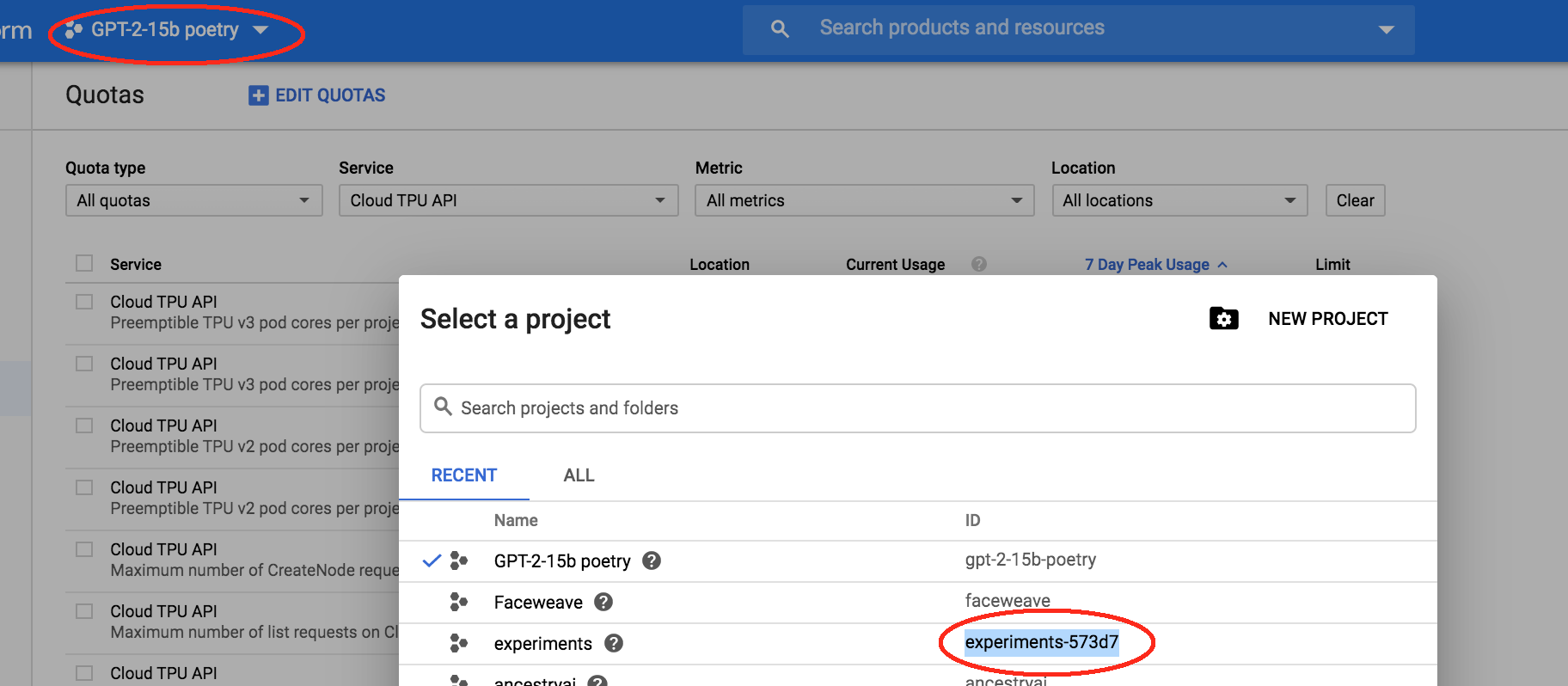
- Ensure your project is set
gcloud config set project <your-project-id>
Note that the project ID isn't necessarily the same as the project name. You can get it via the GCE console:
You can also set the project per invocation (pu list -p <project-id>),
per environment (export CLOUDSDK_CORE_PROJECT=<project-id>, or
export TPUNICORN_PROJECT=<project-id> to affect only pu), or per
gcloud configuration (pu -c <configuration> list).
While you're there, go the Cloud TPU page:
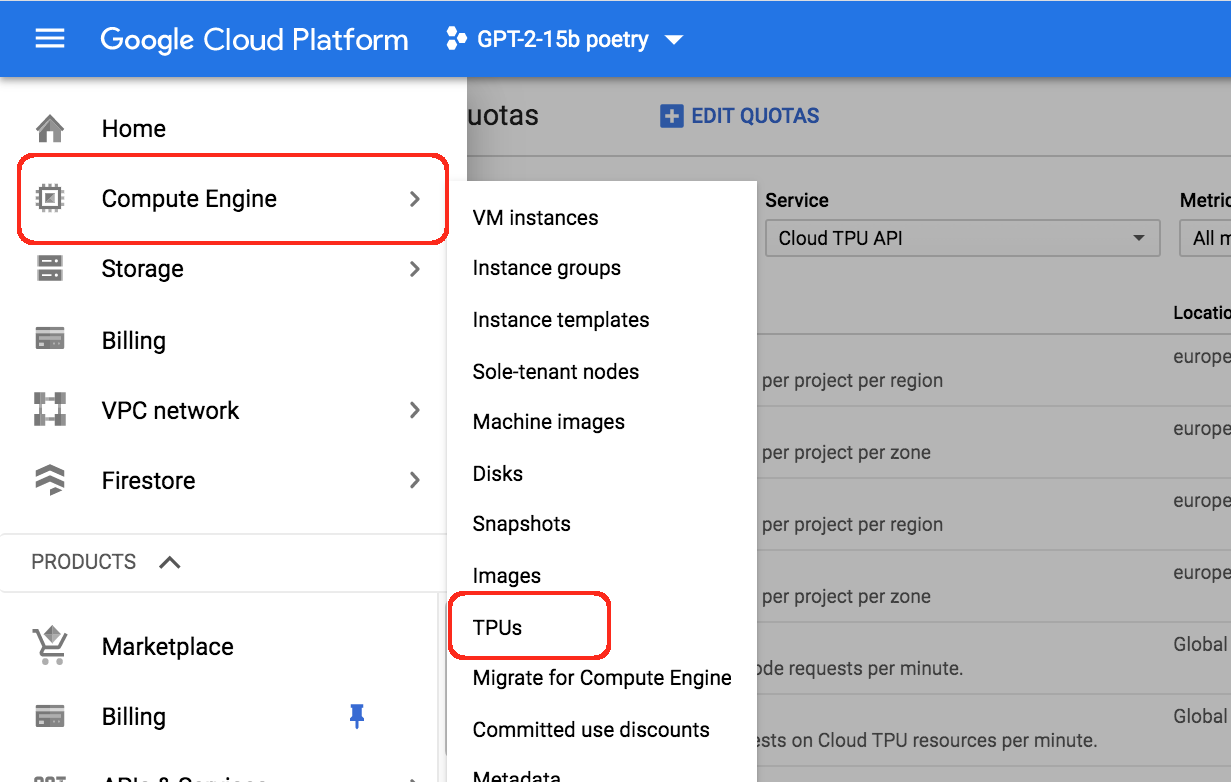
If it asks you to enable the Cloud TPU API, then do so. Afterwards you should see the GCE TPU dashboard:
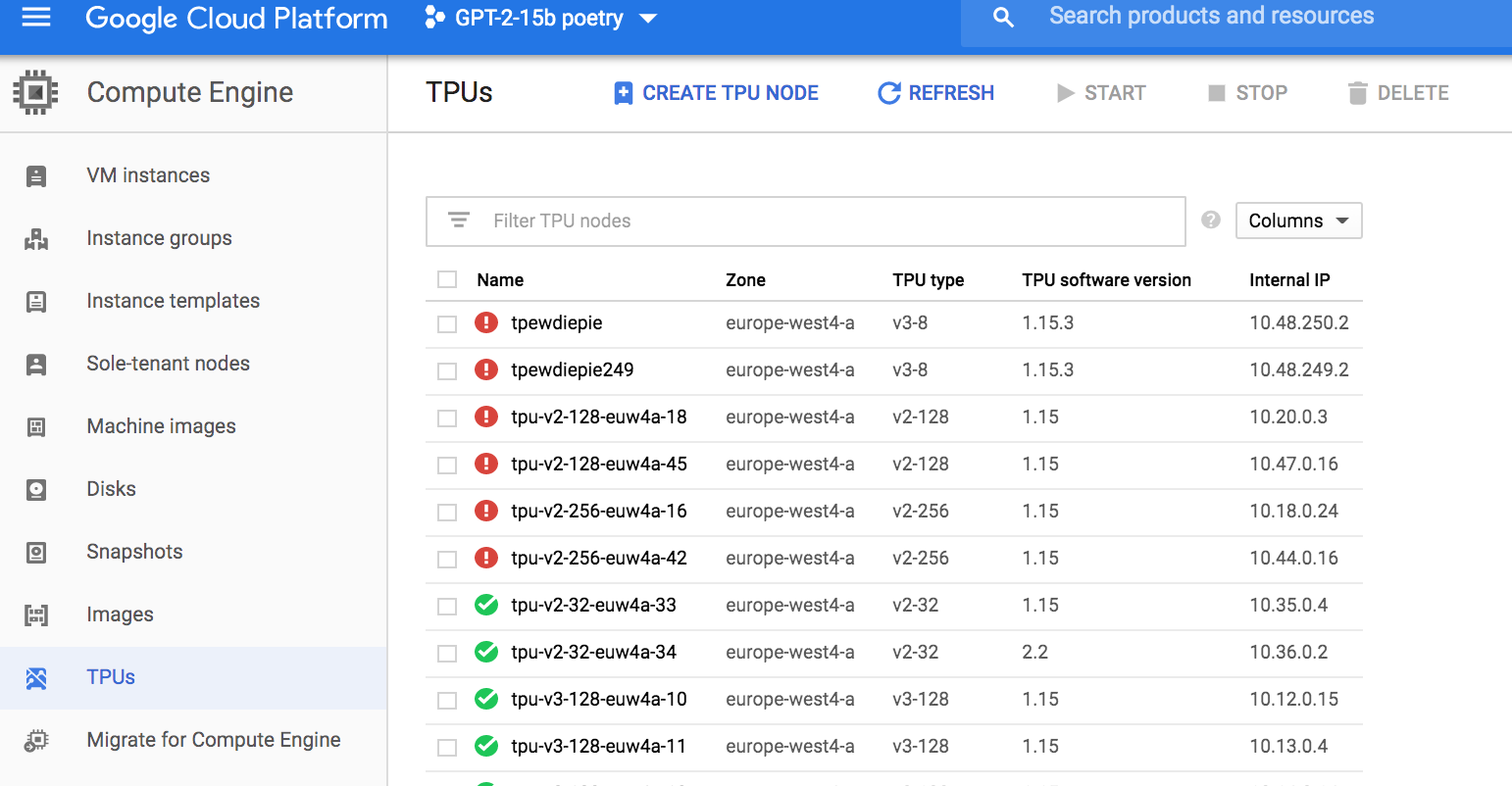
Create a TPU using "Create TPU node" to verify that your project has TPU quota in the desired region.
- Ensure your command-line tools are properly authenticated
pu uses Application Default Credentials for the Cloud TPU API:
gcloud auth application-default login
(pu ssh is the exception: it delegates to gcloud compute tpus tpu-vm ssh, which uses your normal gcloud auth login credentials.)
Use gcloud auth list to see your current account.
If security isn't a concern, you can use gcloud auth login followed
by gcloud auth application-default login to log in as your primary
Google identity. Usually, this means that your terminal now has "root
access" to all GCE resources.
If you're on a server, you might want to use a service account instead.
-
create a service account, granting it the "TPU Admin" role for TPU management, or "TPU Viewer" role for read-only viewing.
-
Upload the keyfile to your server. (I use
wormhole send ~/keys.jsonfor that. You can install it withpip install magic-wormhole.) -
Point Application Default Credentials at the keyfile:
export GOOGLE_APPLICATION_CREDENTIALS=~/tpu_key.json
(There is no need to gcloud auth activate-service-account unless you
also want gcloud itself — and therefore pu ssh — to use the service
account.)
At that point pu list should be successful. By default pu looks in
every zone; to avoid passing -z everywhere, make a zone the default:
gcloud config set compute/zone europe-west4-a
- Listing every zone is slow, or warns about rate limits
pu list with no --zone fans out two API calls per zone across every
TPU zone (100+). Projects with tight per-minute Cloud TPU API quotas
may see slow listings or still rate-limited ... skipping warnings
(the zone list itself is cached for 24 hours in ~/.cache/tpunicorn).
Scope the query with -z <zone> or an abbreviation (-z euw4a), or
pass --nodes-only to skip the queued-resource listing.
- Spot creates fail with RESOURCE_EXHAUSTED
That's the normal Spot capacity lottery, not a bug. Pass --retry 60
(and optionally --retry-limit N) and pu will keep trying; or try a
different zone from pu zones.
1 maintainer

Download files
Download the file for your platform. If you're not sure which to choose, learn more about installing packages.
Source Distribution
Built Distribution
Filter files by name, interpreter, ABI, and platform.
If you're not sure about the file name format, learn more about wheel file names.
Copy a direct link to the current filters
File details
Details for the file tpunicorn2-1.0.1.tar.gz.
File metadata
- Download URL: tpunicorn2-1.0.1.tar.gz
- Upload date:
- Size: 73.9 kB
- Tags: Source
- Uploaded using Trusted Publishing? No
- Uploaded via: uv/0.11.15 {"installer":{"name":"uv","version":"0.11.15","subcommand":["publish"]},"python":null,"implementation":{"name":null,"version":null},"distro":{"name":"KDE neon","version":"24.04","id":"noble","libc":null},"system":{"name":null,"release":null},"cpu":null,"openssl_version":null,"setuptools_version":null,"rustc_version":null,"ci":true}
File hashes
| Algorithm | Hash digest | |
|---|---|---|
| SHA256 |
edd4d692ecb8ed4d79363ec6a2edb2dfb553b622212d95b7d59d26fa221aaaa8
|
|
| MD5 |
5734d0502a844f64afe6d93d88663a58
|
|
| BLAKE2b-256 |
ad2391881b4dddb4e6560f05ae0c16b8ffe8963f3cdd57afff1483495e5592fa
|
File details
Details for the file tpunicorn2-1.0.1-py3-none-any.whl.
File metadata
- Download URL: tpunicorn2-1.0.1-py3-none-any.whl
- Upload date:
- Size: 36.6 kB
- Tags: Python 3
- Uploaded using Trusted Publishing? No
- Uploaded via: uv/0.11.15 {"installer":{"name":"uv","version":"0.11.15","subcommand":["publish"]},"python":null,"implementation":{"name":null,"version":null},"distro":{"name":"KDE neon","version":"24.04","id":"noble","libc":null},"system":{"name":null,"release":null},"cpu":null,"openssl_version":null,"setuptools_version":null,"rustc_version":null,"ci":true}
File hashes
| Algorithm | Hash digest | |
|---|---|---|
| SHA256 |
a5bad7a531db252e01eb13cd67b72baa1d1b7684a06785918a58725fdad2dff6
|
|
| MD5 |
bcb150cd8b281909510dfe5794643653
|
|
| BLAKE2b-256 |
4dc778b89a08444ee2f8632da882b2ee81145ac940215068ba711b49a9402cce
|







