




English · Українська · Русский
Install · Quick start · Playlists from streaming services · Usage · How it works · Troubleshooting
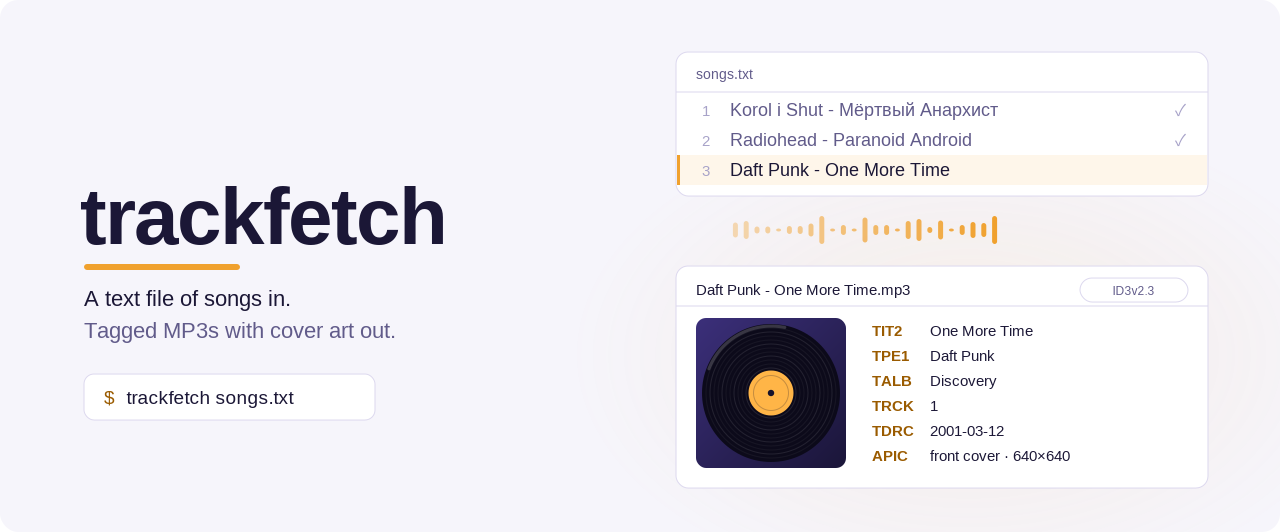
trackfetch reads a plain text file with one Artist - Title per line. For every song it looks up metadata and cover art in the configured free sources, picks the best-matching audio on YouTube, and saves an MP3 with complete ID3 tags. Runs are resumable, so you can stop a 1,000-song list at any point and pick it up later.
- Configurable metadata. Use iTunes (the default), Deezer, MusicBrainz, VocaDB and optional Spotify. Put them in any priority order with
-s, or turn them off one by one. - Album art. Artwork comes from the winning metadata source, then the Cover Art Archive for MusicBrainz, then the YouTube thumbnail. It is downscaled to at most 640×640 and re-encoded when it is larger than 100 KiB.
- The right upload. trackfetch scores five YouTube results per song. Official audio wins; covers, karaoke, nightcore, sped-up, slowed, remix and reaction videos lose.
- Your choice of format. MP3 for any player, or Opus and M4A that keep YouTube's original audio without re-encoding.
- Resumable. Finished songs are logged in
done.txtand skipped next time. Failures go tofailed.txtwith the reason. - Plays everywhere. Tags are written as ID3v2.3, which Windows Explorer, Apple Music, Android, car stereos and most other players read.
- Any alphabet. Cyrillic and other non-Latin titles are matched correctly and kept in filenames. Characters that are illegal in filenames are replaced.
- No Python needed. Standalone binaries for Linux, macOS and Windows on x86_64 and ARM64.
Install
Pick one. Homebrew and Nix also install yt-dlp, FFmpeg and Deno for you; with the other methods, install them yourself (see below). The default iTunes source needs no API key. A free Spotify API key is optional and only needed if you select Spotify (set it up below).
Homebrew
macOS and Linux:
brew install ByteMe6/tap/trackfetch
On macOS the formula installs the prebuilt trackfetch binary and a static prebuilt ffmpeg inside the formula, so ffmpeg, the dependency Homebrew used to build for hours on Intel Macs and newer macOS versions, is never compiled. yt-dlp and deno come from Homebrew as usual.
Nix
Linux and Apple Silicon Macs, with flakes enabled:
nix run github:ByteMe6/trackfetch -- songs.txt   # run without installing
nix profile install github:ByteMe6/trackfetch    # install
pipx
pipx install trackfetch
Standalone binary
No Python required. Download the file for your system from the latest release:
| x86_64 | ARM64 | |
|---|---|---|
| Linux | trackfetch-linux-x86_64 |
trackfetch-linux-arm64 |
| macOS | trackfetch-macos-x86_64 (Intel) |
trackfetch-macos-arm64 (Apple Silicon) |
| Windows | trackfetch-windows-x86_64.exe |
trackfetch-windows-arm64.exe |
On Linux and macOS, make it executable and put it on your PATH:
chmod +x trackfetch-linux-x86_64
sudo mv trackfetch-linux-x86_64 /usr/local/bin/trackfetch
On macOS, if Gatekeeper blocks the unsigned binary, run xattr -d com.apple.quarantine trackfetch-macos-* once. Checksums are in SHA256SUMS.txt on each release.
From source
git clone https://github.com/ByteMe6/trackfetch.git
cd trackfetch
python -m venv .venv && source .venv/bin/activate
pip install -e .
Dependencies
With pipx, a standalone binary or a source install, put these on your PATH:
| Tool | Used for | Install |
|---|---|---|
| yt-dlp | Searching and downloading from YouTube | pipx install yt-dlp · brew install yt-dlp · winget install yt-dlp |
| FFmpeg | Converting the audio to MP3 | sudo apt install ffmpeg · brew install ffmpeg · winget install ffmpeg |
| Deno | JavaScript runtime that yt-dlp needs for YouTube | curl -fsSL https://deno.land/install.sh | sh · brew install deno · winget install DenoLand.Deno |
Pillow (the PIL module) is used to shrink cover art. It is installed automatically with pip/pipx and bundled inside the prebuilt binaries, so you do not need to add it to PATH.
Spotify credentials
trackfetch uses Spotify's Client Credentials flow: no Spotify login, no access to your account.
- Open the Spotify Developer Dashboard and click Create app.
- Enter any name and description. For the redirect URI, enter
http://127.0.0.1:8888/callback. trackfetch never uses it, but the form requires one. - Open the app's Settings and copy the Client ID and Client Secret.
- Set them as environment variables:
bash / zsh
export SPOTIFY_CLIENT_ID='your-client-id'
export SPOTIFY_CLIENT_SECRET='your-client-secret'
fish
set -Ux SPOTIFY_CLIENT_ID 'your-client-id'
set -Ux SPOTIFY_CLIENT_SECRET 'your-client-secret'
PowerShell
[Environment]::SetEnvironmentVariable('SPOTIFY_CLIENT_ID', 'your-client-id', 'User')
[Environment]::SetEnvironmentVariable('SPOTIFY_CLIENT_SECRET', 'your-client-secret', 'User')
Quick start
cat > songs.txt <<'EOF'
# My playlist
Daft Punk - One More Time
Radiohead - Paranoid Android
Korol i Shut - Мёртвый Анархист
EOF

trackfetch songs.txt
The files land in the current directory.
Playlists from streaming services
You don't have to type the list by hand. TuneMyMusic exports playlists from Spotify, Apple Music, YouTube Music, Deezer, Tidal, SoundCloud and other services to a text file that trackfetch reads as is:
- On tunemymusic.com, choose the service your playlist is on as the source.
- Select the playlists you want.
- Choose Export to file as the destination and save it as TXT.
- Run trackfetch on the exported file:
trackfetch "My Playlist.txt" -o ~/Music/"My Playlist"
Usage
trackfetch [-h] [-v] [--track ARTIST - TITLE ...] [-o OUTPUT] [--config CONFIG] [-f {mp3,m4a,opus}] [--title-only] [--delay DELAY] [-s SOURCES] [--disable-sources SOURCES] [--provider-opt NAME.KEY=VALUE] [--match-threshold SCORE] [--title-threshold SCORE] [--list-sources] [--spotify-client-id ID] [--spotify-client-secret SECRET] [--no-logs] [--color {auto,always,never}] [--color-theme THEME] [--themes-file PATH] [--lyrics | --no-lyrics] [--lyrics-type {inline,sidecar,plain}] [INPUT ...]
| Option | Default | What it does |
|---|---|---|
INPUT |
optional | Text file with one Artist - Title per line, or an inline Artist - Title track. Can also be set in the config file. |
--track |
— | Track to download inline, Artist - Title. Can be given several times. |
-o, --output |
current directory | Folder to save the files in. It's created if it doesn't exist. |
-v, --version |
— | Show the installed version and exit. |
--config |
auto-detected | Path to a config file. |
-f, --format |
mp3 |
Audio format: mp3, m4a or opus. See Audio formats. |
--title-only |
off | Name files Title.m4a instead of Artist - Title.m4a |
--delay |
1.0 |
Seconds to wait between songs. Raise it for long lists. |
-s, --metadata-sources |
itunes |
Comma-separated metadata priority, for example deezer,itunes,musicbrainz. none disables metadata lookups but keeps YouTube. A CLI selection overrides configured disabling for the selected providers. |
--disable-sources |
— | Comma-separated sources to disable, for example spotify,youtube. Takes precedence over a CLI metadata selection for the same provider. |
--provider-opt |
— | Provider setting as NAME.KEY=VALUE, for example itunes.country=ua. Can be repeated. |
--match-threshold |
0.6 |
Minimum overall match score, from 0.0 to 1.0. Values outside that range, NaN and infinities are rejected. |
--title-threshold |
0.8 |
Minimum title similarity, from 0.0 to 1.0. Values outside that range, NaN and infinities are rejected. |
--list-sources |
— | Show available metadata providers and artwork fallbacks, then exit. Makes no network requests. |
--spotify-client-id |
$SPOTIFY_CLIENT_ID |
Spotify API client ID. See Spotify credentials. |
--spotify-client-secret |
$SPOTIFY_CLIENT_SECRET |
Spotify API client secret. |
--no-logs |
off | Do not read done.txt and do not write done.txt or failed.txt. Progress from earlier runs is ignored, so finished songs are not skipped. |
--color |
auto |
Colorize output: auto, always or never. auto uses color on an interactive terminal and plain text when redirected. --color always also colors pipes and log files. |
--color-theme |
cassette |
Built-in theme (cassette, neon-tape, mono, vinyl) or a custom theme from themes.ini. |
--themes-file |
next to the config | Path to a custom themes.ini. The default file sits next to trackfetch.ini. |
--lyrics / --no-lyrics |
on | Embed lyrics fetched from LRCLIB into the file tags. Plain text goes to USLT (MP3), ©lyr (M4A) or LYRICS (Opus); timed lyrics also go to the format's timed tag. Missing lyrics never fail the download. |
--lyrics-type |
inline |
How timed lyrics are stored: inline puts the raw LRC into the plain lyrics tag (with timestamps), sidecar keeps the tag plain and writes a separate <file>.lrc next to the audio, plain writes only plain text to the tags and keeps timed lyrics in the format's timed tag. |
--cache / --no-cache |
on | Reuse and update metadata-cache.json in the output directory. Disable to always query the providers. |
trackfetch songs.txt -o ~/Music/RoadTrip          # save to a specific folder
trackfetch songs.txt -o /media/usb --title-only   # short names for a car stereo
trackfetch big-list.txt --delay 3                 # go easy on rate limits
trackfetch songs.txt --format opus                # original YouTube audio, no re-encode
trackfetch "Daft Punk - One More Time"             # one track, no file needed
trackfetch "A - B" "C - D" --track "E - F"         # a few tracks in one go
trackfetch big-list.txt -s deezer,itunes,musicbrainz
trackfetch big-list.txt --disable-sources spotify  # skip Spotify explicitly
trackfetch --list-sources
Color themes
Output is colored by default with the Cassette theme. Color is used for structure — labels, statuses, progress and separators — while titles, paths and error reasons stay plain. Pick another built-in theme or turn color off:
| Setting | Default | What it does |
|---|---|---|
--color / color |
auto |
auto, always or never. auto colors a terminal and stays plain in pipes. |
--color-theme / color_theme |
cassette |
cassette, neon-tape, mono, vinyl, or a custom theme name. |
--themes-file / themes_file |
next to the config | Custom themes.ini with your own themes and colors. |
trackfetch -h uses the same theme as the rest of the output, including the
section titles, flags, metavars, choices and (default: ...) notes. The theme
is chosen before the help text is built, so trackfetch --color always --color-theme vinyl -h is already colored, and a theme set in the config
applies to help as well.
 Cassette — default |
 Neon Tape — cyan and magenta |
 Mono — no hue |
 Vinyl — magenta and gold |
trackfetch songs.txt --color never                 # clean logs and pipes
trackfetch songs.txt --color-theme mono            # another built-in theme
trackfetch songs.txt --color-theme sunset          # theme from themes.ini
Custom themes, every role, color formats, file locations and precedence are
documented in Color themes. A custom theme is just
an INI section next to your config; a ready-to-copy example is in
examples/themes.ini:
# ~/.config/trackfetch/themes.ini
[sunset]
base = cassette
accent = #ff8800
progress = 208
success = bright-green
# ~/.config/trackfetch/trackfetch.ini
[trackfetch]
color = auto
color_theme = sunset
Set NO_COLOR=1 or color = never for plain output. --color always
overrides both NO_COLOR and TERM=dumb.
Metadata sources
The default metadata source is iTunes, which needs no API key. YouTube is always handled separately: it supplies the audio and is the last artwork fallback. The other providers are off unless you select or enable them:
| Source | Credentials | Minimum interval | Notes |
|---|---|---|---|
itunes |
none | 3.5 s | Storefront country defaults to us. About 20 Search API calls per minute are allowed, so the interval keeps a small margin below that ceiling. |
deezer |
none | 0.25 s | Public search |
musicbrainz |
none | 1.1 s | Cover art comes from the Cover Art Archive |
vocadb |
none | 0.5 s | Japanese, Chinese, Korean and Vocaloid metadata |
spotify |
client ID and secret | — | Optional, disabled by default |
The order in -s is the lookup priority. If the first provider has no suitable
match, trackfetch tries the next one. The first result that passes both
matching thresholds wins. Command-line choices override the config file for
that run: -s deezer enables Deezer even if the config disables it, while
--disable-sources deezer still disables it. Both thresholds must be finite
numbers from 0.0 to 1.0; invalid values stop with an error instead of being
silently clamped.
Search survives typos, different casing, missing hyphens and ё/е spelling
differences. Every provider first tries its precise query. If nothing matches,
trackfetch retries with looser free-text queries: artist title, then
title artist, then the title alone, then the title without its trailing words.
The same scoring thresholds decide when to stop, so a relaxed query cannot
sneak in an unrelated song.
After every configured provider misses, trackfetch also tries two free fallback
sources, deezer and then musicbrainz. Fallbacks are skipped when the user
disabled them with --disable-sources or the config file, and when metadata is
turned off completely with -s none.
trackfetch songs.txt -s deezer,itunes,musicbrainz,vocadb
trackfetch songs.txt -s none                       # no metadata, YouTube audio only
trackfetch songs.txt --provider-opt itunes.country=ua
trackfetch songs.txt --provider-opt musicbrainz.min_interval=1.5
trackfetch songs.txt --match-threshold 0.7 --title-threshold 0.85
CJK titles and recognizable Vocaloid hints temporarily promote VocaDB for that
lookup. The configured order is not changed. YouTube remains enabled unless it
is explicitly disabled, even with -s none. Disabling YouTube also disables
the audio download, because YouTube is the only audio source.
Provider failures are handled internally: after two consecutive real failures (for example a timeout or an HTTP server error) the provider cools down for 30 seconds. The cooldown doubles on each further failure, up to 600 seconds. A valid empty search, a missing match or missing artwork is not a failure. The provider is retried after the cooldown and returns to its configured priority when it recovers.
Metadata is cached per provider in metadata-cache.json in the output
directory. Cached entries also keep the track duration, which is used later for
the YouTube and lyrics matching. A lower-priority cached result never prevents
a higher-priority provider from being retried after recovery.
Artwork is identified by its actual bytes, not by the URL or the HTTP
Content-Type header. JPEG, PNG, GIF and WebP keep their real extension and
MIME type. MP3 and Opus can embed all four; M4A supports JPEG and PNG, so GIF or
WebP artwork is skipped for that container instead of being mislabelled as
JPEG.
Lyrics
For every output format trackfetch also looks up lyrics on LRCLIB and embeds them in the tag container. Each format uses its own standard tag.
| Format | Plain text | Timed lyrics |
|---|---|---|
mp3 |
ID3 USLT |
ID3 SYLT, only when the source returns synchronized lyrics |
m4a |
©lyr atom |
SYNCEDLYRICS freeform atom (com.apple.iTunes), raw LRC |
opus |
Vorbis comment LYRICS |
Vorbis comment SYNCEDLYRICS, raw LRC |
When only plain lyrics are available, only the plain tag is written. Timestamps are never invented.
--lyrics-type controls what happens when timed lyrics are available:
inline(default) writes the raw LRC into the plain lyrics tag as well. This keeps the timestamps visible in players that parse LRC from that tag, but players that display the tag verbatim show[00:01.00]prefixes.sidecarkeeps the plain lyrics tag clean and writes<file>.lrcnext to the audio. Players that read a sibling LRC file show synchronized lyrics, while everyone else sees plain text. The.lrcfile has to travel with the audio when files are moved.plainwrites only plain text to the tags and keeps timed lyrics solely in the format's timed tag.
The source is LRCLIB, which needs no API key. Lyrics embedding is enabled by
default for all three formats and can be turned off with --no-lyrics or
lyrics_enabled = false in the config file. The placement can also be set with
lyrics_type = inline|sidecar|plain.
LRCLIB is searched by track name first, without the artist, then with looser free-text queries (the same relaxation used for metadata). Results are ranked locally by title, artist and duration, and a version within a few seconds of the real track length wins. When two results are equally good, the one with timed lyrics is preferred. A typical run prints one of:
Lyrics: synced (embedded)orLyrics: synced (sidecar + tags)Lyrics: plain only (no synced version)Lyrics: not found
Missing lyrics, a timeout or an HTTP error never fails the download. The file is still saved with its usual metadata. If a file already contains lyrics and no new lyrics are found, the existing tags are left untouched. When new lyrics are found, the old lyrics tags are replaced instead of duplicated. Existing tags and cover art, and the audio data itself, are never rewritten or re-encoded.
trackfetch songs.txt                              # embed lyrics (default, any format)
trackfetch songs.txt --format mp3 --no-lyrics     # keep the tags lyrics-free
Inline tracks
Skip the file and name the tracks right on the command line:
trackfetch "Daft Punk - One More Time"
trackfetch "Daft Punk - One More Time" "Radiohead - Paranoid Android"
trackfetch --track "Daft Punk - One More Time" --track "Radiohead - Paranoid Android"
A file and inline tracks can be mixed: trackfetch songs.txt --track "Blur - Song 2".
The separator is the same - as in the file, and the first - splits the
artist from the title.
Configuration file
Put your defaults in an INI file and forget the flags:
[trackfetch]
output = ~/Music/trackfetch
format = m4a
title_only = false
delay = 1.0
input = ~/songs.txt

# Metadata source priority
metadata_sources = deezer,itunes,musicbrainz,vocadb

# Sources to exclude
disable_sources = spotify

# Provider settings
spotify_enabled = false
spotify_client_id = your-client-id
spotify_client_secret = your-client-secret
no_logs = false

# Terminal colors
color = auto
color_theme = cassette
# themes_file = ~/.config/trackfetch/themes.ini

itunes_enabled = true
itunes_country = us
itunes_min_interval = 3.5

deezer_enabled = true
deezer_min_interval = 0.25

musicbrainz_enabled = true
musicbrainz_min_interval = 1.1

vocadb_enabled = true
vocadb_min_interval = 0.5

# YouTube artwork fallback
youtube_enabled = true

# Lyrics embedding into file tags
lyrics_enabled = true
lyrics_type = inline

# Metadata cache (metadata-cache.json in the output directory)
cache_enabled = true

# Matching thresholds
match_threshold = 0.6
title_threshold = 0.8
Most options above can be set there under the [trackfetch] section. Source
priority and the provider settings use the keys shown in the example;
--track and --list-sources only make sense on the command line. The
precedence is always the same:
- the command-line flag,
- the config file,
- the built-in default (the current directory for the output folder).
For source selection, a CLI -s list overrides both metadata_sources and
conflicting disable_sources/*_enabled=false entries for the providers it
names. An explicit CLI disable from --disable-sources or
--provider-opt NAME.enabled=false wins over a CLI selection. The config file
itself is never rewritten.
trackfetch looks for the config file in this order: the path given with
--config, the path in $TRACKFETCH_CONFIG, trackfetch.ini in the current
directory, $XDG_CONFIG_HOME/trackfetch/trackfetch.ini,
~/.config/trackfetch/trackfetch.ini and ~/.trackfetch.ini.
A relative path in the config file, such as output = songs, is relative to
the directory you run trackfetch from. A [DEFAULT] section works as well.
Spotify credentials
Spotify is optional and is not queried unless it is selected with
-s spotify or spotify_enabled = true. Without credentials trackfetch skips
Spotify quietly and uses the other sources. Give the credentials in whichever
way suits you:
# in the config file
[trackfetch]
spotify_client_id = your-client-id
spotify_client_secret = your-client-secret
# in the environment
export SPOTIFY_CLIENT_ID='your-client-id'
export SPOTIFY_CLIENT_SECRET='your-client-secret'
# on the command line
trackfetch songs.txt --spotify-client-id your-id --spotify-client-secret your-secret
The flag wins over the config file, and the config file wins over the environment variable.
Audio formats
| Format | What you get | Plays on |
|---|---|---|
mp3 (default) |
YouTube's audio re-encoded to the best VBR MP3. A second lossy encode, so slightly below the source | everything, including old players and car stereos |
m4a |
YouTube's original AAC audio when available, copied without re-encoding | Apple devices, iTunes, most players |
opus |
YouTube's original Opus audio, copied without re-encoding. The best quality you can get | most modern players, Android, browsers; not iTunes or older devices |
All three get the same metadata tags, embedded cover art and embedded lyrics. done.txt doesn't track the format, so use a separate -o folder for each format.
Input file
# Lines starting with "#" are comments. Blank lines are ignored.
Daft Punk - One More Time
Sufjan Stevens - Mystery of Love - Remastered   ← only the first " - " separates artist and title
The separator is space, hyphen, space (-). Lines without it are skipped,
and trackfetch prints how many lines it skipped and which ones they were. See examples/songs.txt.
Output folder
./
├── Daft Punk - One More Time.m4a
├── Radiohead - Paranoid Android.m4a
├── done.txt      ← finished songs, skipped on the next run
└── failed.txt    ← "Artist - Title | reason" for each song that failed
Retry failures by stripping the reasons from failed.txt and running it again:
cut -d '|' -f 1 ./failed.txt > retry.txt
trackfetch retry.txt
Re-download a song by deleting its MP3 and its line in done.txt.
With --no-logs, trackfetch does not read done.txt and does not write
done.txt or failed.txt. Progress is therefore not restored between runs:
songs finished in an earlier run are downloaded again, and the failure log is
neither created nor updated. failed.txt is a write-only log in every mode, so
the flag only makes trackfetch stop producing it.
Cheat sheet
A tldr page is in docs/tldr/trackfetch.md. To use it with tealdeer, copy it into your custom pages folder as trackfetch.page.md.
How it works
-
Find the metadata. trackfetch queries the configured providers in priority order. Every result is scored by fuzzy similarity, 70% title and 30% artist. Both the overall
match_thresholdand thetitle_thresholdmust pass, so an unrelated result is rejected instead of being used. If every query misses, provider searches are retried with looser phrasing, and the configured providers are followed by thedeezerandmusicbrainzfallbacks. The winning result supplies the title, artists, album details, release date, duration and artwork. -
Find the audio on YouTube. It searches YouTube for the official artist and title and scores the top five results:
Signal Effect on the score Similarity to the song title × 0.70 Similarity to the artist × 0.30 official audioin the video title+0.08 audioin the video title+0.03 Duration within 3 seconds of the metadata duration +0.05 Duration within 10 seconds +0.02 cover,karaoke,караоке,nightcore,sped up,slowed,remix,reaction−0.20 each -
Download. yt-dlp downloads only the winning video and converts it to the chosen format.
m4aandopuskeep YouTube's original audio,mp3re-encodes it. -
Tag. trackfetch replaces any existing tags with these ID3v2.3 frames:
Frame Content TIT2Title TPE1Artists TALBAlbum TPE2Album artist TRCKTrack number TDRCRelease date APICFront cover, up to 640×640
If no metadata source has a suitable match, the song is still downloaded and tagged with the artist and title from your file. If the metadata result has no artwork, trackfetch tries the Cover Art Archive (for MusicBrainz) and then the YouTube thumbnail, so a missing cover never loses otherwise valid metadata.
Troubleshooting
Spotify is selected but no credentials are configured
trackfetch skips Spotify quietly and continues with the remaining sources. To use Spotify, set SPOTIFY_CLIENT_ID and SPOTIFY_CLIENT_SECRET in the config file or the environment. See Spotify credentials.
A provider is skipped temporarily
After two consecutive network, timeout, server or parsing failures a provider is paused: 30 seconds at first, doubling up to 600 seconds. trackfetch keeps using the other sources and retries the provider when the cooldown expires. Empty search results and missing artwork do not trigger a cooldown.
Every song fails with no YouTube result or yt-dlp download failed
YouTube changes often. Update yt-dlp first with pipx upgrade yt-dlp or yt-dlp -U. Recent versions of yt-dlp also need Deno: check that deno --version works in the same terminal.
ERROR: Postprocessing: ffprobe and ffmpeg not found
Install FFmpeg and check that ffmpeg -version works in the same terminal.
The wrong version of a song was downloaded
Make the line in your file more specific, for example by using the exact title as Spotify spells it. Then delete the MP3 and its line in done.txt and run trackfetch again. If it keeps picking the wrong upload, open an issue with the YouTube score lines from the output.
HTTP 429 or other rate-limit errors
Raise --delay, for example to 3. Stopped runs continue where they left off.
Development
pip install -e ".[test]" ruff
ruff check .
pytest --cov=trackfetch
The tests stub every network and subprocess call, so they run offline in under a second. To build a standalone binary yourself, run pip install pyinstaller && pyinstaller trackfetch.spec; it ends up in dist/.
See CONTRIBUTING.md before opening a pull request.
Releasing
Every push to master runs the tests on Linux, macOS and Windows. When version in pyproject.toml has no matching vX.Y.Z tag yet, the Build & Release workflow also builds all six binaries and publishes a release, using that version's section of CHANGELOG.md as the notes.
To release, move the changes under [Unreleased] in the changelog to a new ## [X.Y.Z] - YYYY-MM-DD section, bump version, and push.
Disclaimer
trackfetch is for personal use with content you have the right to download. You are responsible for following copyright law where you live and the terms of service of YouTube and Spotify. trackfetch isn't affiliated with or endorsed by Spotify, YouTube or TuneMyMusic. If you can, support the artists you listen to.
License
trackfetch is free software, released under the GNU General Public License v3.0 or later. You can use, study, change and share it. If you distribute a modified version, it must stay under the same license.
1 maintainer

Metadata
1 maintainer
Release files for trackfetch 2.2.11
For a detailed explanation of source distributions (sdists) and built distributions (wheels), please see the package formats documentation.
Source distribution (sdist)
| File | Size | Uploaded | Provenance | Actions |
|---|---|---|---|---|
| trackfetch-2.2.11.tar.gz | 127.9 kB | With provenance | Details for trackfetch-2.2.11.tar.gz |
Built distribution (wheel)
| File | Interpreter | ABI | Platform | Actions Reset |
|---|---|---|---|---|
| trackfetch-2.2.11-py3-none-any.whl | Python 3 | none | any | Details for trackfetch-2.2.11-py3-none-any.whl |
Total release size: 204.9 kB
Release files / trackfetch-2.2.11.tar.gz
| Download URL | trackfetch-2.2.11.tar.gz |
|---|---|
| Size | 127.9 kB |
| Tags | Source |
|
SHA-256 checksum How to use checksums |
cac3e631ddfb0680b6b82bdb5683ba66b1206ddb28fda3d14091b3a28f15a2a1
|
|
BLAKE2b-256 checksum How to use checksums |
80127cc9083838a7c6dd31381cea9398b7b61221f65389546f8511f8e5196987
|
| Upload date | |
|
Uploaded using Trusted Publishing? What is trusted publishing? |
Yes |
| Uploaded via |
twine/7.0.0 CPython/3.13.16
|
Provenance
Provenance describes where a file came from. On PyPI, provenance is shared via attestations, which provide a verifiable record of the build or publishing details. View details, limitations and caveats.


PyPI Publish Attestation
PyPI verified that this artifact, at this checksum, originated from the publisher listed below.
Signed by GitHub Actions, verified by PyPI on Nov 19, 2026.
Transparency logRelease files / trackfetch-2.2.11-py3-none-any.whl
| Download URL | trackfetch-2.2.11-py3-none-any.whl |
|---|---|
| Size | 77.0 kB |
| Tags | Python 3 |
|
SHA-256 checksum How to use checksums |
d8e5b531e10b7ddd4d380a37078fee4e178f3db19ea9e18f1d8b98e0ea6f9fb9
|
|
BLAKE2b-256 checksum How to use checksums |
e63737302730236c90005770ce4598850cef4eec4101aca8710853574a6ee4be
|
| Upload date | |
|
Uploaded using Trusted Publishing? What is trusted publishing? |
Yes |
| Uploaded via |
twine/7.0.0 CPython/3.13.16
|
Provenance
Provenance describes where a file came from. On PyPI, provenance is shared via attestations, which provide a verifiable record of the build or publishing details. View details, limitations and caveats.
PyPI Publish Attestation
PyPI verified that this artifact, at this checksum, originated from the publisher listed below.
Signed by GitHub Actions, verified by PyPI on Nov 19, 2026.
Transparency logSecurity for trackfetch 2.2.11
Provenance
Provenance describes where a file came from. On PyPI, provenance is shared via attestations, which provide a verifiable record of the build or publishing details. View details, limitations and caveats.
Full provenance
Both files in this release have been uploaded with provenance metadata.
Attestation for trackfetch-2.2.11.tar.gz
PyPI Publish Attestation
PyPI verified that this artifact, at this checksum, originated from the publisher listed below.
Signed by GitHub Actions, verified by PyPI on Nov 19, 2026.
Transparency logA note on package security
PyPI is a repository for distributing packages, not a service for auditing them. While third-party security researchers and our staff do their best to detect and remove malicious packages, PyPI cannot guarantee the quality, security or suitability of any given package.
To learn more about protecting yourself from malicious actors, visit our package security documentation.














