
This is a plugin for Tutor that provides the Xqueue external grading system for Open edX platforms. If you don’t know what it is, you probably don’t need it.
Installation
The plugin is currently bundled with the binary releases of Tutor. If you have installed Tutor from source, you will have to install this plugin from source, too:
tutor plugins install xqueue
Then, to enable this plugin, run:
tutor plugins enable xqueue
You should then run the initialisation scripts. The easiest way to do this is to run tutor local launch.
Usage
In the Open edX studio, edit a course and add a new “Advanced blank problem” (“Problem” → “Advanced problem types” → “Blank problem”). Then, copy-paste the following in the Blank problem editor:
<problem>
  <coderesponse queuename="openedx">
    <label>Write a program that prints "hello world".</label>
    <textbox rows="10" cols="80" mode="python" tabsize="4"/>
    <codeparam>
      <initial_display>
        # students write your program here
        print("")
      </initial_display>
      <answer_display>
        print("hello world")
      </answer_display>
      <grader_payload>
        {"name": "hello world"}
      </grader_payload>
    </codeparam>
  </coderesponse>
</problem>
For a problem that includes a file submission, write instead:
<problem>
  <coderesponse queuename="openedx">
    <filesubmission/>
    <codeparam>
      <grader_payload>
        {"name": "file submission"}
      </grader_payload>
    </codeparam>
  </coderesponse>
</problem>
Note that in all cases, the queue name must be “openedx”.
Save and publish the created unit. Then, access the unit from the LMS and attempt to answer the problem. The answer is sent to the Xqueue service. If you know how to use the Xqueue API, you can access it at http(s)://xqueue.LMS_HOST (in production) or http://xqueue.www.myopenedx.com (in development). However, the Xqueue API is a bit awkward to use. Tutor provides a simple command-line interface to interact with the Xqueue service.
Count the number of submissions that need to be graded:
$ tutor xqueue submissions count
{
  "content": 0,
  "return_code": 0
}
Show the first submission that should be graded:
$ tutor xqueue submissions show
{
  "id": 1,
  "key": "692c2896cdfc8bdc2d073bc3b3daf928",
  "body": {
    "student_info": "{\"random_seed\": 1, \"anonymous_student_id\": \"af46c9d6c05627aee45257d155ec0b79\", \"submission_time\": \"20200504101653\"}",
    "grader_payload": "\n        {\"output\": \"hello world\", \"max_length\": 2}\n      ",
    "student_response": "        # students write your program here\r\n        print \"42\"\r\n      "
  },
  "files": {},
  "return_code": 0
}
Grade the submission (in this case, mark it as being correct):
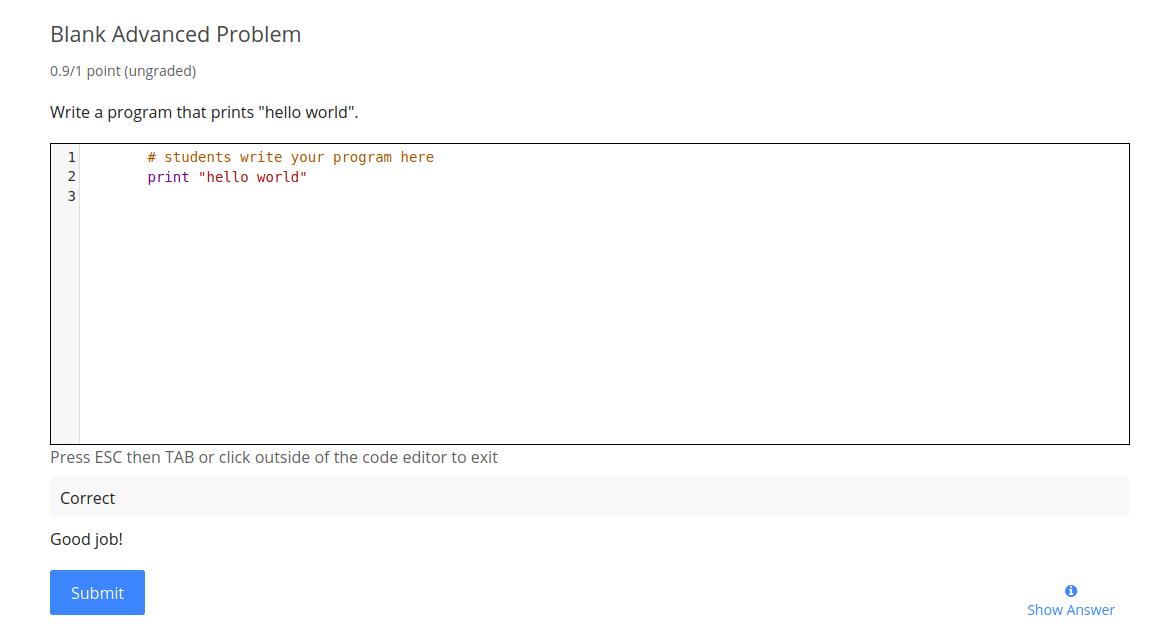
$ tutor xqueue submissions grade 1 692c2896cdfc8bdc2d073bc3b3daf928 0.9 true "Good job!"
{
  "content": "",
  "return_code": 0
}
The submission should then appear as correct with the message that you provided on the command line:
Configuration
XQUEUE_AUTH_PASSWORD (default: "{{ 8|random_string }}")
XQUEUE_AUTH_USERNAME (default: "lms")
XQUEUE_DOCKER_IMAGE (default: "{{ DOCKER_REGISTRY }}overhangio/openedx-xqueue:{{ TUTOR_VERSION }}")
XQUEUE_HOST (default: "xqueue.{{ LMS_HOST }}")
XQUEUE_MYSQL_PASSWORD (default: "{{ 8|random_string }}")
XQUEUE_MYSQL_DATABASE (default: "xqueue")
XQUEUE_MYSQL_USERNAME (default: "xqueue")
XQUEUE_SECRET_KEY (default: "{{ 24|random_string }}")
XQUEUE_REPOSITORY (default: "https://github.com/openedx/xqueue")
XQUEUE_REPOSITORY_VERSION (default: "{{ OPENEDX_COMMON_VERSION }}")
These values can be modified with tutor config save --set PARAM_NAME=VALUE commands.
Debugging
To debug the xqueue service, you are encouraged to mount the xqueue repo from the host in the development container:
tutor dev start –mount /path/to/xqueue
Feel free to add breakpoints (breakpoint()) anywhere in your source code to debug your application.
License
This work is licensed under the terms of the GNU Affero General Public License (AGPL).
Troubleshooting
This Tutor plugin is maintained by Jhony Avella from eduNEXT. Community support is available from the official Open edX forum. Do you need help with this plugin? See the troubleshooting section from the Tutor documentation.
3 maintainers


Download files
Download the file for your platform. If you're not sure which to choose, learn more about installing packages.
Source Distribution
File details
Details for the file tutor_xqueue-22.0.0.tar.gz.
File metadata
- Download URL: tutor_xqueue-22.0.0.tar.gz
- Upload date:
- Size: 21.4 kB
- Tags: Source
- Uploaded using Trusted Publishing? No
- Uploaded via: twine/7.0.0 CPython/3.12.10
File hashes
| Algorithm | Hash digest | |
|---|---|---|
| SHA256 |
999351770e0b8c620e8a8c56657db261d9ba1cea560a9c87fddb69b837bbd222
|
|
| MD5 |
d18aa5515956867da94f265b81aa22f5
|
|
| BLAKE2b-256 |
17a7b38475e485fead4e5f9e94256d79d20bd9b7f377c0b8c6a094b22b313a29
|







