
UELer
Unified Exploratory Linked Viewer: a Jupyter-based framework for interactive exploration of multiplexed imaging datasets.
Try it on Binder
You can try UELer without installation by launching it on Binder:

The demo builds from the develop branch, so it shows the newest features — including ones not yet in the released package below.
Installation
Option A — install with pip (recommended)
The install name is ueler-viewer; the import name is ueler.
The stable release is on PyPI:
pip install ueler-viewer
This pulls in every runtime dependency. Two optional extras are available:
pip install "ueler-viewer[ark]"     # adds ark-analysis (pinned) for ark-based workflows
pip install "ueler-viewer[docs]"    # adds the mkdocs toolchain for building the docs
Requires Python 3.10, 3.11, or 3.12. Then, in Python:
import ueler
Pre-releases (TestPyPI)
Every release also goes to TestPyPI, and pre-releases (alpha, beta, rc) go there only — so use this if you want a preview of a version that is not out yet. Keep the command on one line: --extra-index-url is required, because TestPyPI does not mirror UELer's runtime dependencies, and --pre is what lets pip pick a pre-release at all.
pip install --pre --index-url https://test.pypi.org/simple/ --extra-index-url https://pypi.org/simple/ ueler-viewer
Extras work the same way — "ueler-viewer[ark]", "ueler-viewer[docs]" — and appending ==0.6.0rc1 pins one specific preview. Full details, including how to get back to the stable channel: the installation page.
If the install fails
-
No matching distribution found for scikit-image>=0.19(or for any other dependency) — specific to the TestPyPI command: the resolver is only seeing TestPyPI, which hosts an emptyscikit-imageproject. Keep the command on one line: the--extra-index-url https://pypi.org/simple/part is what lets the dependencies come from real PyPI, and it is easy to lose when a multi-line command is pasted. -
Installing with
uv— uv's default--index-strategy first-indexstops at the first index that lists a package at all, so it never falls back to PyPI for the dependencies. It needs an extra flag:uv pip install --prerelease=allow --index-url https://test.pypi.org/simple/ --extra-index-url https://pypi.org/simple/ --index-strategy unsafe-best-match ueler-viewer
-
You installed an earlier release under the old
uelerdistribution name — runpip uninstall uelerfirst. Both distributions install the sameueler/package, and pip does not know they are the same project, so having both leaves two installs fighting over the same files.
Option B — install from source (for development)
Use this if you want to modify UELer or track the develop branch.
-
Create a compatible environment from the
env/environment.ymlfile in this repository:micromamba env create --name ark-analysis-ueler --file environment.yml
-
Clone the repository and activate the environment:
git clone https://github.com/HartmannLab/UELer.git
micromamba activate ark-analysis-ueler
-
Install in editable mode from the cloned directory:
cd UELer
pip install -e .
Upgrade UELer
If you installed the stable release from PyPI:
pip install --upgrade ueler-viewer
If you installed a pre-release from TestPyPI:
pip install --upgrade --pre --index-url https://test.pypi.org/simple/ --extra-index-url https://pypi.org/simple/ ueler-viewer
Coming from a release installed as ueler rather than ueler-viewer? Run pip uninstall ueler first — see If the install fails.
If you installed from source, pull the latest commits in your UELer directory. Re-run the install only when the dependencies changed — an editable install picks up code changes on its own:
git pull
pip install -e .   # only needed if env/environment.yml or pyproject.toml changed
Getting started
- Open your favorite editor that supports Jupyter notebook.
- Open the starter notebook
script/run_ueler.ipynb. If you installed with pip rather than cloning, download it from the repository. - Select the kernel for an ark-analysis compatible conda/micromamba env.
- Change the lines according to the instructions in the notebook: when configuring the
/script/run_ueler.ipynb, ensure that you specify the following directory paths:
base_folder: The directory containing the FOV (Field of View) folders with image data (e.g.,.../image_data).masks_folder(optional): The directory containing the segmentation.tiffiles for cell segmentation (e.g.,.../segmentation/cellpose_output).annotations_folder(optional): The directory containing annotation files for marking regions of interest (e.g.,.../annotations).cell_table_path(optional): The path to the file containing the cell table data (e.g.,.../segmentation/cell_table/cell_table_size_normalized.csv). Make sure these paths are correctly set in the notebook for the viewer to access the data correctly.
- Run the code and you will see the viewer displayed.
Streaming from the BioImage Archive (BIA)
You can explore a public BioImage Archive study (an S-BIAD* accession) without downloading the
whole dataset first:
from ueler.runner import load_bia_cell_table, run_viewer_bia

viewer = run_viewer_bia(
    "S-BIAD2557",                      # accession id (or a direct HTTPS base URL)
    descriptor={                        # optional; auto-detection is attempted if omitted
        "mode": "folder",
        "fov_container": "zip",         # each FOV is a <FOV>.zip of channel TIFFs
        "base": "Files/spatial_murine_iCCAvsHCC/image_data",
        "mask_dir": "Files/spatial_murine_iCCAvsHCC/segmentation/cleaned_mask",
        "mask_glob": "{fov}_*.tiff",
        "cell_table": "Files/spatial_murine_iCCAvsHCC/cell_table/pCSL005_cell_table.parquet",
    },
)

# The study's cell table — read column by column over the network, never downloaded:
load_bia_cell_table(viewer)
Because BIA studies have no standard folder layout, a small JSON descriptor (a dict or a path
to a .json file) maps the study files onto FOVs / channels / masks; when omitted, UELer attempts
to auto-detect the folder-per-FOV, OME-TIFF-per-FOV, or zip-container layouts. The descriptor is
flexible enough for the variation seen across real studies:
- Masks accept either a single
mask_dir/mask_glob, or amaskslist of sources — each with an optionalname(renames masks named<fov>.tiffto a clean label) orper_fov: true(masks stored in a per-FOV subfolder<dir>/<fov>/*.tiff).annotationsuses the same shape. - Zipped FOVs: set
"fov_container": "zip"when each FOV is a<FOV>.zipof channel TIFFs — UELer reads a single channel straight out of the remote zip via an HTTP byte-range request rather than downloading the whole archive. - Cell table:
"cell_table"names the study's cell table (a path, or{"path": ..., "fov_column": ...}when the FOV id is not in afovcolumn).load_bia_cell_table(viewer, fovs=...)caches it and attaches it;run_viewer_bia(..., cell_table=True)does it as the viewer opens.fovs=keeps only those FOVs' rows and filters them while the file streams, so a large table (S-BIAD2557's is 361 MB / ~440,000 cells) never has to be downloaded or parsed whole.
Pyramidal OME-TIFFs and single zip members are streamed via HTTP byte-range requests; other files
(e.g. single-resolution MIBI TIFFs) are downloaded once into a local cache. A per-study
workspace at ~/.ueler/bia/<accession>/ (override with local_dir=) holds your persistent
.UELer work (ROIs, checkpoints, palettes) plus a disposable cache/ of downloaded images.
Examples for three real studies — S-BIAD2557 (single-dir masks), S-BIAD2864 (two named mask
folders), and S-BIAD2708 (zipped FOVs + per-FOV masks) — are in script/run_ueler_BIA.ipynb.
User interface
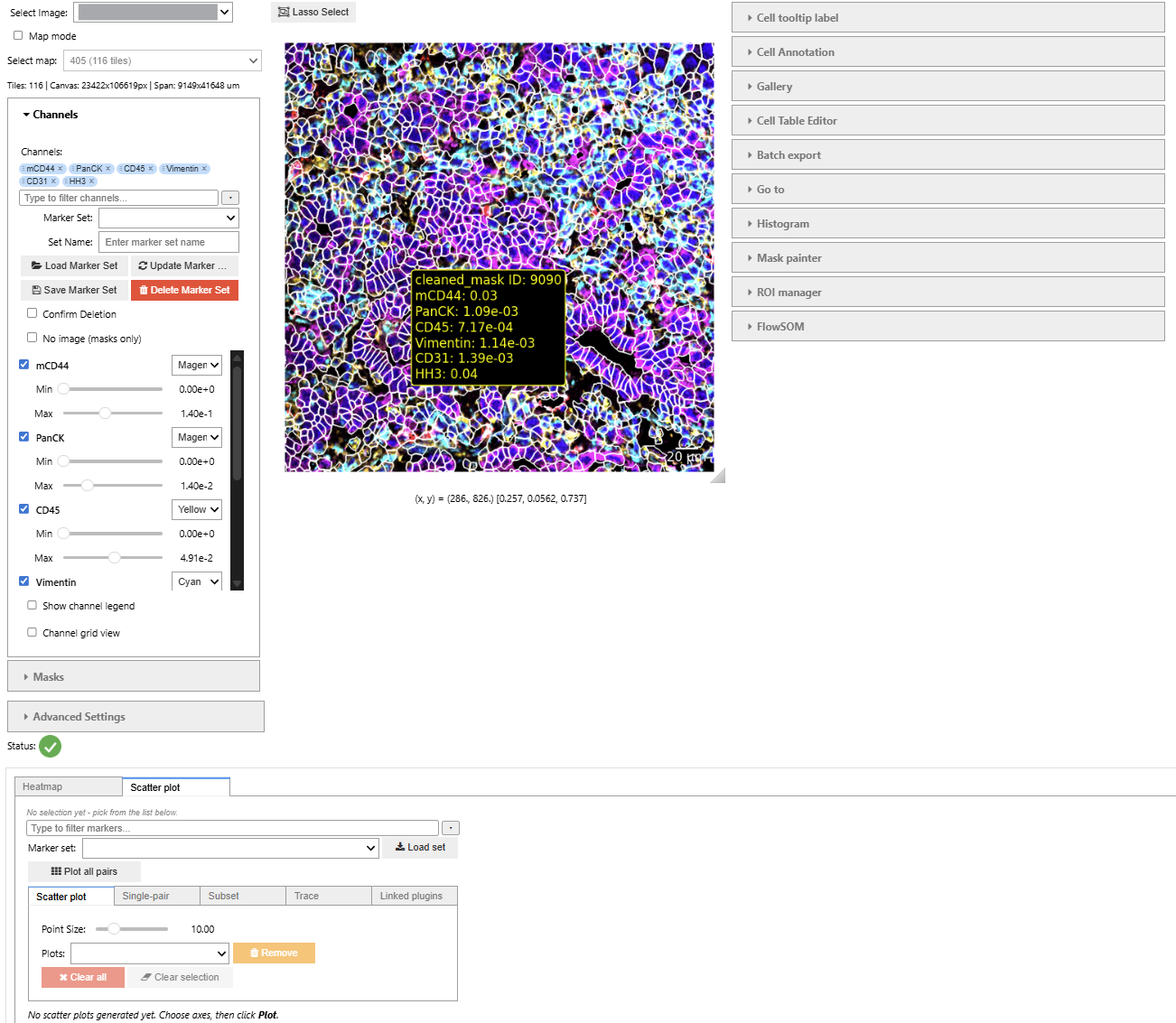
- left: overall settings (channel, annotation, and mask accordions)
- middle: main viewer with overlay controls and image navigation
- right: plugin tools (Mask Painter, ROI Manager, palette editors, statistics panels)
- bottom (optional): wide plugin tabs (e.g., horizontal heatmap or gallery extensions)
For more details, see the user guide.
New Update
UELer v0.5.1 Summary
-
Map mode now shows the slide the right way up (reported by a user). The stitched map used to be mirrored top-to-bottom: each field of view looked correct, but they were arranged in reverse vertical order, because the slide's y coordinate points up while image rows count down. The top of the slide is now at the top of the map. If you saved ROIs in map mode before this update, they will appear at the vertically mirrored position and need to be redrawn; ROIs drawn on a single FOV are unaffected.
-
Streaming a BioImage Archive study: the cell gallery now shows the masks, and hovering a cell shows its values (reported by a user). With
S-BIAD2557, gallery tiles had no mask outlines even though the main viewer showed them, because the study's mask is calledcleaned_maskand UELer kept looking for one calledwhole_cell. When Mask key: is still on its default and your data has no mask by that name, UELer now picks one of the masks you actually have. The hover tooltip showed only the mask ID because, with a Parquet cell table, the marker and label values had not been loaded yet; the tooltip now loads the columns it shows the first time you hover, which takes a moment once per column. -
Map mode now opens when your map file lists fields of view you have not loaded (reported by a user). A slide's map JSON often covers more FOVs than the folder you opened, for example a whole-slide export viewed against a subset. Turning on map mode in that case used to fail with
TypeError: 'NoneType' object is not subscriptable. UELer now leaves out the FOVs it cannot find, prints one warning per map naming them, and shows the rest of the map with gaps where the missing ones would be. A map with none of its FOVs in the folder is left out of the map list. -
The data-mapping keys now suggest your own column names, and UELer asks for them when you open a dataset (issue #142). X key:, Y key:, Label key:, Mask key: and Fov key: used to be text boxes pre-filled with one lab's column names, so a table that calls its coordinates
xandysimply showed no cells — and the only way to find out was to know that the Advanced Settings accordion exists and type the right names into it. Each one now carries a list built from your data: the cell-table keys offer the columns your table actually has (the X and Y lists offer the numeric ones), and Mask key: offers the mask layers found in your masks folder. The list is a suggestion, not a menu — you can still type a name it does not contain, so a folder too slow to scan or a column no heuristic would guess can never leave you stuck with a wrong value and no way to change it. On top of that, a short setup dialog opens the first time you load a dataset and walks you through exactly the settings that apply to what you loaded — the viewer settings always, the mask layer if you passed masks, the column mapping if you loaded a cell table. It is the same fields as the left panel, so whatever you set there is already applied and stays editable afterwards. UELer remembers what it has asked per dataset, so it does not ask twice; if you load a cell table later in the same session it asks only about the new columns. This is also where Pixel Size (nm) finally gets your attention: it defaults to 390 nm and lands in every scale bar you export, including ones you have not drawn yet. -
If your notebook warns
Unable to find widget 'anywidget' ..., UELer now tells you what to do about it (reported by a user). Several panels — the channel picker, the ROI expression editor, the Mask Painter class list, the gallery tiles and the scatter plot — are built on a package calledanywidget, which has a Python half and a browser half. If your editor finds the first but not the second, those panels appear as empty boxes and nothing in the notebook explains why. The usual cause is installing withpip install --userwhile your kernel runs from a different environment: the browser files then land somewhere JupyterLab looks and VS Code does not, which is why the same setup can work in one and fail in the other. The viewer now checks this when it opens and, if something is wrong, prints one message naming where it found the files and the two ways to fix it — reinstall into the environment your kernel uses, or let VS Code fetch widget scripts from a CDN. When everything is in order it says nothing at all. -
Exporting no longer breaks the interactive figures (reported by a user). If you ran a PDF export, or any export with a scale bar, while moving the mouse over a plot, the notebook could throw
AttributeError: 'NoneType' object has no attribute 'handle_json'from somewhere insideipympl— with nothing in the traceback to say what caused it. Exports build their figures on a background thread, and doing that throughmatplotlib.pyplotcreated a hidden interactive canvas each time, which clashed with the ones you were looking at. They are now built in a way that never touches the interactive layer, so an export and the plots stay out of each other's way. Three smaller things improve with it: an export no longer changes which figure your ownplt.*calls draw into, the cell preview renders identically whichever matplotlib backend you use, and UELer now ignores stray messages of this kind rather than letting them surface as an error — which also covers the case of reopening a saved notebook against a fresh kernel. -
A large cell table can now be loaded a column at a time, if you save it as Parquet (follow-up to issue #140). Save your table with
python tools/cell_table_to_parquet.py cells.csv cells.parquet, then load the.parquetinstead of the.csv. The viewer reads only the columns it needs: it opens knowing every column's name and type, so all the dropdowns are complete from the start, and fetches a marker's values the first time you plot it. The S-BIAD2557 example now uses the study's own.parquettable: it opens with all 439,339 cells across 455 FOVs in about three seconds, where the 361 MB CSV took several minutes for a twelve-FOV slice. Nothing about how you use the viewer changes, and every statistic — the mask painter's automatic colour range, the heatmap, FlowSOM — is still computed over every cell, never just the fields of view you have opened. A BIA study can point itscell_tabledescriptor entry at a.parquetfile and it is read the same way, over the network, without downloading it. -
The Binder demo now opens the study's cell table, and streams its images again (issue #140).
S-BIAD2557has changed shape since the example was written — each field of view is now a single.zipof channel images, which the old example could not see, so it found no fields of view at all. The example is fixed and now also loads the study's cell table, which is what turns on the heatmap, the scatter plot and the cell gallery. Because that table is 361 MB (about 440,000 cells), it is loaded for the first twelve fields of view by default: the rows are filtered while the file streams, so a small session never has to hold the whole table. Any BIA study can do the same by adding acell_tableentry to its descriptor and callingload_bia_cell_table(viewer, fovs=...).
Earlier changes (v0.5.1-alpha1 and before) are in the update log.
License
UELer is released under the BSD 3-Clause License — see LICENSE.txt.
You are free to use, modify and redistribute UELer, including in commercial and closed-source
work, provided you keep the copyright notice and do not use the authors' names to endorse a
derived product. This is the same license as scikit-image, dask, bokeh, anndata and
napari, so UELer imposes no constraints your existing scientific Python stack does not.
If you use UELer in published work, a citation is appreciated but not required.
Issues and contact
Bug reports and feature requests: GitHub Issues. Maintained by Yu-Le Wu, Hartmann Lab, DKFZ Heidelberg.
1 maintainer

Metadata
1 maintainer
Release files for ueler-viewer 0.5.1
For a detailed explanation of source distributions (sdists) and built distributions (wheels), please see the package formats documentation.
Source distribution (sdist)
| File | Size | Uploaded | |
|---|---|---|---|
| ueler_viewer-0.5.1.tar.gz | 377.3 kB | Details |
Built distribution (wheel)
| File | Interpreter | ABI | Platform | Reset |
|---|---|---|---|---|
| ueler_viewer-0.5.1-py3-none-any.whl | Python 3 | none | any | Details |
Total release size: 773.4 kB
Release files / ueler_viewer-0.5.1.tar.gz
| Download URL | ueler_viewer-0.5.1.tar.gz |
|---|---|
| Size | 377.3 kB |
| Tags | Source |
|
SHA-256 checksum How to use checksums |
f19cc08d2c906a87d6d43411f0c3074238aa4c9c0831f15e8f6d48dd992efe20
|
|
BLAKE2b-256 checksum How to use checksums |
d3b943a70446c457a949334963399f702ab33d111567710e28745ea8783bda7f
|
| Upload date | |
|
Uploaded using Trusted Publishing? What is trusted publishing? |
Yes |
| Uploaded via |
twine/7.0.0 CPython/3.13.14
|
Provenance
Provenance describes where a file came from. On PyPI, provenance is shared via attestations, which provide a verifiable record of the build or publishing details. View details, limitations and caveats.


PyPI Publish Attestation
PyPI verified that this artifact, at this checksum, originated from the publisher listed below.
Signed by GitHub Actions, verified by PyPI on Oct 12, 2026.
Transparency logRelease files / ueler_viewer-0.5.1-py3-none-any.whl
| Download URL | ueler_viewer-0.5.1-py3-none-any.whl |
|---|---|
| Size | 396.1 kB |
| Tags | Python 3 |
|
SHA-256 checksum How to use checksums |
c8a8934ee090c8810cf0c27b9fcb3683d4f1e9b91f3e3bc1cf241e0a84460509
|
|
BLAKE2b-256 checksum How to use checksums |
9df4874c5e92c7d4e47d67f733a327b14813e72334f9cb9a09d75ec38cd3e3c4
|
| Upload date | |
|
Uploaded using Trusted Publishing? What is trusted publishing? |
Yes |
| Uploaded via |
twine/7.0.0 CPython/3.13.14
|
Provenance
Provenance describes where a file came from. On PyPI, provenance is shared via attestations, which provide a verifiable record of the build or publishing details. View details, limitations and caveats.
PyPI Publish Attestation
PyPI verified that this artifact, at this checksum, originated from the publisher listed below.
Signed by GitHub Actions, verified by PyPI on Oct 12, 2026.
Transparency log













