
Python UIAutomation for Windows

Project description
uiautomation_new - Refactored Python UIAutomation for Windows
uiautomation_new is a refactored Windows UI Automation package based on the classic uiautomation API. It keeps the familiar import style and most legacy function names while adding a cleaner internal architecture, modern input helpers, safer clicking, tab-window utilities, visual matching helpers, and PyPI-ready packaging metadata.
This package is designed for automating Windows desktop applications that expose Microsoft UIAutomation providers, including Win32, WinForms, WPF, Modern UI, Qt-based apps, browser windows, and Electron-based apps when accessibility support is enabled.
Installation
pip install uiautomation_new
Optional features:
pip install "uiautomation_new[visual]"          # OpenCV template matching helpers
pip install "uiautomation_new[input-fallback]"  # pynput / pyautogui input fallback helpers
pip install "uiautomation_new[dev]"             # build and publish tools
Compatibility
The public compatibility layer is intentionally preserved:
import uiautomation as auto

window = auto.GetForegroundControl()
button = window.ButtonControl(Name="OK")
button.Click()
Most old names such as Click, SendKeys, ControlType, PatternId, PropertyId, WindowControl, ButtonControl, and EditControl remain available from the top-level package. New code can also use the added helper APIs described below.
What Changed in This Refactor
Modular Architecture
The old project was centered around one very large uiautomation.py file. This refactor starts splitting responsibilities into focused modules:
uiautomation/enums.py: UIAutomation and Win32 integer enums such asControlType,PatternId,PropertyId,Keys,MouseEventFlag, andKeyboardEventFlag.uiautomation/structures.py:Rectand ctypes input structures such asINPUT,MOUSEINPUT,KEYBDINPUT, andHARDWAREINPUT.uiautomation/inputs/core.py: low-levelSendInput,MouseInput,KeyboardInput, and virtual-key scan-code helpers.uiautomation/inputs/keyboard.py: optionalpynputhotkey helpers.uiautomation/win32_api.py: pywin32-first, ctypes-fallback wrappers for selected Win32 APIs.uiautomation/client.py: thread-safe singleton helpers and package DLL path handling.
The original uiautomation.py remains as a compatibility aggregation layer while larger areas such as controls, patterns, bitmap handling, and logging are migrated progressively.
Modernized Constants and Rect
- Classic constant classes have been moved to
enum.IntEnumwhile keeping int-compatible behavior. Rectis now a dataclass-compatible helper instructures.py.- Empty rectangle detection now treats zero or negative width/height as empty.
Modern Input Simulation
- Mouse clicks, mouse button down/up, mouse wheel, single-key input, and
SendKeysnow useSendInputinternally. - Deprecated
mouse_eventandkeybd_eventnames are still available as compatibility wrappers. SendInputbatches input events instead of sending them one by one.
DPI and Multi-Monitor Improvements
New helpers improve high-DPI and multi-monitor coordinate behavior:
auto.SetDpiAwareness()
rect = auto.GetVirtualScreenRect()
inside = auto.IsPointInVirtualScreen(x, y)
SetDpiAwareness() prefers PerMonitorV2 awareness and automatically falls back to older Windows DPI APIs.
Safer Clicks
Controls now support visibility and clickability checks:
control.IsVisibleOnScreen()
control.IsClickable()
control.SafeClick()
SafeClick() attempts to scroll the control into view and checks whether the target point is enabled, visible on screen, and not obviously covered by another control.
Fluent Relative Search
Controls can be filtered by relative position:
save = window.ButtonControl(Name="Save").RightOf(cancel_button)
save = window.ButtonControl(Name="Save").right_of(cancel_button)
Available helpers:
LeftOf()/left_of()RightOf()/right_of()Above()/above()Below()/below()AddCompare()
Smart Waiting
Modern wait aliases are available:
control.WaitUntilExists(timeout=10)
control.WaitUntilDisappear(timeout=5)

auto.WaitUntilExists(control, timeout=10)
auto.WaitUntilDisappear(control, timeout=5)
Recursive FindAll and Tab Utilities
Windows with tab controls can be automated with higher-level helpers:
tabs = window.FindAll(auto.ControlType.TabItemControl, maxDepth=10)
tabs = window.find_all(control_type=auto.ControlType.TabItemControl, max_depth=10)

tabs = window.FindTabItems(maxDepth=10)
current_tab = window.GetCurrentTab()
window.SwitchToTabByName("Settings")
url = window.GetCurrentUrl()
Module-level helpers are also available:
tabs = auto.find_all(window, auto.ControlType.TabItemControl)
tabs = auto.find_control_num(window, auto.ControlType.TabItemControl)
tab = auto.get_current_tab(window)
auto.switch_to_tab_by_name(window, "Settings")
url = auto.get_current_url(window)
FindAll() supports maxDepth to avoid walking extremely large UI trees indefinitely. Current-tab detection first uses SelectionItemPattern.IsSelected, then falls back to keyboard-focus properties.
Optional pynput Hotkey Helper
Install the input fallback extra:
pip install "uiautomation_new[input-fallback]"
Then use:
auto.press_hotkey("ctrl", "a")
auto.PressHotkey("backspace")
auto.PressHotKey("ctrl", "shift", "a")

edit.PressHotkey("ctrl", "a")
The top-level import does not require pynput; the optional dependency is only required when these helpers are called.
Screenshot, Highlight, and UI Tree Export
New debugging and reporting helpers:
control.Screenshot("control.png")
control.Highlight()

data = control.ToDict()
control.ExportTreeToJson("tree.json", maxDepth=5)
control.ExportTreeToMarkdown("tree.md", maxDepth=5)
Module-level tree export helpers:
ControlToDict()ControlTreeToDict()ExportControlTreeToJson()ControlTreeToMarkdown()ExportControlTreeToMarkdown()
Optional Image Template Matching
Install the visual extra:
pip install "uiautomation_new[visual]"
Then use:
match = auto.FindImageOnScreen("button.png", confidence=0.9)
match = auto.WaitImageAppear("button.png", timeout=10)
auto.ClickImage("button.png", timeout=10)
This is useful for custom-rendered UI that does not expose reliable UIAutomation controls.
Publishing Notes
This distribution is Windows-focused and includes native DLL assets. Build and check before uploading:
python -m pip install -U build twine
python -m build
python -m twine check dist/*
python -m twine upload dist/*
Do not upload old *-any.whl files if the package contains Windows DLLs. Use Windows platform wheels and the source distribution.
Original uiautomation module documentation
:cn:中文版介绍
Do not use 3.7.6 and 3.8.1; comtypes doesn't work in these two versions. Install an earlier or the latest version. https://github.com/enthought/comtypes/issues/202
This module is for UIAutomation on Windows (Windows XP with SP3, Windows Vista, Windows 7, and Windows 8/8.1/10/11). It supports UIAutomation for applications that implemented UIAutomation Provider, such as MFC, Windows Form, WPF, Modern UI (Metro UI), Qt (partly), Firefox (version<=56 or >=60), Chrome, and Electron-based apps (require --force-renderer-accessibility command line parameter).
I developed it in my spare time and for my personal use.
uiautomation is shared under the Apache License 2.0.
This means that the code can be freely copied and distributed, and costs nothing to use.
uiautomation1.x supports py2, py3 and doesn't depend on any third-party packages.
uiautomation2.0+ only supports py3 and depends on comtypes and typing (Python3.5+ built-in).
uiautomation2.0+ is not backward compatible with earlier versions. See API changes.
You can install uiautomation with pip install uiautomation. After installation, an automation.py script that calls uiautomation will be in 'C:\PythonXX\Scripts'.
You can use this script to traverse UI controls.
Run 'C:\PythonXX\Scripts\automation.py -h' for help.
Run demos\automation_calculator.py to see a simple demo.
On Windows 8/8.1, to automate a Metro App, the app must be in the foreground. If a Metro App was switched to the background, uiautomation can't fetch its controls' information.
By the way, you should run Python as administrator. Otherwise uiautomation may fail to enumerate controls or get controls' information on Windows 7 or higher.
Microsoft UIAutomation Minimum supported client: Windows 7, Windows Vista with SP2 and Platform Update for Windows Vista, Windows XP with SP3 and Platform Update for Windows Vista [desktop apps only]
Microsoft UIAutomation Minimum supported server: Windows Server 2008 R2, Windows Server 2008 with SP2 and Platform Update for Windows Server 2008, Windows Server 2003 with SP2 and Platform Update for Windows Server 2008 [desktop apps only]
C++ dll source code: UIAutomationClient
How to use uiautomation?
Run 'automation.py -h'

Understand the arguments of automation.py, and try the following examples:
automation.py -t 0 -n, print current active window's controls, show full name
automation.py -r -d 1 -t 0, print desktop (the root of control tree) and its children (top level windows)

automation.py prints the properties of controls and the patterns they support. You use controls and patterns to retrieve information about controls and interact with them.
A control may support some patterns or conditionally support some patterns according to its control type.

Refer to Control Pattern Mapping for UI Automation Clients for the complete control pattern table.
uiautomation searches controls from the control tree based on the controls' properties you supply.
Suppose the control tree is
root(Name='Desktop', Depth=0)
window1(Depth=1)
control1-001(Depth=2)
control1-...(Depth=2)
...
control1-100(Depth=2)
window2(Name='window2', Depth=1)
control2-1(Depth=2)
control2-1-001(Depth=3)
control2-1-...(Depth=3)
...
control2-1-100(Depth=3)
control2-2(Depth=2)
control2-3(Depth=2)
control2-4(Name='2-4', Depth=2)
editcontrol(Name='myedit1', Depth=3)
editcontrol(Name='myedit2', Depth=3)
If you want to find the EditControl whose name is 'myedit2' and type 'hi',
you can write the following code:
uiautomation.EditControl(searchDepth=3, Name='myedit2').SendKeys('hi')
But this code runs slowly because there are more than 200 controls before myedit2 in the control tree.
uiautomation has to traverse more than 200 controls before finding myedit2 if searching from the root with a search depth of 3.
A better approach is:
window2 = uiautomation.WindowControl(searchDepth=1, Name='window2') # search 2 times
sub = window2.Control(searchDepth=1, Name='2-4')    # search 4 times
edit = sub.EditControl(searchDepth=1, Name='myedit2')   # search 2 times
edit.SendKeys('hi')
This code runs faster than the former approach.
You can also combine the four lines of code into one line.
uiautomation.WindowControl(searchDepth=1, Name='window2').Control(searchDepth=1, Name='2-4').EditControl(searchDepth=1, Name='myedit2').SendKeys('hi')
Now let's take notepad.exe as an example.
Launch notepad.exe and run automation.py -t 3, then switch to Notepad and wait for 5 seconds
automation.py will print the controls of Notepad and save them to @AutomationLog.txt:
ControlType: PaneControl ClassName: #32769 Name: 桌面 Depth: 0 (Desktop window, the root control)
ControlType: WindowControl ClassName: Notepad Depth: 1 (Top level window)
ControlType: EditControl ClassName: Edit Depth: 2
ControlType: ScrollBarControl ClassName: Depth: 3
ControlType: ButtonControl ClassName: Depth: 4
ControlType: ButtonControl ClassName: Depth: 4
ControlType: ThumbControl ClassName: Depth: 3
ControlType: TitleBarControl ClassName: Depth: 2
ControlType: MenuBarControl ClassName: Depth: 3
ControlType: MenuItemControl ClassName: Depth: 4
ControlType: ButtonControl ClassName: Name: 最小化 Depth: 3 (Minimize Button)
ControlType: ButtonControl ClassName: Name: 最大化 Depth: 3 (Maximize Button)
ControlType: ButtonControl ClassName: Name: 关闭 Depth: 3 (Close Button)
...
Run the following code
# -*- coding: utf-8 -*-
# this script only works with Win32 notepad.exe
# if your notepad.exe is the Windows Store version in Windows 11, you need to uninstall it.
import subprocess
import uiautomation as auto

def test():
    print(auto.GetRootControl())
    subprocess.Popen('notepad.exe', shell=True)
    # you should find the top level window first, then find children from the top level window
    notepadWindow = auto.WindowControl(searchDepth=1, ClassName='Notepad')
    if not notepadWindow.Exists(3, 1):
        print('Can not find Notepad window')
        exit(0)
    print(notepadWindow)
    notepadWindow.SetTopmost(True)
    # find the first EditControl in notepadWindow
    edit = notepadWindow.EditControl()
    # usually you don't need to catch exceptions
    # but if you encounter a COMError exception, put it in a try block
    try:
        # use value pattern to get or set value
        edit.GetValuePattern().SetValue('Hello')  # or edit.GetPattern(auto.PatternId.ValuePattern)
    except auto.comtypes.COMError as ex:
        # maybe you aren't running Python as administrator
        # or the control doesn't have an implementation for the pattern method (there is no workaround for this)
        pass
    edit.Click() # this step is optional, but some edits need it
    edit.SendKeys('{Ctrl}{End}{Enter}World')
    print('current text:', edit.GetValuePattern().Value)
    notepadWindow.CaptureToImage('notepad.png')
    notepadWindow.MenuBarControl(searchDepth=1).CaptureToImage('notepad_menubar.png')

    # generate an animated gif
    bitmap = notepadWindow.ToBitmap(x=0, y=0, width=160, height=160)
    side = int(bitmap.Width * 1.42)
    gifBmp = auto.Bitmap(side, side)
    gifBmp.Clear(0xFFFF_FFFF) # set bitmap background color to white
    gifBmp.Paste(x=(side-bitmap.Width)//2, y=(side-bitmap.Height)//2, bitmap=bitmap)
    gifFrameCount = 20
    bmps = [gifBmp.RotateWithSameSize(gifBmp.Width//2, gifBmp.Height//2, i*360/gifFrameCount) for i in range(0, gifFrameCount)]
    auto.GIF.ToGifFile('notepad_part.gif', bitmaps=bmps, delays=[100]*gifFrameCount)

    # find the first TitleBarControl in notepadWindow,
    # then find the second ButtonControl in TitleBarControl, which is the Maximize button
    maximizeButton = notepadWindow.TitleBarControl().ButtonControl(foundIndex=2)
    maximizeButton.Click(waitTime=2)
    maximizeButton.Click()
    # find the first button in notepadWindow whose Name is '关闭' or 'Close', the close button
    # the relative depth from Close button to Notepad window is 2
    notepadWindow.ButtonControl(searchDepth=2, Compare=lambda c, d: c.Name in ['Close', '关闭']).Click()
    # then notepad will pop up a window asking whether to save, press Alt+N to discard
    notepadWindow.WindowControl(searchDepth=1).CaptureToImage('notepad_save.png')
    auto.SendKeys('{Alt}n')

if __name__ == '__main__':
    test()
The above code automates notepad.exe and generates a GIF file.

auto.GetRootControl() returns the root control (the Desktop window)
auto.WindowControl(searchDepth=1, ClassName='Notepad') creates a WindowControl, the parameters specify how to search the control
The following parameters can be used:
searchFromControl = None,
searchDepth = 0xFFFFFFFF,
searchInterval = SEARCH_INTERVAL,
foundIndex = 1
Name
SubName
RegexName
ClassName
AutomationId
ControlType
Depth
Compare
See Control.__init__ for the comments on the parameters.
See scripts in folder demos for more examples.
Control.Element returns the low level COM object IUIAutomationElement, Almost all methods and properties of Control are implemented via IUIAutomationElement COM API and Win32 API. when calling a control's method or property that indirectly calls Control.Element and Control.Element is None, uiautomation starts searching the control by the properties you supply. uiautomation will raise a LookupError exception if it can't find the control within uiautomation.TIME_OUT_SECOND (default 10 seconds). Control.Element will have a valid value if uiautomation finds the control successfully. You can use Control.Exists(maxSearchSeconds, searchIntervalSeconds) to check whether a control exists, this function doesn't raise any exceptions. Call Control.Refind or Control.Exists to make Control.Element invalid again and uiautomation will start a new search.
For example:
#!python3
# -*- coding:utf-8 -*-
# this script only works with Win32 notepad.exe
# if your notepad.exe is the Windows Store version in Windows 11, you need to uninstall it.
import subprocess
import uiautomation as auto
auto.uiautomation.SetGlobalSearchTimeout(15)  # set new timeout 15


def main():
    subprocess.Popen('notepad.exe', shell=True)
    window = auto.WindowControl(searchDepth=1, ClassName='Notepad')
    # or use Compare for custom search
    # window = auto.WindowControl(searchDepth=1, ClassName='Notepad', Compare=lambda control, depth: control.ProcessId==100)
    edit = window.EditControl()
    # when calling SendKeys, uiautomation starts searching the window and edit controls in 15 seconds
    # because SendKeys indirectly calls Control.Element and Control.Element is None
    # if the window and edit controls don't exist within 15 seconds, a LookupError exception will be raised
    try:
        edit.SendKeys('first notepad')
    except LookupError as ex:
        print("The first notepad doesn't exist in 15 seconds")
        return
    # the second call to SendKeys doesn't trigger a search; the previous call makes sure that Control.Element is valid
    edit.SendKeys('{Ctrl}a{Del}')
    window.GetWindowPattern().Close()  # close the first Notepad, the window and edit controls become invalid even though their Elements have values

    subprocess.Popen('notepad.exe')  # run second Notepad
    window.Refind()  # need to re-find the window, trigger a new search
    edit.Refind()  # need to re-find the edit, trigger a new search
    edit.SendKeys('second notepad')
    edit.SendKeys('{Ctrl}a{Del}')
    window.GetWindowPattern().Close()  # close the second Notepad, window and edit become invalid again

    subprocess.Popen('notepad.exe')  # run third Notepad
    if window.Exists(3, 1): # trigger a new search
        if edit.Exists(3):  # trigger a new search
            edit.SendKeys('third notepad')  # edit.Exists makes sure that edit.Element has a valid value now
            edit.SendKeys('{Ctrl}a{Del}')
        window.GetWindowPattern().Close()
    else:
        print("The third notepad doesn't exist in 3 seconds")


if __name__ == '__main__':
    main()
If automation.py can't print the controls you see. Maybe the controls were built by DirectUI (or CustomControl), not Microsoft UI Frameworks. In order to support UIAutomation, a UI Framework must implement UI Automation Provider.
A Microsoft UI Automation provider is a software object that exposes an element of an application's UI so that accessibility client applications can retrieve information about the element and invoke its functionality. In general, each control or other distinct element in a UI has a provider.
Microsoft includes a provider for each of the standard controls that are supplied with Microsoft Win32, Windows Forms, and Windows Presentation Foundation (WPF). This means that the standard controls are automatically exposed to UI Automation clients; you do not need to implement any accessibility interfaces for the standard controls.
If your application includes any custom controls, you need to implement UI Automation providers for those controls to make them accessible to accessibility client applications. You also need to implement providers for any third-party controls that do not include a provider. You implement a provider by implementing UI Automation provider interfaces and control pattern interfaces.
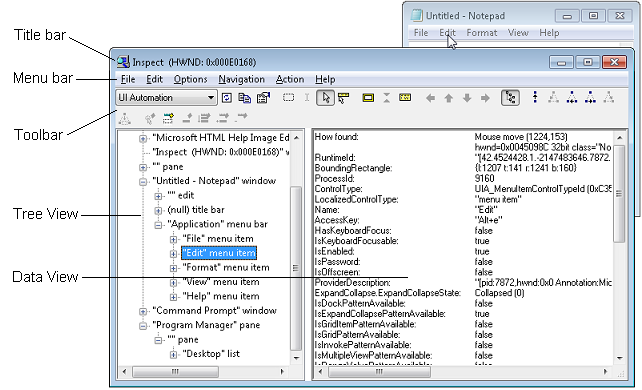
Another UI tool, Inspect.exe, supplied by Microsoft can also be used to traverse the UI elements. It has a UI interface whereas my script shows UI elements in the terminal. However, I find that my script is more convenient in some cases.
Some screenshots:
Batch rename PDF bookmarks

Microsoft Word

Wireshark 3.0 (Qt 5.12)

GitHub Desktop (Electron App)

Pretty-print directory

Donate:


Release history Release notifications | RSS feed


Download files
Download the file for your platform. If you're not sure which to choose, learn more about installing packages.
Source Distribution
Built Distribution
Filter files by name, interpreter, ABI, and platform.
If you're not sure about the file name format, learn more about wheel file names.
Copy a direct link to the current filters
File details
Details for the file uiautomation_new-0.0.1.tar.gz.
File metadata
- Download URL: uiautomation_new-0.0.1.tar.gz
- Upload date:
- Size: 228.2 kB
- Tags: Source
- Uploaded using Trusted Publishing? No
- Uploaded via: twine/6.2.0 CPython/3.13.1
File hashes
| Algorithm | Hash digest | |
|---|---|---|
| SHA256 |
10ed6d461ff4723683698da510a51cb5493a17e2f87c6163a4ab1f055f79388e
|
|
| MD5 |
10c23edd901758b8c5c28c92b8def8e5
|
|
| BLAKE2b-256 |
8587d5a8ebcc9820e14632f5473b4ce5648b7a7bd54f0a271e01d02fd3020a4f
|
File details
Details for the file uiautomation_new-0.0.1-cp313-cp313-win_amd64.whl.
File metadata
- Download URL: uiautomation_new-0.0.1-cp313-cp313-win_amd64.whl
- Upload date:
- Size: 220.6 kB
- Tags: CPython 3.13, Windows x86-64
- Uploaded using Trusted Publishing? No
- Uploaded via: twine/6.2.0 CPython/3.13.1
File hashes
| Algorithm | Hash digest | |
|---|---|---|
| SHA256 |
67801091693f58272a65a28f064b470a40c043827c13d62aeae788055b688ad0
|
|
| MD5 |
c4766ba653b40700b0cb51af70f740d4
|
|
| BLAKE2b-256 |
4d01f86384be892bda12201d905532417cb6200aacb2517600148a5cc976a6f5
|






