
unfake
Improve AI-generated pixel art through scale detection, color quantization, and smart downscaling. Features Rust acceleration for critical operations, achieving a 10-20% speedup over the original JavaScript implementation.
Based on the excellent work by:
- Eugeniy Smirnov (jenissimo/unfake.js) - Original JavaScript implementation
- Igor Bezkrovnyi (ibezkrovnyi/image-quantization) - Image quantization algorithms
Examples
Click each image to view the original, processed result, and results of two different naïve fixed-size-nearest-neighbor methods.
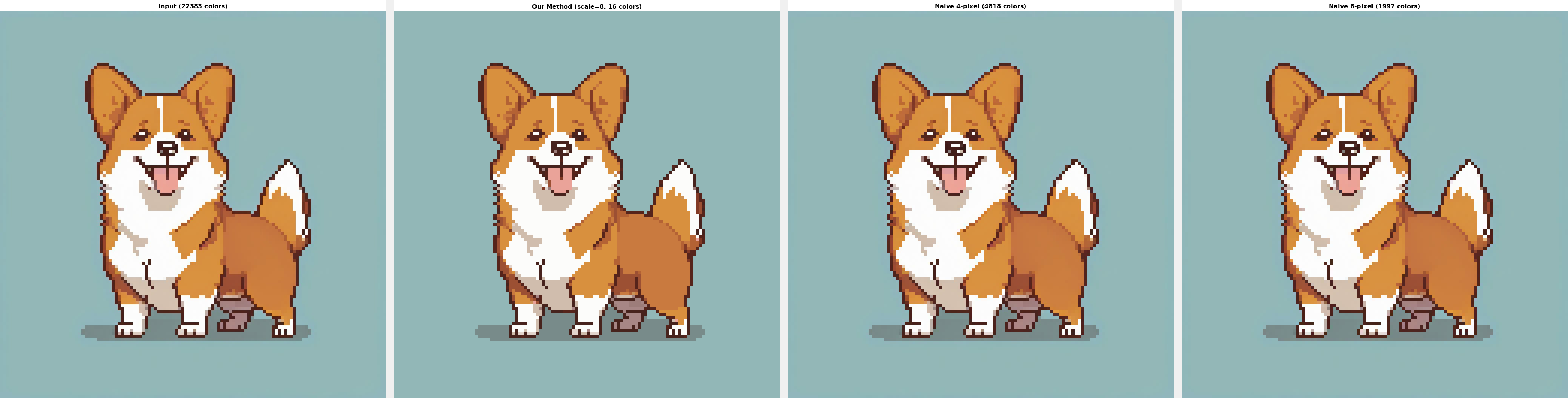
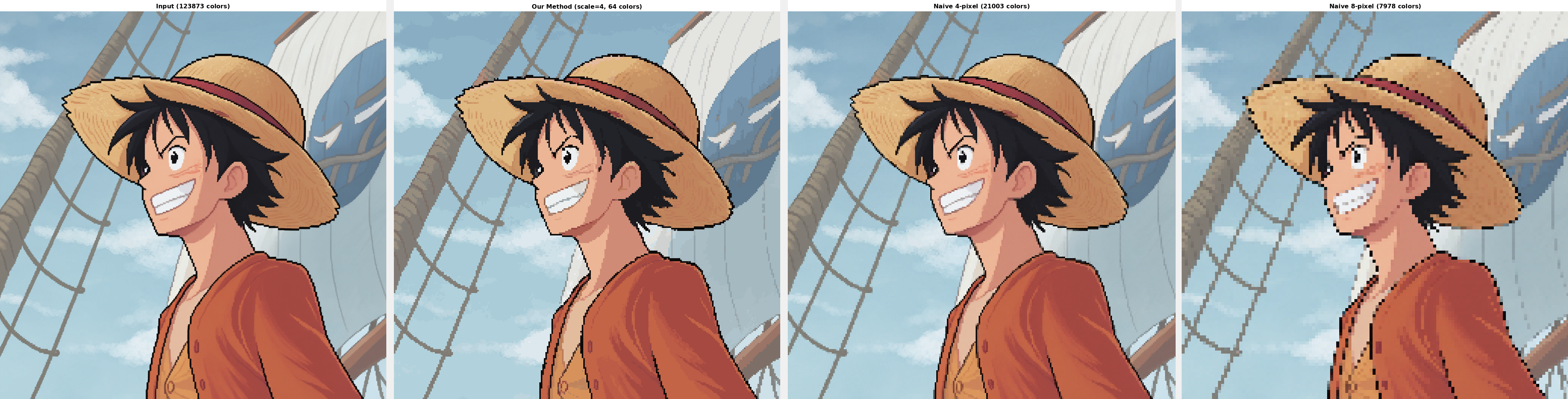
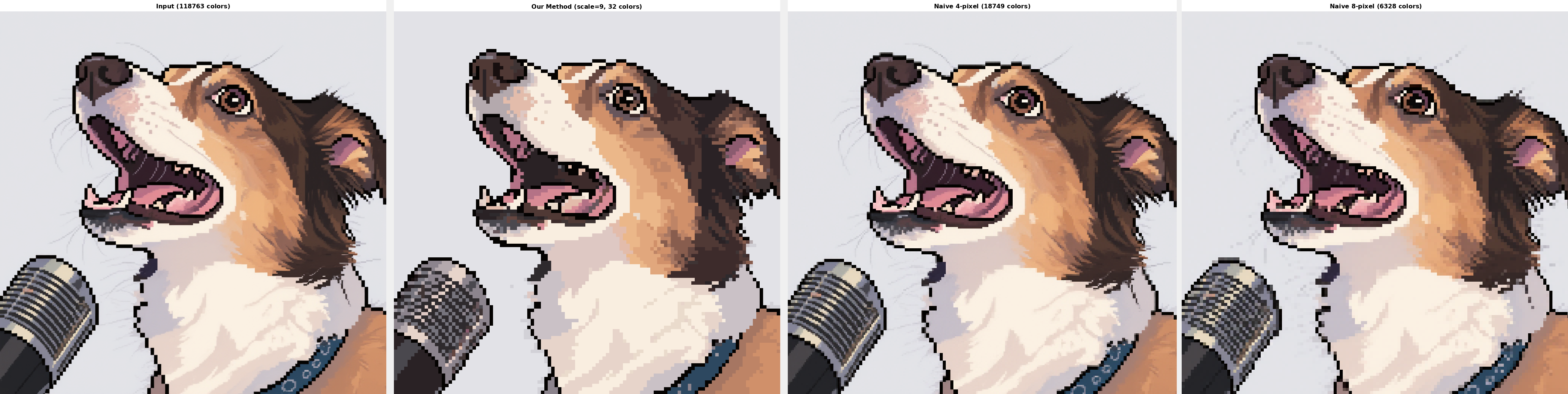
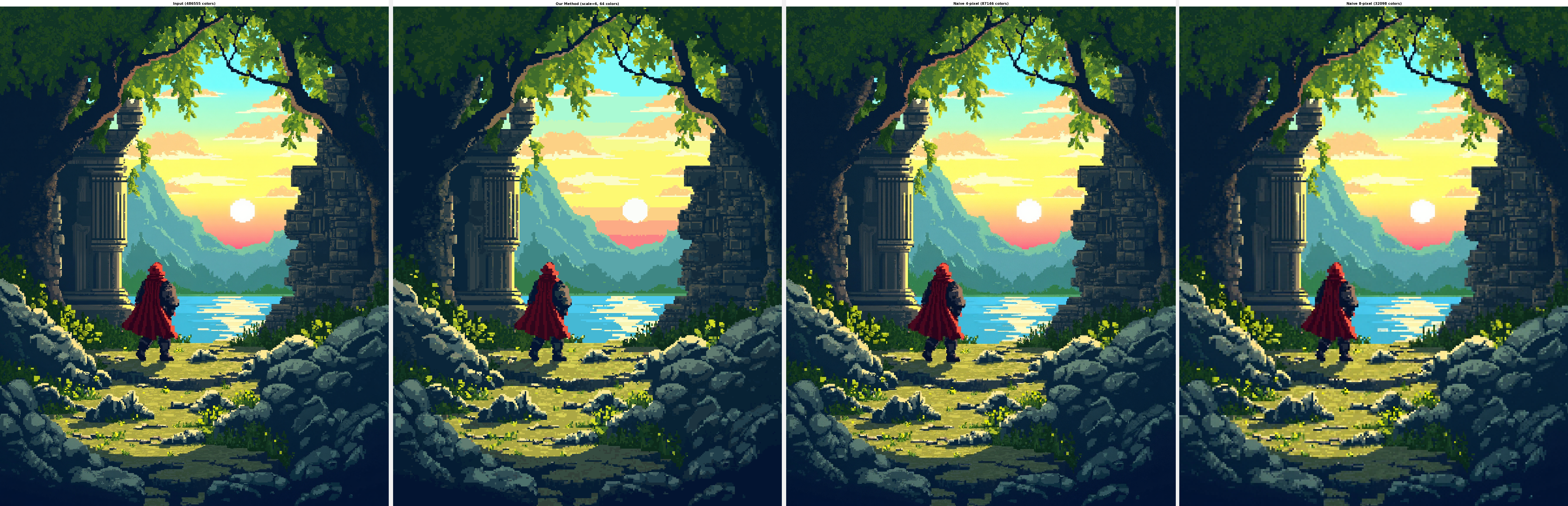
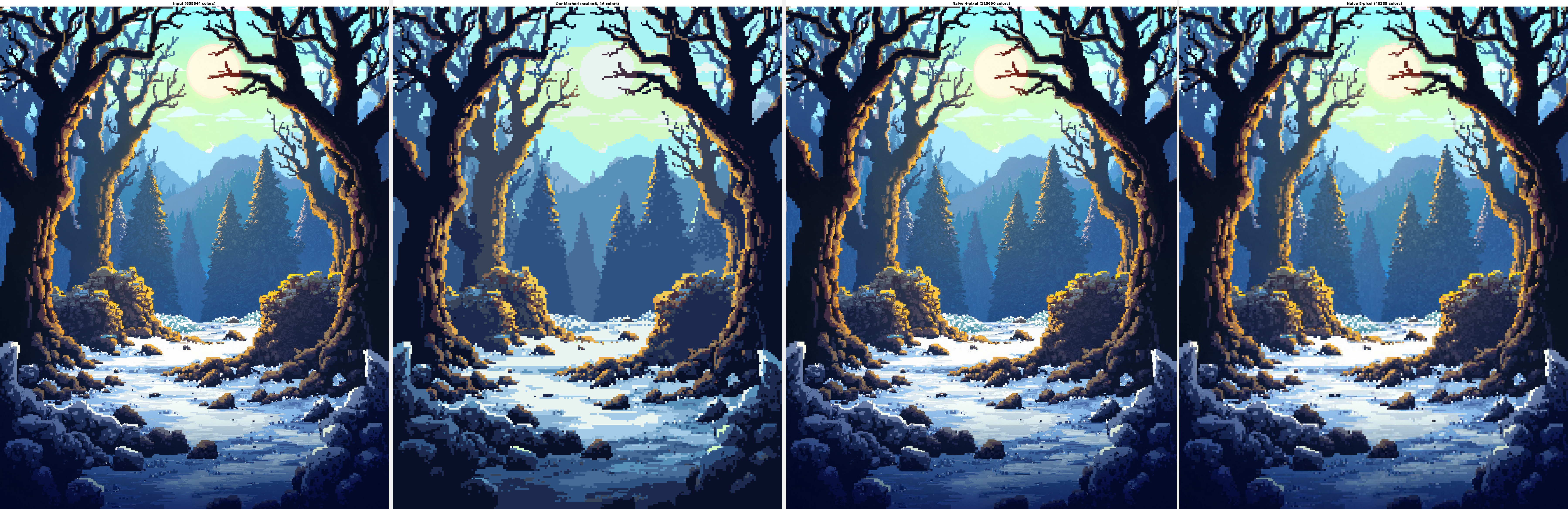
Images taken from examples for AI pixel art models like Pixel Art XL, FLUX.1-Dev Pixel LoRA, and FLUX.1-Kontext Pixel LoRA.
Features
- Automatic Scale Detection: Detects the inherent scale of pixel art using both runs-based and edge-aware methods
- Advanced Color Quantization: Wu color quantization algorithm with Rust acceleration
- Smart Downscaling: Multiple methods including dominant color, median, mode, and content-adaptive
- Image Cleanup: Alpha binarization, morphological operations, and jaggy edge removal
- Transparent Background: Automatic background removal using edge-based flood fill
- Grid Snapping: Automatic alignment to pixel grid for clean results
- Flexible API: Both synchronous and asynchronous interfaces
- Fast: Process a 1-megapixel image in as fast as half a second.
Upcoming
- Vectorization
Installation
From PyPI (recommended)
pip install unfake
From Source
# Clone the repository
git clone https://github.com/painebenjamin/unfake.py.git
cd unfake

# Install with pip (includes Rust compilation)
pip install .

# Or for development
pip install -e .
Requirements
- Python 3.8+
- Rust toolchain (for building from source)
- OpenCV Python bindings
- Pillow
- NumPy
Usage
Command Line
# Basic usage with auto-detection
unfake input.png

# Specify output file
unfake input.png -o output.png

# Control color palette size
unfake input.png -c 16                    # Maximum 16 colors
unfake input.png --auto-colors            # Auto-detect optimal color count

# Force specific scale
unfake input.png --scale 4                # Force 4x downscaling

# Choose downscaling method
unfake input.png -m dominant              # Dominant color (default, best for pixel art)
unfake input.png -m median                # Median color
unfake input.png -m content-adaptive      # High quality but slower

# Enable cleanup operations
unfake input.png --cleanup morph,jaggy    # Morphological + jaggy edge cleanup

# Use fixed color palette
unfake input.png --palette palette.txt    # File with hex colors, one per line

# Adjust processing parameters
unfake input.png --alpha-threshold 200    # Higher threshold for alpha binarization
unfake input.png --threshold 0.1          # Dominant color threshold (0.0-1.0)
unfake input.png --no-snap                # Disable grid snapping

# Make background transparent
unfake input.png --transparent-background # Flood-fill background from edges

# Verbose output
unfake input.png -v                       # Show detailed processing info
Python API
import unfake

# Basic processing with defaults
result = unfake.process_image_sync(
    "input.png",
    max_colors=32,                       # Maximum colors in output
    detect_method="auto",                # Scale detection: "auto", "runs", "edge"
    downscale_method="dominant",         # Method: "dominant", "median", "mode", "mean", "content-adaptive"
    cleanup={"morph": False, "jaggy": False},
    snap_grid=True                       # Align to pixel grid
)

# Access results
processed_image = result['image']        # PIL Image
palette = result['palette']              # List of hex colors
manifest = result['manifest']            # Processing metadata

# Auto-detect optimal colors
result = unfake.process_image_sync(
    "input.png",
    max_colors=None,                     # Auto-detect
    auto_color_detect=True
)

# Use fixed palette
fixed_colors = ['#000000', '#ffffff', '#ff0000', '#00ff00', '#0000ff']
result = unfake.process_image_sync(
    "input.png",
    fixed_palette=fixed_colors
)

# Make background transparent
result = unfake.process_image_sync(
    "input.png",
    transparent_background=True          # Flood-fill background from edges
)
Asynchronous API
import asyncio
import unfake

async def process_image_async():
    result = await unfake.process_image(
        "input.png",
        max_colors=16,
        detect_method="runs",
        downscale_method="median",
        cleanup={"morph": True, "jaggy": False},
        snap_grid=True,
        transparent_background=True          # Optional: make background transparent
    )
    result["image"].save("output.png")

asyncio.run(process_image_async())
Processing Options
Scale Detection Methods
auto(default): Tries runs-based first, falls back to edge-awareruns: Analyzes color run lengths (fast, works well for clean pixel art)edge: Uses edge detection (slower but handles anti-aliased images)
Downscaling Methods
dominant(default): Uses most frequent color in each block (best for pixel art)median: Median color value (good for photos)mode: Most common color (similar to dominant)mean: Average color (can create new colors)content-adaptive: Advanced algorithm based on Kopf & Lischinski 2011
Cleanup Options
morph: Morphological operations to remove noisejaggy: Removes isolated diagonal pixels
Transparent Background
When enabled (transparent_background=True or --transparent-background), the tool automatically removes the background by flood-filling from the image edges. This feature:
- Uses edge-based flood fill to detect background regions
- Converts background pixels to transparent
- Uses a configurable tolerance for color matching (default: 10)
- Works with both RGB and RGBA images
- Includes Rust acceleration for better performance
Performance
Example processing times for a 1024x1024 image on a high-end Intel desktop CPU using defaults:
- Pure Python: ~71 seconds
- With Rust Acceleration: ~700 milliseconds (about 100x speedup!)
Algorithm Details
Scale Detection
The tool uses two methods to detect the inherent scale of pixel art:
- Runs-based: Analyzes horizontal and vertical color runs to find the GCD
- Edge-aware: Uses Sobel edge detection to find regular grid patterns
Color Quantization
Implements the Wu color quantization algorithm (1992) which:
- Builds a 3D color histogram
- Recursively subdivides color space
- Minimizes variance within each partition
- Produces high-quality palettes
Downscaling
The dominant color method:
- Divides image into scale×scale blocks
- Finds most frequent color in each block
- Falls back to mean if no color is dominant
- Preserves original palette colors
Credits
This Python/Rust implementation is based on:
- unfake.js by Eugeniy Smirnov - The original JavaScript implementation that inspired this project
- image-quantization by Igor Bezkrovnyi - TypeScript implementation of various color quantization algorithms
Additional references:
- Wu, Xiaolin. "Efficient Statistical Computations for Optimal Color Quantization" (1992)
- Kopf, Johannes and Dani Lischinski. "Depixelizing Pixel Art" (2011)
License
MIT License
1 maintainer

Download files
Download the file for your platform. If you're not sure which to choose, learn more about installing packages.
Source Distributions
Built Distributions
Filter files by name, interpreter, ABI, and platform.
If you're not sure about the file name format, learn more about wheel file names.
Copy a direct link to the current filters
File details
Details for the file unfake-1.0.7-cp38-abi3-win_amd64.whl.
File metadata
- Download URL: unfake-1.0.7-cp38-abi3-win_amd64.whl
- Upload date:
- Size: 279.8 kB
- Tags: CPython 3.8+, Windows x86-64
- Uploaded using Trusted Publishing? No
- Uploaded via:
twine/6.2.0 CPython/3.11.12
File hashes
| Algorithm | Hash digest | |
|---|---|---|
| SHA256 |
579f347fff2c9c7468230db83a6589efe46f22bdf5f3b906f83d8f61ba182eb3
|
|
| MD5 |
df1d632317436269fa898ee12544f651
|
|
| BLAKE2b-256 |
fafdf19673bcea10d1f701b83be46b8b80f62c1415ea6161ef0c0dfd9074a371
|
File details
Details for the file unfake-1.0.7-cp38-abi3-manylinux_2_34_x86_64.whl.
File metadata
- Download URL: unfake-1.0.7-cp38-abi3-manylinux_2_34_x86_64.whl
- Upload date:
- Size: 361.3 kB
- Tags: CPython 3.8+, manylinux: glibc 2.34+ x86-64
- Uploaded using Trusted Publishing? No
- Uploaded via:
twine/6.2.0 CPython/3.11.12
File hashes
| Algorithm | Hash digest | |
|---|---|---|
| SHA256 |
11de36610c2de41940301fea6072ae24fcd816f9f4b49fb1810f42218e6dc89e
|
|
| MD5 |
954c5037ec5a1671ee8ad018add68cef
|
|
| BLAKE2b-256 |
13eb6b3ed2ee4cab9262c91a6eb5b2349b8ff7562f1b61fee19bf99f8b821606
|
File details
Details for the file unfake-1.0.7-cp38-abi3-macosx_11_0_arm64.whl.
File metadata
- Download URL: unfake-1.0.7-cp38-abi3-macosx_11_0_arm64.whl
- Upload date:
- Size: 315.6 kB
- Tags: CPython 3.8+, macOS 11.0+ ARM64
- Uploaded using Trusted Publishing? No
- Uploaded via:
twine/6.2.0 CPython/3.11.12
File hashes
| Algorithm | Hash digest | |
|---|---|---|
| SHA256 |
d152d9c68117aa074a6132f66d15b6be89ec79ea421e431110fa5829330abfa9
|
|
| MD5 |
24685cd65150d4f4f0f215e2dfbb16b8
|
|
| BLAKE2b-256 |
5dba129ab80ddf78bf1223fb3907e74de073100e5f9fc43162452efd2dbbfb37
|














