
Unhog
Reclaim space on your disk hogged by OneDrive, Dropbox, SharePoint offline files.
Unhog draws a SpaceMonger-style treemap of the files in a cloud-synced folder that actually occupy local disk space. "Files On-Demand" keeps most files online-only; Unhog shows only the hydrated ones, so you can see where the local space goes and free it up.
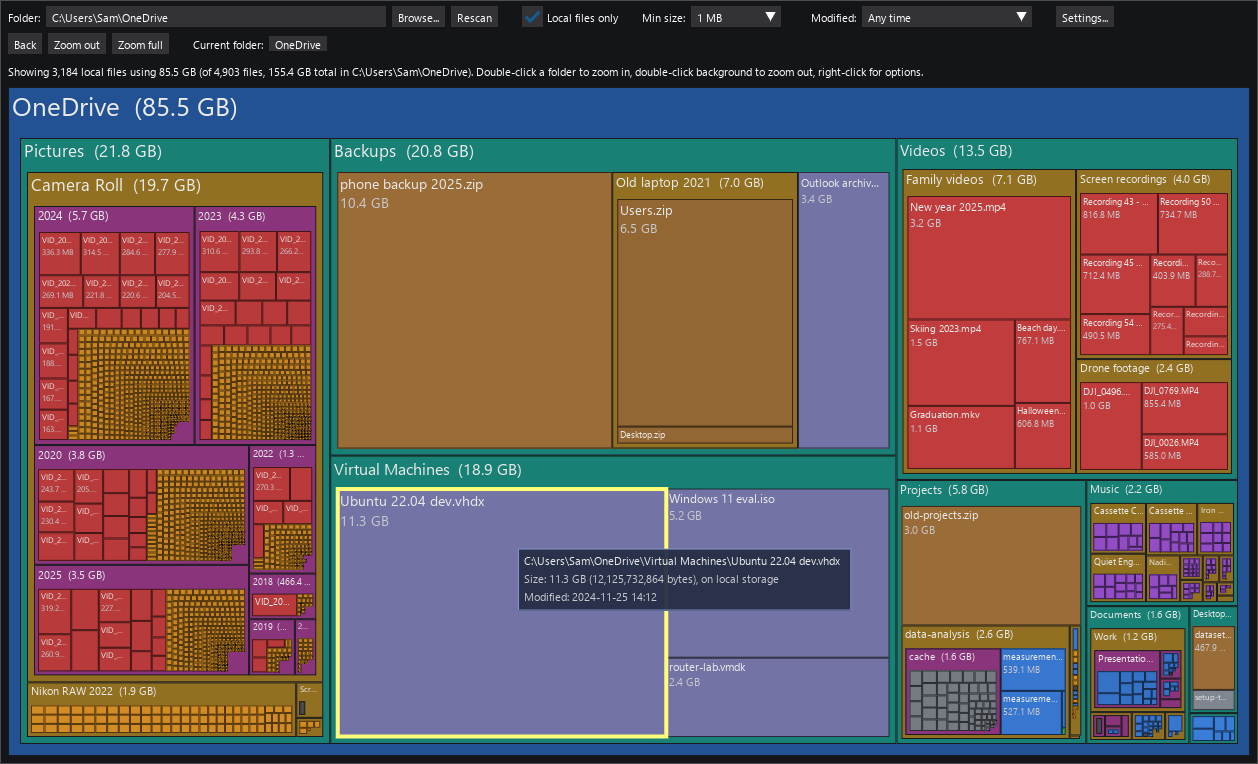
The treemap fills in while the folder is being scanned, so large folders can be explored right away, with a progress bar showing how far the scan has got. Optionally the free space on the drive is drawn next to the folder, on the same scale, to show how much the local copies matter.
Unhog runs on Windows, Linux and macOS. Telling online-only placeholders from downloaded files relies on a Windows file attribute, so that part works on Windows only; on Linux and macOS every file counts as local and Unhog is a plain, fast disk-usage treemap for any folder. Windows users can download a ready-to-run zip; on every platform it can be installed with pip.
Download (Windows)
Download Unhog.zip (latest release)
Requires Windows 10 or 11. No installation needed. All releases, with release
notes, are listed on the releases page.
Each release also offers Unhog.exe, the same program packed into a single
file; it is handy for copying around, but Windows Defender is more likely to
mistrust it, so the zip is the recommended download.
The files are not code-signed. When you run Unhog the first time, Windows SmartScreen may show "Windows protected your PC". Click More info, then Run anyway. If Defender removes the file as a suspected threat instead (a false positive that new unsigned programs sometimes trigger), open Windows Security, Protection history, find the entry and choose Restore or Allow.
Run (Windows)
Unzip Unhog.zip anywhere, for example into your Documents or
Downloads folder. This creates a folder named Unhog. Open it and double-click
Unhog.exe. It scans your OneDrive folder and shows the treemap.
Keep Unhog.exe together with the _internal folder next to it; the program
does not run if the exe is copied out on its own. To put it on the desktop or
Start menu, right-click Unhog.exe and create a shortcut.
To scan a different folder, use the Browse... button, or start it from a command prompt with the folder as argument:
Unhog.exe D:\Other
Install with pip (Windows, Linux, macOS)
Unhog is on PyPI and needs Python 3.9 or later. The only dependency, Dear PyGui, has prebuilt packages for 64-bit Windows, Linux (x86-64 and ARM64) and Apple Silicon Macs, so no compiler is needed. The simplest way, if pipx is installed, is the same everywhere:
pipx install unhog
unhog
Or with a plain virtual environment:
Windows
py -m venv %LOCALAPPDATA%\unhog
%LOCALAPPDATA%\unhog\Scripts\pip install unhog
%LOCALAPPDATA%\unhog\Scripts\unhog
Windows Defender and SmartScreen have nothing to say about this route, since no unsigned exe is involved.
Linux
python3 -m venv ~/.local/share/unhog
~/.local/share/unhog/bin/pip install unhog
~/.local/share/unhog/bin/unhog
If python3 -m venv complains, install the venv package first (on Debian and
Ubuntu, sudo apt install python3-venv). Open in file manager uses the
desktop's file manager through D-Bus and works with GNOME Files, Dolphin,
Nemo, Caja and Thunar.
macOS
python3 -m venv ~/Library/unhog
~/Library/unhog/bin/pip install unhog
~/Library/unhog/bin/unhog
Use a Python from python.org or
Homebrew (brew install python). Intel Macs are not supported, because Dear
PyGui ships no package for them.
On every platform the unhog command takes an optional folder to scan, for
example unhog ~/Pictures; without one it scans your OneDrive folder on
Windows and your home folder on Linux and macOS. python -m unhog works as
well. To update later, run the same pip install with --upgrade (or
pipx upgrade unhog).
Freeing up space
Unhog only shows where the space goes; it does not delete or change anything. To free the space a file or folder uses, right-click it in Unhog and choose Open folder in Explorer (the item is selected there), then in Explorer right-click it and choose Free up space. The file stays in the cloud and is downloaded again when you open it. Back in Unhog, right-click the folder and choose Rescan to see the result without scanning everything again.
On macOS the menu entry is Open folder in Finder, and OneDrive offers Remove Download in Finder's right-click menu; on Linux it is Open folder in file manager. On these platforms Unhog cannot tell which files are already online-only, so use it to find the big folders and check their state in the file manager.
How to use
Hover a rectangle for details, double-click a folder to zoom in, right-click for options. The toolbar filters by modification time, size and local storage. All controls and settings are explained in USAGE.md.
How it works
Unhog asks Windows which files in the folder are online-only placeholders and which are actually present on disk. It reads only the directory listing and never opens files, so scanning does not download anything.
It is tested with OneDrive, OneDrive for Business (SharePoint), and Dropbox but it should be compatible with other cloud storage providers as well. On Linux and macOS there is no such attribute, so every file counts as local and the treemap shows plain disk usage.
Privacy
Unhog runs entirely on your computer, does not connect to the internet, and does not send any information anywhere.
For developers
Running from source, tests, building the exe and making releases are described in DEVELOPMENT.md.
License
1 maintainer

Download files
Download the file for your platform. If you're not sure which to choose, learn more about installing packages.
Source Distribution
Built Distribution
Filter files by name, interpreter, ABI, and platform.
If you're not sure about the file name format, learn more about wheel file names.
Copy a direct link to the current filters
File details
Details for the file unhog-0.6.1.tar.gz.
File metadata
- Download URL: unhog-0.6.1.tar.gz
- Upload date:
- Size: 66.9 kB
- Tags: Source
- Uploaded using Trusted Publishing? Yes
- Uploaded via:
twine/7.0.0 CPython/3.13.14
File hashes
| Algorithm | Hash digest | |
|---|---|---|
| SHA256 |
1fa5fcd2e7d673f11ef8c3ed650a2f31a7962c0bfa82d2e9598d27b058f59b20
|
|
| MD5 |
3bf0a398188ba39d9fd1b68120dfa93f
|
|
| BLAKE2b-256 |
0b3ca9fcd03b753210194d007451848ec5e74b7935d4bb373196e2822efcfbd5
|
Provenance
The following attestation bundles were made for unhog-0.6.1.tar.gz:
Publisher:
release.yml on lassoan/unhog
-
Statement:
-
Statement type:
https://in-toto.io/Statement/v1 -
Predicate type:
https://docs.pypi.org/attestations/publish/v1 -
Subject name:
unhog-0.6.1.tar.gz -
Subject digest:
1fa5fcd2e7d673f11ef8c3ed650a2f31a7962c0bfa82d2e9598d27b058f59b20 - Sigstore transparency entry: 2765367344
- Sigstore integration time:
-
Permalink:
lassoan/unhog@3e2911473db8786be07f38f131b7feef4fec6fe1 -
Branch / Tag:
refs/tags/v0.6.1 - Owner: https://github.com/lassoan
-
Access:
public
-
Token Issuer:
https://token.actions.githubusercontent.com -
Runner Environment:
github-hosted -
Publication workflow:
release.yml@3e2911473db8786be07f38f131b7feef4fec6fe1 -
Trigger Event:
push
-
Statement type:
File details
Details for the file unhog-0.6.1-py3-none-any.whl.
File metadata
- Download URL: unhog-0.6.1-py3-none-any.whl
- Upload date:
- Size: 45.0 kB
- Tags: Python 3
- Uploaded using Trusted Publishing? Yes
- Uploaded via:
twine/7.0.0 CPython/3.13.14
File hashes
| Algorithm | Hash digest | |
|---|---|---|
| SHA256 |
2b149149088b95ff6c96a5798883e53dbc2c22d1d61a9aa4424cb81cff0bb0bb
|
|
| MD5 |
81109c23b8d4468ec2e58803da863e0e
|
|
| BLAKE2b-256 |
338cfafe3ccb6e2eb4ddfd44834b0e8f199cc6c3e0350d1106941dc31db58f0d
|
Provenance
The following attestation bundles were made for unhog-0.6.1-py3-none-any.whl:
Publisher:
release.yml on lassoan/unhog
-
Statement:
-
Statement type:
https://in-toto.io/Statement/v1 -
Predicate type:
https://docs.pypi.org/attestations/publish/v1 -
Subject name:
unhog-0.6.1-py3-none-any.whl -
Subject digest:
2b149149088b95ff6c96a5798883e53dbc2c22d1d61a9aa4424cb81cff0bb0bb - Sigstore transparency entry: 2765367357
- Sigstore integration time:
-
Permalink:
lassoan/unhog@3e2911473db8786be07f38f131b7feef4fec6fe1 -
Branch / Tag:
refs/tags/v0.6.1 - Owner: https://github.com/lassoan
-
Access:
public
-
Token Issuer:
https://token.actions.githubusercontent.com -
Runner Environment:
github-hosted -
Publication workflow:
release.yml@3e2911473db8786be07f38f131b7feef4fec6fe1 -
Trigger Event:
push
-
Statement type:














