
UNISI
UNIfied System Interface, Protocol, Web GUI and Remote API
Purpose
UNISI technology provides a unified system interface and advanced program functionality, eliminating the need for front-end and most back-end programming. It automates common tasks, as well as unique ones, significantly reducing the necessity for manual programming and effort.
Provided automatic functionality
- WEB GUI Client
- Client-server data synchronization
- Unified Remote API
- Autoconfiguring
- Autologging
- Multi-user support
- Hot reloading and updating
- Integral autotesting
- Protocol schema auto validation
- Shared sessions
- Monitoring and profiling
- Database interactions
- LLM-RAG interactions
- Voice interaction
- Data persistence
Installing
pip install unisi
Documentation
This README is a tour of the framework. For depth on one topic, see docs/:
unisi-quickstart.md— minimal path to a first running appunisi-programming-spec.md— full constructor/option referenceprotocol.md— the WebSocket wire protocol, for building a custom clientpersistent_tables.md— DB-backed tables, links, schema evolution, geo-spatial fieldscharts.md— table-projection charts and native EChartsChart, side by sidevoicecom.md— the voice-command subsystem in depthUNISI skill.md— internals and gotchas for AI coding agents working on a UNISI app
Programming
Automatic functionality means that only configuration has to be defined and for all parameters UNISI has defaults that can be redefined in config.py file. UNISI is a universal data protocol and compact yet highly efficient framework designed for serving and processing data in UNISI format. The library includes the web version of a Unisi client and a comprehensive set of tools and resources for web application development. Supports Python 3.10+.
High level - Screen
The program directory has to contain a screens folder which contains all screens which Unisi has to show.
Screen example my_project/screens/main.py
name = "Main"
The block example with a table and a selector
table = Table('Videos', 0, headers = ['Video', 'Duration',  'Links', 'Mine'],rows = [
    ['opt_sync1_3_0.mp4', '30 seconds',  '@Refer to signal1', True],
    ['opt_sync1_3_0.mp4', '37 seconds',  '@Refer to signal8', False]
])
#widgets are groped in a block (complex widget)
block = Block('X Block',
    [
        Button('Clean table', icon = 'swipe'),
        Select('Select', value='All', options=['All','Based','Group'])
    ], table, icon = 'api')

blocks = block
| Screen global variables | Status | Type | Description |
|---|---|---|---|
| name | Has to be defined | str | Unique screen name |
| blocks | Has to be defined | list[Block] or Block | which blocks to show on the screen |
| user | Always defined, read-only | User+ | Access to User(inherited) class which associated with a current user |
| header | Optional | str | show it instead of app name |
| toolbar | Optional | list[Unit] | Unit elements to show in the screen toolbar |
| order | Optional | int | order in the program menu |
| icon | Optional | str | MD icon of screen to show in the screen menu |
| prepare | Optional | def prepare() | Synchronizes Unit/GUI elements one to another and with the program/system data. It is called before screen appearing if defined. |
| persist | Optional | boolean | Persist all units on screen for the user |
| voice | Optional | boolean | Enable voice control on this screen. Default True (False when config.mirror is set) |
Server start
my_project/run.py
import unisi
unisi.start()
UNISI builds the interactive app for the code above. Connect a browser to localhost:8000 (default) and you will see:
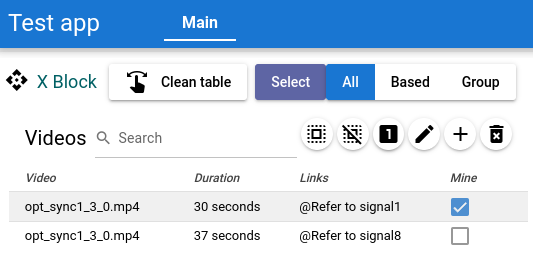
Free crash course: "The fastest way to create Web applications in Python" — a 1-hour video tutorial on using UNISI.
Handling events
All handlers are functions with declaration:
def handler_x(unit : Unit, value_x) #or
async def handler_x(unit : Unit, value_x)
where unit is a Python object the user interacted with and value for the event.
UNISI supports synchronous and asynchronous handlers, adopting them automatically.
All Unit objects have a value field.
For an edit field the value is a string or number, for a switch or check button the value is boolean, for a table it is the selected row index, etc.
A user changes a Unit value or presses a Button — the server calls the changed handler if defined.
def clean_table(*_):
    table.rows = []

clean_button = Button('Clean the table', clean_table)
| Handler return | Description |
|---|---|
None |
Automatically update — OK |
Error(...), Warning(...), Info(...) |
Show the user a status message |
Dialog(..) |
Open a dialog with parameters |
UNISI synchronizes units on the frontend automatically after calling a handler.
If a Unit object does not have a changed handler, it accepts the incoming value automatically into its value attribute.
If value is not acceptable, return Error, Warning, or Info. These can also update a list of objects passed after the message argument.
def changed(elem, value):
   if value == 4:
       return Error(f'The value can not be 4!', elem)
    # accept value otherwise
    elem.accept(value)

edit = Edit('Involving', 0.6, changed)
Intercepting events without touching the original handler
handle(unit, event) registers an additional handler for a unit/event pair from anywhere — a screen can add screen-specific behavior to a Table or other unit declared in a shared block, without editing that block's own source:
from unisi import handle, Warning

@handle(shared_table, 'changed')
def reject_based(unit, value):
    if value == 'Based':
        return Warning('This mode is not allowed here', unit)
It composes with any handler the unit already has — both run, in registration order — rather than replacing it.
Block details
The width and height of blocks is calculated automatically depending on their children. It is possible to set the block width, or make it scrollable , for example for images list. Possible to add MD icon to the header, if required. width, scroll, height, icon are optional.
#Block(name, *children, **options)
block = Block(‘Pictures’,add_button, images)
The first Block child is a widget(s) which are drawn in the block header just after its name. Blocks can be shared between the user screens with its states. Such a block has to be located in the 'blocks' folder . Examples of such block test_apps/blocks/tblock.py:
from unisi import *
..
concept_block = Block('Concept block',
   [   #some Units
       Button('Run',run_proccess),
       Edit('Working folder','run_folder')
   ], result_table)
If some elements are enumerated inside an array, UNISI will display them on a line one after another, otherwise everyone will be displayed on a new own line(s).
Using a shared block in some screen:
from blocks.tblock import concept_block
...
blocks = xblock, concept_block
Layout of blocks.
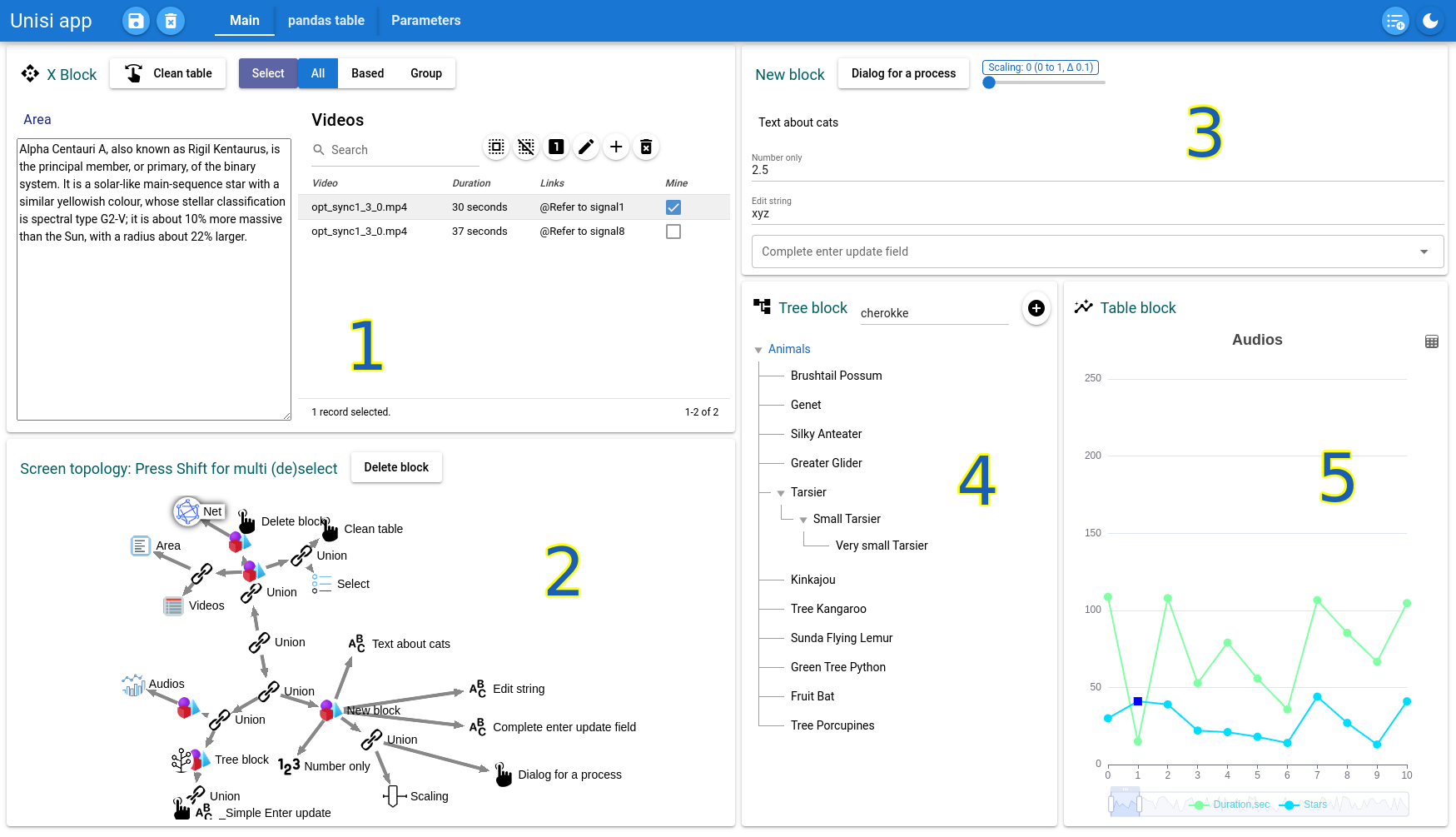
If the blocks are simply listed Unisi draws them from left to right or from top to bottom depending on the orientation setting. If a different layout is needed, it can be set according to the following rule: if the vertical area must contain more than one block, then the enumeration in the array will arrange the elements vertically one after another. If such an element enumeration is an array of blocks, then they will be drawn horizontally in the corresponding area.
Example
blocks = [b1,b2], [b3, [b4, b5]]
#[b1,b2] - the first vertical area, [b3, [b4, b5]] - the second one.
ParamBlock
ParamBlock(name, *units, changed = None, row = 3, strict = 'recurse', persist = False, **parameters)
ParamBlock creates blocks with Unit elements formed from parameters. Parameters can be string, bool, number and optional types. Example:
block = ParamBlock('Learning parameters', Button('Start learning', learn_nn)
    per_device_eval_batch_size=16, num_train_epochs=10, warmup_ratio=0.1,
    logging_steps=10, device = (‘cpu’,['cpu', 'gpu']),load_best = True)
If a string parameter has several options as a device in the example, its value is expressed as an option list and the first value is the initial value. For optional types Select, Tree, Range the value has to contain the current value and its options. In the example
device = (‘cpu’,['cpu', 'gpu'])
means the current value of 'device' is 'cpu' and options are ['cpu', 'gpu'] .
changed is an optional handler called when any generated parameter field changes. strict = 'recurse' (default) turns a nested dict parameter into its own embedded ParamBlock; a dict value is otherwise rejected. persist, same as on any Unit, makes each generated field individually persistent.
Basic information element - Unit
Normally they have type property which says UNISI what data it contains and optionally how to operate and draw the element.
If the element name starts from _ , unisi will hide its name on the screen.
if we need to paint an icon in an element, add 'icon': 'any MD icon name' to the element constructor.
Most constructor parameters are optional for Unit elements except the first one which is the element name.
Common form for element constructors:
Unit('Name', value = some_value, changed = changed_handler)
#use short form, that is equal:
Unit('Name', some_value, changed_handler)
calling the method def accept(self, value) causes a call changed handler if it defined, otherwise just save value to the element 'value'.
Persistence
persist = True in a Unit, Block, or screen module constructor makes that widget's value remembered per user across screen reloads and reconnects — stored server-side, restored automatically before prepare() runs on the next load. persist can also be a zero-argument function returning a key, in which case the widget remembers a different value per key (e.g. a note field that remembers separately per selected table row). Beyond widget persistence, User also exposes a plain key-value store (user.set_key(key, value) / user.get_key(key)) for app-level data not tied to any widget, and an explicit user.persist_units(*units) / user.restore_units(*units) pair for saving/loading a snapshot only on demand (e.g. Save/Revert buttons).
Button
Normal button.
Button('Push me', changed = None, icon = None)
Short form
Button('Name', changed_handler)
Icon button, the name has to be started from _ for hiding
Button('_Check', changed_handler, icon = 'check') #any icon name from Material Design Icons(Google)
Load to server Button
Special button provides file loading from user device or computer to a UNISI system.
UploadButton('Load', handler_when_loading_finish, icon = 'photo_library')
handler_when_loading_finish(button_, the_loaded_file_filename) where the_loaded_file_filename is a file name in upload server folder. This folder name is defined in config.py .
Camera Button
A button variant that captures a photo from the device camera and uploads it, same handler signature as UploadButton.
CameraButton('Take a photo', handler_when_loading_finish)
Edit and Text field.
Edit(name,value = '', changed_handler = None) #for string value
Edit(name, value: number, changed_handler = None) #changed handler gets a number in the value parameter
If unit.edit == False the element will be readonly.
Edit('Some field', '', edit = False)
#text, it is equal
Text('Some field')
complete handler is optional function which accepts the current edit value and returns a string list for autocomplete.
def get_complete_list(unit, current_value):
    return [s for s in vocab if current_value in s]

Edit('Edit me', 'value', complete = get_complete_list) #value has to be string or number
Optional 'update' handler is called when the user press Enter in the field. It can return None if OK or objects for updating as usual 'changed' handler.
Range
Number field for limited in range values.
Range('Name', value, changed_handler?, options=[min,max, step])
Example:
Range('Scale content', 1, options=[0.25, 3, 0.25])
ContentScaler is a Range subclass with exactly this configuration (name 'Scale content', value 1, options [0.25, 3, 0.25]) pre-set, wired to rescale a set of elements. Passing scaler = True to a Block constructor adds one automatically, rescaling that block's content:
Block('Pictures', images, scaler = True)
Radio button
Switch(name, value = False, changed_handler?, type?)
value is boolean, changed_handler is an optional handler.
Optional type can be 'check' for a status button or 'switch' for a switcher .
Select group. Contains options field.
Select(name, value?, changed_handler?, options = ["choice1","choice2", "choice3"])
Optional type parameter can be 'radio','list','select'. Unisi automatically chooses between 'radio' and 'select', if type is omitted. If type = 'list' then Unisi build it as vertical select list.
Image.
width, changed, height, header are optional, changed is called if the user select or touch the image. When the user clicks the image, a check mark appears on it, showing its selection status. It is useful for image lists, galleries, etc.
Image(image_path, value?, changed_handler?, label?, url?, width?, height?)
Video
An embedded video player with an optional set of clickable fragments.
Video(name, value?, changed_handler?, fragments = [])
value is a dict describing playback state: {"position": seconds, "play": bool, "sound": bool}.
Sound
An embedded audio player.
Sound(name, value?, handler?)
value is a dict: {"url", "play", "position", "volume"}.
Tree. The element for tree-like data.
Tree(name, value = None, changed_handler = None, options = {name1: parent1, name2 : None, .})
options is a tree structure, a dictionary {item_name:parent_name}. parent_name is None for root items. changed_handler gets selected item key (name) as value.
Table.
Tables is common structure for presenting 2D data and charts.
Table(name, value?, changed_handler?, **options)
Optional append, delete, update handlers are called for adding, deleting and updating handlers for a table.
All editing table handlers for such action can be blocked by assigning edit = False in a Table constructor.
table = Table('Videos', [0], row_changed, headers = ['Video', 'Duration', 'Owner', 'Status'],
  rows = [
    ['opt_sync1_3_0.mp4', '30 seconds', 'Admin', 'Processed'],
    ['opt_sync1_3_0.mp4', '37 seconds', 'Admin', 'Processed']
  ],
  multimode = False, update = update)
UNISI counts rows id as an index in a rows array. If table does not contain append, delete arguments, then it will be drawn without add and remove icons.
value = [0] means 0 row is selected in multiselect mode (in array). multimode is False so switch icon for single select mode will be not drawn and switching to single select mode is not allowed.
rows can also be a list of @dataclass instances instead of lists of cell values (field order must match headers order). table.rows[i] always gives back the exact object you put there, never silently converted, so editing a frozen dataclass row raises FrozenInstanceError as it normally would. Note the bundled web client expects list rows; a dataclass row is sent as a JSON object instead of an array. To have dataclass rows survive a persist=True restore too, pass row_type= (or let it infer from an example row). A persistent (id=) table's append_row/append_rows/seeding also accept dataclass rows, matched by field name instead of position there — see docs/unisi-programming-spec.md §12 for the full contract.
| Table option parameter | Description |
|---|---|
| changed | table handler accept the selected row number |
| complete | Autocomplete handler as with value type (string value, (row index, column index)) that returns a string list of possible complitions |
| append | A handler gets new row index and return filled row with proposed values, has system append_table_row by default |
| delete | A handler gets list or index of selected rows and remove them. system delete_table_row by default |
| update | called when the user presses the Enter in a table cell |
| modify | default = accept_rowvalue(table, value). called when the cell value is changed by the user |
| edit | default True. if true user can edit table, using standart or overloaded table methods |
| tools | default True, then Table has toolbar with search field and icon action buttons. |
| max_column_length | default 40. Client-side cap on a cell's displayed text (or an array cell's compact-JSON length) before it's shown truncated with "..." and a hover pop-up reveals the full value; an overflowing array shows as array[N]... instead. Display-only — see docs/unisi-programming-spec.md §12 |
| show | default False, the table scrolls to (the first) selected row, if True and it is not visible |
| multimode | default True, allows to select single or multi selection mode |
| search | for a persistent (id=) table, the live text in its search field; default '' |
| filter | for a persistent (id=) table, restricts displayed rows — see docs/persistent_tables.md §6 |
Chart
UNISI can draw a chart two ways: projecting a Table, or building one directly from a native ECharts option.
Projecting a Table. Add a view parameter to any Table constructor and UNISI computes a line chart from the table's own row/column data — no charting code needed. The format is '{x index}-{y index1},{y index2}[,..]'. '0-1,2,3' means that x axis values will be taken from 0 column, and y values from 1,2,3 columns of row data.
'i-3,5' means that x axis values will be equal the row indexes in rows, and y values from 3,5 columns of rows data. If a table constructor got view = '..' parameter then UNISI displays a chart icon at the table header, pushing it switches table mode to the chart mode. If a table constructor got type = 'chart' in addition to view parameter the table will be displayed as a chart on start. In the chart mode pushing the icon button on the top right switches back to table view mode. Selection works exactly like a table: value is the selected row index (or indices, under multimode), and this mode is always a line chart.
A native ECharts Chart. For anything besides a line chart — bar, pie, scatter, gauge, or full control over styling — use Chart instead. It is a plain Unit, not a Table subclass, and takes a native Apache ECharts option object directly, so every chart type ECharts supports is available:
Chart(name, option, changed_handler?)
Chart('Monthly Sales', {
    'xAxis': {'type': 'category', 'data': ['Jan', 'Feb', 'Mar', 'Apr', 'May']},
    'yAxis': {'type': 'value'},
    'series': [{'type': 'bar', 'data': [120, 200, 150, 80, 70]}],
})
option is passed to ECharts' setOption() largely as-is — UNISI doesn't interpret it, so ECharts' own option reference is what defines what can go in there. value is not the chart data; it starts None and holds whatever the user last clicked (ECharts' click-event params.value), and changed_handler fires with that value the same way it would for any other unit. Updating .option later from a handler pushes a fresh chart to the browser — each push fully replaces what's on screen rather than merging into it, so resend the complete option rather than a partial diff.
See docs/charts.md for a fuller walkthrough — more chart types, live server-driven updates, autotest requirements, and guidance on choosing between the two mechanisms.
Graph
Graph supports an interactive graph.
graph = Graph('X graph', value?, changed_handler?,
    nodes = [ Node("Node 1"),Node("Node 2", size = 20),None, Node("Node 3", color = "#3CA072")],
    edges = [ Edge(0,1, color = "#3CA072"), Edge(1,3,'extending', size = 6),Edge(3,4, size = 2), Edge(2,4)]])
where value is None or a dictionary like {'nodes' : [id1, ..], 'edges' : [id2, ..]}, where enumerations are selected nodes and edges. Constant graph_default_value == {'nodes' : [], 'edges' : []} i.e. nothing to select.
'changed_handler' is called when the user (de)selected nodes or edges:
def changed_handler(graph, val):
    graph.value = val
    if 'nodes' in val:
        return Info(f'Nodes {val["nodes"]}')
    if 'edges' in val:
        return Info(f"Edges {val['edges']}")
With pressed 'Shift' multi (de)select works for nodes and edges.
Node and edge id fields are optional; if node ids are omitted, edge source and target must reference the node's index in the nodes array.
Graph can handle invalid edges and null nodes in the nodes array.
Net
A Graph automatically built from the topology of Unit objects (screens, blocks, and their nested units) instead of manually declared nodes and edges — useful for visualizing the structure of the app itself.
Net(name, value?, topology?, **kwargs)
HTML
Displays a raw HTML/JS string.
HTML(name, html_string, changed_handler?)
Adding a scale value (e.g. HTML(name, html_string, scale = 1)) renders an interactive zoom slider above the content, letting the user scale the whole block — text, images, layout — from 0.5x to 3.0x.
Dialog
Dialog(question, dialog_callback, *units, commands = ['Ok', 'Cancel'], icon = 'not_listed_location')
where buttons is a list of the dialog command names, the first of which is drawn as the primary action. icon is an optional MD icon name for the dialog header.
Dialog callback has the signature as the other handlers with a pushed button name value
def dialog_callback(current_dialog, command_button_name):
    if command_button_name == 'Ok':
        do_this()
    elif ..
units can be filled with Unit elements for additional dialog functionality like a Block.
Popup windows
They are intended for non-blocking displaying of error messages and informing about some events, for example, incorrect user input and the completion of a long process on the server.
Info(info_message, *Units2Updade)
Warning(warning_message, *Units2Updade)
Error(error_message, *Units2Updade)
They are returned by handlers and cause appearing on the top screen colored rectangle window for 3 second. Units2Updade is optional Unit enumeration for updating on client side (GUI).
For long time processes it is possible to create Progress window. It is just call user.progress in any async handler. Open window
await user.progress("Analyze .. Wait..")
Update window message
await user.progress(" 1% is done..")
Progress window is automatically closed when the handler is finished.
Multi-user support.
UNISI automatically creates and serves an separate environment for every user. The management class User contains all required methods for processing and handling the user activity. A programmer can redefine methods in the inherited class, point it as system user class and that is all. Such methods suit for history navigation, undo/redo and initial operations. The screen folder contains screens which are recreated for every user. The same about blocks. The code and modules outside that folders are common for all users as usual. By default UNISI uses the system User class and you do not need to point it.
class Hello_user(unisi.User):
    def __init__(self, session, share = None):
        super().__init__(session, share)
        print('New Hello user connected and created!')

unisi.start(user_type = Hello_user)
The app name shown in the header is not a start() argument — set appname in config.py instead.
In screens and blocks sources we can access the user by 'user' variable, which is defined by UNISI on screen init.
print(isinstance(user, Hello_user))
Shared sessions
Two config.py switches change how a new connection relates to existing ones — both default to False, so by default every connection is fully independent:
share = True— a client that reconnects with the same?session=query parameter (or aProxy(session=...), see Unified Remote API below) joins the same session as an additional live view. All views of a shared session stay in sync in real time and each keeps whatever screen it is currently on.mirror = True— every new anonymous connection starts as a live reflection of the most recently connected user, always on that user's first/home screen rather than wherever that user currently is. Useful for a kiosk or public display.
Unified Remote API
For using UNISI apps from remote programs Unified Remote API is an optimal choice.
Proxy(host_port, timeout = 7, ssl = False, session = '', screen = None)
session reattaches to an existing session instead of starting a new one (server needs share = True in config.py); screen activates a screen immediately on connect.
| Proxy methods, properties | Description |
|---|---|
| close() | Close session. |
| command_upload(element: str or dict, file_name: str) | upload file_name to the server and execute element command (push the button). |
| command(element: str or dict) | Executes the element command. The element type is Button. |
| element(name:str) | returns an element with such name |
| elements(block’ :str or dict, types’ : list[str]) | returns screen elements in json format, filtered by optional block and list of types. |
| interact(message: Object, pcallback`) | Sends a message, gets an answer and returns the type of response. pcallback is an optional progress callback. |
| screen_menu | Returns the screen names. |
| set_screen(screen_name: str) | Set the active screen. |
| set_value(element: str or dict, value: any) | Set the value of the element. |
‘ after a variable means it’s optional. The UNISI Proxy creates a user session and operates in the same manner as a browsing user.
For example access to UNISI Vision :
#Interact with https://github.com/unisi-tech/vision
from unisi import Proxy, Event

proxy = Proxy('localhost:8000')

#image for analysis
image_file = '/home/george/Projects/save/animals/badger/0cf04d0dab.jpg'

#It has Screen "Image analysis"
if proxy.set_screen("Image analysis"):
    #optional: turn off search images for performance, we only need to classify the image
    #for that find Switch 'Search' and set it to False
    proxy.set_value('Search', False)

    #push with parameter UploadButton 'Load an image'  on the screen
    if proxy.command_upload('Load an image', image_file) & Event.update:
        #get result table  after responce
        table = proxy.element('Image classification')

        #and take parameters from the result table.
        print('  Answer:')
        for row in table['rows']:
            print(row)

proxy.close()
Custom web client
Activation: web_client = 'path/to/files' in config.py
By default UNISI serves its own bundled Quasar-based web client. If you build a separate front end that speaks the UNISI protocol (connects to /ws and exchanges the same JSON messages — see docs/protocol.md), point web_client at the directory holding that client's built files (an index.html plus its assets), and UNISI serves it at / instead:
# config.py
web_client = 'custom_client/dist'
http://localhost:8000/          -> your custom client
http://localhost:8000/default   -> the bundled UNISI client, always
The bundled client is never removed — it stays reachable at /default (and everything under it) no matter what web_client is set to, so it's always available as a reference or fallback UI. Any file your custom client's own directory doesn't provide (favicon, fonts, an icon you didn't bother to copy over) is also transparently served from the bundled client instead of 404ing, so a minimal custom client still works. If web_client doesn't point to a valid client (no index.html there), UNISI logs a warning on startup and simply keeps serving the bundled client at / until it's fixed.
Monitoring
Activation: froze_time = max_freeze_time in config.py
The system monitor tracks current tasks and their execution time. If a task takes longer than max_freeze_time seconds, the monitor writes a message in the log about the state of the system queue, the execution or waiting time of each session, and the event that triggered it. This lets you identify the offending handler and take corrective action.
Profiling
Activation: profile = max_execution_time in config.py
The system tracks current tasks and their execution time. If a task takes longer than max_execution_time seconds, the system logs the task, its execution time, and the triggering event. This lets you identify the offending handler and take corrective action.
Database interactions
Programming database interactions usually requests knowledge of concrete DBMS, specific of its language, programming and administrative details, and a lot of time for setting and programming. UNISI automates all DBMS operations and a regular programmer or user event does not need to know how exactly the system gets and updates the program data. UNISI hides complexity of DBMS programming under inherited-from-list objects that project operations on its data into DBMS. UNISI database operates with named tables based on SQLite (zero-dependency, high performance, WAL mode). The only difference between temporal data and persistent data is that the latter has an ID property, which serves as its system name. UNISI supports smart schema migrations that automatically detect field changes and offer interactive data migration options. A link to another persistent table can be established using the 'link' option. This can be set as:
- A table variable — many-to-one (a
link_idforeign-key column is added to this table, no junction table). - A list containing a table variable and link properties (name to type dictionary) — many-to-many (a junction table is created), even when the properties dictionary is empty.
- A list containing a table variable, link properties, and the index name in the database — many-to-many with an explicit junction-table name.
UNISI synchronizes all database changes between users, allowing them to see real-time updates made by others on persistent units.
Link properties are defined as a dictionary mapping property names to their Python types (used for SQLite type detection). UNISI supports the following data types for persistent tables and links:
bool— Booleanint— Integerfloat— Floatstr— Stringdatetime— Timestampdate— Datebytes— Blob (excluded from search)list/dict— JSON (excluded from search)Decimal,uuid.UUID— stored as strings[float, float]/(float, float)— a geo-spatial point (x=longitude,y=latitude), excluded from search but queryable via radius/nearest-neighbor search
For using the functionality, db_path in config.py has to be defined as a path to the database file, or set the UNISI_DB_PATH environment variable.
For the full picture — many-to-one and many-to-many links end to end, schema evolution, geo-spatial radius search, the complete Dbtable API — see docs/persistent_tables.md.
LLM-RAG interactions
UNISI supports LLM-RAG transparent interactions without the need of programming prompts and LLM details. Screen data contains all required data for processing queries to LLM and decode a result. A user has to define only what data from LLM is required by setting ‘llm’ parameter in Unit constructor. All other jobs are automated by UNISI.
For using the service define llm in config.py as a [provider, model] list (or a longer form for a custom endpoint):
llm = ['openai', 'gpt-5.1']
llm = ['host', 'http://localhost:1234/v1']                    # local/custom endpoint, no key needed
llm = ['host', address, 'MY_KEY_ENV', 'model-name']            # custom endpoint with a key
llm = ['openai', 'gpt-5.1', 'https://my-proxy.example.com/v1'] # cloud provider, custom base URL
provider can be 'host' for local or deployed custom models using LM Studio, Ollama, LlamaCpp, OpenRouter, or any other OpenAI-compatible endpoint. The other supported providers are 'google' (== 'gemini'), 'openai', 'groq', 'mistral', 'xai'. Cloud providers require the matching API key in an environment variable:
export GOOGLE_API_KEY=’my_google_key’
export OPENAI_API_KEY=’my_open_key’
export MISTRAL_API_KEY=’my_mistral_key’
export XAI_API_KEY=’my_xai_key’
Optional config.py settings: temperature (default 0), strict_schema (default True, set False if a provider rejects strict JSON-Schema mode), reasoning (default effort level for reasoning models; can be overridden per call, see below), and llm_cache (a directory path, to persist Q()/Qx() results across restarts, optionally with llm_cache_ttl in seconds; cache entries are keyed by prompt, expected type, model and reasoning effort, so changing the model or reasoning never replays answers cached under another configuration).
temperature = 0.2
Automatic — the llm Unit/Table parameter
Any Unit except Button can be calculated using llm parameter in constructor, which can be True for automatic context evaluation, or a list of Unit objects whose values are required for the calculation. Unisi automatically calculates such unit value when its context is changed and its value is empty.
For table fields in rows ‘llm’ can be True for automatic context evaluation or enumeration of units and field names for tables which are required for its calculation.
Example: test_apps/llm/screens/main.py — Date of birth and Occupation are calculated from a person's name.
Explicit — Q() and Qx()
For a direct query outside the automatic Unit/Table mechanism, call Q() (extended with an assistant system prompt) or Qx() (raw prompt, sent as written) from any handler:
from unisi import Q, Qx

country_info = await Q("Provide information about Thailand.",
    dict(capital = str, population = int, currency = str))

raw_text = await Qx("Free-form prompt, sent exactly as written")
The second argument is the expected type — str, int, a dict(field=type, ...) schema for structured JSON, etc. Any {name} placeholder in the prompt is filled from a matching keyword argument; braces that don't correspond to a passed keyword (JSON examples, code, etc.) are left untouched, so there is no need to escape them. Both Q() and Qx() accept an optional images= argument (a URL, local file path, raw bytes, or a list of these) for vision-capable models.
Both also accept optional keyword-only model= and reasoning= overrides for a single call — e.g. a cheaper effort for a bulk step and a stronger one for a critical step, without touching config.py:
tags  = await Qx(prompt, reasoning='low')                       # effort for this call only
facts = await Q(prompt, dict(name=str), reasoning='high')
draft = await Q(prompt, model='openai/gpt-6-luna-mini')          # another model on the same endpoint
plain = await Q(prompt, reasoning=False)                         # don't send the reasoning parameter at all
None (the default) means "use config.llm / config.reasoning"; a string is sent as the reasoning effort; False omits the parameter. model= goes to the same endpoint and client configured in config.llm, so it must be a model that endpoint serves (e.g. another OpenRouter model id). Because these two names are parameters, {model} and {reasoning} can't be used as prompt placeholders.
Voice interaction
This functionality allows users to interact with a user interface using voice commands instead of fingers or a mouse. It facilitates voice interaction with a graphical user interface composed of various Units. It recognizes spoken words, interprets them as commands or element selections, and performs corresponding actions. The system supports various modes of interaction, including text input, number input, element selection, screen navigation, and command execution. The user speaks commands or element names. The module recognizes words and updates the Mate block, which exposes the state of the module and what it expects to listen.
Modes
Select Mode (Default): The user can select an interactive element or switch to another mode (e.g., "screen" to change a current screen). Text Mode: Activated when a text input element is selected. The user can dictate text, and use commands like "left," "right," "backspace," "delete," "space," "undo," and "clean."
Number Mode: Activated when a number input element is selected. The user can dictate numbers or use number-related commands.
Screen Mode: Allows the user to switch the current screen.
Command Mode: Activated when a command element is selected (e.g., a button). The user can execute the command using words like "push," "execute," or "run." Synonyms like "ok" and "okay" are also recognized.
Graph Mode: Supports graph element manipulation (nodes and edges).
Table Mode: Supports table navigation and editing with commands like "page", "row", "column", "left", "right", "up", "down", "backspace", and "delete."
Examples are in test_apps folder. For the full state machine, command vocabulary, and how to extend it, see docs/voicecom.md.
Demo project: unisi-tech/vision
1 maintainer

Metadata
1 maintainer
Release files for unisi 0.8.0
For a detailed explanation of source distributions (sdists) and built distributions (wheels), please see the package formats documentation.
Source distribution (sdist)
| File | Size | Uploaded | |
|---|---|---|---|
| unisi-0.8.0.tar.gz | 3.2 MB | Details |
Built distribution (wheel)
| File | Interpreter | ABI | Platform | Reset |
|---|---|---|---|---|
| unisi-0.8.0-py3-none-any.whl | Python 3 | none | any | Details |
Total release size: 6.2 MB
Release files / unisi-0.8.0.tar.gz
| Download URL | unisi-0.8.0.tar.gz |
|---|---|
| Size | 3.2 MB |
| Tags | Source |
|
SHA-256 checksum How to use checksums |
f2ecea3779df51e5e4e2b0f653bcb66df1c82c6c14392157eb77fd35a36ef29c
|
|
BLAKE2b-256 checksum How to use checksums |
4724120018bd33725979d634bfa322edc2a50ceaff7134326509d15298c8407b
|
| Upload date | |
|
Uploaded using Trusted Publishing? What is trusted publishing? |
No |
| Uploaded via |
twine/6.2.0 CPython/3.10.12
|
Release files / unisi-0.8.0-py3-none-any.whl
| Download URL | unisi-0.8.0-py3-none-any.whl |
|---|---|
| Size | 3.0 MB |
| Tags | Python 3 |
|
SHA-256 checksum How to use checksums |
f25ed5d29bba067372292b0e7f5cb3d3a9d4c60b977577efa0d81b2e1b024c10
|
|
BLAKE2b-256 checksum How to use checksums |
3613b0387648e10ff11ec30fda02cae0de0f48de6bad766e72f92e71eb972459
|
| Upload date | |
|
Uploaded using Trusted Publishing? What is trusted publishing? |
No |
| Uploaded via |
twine/6.2.0 CPython/3.10.12
|














