





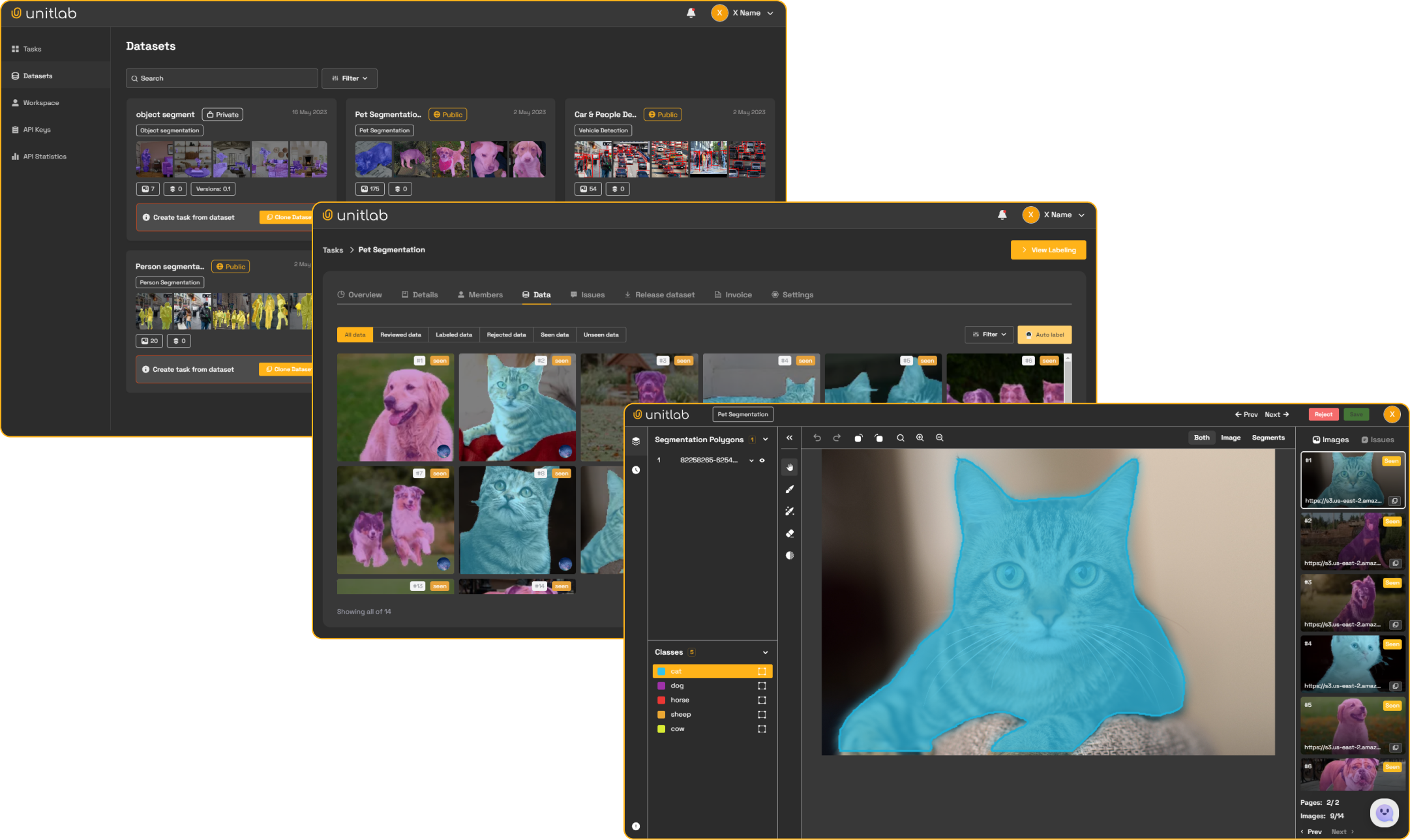
Unitlab.ai is an AI-driven data annotation platform that automates the collection of raw data, facilitating collaboration with human annotators to produce highly accurate labels for your machine learning models. With our service, you can optimize work efficiency, improve data quality, and reduce costs.
Unitlab Python SDK
Native Python and CLI access to Unitlab projects, Ontologies, Assets, datasets, published versions, Batch Queues, Releases, cloud storage, and multimodal Data Groups and Workflow Tasks.
Install
pip install --upgrade unitlab
Python 3.10 or newer is required.
Authenticate
Create an API key in Workspace settings, then use environment variables:
export UNITLAB_API_KEY="YOUR_API_KEY"
export UNITLAB_API_URL="https://api.unitlab.ai"  # optional
Or configure the CLI once:
unitlab configure --api-key YOUR_API_KEY
unitlab configure --api-url https://api.unitlab.ai
You can also pass both values directly:
from unitlab import UnitlabClient

client = UnitlabClient(
    api_key="YOUR_API_KEY",
    api_url="https://api.unitlab.ai",
)
1. Upload multimodal data to a project
from unitlab import UnitlabClient

client = UnitlabClient()
project = client.projects.create("Medical review")
batch = project.upload("./multimodal-data")
status = batch.wait()

print(batch.uploaded, batch.batch_queue_id)
The directory may mix images, video, audio, text, PDFs, DICOM, NIfTI, and NRRD.
One call creates one Batch Queue. Call batch.wait() when the next operation
depends on server-side processing. Lidar scenes are uploaded with
generic_type="pointcloud"; see Lidar scenes.
2. Curate in Assets, publish a dataset, and attach it
from unitlab import UnitlabClient

client = UnitlabClient()
project = client.projects.create("Quality review")

uploaded = client.assets.upload(
    "./multimodal-data",
    folder="Raw data",
    tags=["incoming"],
)

dataset = client.datasets.create(
    "Review set",
    folder_ids=[uploaded.folder_id],
)
version = dataset.publish_version("Initial snapshot")

attached = client.attach_dataset(
    project,
    dataset,
    version=version.version_number,
)

print(attached.created_count)
Datasets are version-first. Editing a dataset creates Unpublished changes;
publish_version() freezes a version, and projects attach that published snapshot.
3. Import existing cloud data
from unitlab import UnitlabClient

client = UnitlabClient()
project = client.projects.create("Cloud review")
storage = next(
    item for item in client.cloud_storages.list() if item.name == "Production data"
)

batch = project.import_cloud(
    storage,
    ["incoming/study-001/"],
)
status = batch.wait()

print(batch.batch_queue_id)
Directory paths end in /. Cloud credentials are never returned through the
SDK; list and browse responses expose only safe storage metadata.
Resource handles
Namespace entrypoints return typed resource handles:
project = client.projects.get("PROJECT_ID")
projects = client.projects.list()
dataset = client.datasets.get("DATASET_ID")
datasets = client.datasets.list()
folder = client.assets.folder("FOLDER_ID")
folders = client.assets.folders()
Ontologies
from unitlab import OntologyStructure, RadioAttribute, Shape

structure = OntologyStructure()
cat = structure.add_object("Cat", Shape.BOUNDING_BOX)
colour = cat.add_attribute(RadioAttribute, "Colour", required=True)
colour.add_option("Black")
colour.add_option("White")

ontology = client.ontologies.create("Cat labels", structure=structure)
project = client.projects.create(
    "Cat review",
    ontology_hash=ontology.id,
)
Use client.ontologies.get(), client.ontologies.list(), and
ontology.save() for the rest of the Ontology lifecycle. Project attachment
copies the Workspace Ontology so Unitlab can preserve project-specific version
history.
Projects and Batch Queues
projects = client.projects.list()
project = client.projects.get("PROJECT_ID")
project = client.projects.create("Road scenes")

batch = project.upload("./data", fps=2.0)
tiled_batch = project.upload("./maps")

status = batch.status()
status = batch.wait(timeout=1800)

queues = project.batch_queues()
queue = project.batch_queue(batch.batch_queue_id)
items = queue.data()
status = queue.wait()
ProcessingStatus exposes total, completed, processing, and failed.
Completion means processing == 0; a completed Batch Queue may still report
individual failures.
GeoTIFF and whole-slide files are detected automatically. Large tiled files
upload directly to storage in bounded parts. Tiled processing can take hours,
so use a longer timeout such as batch.wait(timeout=25200) when the next
operation depends on the generated COG/DZI derivative.
Video, medical (NIfTI, NRRD, DICOM), audio and PDF files larger than 64 MiB also upload directly to storage, up to 500 MiB each; smaller ones keep the ordinary upload. A large medical file becomes one volume on its own and is not grouped with other files of the batch into a series.
DICOM files named without a usable extension (IM00001, or a UID) are found by
their content when a folder is uploaded and are sent as medical; nothing needs
to be renamed.
Lidar scenes
A lidar scene is one item whatever it is made of. It is uploaded only when the
type is named; without it .pcd, .ply, .bin and scene .zip files are
skipped. The workspace needs lidar scenes enabled.
from unitlab import detect_scenes

# Look first: what would be uploaded, nothing is sent.
for scene in detect_scenes("./recordings").scenes:
    print(scene.name, scene.frame_count, scene.point_sensors, scene.cameras)

batch = project.upload("./recordings", generic_type="pointcloud")
batch.wait()

for item_id in batch.data_item_ids:
    status = project.scene_status(item_id)
    print(status.status, status.frame_count, status.error)

project.retry_scene(item_id)  # a failed scene, about a minute after it failed
What source may be:
- One file: a
.pcd,.plyor.bincloud, or a.zipthat contains such frames or ascene.json. Any other.zipis refused. - A folder with a
scene.json, or with the point clouds of one sensor (drive_01/lidar/000.pcd, ...). Image folders whose file names match the frames become its cameras (drive_01/cam_front/000.jpg). - A folder with one subfolder per sensor that share file names. This is read as
one scene with several sensors; pass
split_sensor_folders=Truewhen each folder is a recording of its own. - A folder that holds several such scenes: each one is uploaded as its own item. Scene files left over in the folder are one scene each.
- A nuScenes dataset (the folder with
samples/andv1.0-*/): one scene per recording, key frames only, with the calibration taken from its tables.
Other files in the folder are not uploaded by this call; upload the folder once more without the type for ordinary media. A scene is limited to 20 GiB and 1,000 frames, and one data unit is used per frame.
batch.wait() covers scenes like any other upload. A failed scene is not in
project.data_units(); find it in the Batch Queue (queue.data()) and ask
project.scene_status(item_id) for the reason.
Scenes go into Assets the same way, and the existing Asset methods apply:
result = client.assets.upload(
    "./recordings", generic_type="pointcloud", folder="Lidar"
)
asset = result.assets[0]
status = asset.wait()          # status.frame_count, status.error
asset.retry()                  # a failed scene
asset = client.assets.asset("ASSET_ID")  # a handle by ID, for status and retry
release.download_files() writes a scene that was uploaded as a folder under
<item file name>/ with the paths it was uploaded with.
Data Units and project lifecycle
project.update(name="Road review v2", description="Second collection")

units = project.data_units(data_type="image", status="annotate")
unit = client.get_data_unit(project.id, units[0].id)

for unit in units:
    print(unit.kind, unit.name, unit.status)
A loose file is one datasource Data Unit. A Data Group is one group Data
Unit whose items contain its tile summaries; member files are not duplicated
in the top-level list. project.delete() soft-deletes the Project and schedules
the existing backend cleanup.
Assets and folders
folders = client.assets.folders()
folder = client.assets.create_folder("Raw data")
children = folder.children()
every_folder = client.assets.all_folders()
items = folder.list_items()

result = client.assets.upload("./images", folder_id=folder.id, tags=["train"])
asset = result.assets[0]

tiled = client.assets.upload(
    "./slides",
    folder_id=folder.id,
)
tiled.assets[0].wait()

cloud_folder = client.assets.create_cloud_folder(
    "Incoming",
    "CLOUD_STORAGE_ID",
    prefix="incoming/",
)
cloud_folder.sync_cloud()  # Tiled files are registered as processing Assets.
Datasets and published versions
dataset = client.datasets.create(
    "Training set",
    folder_ids=["FOLDER_ID"],
)

dataset.add_sources(asset_ids=["ASSET_ID"])
changes = dataset.unpublished_changes()
version = dataset.publish_version("Added edge cases")
versions = dataset.versions()
items = dataset.list_items(version=version.version_number)
Workflow Tasks
workflow = project.workflow
annotate = workflow.get_stage(name="Annotate")

for task in annotate.get_tasks():
    task.assign("USER_ID")
    task.submit()
Review Tasks provide approve() and reject(). Managers can use move() for
a direct stage override and get_timeline() to inspect Task history.
Attach data
preview = project.attach_preview(dataset_ids=[dataset.id])

result = project.attach(dataset_ids=[dataset.id])

# Attach an exact version instead of latest:
result = project.attach(
    dataset_versions=[
        {"dataset_id": dataset.id, "version_number": 2},
    ]
)

for source in project.attached_sources():
    print(source.name, source.detach_preview())
    # source.detach() removes only the Project copy and keeps annotations.
Video attachment may require fps=. Call attach_preview() when you need
counts before committing; attach() validates the same rule and raises an
actionable ValidationError if FPS is missing.
Cloud storage
storages = client.cloud_storages.list()
storage = storages[0]

for entry in storage.browse(prefix="incoming/"):
    print(entry.name, entry.type, entry.size)

batch = project.import_cloud(
    storage,
    ["incoming/file.png", "incoming/study/"],
)
status = batch.wait()
Data Groups
Let Unitlab suggest a filename pattern:
folder = client.assets.folder("FOLDER_ID")
grouped = folder.auto_group()
Or compile a literal filename template:
from unitlab import tiles_from_template

config = tiles_from_template(
    "{patient_id}_{view}",
    tile_values={
        "view": ["L_CC", "R_CC", "L_MLO", "R_MLO"],
    },
)

estimate = folder.estimate_grouping(config)
grouped = folder.auto_group(config)
For folders above 5,000 files or estimates above 1,000 groups, auto_group()
raises an actionable ValidationError. Split the source into smaller folders
and retry; the SDK does not return a job that will never run.
Releases
Releases are exported annotation snapshots. They are separate from Assets datasets.
release = client.releases.create(
    project,
    export_type="UUEF",
    split_ratios={"train": 80, "test": 20},
)

releases = client.releases.list()
release = client.releases.get(release.id)

annotation_path = release.download(split="train", dest="./release-annotations")
files_folder = release.download_files(dest="./release-files")
client.releases.create() waits until the Release is ready. To return immediately
and wait later:
release = client.releases.create(project, wait=False)
release.wait(timeout=7200)  # Wait before downloading.
Check progress with release.refresh(), then read release.status and
release.progress. Lists show ready Releases; use client.releases.get(release_id)
to check one still being prepared.
Release item download tokens are persistent Unitlab URLs. For files stored in customer cloud storage, the URL redirects to a signed target URL; only that target URL is temporary.
CLI quick reference
# Projects and Batch Queues
unitlab project create "Medical review" --ontology ONTOLOGY_ID
unitlab project list
unitlab project detail PROJECT_ID
unitlab project update PROJECT_ID --name "Medical review v2"
unitlab project data-units PROJECT_ID --data-type image
unitlab project data-unit PROJECT_ID DATA_UNIT_ID
unitlab project sources PROJECT_ID
unitlab project detach-source PROJECT_ID SOURCE_LINK_ID --preview
unitlab project upload PROJECT_ID --source ./data
unitlab project upload PROJECT_ID --source ./maps
unitlab project upload PROJECT_ID --source ./recordings --type pointcloud --dry-run
unitlab project upload PROJECT_ID --source ./recordings --type pointcloud
unitlab project upload PROJECT_ID --source ./rig --type pointcloud \
  --split-sensor-folders
unitlab project scene-status PROJECT_ID ITEM_ID
unitlab project scene-retry PROJECT_ID ITEM_ID
unitlab batch-queue list PROJECT_ID
unitlab batch-queue detail PROJECT_ID BATCH_QUEUE_ID
unitlab batch-queue status PROJECT_ID BATCH_QUEUE_ID
unitlab batch-queue data PROJECT_ID BATCH_QUEUE_ID
unitlab batch-queue wait PROJECT_ID BATCH_QUEUE_ID --timeout 1800

# Cloud import and attach
unitlab project import-cloud PROJECT_ID CLOUD_STORAGE_ID incoming/study/
unitlab project attach PROJECT_ID --dataset DATASET_ID
unitlab project attach PROJECT_ID --dataset DATASET_ID --preview
unitlab project attach PROJECT_ID --dataset-version DATASET_ID:2

# Assets
unitlab assets upload ./data --folder "Raw data" --tag incoming
unitlab assets upload ./slides --folder "Slides"
unitlab assets upload ./recordings --folder "Lidar" --type pointcloud
unitlab assets status ASSET_ID
unitlab assets retry ASSET_ID

# Folders
unitlab folders create "Raw data"
unitlab folders create "Incoming" \
  --cloud-storage CLOUD_STORAGE_ID --prefix incoming/
unitlab folders list
unitlab folders list --parent PARENT_FOLDER_ID
unitlab folders detail FOLDER_ID
unitlab assets upload ./data --folder-id FOLDER_ID
unitlab folders sync-cloud FOLDER_ID

# Data Groups
unitlab assets group FOLDER_ID --config grouping.json
unitlab assets group FOLDER_ID --config grouping.json --preview
unitlab assets group FOLDER_ID --preview
unitlab assets group FOLDER_ID \
  --template '{patient_id}_{view}' \
  --tile-values view=L_CC,R_CC,L_MLO,R_MLO

# Datasets
unitlab dataset list
unitlab dataset create "Training set" --folder FOLDER_ID
unitlab dataset detail DATASET_ID
unitlab dataset add-sources DATASET_ID --asset ASSET_ID
unitlab dataset unpublished-changes DATASET_ID
unitlab dataset publish DATASET_ID --title "Initial snapshot"
unitlab dataset versions DATASET_ID

# Releases (create returns immediately; add --wait to wait until ready)
unitlab release create PROJECT_ID --format UUEF --splits train=100
unitlab release wait RELEASE_ID --timeout 7200
unitlab release list
unitlab release detail RELEASE_ID
unitlab release download RELEASE_ID --split-type train --dest ./release-annotations

# Ontologies
unitlab ontology list
unitlab ontology list --title-like Medical --created-after 2026-01-01
unitlab ontology create "Medical labels" --structure ontology.json
unitlab ontology update ONTOLOGY_ID --title "Medical labels v2"

# Cloud storage
unitlab cloud list
unitlab cloud browse CLOUD_STORAGE_ID --prefix incoming/
Run unitlab COMMAND --help for every option.
License
3 maintainers


Metadata
3 maintainers
Release files for unitlab 3.0.5
For a detailed explanation of source distributions (sdists) and built distributions (wheels), please see the package formats documentation.
Source distribution (sdist)
| File | Size | Uploaded | Provenance | |
|---|---|---|---|---|
| unitlab-3.0.5.tar.gz | 112.6 kB | Without provenance | Details |
Built distribution (wheel)
| File | Interpreter | ABI | Platform | Reset |
|---|---|---|---|---|
| unitlab-3.0.5-py3-none-any.whl | Python 3 | none | any | Details |
Total release size: 200.7 kB
Release files / unitlab-3.0.5.tar.gz
| Download URL | unitlab-3.0.5.tar.gz |
|---|---|
| Size | 112.6 kB |
| Tags | Source |
|
SHA-256 checksum How to use checksums |
a07e31c3a2419e83b55d8b31951746b48a4b720b291e38231dd490a56a04cfb1
|
|
BLAKE2b-256 checksum How to use checksums |
6315e112a2d285af5d3ba99050ac5713e85d18b66da1ea4311d2455aff6245d6
|
| Upload date | |
|
Uploaded using Trusted Publishing? What is trusted publishing? |
No |
| Uploaded via |
twine/7.0.0 CPython/3.10.12
|
Release files / unitlab-3.0.5-py3-none-any.whl
| Download URL | unitlab-3.0.5-py3-none-any.whl |
|---|---|
| Size | 88.1 kB |
| Tags | Python 3 |
|
SHA-256 checksum How to use checksums |
efe4e64a2340897cacc305faa2ba340b3ed20ed40306858191517f61631e7077
|
|
BLAKE2b-256 checksum How to use checksums |
f69bb9090a88ed3092623d48f907d99e6a8072377b94d57820f83a1950fd6ccf
|
| Upload date | |
|
Uploaded using Trusted Publishing? What is trusted publishing? |
No |
| Uploaded via |
twine/7.0.0 CPython/3.10.12
|
Security for unitlab 3.0.5
Provenance
Provenance describes where a file came from. On PyPI, provenance is shared via attestations, which provide a verifiable record of the build or publishing details. View details, limitations and caveats.
No provenance found
None of the files in this release were uploaded with provenance metadata.
A note on package security
PyPI is a repository for distributing packages, not a service for auditing them. While third-party security researchers and our staff do their best to detect and remove malicious packages, PyPI cannot guarantee the quality, security or suitability of any given package.














