
A package that can upload images to the image bed in Typora.

Project description
UP2B
A package that can upload pictures to the image bed in Typora.
It supports windows, linux and macOS system.

Features
Support the automatic upload of pictures of the following image bed:
- sm.ms
- imgtu.com
- gitee.com
- github.com
Support automatic compression of jpeg/jpg and png format images.
How to use
Typoramust be installed!
Install the package:
pip install up2b
Usage Options:
usage: up2b [-h] [-v] [-aac]
            [-c {0: 'sm.ms', 1: 'imgtu.com', 2: 'gitee.com', 3: 'github.com'} | -l USERNAME PASSWORD | -lg ACCESS_TOKEN USERNAME REPO FOLDER | -p IMAGE_PATH | -ps IMAGE_PATH [IMAGE_PATH ...]]

A package that can upload pictures to the image bed in Typora.

optional arguments:
  -h, --help            show this help message and exit
  -v, --version         show program's version number and exit
  -aac                  allow automatic image compression
  -c {0: 'sm.ms', 1: 'imgtu.com', 2: 'gitee.com', 3: 'github.com'}, --choose-site {0: 'sm.ms', 1: 'imgtu.com', 2: 'gitee.com', 3: 'github.com'}
                        choose the image bed you want to use and exit
  -l USERNAME PASSWORD, --login USERNAME PASSWORD
                        save the user authentication token after successful login. You
                        must enter the username and password after `-l` or `--login`
  -lg ACCESS_TOKEN USERNAME REPO FOLDER, --login-git ACCESS_TOKEN USERNAME REPO FOLDER
                        save the authentication information of the git website, such as
                        gitee, github
  -p IMAGE_PATH, --image-path IMAGE_PATH
                        upload only one picture
  -ps IMAGE_PATH [IMAGE_PATH ...], --images-path IMAGE_PATH [IMAGE_PATH ...]
                        upload multiple pictures, the maximum is 10 pictures, use spaces
                        to separate each image path.
1 Choose image bed
When using for the first time, you must first select a image bed. The available image bed list is after the -c parameter of Options:
- 0
- sm.ms
- 1
- imgtu.com
- 2
- gitee.com
- 3
- github.com
# if you want to choose github:
up2b -c 3
2 Save authentication information
General image bed:
The general picture bed refers to the website that only provides the function of saving images, so git site is not included.
When using the general image bed, use -l or --login to configure authentication information:
up2b -l username password
Git site:
Including gitee and github.
When using a git site, use -lg or --login-git to configure authentication information.
The authentication information includes the following four key parameters:
ACCESS_TOKENUSERNAMEREPOFOLDER- If the folder does not exist, it will be created automatically
For example, I want to save the image in the md folder in the image-bed repository, and enter this command:
up2b -lg access_token username image-bed md
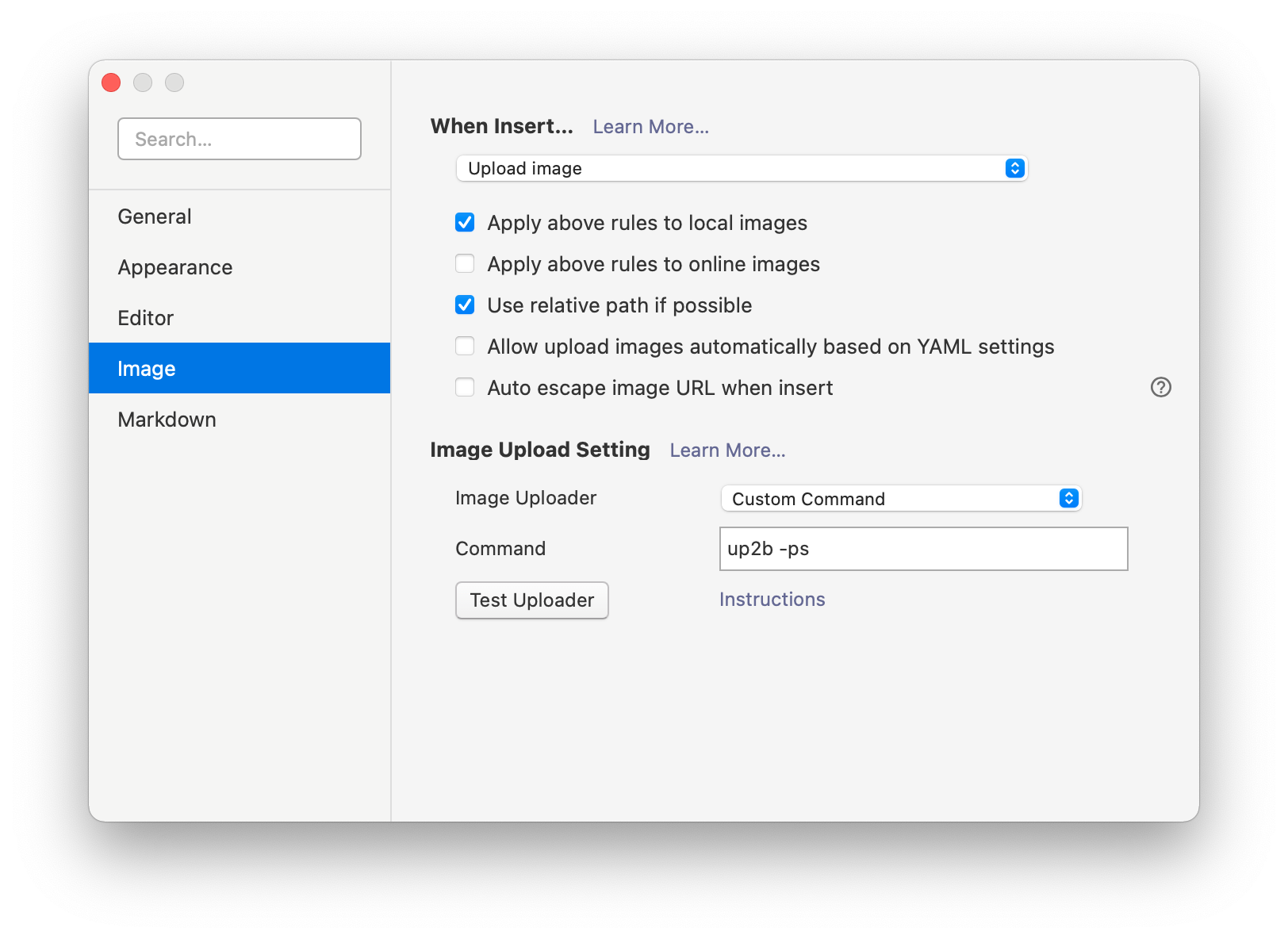
3 Write the command in typora
Then fill in the command as shown in the figure below.
There is a parameter -aac in the command as an optional parameter, which is used to enable the automatic compression function.
If this parameter is not added, the image will not be automatically compressed when uploading. If the image size exceeds the limit of the image bed, an exception will be thrown during upload.
Adding this parameter will automatically compress images that exceed the limit size to the limit image size or below, ensuring that images can be uploaded smoothly.
Turn on automatic compression:
up2b -aac -ps
Turn off automatic compression:
up2b -ps
Configure in Typora on windows / linux:
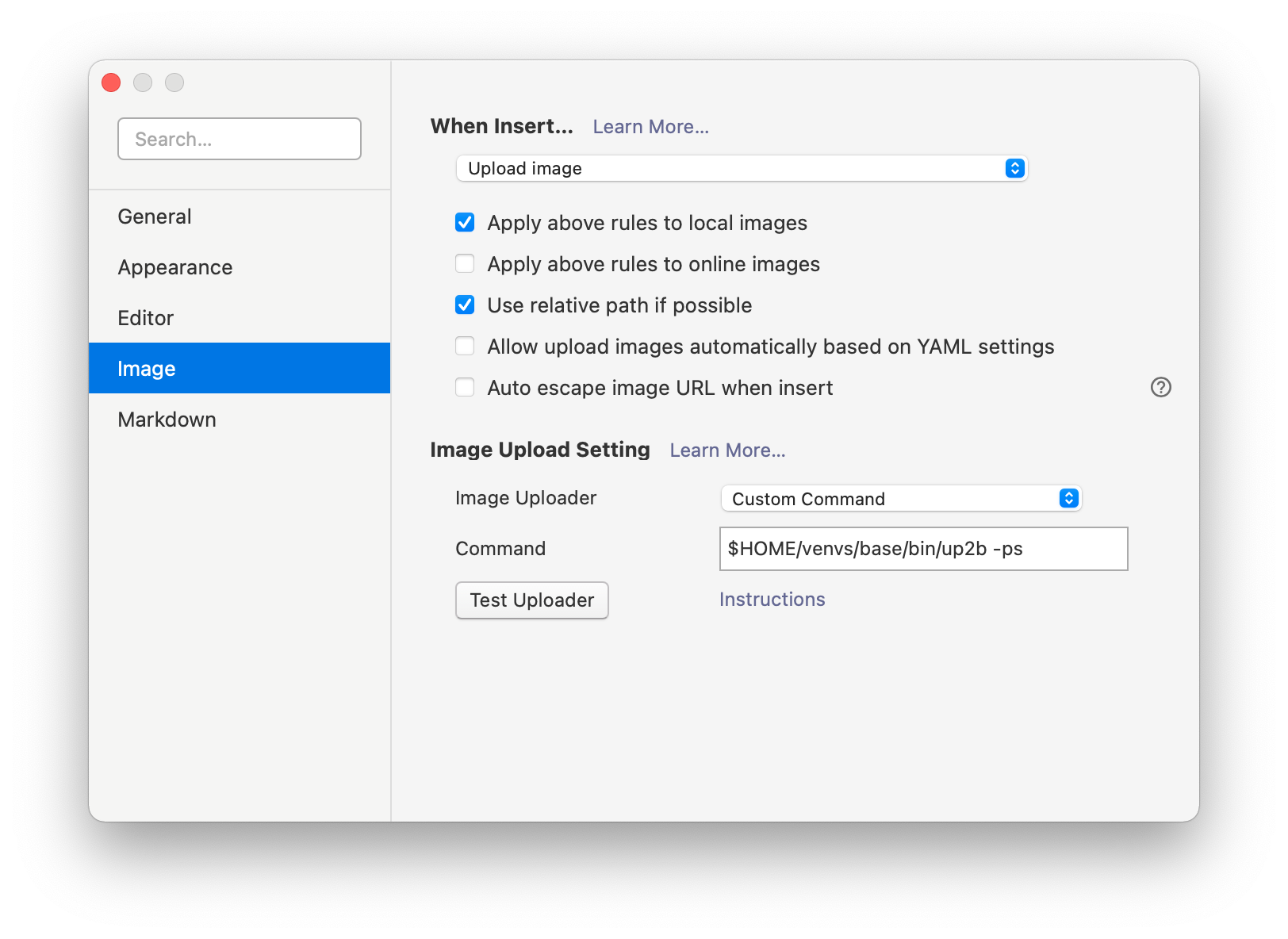
If you want to use it in the macOS system, you need to find the absolute path of the up2b command:
End
Now, when you add a picture to Typora, it will be automatically uploaded to the picture bed.
Release history Release notifications | RSS feed


Download files
Download the file for your platform. If you're not sure which to choose, learn more about installing packages.
Source Distributions
Built Distribution
Filter files by name, interpreter, ABI, and platform.
If you're not sure about the file name format, learn more about wheel file names.
Copy a direct link to the current filters
File details
Details for the file up2b-0.1.9-py3-none-any.whl.
File metadata
- Download URL: up2b-0.1.9-py3-none-any.whl
- Upload date:
- Size: 20.5 kB
- Tags: Python 3
- Uploaded using Trusted Publishing? No
- Uploaded via: twine/3.4.2 importlib_metadata/4.6.1 pkginfo/1.7.1 requests/2.25.1 requests-toolbelt/0.9.1 tqdm/4.61.2 PyPy/7.3.5
File hashes
| Algorithm | Hash digest | |
|---|---|---|
| SHA256 |
f6d213fa1507198939c66aa1ad0bc1caf8c414ba67f4e1cf8b11fe9ccd2f74e7
|
|
| MD5 |
eeddbeb919609cb73447078f3a3ae136
|
|
| BLAKE2b-256 |
ef244cea10877e35a40d07af0bfc004707cb66f59e6bddc8ea1b3eca7ddb50a4
|






