
usajobs-monitor
A scheduled job search for USAJOBS that does the filtering a keyword search can't. You describe the jobs you want and the hiring paths you qualify for in one config file, and each run gives you a short list of postings worth reading, a watch list, and the near misses, with a reason for every job it set aside.
Status: early, but complete for everyday use. Search, filtering, tracking, reports, delivery (email, Discord, Slack, ntfy), GitHub Actions and Docker are in. An optional AI add-on rates your resume against each job and lists stronger fits first. See Roadmap.
What a report looks like
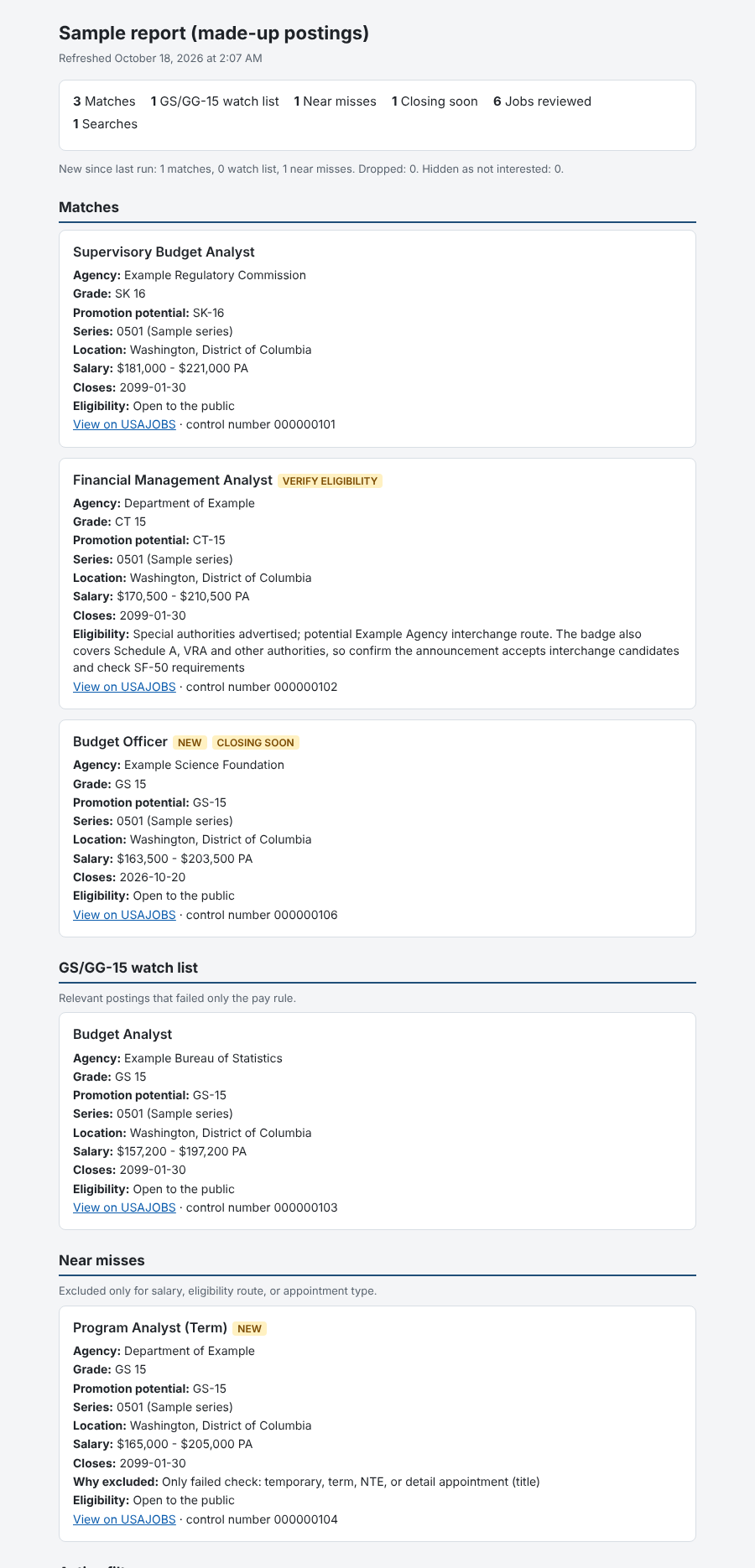
This is the HTML digest from a sample run with made-up postings and agencies. scripts/make_sample_report.py regenerates it offline.
Quickstart
About five minutes once you have an API key. Needs Python 3.11 or newer and pipx.
# 1. Get a free API key: https://developer.usajobs.gov/apirequest/ (it's emailed to you)
pipx install usajobs-monitor                  # step 2 covers pip, uv and installing from source

export USAJOBS_EMAIL="you@example.com"        # the address you registered with
export USAJOBS_API_KEY="paste-your-key-here"

usajobs-monitor init --profile me                      # six questions, writes your profile
usajobs-monitor check-config --profile me              # confirm credentials and see the pay floors
usajobs-monitor run --preview-delivery --profile me    # search now; alerts are written, not sent
Open usajobs_digest.html in me/reports inside your profiles folder. Then read the near misses: each one says which single check it failed, which is the fastest way to tune your profile. To run it automatically, see step 7. The numbered sections below cover each step in detail.
What it does
- Searches USAJOBS through the official API. It runs every search in your profile, reads every page of results (500 per page, up to 10 pages), and warns you when a search was cut off.
- Filters out what boilerplate hides. Keyword searches return lots of noise. This tool checks the structured fields instead:
- temporary and term jobs, from the appointment-type code rather than the title
- senior executive roles, from the pay plan (SES and equivalents, plus any pay plans you list)
- wrong occupations, from whole words in the title together with the job series
- excluded job series, but only when every series on the posting is excluded
- Screens eligibility. It checks whether you can actually apply: open to the public, internal to your current agency, competitive status, excepted service, interchange agreements (including postings that explicitly deny them), special hiring authorities, and any extra hiring paths you list.
- Sorts results into tiers:
- Matches pass every check.
- Watch list jobs fail only on posted salary, at a grade you've chosen to keep an eye on.
- Near misses fail exactly one check, shown as "Only failed check: …". Hard-no failures (wrong occupation, executive role, another agency's internal posting) never appear here.
- Remembers between runs. Each job is flagged NEW the first time it appears and CLOSING SOON when three days or less remain, and jobs that disappeared are noted. You can record a decision (applied, not interested, watching) so a job stops nagging you.
- Runs safely on a schedule. Each run works in its own folder and publishes reports only after they pass validation. A lock stops two runs from overlapping, and a failed run never overwrites the last good report or puts raw errors in anything that gets sent to you.
- Delivers results where you'll see them. Email through any SMTP server with the reports attached, or a short digest to Discord, Slack or ntfy. A retry never sends the same run twice.
- Optional AI help, off by default. Each run can add short notes comparing your resume with each match (a fit level, gaps, resume wording to fix) and list stronger fits first without hiding any job, using a subscription you already have through the Claude Code, Codex or Gemini command-line tools, a local model with Ollama, or an API key. docs/AI.md compares the options. With the
mcpextra, an AI assistant such as Claude Desktop can search and screen postings through your profile. Nothing in the core needs either one, and your resume is sent only when you turn that on. - Sets itself up.
usajobs-monitor initasks a few questions and writes your profile, with starting eligibility for your applicant type: current federal employee, excepted service, veteran, military spouse, student, recent graduate, former federal employee, Schedule A, or the general public.
Output is your choice of an HTML digest (usajobs_digest.html), a CSV of every job reviewed (usajobs_jobs.csv), a Word briefing (usajobs_briefing.docx) and an Excel tracker (usajobs_tracker.xlsx), plus a usajobs_last_run.json summary. Profiles written by init use HTML and CSV; older profiles keep Word and Excel until you set report.formats.
Requirements
- Python 3.11 or newer
- A free USAJOBS API key (next section)
- macOS, Linux or Windows
1. Get a USAJOBS API key
- Go to the USAJOBS developer site and choose Request an API Key (the form is at https://developer.usajobs.gov/apirequest/).
- Enter your name, email address and a short description such as "personal job search alerts".
- USAJOBS emails you the key. It usually arrives within a few minutes but can take longer.
Keep two things: the key and the email address you registered with. The API requires both on every request (the email is sent as the User-Agent header), so use the same address you signed up with.
Don't paste the key into the config file or any file you might commit. Step 3 shows where it goes.
2. Install
The package is on PyPI. pipx installs it as a command in its own environment:
pipx install usajobs-monitor
Add optional extras in brackets, for example pipx install "usajobs-monitor[keyring]" for the system keychain (step 3), [ai] for resume fit notes or [mcp] for the MCP server (step 8). To add an extra later, run pipx install --force with the new list. pipx upgrade usajobs-monitor updates it.
With uv: uv tool install usajobs-monitor. With plain pip, use a virtual environment:
python3 -m venv .venv
source .venv/bin/activate            # Windows: .venv\Scripts\activate
pip install usajobs-monitor
From source, to follow main or to contribute:
git clone https://github.com/amv2/usajobs-monitor.git
cd usajobs-monitor
python3 -m venv .venv
source .venv/bin/activate            # Windows: .venv\Scripts\activate
pip install -e .
Prefer containers? Skip the Python setup and see Docker under step 7.
Check the install:
usajobs-monitor --help
3. Add your credentials
Set them as environment variables. The tool reads USAJOBS_EMAIL and USAJOBS_API_KEY and these take precedence over anything in a config file.
macOS / Linux (add to ~/.zshrc, ~/.bashrc or a file you source before running):
export USAJOBS_EMAIL="you@example.com"
export USAJOBS_API_KEY="paste-your-key-here"
Windows (PowerShell, saved for your user account):
[Environment]::SetEnvironmentVariable("USAJOBS_EMAIL", "you@example.com", "User")
[Environment]::SetEnvironmentVariable("USAJOBS_API_KEY", "paste-your-key-here", "User")
Open a new terminal afterwards so the variables are picked up.
Or keep them in your system keychain
Instead of environment variables, you can store credentials in your operating system's encrypted vault: Keychain on macOS, Credential Manager on Windows, or Secret Service (GNOME Keyring, KWallet) on Linux. Install the optional extra, then save each value. You're prompted for it and nothing is shown as you type:
pip install -e ".[keyring]"     # or: pipx install --force "usajobs-monitor[keyring]"
usajobs-monitor credentials set USAJOBS_EMAIL
usajobs-monitor credentials set USAJOBS_API_KEY
usajobs-monitor credentials status          # where each one comes from; never prints values
The same command stores delivery secrets from step 6, for example usajobs-monitor credentials set USAJOBS_SMTP_PASSWORD, and credentials status --config your-profile.toml lists the ones your profile needs. credentials delete NAME removes one.
How it fits together:
- An environment variable always wins. The keychain is only read for a variable that isn't set, so existing setups keep working unchanged.
- Entries are saved under the service name
usajobs-monitor, with the variable name as the account, so you can also see or remove them in Keychain Access or Credential Manager. - To pipe a value in from a password manager or script, use
--stdin, which reads the first line:your-password-cli get usajobs-key | usajobs-monitor credentials set USAJOBS_API_KEY --stdin. - GitHub Actions doesn't use the keychain; it keeps reading repository secrets.
- Set
USAJOBS_KEYRING=0to stop the tool from reading the keychain. Without the extra installed, or on a computer with no keychain service (a headless server, for example), the tool simply uses environment variables. - On macOS, if you recreate the virtual environment or upgrade Python, macOS may ask once whether Python can use the saved item. Choose Always Allow.
4. Create your profile
Your profile is one config file. The quickest way to make one is the setup wizard:
usajobs-monitor init
It asks six things: your API key (and offers to save it in your keychain if the keyring extra is installed), who you're applying as, where you want to work, your target GS grade, the kind of work (keywords plus a job series picker that understands words like "budget" or "finance"), and how you want results. It saves the profile in your profiles folder (see Several profiles) and tells you the next two commands to run. Use init --config path/to/file.toml to write the file somewhere else. The wizard never writes a credential into the profile.
To start from a file instead, download one of the two in the repo:
profiles/financial-management-dc.tomlis a ready-made profile for financial management roles in the Washington, DC area.examples/usajobs-monitor.example.tomlis the commented template with every section.
mkdir -p ~/usajobs
curl -o ~/usajobs/usajobs-monitor.toml https://raw.githubusercontent.com/amv2/usajobs-monitor/main/profiles/financial-management-dc.toml
Edit your copy, then validate it:
usajobs-monitor check-config --config ~/usajobs/usajobs-monitor.toml
check-config names the exact setting that's wrong (for example filters.watch_list.grades[0]: expected an integer) instead of failing halfway through a run, and warns about keys it doesn't recognize. Optional settings you leave out get defaults. Without --config, the tool looks for ./usajobs-monitor.toml.
Profile details live in docs/PROFILES.md:
- Config sections and the settings people change first
- Pay floors from a GS grade
- Applicant types
- Several profiles
- Every key and its default
5. Run it
# Quick search: write reports straight to paths.reports_dir (or --output-dir), without run isolation
usajobs-monitor search --config ~/usajobs/usajobs-monitor.toml

# Full run: build reports in an isolated run folder, validate them, publish, then deliver (step 6)
usajobs-monitor run --config ~/usajobs/usajobs-monitor.toml
Reports land in paths.reports_dir, next to your config file unless you give an absolute path. The run also keeps usajobs_job_history.json there; that's how it knows what's new next time.
To record a decision, use the control number (the number at the end of the job's USAJOBS link):
usajobs-monitor decide 812345600 applied "submitted 10/14"
usajobs-monitor decide 812345600 applied --applied-on 2026-10-14   # record a past application date
usajobs-monitor decide 812345600 interview "phone screen 11/3"
usajobs-monitor decide 812349900 not_interested     # hidden from every later run
usajobs-monitor decide 812349900 clear              # undo
usajobs-monitor decide                              # list your decisions and active applications
Status is one of:
applied,intervieworoffer: an application in progress. It's flagged on every run and left out of the "Closing soon" list.watching: a job you're keeping an eye on. It's flagged on every run.not_interested,rejectedorwithdrawn: hidden from every later run (not interested,not-interestedandniwork too).
decide with no arguments counts your decisions by status, then lists active applications with how many days ago you applied and marks any with no update in 30 days. Decisions live in paths.decisions_file, a CSV you can also edit by hand (decide adds the title, agency, applied_on and decided_on columns when it writes):
control_number,status,note
812345600,applied,submitted 10/14
812349900,not_interested,
6. Get results delivered
A run can send its results by email (any SMTP server), Discord, Slack or ntfy push notifications. Add a [delivery.<channel>] table for each one you want; with none, reports simply stay in paths.reports_dir (a synced folder such as iCloud Drive, OneDrive or Dropbox works for reading them on your phone).
[delivery.email]
smtp_host     = "smtp.fastmail.com"   # or smtp.gmail.com, smtp.office365.com, ...
security      = "ssl"                 # "ssl" (port 465) or "starttls" (port 587)
username      = "you@example.com"
to_addresses  = ["you@example.com"]

[delivery.discord]                    # the webhook URL comes from the environment

[delivery.ntfy]
server = "https://ntfy.sh"
Email carries a short digest with each report in report.formats attached. The digest has the counts and one compact entry per listed job: its AI fit level when fit notes are on, agency, grade, closing date, the first sentence of the AI note (plus the main gap for Stretch and Unlikely fits), why a near miss was excluded, and a link, so it reads well on a phone; the full notes stay in the reports. Discord, Slack and ntfy get the same digest, cut to fit the service's length limit. Near misses are listed only when new, unless you set delivery.near_misses = "all". Every key is in the config reference.
Secrets go in environment variables or your keychain, like your API key (step 3). A password or webhook URL in the config file is an error, so a config you share or commit can't leak one.
| Variable | Used by |
|---|---|
USAJOBS_SMTP_PASSWORD |
Email, when username is set. Use an app password, not your account password. |
USAJOBS_DISCORD_WEBHOOK_URL |
Discord (Server settings → Integrations → Webhooks) |
USAJOBS_SLACK_WEBHOOK_URL |
Slack (an app with incoming webhooks) |
USAJOBS_NTFY_TOPIC |
ntfy. Anyone who knows a topic on the public server can read it, so pick a long random one. |
USAJOBS_NTFY_TOKEN |
ntfy, optional access token for a protected topic |
USAJOBS_SMTP_USERNAME, USAJOBS_EMAIL_FROM, USAJOBS_EMAIL_TO |
Optional. Override the email addresses, so a config in a shared repository needs none. USAJOBS_EMAIL_TO takes a comma-separated list. |
Each channel can read a different variable name instead, for example password_env = "FASTMAIL_APP_PASSWORD".
Check your setup, then look at the messages before sending anything:
usajobs-monitor check-config --config ~/usajobs/usajobs-monitor.toml    # says "ready" or what's missing, per channel
usajobs-monitor run --preview-delivery --config ~/usajobs/usajobs-monitor.toml
--preview-delivery runs the search and writes every message format (email.eml, email.txt, discord.json, slack.json, ntfy.json) into the run's delivery-preview folder without reading any secret or sending anything. After that, a plain usajobs-monitor run searches and sends.
How delivery behaves:
- A failed run never sends reports. If the search (more than half of its searches) or report validation fails, each channel gets a short fixed notice and no attachments, never error text. Set
delivery.notify_on_failure = falseto skip the notice. - Nothing is sent twice. Each channel records its result in the run folder (
delivery-email.jsonand so on). Once a channel has accepted a run, or might have (a connection dropped mid-send), it won't send that run again. Only failures that prove nothing went out, such as a refused connection or a temporary rejection, are retried, up todelivery.max_attemptstimes. - "Accepted" means the server took the message. It doesn't prove it reached your inbox or phone.
- Retry a delivery without searching again with
usajobs-monitor deliver <run id>(ordeliver latest). Channels that already accepted the run are skipped. If a channel says acceptance is uncertain, check whether the message arrived; to send it anyway, delete that channel'sdelivery-<channel>.jsonfrom the run folder and retry. runexits with 0 when the search worked and every channel accepted (or none is configured), 1 when the search failed, and 2 when delivery wasn't confirmed. Schedulers can alert on a non-zero exit.
7. Run it on a schedule
New postings usually go up on weekdays, and many close within a week or two, so a run every Monday, Wednesday and Friday morning is a good start. Every option below runs the same command. Use the full path to the virtual environment's usajobs-monitor so the scheduler doesn't depend on your shell setup.
Find that path with which usajobs-monitor (macOS/Linux) or where usajobs-monitor (Windows) while the virtual environment is active.
Linux and macOS: cron
Run crontab -e and add:
# 7:00 AM Monday, Wednesday, Friday
0 7 * * 1,3,5  . $HOME/.usajobs_env && /home/you/usajobs-monitor/.venv/bin/usajobs-monitor run --config /home/you/usajobs/usajobs-monitor.toml >> /home/you/usajobs/cron.log 2>&1
cron doesn't read your shell profile, so put the export lines from steps 3 and 6 in ~/.usajobs_env and protect that file with chmod 600 ~/.usajobs_env. If you stored everything in the macOS keychain instead, drop the . $HOME/.usajobs_env && part. The keychain is readable while you're logged in. On Linux, cron jobs usually can't reach Secret Service, so keep using the env file there.
macOS: launchd
cron works on macOS, but launchd also catches up on a run missed while the laptop was asleep. Save this as ~/Library/LaunchAgents/com.usajobs-monitor.plist, replacing the paths:
<?xml version="1.0" encoding="UTF-8"?>
<!DOCTYPE plist PUBLIC "-//Apple//DTD PLIST 1.0//EN" "http://www.apple.com/DTDs/PropertyList-1.0.dtd">
<plist version="1.0">
<dict>
<key>Label</key><string>com.usajobs-monitor</string>
<key>ProgramArguments</key>
<array>
<string>/bin/sh</string><string>-c</string>
<string>. "$HOME/.usajobs_env" && /Users/you/usajobs-monitor/.venv/bin/usajobs-monitor run --config /Users/you/usajobs/usajobs-monitor.toml</string>
</array>
<key>StartCalendarInterval</key>
<array>
<dict><key>Weekday</key><integer>1</integer><key>Hour</key><integer>7</integer><key>Minute</key><integer>0</integer></dict>
<dict><key>Weekday</key><integer>3</integer><key>Hour</key><integer>7</integer><key>Minute</key><integer>0</integer></dict>
<dict><key>Weekday</key><integer>5</integer><key>Hour</key><integer>7</integer><key>Minute</key><integer>0</integer></dict>
</array>
<key>StandardOutPath</key><string>/Users/you/usajobs/launchd.log</string>
<key>StandardErrorPath</key><string>/Users/you/usajobs/launchd.log</string>
</dict>
</plist>
Load it with launchctl load ~/Library/LaunchAgents/com.usajobs-monitor.plist. With credentials in the keychain you can drop . "$HOME/.usajobs_env" && from the command.
Windows: Task Scheduler
$action  = New-ScheduledTaskAction -Execute "C:\Users\you\usajobs-monitor\.venv\Scripts\usajobs-monitor.exe" `
           -Argument "run --config C:\Users\you\usajobs\usajobs-monitor.toml"
$trigger = New-ScheduledTaskTrigger -Weekly -DaysOfWeek Monday,Wednesday,Friday -At 7am
Register-ScheduledTask -TaskName "usajobs-monitor" -Action $action -Trigger $trigger
The task picks up the user environment variables you set in steps 3 and 6, and runs as you, so it can also read credentials saved with usajobs-monitor credentials set.
Docker
The repository includes a Dockerfile and a compose.example.yaml. The image has a small built-in scheduler, so one long-running container searches and delivers on the days and times you pick, with no cron on the host.
-
Build the image and make a data folder. Profiles, reports, history and your decisions file live in
./data, which the container sees as/data. The container runs as user 1000, so on Linux give that user the folder (Docker Desktop on macOS and Windows doesn't need this):git clone https://github.com/amv2/usajobs-monitor.git cd usajobs-monitor cp compose.example.yaml compose.yaml mkdir -p data/profiles && sudo chown -R 1000:1000 data docker compose build
Or skip the
chownand run the container as yourself: adduser: "UID:GID"to the service incompose.yaml, using the numbers fromid -uandid -g. -
Add your credentials to a
.envfile next tocompose.yaml, oneNAME=valueper line:USAJOBS_EMAILandUSAJOBS_API_KEY, plus the delivery secrets from step 6 for the channels you use. Protect it withchmod 600 .env. There's no keychain in a container, so the image only reads environment variables.compose.yaml,.envanddata/are in.gitignore. -
Create a profile with the wizard:
docker compose run --rm usajobs-monitor init --profile me
It's saved as
data/profiles/me.toml, with its reports indata/profiles/me/. Edit it with any editor on the host. Every other command works the same way, for exampledocker compose run --rm usajobs-monitor run --all --preview-deliveryordocker compose run --rm usajobs-monitor decide 812345600 applied. -
Start it:
docker compose up -d
docker compose logs -f     # shows the next run time and each run's result
The schedule is set with environment variables in compose.yaml:
| Variable | Default | Meaning |
|---|---|---|
TZ |
UTC |
Time zone for the schedule, e.g. America/New_York |
USAJOBS_SCHEDULE_DAYS |
Mon,Wed,Fri |
Days to run: names, a range like mon-fri, weekdays or daily |
USAJOBS_SCHEDULE_TIMES |
07:00 |
24-hour times, comma-separated, e.g. 07:00,17:00 |
USAJOBS_SCHEDULE_ARGS |
run --all |
The command for each run, e.g. run --profile me |
USAJOBS_RUN_ON_START |
0 |
1 also runs once when the container starts |
A failed run is logged and the schedule carries on; the run itself sends the usual failure notice. If the container is stopped at a scheduled time, that run is skipped rather than made up later. To use the optional AI or MCP extras, build with docker compose build --build-arg EXTRAS=ai,mcp.
If you'd rather keep cron on the host, skip the scheduler and run one-off containers instead:
0 7 * * 1,3,5 cd /home/you/usajobs-monitor && docker compose run --rm usajobs-monitor run --all >> cron.log 2>&1
GitHub Actions
No computer to leave on? GitHub can run the monitor on its own servers. The repository includes a workflow, .github/workflows/usajobs-monitor.yml, that searches and delivers on a schedule, and you can also start it by hand. A run takes a few minutes, well inside the free Actions minutes a private repository gets each month.
Use a private copy. Your profile describes your eligibility and possibly your current agency, and your decisions file and reports describe your job search. Anything in a public repository is public. The workflow won't run in a public repository at all, so forking this repo (forks of a public repo stay public) isn't enough.
-
Make a private copy. The easiest way: on this repository's GitHub page, choose Use this template → Create a new repository, pick Private, and create it. That copies the code, including the workflow, into a private repository of your own with a fresh history.
Or create a new private repository with no README and push this code to it:
git clone https://github.com/amv2/usajobs-monitor.git my-usajobs
cd my-usajobs
git remote set-url origin https://github.com/YOU/my-usajobs.git
git push -u origin main
You can also use Import repository on GitHub, which copies a public repo into a new private one.
-
Add your profile as
search/usajobs-monitor.toml, starting fromexamples/usajobs-monitor.example.toml. Paths in it are relative to thesearchfolder, so with the defaults the decisions file issearch/job_decisions.csvand reports go tosearch/reportson the runner. If you list résumés, put them in a folder undersearch/and pointpaths.resume_folderat it. The.gitignoreexcludes these file names so they can't be committed by accident in a public clone, so add them on purpose:git add -f search/usajobs-monitor.toml search/job_decisions.csv git commit -m "Add my search profile" git push
Uploading them with Add file → Upload files on GitHub works too. To keep the profile somewhere else in the repository, set a repository variable named
USAJOBS_CONFIGto its path. -
Add your secrets under Settings → Secrets and variables → Actions → New repository secret.
USAJOBS_EMAILandUSAJOBS_API_KEYare required; add the delivery secrets for the channels in your profile, with the same names as in step 6:USAJOBS_SMTP_PASSWORD,USAJOBS_SMTP_USERNAME,USAJOBS_EMAIL_FROM,USAJOBS_EMAIL_TO,USAJOBS_DISCORD_WEBHOOK_URL,USAJOBS_SLACK_WEBHOOK_URL,USAJOBS_NTFY_TOPICandUSAJOBS_NTFY_TOKEN. Secrets never appear in logs. The workflow passes only these names, so leavepassword_envand the other*_envsettings at their defaults. -
Try it. Open the Actions tab, enable workflows if GitHub asks, pick usajobs-monitor, choose Run workflow and set mode to
preview. That searches and writes the messages as files without sending anything. Download the run'susajobs-reports-…artifact to see the reports and thedelivery-previewfolder. Then run it again with modesend.
After that it runs on its own. Good to know:
- Schedule. The default is 12:00 UTC on Monday, Wednesday and Friday, which is 7 AM Eastern in winter and 8 AM in summer. GitHub schedules are always in UTC; change the
cron:line in the workflow file to pick other days or times. Scheduled runs can start several minutes late, and GitHub runs schedules only from the default branch. - Seen jobs are kept in the Actions cache. Each run restores the previous run's job history, so NEW and dropped flags work as they do on your own computer, and saves the updated history for the next run. GitHub deletes a cache nobody has used for 7 days, so after a longer gap the next run starts a new baseline: the report says there's no earlier history, and nothing is flagged NEW until the run after it. Nothing is committed back to your repository.
- Reports are kept as run artifacts for 30 days. Set a repository variable
USAJOBS_REPORT_DAYSto change that (GitHub's limit is 90 days for private repositories). - Decisions. Edit
search/job_decisions.csvin the repository (GitHub's web editor is fine) and the next run picks it up. - Failures. A run that fails to search or deliver fails the workflow, and GitHub emails you about failed runs by default. Re-running a failed workflow searches again rather than resending the old run.
- Inactivity. GitHub can disable scheduled workflows after 60 days with no repository activity; its documentation says this applies to public repositories. If it happens, re-enable the workflow from the Actions tab.
8. Optional: AI fit notes and an MCP server
Everything above works without AI. docs/AI.md walks through every way to add it, with what each needs:
| Way | What you need | Profile setting |
|---|---|---|
| Claude app (chat with your search over MCP) | Claude subscription + desktop app or Claude Code | none; see MCP server |
| Claude Code CLI | Claude subscription + claude command |
provider = "claude-cli" (runs it with every tool off) |
| ChatGPT via OpenAI Codex CLI | ChatGPT plan + codex command |
provider = "codex-cli" |
| Gemini CLI | Google account + gemini command |
provider = "gemini-cli" |
| Local model (Ollama) | Ollama + a model; nothing leaves your computer | provider = "ollama", model = "llama3.1" |
| Claude API key (pay per use) | Key from the Claude Console | provider = "anthropic" (the default) |
| OpenAI, Gemini or other API keys, or any program | That program | provider = "command" |
The rest of this section covers the details for all of them.
Resume fit notes
For each match (and watch-list job, by default), a model reads the posting's qualifications, duties and specialized experience statement next to your resume and writes a short note: each required qualification marked met, unclear or not shown on resume with the resume evidence, a fit level (strong, possible, stretch or unlikely) that never runs ahead of that checklist (one requirement not shown caps it at stretch, two or more at unlikely, an unclear one at possible), gaps, wording to change so an HR specialist gives you credit, and anything to confirm before applying. Notes land in usajobs_fit_notes.md, and the fit level also shows on each job in the reports and alerts, with an "AI gaps" line naming what the resume doesn't show. When the checklist lowered the AI's own level, the reports say so, for example "Stretch (AI said Possible)". "Not shown on resume" often means a wording gap rather than missing experience, so check those against what you've actually done.
pip install -e ".[ai]" # or: pipx install --force "usajobs-monitor[ai]"; PDF resume reading, plus the Claude API client
Then add to your profile, with the provider for the way you picked in docs/AI.md:
[ai]
provider    = "claude-cli"  # or codex-cli, gemini-cli, ollama, anthropic (API key), command
resume      = "resume.md"   # .md, .txt, .docx or .pdf, or a folder of versions; relative to this file
send_resume = true          # required: without it your resume never leaves your computer
fit_notes   = true          # add notes to every run
# rank     = true                        # list stronger fits first (nothing is hidden)
# lists    = ["matches", "watch_list"]   # also "near_misses"
# max_jobs = 10                          # at most this many postings per run
# model    = "opus"                      # optional; ollama needs one
Every provider except anthropic runs a program on your computer, so you also allow it once outside the profile: export USAJOBS_ALLOW_AI_PROVIDER=claude-cli (put it in ~/.usajobs_env for scheduled runs). With anthropic, store your key instead: usajobs-monitor credentials set ANTHROPIC_API_KEY.
With rank = true, each list is sorted by fit level: strong, possible, then postings without a note, then stretch and unlikely. Nothing is dropped, so a wrong "unlikely" only moves a job down. The AI judges the minimum qualifications from your resume, not how the assessment questionnaire will place you.
Notes are cached by posting, resume and model, so a run three times a week pays only for postings it hasn't reviewed yet. Changing your resume refreshes them. With several resume versions (a folder), each posting is judged by the version that fits it best, and the reports name it, for example "Strong (resume: Budget Director)". Every version goes into each prompt, ahead of the posting, so with the anthropic provider the resumes are cached after the first posting of a run and later postings read them at a fraction of the price. A folder you keep adding tailored copies to is fine: past 5 versions, the 5 most recently changed are used. Adding or editing a resume re-rates cached postings once. A failed note never fails the run: the reports still publish, and the reason is in the run summary.
To check one posting first, or to see exactly what would be sent:
usajobs-monitor fit 812345600 --preview   # prints the prompt and your resume text; sends nothing
usajobs-monitor fit 812345600             # sends it and prints the note
Privacy. Your resume is read on your computer. It goes to the provider only when ai.send_resume = true, and only with postings from your own search. Each way's terms are in docs/AI.md: with a subscription (Claude, ChatGPT, Google) it's that subscription's terms, with anthropic your API account's commercial terms, and with Ollama nothing leaves your computer. The posting and resume are passed to the model as data with instructions to ignore any instructions inside them, and the CLI providers run with their tools off (Claude) or read-only (Codex, Gemini). Fit notes are written by a model, so read the announcement before you rely on them.
A profile can't run code by itself. The CLI, Ollama and command providers run a program on your computer, so a profile that names one is refused until you also allow it outside the file with USAJOBS_ALLOW_AI_PROVIDER: the provider's name (claude-cli), or for command the exact command line ('llm -m gpt-5'; comma-separate several). check-config prints the value to set. The whole command line must match, so allowing python3 my_model.py doesn't let another profile run python3 -c .... This way a profile someone shares with you can't start a program or import code just because you ran it. Read any shared profile's [ai] table before you allow it.
MCP server
usajobs-monitor mcp serves three read-only tools over the Model Context Protocol, so an assistant can search with your filters and explain its answers:
| Tool | What it does |
|---|---|
search_jobs |
Searches USAJOBS (one keyword and place, or your whole profile) and returns postings sorted into matches, watch list and near misses, with the failed checks for each. |
screen_eligibility |
For one control number: its hiring paths, who may apply, and whether your applicant type has a route in. |
explain_match |
For one control number: its list, every failed check with its code, the relevance score by signal, and your decision if you recorded one. |
pip install -e ".[mcp]" # or: pipx install --force "usajobs-monitor[mcp]"
Then add it to your MCP client. For Claude Desktop, in claude_desktop_config.json:
{
  "mcpServers": {
    "usajobs": {
      "command": "/path/to/usajobs-monitor/.venv/bin/usajobs-monitor",
      "args": ["mcp", "--profile", "default"]
    }
  }
}
For Claude Code: claude mcp add usajobs -- /path/to/.venv/bin/usajobs-monitor mcp --profile default.
The server reads credentials the same way runs do (environment, then keychain), reloads your profile on every call, and accepts a profile argument to use another saved profile. It never changes decisions or history, and it never reads or returns your resume. Screening results are aids, not eligibility determinations.
Keeping secrets out of the repo
Your API key is tied to your email address. Your profile, decisions file and reports describe your job search and your eligibility. None of it belongs in version control.
What's safe to commit: code, tests, docs, examples/usajobs-monitor.example.toml and the de-personalized files in profiles/.
What never is (in a public repository): your own config, your resume, .env files, job_decisions.csv, usajobs_job_history.json, reports/ (including the run folders and delivery previews) and logs.
The repo's .gitignore already covers the defaults:
# Personal configuration and credentials
usajobs-monitor.toml
config.json
config.toml
*.local.json
*.local.toml
usajobs_config.json
.env
.env.*
*_env

# Your search data
job_decisions.csv
usajobs_job_history.json
usajobs_fit_notes*
resume.*
reports/
runs/
previews/
*.log

# Python
.venv/
__pycache__/
*.egg-info/
Good habits:
- Keep your profile outside the repo, for example in
~/usajobs/, and pass it with--config. Then nothing personal can be committed by accident, whatever the.gitignoresays. - Keep credentials in environment variables or your keychain, never in the profile. The tool reads
USAJOBS_EMAILandUSAJOBS_API_KEYfrom the environment (or the keychain, with thekeyringextra), andcheck-configwarns if it finds them in the file. Delivery secrets (SMTP password, webhook URLs, ntfy topic) and the AI provider's API key are read only from the environment or the keychain; the config file can't hold them at all. - Check before your first push:
git status --ignoredlists what's being ignored, andgit ls-fileslists what's tracked. Your config and data files should appear only in the first. - Add a secret scanner if you contribute often. gitleaks works as a pre-commit hook, and GitHub's secret scanning and push protection can be turned on under the repository's Settings → Code security.
- The tool never logs your key. Errors name the setting that's missing or wrong, not its value. If you report a bug, paste
check-configoutput rather than your config file.
If you commit a key by mistake: treat it as exposed even if you delete the commit straight away, since forks, clones and caches may already have it. Request a new key from the USAJOBS developer site, switch to it, and contact USAJOBS through the developer site to retire the old one. Then remove the file from history with git filter-repo and force-push.
How a run works
- Load and validate the profile, then read credentials from the environment, falling back to the keychain.
- Run each search, paging through every result. Network errors, rate limits (HTTP 429) and server errors are retried with backoff. If a search still fails, the run carries on without it and is marked incomplete: the digest and reports name the failed searches, and nothing is reported as dropped. If more than half of the searches fail, the whole run fails instead.
- Remove duplicates across searches by control number.
- Review each job: hiring-path eligibility, temporary appointment, executive pay plan or title, occupation fit, excluded series, target role signal, and salary. Each failed check is recorded with a reason.
- Sort jobs into matches, watch list and near misses, and score the matches.
- Compare with the last run's history to flag NEW, CLOSING SOON and dropped jobs, and hide anything you marked not interested.
- Write the reports into a fresh run folder, validate them, record file hashes in a manifest, and only then publish them to
paths.reports_dir. - Deliver to each configured channel after checking the reports still match the manifest's hashes, and record each channel's result in the run folder.
Roadmap
| Phase | Scope | State |
|---|---|---|
| 1 | Package layout, structured reason codes, config validation, generic profiles, tests, cross-platform lock | Done |
| 2 | Grade-based targeting with OPM locality pay tables | Done |
| 3 | SMTP email, Discord/Slack/ntfy delivery with a send ledger | Done |
| 3b | GitHub Actions workflow, optional OS keychain secrets via keyring |
Done |
| 4 | init wizard, applicant-type presets, multiple profiles, decide command, HTML/CSV outputs |
Done |
| 5 | Optional AI add-on: résumé fit notes and an MCP server. The core never requires AI. | Done |
| 6 | Docker image and compose example with a built-in scheduler | Done |
| 7 | AI fit ranking (strong, possible, stretch, unlikely) with an "AI gaps" line, several resume versions with the best one named per job, resume-first prompt caching, and ready-made providers for the Claude Code, Codex and Gemini CLIs and Ollama (docs/AI.md) | Done (v0.2.0) |
| 8 | Closing-soon alerts with a configurable window, application tracking (interview, offer, rejected, withdrawn, application dates, days waiting), shorter per-job fit lines in email, and installing from PyPI with pipx |
Done (v0.3.0) |
| 9 | Runs survive a single failed search (marked incomplete, failed searches named, nothing reported dropped), a security policy with private vulnerability reporting, and weekly CI with a dependency audit | Done (v0.3.1) |
Phases 1 to 6 shipped in v0.1.0. Ideas under consideration, not promises:
- A built-in provider for OpenAI-compatible APIs (OpenAI, Gemini, OpenRouter, LM Studio and others), so API-key users don't need the
llmtool. - Choosing which resume version to send for each job, rather than sending every version in each prompt.
Suggestions are welcome as issues.
Contributing
Issues and pull requests are welcome. Install the package first (the tests import it), then run them:
python -m venv .venv && . .venv/bin/activate
pip install -e ".[ai,mcp,keyring]"   # the extras are optional; tests that need them skip without them
python -m unittest discover -s tests
Without installing, PYTHONPATH=src python -m unittest discover -s tests works too. The tests workflow runs the same suite on Python 3.11 to 3.14, on Linux and Windows, for every pull request and once a week against the latest dependencies. Pull requests also run ruff check --select E4,E7,E9,F (unused imports and real mistakes, not style); the weekly run adds pip-audit on the installed dependencies.
Releases are cut as described in docs/RELEASING.md.
Please don't attach real configs, decisions files or reports to issues. Use the sample profile, or redact your copy first.
Found a security problem? Please report it privately as described in SECURITY.md, not in a public issue.
License
MIT, copyright 2026 amv2. See LICENSE.
This project isn't affiliated with or endorsed by USAJOBS or the U.S. Office of Personnel Management. It uses the public USAJOBS API under its terms of use.
1 maintainer

Metadata
1 maintainer
Release files for usajobs-monitor 0.3.1
For a detailed explanation of source distributions (sdists) and built distributions (wheels), please see the package formats documentation.
Source distribution (sdist)
| File | Size | Uploaded | Provenance | |
|---|---|---|---|---|
| usajobs_monitor-0.3.1.tar.gz | 198.3 kB | With provenance | Details |
Built distribution (wheel)
| File | Interpreter | ABI | Platform | Reset |
|---|---|---|---|---|
| usajobs_monitor-0.3.1-py3-none-any.whl | Python 3 | none | any | Details |
Total release size: 326.4 kB
Release files / usajobs_monitor-0.3.1.tar.gz
| Download URL | usajobs_monitor-0.3.1.tar.gz |
|---|---|
| Size | 198.3 kB |
| Tags | Source |
|
SHA-256 checksum How to use checksums |
aeec11c0b51f6e28521a355766bd700416596c71f17f36a2e6ebe69fbf9aca7e
|
|
BLAKE2b-256 checksum How to use checksums |
26011894b13c9581cc8a8e22b12a8d3ab8a337ac62a8c5bbd3becc3243b8ffcb
|
| Upload date | |
|
Uploaded using Trusted Publishing? What is trusted publishing? |
Yes |
| Uploaded via |
twine/7.0.0 CPython/3.13.16
|
Provenance
Provenance describes where a file came from. On PyPI, provenance is shared via attestations, which provide a verifiable record of the build or publishing details. View details, limitations and caveats.


PyPI Publish Attestation
PyPI verified that this artifact, at this checksum, originated from the publisher listed below.
Signed by GitHub Actions, verified by PyPI on Oct 22, 2026.
Transparency logRelease files / usajobs_monitor-0.3.1-py3-none-any.whl
| Download URL | usajobs_monitor-0.3.1-py3-none-any.whl |
|---|---|
| Size | 128.1 kB |
| Tags | Python 3 |
|
SHA-256 checksum How to use checksums |
9893c4216f6728759f0d06c3b5e396acbbf2ac498e150888916953c7271c854c
|
|
BLAKE2b-256 checksum How to use checksums |
06480e17593a4f8c0af702ffe103b397825db5f5a4d19b90ca1014974257e141
|
| Upload date | |
|
Uploaded using Trusted Publishing? What is trusted publishing? |
Yes |
| Uploaded via |
twine/7.0.0 CPython/3.13.16
|
Provenance
Provenance describes where a file came from. On PyPI, provenance is shared via attestations, which provide a verifiable record of the build or publishing details. View details, limitations and caveats.
PyPI Publish Attestation
PyPI verified that this artifact, at this checksum, originated from the publisher listed below.
Signed by GitHub Actions, verified by PyPI on Oct 22, 2026.
Transparency logSecurity for usajobs-monitor 0.3.1
Provenance
Provenance describes where a file came from. On PyPI, provenance is shared via attestations, which provide a verifiable record of the build or publishing details. View details, limitations and caveats.
Full provenance
All 2 files in this release have been uploaded with provenance metadata.
Attestation for usajobs_monitor-0.3.1.tar.gz
PyPI Publish Attestation
PyPI verified that this artifact, at this checksum, originated from the publisher listed below.
Signed by GitHub Actions, verified by PyPI on Oct 22, 2026.
Transparency logA note on package security
PyPI is a repository for distributing packages, not a service for auditing them. While third-party security researchers and our staff do their best to detect and remove malicious packages, PyPI cannot guarantee the quality, security or suitability of any given package.
To learn more about protecting yourself from malicious actors, visit our package security documentation.














