
USTVGO Free IPTV

Project description




USTVGO-IPTV is an app that allows you to watch free IPTV.
It extracts stream URLs from ustvgo.tv website, generates master playlist with available TV channels for IPTV players and proxies the traffic between your IPTV players and streaming backends.
✨ Features
- 🔑 Auto auth-key rotation
As server proxies the traffic it can detect if your auth key is expired and refresh it on the fly.
- 📺 Available TV Guide
TV Guide repo generates EPG XML for upcoming programs of all the channels twice an hour.
Two iconsets for IPTV players with light and dark backgrounds
There are 2 channel iconsets adapted for apps with light and dark UI themes.
- 🗔 Cross-platform GUI
GUI is available for Windows, Linux and MacOS for people who are not that much into CLI.
🚀 Installation
-
CLI
pip install ustvgo-iptv
-
GUI
You can download GUI app from Releases for your OS.
-
Docker
docker run -d --name=ustvgo-iptv -p 6363:6363 --restart unless-stopped ghcr.io/interlark/ustvgo-iptv:latest
For dark icons append following argument:
--icons-for-light-bg
⚙️ Usage - CLI
You can run the app without any arguments.
ustvgo-iptv

| Optional argument | Description |
|---|---|
| --icons-for-light-bg | Switch to dark iconset for players with light UI. |
| --access-logs | Enable access logs for tracking requests activity. |
| --port 6363 | Server port. By default, the port is 6363. |
| --parallel 10 | Number of parallel parsing requests. Default is 10. |
| --use-uncompressed-tvguide | By default, master playlist has a link to compressed version of TV Guide:url-tvg="http://127.0.0.1:6363/tvguide.xml.gz"With this argument you can switch it to uncompressed: url-tvg="http://127.0.0.1:6363/tvguide.xml" |
⚙️ Usage - GUI
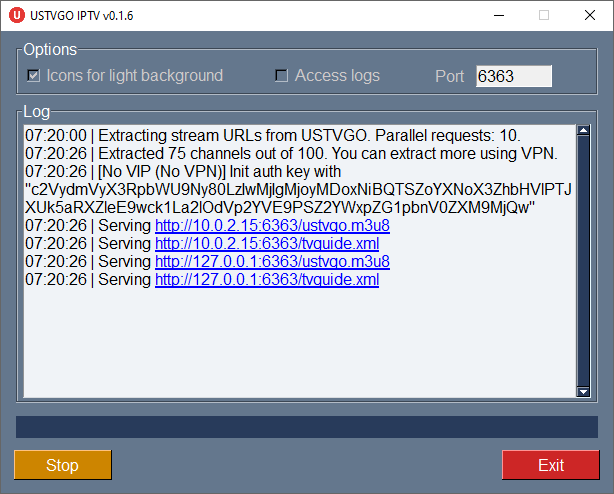
If you don't like command line stuff, you can run GUI app and click "Start", simple as that.
With GUI you can set most of the popular options: port, icons scheme, access logs. If you wanna set other options, you can set them with config file on following path:
- Linux: ~/.config/ustvgo-iptv/settings.cfg
- Mac: ~/Library/Application Support/ustvgo-iptv/settings.cfg
- Windows: C:\Users\%USERPROFILE%\AppData\Local\ustvgo-iptv\settings.cfg
🔗 URLs
To play and enjoy your free IPTV you need 2 URLs that this app provides:
- Your generated master playlist: 🔗 http://127.0.0.1:6363/ustvgo.m3u8
- TV Guide (content updates twice an hour): 🔗 http://127.0.0.1:6363/tvguide.xml
▶️ Players
Here is a list of popular IPTV players.
USTVGO's channels have EIA-608 embedded subtitles. In case if you're not a native speaker and use TV, Cartoons, Movies and Shows to learn English and Spanish languages I would recommend you following free open-source cross-platform IPTV players that can handle EIA-608 subtitles:
-
This old beast could play any subtitles. Unfortunately it doesn't support TV Guide.
- Play
vlc http://127.0.0.1:6363/ustvgo.m3u8
- Play
-
Fast and extensible player. It supports subtitles, but not that good as VLC, sometimes you could encounter troubles playing roll-up subtitles. Unfortunately it doesn't suppport TV Guide.
- Play
mpv http://127.0.0.1:6363/ustvgo.m3u8
- Play
-
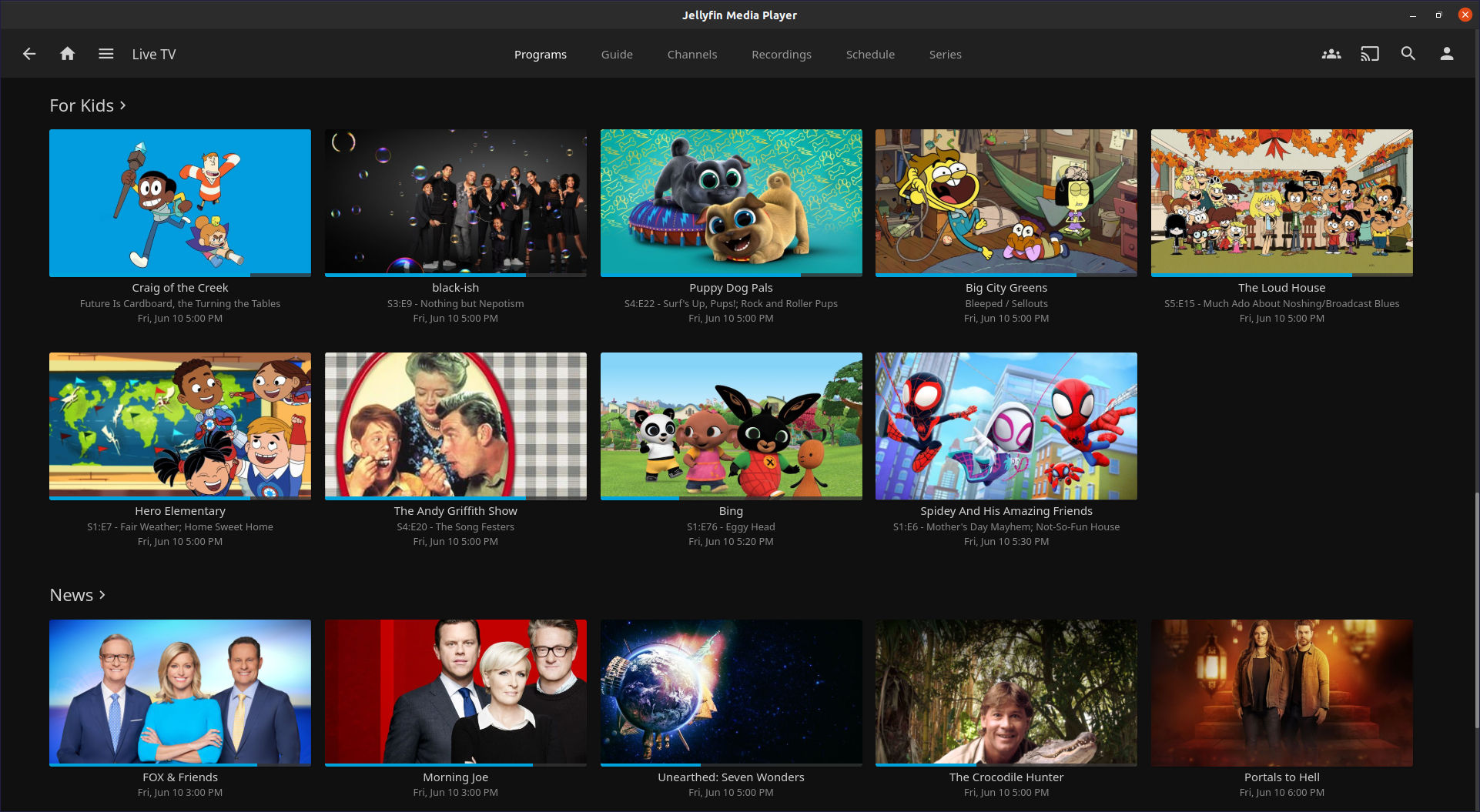
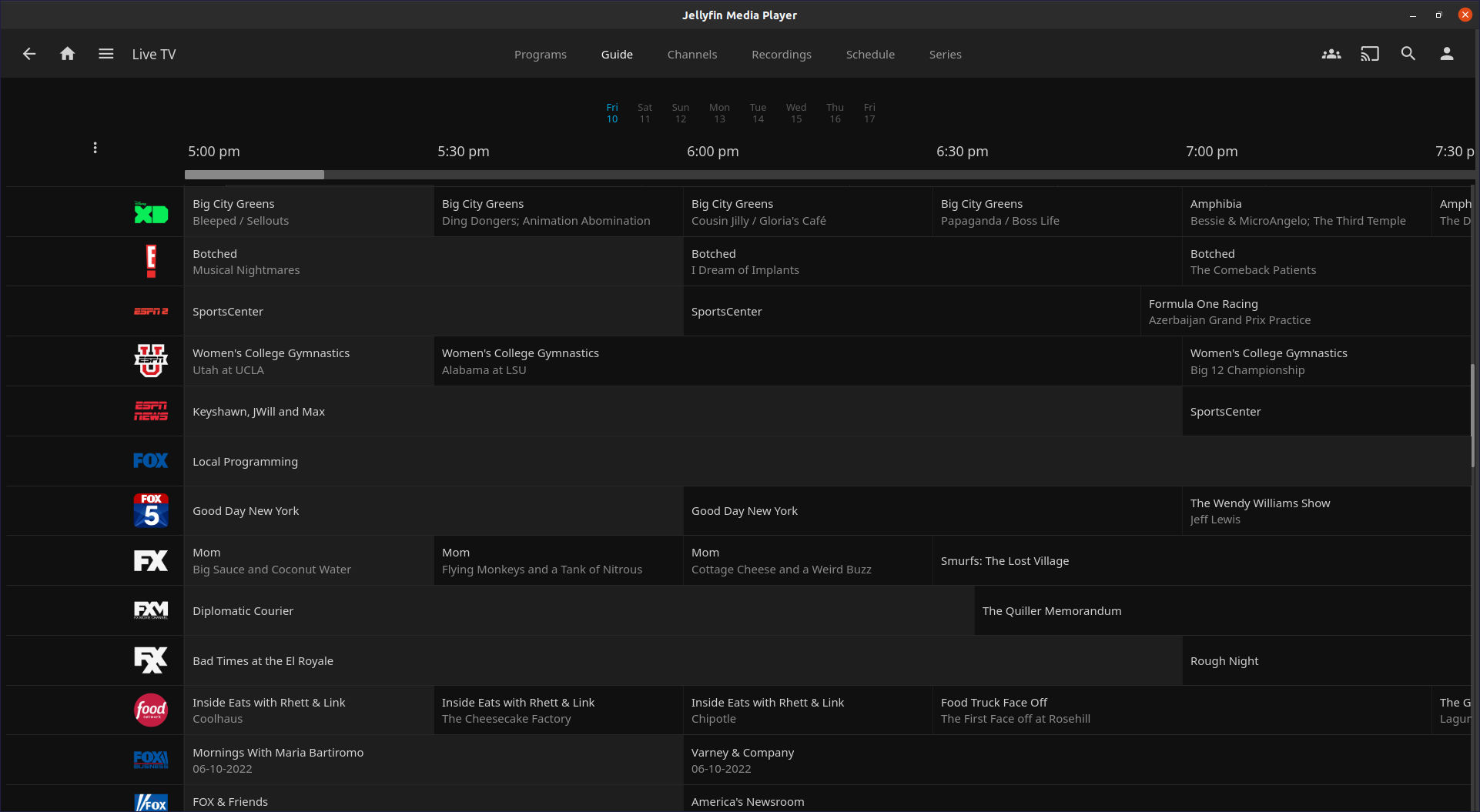
Comfortable, handy, extensible with smooth UI player. Supports TV Guide, has mpv as a backend.
Supports subtitles, but there is no option to enable them via user interface. If you want to enable IPTV subtitles you have to use following "Mute" hack.
-
Enable IPTV subtitles
I found a quick hack to force play embedded IPTV subtitles, all you need is to create one file:
Linux:
~/.local/share/jellyfinmediaplayer/scripts/subtitles.luaLinux(Flatpak):
~/.var/app/com.github.iwalton3.jellyfin-media-player/data/jellyfinmediaplayer/scripts/subtitles.luaMacOS:
~/Library/Application Support/Jellyfin Media Player/scripts/subtitles.luaWindows:
%LOCALAPPDATA%\JellyfinMediaPlayer\scripts\subtitles.luaAnd paste following text in there:
-- File: subtitles.lua
function on_mute_change(name, value)
    if value then
        local subs_id = mp.get_property("sid")
        if subs_id == "1" then
            mp.osd_message("Subtitles off")
            mp.set_property("sid", "0")
        else
            mp.osd_message("Subtitles on")
            mp.set_property("sid", "1")
        end
    end
end

mp.observe_property("mute", "bool", on_mute_change)
After that every time you mute a video (🅼 key pressed), you toggle subtitles on/off as a side effect.
-
Play
1) Settings -> Dashboard -> Live TV -> Tuner Devices -> Add -> M3U Tuner -> URL -> http://127.0.0.1:6363/ustvgo.m3u8 2) Settings -> Dashboard -> Live TV -> TV Guide Data Providers -> Add -> XMLTV -> URL -> http://127.0.0.1:6363/tvguide.xml 3) Settings -> Dashboard -> Scheduled Tasks -> Live TV -> Refresh Guide -> Task Triggers -> "Every 30 minutes" -
Note
Some versions does not support compressed (*.xml.gz) TV Guides.
-
-
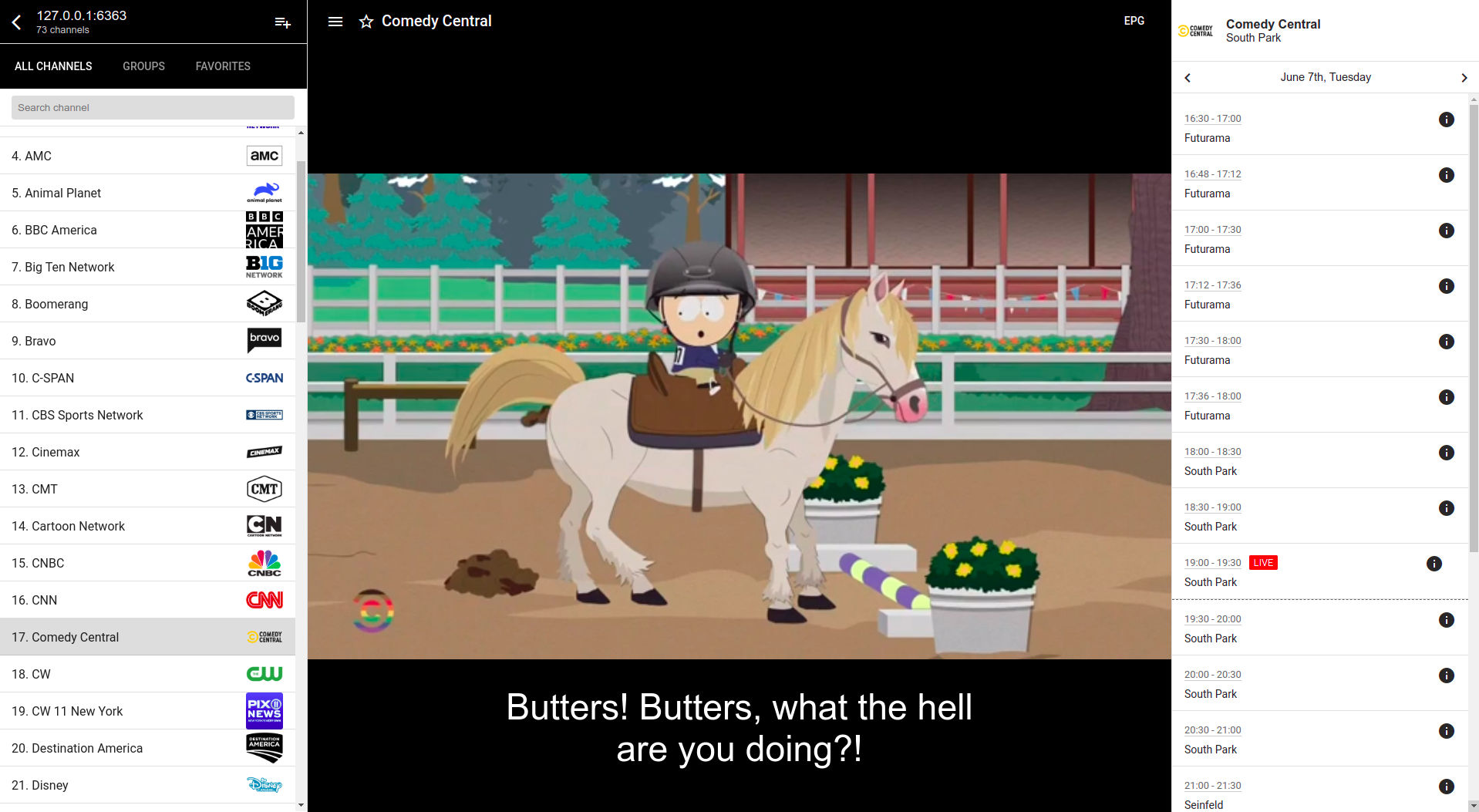
Player built with Electron so you can run it even in browser, has light and dark themes.
Support subtitles and TV Guide.
- Play
1) Add via URL -> http://127.0.0.1:6363/ustvgo.m3u8
2) Settings -> EPG Url -> http://127.0.0.1:6363/tvguide.xml.gz
- Play
⏰ Autostart
You can use systemd on Linux-based servers to automatically run ustvgo-iptv on start-ups.
-
Get full path to
ustvgo-iptv$ which ustvgo-iptv
/home/USERNAME/.local/bin/ustvgo-iptv
-
Create systemd service file with following text
$ sudo nano /etc/systemd/system/ustvgo.service
[Unit]
Description=USTVGO Free IPTV
After=network.target
StartLimitInterval=0

[Service]
User=USERNAME
Type=simple
Restart=always
RestartSec=5
ExecStart=/home/USERNAME/.local/bin/ustvgo-iptv

[Install]
WantedBy=multi-user.target
-
Set permissions and enable the service
$ sudo chmod 644 /etc/systemd/system/ustvgo.service
$ sudo systemctl enable ustvgo.service
-
Reboot
Don't forget to replace USERNAME with your actual username.
👍 Support
-
ustvgo.tv is wonderful project which can offer you a free IPTV, please support these guys buying VPN with their referral link. With VPN you can watch even more of their channels, like extra 25 or so.
-
Also I would highly appreciate your support on this project ⠀

Release history Release notifications | RSS feed


Download files
Download the file for your platform. If you're not sure which to choose, learn more about installing packages.
Source Distribution
Built Distribution
Filter files by name, interpreter, ABI, and platform.
If you're not sure about the file name format, learn more about wheel file names.
Copy a direct link to the current filters
File details
Details for the file ustvgo-iptv-0.1.9.tar.gz.
File metadata
- Download URL: ustvgo-iptv-0.1.9.tar.gz
- Upload date:
- Size: 18.0 kB
- Tags: Source
- Uploaded using Trusted Publishing? No
- Uploaded via: twine/4.0.1 CPython/3.10.6
File hashes
| Algorithm | Hash digest | |
|---|---|---|
| SHA256 |
f8e7ca5d483a0bf4cc9ad72b22ca04b6321fbbf3586a8ec0701380d30f275275
|
|
| MD5 |
dc857e8dfae29f709e46cf0cb52ba4aa
|
|
| BLAKE2b-256 |
3785def19edb4388432dd4080395b940cc3d251c95b808768afa4fda821d247d
|
File details
Details for the file ustvgo_iptv-0.1.9-py3-none-any.whl.
File metadata
- Download URL: ustvgo_iptv-0.1.9-py3-none-any.whl
- Upload date:
- Size: 14.5 kB
- Tags: Python 3
- Uploaded using Trusted Publishing? No
- Uploaded via: twine/4.0.1 CPython/3.10.6
File hashes
| Algorithm | Hash digest | |
|---|---|---|
| SHA256 |
c9789a52a4c523c622e32b878c6af0490e975e419eed9840a1588558f2567d85
|
|
| MD5 |
2597b8bd99d39c254aa9c7cfc707db68
|
|
| BLAKE2b-256 |
b250c0aae92d345c4efd17dc5dbe13ef7facca2fc38c97faf674b19e75df8c27
|






