
Jupyter Variable Inspector
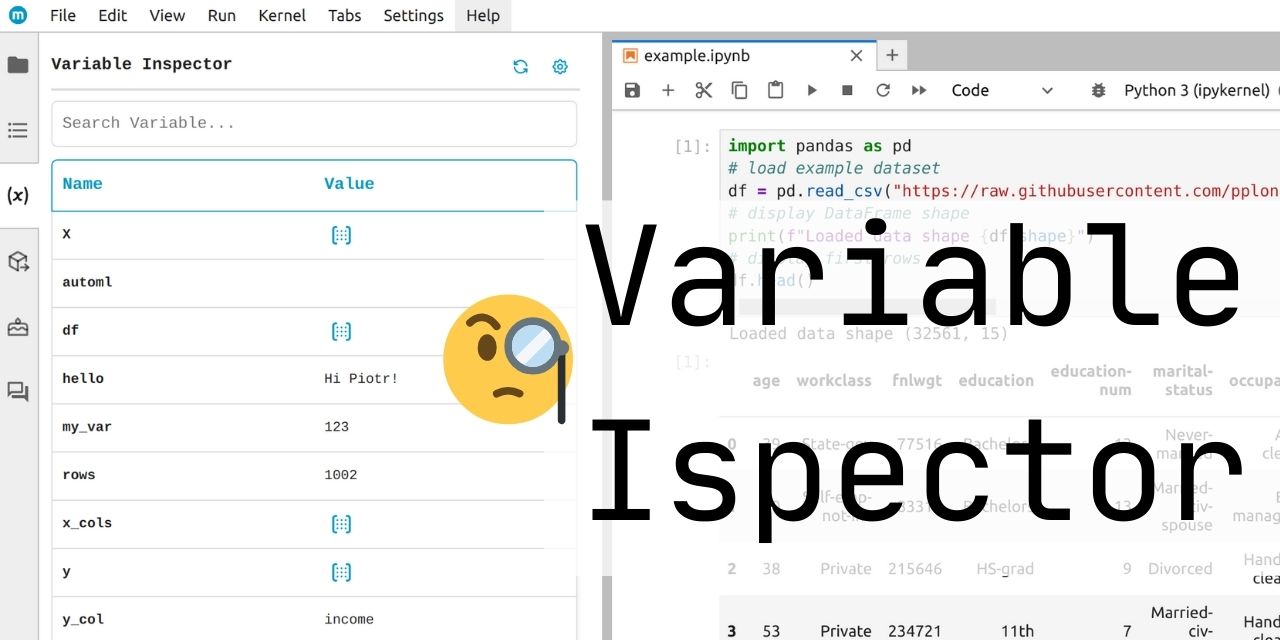
The Variable Inspector is a JupyterLab extension designed to help you manage and track variables within your notebook. It displays all your variables in one convenient location, allowing you to see their names, values, types, shapes, and sizes in real-time. This feature makes it easier to work without the need to manually print or check your variables. It is for Python only.
Install the extension using pip by following the instructions below. Variable Inspector is also included with MLJAR Studio.
Features
Display variables
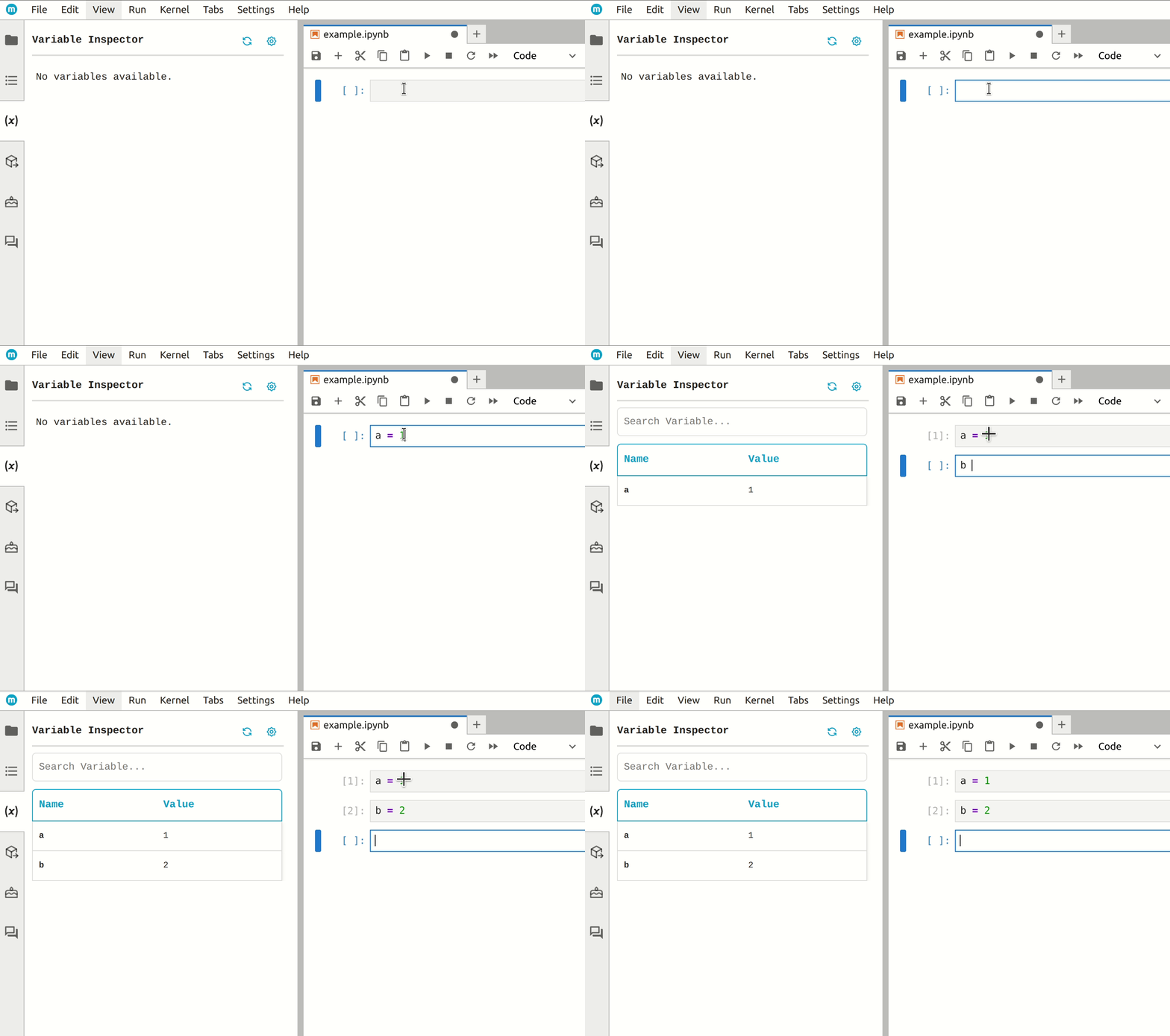
Explore all available variables in the current notebook as a list.
Display DataFrames
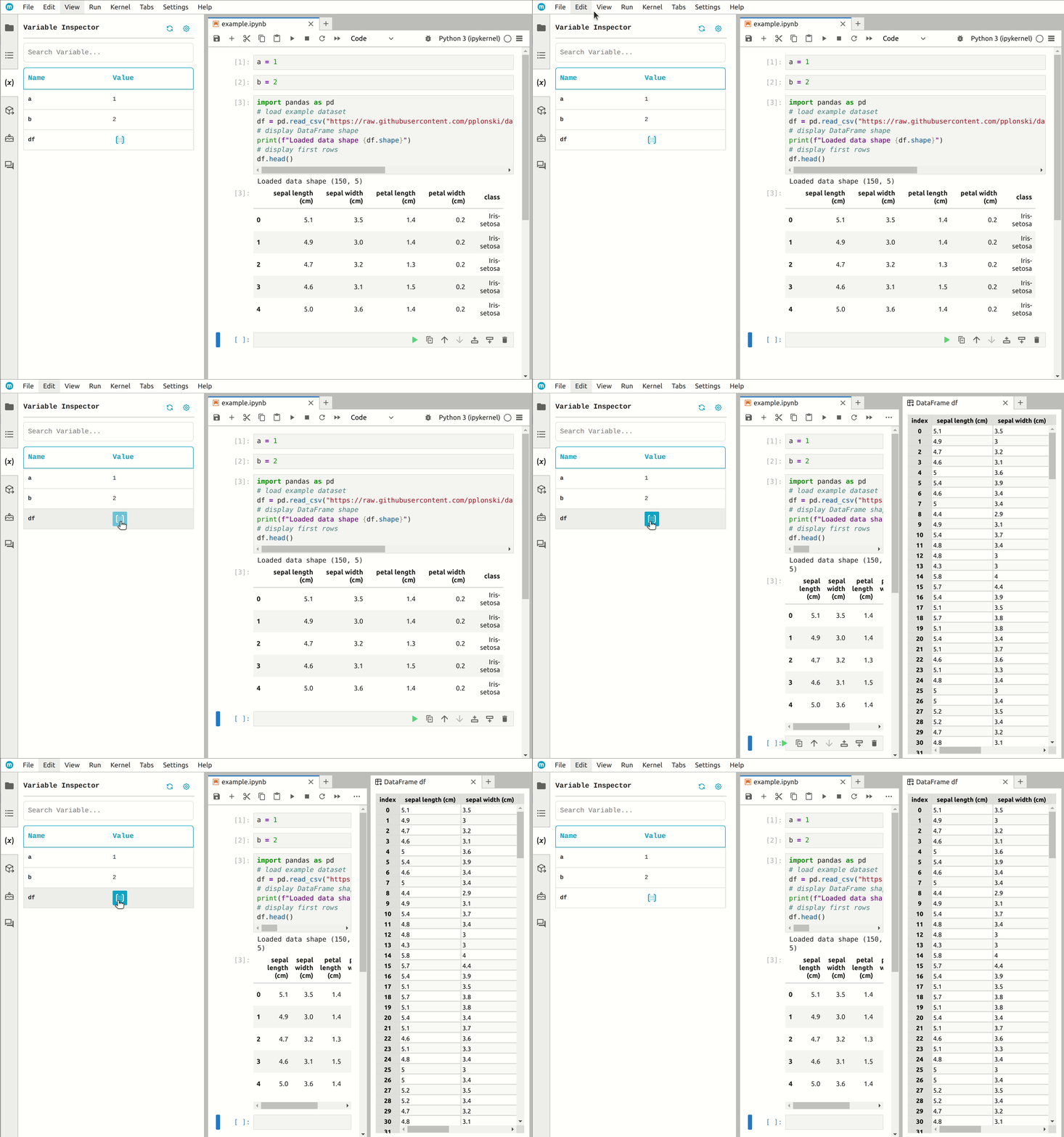
You can preview the DataFrame values as an interactive table.
Display DataFrames with updates
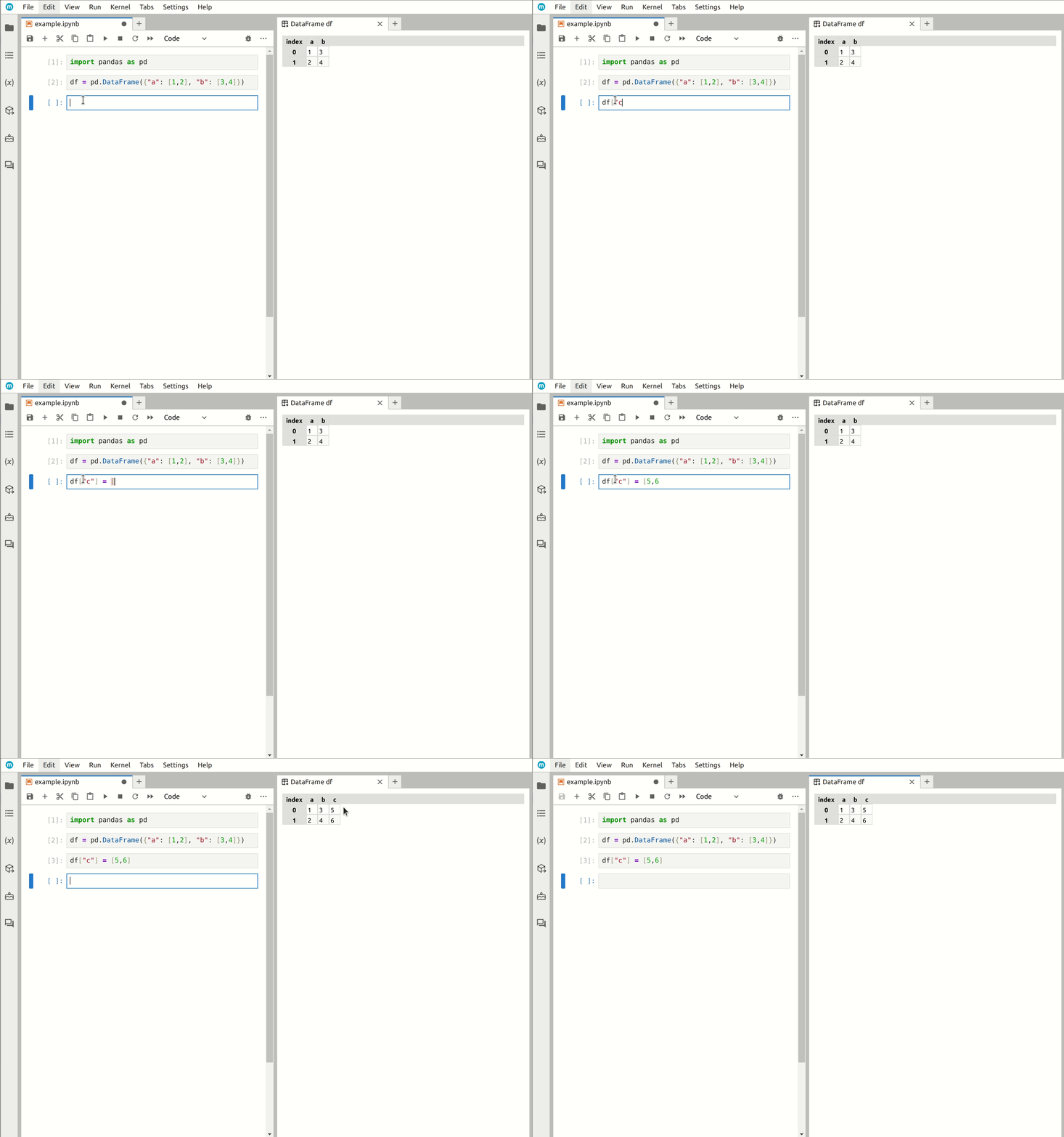
The preview of DataFrame will be automatically refreshed when you change it in the Python code.
Customize displayed columns
You can select which properties of the variables you'd like to display:
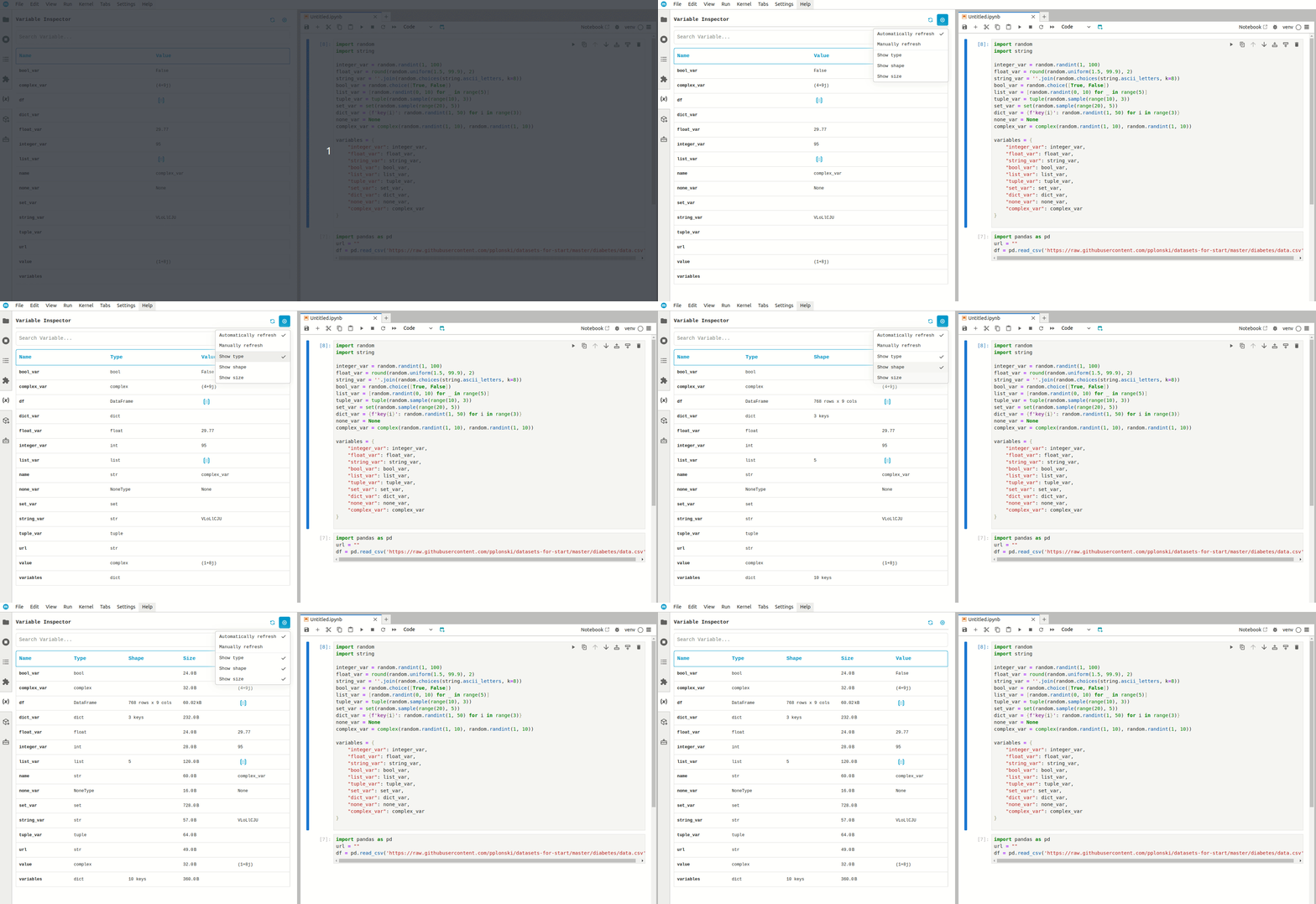
Automatic or manual refresh
The list of variables will automatically update whenever you execute a cell. However, you can choose the Manual Refresh option to update the list at your convenience.

Dark theme
If you prefer a darker look, a Dark Theme is also available!
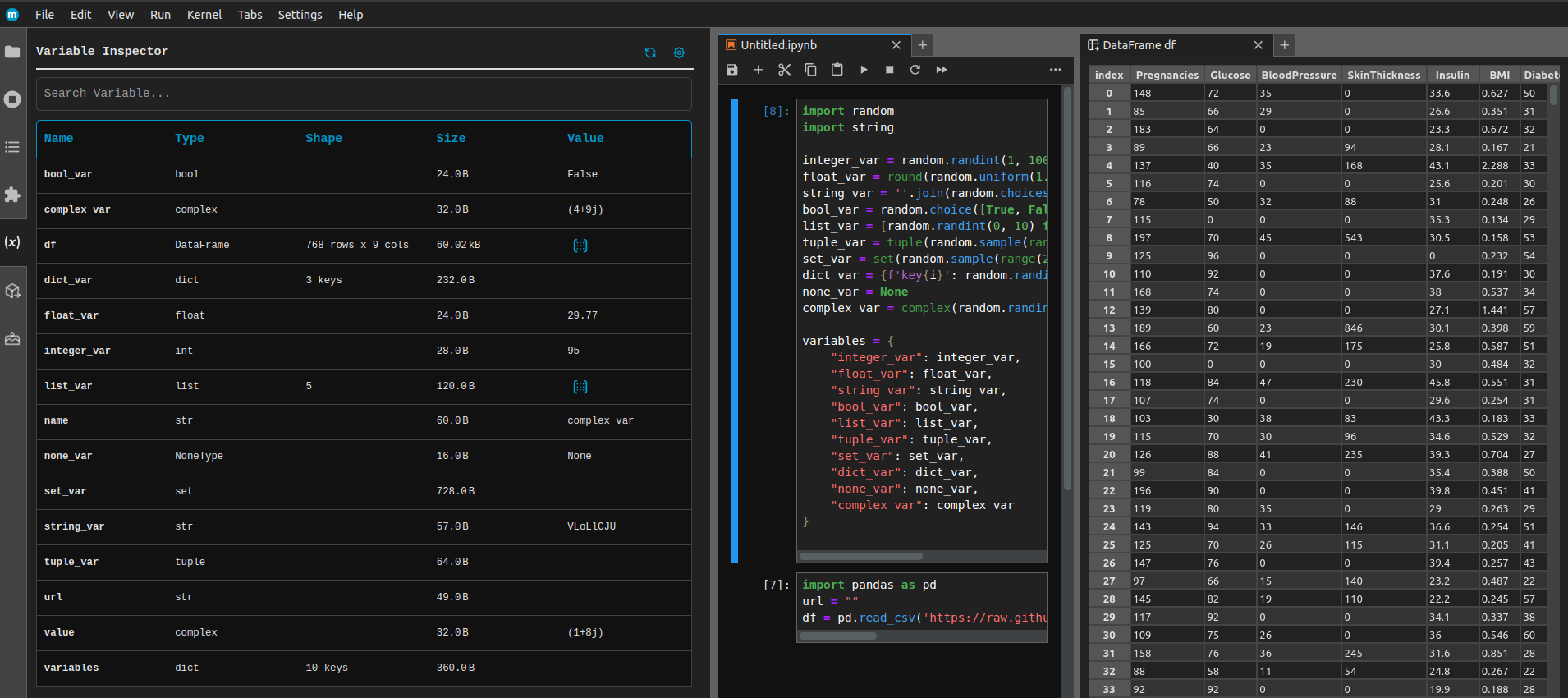
Variable Inspector in MLJAR Studio
Variable Inspector is included with MLJAR Studio, a desktop environment for Python and data analysis built on JupyterLab.
In Studio, you can keep a variable or DataFrame preview open beside a classic notebook or an AI Data Analyst conversational notebook. Open previews automatically update when your Python code changes the data.
No separate extension installation is required.
Variable Inspector requirements
- JupyterLab >= 4.0.0
Install extension
To install the extension, execute:
pip install variable_inspector
Uninstall extension
To remove the extension, execute:
pip uninstall variable_inspector
Contributing
Development install
Note: You will need NodeJS to build the extension package.
The jlpm command is JupyterLab's pinned version of
yarn that is installed with JupyterLab. You may use
yarn or npm in lieu of jlpm below.
# Clone the repo to your local environment
# Change directory to the variable_inspector directory
# Install package in development mode
pip install -e "."
# Link your development version of the extension with JupyterLab
jupyter labextension develop . --overwrite
# Rebuild extension Typescript source after making changes
jlpm build
You can watch the source directory and run JupyterLab at the same time in different terminals to watch for changes in the extension's source and automatically rebuild the extension.
# Watch the source directory in one terminal, automatically rebuilding when needed
jlpm watch
# Run JupyterLab in another terminal
jupyter lab
With the watch command running, every saved change will immediately be built locally and available in your running JupyterLab. Refresh JupyterLab to load the change in your browser (you may need to wait several seconds for the extension to be rebuilt).
By default, the jlpm build command generates the source maps for this extension to make it easier to debug using the browser dev tools. To also generate source maps for the JupyterLab core extensions, you can run the following command:
jupyter lab build --minimize=False
Development uninstall
pip uninstall variable_inspector
In development mode, you will also need to remove the symlink created by jupyter labextension develop
command. To find its location, you can run jupyter labextension list to figure out where the labextensions
folder is located. Then you can remove the symlink named variable-inspector within that folder.
Running end-to-end UI tests
This project uses Playwright to run UI tests against JupyterLab with the MLJAR extension.
Prerequisites
- Node.js / Yarn
- Playwright installed (
jlpm playwright install)
How to Run Tests
You need two terminals:
1. Start JupyterLab
In the first terminal, run:
jlpm lab
This will start JupyterLab at http://localhost:8899/lab.
2. Run UI Tests
In the second terminal, run:
jlpm test:ui:headed
This will:
- Remove any temporary
Untitled*.ipynbfiles - Launch Playwright in headed mode (with a visible browser)
- Run the end-to-end tests defined in
tests/e2e - Remove leftover
Untitled*.ipynbfiles after tests finish
Notes
- Logs are printed to the console during test execution for easier debugging.
- If you encounter navigation timeout errors, make sure JupyterLab is fully started before running the tests.
Packaging the extension
See RELEASE
1 maintainer

Metadata
1 maintainer
Release files for variable-inspector 1.4.0
For a detailed explanation of source distributions (sdists) and built distributions (wheels), please see the package formats documentation.
Built distribution (wheel)
| File | Interpreter | ABI | Platform | Reset |
|---|---|---|---|---|
| variable_inspector-1.4.0-py3-none-any.whl | Python 3 | none | any | Details |
Release files / variable_inspector-1.4.0-py3-none-any.whl
| Download URL | variable_inspector-1.4.0-py3-none-any.whl |
|---|---|
| Size | 329.2 kB |
| Tags | Python 3 |
|
SHA-256 checksum How to use checksums |
a48a9e31fc623720a2459b527f3076dd36ed14cc4420363df574a8e5831eb91a
|
|
BLAKE2b-256 checksum How to use checksums |
90f8e64e652c1257ecff0d204ef6c62f70d392ee8eac6ddeaad84c43c2ead519
|
| Upload date | |
|
Uploaded using Trusted Publishing? What is trusted publishing? |
No |
| Uploaded via |
twine/6.1.0 CPython/3.11.5
|














