
Varo Believe to Monarch
Convert Varo Believe credit card PDF statements to Monarch Money CSV format. No more manual data entry — point the tool at your statements and get a Monarch-ready CSV in seconds.
Why Varo Believe specifically? Varo's regular checking and savings accounts connect to Monarch Money directly via Plaid. Only Varo Believe (the secured credit card) lacks Plaid support, so transactions must be imported manually from the monthly PDF statement.
| GUI | CLI |
|---|---|
 |
 |
Features
- 🖥️ User-Friendly GUI: Graphical interface for non-technical users (also available as standalone executables)
- 📄 Hybrid PDF Extraction: Uses PyMuPDF for table-based extraction and pdfplumber for text-based parsing to capture all transactions, including multi-line descriptions that span page boundaries
- 🔄 Parallel Processing: Process multiple PDFs concurrently with configurable worker count
- 📊 Progress Tracking: Rich progress bars with per-file status
- 💰 Smart Amount Handling: Automatically applies correct sign per section (purchases negative, payments positive, etc.)
- 🎯 Intelligent Section Detection: Identifies and categorizes Purchases, Payments/Credits, Fees, and Secured Account transactions
- 🏦 Account Mapping: Maps transactions to the correct account (Varo Believe Card vs Varo Secured Account)
- 🏷️ Auto-Categorization: Secured Account transactions are automatically
tagged as
Transferin the Category column; credit card transactions are left uncategorized for Monarch to classify - 📊 Account Summary: After each run the tool prints the exact balance and limit values to enter when creating accounts in Monarch Money
- 📝 Monarch-Ready Output: CSV with the exact columns Monarch Money expects
Installation
Option 1: Standalone Executable (Recommended for Non-Technical Users)
Download the pre-built executable for your OS from the Releases page:
- Windows:
varo-to-monarch-windows.exe - macOS (Apple Silicon):
varo-to-monarch-macos-apple-silicon.app.zip(M1/M2/M3/M4, extract and run) - macOS (Intel):
varo-to-monarch-macos-intel.app.zip(pre-2020 Macs, extract and run) - Linux:
varo-to-monarch-linux
No installation required — just download and run.
macOS: opening an unsigned app
Because the app isn't notarized by Apple, macOS will block it the first time. To open it:
- Extract the
.zipand double-clickVaroToMonarch.app— you'll see a "cannot be opened" alert. Click Done (not Move to Trash).- Open System Settings → Privacy & Security and scroll down to the Security section.
- You'll see a message like "VaroToMonarch was blocked" — click Open Anyway.
- A final confirmation prompt appears — click Open.
You only need to do this once. After that, double-clicking the app works normally. This is standard macOS behavior for any app downloaded outside the App Store — see Apple's documentation for more details.
Option 2: Install via pip 
pip install varo-to-monarch
Option 3: From Source
git clone https://github.com/Blacksuan19/varo-believe-to-monarch.git
cd varo-believe-to-monarch
pip install .
Usage
GUI
Standalone executable: double-click the downloaded file.
Installed package:
vtm-gui
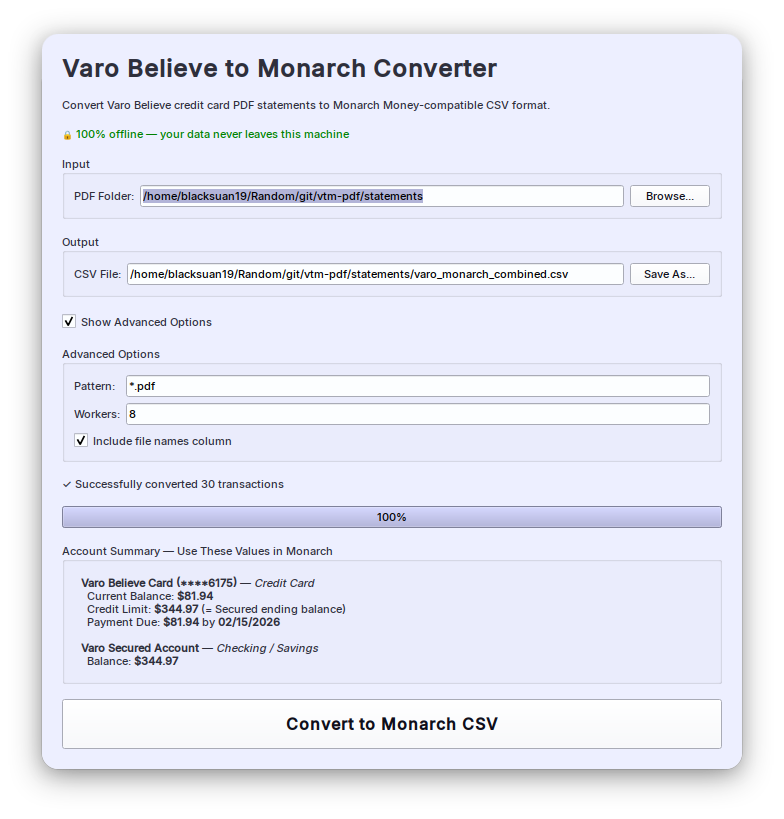
The GUI lets you:
- Select the folder containing your Varo PDF statements
- Choose the output CSV path (defaults to
varo_monarch_combined.csvin the input folder) - Optionally set a filename pattern, worker count, and whether to include the source filename column
Click Convert to Monarch CSV and watch the progress bar. Once complete, an Account Summary panel appears showing the exact balance and limit values to enter when creating accounts in Monarch Money.
CLI
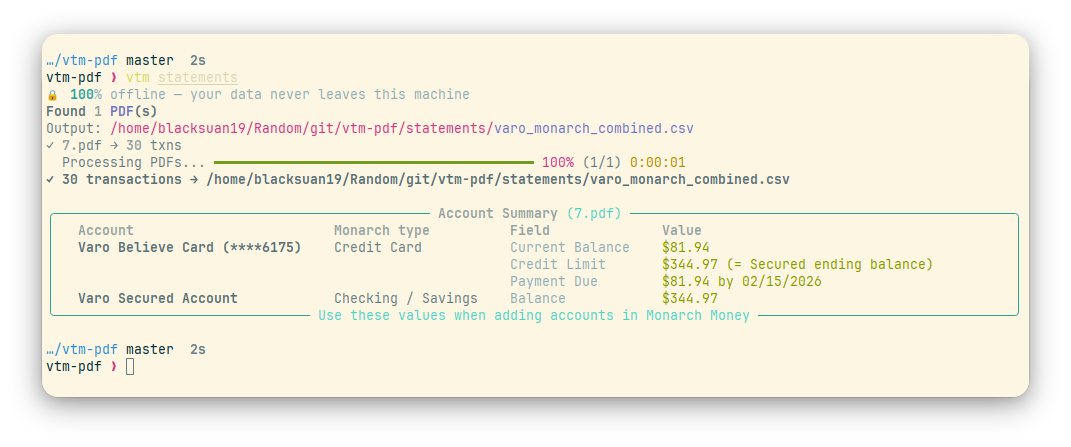
Basic usage — convert all PDFs in a folder:
vtm path/to/statements
Output is written to path/to/statements/varo_monarch_combined.csv by default.
An account summary is printed after each run showing the exact values to enter
when creating accounts in Monarch Money.
All options:
vtm [OPTIONS] [FOLDER]

Arguments:
  FOLDER  Directory containing Varo PDF statements

Options:
  -o, --output PATH               Output CSV file path
  -p, --pattern TEXT              Glob pattern for PDFs (default: *.pdf)
  -w, --workers INT               Parallel workers (default: auto)
      --include-file-names /
      --no-include-file-names     Include/exclude SourceFile column (default: include)
  -h, --help                      Show this message and exit
Examples:
# Custom output path
vtm ./statements --output ~/monarch_import.csv

# Process only a specific statement
vtm ./statements --pattern "2025-12.pdf"

# Use 4 parallel workers
vtm ./statements --workers 4

# Omit the source filename column from output
vtm ./statements --no-include-file-names
Output Format
| Column | Description |
|---|---|
Date |
Transaction date (MM/DD/YYYY) |
Merchant Name |
Full transaction description |
Category |
Transfer for Secured Account transactions; empty for credit card |
Account |
Varo Believe Card or Varo Secured Account |
Amount |
Signed amount (negative = debit, positive = credit) |
Tags |
Always vtm-import — identifies transactions added by this tool |
SourceFile |
Source PDF filename (omitted with --no-include-file-names) |
Importing into Monarch Money
Note: CSV imports are available on web only (not the mobile app). If you need to undo an import, delete the account in Monarch — it will offer to remove the imported transactions at that point. See Monarch's full import guide for reference.
-
On the Monarch web app, go to Accounts and click + Add Account.
-
Click "Import transaction & balance history", then "Import transactions".
-
Upload the generated CSV file.
-
Monarch will auto-detect the column mappings (Date, Merchant Name, Account, Amount) — confirm them and proceed.
-
On the "Assign CSV accounts to Monarch accounts" screen you'll see two entries. For each one, open the dropdown and choose "Create a new account" with the appropriate type:
CSV Account Account type to create Balance / Limit Varo Believe CardCredit Card Current balance and credit limit — shown in the Account Summary printed by the tool Varo Secured AccountChecking or Savings Balance — shown in the Account Summary printed by the tool -
Choose how to handle overlapping transactions:
- Prioritize CSV — replaces any existing transactions in the date range
- Prioritize Monarch — keeps existing data, only imports earlier missing ones
- Import all — imports everything, may create duplicates
-
Review the summary and click Import transactions to finish.
Tip: On repeat imports, select the existing Monarch accounts instead of creating new ones to avoid duplicates.
How It Works
The tool uses a two-pass hybrid extraction strategy:
-
Table extraction (PyMuPDF) — detects and extracts transaction tables directly from the PDF structure. Handles Purchases, Fees, Payments and Credits, and Secured Account Transactions sections.
-
Text parsing (pdfplumber) — line-by-line fallback for transactions that table detection misses. All pages are flattened into a single line list before parsing so that multi-line descriptions split across page boundaries are correctly merged.
-
Deduplication — results from both passes are merged; rows already captured by table extraction are not duplicated from the text pass.
-
Section-based classification — each transaction is assigned the correct account and amount sign based on which section it appears in:
Section Sign Account Purchases negative Varo Believe Card Fees negative Varo Believe Card Payments and Credits positive Varo Believe Card Secured Account Transactions from PDF Varo Secured Account -
Post-processing — description-based rules override section assignments where needed (e.g. transfer descriptions always go to Varo Secured Account regardless of which table they appear in).
Supported Transaction Types
Varo Believe Card
- Credit card purchases
- Fees and charges
- Payments and credits
Varo Secured Account
- Transfers from Secured Account to Believe Card
(
Trf from Vault to Charge C Bal) - Transfers from Secured Account to Checking (
Transfer from Vault to DDA) - Deposits into Secured Account (
Move Your Pay - Chk to Believe)
Requirements
- Python 3.8 or higher
Troubleshooting
No transactions extracted:
- Make sure the PDFs are genuine Varo Bank statements
- Check that the files are not password-protected or corrupted
Missing transactions:
- The tool handles multi-page statements automatically
- Try
--workers 1to rule out any concurrency issues
Wrong amounts or accounts:
- Open an issue on GitHub with a redacted sample statement
Development
# Clone and install
git clone https://github.com/Blacksuan19/varo-believe-to-monarch.git
cd varo-believe-to-monarch
pip install -e .

# Version bump
bumpver update --patch   # 0.4.0 → 0.4.1
bumpver update --minor   # 0.4.0 → 0.5.0
Contributing
Contributions are welcome! Please submit a Pull Request.
License
GNU General Public License v3 — see LICENSE for details.
Disclaimer
This tool is not affiliated with, endorsed by, or connected to Varo Bank or Monarch Money. Use at your own risk. Always verify converted data before importing into Monarch Money.
Acknowledgments
Thanks to leetmastah for testing the Windows and macOS binaries.
1 maintainer

Download files
Download the file for your platform. If you're not sure which to choose, learn more about installing packages.
Source Distribution
Built Distribution
Filter files by name, interpreter, ABI, and platform.
If you're not sure about the file name format, learn more about wheel file names.
Copy a direct link to the current filters
File details
Details for the file varo_to_monarch-0.4.12.tar.gz.
File metadata
- Download URL: varo_to_monarch-0.4.12.tar.gz
- Upload date:
- Size: 34.8 kB
- Tags: Source
- Uploaded using Trusted Publishing? Yes
- Uploaded via:
twine/6.1.0 CPython/3.13.7
File hashes
| Algorithm | Hash digest | |
|---|---|---|
| SHA256 |
9e6d2c33bfdb8e9a35b54c86cee391f8874b47c13e6d38c1d5d3e21921151def
|
|
| MD5 |
15f123ab5e3c424d5e168027f587f591
|
|
| BLAKE2b-256 |
5879889c20478ad96152afc7d82add510bd0d4e80ab8a1559aecf5a9d11c6283
|
Provenance
The following attestation bundles were made for varo_to_monarch-0.4.12.tar.gz:
Publisher:
publish.yml on Blacksuan19/varo-believe-to-monarch
-
Statement:
-
Statement type:
https://in-toto.io/Statement/v1 -
Predicate type:
https://docs.pypi.org/attestations/publish/v1 -
Subject name:
varo_to_monarch-0.4.12.tar.gz -
Subject digest:
9e6d2c33bfdb8e9a35b54c86cee391f8874b47c13e6d38c1d5d3e21921151def - Sigstore transparency entry: 976705054
- Sigstore integration time:
-
Permalink:
Blacksuan19/varo-believe-to-monarch@9fdd14d8929e1856c29cd7a748c12d1aa26afda2 -
Branch / Tag:
refs/tags/0.4.12 - Owner: https://github.com/Blacksuan19
-
Access:
public
-
Token Issuer:
https://token.actions.githubusercontent.com -
Runner Environment:
github-hosted -
Publication workflow:
publish.yml@9fdd14d8929e1856c29cd7a748c12d1aa26afda2 -
Trigger Event:
push
-
Statement type:
File details
Details for the file varo_to_monarch-0.4.12-py3-none-any.whl.
File metadata
- Download URL: varo_to_monarch-0.4.12-py3-none-any.whl
- Upload date:
- Size: 33.0 kB
- Tags: Python 3
- Uploaded using Trusted Publishing? Yes
- Uploaded via:
twine/6.1.0 CPython/3.13.7
File hashes
| Algorithm | Hash digest | |
|---|---|---|
| SHA256 |
34757e8c2506b15790dd80034c3dea9045bbc1fbad2cd0390261b3ec3d68bad8
|
|
| MD5 |
a453f32227f1e18038dcf8d3e77fa87a
|
|
| BLAKE2b-256 |
fbb656c7b162cf3c1dff5c186e89e4d39b624d100d9996665c2d52e67682292f
|
Provenance
The following attestation bundles were made for varo_to_monarch-0.4.12-py3-none-any.whl:
Publisher:
publish.yml on Blacksuan19/varo-believe-to-monarch
-
Statement:
-
Statement type:
https://in-toto.io/Statement/v1 -
Predicate type:
https://docs.pypi.org/attestations/publish/v1 -
Subject name:
varo_to_monarch-0.4.12-py3-none-any.whl -
Subject digest:
34757e8c2506b15790dd80034c3dea9045bbc1fbad2cd0390261b3ec3d68bad8 - Sigstore transparency entry: 976705063
- Sigstore integration time:
-
Permalink:
Blacksuan19/varo-believe-to-monarch@9fdd14d8929e1856c29cd7a748c12d1aa26afda2 -
Branch / Tag:
refs/tags/0.4.12 - Owner: https://github.com/Blacksuan19
-
Access:
public
-
Token Issuer:
https://token.actions.githubusercontent.com -
Runner Environment:
github-hosted -
Publication workflow:
publish.yml@9fdd14d8929e1856c29cd7a748c12d1aa26afda2 -
Trigger Event:
push
-
Statement type:














