
VerdiClip





Fast, faithful screenshots for Windows: grab a precise piece of the screen, mark it up, and put it where it needs to go — in seconds.
VerdiClip is an independent project. See ATTRIBUTION.md for credits.
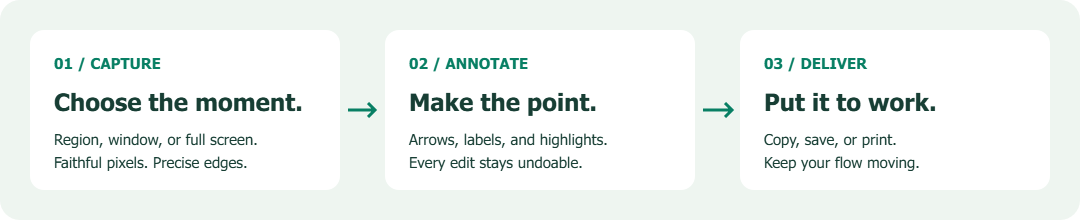
Install
Requires Windows 10 or later and Python 3.13+.
uv tool install verdiclip
Or with pip: pip install verdiclip. Then run verdiclip (or verdiclip-gui for no console window) and VerdiClip sits in the system tray.
Updates
VerdiClip checks PyPI for a newer release a minute after it starts and every 6 hours after that. When it finds one and no image is open, it quits, installs the release, and starts again. A tray notification then says what changed. It updates the way you installed it:
| Installed with | Update |
|---|---|
uv tool install verdiclip |
uv tool upgrade verdiclip |
pip install verdiclip (or uv pip) |
Upgrade in that environment |
uvx verdiclip |
Fetch the release with uvx, then restart with it (the old version if that fails) |
A git checkout (uv sync) |
git pull --ff-only and uv sync, only on main with no local changes |
Tray → Check for updates opens a status window immediately. It stays visible with the result or an error; a failed check can be retried. Development versions that cannot be compared with stable releases say so explicitly. Settings → General turns off automatic checking, or automatic installing (VerdiClip then offers each release in a notification). If an update fails, the old version starts again and the notification names the log, %APPDATA%\VerdiClip\update\update.log.
Capture and tabs
Completed captures open a new tab in the existing editor by default; Settings can choose separate windows. The editor is brought forward when capture completes, unless protected editor UI is open. Ordinary region, window, full-screen and Repeat capture keep their existing behavior. Scrolling capture is temporarily unavailable (see below).
Capture
| Do this | Press |
|---|---|
| Drag a region, or click a window | PrtSc (or left-click the tray icon) |
| Capture the active window | Alt+PrtSc |
| Capture every monitor | Ctrl+PrtSc |
| Repeat the last capture | Shift+PrtSc |
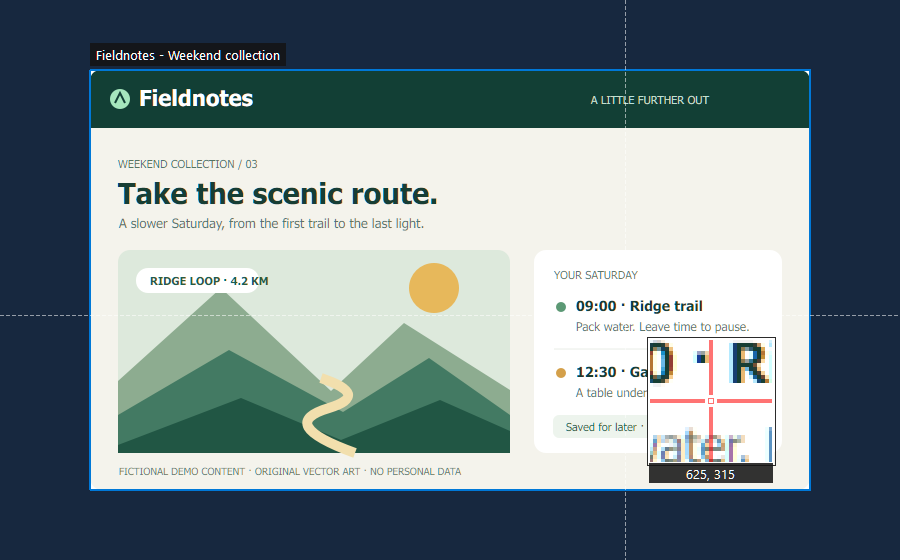
While selecting, the screen is frozen so you get exactly what you saw. A magnifier follows the cursor, arrow keys nudge it by a pixel (Ctrl for 10), Enter starts and finishes a selection from the keyboard, clicking without dragging captures the window under the cursor, and Esc cancels.
If Windows or another screenshot tool already owns PrtSc, VerdiClip tells you which hotkeys are taken; everything is still available from the tray menu, and you can choose other keys in Settings.
Scrolling capture
Scrolling capture is temporarily unavailable. The earlier implementation (0.14.0 to 0.14.2) refused most real-world panels, so its tray entry and Ctrl+Alt+PrtSc shortcut are hidden while it is redesigned. A saved custom shortcut is kept for its return.
Annotate
| Tool | Key | Tool | Key |
|---|---|---|---|
| Select | V |
Text | T |
| Crop | C |
Counter | N |
| Rectangle | R |
Highlight | H |
| Ellipse | E |
Obfuscate | O |
| Line | L |
Freehand | F |
| Arrow | A |
| Action | Shortcut |
|---|---|
| Copy image and close | Ctrl+Shift+C |
| Save / Save as | Ctrl+S / Ctrl+Shift+S |
| Undo / Redo | Ctrl+Z / Ctrl+Y |
| Copy / Paste marks | Ctrl+C / Ctrl+V |
| Delete selection | Delete |
Ctrl+P |
|
| Previous / next tab | Ctrl+PgUp / Ctrl+PgDown (also Ctrl+Shift+Tab / Ctrl+Tab) |
| Move tab left / right | Ctrl+Shift+PgUp / Ctrl+Shift+PgDown |
| Zoom | Ctrl+wheel |
| Actual size / Fit | Ctrl+0 / Ctrl+Shift+F |
| Pan | Space+drag |
| Nudge / Nudge faster | Arrows / Ctrl+Arrows |
| Rotate right / left | Ctrl+R / Ctrl+Shift+R |
| Flip horizontally / vertically | Ctrl+Shift+H / Ctrl+Shift+V |
| Resize | Ctrl+Alt+I |
| Back out one step | Esc |
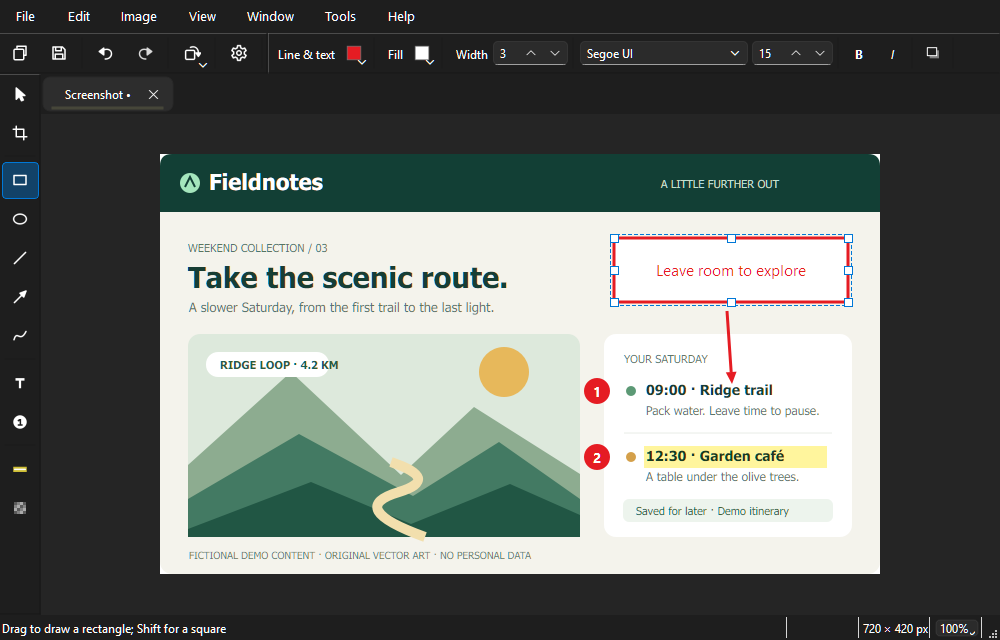
- Labels in boxes. After drawing a rectangle or ellipse, just type — the text is centered and wraps inside it. Double-click (or
Enter/F2) to edit later;Escskips. - Shift draws squares, circles, and 45° lines.
- Your styles stick. Colors, fills, widths, and fonts you pick are remembered per tool for the next screenshot.
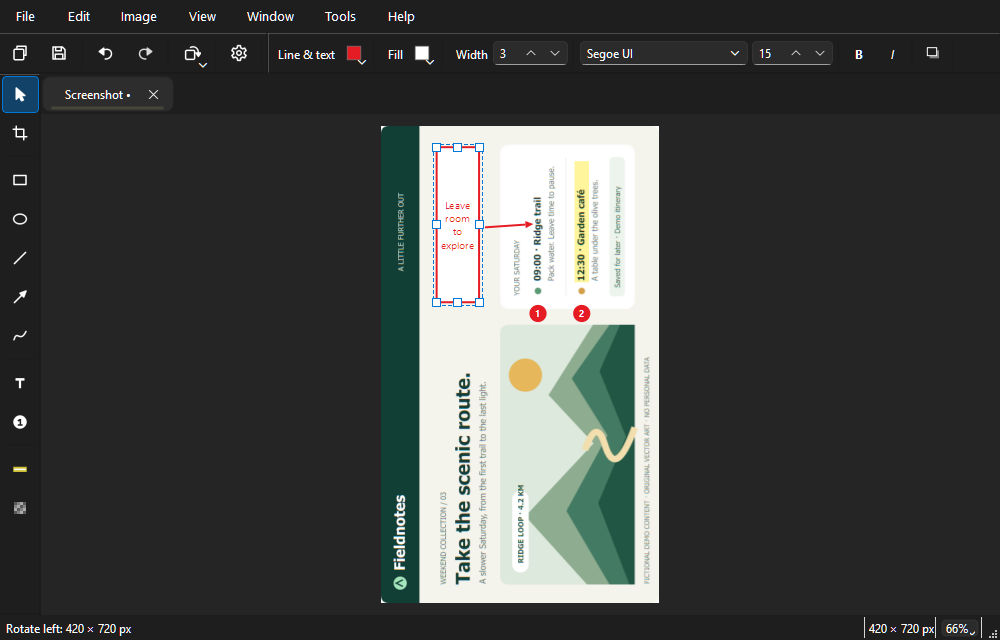
- Rotate, flip, and resize from the Image menu or the toolbar's Image button. Your marks turn and scale with the picture; text stays upright. Resize works on what you see (after cropping), in pixels or percent, keeping the aspect ratio unless you untick it.
- Everything is undoable, including crop, which never throws pixels away.
- The quickest path: draw,
Escuntil nothing is selected,Enter— the image is on the clipboard and the editor closes. Closing an image you haven't copied or saved asks first (you can turn this off in Settings → Editor).
Settings
Open from the tray menu or with Ctrl+, in any editor.
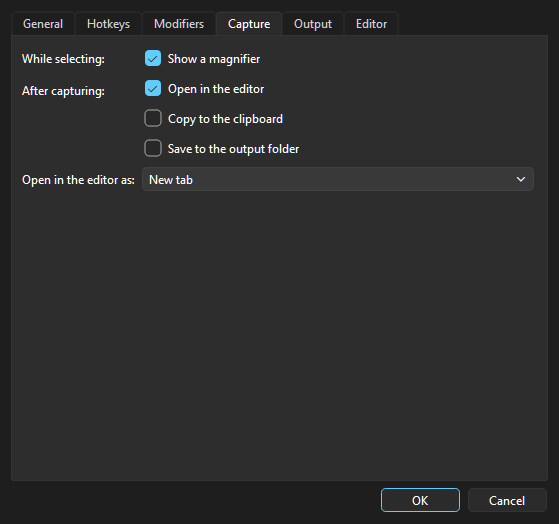
- After capturing — any combination of: open in the editor, copy to the clipboard, save to the output folder.
- Hotkeys — validated as you type; conflicts are reported.
- Output — folder, file-name pattern (
{date},{time},{title},{counter}; default{date}_{time}_{title}, where{title}is the captured window's title (spaces become_when the pattern has none), or Screenshot / Screen for region and full-screen captures) with a live preview, format, JPEG quality. - Editor — default color, width, and font.
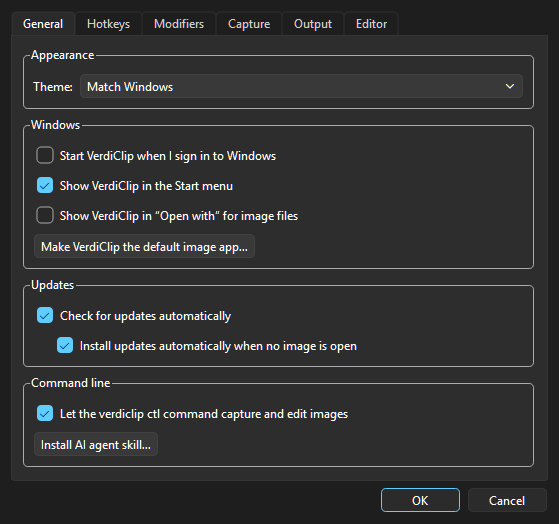
- General — light, dark, or match-Windows theme; start at sign-in; check for and install updates automatically; show VerdiClip in Explorer's Open with menu for images; let AI tools and scripts read open images (
verdiclip ctl). Make VerdiClip the default image app… opens Windows Settings at VerdiClip's Default apps page, where you choose it as the default (Windows requires you to confirm this yourself).
Command line
verdiclip capture screen -o shot.png
verdiclip capture region --region 0,0,1280,720 --clipboard
verdiclip capture window --delay 3
verdiclip open picture.png          # Opens in the running instance if there is one
For AI tools and scripts
verdiclip ctl reads images open in the running app, unsaved edits included, and prints JSON:
verdiclip ctl list                          # Every open image, in every window and tab
verdiclip ctl get --doc <id>                # Annotations, crop, selection, state
verdiclip ctl render --grid 100 -o view.png # PNG of the current state, gridded in image pixels
Only programs running as your Windows user can connect. Turn it off in Settings → General. See docs/design/automation.md.
How it is built
Start with docs/design/philosophy.md: the core purpose, the principles, and the architecture. docs/design/ux-contract.md specifies every interaction; each item has an automated journey test.
In short: an edit session is an immutable base image, a non-destructive crop, and a list of immutable annotation values. The only way to change it is a command through the undo history, and one renderer draws both the canvas and the exported image.
Development
Requires Windows 10+ and uv.
Run from the checkout
Run uv sync once in the repository root to create .venv and install dependencies. Then use either root launcher:
- Double-click Run-VerdiClip.bat in Explorer.
- From PowerShell, run
.\Run-VerdiClip.ps1(see Run-VerdiClip.ps1).
Both run .venv\Scripts\pythonw.exe -m verdiclip directly and return immediately, starting the tray app without a console window. A terminal opened by double-clicking the batch file closes after launch; an existing terminal stays available. The scripts work from any current directory and require Windows. If .venv is missing, run uv sync before trying again.
Development commands
uv sync                  # Create .venv and install dependencies
uv run verdiclip         # Run the tray app
uv run poe               # List tasks
uv run poe fix           # Format and auto-fix lint
uv run poe check         # Format check, lint, strict type check, tests with coverage
uv run poe ux            # UX journey tests only
uv run poe ux-snapshots  # Journeys plus a PNG per step in docs/ux/snapshots
uv run poe ux-gallery    # Key screens in light and dark themes (docs/ux/gallery)
uv run poe check is the quality gate: ruff (broad rule set), ty with every rule at error, and pytest with ≥ 90% branch coverage. Regenerate the README screenshots with uv run python scripts/ux_gallery.py --readme-dir docs/images. Releases use automated verification, with physical smoke checks only for critical gaps; see the release qualification policy. See CONTRIBUTING.md for commit conventions and releases.
License
1 maintainer

Metadata
1 maintainer
Release files for verdiclip 0.15.0
For a detailed explanation of source distributions (sdists) and built distributions (wheels), please see the package formats documentation.
Source distribution (sdist)
| File | Size | Uploaded | Provenance | Actions |
|---|---|---|---|---|
| verdiclip-0.15.0.tar.gz | 215.7 kB | With provenance | Details for verdiclip-0.15.0.tar.gz |
Built distribution (wheel)
| File | Interpreter | ABI | Platform | Actions Reset |
|---|---|---|---|---|
| verdiclip-0.15.0-py3-none-any.whl | Python 3 | none | any | Details for verdiclip-0.15.0-py3-none-any.whl |
Total release size: 459.4 kB
Release files / verdiclip-0.15.0.tar.gz
| Download URL | verdiclip-0.15.0.tar.gz |
|---|---|
| Size | 215.7 kB |
| Tags | Source |
|
SHA-256 checksum How to use checksums |
e85f8c86c936bdbf2487369244b909208a588c40d48a2af68e8262ff179783a1
|
|
BLAKE2b-256 checksum How to use checksums |
d3360044fd2f36372983491d1461069b043e0fad34c07017fa7357feb2e2ee53
|
| Upload date | |
|
Uploaded using Trusted Publishing? What is trusted publishing? |
Yes |
| Uploaded via |
twine/7.0.0 CPython/3.13.16
|
Provenance
Provenance describes where a file came from. On PyPI, provenance is shared via attestations, which provide a verifiable record of the build or publishing details. View details, limitations and caveats.


PyPI Publish Attestation
PyPI verified that this artifact, at this checksum, originated from the publisher listed below.
Signed by GitHub Actions, verified by PyPI on Nov 12, 2026.
Transparency logRelease files / verdiclip-0.15.0-py3-none-any.whl
| Download URL | verdiclip-0.15.0-py3-none-any.whl |
|---|---|
| Size | 243.7 kB |
| Tags | Python 3 |
|
SHA-256 checksum How to use checksums |
0208acaccb683ff2b58e43121dde33d445c863f452e8122d944030905b7a37d8
|
|
BLAKE2b-256 checksum How to use checksums |
f4a83ebbe71cf0a0698f07dcfb8e3fbb9820efa78b52b77e8cc5d5e88a31b1bb
|
| Upload date | |
|
Uploaded using Trusted Publishing? What is trusted publishing? |
Yes |
| Uploaded via |
twine/7.0.0 CPython/3.13.16
|
Provenance
Provenance describes where a file came from. On PyPI, provenance is shared via attestations, which provide a verifiable record of the build or publishing details. View details, limitations and caveats.
PyPI Publish Attestation
PyPI verified that this artifact, at this checksum, originated from the publisher listed below.
Signed by GitHub Actions, verified by PyPI on Nov 12, 2026.
Transparency logSecurity for verdiclip 0.15.0
Provenance
Provenance describes where a file came from. On PyPI, provenance is shared via attestations, which provide a verifiable record of the build or publishing details. View details, limitations and caveats.
Full provenance
Both files in this release have been uploaded with provenance metadata.
Attestation for verdiclip-0.15.0.tar.gz
PyPI Publish Attestation
PyPI verified that this artifact, at this checksum, originated from the publisher listed below.
Signed by GitHub Actions, verified by PyPI on Nov 12, 2026.
Transparency logA note on package security
PyPI is a repository for distributing packages, not a service for auditing them. While third-party security researchers and our staff do their best to detect and remove malicious packages, PyPI cannot guarantee the quality, security or suitability of any given package.
To learn more about protecting yourself from malicious actors, visit our package security documentation.














