
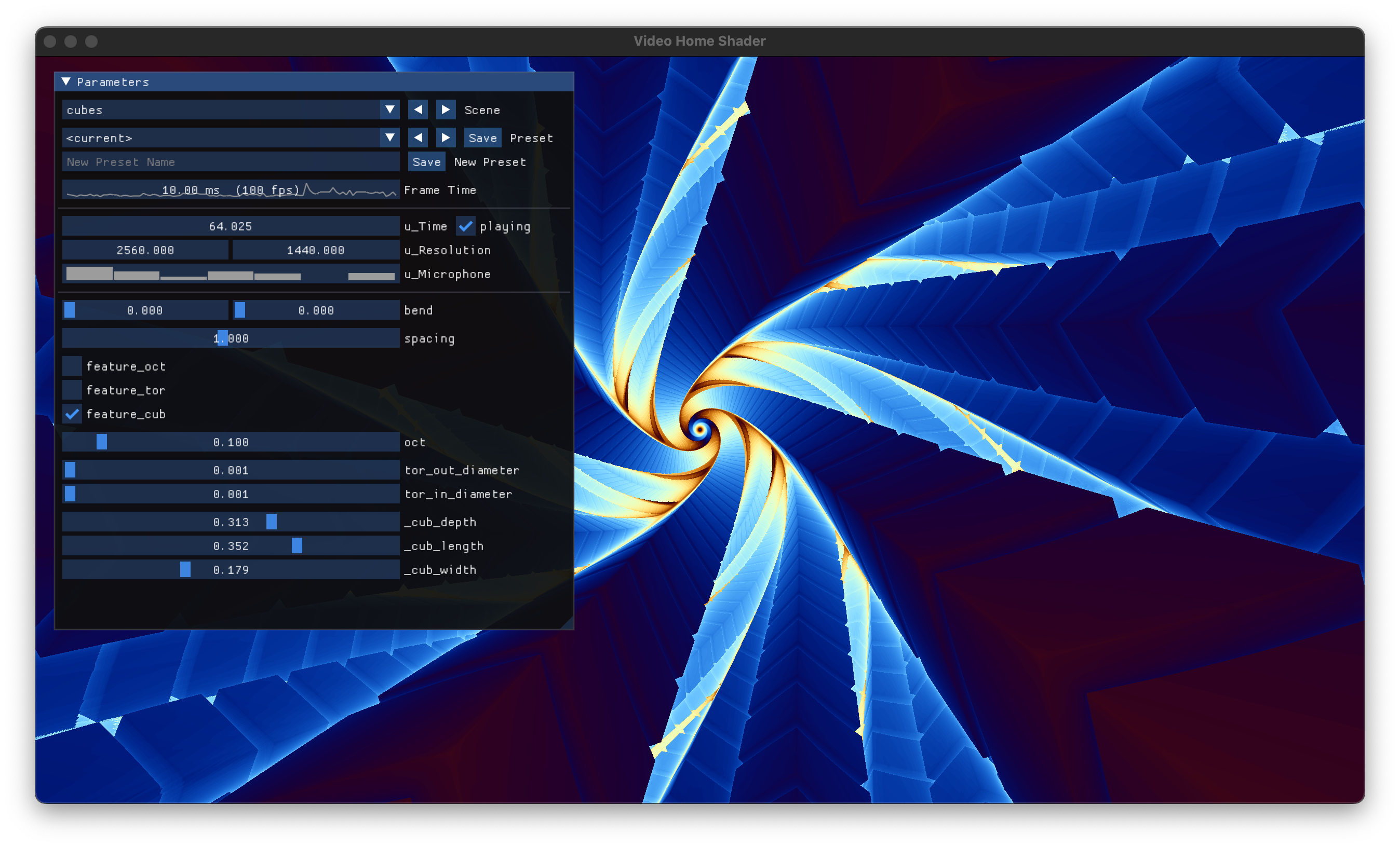
Video Home Shader: A demo tool for digitally assisted analog vjaying

Project description
VHSh
Video Home Shader: A demo tool for digitally assisted analog vjaying
Installation
uv is the recommended way of installing
- macOS
brew install uv
brew install portaudio  # for audio support
uv tool update-shell
- Ubuntu
sudo snap install --classic astral-uv
# for audio support
sudo apt install build-essential python3.12-dev portaudio19-dev
uv tool update-shell
Alternatively refer to uv's documentation and ensure to provide
the necessary system dependencies.
Install VHSh via:
uv tool install vhsh[all]
The [all] installs the full feature set. If you want to manually select
certain features, for example because you don't need audio or MIDI, you can list
them in the brackers (multiple are possible):
- automatic reload on file change:
vhsh[watch] - MIDI support:
vhsh[midi] - audio support:
vhsh[audio] - import from Shadertoy:
vhsh[import] - everyting:
vhsh[all]
Development
Create a virtual environmenet and install the dependencies
uv venv
source .venv/bin/activate
uv install -e '.[all,dev]'
Building and publishing a package
- Update
scr/vhsh/__init__.py:__version__manually - Update the ref in the screenshot URL of the README
uv version --bump patch
git tag x.y.z

uv build

source .env  # export UV_PUBLISH_TOKEN=
uv publish
Usage
To open a shader file, a scene, use the run command:
vhsh run myscene.glsl
When run without any file argument, the default scenes will be loaded and a
testcard.glsl scene will be created in the current directory.
If you pass multiple shader files, you can switch between them in the tool.
To open all files GLSL files in a given folder, use my_shader_folder/*.glsl.
If installed with [watch], the shader files will be watched for changes and
automatically reloaded.
If installed with [audio] You can pass --mic to enable microphone input. See
Builin Parameters.
To toggle the UI, press <tab>.
Writing Shaders for Video Home Shader
Scene format version: 1
Video Home Shader supplies you with a 2D canvas to draw into using an OpenGL fragment shader. It is run once for every pixel on the screen and determines it's color.
Berfore your shader file is run, a preamble is prepended to the source code. It defines
OpenGL Version 330 core
so you just need to supply a main function and set the output color
FragColor as an RGBA vec4 with floats between 0 and 1 (0., 0., 0., 1.)
being black).
void main() {
    FragColor = vec4(0.8, 0.2, 0.2, 1.0);
}
Builtin Parameters
You can use the following built-in parameters, that are pre-defined in the preamble:
-
vec2 Resolution: width and height of the window in pixels. This can be used to calculate normalized screen space coordinates likevec2 pos = gl_FragCoord.xy / Resolution;
where
pos.xywill now have the current pixel's coordinates between[-1, 1]^2 -
float Time: Seconds since the program start. This can be used to animate things. For examplevec4 color = vec4((sin(2. * 3.14 * Time * ) + 1.) / 2., 0., 0., 1.);
will create a red pulsing effect with one pulse per second.
-
float[7] Microphone: If started with--mic, this is a float array that gives you volume per frequency band normalized over the last 5s.Index Range Description Microphone[0]0 Hz 60 Hz Rumble Microphone[1]60 Hz 250 Hz Low End Microphone[2]250 Hz 500 Hz Low Mids Microphone[3]500 Hz 2 kHz Mids Microphone[4]2 KHz 6 kHz High Mids Microphone[5]6 kHz 8 kHz Highs Microphone[6]> 8 KHz Air
Custom Parameters
You can define custom parameters to vary directly in the code, and the user
interface to manipulate them will be generated automatically. Use the uniform
keyword followed by a type (bool, int, float, vec2, vec3, vec4) and
a name.
uniform bool override_red; // =False
uniform int n_max; // =10 [1,200] #0
uniform float scale; // =1. [0.,2.] #16
uniform vec2 origin; // =(0.,0.) [-2.,-2.]
uniform vec3 dir; // =(1.,0.,0.) [-1.,-1.]
uniform vec4 base_color; // <color> =(1.,1.,0.,1.)
Using a special syntax in a comment on the same line, you can define the the following uniform control properties:
=VALUEdefault value[MIN,MAX,STEP]range (whereSTEPis optional).<WIDGET>special UI widget<color>onvec3for a RGB and onvec4for a RGBA color picker<log>for a logarithmic scale<drag>for controling the UI widget with dragging (instead of slider)
#MIDIMIDI control ID. To bind a MIDI control to a uniform, for example:#16.
The have to be defined in the order
uniform type name; // <WIDGET> =VALUE [MIN,MAX,STEP] #MIDI
and the values (and ranges) may not contain whitespace. Each individual part
(widget, value, range) is optional and they can be mixed and matched as
desired, as long as the order of appearance is correct. As generally with
GLSL, it is also important to strictly match the types. Supplying a float
as default value for an int will not work. There may be no other text in
the comment. All vector types have to be supplied as a comma-separated list
of floats, enclosed by parentheses (1.,2.,3.). One can only supply a
scalar range that applies along all dimensions.
// syntax error
uniform float scale; // =1
// OK
uniform float scale; // =1.

// syntax error
uniform vec2 origin; // =[0.,0.]
// OK
uniform vec2 origin; // =(0.,0.)

// syntax error
uniform vec3 dir; // [[0.,1.],[0.,1.],[0.,5.]]
// OK
uniform vec3 dir; // [0.,1.]
dir.z *= 5;
By using ctrl+click, one can directly edit the values with keyboard
input.
If two consecutive uniforms share a common prefix in their name (like
box_size and box_color), they will be grouped together.
Presets
You can save the current uniform values as the new =DEFAULT parameter in your
loaded shader source file by clicking Save when the currently selected preset.
is <current>.
Furthermore, you can store multiple sets of parameters (including different)
default values, ranges, MIDI mappings etc.) as presets. To save a new preset,
enter the name in the Name field and click New Preset. The shader source
file will be modified by prepending the unform and metadata defintions with a
special comment prefix (/// ). Since all those lines will deleted and
rewritten on save, be sure to not use triple-slashes for other reasons. Each
preset is preceeded by its name.
/// // My New Preset
/// uniform bool override_red; // =False
/// uniform int n_max; // =10 [1,200] #0
/// uniform float scale; // =1. [0.,2.] #16
/// uniform vec2 origin; // =(0.,0.) [-2.,-2.]
/// uniform vec3 dir; // =(1.,0.,0.) [-1.,-1.]
/// uniform vec4 base_color; // <color> =(1.,1.,0.,1.)
You can add, modify and delete these comment blocks with you're text editor as well.
To update an existing preset, select it, adjust the parameter values and click
Save. The current paremeter values will be written to the default values of
the currently selected preset.
Metadata
Metadata for a scene can be recorded in the form of
/// @key value
Currently supported metadata fields:
version(int): Used to ensure scene format and VHSh version are compatible. Will emit a warning when loading a scene with missing or incompatible version. Missing version will be updated when saving a preset.name(str): Can be used to set a custom scene name. If omitted, the file name will be cleaned up and title-cased.author(str): Credit the author.
Resources
- https://iquilezles.org/articles/
- https://docs.gl/sl4/
- https://www.youtube.com/watch?v=f4s1h2YETNY
- http://dev.thi.ng/gradients/
Scene Format Version History
@version 1
- Introduced version number
- Changed system uniforms from
u_TimetoTimeetc. - Introduced metadata, keys:
version,name,author
MIDI Support
When installed using [midi] flag, VHSh will listen to incoming MIDI messages
and allow you to map parameters to MIDI controls. How to assign uniform mappings
is described in Custom Parameters.
There are also a couple of system controls, like switching scenes, that can be
mapped to buttons as well. Such a mapping is defined as a TOML file and
passed via --midi-mapping.
[scene]
prev = 58  # switch to next scene
next = 59  # switch to previous scene

[preset]
prev = 61  # switch to next preset
next = 62  # switch to previous preset
save = 60  # save current parameter values to a new preset

[ui]
toggle = 45  # show/hide parameter control window

[parameter.time]
toggle = 41
Sensible mappings for various controls are supplied in
midi_mappings/.
Migrating Scenes
For a history of the scene format, see Scene Format Version History.
To migrate your scenes from its current version to the most recent one, use
the migrate command:
vhsh migrate myscene.glsl
Afterwards, the file myscene.glsl will be migrated and can be run with
vhsh run. A backup file will be created in the current directory, so in case
there is a problem with the auto-migration no, no data will be lost.
Check vhsh migrate --help for more info, but you can also pass --from and
--to version numbers to only migrate between those.
Importing Scenes
Shadertoy
You can import scenes from Shadertoy.com.
vhsh import https://www.shadertoy.com/view/ftt3R7
[!WARNING] The Shadertoy API usage was exceeded and the included key does not work..
To use your own API key (available from Shadertoy Apps), set
$VHSH_API_KEY_SHADERTOY:
VHSH_API_KEY_SHADERTOY=abc123 vhsh import https://www.shadertoy.com/view/ftt3R7
Development
You can run vhsh with the -v/--verbose (before the sub-command), to enable
debug logging.
VHSh uses the Astral toolchain: uv for dependcy-management and
packaging, ruff for linting and formatting, and ty as language
server and type checker.
Setup
On macOS, install uv via, or refer to its documentation:
brew install uv
Then create a virtual environment and run the test suite.
uv sync --dev --extra all
uv run ruff check
uv run ty check
uv run vulture
uv run pytest
To ignore formatting changes etc for git-blame, configure
git config blame.ignoreRevsFile .git-blame-ignore-revs
Publish
To publish the package to PyPI, setup the credentials for PyPI in .env
UV_PUBLISH_TOKEN=pypi-...
Create a SemVer git tag, as the package version is dynmically
determined by the latest git tag. Use uv to build and publish wheels.
git tag -a v1.23.42

set -a; source .env; set +a

uv build
uv publish
Resources
- https://pthom.github.io/imgui_manual_online/manual/imgui_manual.html
- https://pyopengl.sourceforge.net/documentation/manual-3.0/
- https://regex101.com
- https://github.com/pyimgui/pyimgui/blob/master/doc/examples/testwindow.py
- https://mido.readthedocs.io/en/stable/intro.html
Miscellaneous
If you're seeing a message like
2024-10-02 22:10:15.567 Python\[75271:1828570\] ApplePersistenceIgnoreState:
Existing state will not be touched. New state will be written to
/var/folders/2b/gfpmffr15n9cwdy6_44mhy8r0000gn/T/org.python.python.savedState
run the following to get rid of it:
defaults write org.python.python ApplePersistenceIgnoreState NO
License
VHSh Copyright (C) 2024  Philipp Stephan
This program comes with ABSOLUTELY NO WARRANTY
This is free software, and you are welcome to redistribute it
under certain conditions
Release history Release notifications | RSS feed


Download files
Download the file for your platform. If you're not sure which to choose, learn more about installing packages.
Source Distribution
Built Distribution
Filter files by name, interpreter, ABI, and platform.
If you're not sure about the file name format, learn more about wheel file names.
Copy a direct link to the current filters
File details
Details for the file vhsh-1.0.0.tar.gz.
File metadata
- Download URL: vhsh-1.0.0.tar.gz
- Upload date:
- Size: 2.4 MB
- Tags: Source
- Uploaded using Trusted Publishing? No
- Uploaded via: uv/0.9.21 {"installer":{"name":"uv","version":"0.9.21","subcommand":["publish"]},"python":null,"implementation":{"name":null,"version":null},"distro":{"name":"macOS","version":null,"id":null,"libc":null},"system":{"name":null,"release":null},"cpu":null,"openssl_version":null,"setuptools_version":null,"rustc_version":null,"ci":null}
File hashes
| Algorithm | Hash digest | |
|---|---|---|
| SHA256 |
6250134b03fba9901c8165b27e74049a89e240f4505632d65e8db1912d6b3a81
|
|
| MD5 |
b74794f7090702098e8be910fd07aafa
|
|
| BLAKE2b-256 |
ed1bde75cc7f961158f5c8994ea1506aec525a2f5c3f9a24b0148d3c7e725a33
|
File details
Details for the file vhsh-1.0.0-py3-none-any.whl.
File metadata
- Download URL: vhsh-1.0.0-py3-none-any.whl
- Upload date:
- Size: 56.7 kB
- Tags: Python 3
- Uploaded using Trusted Publishing? No
- Uploaded via: uv/0.9.21 {"installer":{"name":"uv","version":"0.9.21","subcommand":["publish"]},"python":null,"implementation":{"name":null,"version":null},"distro":{"name":"macOS","version":null,"id":null,"libc":null},"system":{"name":null,"release":null},"cpu":null,"openssl_version":null,"setuptools_version":null,"rustc_version":null,"ci":null}
File hashes
| Algorithm | Hash digest | |
|---|---|---|
| SHA256 |
4b55935429f2dbf3a75c77643798949f5d14865a4034da0c6488a1cac3ab25a5
|
|
| MD5 |
0c374aa4fa09d4f341aa8fbe80c5b36b
|
|
| BLAKE2b-256 |
12b56e4fc42577db4c8717c8de1006e94a3b4354b998464c57d74c409d9ec5d9
|






