
video-annote
video-annote is a desktop tool (PyQt5) for labeling time ranges in one or more synchronized videos and turning them into a machine-learning dataset. You watch several camera angles side by side, mark where each labeled step starts and ends, and export frame-accurate clips with synchronized audio that is never re-encoded lossily.
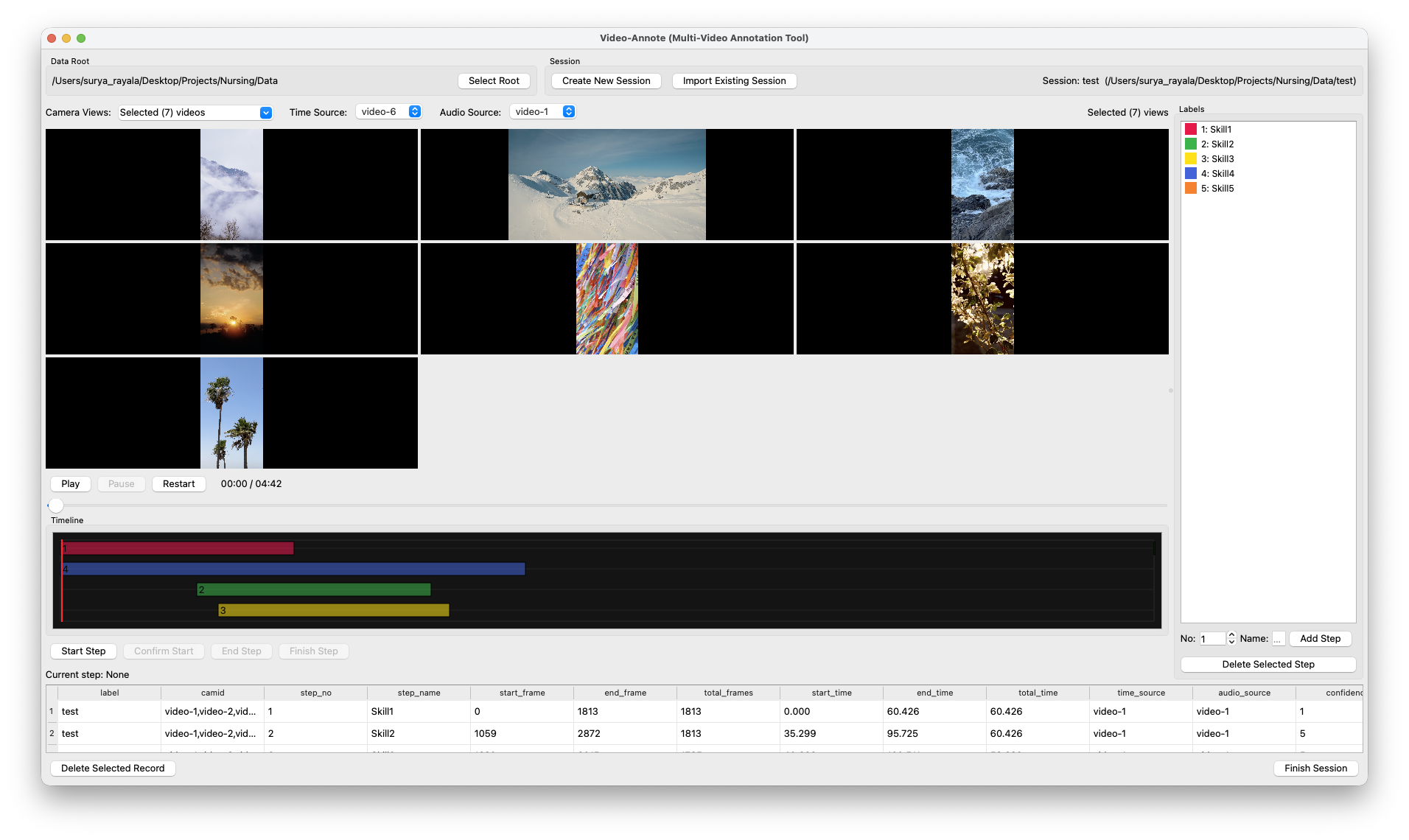
(Screenshot of 0.1.x. 0.2.0 adds a menu bar, a resizable table, a timeline with names and a time ruler, keyboard labeling, Session Info, Export Clips… and a time/frame readout.)
- Sessions with multiple videos (local files or URLs, including
.m3u8) - Synchronized playback with a chosen Time Source (master clock) and Audio Source
- Frame-accurate labeling: times snap to the frame on screen; frame stepping and labeling from the keyboard
- Timeline and table views to review, adjust (frame-exact) and delete labels, with undo
- Autosave of every change (
label.tsv+session.json) - Keeps when each video was recorded (real-world start and end, as precisely as the file states
it) in
session.jsonand the export manifest - Export of labeled clips (MP4 with the recorded audio, plus WAV) with a manifest, from the GUI or the command line
- Import diagnostics: codec, frame rate, loudness, dual-mono, leading silence and mains-hum detection
Install
Requirements: Python ≥ 3.10 and ffmpeg/ffprobe (needed to import videos and export clips). ffmpeg 5.1 or newer is recommended (tested with 6.1, 7.1, 8.0 and 9.0). Older releases such as the 4.4 package of Ubuntu 22.04 work through a compatibility fallback (import and export were checked with 4.4 and 5.0; the test suite itself needs 5.1+). Prefer conda-forge, Homebrew or a static build.
The simplest setup is a conda environment, which provides ffmpeg too:
conda create -n video-annote python=3.10 -y
conda activate video-annote
conda install -c conda-forge ffmpeg -y
pip install video-annote
video-annote            # or: python -m video_annote
Other ways to get ffmpeg: brew install ffmpeg (macOS), sudo apt install ffmpeg (Debian/Ubuntu),
winget install ffmpeg (Windows). If ffmpeg is not on PATH, point FFMPEG_BIN and FFPROBE_BIN
at the executables. video-annote also looks next to the running Python (conda/venv) and in the usual
Homebrew folders, so launching from a desktop shortcut works too.
From source (development)
git clone https://github.com/Surya-Rayala/Video-Annote.git
cd Video-Annote
uv sync                     # creates .venv with the app and the test tools
uv run video-annote
uv run pytest               # tests; media tests need ffmpeg on PATH
Workflow
- Select Root… – a folder that holds your sessions and the shared label list (
config.json). It is opened again at the next start. - New Session… – enter a label (e.g.
session_001) and add the videos in camera order (Add Video, or drag files onto the dialog; Move Up/Down reorders them). Each video shows when it was recorded, if its file says so; to give a recording start yourself, select the video, choose how the time is written (Unix time, or a date and time written year first, month first or day first) and, for a date and time, the time zone of the clock that wrote it; type it, check the date and time shown under it and press Confirm (optional; see Recording times). Import runs in the background with a progress bar and can be cancelled. Open Session… opens a session of the root, with its number of videos and labels; the session opened last is preselected, so ⌘O (Ctrl+O) and Return reopen it. - Choose Camera Views (what is shown; each view is captioned with the recording it came from), the Time Source (the clock used for all label times) and the Audio Source (the video you hear).
- Add labels on the right (number + name; the next free number is suggested). Each label keeps a stable color.
- Record a label: select it → Start (I) → move to the first frame of the step → Confirm Start (I) → play to the last frame of the step → End (O) → adjust if needed → Confirm End (O), then give a confidence (1–10; typing a digit sets it, 0 = 10) and optional notes (⌘/Ctrl+Return saves). Cancel Label (Esc) abandons a label that is being recorded. The time and audio sources are locked from Confirm Start until the label is saved or cancelled.
- Review: click a block on the Timeline, or double-click a row of the table, to show its
first frame; hovering a block shows its details; double-click it to edit (drag its white handles;
Return saves, Esc cancels) or delete it. For a frame-exact correction, select the annotation,
step to the exact frame with ←/→ and press Shift+I (start) or Shift+O (end), also in the
table's right-click menu; [ and ] show its first and last frame. Times typed into the table
can be seconds (
64.5) or minutes:seconds (01:04.500). Edit ▸ Undo (⌘Z / Ctrl+Z) undoes adding, editing and deleting annotations. - Export Clips… writes the labeled clips and a manifest. Session Info shows each video's length, when it was recorded (Set start… enters or changes it) and anything worth knowing about it. Finish Session saves and closes it.
The table shows each annotation's step, name, start, end, length, confidence and notes; right-click its column titles to also show the views, frame numbers and sources.
Keyboard (also under Help ▸ Keyboard Shortcuts): Space play/pause · ←/→ one frame · Shift+←/→ one second · Home/End first/last frame · I/O start/end a label · Esc cancel · Delete delete the selected annotation (asks first) · ⌘N / ⌘O / ⌘I / ⌘E (Ctrl on Windows and Linux) new session, open session, Session Info, export. Single keys never act while you type in a text field. A click on the progress bar goes there, except while a label is being recorded. The readout next to the transport buttons shows the time-source frame on screen and its start time, exactly as a label starting there would be stored, and, when the recording states when it was made, the real-world time of that frame. When paused, every camera shows the frame that the export uses for that moment.
Everything is saved automatically after each change. If a save fails (e.g. the disk is full), you are told, and Finish Session / quitting will not silently drop unsaved work.
How videos are imported
Every source becomes a working copy video-N.mp4 in the session folder. It is what you watch and
what clips are exported from, so it must play everywhere, seek quickly and keep the source's timing
and audio intact:
| Stream | What happens | Why |
|---|---|---|
| Video | H.264 (CRF 18), 8-bit 4:2:0, constant frame rate at the source's nominal rate (every frame in the slot nearest to its timestamp), a keyframe every second, original resolution | Plays in Qt on every platform; frame k is always shown during [k/fps, (k+1)/fps); scrubbing stays responsive. Interlaced input is deinterlaced, full-range (JPEG) video is converted to standard range, rotation is applied. |
| Audio: AAC/ALAC | Copied bit-for-bit | No re-encoding needed. |
| Audio: anything else (MP3, PCM, Opus, …), and AAC from Apple's recorders | Decoded once and stored losslessly as ALAC (16-bit if the source is 16-bit PCM, else 24-bit), same sample rate, every channel kept one to one; a stereo track whose channels are bit-identical is stored once as mono | No second lossy generation. MP3 cannot simply be copied: Apple's media framework (used by Qt on macOS) does not play MP3 inside MP4 at all. AAC written by Apple's recorders (macOS screen recordings, iPhone videos) marks its first 21–44 ms of encoder warm-up to be skipped in a way a copy cannot keep, so a copy would play it (the import says when this applies). |
The working copy states where its audio starts in samples, so audio that starts between two
milliseconds (87.979 ms on the macOS screen recordings) is not moved by up to a millisecond.
"Losslessly" means: exact for AAC/ALAC copies and for PCM up to 24 bits; decoded lossy audio (MP3,
Opus, …) is kept to 24-bit precision, and decoded peaks above full scale (lossy codecs can produce
them from loud recordings) are limited to full scale. ALAC accepts one channel layout per channel
count, so channels are relabelled, never mixed, to it (e.g. quad → 4.0, 7.1 → 7.1(wide)); for 6 to 8
unlabelled channels (a microphone array) one of them is then labelled LFE, which some players send
only to a subwoofer, but its samples are kept and mono WAVs mix all channels equally. Audio with more
than 8 channels cannot be imported. Sources given as URLs are measured after download, so
their dual-mono tracks stay stereo. --audio aac (command line) re-encodes to AAC instead: smaller,
but lossy.
Timing: every frame is placed in the constant-rate slot nearest to its timestamp, so a camera's irregular timestamps (a burst of frames at the start, a frame stamped late) never leave the video behind its audio. Frames that land in the same slot cannot all be shown, so one of them is kept: some of the good-room cameras stamp their first 2–10 frames within microseconds of each other, and their working copies have up to 8 frames fewer than the source (expected, and not reported as lost frames). The rate is the one the source states; when it states two rates that disagree and its frame timestamps follow one of them (such a start-up burst read through HLS makes ffprobe state twice the camera's rate), the timestamps' rate is used, and the import says so. Matroska/WebM files whose audio starts before 0 (codec pre-roll) keep their own timestamps, so audio and video stay sample-aligned. When a source's video starts between two frame times relative to its audio (e.g. some MPEG-TS captures), placing it on the constant-rate grid leaves a constant offset of up to half a frame (≤ 20 ms at 25 fps).
After conversion the working copy is checked against the source (the video must end where the
source's video ends; for constant-frame-rate sources the frame count and the audio channels are
compared too) and only then moved into place: a truncated source (including an AVI whose header
lists more frames than it holds), or a download that lost part of the stream (a failed or stalled
segment, also the last one: an HLS stream must not be shorter than the playlist of the variant that
is imported states), is rejected. The HLS check allows for the precision of the segment lengths that
playlist states, half of the last written digit per segment: half a second each for playlists that
state whole seconds (before HLS protocol version 3), and when the allowance reaches half a second
you are told how loose the check was. (A copy longer than the playlist states is fine: some
packagers state the target length, e.g. 6.000 for 6.006 s segments at 29.97 fps.) Gaps in a local
source's timeline are reported (they are filled by repeating the previous frame), as are decoding
errors in a damaged source (ffmpeg conceals or skips the damaged parts). A failed or cancelled
import leaves nothing behind. Re-creating an existing session moves the old folder to the hidden
.video-annote-trash folder in the root; nothing is deleted.
Import also measures the audio once (level, loudness, peak, leading digital silence, whether a stereo
track is really two identical channels, and steady mains hum/buzz). What is worth knowing is noted in
plain words with the video (session.json, Session Info): a very quiet or clipped recording, an
electrical buzz, missing or damaged video, extra audio tracks that were left out. The technical
details of every import go to the log (see Troubleshooting); video-annote probe FILE shows them
for any file, and video-annote import -v prints them.
All videos of a session are assumed to start at the same moment (same timeline). Recordings from devices that started at different times are not aligned automatically (see Limitations).
Recording times
Import keeps when each recording was made, as the file itself states it; the conversion would otherwise lose it (ffmpeg does not carry it into the working copy, which now keeps the start in its own metadata too, to the second). Recording software states it in different places, and every one is read, the most specific first:
| Stated in | Written by, for example | Precision |
|---|---|---|
recording.g3 next to scenevideo.mp4 |
Tobii Pro Glasses 3 | microseconds |
EXT-X-PROGRAM-DATE-TIME of the first segment |
HLS streams | usually milliseconds |
com.apple.quicktime.creationdate |
iPhone, iPad, Apple apps | seconds, with the UTC offset |
| the container's creation time | macOS/QuickTime screen recordings, cameras, MP4/MOV/Matroska/MXF/ASF writers; AVI (local time) | seconds in MP4/MOV, up to microseconds in Matroska |
other date tags (creation_date, date_recorded, date_digitized, date) |
various tools | as written |
When you know a recording's start better (from a log, or the time a recorder writes into its file names), enter it when creating the session or later with Set start… in Session Info; it is used instead of the file's time. Choose how it is written, as the software that gave it writes it:
| Format | For example |
|---|---|
| Unix time | 1774024635, 1774024635.203, 1774024635203 (milliseconds; microseconds and nanoseconds work too) |
| Year first | 20261026152732, 20261026_152732, 20261026152732123 (milliseconds appended), 2026-10-26 15:27:32.203, 2026-10-26T15:27:32-04:00, 2026-10-26 15-27-32, 2026:10:26 15:27:32, 2026-10-26 at 3.27.32 PM |
| Month first | 10/26/2026 3:27:32 PM, 10-26-2026 15:27:32, Oct 26, 2026 15:27:32 |
| Day first | 26/10/2026 15:27:32, 26.10.2026 15:27:32, 26 Oct 2026 15:27:32 |
Dates that begin with the year or name the month read the same in every date format; the format
decides whether 10/11/2026 is October 11 or 10 November. Seconds are needed. A date and time is
read in the time zone you choose, that of the clock that wrote it (this computer's at first), unless
it states one (Z, UTC, +05:30, GMT-0400); abbreviations such as EDT are not read, as the same
letters name different zones. Before you confirm, the moment it stands for is shown in its own time
zone, here and in UTC; a time written in another format names the format that reads it. The format
and time zone chosen last are offered again. On the command line: --start N=TIME with --start-format and
--time-zone.
session.json stores it with each video, for example for a macOS screen recording:
"recorded": {
  "start": "2026-03-20T11:37:15-05:00",
  "end": "2026-03-20T11:50:01-05:00",
  "start_unix": 1774024635,
  "end_unix": 1774025401.8,
  "from": "the file's creation time, to the second"
}
start is when the video's first moment (t = 0 of the working copy) was recorded and end when its
last frame ended, in the importing computer's local time with its UTC offset, as precisely as the
source gives them (no decimals for whole seconds); start_unix/end_unix are the same moments in
Unix time, so a moment t seconds into the video happened at start_unix + t. from says where the
time comes from: the file (and how precisely), the stream, the Tobii recording, or "entered by hand"
with the time typed and its time zone (entered by hand (20261026152732, US Eastern time)). A time a file states without a time zone (AVI files, some tools) is read as
local time, and from says so. When nothing is known, start is null. Sessions imported by an
earlier version get the block when they are opened, from the recording they were imported from if it
is still in place and has the same length.
Session Info shows these times and how far apart the videos started by them; the readout shows the
real-world time of the frame on screen; video-annote probe FILE prints what a file states; exports
add clip_start_unix/clip_end_unix to the manifest.
These are the recording devices' clock readings, so they are only as right as those clocks. File
names and file dates are never used: on the project's recordings the NVR exports' names (e.g.
20261026152732_0_c_merged.mp4) are an hour off their own file dates and are not the recordings'
true starts (matching the mains hum puts room4 15 s after room3, the names 65 s), and copied files
carry file dates hours off.
Data layout
<root>/
  config.json                 # label list and stable color map
  <session>/
    session.json              # videos (source, recording times, length, notes) and view settings
    label.tsv                 # annotations (the dataset contract)
    video-1.mp4, video-2.mp4  # working copies
  exports/<session>/          # created by Export Clips
label.tsv
Tab-separated, one row per annotation, with this header (unchanged since 0.1.x):
label camid step_no step_name start_frame end_frame total_frames start_time end_time total_time time_source audio_source confidence notes
labelis the session label;step_no/step_nameidentify the labeled step.- Times are in seconds (3 decimals) on the time source's clock.
start_frame = round(start_time × fps)andend_frame = round(end_time × fps)on the time source, as in 0.1.x. New annotations are snapped to frames:start_timeis the start of the first frame of the step andend_timethe start of its last frame, so these are exactly the frames that were on screen (both inclusive).total_frames = end_frame − start_frame, as before. The times are what the timeline shows and what clips are cut from: rows whose frame numbers do not match their times at the time source's rate (alabel.tsvcopied from another session or edited by hand, or frames an older version computed at a wrong rate) are reported byexportandvalidate, and opening the session in the GUI recomputes their frame numbers from the times (it tells you, and keeps a copy of the original file).- To find the frame of another camera for a label edge, take
t = round(frame / fps_time_source, 3)of the edge'sstart_frameorend_frame(for labels made by 0.2 this isstart_time/end_time) and usefloor((t + 0.0005) × fps), which allows for the 3-decimal rounding; or simply use the per-camera frame ranges in the export manifest. camidlists the views that were visible when the label was recorded (e.g.video-1,video-2).notesare escaped onto one line:\\,\t,\rand\n. Files of sessions whosesession.jsonhasmeta_versionbelow 2 (written by 0.1.x) escape only newlines (\n).- Rows that do not fit the header (a tab or line break typed inside a field, a missing step, time or time source, a malformed number) are reported when the session opens and kept in a backup copy; they are never "repaired" by guessing. CR, LF and CRLF line endings are all read.
Exported clips
Export Clips… (or video-annote export) writes, per annotation:
- one MP4 clip per selected video (H.264 + ALAC audio) containing exactly the time-source frames
of the label,
round(start_time × fps)throughround(end_time × fps)(thestart_frameandend_frameoflabel.tsv), and on the other cameras the frames shown at those frames' start times, with the audio cut to the same span (sample-accurate) and kept as in the working copy (a stereo pair whose channels are identical is stored once), and - one WAV of the annotation's audio source, covering exactly the time-source span (also when the
audio source runs at another frame rate): 16-bit PCM by default (24-bit or 32-bit float on
request), mono for mono or dual-mono sources, at the recorded sample rate.
--audio-channelsand--sample-rate(WAV channels / WAV sample rate in the dialog) change the WAVs only. A WAV holds only recorded audio: if the audio source's audio starts after the label starts or ends before it ends, the WAV keeps to the time-source frames the audio covers (at least half of each, so up to half a frame of silence can remain at either end) and the cut is reported; a label outside the audio gets no WAV.
For labels recorded by 0.2, frame numbers and times always agree. Labels made by 0.1.x store times
between frames; their clips start and end on round(t × fps), the frames label.tsv numbers them
with (unless its frame columns do not match the times, see label.tsv above).
Decoded AAC can exceed full scale (the good-room recordings peak at +1 to +2.4 dBFS): MP4 clips (24-bit ALAC) and 16/24-bit WAVs limit those samples to full scale; 32-bit float WAVs keep them when the working copy holds the AAC itself (audio stored losslessly at import, e.g. from screen recordings, was limited then, and the import said so).
Files go to <output folder>/<session>/ (default output folder: <root>/exports).
manifest.csv / manifest.json list every output with session, row, step, kind, video, file,
first/last frame (inclusive), frame count, fps, clip start/end in seconds and in real-world time
(clip_start_unix/clip_end_unix, Unix time, empty when the video's recording time is unknown; see
Recording times), the original label times, camid, confidence, notes, and ok/error. fps is exact and written as a fraction (25/1,
30000/1001; read it with fractions.Fraction). For a WAV row, video_id names the audio source,
while the frame numbers and fps are those of the label's time source (time_source), on whose
frames the audio was cut; clip_start_s/clip_end_s give its span in seconds. A failed output has
ok false and the reason in error; its file points to the copy kept in _failed/ as *.failed
(so *.mp4/*.wav globs never pick it up), or is empty if nothing was written. manifest.json
also records the tool and ffmpeg versions, the export options and each video's recording time.
The manifest is the authoritative list, and an export folder mirrors the latest export: exporting again into it removes the files of the previous export that this one does not produce (deleted labels, and also outputs or cameras left out this time; the GUI asks first in that last case, and offers the previous export's choices again). Each output is verified (frames, durations, channels) before it is put in place; a cancelled or interrupted export leaves the previous one untouched. An export folder belongs to one session (same label and recordings): exporting another session into it is refused.
Command line
video-annote                                   # start the GUI
video-annote gui [--root ROOT]                 # ... optionally opening a data root
video-annote probe FILE...                     # streams, audio levels/hum, and the import plan
video-annote import --root ROOT --session S01 cam1.mp4 cam2.mp4
                    [--start 2=1774024635.203]  # when video 2 started, if not in the file (repeatable)
                    [--start-format year-first]  # how --start is written: unix (default), year-first,
                                               # month-first or day-first
                    [--time-zone America/New_York]   # of --start dates and times (default: this computer's)
                    [-v]                       # also print the technical import details
                    [--replace]                # replace an existing S01 (moved to the trash on success)
                    [--crf 18] [--preset veryfast]   # video quality / speed
                    [--audio aac]              # re-encode audio to AAC (smaller, lossy) instead
video-annote export --root ROOT --session S01 [--out DIR] [--cameras annotated|all|time_source]
                    [--no-video] [--no-wav] [--audio-channels auto|mono|keep] [--sample-rate 16000]
                    [--wav-format s16|s24|f32] [--crf 18] [--preset veryfast] [--workers 2]
video-annote validate --root ROOT [--session S01] [--fast]   # --fast skips probing the videos
export --cameras: annotated (default) exports the views that were visible when each label was
recorded, all every video, time_source only each label's time source. The clips' video is
re-encoded (H.264, --crf/--preset). validate checks for missing files, unreadable rows and labels
outside their video or inconsistent with it; it only reads.
Exit codes: 0 success; 1 the command ran but found problems or failed (validation errors, a file
probe cannot read, failed clips, an export that wrote nothing, a failed import); 2 it could not
start (bad arguments, a file, data root or session that does not exist, an existing session without
--replace, a session without videos or with unreadable rows for export, ffmpeg not found).
From Python
from video_annote import run_app
run_app(root_dir="/path/to/data-root")   # 0.1.x style also works: video_annote.main_window.MainWindow
Troubleshooting
"ffmpeg not found" – install ffmpeg (see Install) or set FFMPEG_BIN/FFPROBE_BIN.
A recording sounds buzzy, quiet or muffled – check Session Info or video-annote probe FILE.
The import keeps the audio exactly as recorded, so these are properties of the recording. For
example, the room2–room4 camera recordings passed through a low-bitrate speech codec before they
were saved, carry a mains-locked 120 Hz hum/buzz, and are quiet (down to −52 LUFS). See
docs/audio-investigation.md.
Playback stutters on a slow machine – show fewer camera views at once: hidden videos (other than the time and audio sources) are not decoded during playback and catch up when shown or paused.
A session shows warnings when opened – lines of label.tsv, entries of session.json or
config.json, or a whole session.json/config.json that cannot be parsed are never silently
dropped or overwritten: a copy is kept in the hidden .video-annote-backups folder next to the
file, and the warning says where. If no copy can be made, the file is not overwritten either: saving
fails until one can be made (for a config.json that cannot be parsed at all, until the data root
is selected again).
"Session changed elsewhere" / "Labels changed elsewhere" – the session (or the label list)
is open in another window, or its files were edited by another program (or could not be copied aside
when they were opened). This window's version was saved and the other one kept in
.video-annote-backups; work on a session in one place at a time.
"Session folder replaced or moved" – the session's folder was renamed, moved, deleted or
replaced (e.g. by an import with replace) while it was open. Nothing is written into it; this
window's labels are saved to <root>/.video-annote-recovered/ (or to ~/video-annote-recovered/ if
the data root itself was moved), and it cannot be exported. To bring the labels back, finish the
session, open the session they belong to, finish it once (this saves it in the current format) and
copy label.tsv from the recovery folder into it. If the folder was renamed or moved, that is the
session at its new location. If the session was replaced, the original folder is in the hidden
<root>/.video-annote-trash/ folder (named <session>.<timestamp>): move it back into the data
root under a new name and open it; do not copy the labels into the new session unless it was
imported from the same recordings in the same order. If the folder was deleted, import the same
recordings again, in the same order, into a new session.
"Cannot open session" (session.json could not be read) – e.g. because of its permissions. The
session is not opened (its videos' details would otherwise be lost on the next save); fix the file
and open it again. A session.json that can be read but not parsed is copied to
.video-annote-backups and the videos are taken from the file names, as described above.
Logs are written to ~/Library/Logs/video-annote/ (macOS), %LOCALAPPDATA%\video-annote\logs
(Windows) or ~/.local/state/video-annote/ (Linux). Preferences (window size and layout, the last data
root and session, export choices) are kept in ~/.config/video-annote/video-annote.ini (macOS, Linux)
or %APPDATA%\video-annote\video-annote.ini (Windows); delete that file to start afresh.
Limitations
- Videos in a session share one timeline starting at 0; there is no per-video time offset yet, so recordings that started at different moments (e.g. eye-tracking glasses vs. room cameras) need to be trimmed to a common start before import.
- Only the default audio track of each source is kept.
- Recording times are the devices' clock readings (a wrong clock or time zone setting on a device gives wrong times), and are not used to align a session's videos. A time a file states without a time zone is read as the importing computer's local time.
- Variable-frame-rate sources are converted to a constant rate (frames are duplicated or dropped to
keep timing), so frame numbers refer to the working copy, which is the dataset's reference media.
Sessions made by 0.1.x from variable-frame-rate sources export with ±1 frame. For exact frames,
open and finish the old session once in 0.2 (so its notes are saved in the current format), import
the same videos again, in the same order (labels refer to cameras as
video-1,video-2, …), into a new session, and copy the oldlabel.tsvinto it; opening the new session recomputes the frame numbers at its frame rates (itslabelcolumn keeps the old session's name).label.tsvfiles must not be copied between sessions saved by different versions, because their notes are decoded according to the session'ssession.json. - With ffmpeg older than 8.0, the working copy of a source with irregular timestamps (e.g. Tobii glasses recordings) can lack the source's very last frame (one frame interval at the end); timing is unaffected. ffmpeg 8.0 and newer keep it.
- Through an HLS playlist a variable-frame-rate recording (e.g. an eye-tracker video) can look like a
constant-rate one, and its own dropped frames then make the import refuse it as a stalled
download. Download the stream (
ffmpeg -i URL -c copy file.mp4) and import the file. - Once a session has been saved by 0.2, open it only with 0.2 or later: 0.1.x drops the import metadata and misreads notes that contain tabs or backslashes.
- If a recording's audio has holes (packets missing, as in some eye-tracker recordings), the working copy keeps every audio sample and the overall timing, but right around a hole the audio can be placed slightly differently than in the source; it is realigned right after it.
- Playback uses Qt 5 multimedia (AVFoundation on macOS, GStreamer on Linux, DirectShow/WMF on Windows); on Windows, playing MP4 may require codecs (e.g. LAV Filters) depending on the Qt backend.
Development
video_annote/
  core/      models, colors, time/frame math, storage    (pure Python, no Qt)
  media/     ffmpeg tools, probe, audio analysis, import, export   (no Qt)
  ui/        main window, synchronized video grid, widgets, dialogs, background jobs
  sessions.py, cli.py, app.py
tests/       synthetic media with ground truth (frame index encoded in pixels, timed beeps);
             real-backend playback and labeling-workflow tests run headless on macOS
uv run pytest runs the unit and media tests (the media tests generate their own clips; they need
ffmpeg), and on macOS the playback and labeling tests, which check the frames actually shown.
VIDEO_ANNOTE_SAMPLES=/path/to/recordings uv run pytest -m samples also checks that real recordings
import with every frame kept (apart from merged start-up bursts) and the audio unchanged (apart from
decoded peaks above full scale, which are limited).
License
MIT – see LICENSE.
1 maintainer

Metadata
1 maintainer
Release files for video-annote 0.2.0
For a detailed explanation of source distributions (sdists) and built distributions (wheels), please see the package formats documentation.
Source distribution (sdist)
| File | Size | Uploaded | Provenance | Actions |
|---|---|---|---|---|
| video_annote-0.2.0.tar.gz | 730.0 kB | Without provenance | Details for video_annote-0.2.0.tar.gz |
Built distribution (wheel)
| File | Interpreter | ABI | Platform | Actions Reset |
|---|---|---|---|---|
| video_annote-0.2.0-py3-none-any.whl | Python 3 | none | any | Details for video_annote-0.2.0-py3-none-any.whl |
Total release size: 887.4 kB
Release files / video_annote-0.2.0.tar.gz
| Download URL | video_annote-0.2.0.tar.gz |
|---|---|
| Size | 730.0 kB |
| Tags | Source |
|
SHA-256 checksum How to use checksums |
78db9b8e3b3b5c149d6a798cd3b04529197021d94bcd8e4844483138a0c1883b
|
|
BLAKE2b-256 checksum How to use checksums |
e1bc3abe2e8d6596c6a4b1625c48686ebfdd3b717754ff3b078db30ce0efaab2
|
| Upload date | |
|
Uploaded using Trusted Publishing? What is trusted publishing? |
No |
| Uploaded via |
uv/0.10.0 {"installer":{"name":"uv","version":"0.10.0","subcommand":["publish"]},"python":null,"implementation":{"name":null,"version":null},"distro":{"name":"macOS","version":null,"id":null,"libc":null},"system":{"name":null,"release":null},"cpu":null,"openssl_version":null,"setuptools_version":null,"rustc_version":null,"ci":null}
|
Release files / video_annote-0.2.0-py3-none-any.whl
| Download URL | video_annote-0.2.0-py3-none-any.whl |
|---|---|
| Size | 157.5 kB |
| Tags | Python 3 |
|
SHA-256 checksum How to use checksums |
bf1abfe0563a53c9c54b6fab7e0ee3989ea480156b87b2a9e93e43e35f927262
|
|
BLAKE2b-256 checksum How to use checksums |
24e155b046acdf476f5e4b86be388a01c2dc58c41cf282dfdc82884a36463b9b
|
| Upload date | |
|
Uploaded using Trusted Publishing? What is trusted publishing? |
No |
| Uploaded via |
uv/0.10.0 {"installer":{"name":"uv","version":"0.10.0","subcommand":["publish"]},"python":null,"implementation":{"name":null,"version":null},"distro":{"name":"macOS","version":null,"id":null,"libc":null},"system":{"name":null,"release":null},"cpu":null,"openssl_version":null,"setuptools_version":null,"rustc_version":null,"ci":null}
|
Security for video-annote 0.2.0
Provenance
Provenance describes where a file came from. On PyPI, provenance is shared via attestations, which provide a verifiable record of the build or publishing details. View details, limitations and caveats.
No provenance found
None of the files in this release were uploaded with provenance metadata.
A note on package security
PyPI is a repository for distributing packages, not a service for auditing them. While third-party security researchers and our staff do their best to detect and remove malicious packages, PyPI cannot guarantee the quality, security or suitability of any given package.
To learn more about protecting yourself from malicious actors, visit our package security documentation.














