
vizreel
Animated charts for video, from a YAML file.
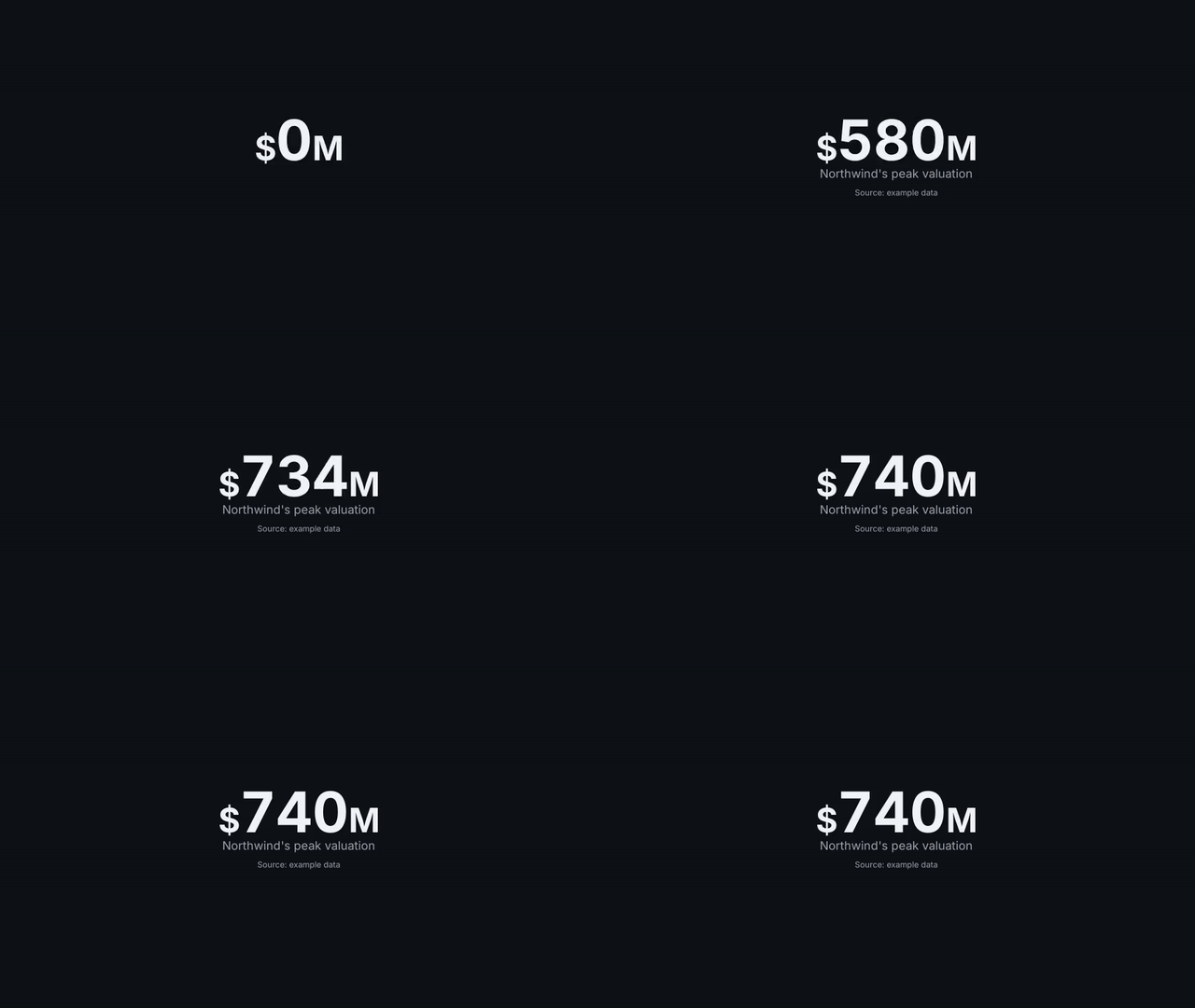
vizreel turns a short YAML spec into clean, animated chart clips (big numbers, line charts, bar charts and timelines) ready to drop into any video editor. Clips render with a transparent background by default, so they layer directly over your footage.
Status: 0.3.0, an early release. The spec format is version 1. See the changelog and the roadmap.
 |
 |
 |
 |
Why
Most chart tools are made for reports and dashboards. On video they look static and crowded, and animating them by hand in a motion graphics tool takes time for every chart.
vizreel is built for video from the start:
- Declarative. Describe the chart and its data in YAML. No code, no timeline editing.
- Made to be watched. Large type, one message per chart, a clear highlight moment, smooth eased motion, a clean final frame. See the design rules.
- Editor-ready. One clip per chart, transparent background, 1080p or 4K at 60 fps, landscape or vertical.
- Consistent. Colors, fonts and timing come from a theme, so every chart in a video matches.
- Easy to install. Pure Python. No LaTeX, no separate FFmpeg install.
Installation
Requirements: Python 3.11 or 3.12 on Windows or Linux. Other Python versions and macOS may work but are untested.
With uv (recommended), which puts the vizreel command on your PATH:
uv tool install vizreel
vizreel --version
With pip, in a virtual environment. On Windows, in PowerShell:
py -m venv .venv
.venv\Scripts\activate
python -m pip install vizreel
vizreel --version
If PowerShell says that running scripts is disabled, run Set-ExecutionPolicy -Scope CurrentUser RemoteSigned once and activate again. On Linux and macOS, activate with source .venv/bin/activate.
Quickstart
Create a spec from a template, then render it:
vizreel new stat -o chart.yaml
vizreel render chart.yaml --quality preview --still
out/
├── customers.preview.mov    ← a quick, low-resolution clip with a transparent background
└── customers.preview.png    ← its last frame
Open chart.yaml, change the number and the label, and render again. When the preview looks right, render without --quality preview for the clip you edit with, customers.mov: 1080p at 60 fps unless the spec says otherwise. Preview files have their own names, so they never replace a final clip.
Example
A spec can hold several charts; each renders to its own clip:
version: 1
meta:
  theme: default
  resolution: 1080p

charts:
  - id: peak-valuation
    type: stat
    value: 740000000
    label: Northwind's peak valuation
    number: { prefix: "$", compact: true }

  - id: offers
    type: bar
    title: Offers Northwind received
    bars:
      - { label: "Buyer A (2015)", value: 740000000 }
      - { label: "Buyer B (2016)", value: 70000000 }
      - { label: "Buyer C (2016)", value: 40000000 }
    number: { prefix: "$", compact: true }
    highlight: { label: "Buyer C (2016)" }
vizreel render charts.yaml
out/
├── peak-valuation.mov
└── offers.mov
Chart types
| Type | Use it for |
|---|---|
stat |
One number the viewer must remember, counting up to its value |
line |
Values over time, up to 3 series, with an optional highlighted point |
bar |
Comparing up to 8 categories, with one highlighted bar, as columns or rows |
timeline |
A sequence of up to 7 events, with an emphasized moment |
vizreel new TYPE prints a commented template for each. Every field is documented in the spec reference.
Vertical clips
The same spec renders as vertical 9:16 clips for Shorts, Reels and TikTok:
vizreel render charts.yaml --aspect 9:16
Text stays the same size; charts rearrange for the narrow frame instead. Bar charts become rows, timelines run down the frame and long titles wrap onto a second line. A wider margin at the top and bottom keeps charts clear of the buttons and captions those apps draw over the video. To make vertical the default for a spec, set aspect: "9:16" in its meta.
Usage
vizreel new line -o charts.yaml         # start from a commented template
vizreel validate charts.yaml            # check a spec and list every error
vizreel render charts.yaml              # render all charts to ./out
vizreel render charts.yaml --only offers --quality preview --still
vizreel render charts.yaml --quality preview --still --watch   # render again on every save
vizreel render charts.yaml --aspect 9:16   # vertical clips for Shorts
vizreel schema -o vizreel.schema.json   # JSON Schema for editors and tools
vizreel themes list                     # built-in themes
vizreel theme check my-brand.yaml       # contrast and color vision checks for a theme
render option |
Description |
|---|---|
--out DIR |
Output folder (default out) |
--only ID |
Render only this chart; repeat for several |
--quality preview|final |
preview is low resolution and fast, and writes ID.preview.mov; final uses the spec settings |
--format mov|webm|mp4 |
mov and webm keep transparency; mp4 uses the theme background |
--still |
Also save the final frame as a PNG |
--aspect 16:9|9:16 |
9:16 renders vertical clips for Shorts, Reels and TikTok, named ID.vertical.mov |
--watch |
Keep running and render again whenever the spec or its theme file is saved. Only the charts that changed are rendered; an invalid spec prints its errors and watching goes on. Ctrl+C stops |
Using the clips in a video editor
mov clips (the default) keep a transparent background: place them on a track above your footage. They use the QuickTime Animation codec, which editors read but many media players, such as the Windows media player, cannot play. That is expected; open them in your editor.
| Editor (Windows) | mov (default) |
webm |
mp4 |
|---|---|---|---|
| CapCut | Transparent | Not transparent (dark background) | Opaque, by design |
| DaVinci Resolve | Not tested yet | Not tested yet | Opaque, by design |
webm clips also contain transparency, but not every editor reads it. Use --format mp4 when you do not need transparency: the chart is drawn on the theme's background color.
Themes
A theme sets colors, fonts, text sizes and motion timing for every chart. vizreel ships with two built-in themes, default (dark) and light, and you can write your own in YAML and point to it from your spec:
meta:
  theme: themes/my-brand.yaml
Start from examples/themes/example-brand.yaml, and run vizreel theme check on your theme to test its contrast and its colors for color vision deficiency. Every field is described in the theme reference.
Documentation
Development
git clone https://github.com/efedalbay/vizreel.git
cd vizreel
uv sync
uv run pytest -m "not render"   # fast tests
uv run pytest -m render         # rendering tests
Contributing
Issues and pull requests are welcome. Before starting on a larger change, please open an issue to discuss it. New chart types follow the contract in the architecture document and the rules in the design document.
License
vizreel is built on Manim Community Edition. It bundles the Inter typeface by The Inter Project Authors, licensed under the SIL Open Font License 1.1 (see src/vizreel/assets/fonts/Inter-OFL.txt).
1 maintainer

Metadata
1 maintainer
Release files for vizreel 0.3.0
For a detailed explanation of source distributions (sdists) and built distributions (wheels), please see the package formats documentation.
Source distribution (sdist)
| File | Size | Uploaded | |
|---|---|---|---|
| vizreel-0.3.0.tar.gz | 1.6 MB | Details |
Built distribution (wheel)
| File | Interpreter | ABI | Platform | Reset |
|---|---|---|---|---|
| vizreel-0.3.0-py3-none-any.whl | Python 3 | none | any | Details |
Total release size: 2.2 MB
Release files / vizreel-0.3.0.tar.gz
| Download URL | vizreel-0.3.0.tar.gz |
|---|---|
| Size | 1.6 MB |
| Tags | Source |
|
SHA-256 checksum How to use checksums |
14ec09105bb38fe18a0c45277c7d7b088381a84d192e3c42669603c0b4ce7bdc
|
|
BLAKE2b-256 checksum How to use checksums |
bebbde71b1a754766d5835edc83c2bb040331df268fb382645fba61b17f7b39d
|
| Upload date | |
|
Uploaded using Trusted Publishing? What is trusted publishing? |
Yes |
| Uploaded via |
twine/7.0.0 CPython/3.13.14
|
Provenance
Provenance describes where a file came from. On PyPI, provenance is shared via attestations, which provide a verifiable record of the build or publishing details. View details, limitations and caveats.


PyPI Publish Attestation
PyPI verified that this artifact, at this checksum, originated from the publisher listed below.
Signed by GitHub Actions, verified by PyPI on Sep 27, 2026.
Transparency logRelease files / vizreel-0.3.0-py3-none-any.whl
| Download URL | vizreel-0.3.0-py3-none-any.whl |
|---|---|
| Size | 678.7 kB |
| Tags | Python 3 |
|
SHA-256 checksum How to use checksums |
21a10fdd54b92987ddd25d294ca273f3b552810f842ba05c0c26cf4a5d7507b2
|
|
BLAKE2b-256 checksum How to use checksums |
9f93fd3b2e9e0ebeea4bdd22cde2a5a9be360c6b2baaad6d38682b07e9a0fe20
|
| Upload date | |
|
Uploaded using Trusted Publishing? What is trusted publishing? |
Yes |
| Uploaded via |
twine/7.0.0 CPython/3.13.14
|
Provenance
Provenance describes where a file came from. On PyPI, provenance is shared via attestations, which provide a verifiable record of the build or publishing details. View details, limitations and caveats.
PyPI Publish Attestation
PyPI verified that this artifact, at this checksum, originated from the publisher listed below.
Signed by GitHub Actions, verified by PyPI on Sep 27, 2026.
Transparency log













