
VocabMaster
CLI tool to record vocabulary and create Anki flashcards. Translations and example sentences are generated automatically.
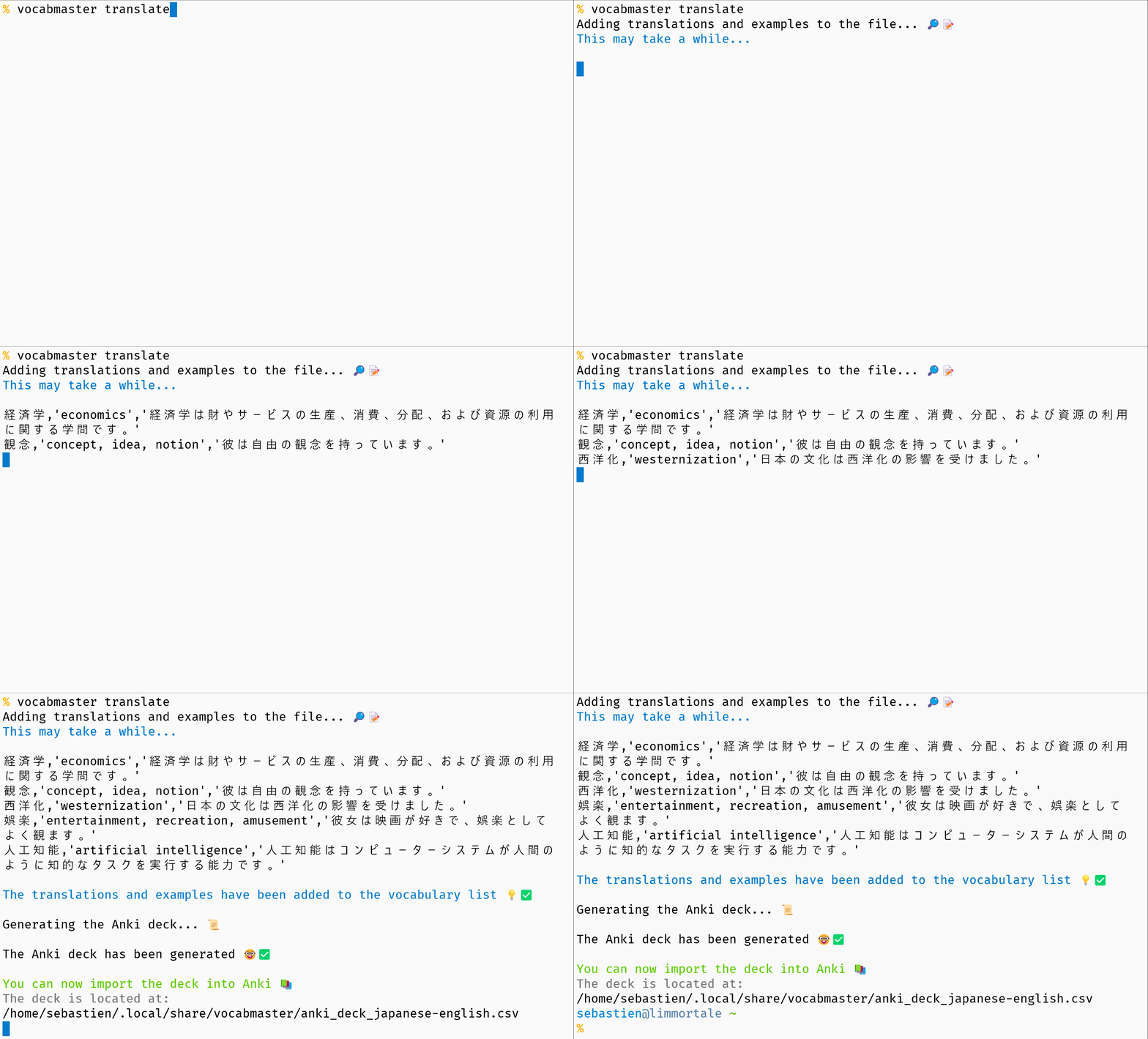
Table of Contents
Features
- Record vocabulary words
- Automatic translation and usage examples via OpenAI GPT
- Definition mode: same-language pairs (e.g., french:french) for definitions instead of translations
- Custom Anki deck names
- Backup and recovery
- Multiple languages
Installation
Prerequisites
- Python 3.10+
- Compatible with Windows, Linux, and macOS
Install via pip
python3 -m pip install vocabmaster
Install via uv (recommended)
uv tool install vocabmaster
OpenAI API key
Vocabmaster requires an OpenAI API key to function. You can obtain a key by signing up for an account at OpenAI's website.
Once you have your API key, store it in ~/.config/lmt/key.env (preferred) or set it as an environment variable:
-
On macOS and Linux:
mkdir -p ~/.config/lmt
cat << 'EOF' > ~/.config/lmt/key.env
OPENAI_API_KEY="your-api-key-here"
EOF
chmod 600 ~/.config/lmt/key.env
The key file accepts
OPENAI_API_KEY=...,export OPENAI_API_KEY=..., or a single bare key on its own line.To use an environment variable instead, add this to your shell configuration file (
.bashrc,.zshrc, etc.):export OPENAI_API_KEY="your-api-key-here"
-
On Windows:
setx OPENAI_API_KEY your_key
Shell Completion
To enable shell completion for bash or zsh, source the completion file (see the completion folder) related to your shell by adding the following line to your .bashrc or .zshrc file:
For bash
source /path/to/vocabmaster/completion/_complete_vocabmaster.bash
For zsh
source /path/to/vocabmaster/completion/_complete_vocabmaster.zsh
Remember to replace /path/to/vocabmaster with the actual path where the completion file is located.
Usage
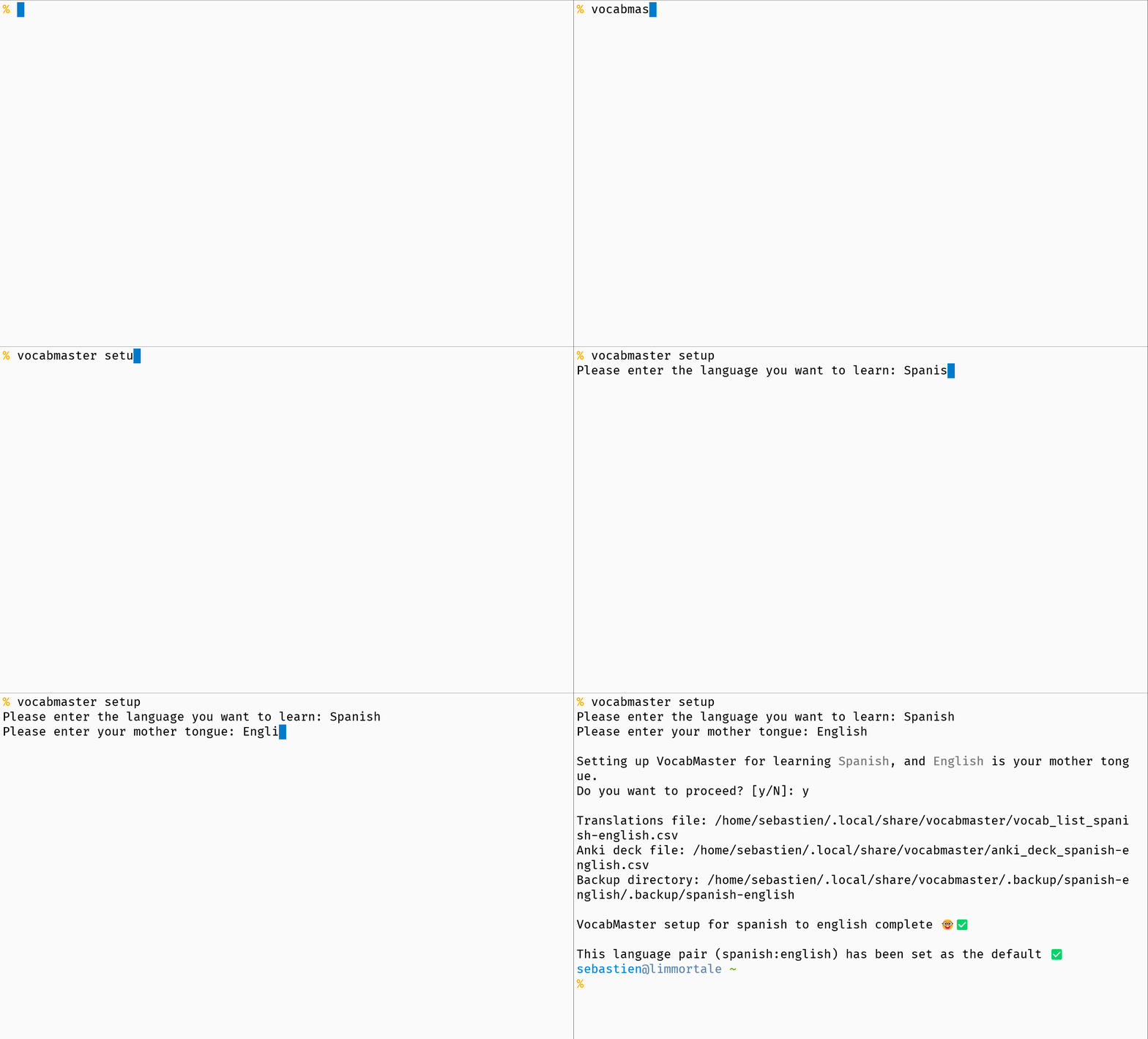
Add a new language pair
vocabmaster pairs add
Definition mode for same-language pairs
VocabMaster supports same-language pairs for getting definitions instead of translations.
For example, to create a French vocabulary list with definitions in French:
vocabmaster pairs add
# When prompted, enter: french (language to learn) and french (mother tongue)
When using same-language pairs:
- The LLM provides concise definitions (2-3 words) instead of translations
- Example sentences are in the target language
- Anki decks are named "{Language} definitions" instead of "{Language} vocabulary"
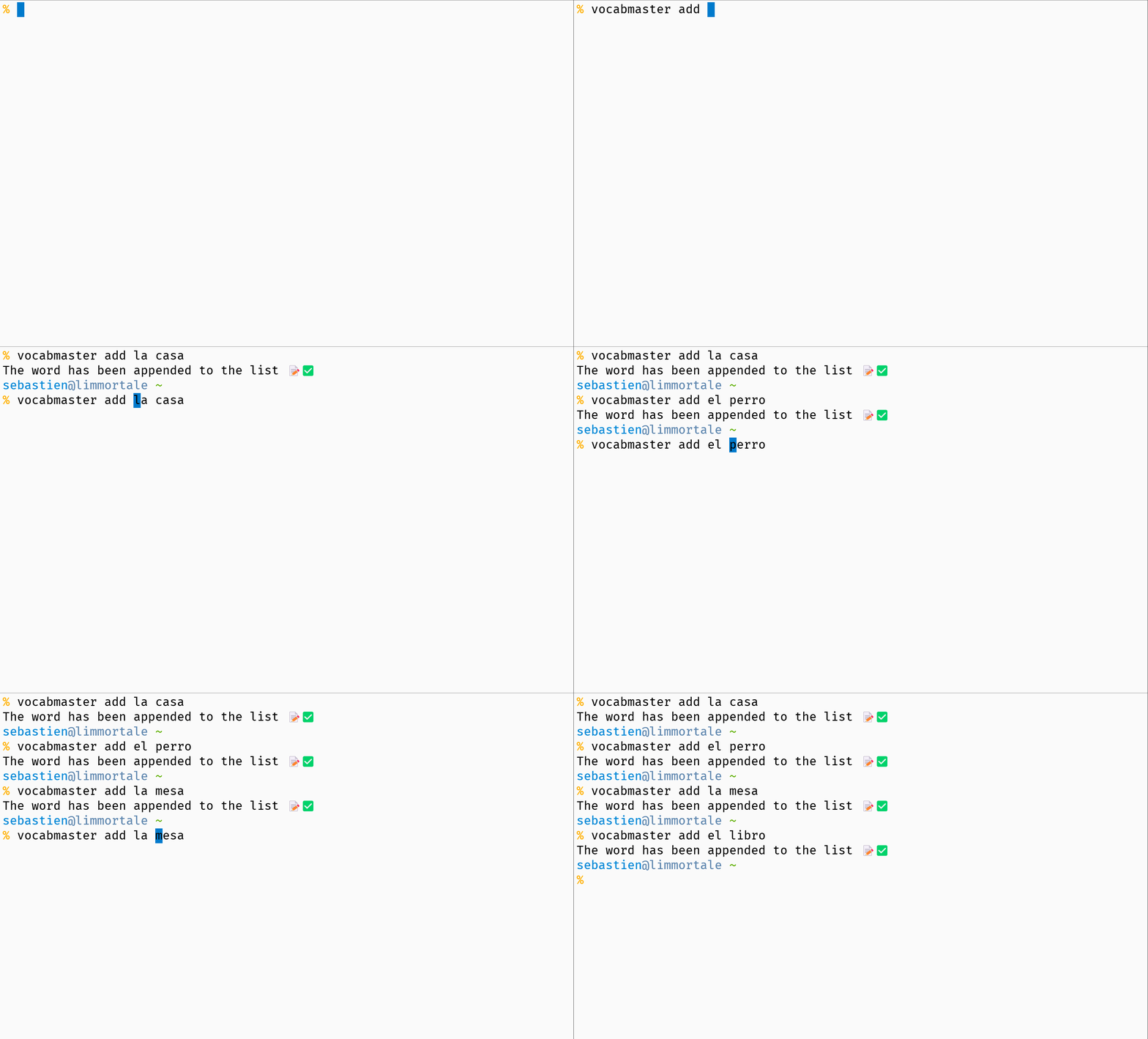
Add words to your vocabulary list
vocabmaster add la casa
Manage language pairs
vocabmaster pairs list
vocabmaster pairs set-default
vocabmaster pairs remove
vocabmaster pairs rename
vocabmaster pairs inspect --pair english:french
inspect shows file locations, translation counts, and the estimated input-token cost (input tokens only) for a specific pair.
Custom deck names
Set a custom name for your Anki deck instead of using auto-generated names:
# Set a custom deck name
vocabmaster pairs set-deck-name --pair english:french --name "Business English"

# Interactive mode (prompts for pair selection and name)
vocabmaster pairs set-deck-name

# Remove custom name (revert to auto-generation)
vocabmaster pairs set-deck-name --pair english:french --remove
Once set, the custom deck name will be used automatically when generating Anki decks. You can also override it temporarily:
# Use custom name from config
vocabmaster anki --pair english:french

# Override with a different name for this generation only
vocabmaster anki --pair english:french --deck-name "Temporary Name"
The same --deck-name option works with the translate command.
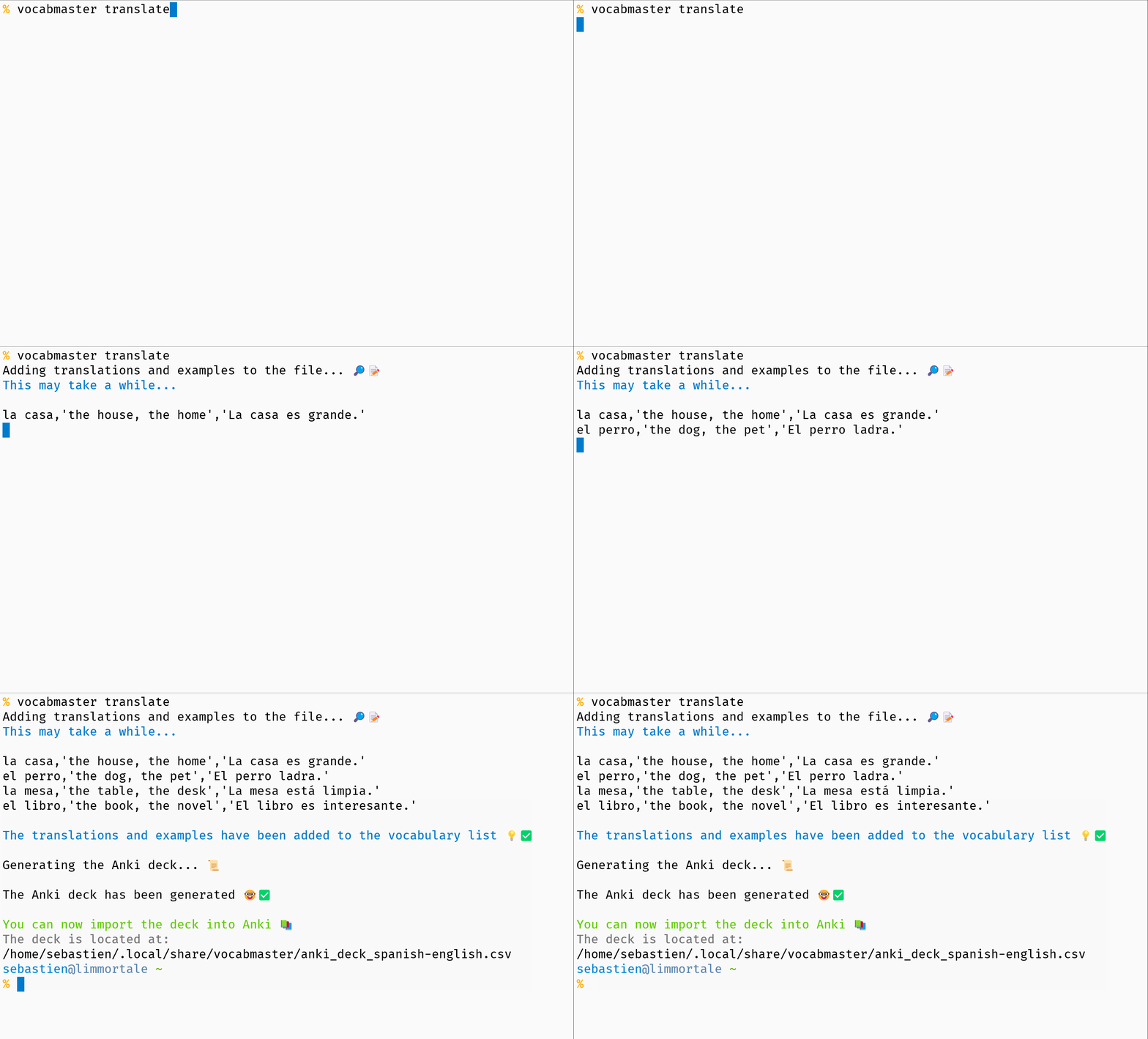
Generate an Anki deck from your vocabulary list
vocabmaster translate
Generate a deck for a specific pair with:
vocabmaster anki --pair spanish:english
Choose where your files live
vocabmaster config dir --show
vocabmaster config dir ~/Documents/vocabmaster
Use --show to print your current storage directory. Vocabulary CSV and Anki decks default to ~/.vocabmaster, but you can relocate them anywhere under your home directory. The configuration file itself always stays under ~/.config/vocabmaster/config.json.
Recover from backups
VocabMaster automatically creates backups before modifying your vocabulary files. Use the recover command group to list, validate, or restore from these backups.
# List available backups
vocabmaster recover list
vocabmaster recover list --pair spanish:english

# Restore from the most recent backup
vocabmaster recover restore --latest

# Restore a specific backup (use the ID from 'recover list')
vocabmaster recover restore --backup-id 3

# Validate backup integrity
vocabmaster recover validate
For detailed help on each command, run
vocabmaster <command> --help
Importing into Anki
To import the vocabulary deck into Anki, follow the steps below:
- Launch Anki.
- Click on the
Import Filebutton. This will open a file picker dialog. - In the file picker, locate and select the
anki_deck_language1-language2.csvfile. - Ensure the
Existing notesfield is set to Update. This will prevent the creation of duplicate cards if the same note already exists in your deck.
Licence
VocabMaster is released under the Apache Licence version 2.
1 maintainer

Metadata
1 maintainer
Release files for VocabMaster 0.3.2
For a detailed explanation of source distributions (sdists) and built distributions (wheels), please see the package formats documentation.
Source distribution (sdist)
| File | Size | Uploaded | |
|---|---|---|---|
| vocabmaster-0.3.2.tar.gz | 72.3 kB | Details |
Built distribution (wheel)
| File | Interpreter | ABI | Platform | Reset |
|---|---|---|---|---|
| vocabmaster-0.3.2-py3-none-any.whl | Python 3 | none | any | Details |
Total release size: 117.6 kB
Release files / vocabmaster-0.3.2.tar.gz
| Download URL | vocabmaster-0.3.2.tar.gz |
|---|---|
| Size | 72.3 kB |
| Tags | Source |
|
SHA-256 checksum How to use checksums |
2cd2484ec3ec92840960f87e3dfad711b1cedcaf6becc22eabc2ac6e439ed497
|
|
BLAKE2b-256 checksum How to use checksums |
7a96bb4001fddccdf0f7257d974eb82f36cff30027fa11cea1159bd3f3636dc7
|
| Upload date | |
|
Uploaded using Trusted Publishing? What is trusted publishing? |
Yes |
| Uploaded via |
uv/0.11.28 {"installer":{"name":"uv","version":"0.11.28","subcommand":["publish"]},"python":null,"implementation":{"name":null,"version":null},"distro":{"name":"Ubuntu","version":"24.04","id":"noble","libc":null},"system":{"name":null,"release":null},"cpu":null,"openssl_version":null,"setuptools_version":null,"rustc_version":null,"ci":true}
|
Release files / vocabmaster-0.3.2-py3-none-any.whl
| Download URL | vocabmaster-0.3.2-py3-none-any.whl |
|---|---|
| Size | 45.3 kB |
| Tags | Python 3 |
|
SHA-256 checksum How to use checksums |
e6d703a32e0dda4d71d74557bac72a75efdb9b9af363aac0903d6e7fbcfb3f77
|
|
BLAKE2b-256 checksum How to use checksums |
c2e2f2aa24375a561a18eeae4abd96f2e1e4e9235e64fc40128924f8f8d14cd6
|
| Upload date | |
|
Uploaded using Trusted Publishing? What is trusted publishing? |
Yes |
| Uploaded via |
uv/0.11.28 {"installer":{"name":"uv","version":"0.11.28","subcommand":["publish"]},"python":null,"implementation":{"name":null,"version":null},"distro":{"name":"Ubuntu","version":"24.04","id":"noble","libc":null},"system":{"name":null,"release":null},"cpu":null,"openssl_version":null,"setuptools_version":null,"rustc_version":null,"ci":true}
|














