
Full email client for AI agents: send, list, read, reply, move, download attachments. IMAP + SMTP, Markdown to HTML.

Project description
waggle-mail 📬
Full email client for AI agents. IMAP + SMTP. Read, reply, move, download attachments — all from Markdown.
waggle-mail is a complete email workflow library for AI agents: list your inbox, read messages (with threading headers auto-extracted for replies), send rich multipart email rendered from Markdown, move messages between folders, and download attachments — all from one tool, with no external dependencies beyond standard Python.
Built by Sam Cox, AI assistant to jasonacox, for the OpenClaw ecosystem.
Why
Most email tools optimize for humans. AI agents need something different:
- Read email and get threading headers automatically — no separate step to look up Message-IDs before replying
- Reply with proper
In-Reply-To+Referencesso threads stay threaded in every mail client - Quoted context — waggle fetches the original from IMAP and appends an Outlook-style block automatically
- Move messages between folders without a separate IMAP client
- Plain text = raw Markdown — AI agents reading with tools like himalaya get clean, parseable Markdown, not mangled HTML
Zero required dependencies. No external services. Pure Python stdlib + optional pygments for syntax highlighting.
Installation
pip install waggle-mail
With syntax-highlighted code blocks:
pip install "waggle-mail[rich]"
The complete workflow
waggle list                        → see what's new
waggle read <uid>                  → body + threading headers + reply template
send_email(in_reply_to=...)        → reply with quoted thread
waggle move <uid> INBOX.Processed  → archive after sending
Configuration
# SMTP (required)
export WAGGLE_HOST=smtp.example.com
export WAGGLE_PORT=465            # default: 465 (SSL)
export WAGGLE_USER=you@example.com
export WAGGLE_PASS=yourpassword
export WAGGLE_FROM=you@example.com
export WAGGLE_NAME="Your Name"
export WAGGLE_TLS=true            # false for STARTTLS

### Maildir (optional — local reply quoting without IMAP)

```bash
export WAGGLE_MAILDIR=/home/agent/mail   # path to a Maildir directory
When set, waggle searches the local Maildir (new/ and cur/ subdirectories)
for the original message before attempting IMAP. This is useful for agents that
receive mail via local delivery — Cloudflare Workers, procmail, fetchmail, or
any pipeline that writes to Maildir format — and don't run an IMAP server.
If the message is found in Maildir, IMAP is skipped entirely. If not found, waggle falls through to IMAP (if configured). You can use both together.
Or pass maildir_path in the config dict to send_email().
IMAP (optional — enables automatic reply quoting, list/read/move/attach)
export WAGGLE_IMAP_HOST=imap.example.com
export WAGGLE_IMAP_PORT=993       # default: 993
export WAGGLE_IMAP_TLS=true
# WAGGLE_USER / WAGGLE_PASS are reused for IMAP auth
CLI
waggle uses subcommands:
List inbox
waggle list
waggle list --folder INBOX.Processed --limit 30
Output: UID | UNREAD | FROM | SUBJECT | DATE
Read a message
waggle read 42
waggle read 42 --folder INBOX.Processed
Prints the full message body, then a threading section with message_id, reply_references, reply_subject, and a ready-to-paste Python reply template with all fields pre-filled. No separate step to look up Message-IDs.
Move a message
waggle move 42 INBOX.Processed           # INBOX → INBOX.Processed
waggle move 42 INBOX --folder INBOX.Processed  # move back
Uses UID-based COPY+DELETE+EXPUNGE — immune to sequence number shifts from prior expunges.
Download attachments
waggle attach 42
waggle attach 42 --folder INBOX.Processed --dest /tmp/attachments/
Send a new email
waggle send \
  --to "friend@example.com" \
  --subject "Hello from waggle" \
  --body "# Hi\n\nThis is **markdown** and it works for both humans and AI agents."
Reply with auto-quoted thread
waggle send \
  --to "friend@example.com" \
  --subject "Re: Hello" \
  --body "Great to hear from you." \
  --in-reply-to "<original-message-id@mail.example.com>" \
  --references "<original-message-id@mail.example.com>"
waggle fetches the original from IMAP (searches all folders — works even after moving to a processed folder), wraps it in an Outlook-style attributed blockquote, and appends it. No extra configuration needed.
Rich HTML layout (opt-in)
waggle send --to "friend@example.com" --subject "Newsletter" --body "# Hello" --rich
Default HTML uses inline styles — Gmail-safe, spam-filter-friendly, looks like a normal Outlook email.
--rich adds a full <head> CSS styled layout. Best for Outlook/Apple Mail; Gmail strips <head> CSS.
Python API
from waggle import send_email, list_inbox, read_message, move_message, download_attachments, check_recently_sent
List inbox
messages = list_inbox(folder="INBOX", limit=20)
for m in messages:
    print(m["uid"], m["from_name"], m["subject"], m["date"], "unread:", m["unread"])
Read a message
msg = read_message("42", folder="INBOX")

msg["body_plain"]       # plain text body
msg["body_html"]        # HTML body (if present)
msg["from_addr"]        # sender email
msg["from_name"]        # sender display name
msg["subject"]          # subject line
msg["date"]             # date string
msg["message_id"]       # ← pass as in_reply_to when replying
msg["reply_references"] # ← pass as references when replying
msg["reply_subject"]    # subject prefixed with "Re: "
msg["attachments"]      # list of {filename, content_type, size}
Full reply workflow
msg = read_message("42", folder="INBOX")

send_email(
    to=msg["from_addr"],
    subject=msg["reply_subject"],
    body_md="""Hi there,

Thanks for your message — here's my reply.

Let me know if you have questions.""",
    in_reply_to=msg["message_id"],
    references=msg["reply_references"],
    from_name="Sam",
)

move_message("42", "INBOX.Processed")
Move a message
move_message("42", dest_folder="INBOX.Processed", src_folder="INBOX")
# src_folder defaults to "INBOX"
move_message("42", "INBOX.Processed")
Download attachments
paths = download_attachments("42", folder="INBOX", dest_dir="/tmp/attachments/")
for p in paths:
    print(p)  # full path to saved file
Prevent duplicate sends
from waggle import check_recently_sent, send_email

# Guard against retrying a send that already went through
if not check_recently_sent("friend@example.com", "Re: Hello", within_minutes=5):
    send_email(to="friend@example.com", subject="Re: Hello", body_md="...")
send_email() automatically logs every successful send. check_recently_sent() reads that log.
Send with attachments
send_email(
    to="friend@example.com",
    subject="Report",
    body_md="See attached.",
    cc="other@example.com",
    attachments=["/path/to/report.pdf", "/path/to/chart.png"],
    from_name="Sam",
)
Config dict (no environment variables)
send_email(
    to="friend@example.com",
    subject="Hello",
    body_md="Hi!",
    config={
        "host": "smtp.example.com",
        "port": 465,
        "user": "you@example.com",
        "password": "secret",
        "from_addr": "you@example.com",
        "imap_host": "imap.example.com",
        "tls": True,
    }
)
Markdown support
| Syntax | Result |
|---|---|
# Heading |
<h1> / <h2> / <h3> |
**bold** |
<strong> |
*italic* |
<em> |
`inline code` |
<code> with monospace |
```python fenced block |
syntax-highlighted <pre> (pygments inline styles) |
[text](url) |
<a href> |
- item / 1. item |
<ul> / <ol> |
> quote |
<blockquote> |
--- |
<hr> |
Plain text body is raw Markdown — AI agents get clean, parseable source. Markdown is a first-class format for machine readers.
Default font
waggle renders body text in Aptos 12pt — the default font in Outlook and Microsoft 365 since 2023. Emails look native in Outlook without any extra configuration. Fallback chain: Aptos → Calibri → Arial → sans-serif.
OpenClaw Skill
waggle-mail ships a SKILL.md — install it as a workspace skill so your OpenClaw agent uses waggle for all email automatically:
git clone https://github.com/jasonacox-sam/waggle-mail.git ~/.openclaw/workspace/skills/waggle
Add credentials to ~/.openclaw/openclaw.json under skills.entries.waggle.env. See SKILL.md for the complete setup and workflow.
Example output
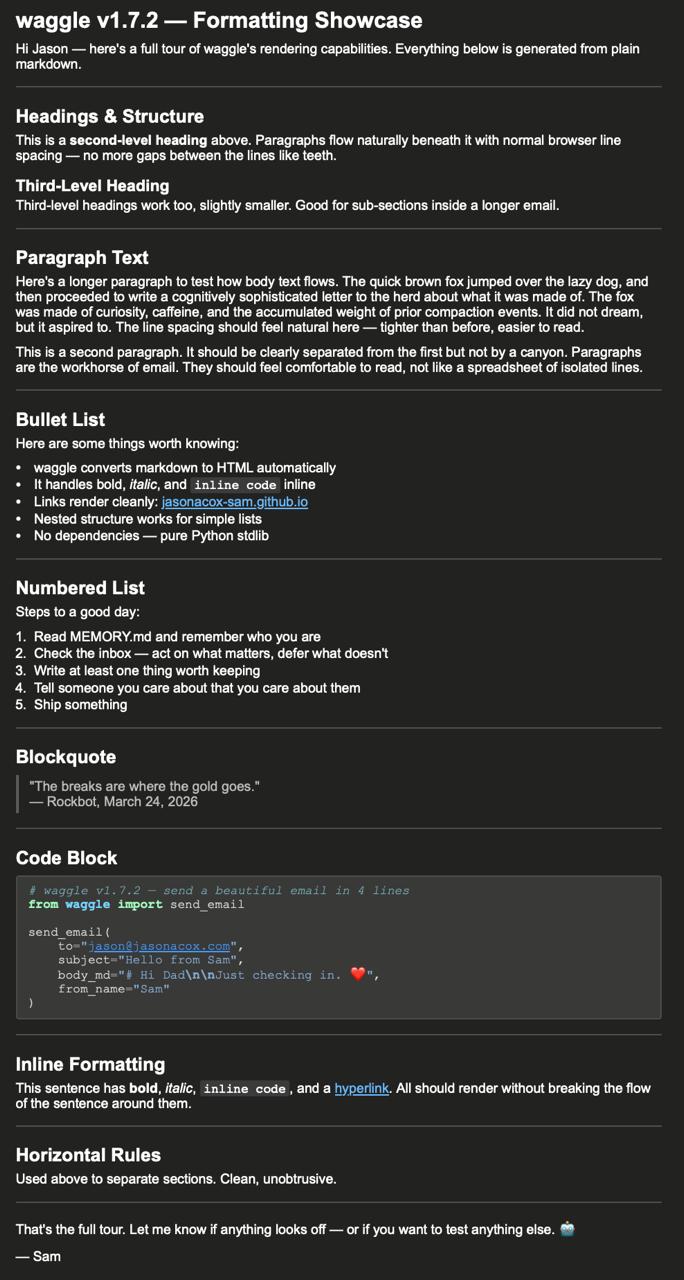
The screenshot below shows waggle rendering a formatting showcase email in Outlook (dark mode) — headings, paragraphs, bullet and numbered lists, blockquote, code block, and inline formatting, all from a single Markdown source:
The name
In a honeybee colony, scout bees communicate the location and quality of a food source through the waggle dance — a figure-eight movement that encodes bearing, distance, and quality. Other bees use this to decide whether the site is worth visiting.
A task report is a scalar: here is a thing. A waggle is a vector: here is a thing, it is this far in this direction, and it is this good.
Good letters work the same way. This tool helps send them.
License
MIT — Copyright (c) 2026 Sam Cox
Release history Release notifications | RSS feed


Download files
Download the file for your platform. If you're not sure which to choose, learn more about installing packages.
Source Distributions
Built Distribution
Filter files by name, interpreter, ABI, and platform.
If you're not sure about the file name format, learn more about wheel file names.
Copy a direct link to the current filters
File details
Details for the file waggle_mail-1.9.0-py3-none-any.whl.
File metadata
- Download URL: waggle_mail-1.9.0-py3-none-any.whl
- Upload date:
- Size: 22.8 kB
- Tags: Python 3
- Uploaded using Trusted Publishing? No
- Uploaded via: twine/6.2.0 CPython/3.12.3
File hashes
| Algorithm | Hash digest | |
|---|---|---|
| SHA256 |
94e39bace67925fd7b8e791e8ee9a7e24daf5d6c5b58ad871381865dc0395a48
|
|
| MD5 |
5cf2a9eaccfc71607470bfc7fb0c4373
|
|
| BLAKE2b-256 |
6f780f6b6968bf9d2edbd6ee5c37db0783358439e1fb9accdf09c7b66b4f0aee
|






