
Wallpaper Frame Picker
Wallpaper Frame Picker finds the sharpest frame in every shot of a video, lets you pick the frames with the pose you want, and exports them as full-resolution PNGs. It is made for pulling wallpapers and stills out of trailers, music videos and animation, where motion blur makes most frames unusable. An optional AI upscaling step runs the exported frames through Real-ESRGAN or most other models on OpenModelDB.
It has a desktop app and a command-line tool that share the same analyses, selections and models.
Features
- Splits a video, or just the part you choose, into shots.
- Scores every frame for sharpness and motion, and shows each shot as a contact sheet of its sharpest frames.
- Click frames on the sheets to select them, or scrub the video and step frame by frame to pick any frame by hand.
- A 1:1 loupe shows real pixels, so you can check for motion blur before exporting.
- Exports exactly the frame you picked, at full resolution, with the color matrix and range the video declares.
- Optional AI upscaling on the GPU, with a side-by-side loupe that compares the model against plain resizing.
- Remembers each video's analysis and selections, even after you rename or move the file.
Screenshots
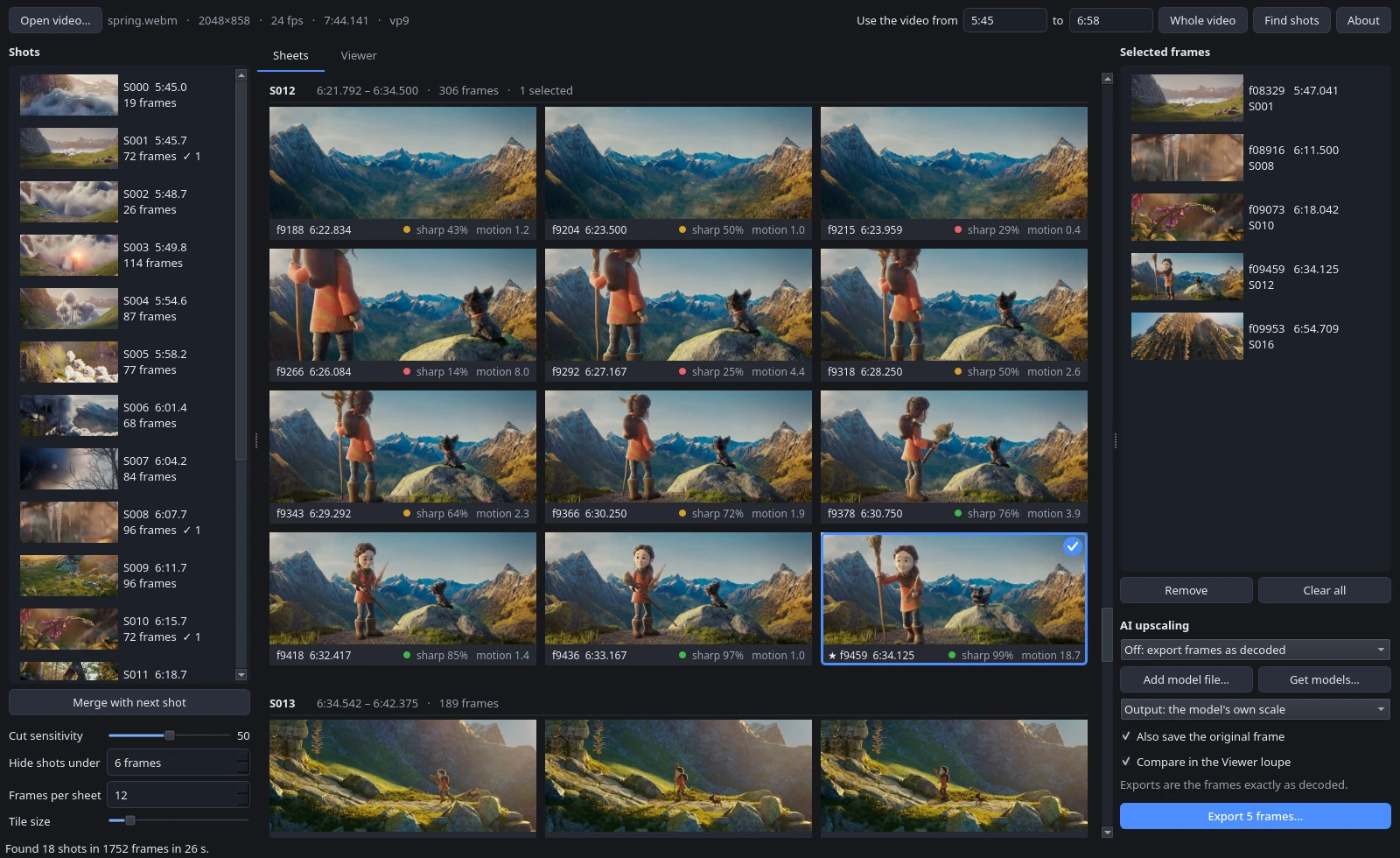
Every shot of the chosen part of the video gets a sheet of its sharpest frames. A star marks the sharpest frame, and a check mark shows the frames you picked.
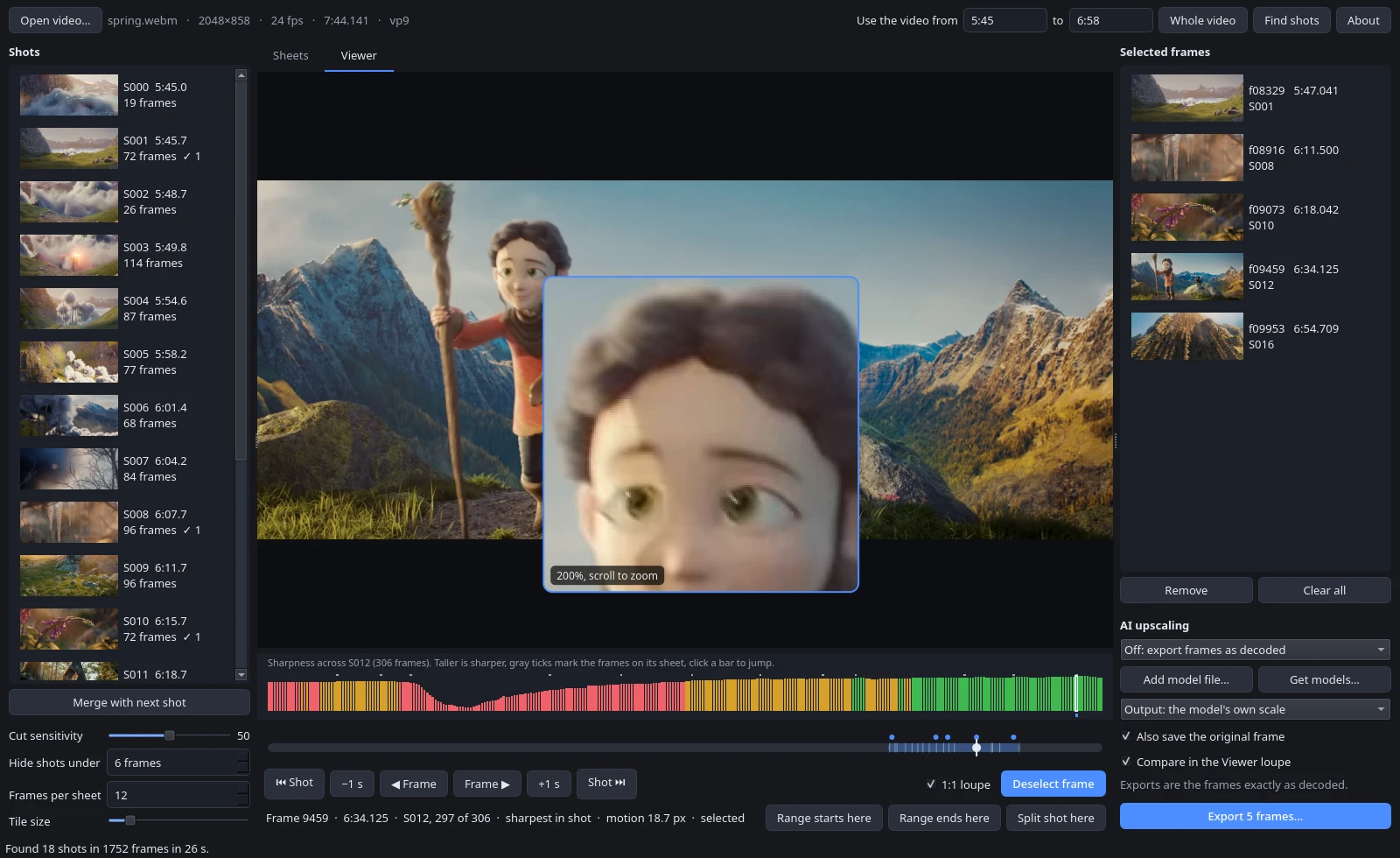
The Viewer steps through any frame. The 1:1 loupe shows real pixels, and the bars above the timeline show how sharp each frame of the shot is.
With an upscaling model chosen, the loupe compares plain resizing with the model's output.
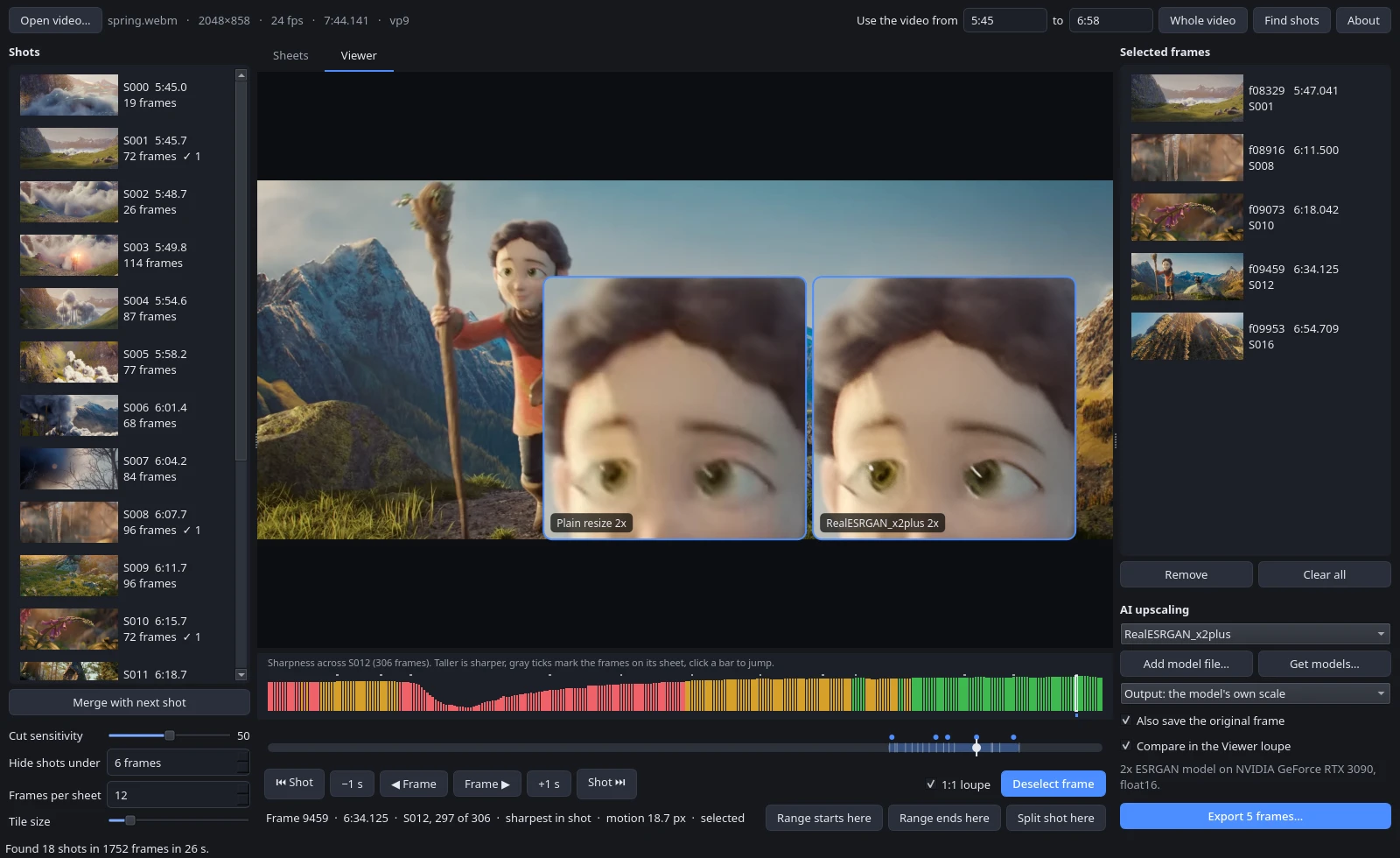
The screenshots show frames from Spring (2019) by Andy Goralczyk and the Blender Foundation, licensed under CC BY 4.0. The frames appear inside the app's interface, and the upscaled panel is the output of RealESRGAN_x2plus.
Run it
Each release has a standalone app for Linux, Windows and macOS. It needs no Python, no package manager and no FFmpeg. Run one command, or download the file from the releases page and open it.
Linux (x86_64), in a terminal. The app is an AppImage:
curl -fLo WallpaperFramePicker.AppImage https://github.com/onlykshitij/wallpaper-frame-picker/releases/latest/download/WallpaperFramePicker-x86_64.AppImage && chmod +x WallpaperFramePicker.AppImage && ./WallpaperFramePicker.AppImage
Windows (x86_64), in PowerShell:
irm https://github.com/onlykshitij/wallpaper-frame-picker/releases/latest/download/WallpaperFramePicker-windows-x86_64.exe -OutFile WallpaperFramePicker.exe; .\WallpaperFramePicker.exe
macOS (Apple Silicon), in Terminal:
curl -fLo WallpaperFramePicker.zip https://github.com/onlykshitij/wallpaper-frame-picker/releases/latest/download/WallpaperFramePicker-macos-arm64.zip && ditto -x -k WallpaperFramePicker.zip . && open WallpaperFramePicker.app
After that, start it again with ./WallpaperFramePicker.AppImage, WallpaperFramePicker.exe or open WallpaperFramePicker.app. AppImage integration tools such as Gear Lever or AppImageLauncher can add the Linux app to your application menu, with its icon. AppImages run through FUSE, which desktop distributions include; where it is missing, start the app with ./WallpaperFramePicker.AppImage --appimage-extract-and-run.
The download is a small launcher, about 15 MB. The first time it starts, it shows an Install dependencies window that lists what it needs, with sizes, about 230 MB in all:
- Python 3.12, and uv to install everything else, if they are not on the computer yet
- Qt for the interface, PyAV with FFmpeg for video, OpenCV for the analysis, and NumPy
- on Linux, any system libraries Qt needs that are missing, installed with your distribution's package manager after asking for your password
Press Install dependencies and the window shows each step as it runs. If something fails, the full log stays in the window, with a Copy log button, and is also saved to install.log in the data folder. Later launches start the app directly and work offline. To install everything without the window, for example on a server, run the launcher with --install-deps.
The launcher checks download certificates with the operating system, as a browser does, and also accepts Mozilla's list of root certificates, the one Firefox and uv use. Downloads therefore work on a Windows that has not fetched a root certificate yet, and on company networks that inspect secure connections, as long as the network's own certificate is installed on the computer.
The Linux launcher runs on any 64-bit glibc distribution from about 2019 on (glibc 2.28 or newer), including Debian 10+, Ubuntu 20.04+, Fedora, RHEL, AlmaLinux and Rocky Linux 8+, Arch and openSUSE. It installs system packages with apt, dnf, zypper or pacman; on other distributions it lists the libraries to install yourself. On RHEL-compatible systems in an X11 session, one library (libxcb-cursor) comes from EPEL, so enable it first with sudo dnf install epel-release. Distributions built on musl instead of glibc, such as Alpine, are not supported.
The apps are not code-signed. Downloaded with the commands above they open directly. Downloaded through a browser, Windows shows a SmartScreen warning (choose More info, then Run anyway) and macOS refuses the first start (right-click the app, choose Open, then Open again).
On Linux and macOS the same app also runs the command line, as ./WallpaperFramePicker.AppImage cli ... or WallpaperFramePicker.app/Contents/MacOS/WallpaperFramePicker cli .... On Windows the command line is a separate download, WallpaperFramePicker-cli-windows-x86_64.exe.
With Python instead
The app is on PyPI. With uv, one command runs it:
uvx wallpaper-frame-picker
To run the newest unreleased code instead, use uvx --from git+https://github.com/onlykshitij/wallpaper-frame-picker wallpaper-frame-picker.
Or install it with pip into Python 3.10 or newer, which gives you the wallpaper-frame-picker and wallpaper-frame-picker-cli commands:
pip install wallpaper-frame-picker
On Linux, these also check for the system libraries Qt needs before the window opens, and offer to install the missing ones the same way the standalone app does.
AI upscaling
AI upscaling runs on PyTorch, a download of about 3 GB, so nothing includes it up front. The first time you pick a model, the app asks before downloading PyTorch into a separate environment. If uv is not installed, it also downloads its own copy of uv (about 20 MB) to do that. Everything after that first time works offline.
With the Python install you can add PyTorch yourself instead, with pip install 'wallpaper-frame-picker[upscale]' or uv run --extra upscale wallpaper-frame-picker in a clone. The upscaler then runs on the same Python as the app.
On Linux, PyTorch from PyPI includes CUDA support. On Windows, PyPI only has the CPU build; for an NVIDIA GPU, install the CUDA build into a Python install by following pytorch.org and use the upscale extra. Apple GPUs are used through MPS, which has not been tested.
Using the app
- Open a video with Open video (Ctrl+O), or drop the file on the window.
- Set the part of the video to use in the boxes next to "Use the video from". Times can be written as
83.5,1:23.5or0:01:23.5. In the Viewer, "Range starts here" and "Range ends here" fill them from the frame on screen, and Whole video resets them. - Press Find shots. The app scores every frame in the range and splits it into shots. On a 32-thread desktop this ran at about 40 frames per second on a 4K test clip. The result is saved, so reopening the video, or entering the same range again, loads it at once.
- The Sheets tab shows a sheet for every shot. Each sheet holds 12 frames spread across the shot, and each one is the sharpest frame in its part of the shot. Click a frame to select it, click again to deselect, and double-click to open it in the Viewer. A star marks the shot's sharpest frame.
- The Viewer tab shows any frame of the video, inside the analyzed range or not. Drag the timeline to scrub, then step frame by frame to the exact pose. Press Space or Select frame to add it. Scroll over the picture to zoom the loupe to 200% or 400%.
- Selected frames collect in the right-hand panel. Double-click one to view it, press Delete to remove it, and press Export to write them all as PNGs to a folder you choose.
Reading the scores
Each sheet frame has a label like f431 0:17.958 · sharp 92% motion 3.1:
f431is the frame number, counted from 0, and0:17.958its time.sharp 92%means the frame is sharper than 92% of the frames in its shot. The dot is green at 75% and above, amber from 40%, red below.motion 3.1means 90% of the frame moves less than 3.1 full-resolution pixels per frame. A camera pan raises it across the whole frame even when the subject stays sharp, so trustsharpfirst.
In the Viewer, the bar strip above the timeline shows every frame of the current shot. Taller bars are sharper, gray ticks mark the frames on the shot's sheet, and blue marks show selected frames. Click a bar to jump to that frame. Animation often holds a pose for 2 or more frames, so if the best pose has a low score, check the frames next to it.
Fixing shots
- Cut sensitivity changes how readily the app starts a new shot. Higher finds more cuts.
- Hide shots under leaves very short shots, such as flash frames, out of the list and the sheets. The default is 6 frames.
- Merge with next shot joins a shot to the one after it, for shots that strobe lighting or a flash split into pieces.
- Split shot here, in the Viewer, starts a new shot at the frame on screen.
- Frames per sheet and Tile size change the sheets.
Keys
| Key | Action |
|---|---|
| Left, Right | Previous or next frame |
| Shift+Left, Shift+Right | One second back or forward |
| Page Up, Page Down | Sharpest frame of the previous or next shot |
| Home, End | First or last frame |
| Space or S | Select or deselect the frame on screen |
| Ctrl+1, Ctrl+2 | Sheets or Viewer |
| Ctrl+O | Open a video |
| Ctrl+E | Export selected frames |
| Delete | Remove the chosen frames from the selected list |
Upscaling exports
- Press Get models… to download one of the official Real-ESRGAN models, or Add model file… to use one you downloaded yourself. The spandrel library reads ESRGAN, Compact, SwinIR, HAT, DAT and many other architectures, so most OpenModelDB models work.
- Choose the model in the list. The line under the options shows its scale and the device it runs on.
- Choose the output size. "The model's own scale" gives 4x for a 4x model. "2x the video" resizes the model's output to twice the frame size. "Same size as the video" shrinks the output back to the frame size, which keeps the model's clean-up of compression artifacts without making the file bigger.
- Leave "Also save the original frame" on to get both files.
With "Compare in the Viewer loupe" on, the loupe shows two panels when you hold the mouse still over the picture. The left one is the area enlarged by plain resizing, the right one is the model's output, both at the output size you chose.
On an RTX 3090, a compact model upscales a 3840x1636 frame 4x in about 1 second and a 6-block ESRGAN model in about 5 seconds. Bigger models take longer. The upscaler works in tiles, so large frames fit in limited VRAM.
Upscaling cannot bring back detail a video never had. It invents texture, and on animation it tends to smooth away film grain. If a frame already has more pixels than your screen, "Same size as the video" is usually the most useful setting.
Use model files from sources you trust. spandrel reads .pth files with a restricted unpickler, and .safetensors files cannot carry code at all.
Exported files
Files are named <video>_S014_f00431.png (shot and frame number), or <video>_f00431.png for frames outside the analyzed range. Upscaled copies add the model and scale, as in <video>_S014_f00431_RealESRGAN_x4plus_anime_6B_4x.png.
Command line
wallpaper-frame-picker-cli runs the same steps without a window. With uv, put uv run in front of each command. Without --from and --to, commands use the whole-video analysis if there is one, and analyze the whole video otherwise.
wallpaper-frame-picker-cli analyze video.mp4 --from 1:20 --to 2:05
wallpaper-frame-picker-cli shots video.mp4
wallpaper-frame-picker-cli sheets video.mp4 sheets/
wallpaper-frame-picker-cli export video.mp4 frames/ --picks sheets/picks.txt
analyzescores the frames and splits the range into shots.shotslists the shots with their frame numbers and sharpest frame.sheetswrites overview sheets with one frame per shot, a sheet of candidates for each shot, andpicks.txtwith one line per shot set to its sharpest frame. Each line is a name and a frame number, and text after#is ignored. Change the numbers to the poses you want; runningsheetsagain keeps your edits.exportwrites PNGs for--frames 431 862,--picks FILE, or--selected(the frames selected in the app). Add--upscale MODELfor upscaled copies,--scale 2to set their size, and--no-originalto skip the plain frames.upscale --model MODEL IMAGE...upscales image files you already have.modelslists installed models, andmodels --download realesr-animevideov3fetches one of the official Real-ESRGAN models.
Where files go
| What | Default location | Override |
|---|---|---|
| Analyses, thumbnails, shot edits, selections | the user cache folder, ~/.cache/wallpaper-frame-picker on Linux |
FRAME_PICKER_CACHE |
| Upscaling models | the user data folder, ~/.local/share/wallpaper-frame-picker/models on Linux |
FRAME_PICKER_MODELS |
| The standalone app's Python, Qt, PyAV, OpenCV and NumPy | the user data folder, in runtime/ |
FRAME_PICKER_DATA |
| The launcher's install log | the user data folder, install.log |
FRAME_PICKER_DATA |
| The app's own copy of uv, if it needed one | the user data folder, in bin/ |
FRAME_PICKER_DATA; FRAME_PICKER_OWN_UV=1 uses this copy even when uv is on PATH |
| App settings | Qt's settings file for wallpaper-frame-picker |
An analysis of a 4-minute 4K video takes about 150 MB, mostly thumbnails. Deleting the cache folder only means the next analysis starts from scratch.
How it works
Each frame is split into a grid of tiles, 16 across. A tile's sharpness is the mean squared Laplacian of its brightness, measured at half and quarter resolution, because film grain dominates at full resolution. A frame's score is the mean of its 8 sharpest tiles. When the background is out of focus, those tiles sit on the subject, so motion blur on the subject lowers the score. Scores only compare frames within one shot.
Motion comes from DIS optical flow at 960 pixels wide, scaled up to full-resolution pixels.
A new shot starts where the average change in hue, saturation and brightness between neighboring frames jumps well above the change around it. This is the rule PySceneDetect's adaptive detector uses. Cut sensitivity scales its thresholds.
Frames are identified by their presentation timestamps, so the frame you see in the Viewer is the frame that gets exported, also for variable frame rate video. Colors are converted from YUV with the matrix and range the video declares, and BT.709 limited range test colors come back exact.
Development
git clone https://github.com/onlykshitij/wallpaper-frame-picker.git
cd wallpaper-frame-picker
uv run wallpaper-frame-picker
uv run pytest
uv run --extra upscale pytest
The tests build a 264-frame synthetic video with PyAV. Every frame carries its frame number as a barcode, which lets the tests check that seeking and exporting return the exact frame. uv run pytest skips the upscaling tests; with the upscale extra they run with a random-weight model, which checks the plumbing but not picture quality. The GUI tests run offscreen.
To build the standalone launcher for the system you are on, check it, and test it, including a first-launch install into a temporary folder:
uv run --python 3.12 --with pyinstaller --with pillow python packaging/build.py
uv run --python 3.12 --with pyinstaller python packaging/check_bundle.py build/AppDir
uv run --python 3.12 python packaging/smoke_test.py dist/WallpaperFramePicker-x86_64.AppImage
The launcher carries the app's own wheel and the exact package versions from uv.lock, so every first launch installs what CI tested. check_bundle.py fails a Linux build that bundles a system library or needs a glibc newer than 2.28. Set UV_PYTHON_PREFERENCE=only-managed when building, as CI does, so PyInstaller packs uv's portable Python rather than the system's.
PyInstaller only builds for the system it runs on, so the Windows and macOS launchers come from GitHub Actions. Pushing a tag such as v0.1.0 runs .github/workflows/release.yml, which builds and tests all three launchers, runs the Linux one on seven distributions starting from bare containers, and publishes the builds as a GitHub release. Running that workflow by hand from the Actions tab gives you the builds as downloadable artifacts without making a release. The same workflow can publish to PyPI, after which uvx wallpaper-frame-picker works; it is off until you set up a trusted publisher on PyPI and set the repository variable PUBLISH_TO_PYPI to true.
The code lives in src/wallpaper_frame_picker/:
| File | Contents |
|---|---|
video.py |
Decoding, exact seeking, YUV to RGB conversion |
analysis.py |
Per-frame scores, shot detection, candidate frames, the cache |
export.py |
Writing PNGs, shared by the app and the CLI |
upscaler.py |
Client for the upscaler process, model list, model and uv downloads |
upscale_server.py |
The upscaler process (PyTorch and spandrel) |
app.py |
The Qt app |
cli.py |
wallpaper-frame-picker-cli |
launcher.py |
The standalone launcher: checks dependencies, then starts the app |
runtime.py |
The standalone app's Python environment, installed with uv on first launch |
deps.py |
The Linux system libraries Qt needs, and installing them with the package manager |
depdialog.py |
The Install dependencies window (Tk, since Qt may be missing) |
uvtools.py |
Finding or downloading uv |
packaging/ holds the PyInstaller spec and build script, the launcher's entry points, the bundle check, and the smoke test.
Credits
Wallpaper Frame Picker builds on PyAV and FFmpeg, PySide6 (Qt), OpenCV, spandrel and PyTorch. The shot cut rule comes from PySceneDetect. The suggested models are the official Real-ESRGAN releases, under the BSD-3-Clause license.
License
Wallpaper Frame Picker is free software under the GNU Affero General Public License v3.0 or later. You may use it for anything, including commercial work, and you may study, change and share it. If you distribute it, or a program built from it, you must release that program's source code under the same license. The AGPL also covers running a modified version as a network service: its users must be able to get the source too.
The license covers the code. The images and videos you work on with it stay yours, and frames you export from a video remain covered by that video's copyright. Models you download keep their own licenses.
The screenshots in docs/screenshots/ are not covered by the AGPL. They contain frames from Spring by Andy Goralczyk and the Blender Foundation and are shared under CC BY 4.0.
The standalone apps bundle third-party libraries under their own licenses, including Qt and PySide6 (LGPL-3.0), FFmpeg through PyAV (LGPL and GPL), OpenCV (Apache-2.0) and NumPy (BSD-3-Clause). Their license files are included inside each app.
1 maintainer

Metadata
1 maintainer
Release files for wallpaper-frame-picker 0.1.2
For a detailed explanation of source distributions (sdists) and built distributions (wheels), please see the package formats documentation.
Source distribution (sdist)
| File | Size | Uploaded | |
|---|---|---|---|
| wallpaper_frame_picker-0.1.2.tar.gz | 180.8 kB | Details |
Built distribution (wheel)
| File | Interpreter | ABI | Platform | Reset |
|---|---|---|---|---|
| wallpaper_frame_picker-0.1.2-py3-none-any.whl | Python 3 | none | any | Details |
Total release size: 285.6 kB
Release files / wallpaper_frame_picker-0.1.2.tar.gz
| Download URL | wallpaper_frame_picker-0.1.2.tar.gz |
|---|---|
| Size | 180.8 kB |
| Tags | Source |
|
SHA-256 checksum How to use checksums |
f8e299aa053b80fbdd8626d725d6281cdb86f17735ef8e3457c4e36474b1387c
|
|
BLAKE2b-256 checksum How to use checksums |
5716e4b490fc8ec61c64ea89badd6a96d1bc10f94a0ada48f01429b645cca497
|
| Upload date | |
|
Uploaded using Trusted Publishing? What is trusted publishing? |
Yes |
| Uploaded via |
twine/7.0.0 CPython/3.13.14
|
Provenance
Provenance describes where a file came from. On PyPI, provenance is shared via attestations, which provide a verifiable record of the build or publishing details. View details, limitations and caveats.


PyPI Publish Attestation
PyPI verified that this artifact, at this checksum, originated from the publisher listed below.
Signed by GitHub Actions, verified by PyPI on Oct 3, 2026.
Transparency logRelease files / wallpaper_frame_picker-0.1.2-py3-none-any.whl
| Download URL | wallpaper_frame_picker-0.1.2-py3-none-any.whl |
|---|---|
| Size | 104.9 kB |
| Tags | Python 3 |
|
SHA-256 checksum How to use checksums |
28dc11aabe728db4c4d0e81b887b8ef31a92ac01cd941fceb622b5ef74adef8b
|
|
BLAKE2b-256 checksum How to use checksums |
31a11addfc721fb1aaeb86b890bccf7d207bd77131190c5b98ca7c501730c9af
|
| Upload date | |
|
Uploaded using Trusted Publishing? What is trusted publishing? |
Yes |
| Uploaded via |
twine/7.0.0 CPython/3.13.14
|
Provenance
Provenance describes where a file came from. On PyPI, provenance is shared via attestations, which provide a verifiable record of the build or publishing details. View details, limitations and caveats.
PyPI Publish Attestation
PyPI verified that this artifact, at this checksum, originated from the publisher listed below.
Signed by GitHub Actions, verified by PyPI on Oct 3, 2026.
Transparency log













