
when-free
Someone asks when you're free. This reads your calendar and gives you the answer, ready to paste.



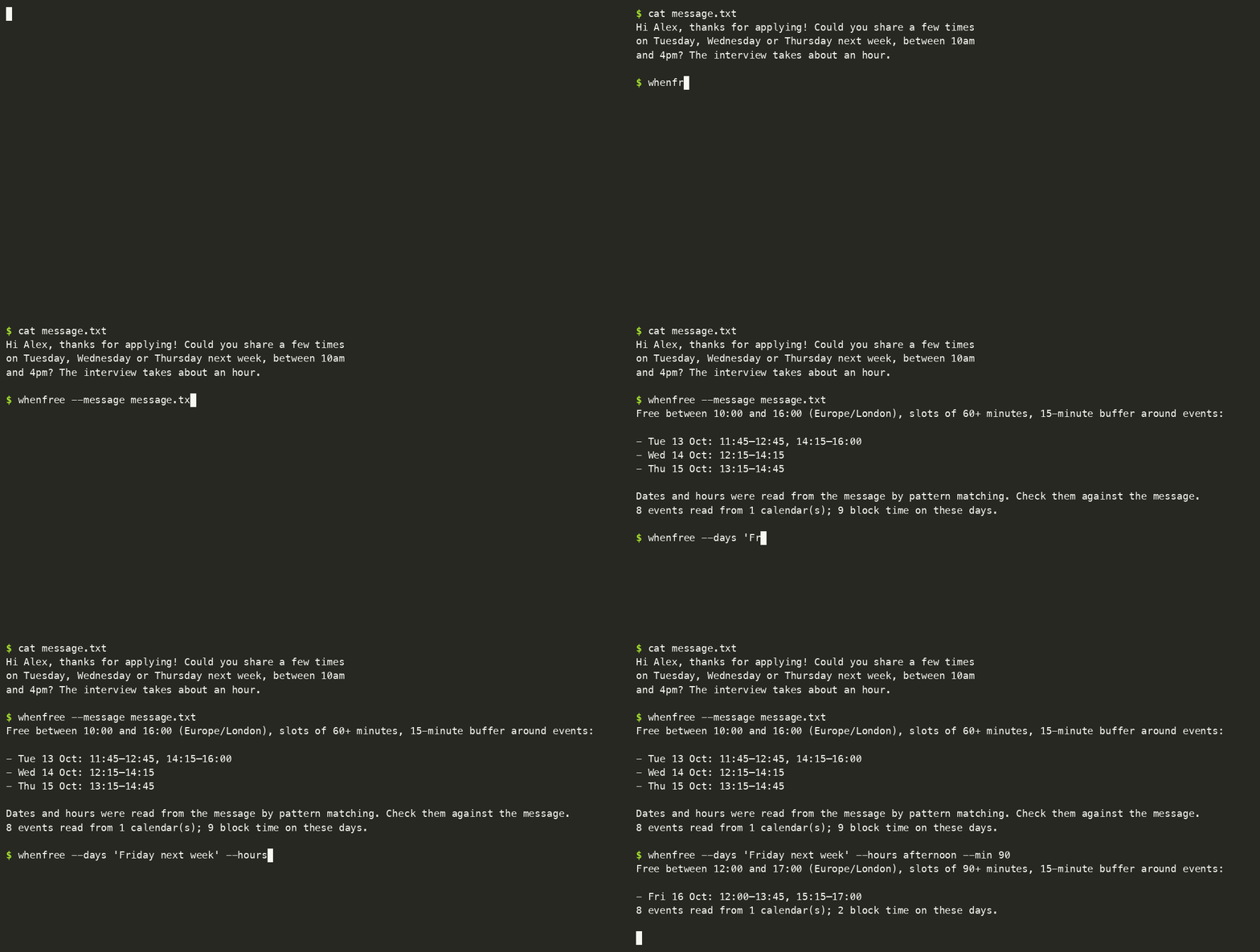
- Paste the message, get the slots. It reads "Tuesday or Wednesday next week, between 10am and 4pm" and answers for exactly those days and hours.
- Works with Google, Outlook and iCloud calendars, or any
.icsfile. Several calendars at once. - Private. It runs on your computer, needs no account and no API key, and never changes your calendar.
- Works from your AI tools too: Claude, Cursor and other MCP clients, Open WebUI, n8n, Shortcuts, scripts.
- And on your other devices: phones, tablets and watches, Home Assistant (and Alexa, Google Home, Siri through it), and the menu bar or status bar of macOS, Linux and Windows.
Contents
Try it · Add your calendar · Everyday use · Reading a message · Use it from other tools · Other devices · Privacy · Settings · What counts as busy · Limits · Problems
Try it in a minute
With uv, nothing to install first:
uvx when-free demo
To keep it (needs Python 3.11 or newer):
uv tool install when-free          # or: pipx install when-free
whenfree demo
Using Claude Desktop? You can skip all of this: install the one-click extension.
whenfree demo makes up a calendar for next week and answers a recruiter's message from it. It reads none of your data and saves nothing:
  > Hi! Thanks for applying. Could you share a few times on Tuesday, Wednesday or Thursday next week,
  > between 10am and 4pm? The interview takes about an hour.

  Free between 10:00 and 16:00 (Europe/London), slots of 60+ minutes, 15-minute buffer around events:
  - Tue 13 Oct: 11:45–12:45, 14:15–16:00
  - Wed 14 Oct: 12:15–14:15
  - Thu 15 Oct: 13:15–14:45
Add your calendar
-
Copy your calendar's private address. It's a link that ends in
.ics:Calendar Where to find it Google Calendar Settings → click your calendar on the left → Integrate calendar → Secret address in iCal format Outlook Settings → Calendar → Shared calendars → Publish a calendar → the ICS link iCloud Calendar → the share icon next to the calendar → Public Calendar (a webcal://link is fine)Anything else Any .icslink, or an exported.icsfile -
Run
whenfree addand paste it. The address isn't shown while you paste. It's checked first, and saved only if it works:$ whenfree add Paste the address and press Enter (it is not shown): Added 'personal': 412 events, 9 block time in the next 14 days. Saved in /Users/you/.config/when-free/config.toml, readable only by you. Now run: whenfree
-
Run
whenfree. You'll see your free time for the next working days.
On a Mac, pbpaste | whenfree add takes the address straight from the clipboard.
Keep the address secret. It works like a password: anyone who has it can read that calendar. Give it to
whenfree addand to nothing else, so not to a chat, a shell command or a repository. If it leaks, reset it in your calendar's settings.
Google Calendar, step by step
Do this in a browser, because the phone app doesn't show the address.
- Open Google Calendar settings: the gear icon, then Settings.
- In the left column, under Settings for my calendars, click the calendar you want. The one with your own name is where invitations arrive.
- Scroll down to Integrate calendar and copy Secret address in iCal format. It ends in
basic.ics. Don't take "Public address in iCal format", which only works for a calendar you've made public. - Run
whenfree addand paste it when asked.
No "Secret address"? Work and school accounts can have it switched off. Export the calendar instead (Settings → Import & export → Export), unzip it, and run whenfree add ~/calendars/work.ics. An export is a snapshot, so export again when your calendar changes.
More than one calendar
A slot counts as free only if it's free in every calendar you add.
whenfree add --name work                 # a second calendar: asks for its address
whenfree add ~/calendars/family.ics      # an exported file instead of an address
whenfree check                           # can every calendar be read?
They're kept in ~/.config/when-free/config.toml, one [[calendar]] block each, with a name and a url or path. You can edit that file by hand. whenfree init creates an empty one.
Everyday use
| You want | Run |
|---|---|
| Your free time over the next working days | whenfree |
| The days and hours a message asks about | pbpaste | whenfree --message - (Mac clipboard) or whenfree --message invite.txt |
| Next week's afternoons | whenfree --days "next week" --hours afternoon |
| Specific days | whenfree --days "Thu 15 Oct, Fri 16 Oct" |
| A date range | whenfree --from 2026-10-12 --to 2026-10-16 |
| Only slots long enough for a 90-minute meeting | whenfree --min 90 |
| To see what blocks each day | whenfree --busy |
| The answer in another time zone | whenfree --tz America/New_York |
| JSON for a script | whenfree --format json |
| To copy the answer | whenfree ... | pbcopy (only the slot lines are copied) |
Only the slot lines go to standard output. The context goes to standard error, so | pbcopy copies exactly what you'd paste into a reply.
Reading a message
--message finds the days and hours in ordinary text. It understands:
- Dates written in any common way:
Thu 1 Oct·Thursday the 1st of October·Monday, October 5th·5 October·2026-10-05·Wednesday 30th - Hours:
between 10:00am and 4:00pm·10:00–16:00·9-5pm·2 to 4 pm - Words, when there's no date (here, today is Thursday 1 Oct):
| Written | Read as |
|---|---|
today · tomorrow · the day after tomorrow |
Thu 1 · Fri 2 · Sat 3 Oct |
Thursday or Friday |
the coming ones, today included: Thu 1, Fri 2 Oct |
this Tuesday · next Tuesday |
Tuesday of this week (already past, so left out and named) · Tuesday of next week, Tue 6 Oct |
next week · this week · the week after next |
that week's working days, from today on |
Tuesday or Wednesday next week |
Tue 6, Wed 7 Oct |
any afternoon · Friday morning · evening |
12:00–17:00 · 09:00–12:00 · 17:00–20:00, unless hours are given |
It always tells you how it read the dates, so you can check them against the message. A few rules keep it from guessing:
- Explicit dates win. A heading like "Next week:" above "Wednesday 30th, Thursday 1st" doesn't add a whole week.
- "Good morning" is a greeting, not a time.
- Days already past are left out and named, never dropped silently. "Wednesday 30th" means the nearest Wednesday that's a 30th, so a message from last week reads as last week.
- Words count from today. For an older message that says "tomorrow", give the days yourself with
--days.
when-free never connects to your mailbox. You paste the message, pipe it in, or save it to a file.
Let your own language model read the message
If you run a model yourself, it can do the reading instead. Add this to the settings file:
[extract]
command = ["ollama", "run", "llama3.2"]          # the prompt is sent on standard input
# command = ["my-cli", "ask", "{prompt}"]        # or placed where {prompt} is
The command receives the message and must print JSON: {"days": ["2026-10-05"], "hours": "10:00-16:00", "minutes": 60}. If it fails, pattern matching is used instead. Nothing runs unless you configure it, and --no-extract skips it for one run. The message goes to whatever that command talks to, so use a local model for private text.
Use it from other tools
Every way gives the same answer, only reads, and leaves event titles out unless asked.
| Your tool | Use | Set up |
|---|---|---|
| Claude Desktop | One-click extension | double-click |
| Claude Code, with a skill that knows when to use it | Plugin | two commands |
| Claude Code, Cursor, VS Code, any MCP client | MCP server | one line |
| Raycast, a right-click on a message (macOS) | Recipes | a few minutes |
| Open WebUI, n8n, Shortcuts, Raycast, anything that calls a URL | Local HTTP server | whenfree serve |
| Your own agent with function calling | Schema and call | two commands |
| Python | The library | import whenfree |
Claude Code plugin
The plugin bundles the MCP server with a skill that tells Claude when to use it: when you ask about your availability, paste a message asking when you can meet, or before it proposes a time.
/plugin marketplace add YauhenBichel/when-free
/plugin install when-free@when-free
Then add your calendar once, if you have not yet: uvx when-free add.
MCP: Claude, Cursor and other assistants
claude mcp add when-free -- uvx when-free mcp # Claude Code
For Cursor and other MCP clients, add this to their server list. uvx fetches when-free the first time, so there's nothing to install:
{
  "mcpServers": {
    "when-free": { "command": "uvx", "args": ["when-free", "mcp"] }
  }
}
If you installed it with uv tool install, use "command": "whenfree", "args": ["mcp"] instead. It's also listed in the MCP registry as io.github.YauhenBichel/when-free.
Then just ask: "Here's the recruiter's message. Which of those times can I do?" The assistant calls free_slots and answers from your real calendar.
| Tool | What it does |
|---|---|
free_slots |
Free time per day. Takes days, or from and to, or a message, plus hours, min_minutes, buffer_minutes, timezone, weekends, all_day_busy, include_busy |
check_calendars |
Whether each calendar can be read, with event counts. No details, no addresses |
If a tool can't do its job, the assistant gets an error it can read ("could not read the calendar 'work'"), never a guess.
HTTP: Open WebUI, n8n, Shortcuts and scripts
whenfree serve # http://127.0.0.1:8765, only reachable from this computer
curl -H "Authorization: Bearer $(cat ~/.config/when-free/token)" \
  'http://127.0.0.1:8765/free_slots?days=next%20week&hours=afternoon'
POST /free_slotswith a JSON body, orGETwith a query string. Same for/check_calendars.- The answer is
{"ok": true, "text": "...", "data": {...}}, or{"ok": false, "error": "..."}with status 400. - OpenAPI description at
/openapi.json. To set up Open WebUI, n8n or Shortcuts, see the recipes. - The token is created on first run and kept in
~/.config/when-free/token, readable only by you. Or set your own withWHENFREE_TOKEN. Every tool call needs it. - Requests addressed to any host other than this computer are refused. A web page may call it only from an origin you allow:
whenfree serve --allow-origin http://localhost:3000. With--host 0.0.0.0it's reachable from your network, and the token alone protects it, so use that only on a network you trust.
Function-calling harnesses
whenfree schema                    # the tool definitions: name, description, inputSchema
whenfree schema --format openai    # the same, as {"type": "function", "function": {...}}
whenfree call free_slots --args '{"days": "next week", "hours": "10:00-16:00"}'
whenfree call prints {"ok": true, "text": "...", "data": {...}}, or {"ok": false, "error": "..."} with exit code 1. Arguments can also come on standard input.
Python
from whenfree import api

result = api.find_free(api.Query(days="next week", hours="10:00-16:00", min_minutes=45))
for day in result["days"]:
    print(day["label"], day["free"])          # for example: Mon 12 Oct [['10:00', '11:45'], ['13:15', '16:00']]
find_free returns plain dicts and lists, ready for json.dumps, and raises api.Problem with a message that's safe to show. Pass reader= to supply calendar text yourself instead of fetching it.
On your other devices
| Device | Start with | Guide |
|---|---|---|
| iPhone, iPad, Android, watches | whenfree serve --lan, then whenfree devices add "My phone" and scan the QR code |
Phones and tablets |
| Home Assistant, Alexa, Google Home, Siri, busy lights | whenfree mqtt --broker mqtt://homeassistant.local |
Smart home and voice |
| macOS menu bar, Waybar, i3blocks, Polybar, GNOME, Windows tray | whenfree now --format xbar (or waybar, i3blocks, …) |
Desktop status bars |
$ whenfree now
Busy until 15:30 · next free 15:45–17:00
Devices see whether you're free and your free slots, never event titles. Each phone has its own token that you can revoke, and an unreadable calendar shows as "unknown", never "free".
Privacy
- It runs on your computer. It fetches your calendar feeds and nothing else. It never writes to a calendar and never sends a message.
- Your calendar address stays secret. It's never printed, isn't shown while you paste it, and is stored in a file only you can read. Errors name the calendar ("personal"), never its address.
- Assistants see free time, not your events. Event titles are left out unless the assistant asks with
include_busy, and that option's description tells the model that titles are private. No tool can add, change or delete anything, and no tool takes a calendar address, which goes from you towhenfree addonly.
Settings
All optional except a calendar. They live in ~/.config/when-free/config.toml, and command-line flags win over the file.
| Setting | Default | Flag | Meaning |
|---|---|---|---|
timezone |
your system's | --tz |
The zone the answer is given in, like Europe/London |
hours |
09:00-18:00 |
--hours |
The part of the day you offer. Also morning, afternoon, evening |
min_minutes |
60 |
--min |
Shortest slot worth offering |
buffer_minutes |
15 |
--buffer |
Kept free before and after every event |
weekends |
false |
--weekends |
Include Saturday and Sunday in a date range |
all_day_busy |
false |
--all-day-busy |
Whole-day events block the day |
days_ahead |
7 |
Working days shown when you give no dates | |
me |
[] |
Your email addresses, so invitations you declined don't block | |
[[calendar]] |
--calendar |
name and url or path. One block per calendar; whenfree add writes them |
|
[extract] command |
none | --no-extract |
A command that reads a message with your own model |
Environment variables
For scripts, containers and MCP client configurations. All optional.
| Variable | Meaning |
|---|---|
WHENFREE_CALENDARS |
Comma-separated calendar addresses or paths. Replaces the file's list. Sensitive: see below |
WHENFREE_CONFIG |
Path to the settings file |
XDG_CONFIG_HOME |
Where the settings file is looked for when WHENFREE_CONFIG isn't set: $XDG_CONFIG_HOME/when-free/config.toml, otherwise ~/.config/when-free/config.toml |
WHENFREE_TZ |
The zone the answer is given in. Wins over timezone in the file |
TZ |
Your system's zone, used when neither of the above gives one |
WHENFREE_TOKEN |
The token for whenfree serve, instead of the token file. Sensitive |
WHENFREE_NOW |
An ISO date-time to use as "now", so a run can be reproduced |
WHENFREE_CALENDARS holds passwords. A private calendar address lets anyone who has it read that calendar. Treat the variable like an API key: keep it out of shared shell profiles, committed MCP configurations, CI logs and screenshots. The settings file whenfree add writes is readable only by you, so use it instead where you can.
What counts as busy
| In your calendar | Blocks time? |
|---|---|
| An ordinary event | Yes, plus the buffer on both sides |
| An event marked Free | No |
| A cancelled event | No |
An invitation you declined (your address in me) |
No |
| A whole-day event | No, unless all_day_busy = true. Then yes, unless it's marked Free |
| A repeating event | Each occurrence, with skipped dates skipped and moved ones where they were moved to |
A slot shorter than min_minutes after the buffers isn't offered. For today, the day starts at the next quarter hour, not in the past.
Limits
- It reads; it doesn't book. It never writes to a calendar and never sends a message.
- It's as fresh as the feed. Google refreshes the secret address with some delay, so an event added a minute ago may be missing. Run
whenfree --busyto see what it saw. - Every calendar or none. If one calendar can't be read, no slots are shown, because busy time would look free.
- Repeating events. Daily, weekly, monthly (by date, or "first Monday", "last Friday") and yearly rules are expanded, with intervals, end dates, counts, skipped dates and moved occurrences. Rarer rules (
BYSETPOS, week numbers) aren't. For those the first date is blocked and a note says so. - Time zones come from the events. A zone name the time zone database doesn't know (some Outlook exports) is read in your own zone.
If something does not work
| What you see | What to do |
|---|---|
No calendar is configured |
Run whenfree add. If you edited the file by hand, the url line is still empty or the file wasn't saved; the message names the file |
could not read the calendar 'personal' (...) |
The address is incomplete or isn't the secret one; the message says which when it can tell. Copy it again with the copy button |
returned a web page, not a calendar or did not return iCalendar data |
That link isn't a calendar feed. It should end in .ics |
Nothing was saved |
whenfree add couldn't read the calendar, so nothing changed. Fix the address and run it again |
| No "Secret address" in Google's settings | Your organisation switched it off. Export the calendar instead: see Google Calendar, step by step |
| An event you just added is missing | The feed refreshes with a delay. See Limits |
| A meeting doesn't block time | Run whenfree --busy to see what was read. Declined invitations, events marked Free and whole-day events don't block; see What counts as busy |
whenfree check |
Says whether every calendar can be read, at any time |
Development
uv run --with pytest pytest -q # a few seconds; no network
The tests use a small calendar in tests/data/sample.ics and a fixed clock (WHENFREE_NOW). The code is grouped by component:
| Component | Holds | May use |
|---|---|---|
core/ |
ical, slots, status, render, errors: events, busy time, free slots, where you stand now, the wording. No input or output |
nothing |
messages/ |
dates, extract: days and hours read out of a message |
core |
settings/ |
config: the settings file and environment variables |
nothing |
calendars/ |
sources: calendars fetched from an address or read from a file |
core, settings |
api.py |
find_free, status, check_calendars: the one entry point for every front end |
the four above |
agents/ |
tools, mcp: the tools offered to AI agents, and the MCP server |
api, core |
web/ |
server: the HTTP front end, for tools and phones |
api, agents, devices, calendars, core, settings |
devices/ |
widgets, pairing, feed, qr, mobile/: status bars, phone pairing, the calendar feed, the phone page |
api, core, settings |
smarthome/ |
mqtt, homeassistant: MQTT publishing with Home Assistant discovery |
api, core |
cli/ |
main, demo: the whenfree command |
anything |
tests/test_structure.py fails if a component imports one it may not, so the domain stays free of front ends.
See CONTRIBUTING.md.
Licence
Apache-2.0.
1 maintainer

Metadata
1 maintainer
Release files for when-free 0.4.0
For a detailed explanation of source distributions (sdists) and built distributions (wheels), please see the package formats documentation.
Source distribution (sdist)
| File | Size | Uploaded | |
|---|---|---|---|
| when_free-0.4.0.tar.gz | 86.0 kB | Details |
Built distribution (wheel)
| File | Interpreter | ABI | Platform | Reset |
|---|---|---|---|---|
| when_free-0.4.0-py3-none-any.whl | Python 3 | none | any | Details |
Total release size: 164.4 kB
Release files / when_free-0.4.0.tar.gz
| Download URL | when_free-0.4.0.tar.gz |
|---|---|
| Size | 86.0 kB |
| Tags | Source |
|
SHA-256 checksum How to use checksums |
0e0e47a98fc46221e3873fd25092ce121af6e15a8e06b45ecb30233c7d3a43dd
|
|
BLAKE2b-256 checksum How to use checksums |
aa450b4f1f1b6af83916c8b3472553ad0225e090b9c76a1e06719104fff3613a
|
| Upload date | |
|
Uploaded using Trusted Publishing? What is trusted publishing? |
Yes |
| Uploaded via |
twine/7.0.0 CPython/3.13.14
|
Provenance
Provenance describes where a file came from. On PyPI, provenance is shared via attestations, which provide a verifiable record of the build or publishing details. View details, limitations and caveats.


PyPI Publish Attestation
PyPI verified that this artifact, at this checksum, originated from the publisher listed below.
Signed by GitHub Actions, verified by PyPI on Oct 8, 2026.
Transparency logRelease files / when_free-0.4.0-py3-none-any.whl
| Download URL | when_free-0.4.0-py3-none-any.whl |
|---|---|
| Size | 78.3 kB |
| Tags | Python 3 |
|
SHA-256 checksum How to use checksums |
4e094cfa97f48cd46317481bcafc8cc35b0ae40b38e458c800d955db6a471df2
|
|
BLAKE2b-256 checksum How to use checksums |
c697473e4f879ae8dd585ae946a89fcac67854b42e5915601ceccab6f925fbfd
|
| Upload date | |
|
Uploaded using Trusted Publishing? What is trusted publishing? |
Yes |
| Uploaded via |
twine/7.0.0 CPython/3.13.14
|
Provenance
Provenance describes where a file came from. On PyPI, provenance is shared via attestations, which provide a verifiable record of the build or publishing details. View details, limitations and caveats.
PyPI Publish Attestation
PyPI verified that this artifact, at this checksum, originated from the publisher listed below.
Signed by GitHub Actions, verified by PyPI on Oct 8, 2026.
Transparency log












