
Wi-Fi Lab Controller: Safe WiFi testing toolkit with scanning, fake AP, DNS redirection.

Project description
WiFi-Lab-Controller




📘 Wi-Fi Lab Controller — User Manual & README
It includes:
- ✅ README
- ✅ Installation Guide
- ✅ Features List
- ✅ Usage Manual (per tab)
- ✅ Legal & Safety Notes
- ✅ Requirements
- ✅ Troubleshooting
- ✅ Author & Credits
A GUI‑based Wi‑Fi learning and testing toolkit created by Mohammed Zahid Wadiwale 🌐 https://www.webaon.com
📌 What Is Wi‑Fi Lab Controller?
Wi‑Fi Lab Controller is an educational GUI toolkit that allows you to experiment with Wi‑Fi functions safely on your own equipment.
It is made for:
- Raspberry Pi
- Parrot OS
- Kali Linux
- Ubuntu (with wireless tools installed)
- Any Linux system with aircrack‑ng, hostapd, dnsmasq, and NetworkManager
❗ This tool is strictly for lab experiments on your own Wi‑Fi network.
It does NOT include any malicious intent — all functions require manual confirmation and can be restored with the End Attack / Restore Normal button.
📥 Installation
Install required dependencies:
sudo apt update
sudo apt install python3 python3-tk aircrack-ng hostapd dnsmasq network-manager xdg-utils
Clone your repository:
git clone https://github.com/ZahidServers/WiFi-Lab-Controller.git
cd Wifi-Lab-Controller
cd wifilab
Run:
sudo python3 app.py
(root or sudo required)
📥 Installation (Linux / Parrot / Kali / Debian / Ubuntu / Raspberry Pi OS) via PyiPi
🔧 Required System Packages
sudo apt update
sudo apt install -y python3 python3-tk aircrack-ng hostapd dnsmasq network-manager xdg-utils
🐍 Install from PyPI (Recommended)
pip install wifilab
⚠️ Note for Debian/Kali/Parrot/Raspberry Pi OS
If you see:
error: externally-managed-environment
Use pipx or a virtual environment:
▶️ Option 1 — Using pipx (Best)
sudo apt install pipx
pipx ensurepath
pipx install wifilab
wifilab
▶️ Option 2 — Using Virtual Environment
python3 -m venv venv
source venv/bin/activate
pip install wifilab
python -m wifilab
⚠️ Not Recommended
pip install wifilab --break-system-packages
🚀 Running
wifilab
or
python -m wifilab
🧰 Features Overview
| Feature | Description |
|---|---|
| Mode 1 — Safe Disconnect + Fake AP | Restarts Wi‑Fi + starts your test AP |
| Mode 2 — Fake AP Only | Runs hostapd & dnsmasq |
| Mode 3 — Scan 2.4 GHz | Monitor mode + airodump scan + DeAuth |
| Mode 4 — Scan 5 GHz | Monitor mode + airodump scan + DeAuth |
| Network Table | Shows BSSID, Channel, Band, ESSID |
| Click-to-Select Networks | User must confirm selection |
| Automated Restore System | Stops AP, clears dnsmasq, flushes iptables |
| Domain Redirection | Add dnsmasq rules easily |
| NAT Routing | Enable local routing for fake AP |
| About Tab | Credits, website links, support info |
📘 Using Wi‑Fi Lab Controller (Tabs Explained)
🏠 1. Home Tab
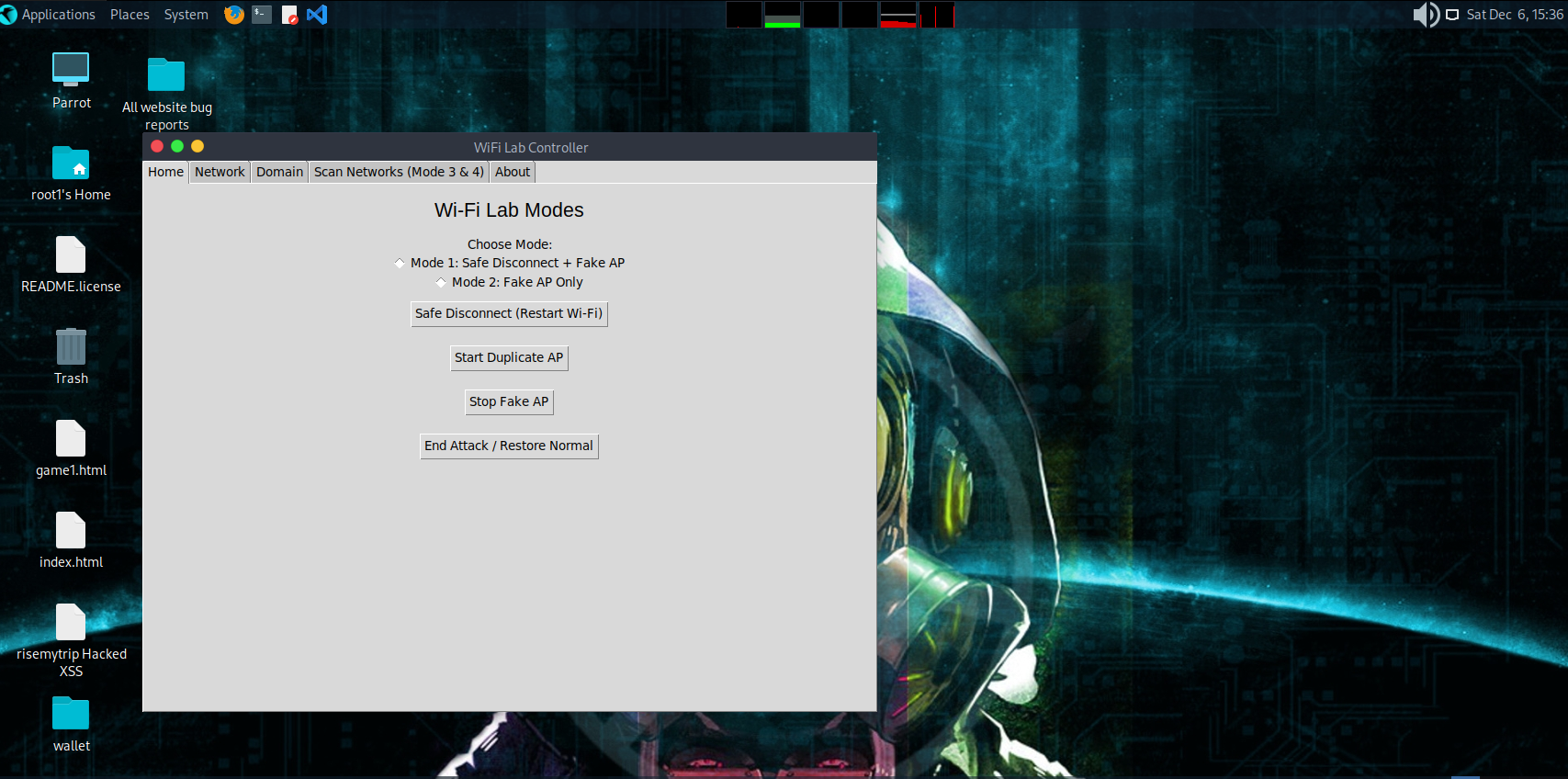
Mode 1: Safe Disconnect + Fake AP
- Restarts Wi‑Fi interface
- Starts your configured hostapd fake AP
- Starts dnsmasq DHCP
Mode 2: Fake AP Only
Starts hostapd + dnsmasq without restarting Wi‑Fi.
Safe Disconnect
Equivalent to:
ip link set wlan0 down
sleep 2
ip link set wlan0 up
Start Duplicate AP
Starts hostapd & dnsmasq.
Stop Fake AP
Stops hostapd & dnsmasq.
End Attack / Restore Normal
Restores EVERYTHING to default:
✔ Stops fake AP ✔ Stops dnsmasq ✔ Clears dnsmasq.conf ✔ Flushes iptables ✔ Restarts Wi‑Fi ✔ Restarts NetworkManager
If anything breaks, this button fixes it.
🌐 2. Network Tab
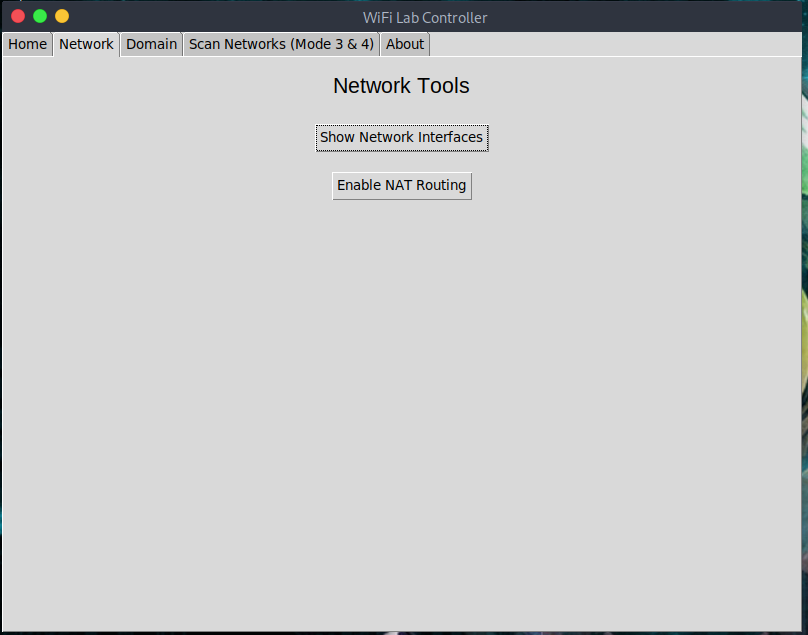
Show Network Interfaces
Runs:
ip a
Enable NAT Routing
Adds a MASQUERADE rule for sharing internet:
iptables -t nat -A POSTROUTING -o eth0 -j MASQUERADE
🧭 3. Domain Redirection Tab
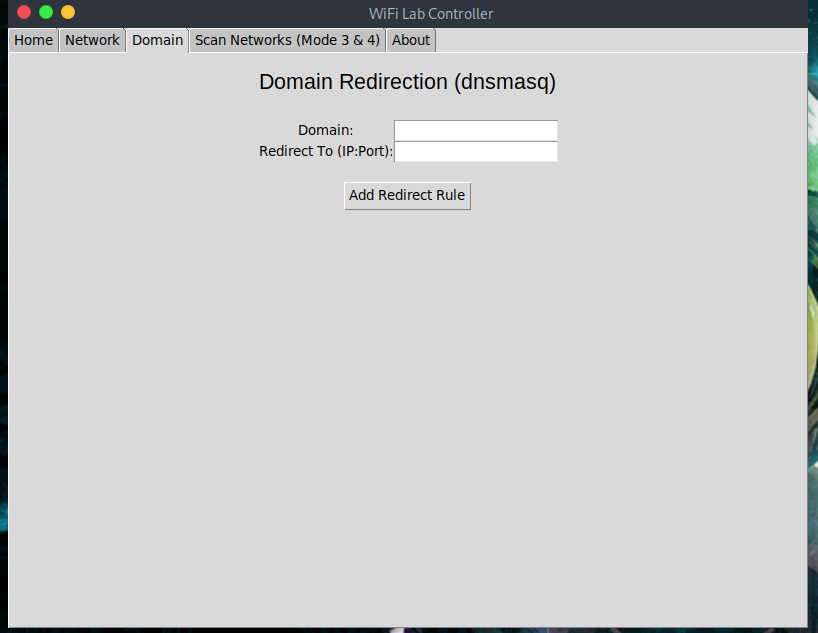
You can add:
address=/example.com/192.168.1.10
Useful for:
- Phishing lab practice (on your own machines only)
- Local DNS tests
- Redirecting domains to internal servers
After adding a rule, dnsmasq restarts automatically.
📡 4. Scan Networks (Mode 3 & 4)
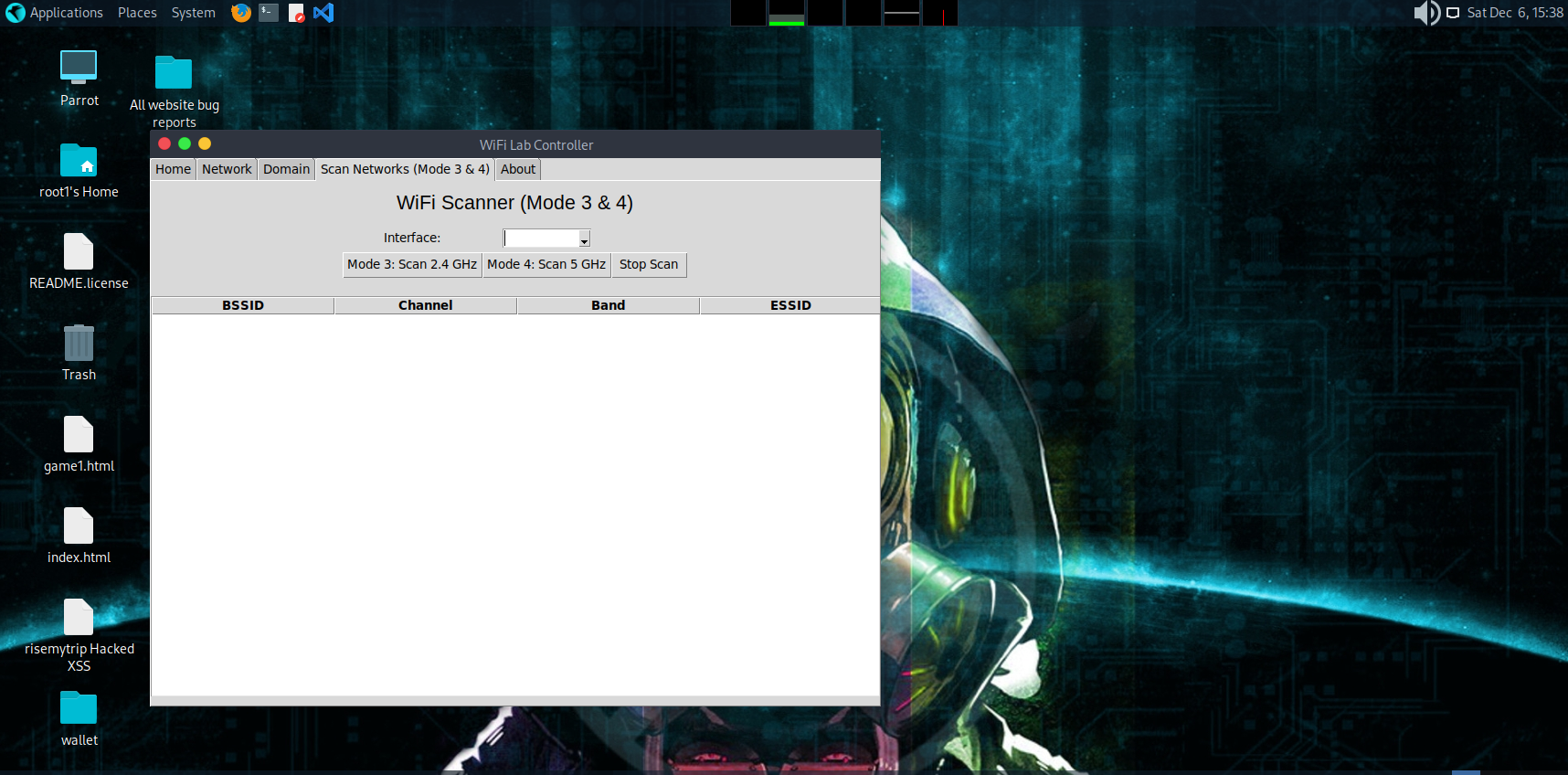
Requirements
Your Wi‑Fi card must support:
- Monitor Mode
- Packet injection
(usb cards: Alfa, TP‑Link T2U, T9UH, AC600, etc.)
Modes
| Mode | Function |
|---|---|
| Mode 3 | Scans 2.4 GHz (bg band) |
| Mode 4 | Scans 5 GHz (a band) |
How Scanning Works
- Puts interface into monitor mode via airmon-ng
- Runs airodump‑ng
- Reads output CSV in live mode
- Updates table automatically every 2 seconds
- Auto‑stops after 10 seconds unless manually stopped
Click‑to‑Select Network
When you click a row:
A CONFIRM BOX appears:
Do you want to select this network?

Interface: wlan0
BSSID: XX:XX:XX:XX
Channel: 6
Band: 2.4
ESSID: MyWifi
If user clicks OK:
- Channel is set
- (Optional/Disable) deauth function runs if enabled
If user clicks Cancel:
- Nothing happens
ℹ️ 5. About Tab
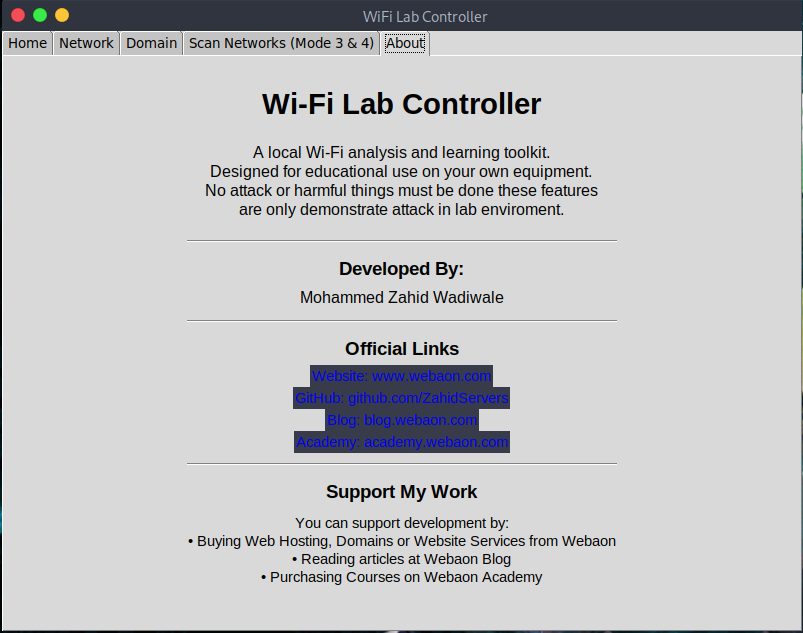
- App description
- Author info
- Website links
- GitHub
- Blog
- Academy
- Support information
- Copyright
❗ Legal & Safety Notice
This toolkit is for EDUCATIONAL & LAB USE ONLY.
You MUST:
✔ Only test on your own Wi‑Fi ✔ Not use on public Wi‑Fi ✔ Not test on neighbors, hotels, offices, or any unauthorized network
The tool includes features that demonstrate how Wi-Fi attacks work — they are meant for cybersecurity learning only.
🛠 Requirements
- Linux OS
- Python 3
- Python tkinter
- aircrack-ng
- hostapd
- dnsmasq
- xdg-utils
- Wireless card supporting monitor mode / AP mode
🐞 Troubleshooting
Problem: "Cannot find device wlan0"
Solutions:
- Replace with your interface name (use
ip a) - Many systems use
wlp3s0,wlan1, etc.
Monitor Mode Not Starting
-
Use compatible wireless adapter
-
Try:
sudo airmon-ng check kill
Fake AP not starting
Check hostapd.conf and dnsmasq.conf syntax.
Network breaks
Click End Attack / Restore Normal.
👨💻 Author
Developed by:
👉 Mohammed Zahid Wadiwale
- 🌐 Website — https://www.webaon.com
- 💻 GitHub — https://github.com/ZahidServers
- 📰 Blog — https://blog.webaon.com
- 🎓 Academy — https://academy.webaon.com
Support development by buying:
- Hosting
- Domains
- Websites
- Cybersecurity services
- Courses


Download files
Download the file for your platform. If you're not sure which to choose, learn more about installing packages.
Source Distribution
Built Distribution
Filter files by name, interpreter, ABI, and platform.
If you're not sure about the file name format, learn more about wheel file names.
Copy a direct link to the current filters
File details
Details for the file wifilab-1.1.1.tar.gz.
File metadata
- Download URL: wifilab-1.1.1.tar.gz
- Upload date:
- Size: 12.7 kB
- Tags: Source
- Uploaded using Trusted Publishing? No
- Uploaded via: twine/6.2.0 CPython/3.11.14
File hashes
| Algorithm | Hash digest | |
|---|---|---|
| SHA256 |
b6cd04c6463834ea03acd91faf3cffc8471a5b5c95a96d39551610305594ccfd
|
|
| MD5 |
853b6fba9cc9c66bba90bce3d9894942
|
|
| BLAKE2b-256 |
30842a1f25f248f00204782a95cc7e97c21d91c1a28ef88e9b229f22cc242a5c
|
File details
Details for the file wifilab-1.1.1-py3-none-any.whl.
File metadata
- Download URL: wifilab-1.1.1-py3-none-any.whl
- Upload date:
- Size: 10.6 kB
- Tags: Python 3
- Uploaded using Trusted Publishing? No
- Uploaded via: twine/6.2.0 CPython/3.11.14
File hashes
| Algorithm | Hash digest | |
|---|---|---|
| SHA256 |
5f92a819512730ded0b83652e510873c72f9c4ffbc34ec259b3f9e320c55f9a6
|
|
| MD5 |
fb2b4f71e085953d658f69f7ad548534
|
|
| BLAKE2b-256 |
47412704a429c3ab7c522fe3c6b051f6781eeb56f50df1eca9b3b2c8eb8f3064
|






